SIOS SANless clusters

SIOS SANless clusters High-availability Machine Learning monitoring

  • Home
  • Products
    • SIOS DataKeeper for Windows
    • SIOS Protection Suite for Linux
  • News and Events
  • Clustering Simplified
  • Success Stories
  • Contact Us
  • English
  • 中文 (中国)
  • 中文 (台灣)
  • 한국어
  • Bahasa Indonesia
  • ไทย

A Guide To Configure A SQL Server Failover Cluster Instance in Azure

March 31, 2019 by Jason Aw Leave a Comment

Step-By-Step: How To Configure A SQL Server 2008 R2 Failover Cluster Instance in Azure

If you need a guide Configure A SQL Server Failover Cluster Instance in Azure, you probably are still using SQL Server 2008/2008 R2. And, want to take advantage of the extended security updates that Microsoft is offering if you move your SQL Server 2008/2008 R2 into Azure. I previously wrote about this topic in this blog post.

You may be wondering how to make sure your SQL Server Failover Cluster instance remains highly available once you make the move to Azure. Today, most people have business critical SQL Server 2008/2008 R2 configured as a clustered instance (SQL Server FCI) in their data center. When looking at Azure you have probably come to the realization that due to the lack of shared storage it might seem that you can’t bring your SQL Server FCI to the Azure cloud. However, that is not the case thanks to SIOS DataKeeper.

SIOS DataKeeper enables you to build a SQL Server Failover Cluster instance in Azure, AWS, Google Cloud, or anywhere else where shared storage is not available or where you wish to configure multi-site clusters where shared storage doesn’t make sense. DataKeeper has been enabling SANless clusters for Windows and Linux since 1999. Microsoft documents the use of SIOS DataKeeper for SQL Server Failover Cluster instance in their documentation: High availability and disaster recovery for SQL Server in Azure Virtual Machines.

I’ve written about SQL Server FCI’s running in Azure before, But I never published a Step-by-Step Guide specific to SQL Server 2008/2008 R2. The good news is that it works just as great with SQL 2008/2008 R2 as it does with SQL 2012/2014/2016/2017 and the soon to be released 2019. Also, regardless of the version of Windows Server (2008/2012/2016/2019) or SQL Server (2008/2012/2014/2016/2017) the configuration process is similar enough that this guide should be sufficient enough to get you through any configurations.

If your flavor of SQL or Windows is not covered in any of my guides, don’t be afraid to jump in and build a SQL Server FCI and reference this guide, I think you will figure out any differences and if you ever get stuck just reach out to me on Twitter @daveberm and I’ll be glad to give you a hand.

This guide uses SQL Server 2008 R2 with Windows Server 2012 R2. As of the time of this writing I did not see an Azure Marketplace image of SQL 2008 R2 on Windows Server 2012 R2, so I had to download and install SQL 2008 R2 manually. Personally I prefer this combination, but if you need to use Windows Server 2008 R2 or Windows 212 that is fine. If you use Windows Server 2008 R2 don’t forget to install the kb3125574Convenience Rollup Update for Windows Server 2008 R2 SP1. Or if you are stuck with Server 2012 (not R2) you need the Hotfix in kb2854082.

Don’t be fooled by this article that says you must install kb2854082 on your SQL Server 2008 R2 instances. If you start searching for that update for Windows Server 2008 R2 you will find that only the version for Server 2012 is available. That particular hotfix for Server 2008 R2 is instead included in the rollup Convenience Rollup Update for Windows Server 2008 R2 SP1.

PROVISION AZURE INSTANCES

I’m not going to go into great detail here with a bunch of screenshots, especially since the Azure Portal UI tends to change pretty frequently, so any screenshots I take will get stale pretty quickly. Instead, I will just cover the important topics that you should be aware of.

FAULT DOMAINS OR AVAILABILITY ZONES?

In order to ensure your SQL Server instances are highly available, you have to make sure your cluster nodes reside in different Fault Domains (FD) or in different Availability Zones (AZ). Not only do your instances need to reside in different FDs or AZs, but your File Share Witness (see below) also needs to reside in a FD or AZ that is different than that one your cluster nodes reside in.

Here is my take on it. AZs are the newest Azure feature, but they are only supported in a handful of regions so far. AZs give you a higher SLA (99.99%) then FDs (99.95%), and protect you against the kind of cloud outages I describe in my post Azure Outage Post-Mortem. If you can deploy in a region that supports AZs then I recommend you use AZs.

In this guide I used AZs which you will see when you get to the section on configuring the load balancer. However, if you use FDs everything will be exactly the same, except the load balancer configuration will reference Availability Sets rather than Availability Zones.

WHAT IS A FILE SHARE WITNESS YOU ASK?

Without going into great detail, Windows Server Failover Clustering (WSFC) requires you configure a “Witness” to ensure failover behaves properly. Windows Server Failover Clustering supports three kinds of witnesses: Disk, File Share, Cloud. Since we are in Azure a Disk Witness is not possible. Cloud Witness is only available with Windows Server 2016 and later, so that leaves us with a File Share Witness. If you want to learn more about cluster quorums check out my post on the Microsoft Press Blog, From the MVPs: Understanding the Windows Server Failover Cluster Quorum in Windows Server 2012 R2

ADD STORAGE TO YOUR SQL SERVER INSTANCES

As you provision your SQL Server instances you will want to add additional disks to each instance. Minimally you will need one disk for the SQL Data and Log file, one disk for Tempdb. Whether or not you should have a separate disk for log and data files is somewhat debated when running in the cloud. On the back end the storage all comes from the same place and your instance size limits your total IOPS. In my opinion there really isn’t any value in separating your log and data files since you cannot ensure that they are running on two physical sets of disks. I’ll leave that for you to decide, but I put log and data all on the same volume.

Normally a SQL Server 2008 R2 FCI would require you to put tempdb on a clustered disk. However, SIOS DataKeeper has this really nifty feature called a DataKeeper Non-Mirrored Volume Resource. This guide does not cover moving tempdb to this non-mirrored volume resource, but for optimal performance you should do this. There really is no good reason to replicate tempdb since it is recreated upon failover anyway.

As far as the storage is concerned you can use any storage type, but certainly use Managed Disks whenever possible. Make sure each node in the cluster has the identical storage configuration. Once you launch the instances you will want to attach these disks and format them NTFS. Make sure each instance uses the same drive letters.

NETWORKING

It’s not a hard requirement, but if at all possible use an instance size that supports accelerated networking. Also, make sure you edit the network interface in the Azure portal so that your instances use a static IP address. For clustering to work properly you want to make sure you update the settings for the DNS server so that it points to your Windows AD/DNS server and not just some public DNS server.

SECURITY

By default, the communications between nodes in the same virtual network are wide open, but if you have locked down your Azure Security Group you will need to know what ports must be open between the cluster nodes and adjust your security group. In my experience, almost all the issues you will encounter when building a cluster in Azure are either caused by blocked ports.

DataKeeper has some some ports that are required to be open between the clustered instance. Those ports are as follows:
UDP: 137, 138
TCP: 139, 445, 9999, plus ports in the 10000 to 10025 range

Failover cluster has its own set of port requirements that I won’t even attempt to document here. This article seems to have that covered. http://dsfnet.blogspot.com/2013/04/windows-server-clustering-sql-server.html

In addition, the Load Balancer described later will use a probe port that must allow inbound traffic on each node. The port that is commonly used and described in this guide is 59999.

And finally if you want your clients to be able to reach your SQL Server instance you want to make sure your SQL Server port is open, which by default is 1433.

Remember, these ports can be blocked by the Windows Firewall or Azure Security Groups, so to be sure to check both to ensure they are accessible.

JOIN THE DOMAIN

A requirement for SQL Server 2008 R2 FCI is that the instances must reside in the same Windows Server Domain. So if you have not done so, make sure you have joined the instances to your Windows domain

LOCAL SERVICE ACCOUNT

When you install DataKeeper, it will ask you to provide a service account. You must create a domain user account and then add that user account to the Local Administrators Group on each node. When asked during the DataKeeper installation, specify that account as the DataKeeper service account. Note – Don’t install DataKeeper just yet!

DOMAIN GLOBAL SECURITY GROUPS

You will be asked to specify two Global Domain Security Groups as you install SQL 2008 R2. You might want to look ahead at the SQL install instructions and create those groups now. Also, create a domain user account and place them in each of these security accounts. You will specify this account as part of the SQL Server Cluster installation.

OTHER PRE-REQUISITES

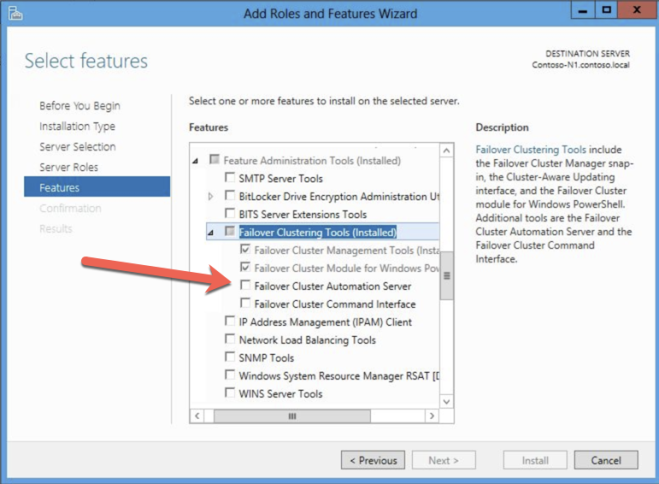
You must enable both Failover Clustering and .Net 3.5 on each instance of the two cluster instances. When you enable Failover Clustering, also be sure to enable the optional “Failover Cluster Automation Server”. This is required for a SQL Server 2008 R2 cluster in Windows Server 2012 R2.
CREATE THE CLUSTER AND DATAKEEPER VOLUME RESOURCES

We are now ready to start building the cluster. The first step is to create the base cluster. Because of the way Azure handles DHCP, we MUST create the cluster using Powershell and not the Cluster UI. We use Powershell because it will let us specify a static IP address as part of the creation process. If we used the UI, it would see that the VMs use DHCP and it will automatically assign a duplicate IP address. Therefore to avoid that situation, let’s use the Powershell as shown below.

New-Cluster -Name cluster1 -Node sql1,sql2 -StaticAddress 10.0.0.100 -NoStorage
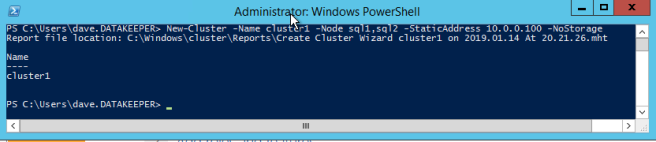
After the cluster creates, run Test-Cluster. This is required before SQL Server will install.

Test-Cluster

You will get warnings about Storage and Networking. Thankfully, you can ignore those as they are expected in a SANless cluster in Azure. However, address any other warnings or errors before moving on.

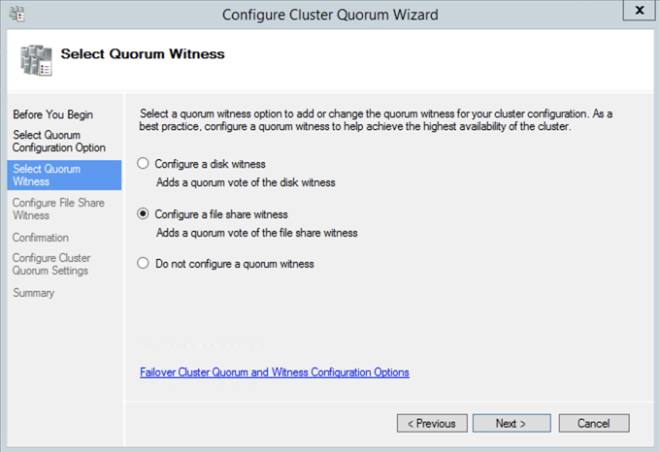
After the cluster is created, you will need to add the File Share Witness. On the third server we specified as the file share witness, create a file share and give Read/Write permissions to the cluster computer object we just created above. In this case $Cluster1 will be the name of the computer object that needs Read/Write permissions at both the share and NTFS security level.

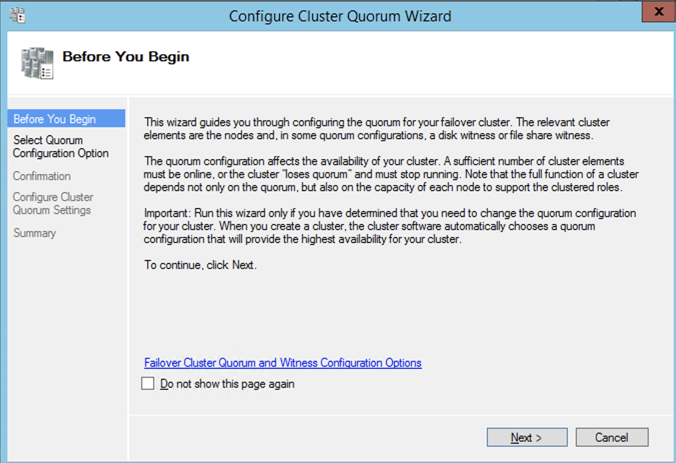
Once the share is created, you can use the Configure Cluster Quorum Wizard as shown below to configure the File Share Witness.
INSTALL DATAKEEPER

It is important to wait until the basic cluster is created before we install DataKeeper, since the DataKeeper installation registers the DataKeeper Volume Resource type in failover clustering. If you jumped the gun and installed DataKeeper already that is okay. Simply run the setup again and choose Repair Installation.

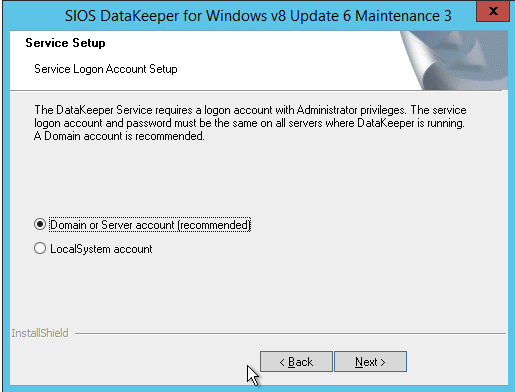
The screenshots below walk you through a basic installation. Start by running the DataKeeper Setup.

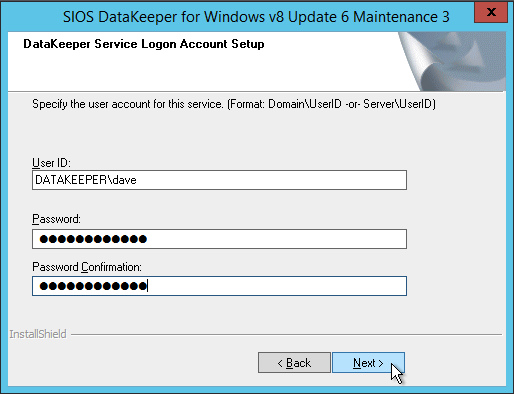
The account you specify below must be a domain account. It must be part of the Local Administrators group on each of the cluster nodes.
When presented with the SIOS License Key manager you can browse out to your temporary key. Or if you have a permanent key, you can copy the System Host ID and use that to request your permanent license. If you ever need to refresh a key, the SIOS License Key Manager is a program that will be installed that you can run separately to add a new key.

CREATE DATAKEEPER VOLUME RESOURCE

Once DataKeeper is installed on each node you are ready to create your first DataKeeper Volume Resource. The first step is to open the DataKeeper UI and connect to each of the cluster nodes.

If everything is done correctly the Server Overview Report should look something like this.

You can now create your first Job as shown below.
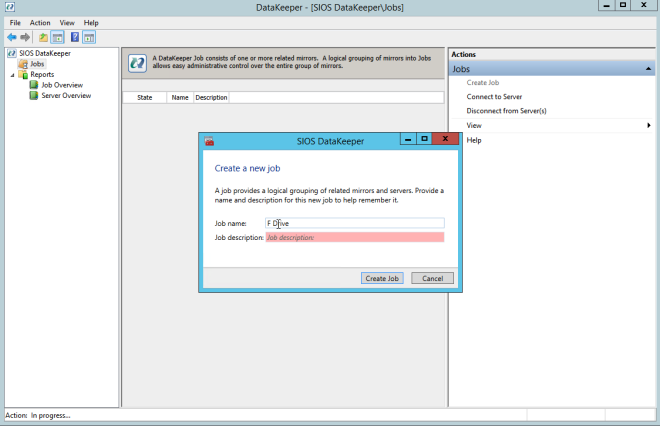
After you choose a Source and Target you are presented with the following options. For a local target in the same region, the only thing you need to select is Synchronous.

Choose Yes and auto-register this volume as a cluster resource.

Once you complete this process open up the Failover Cluster Manager and look in Disk. You should see the DataKeeper Volume resource in Available Storage. At this point WSFC treats this as if it were a normal cluster disk resource.

SLIPSTREAM SP3 ONTO SQL 2008 R2 INSTALL MEDIA

SQL Server 2008 R2 is only supported on Windows Server 2012 R2 with SQL Server SP2 or later. Unfortunately, Microsoft never released a SQL Server 2008 R2 installation media that that includes SP2 or SP3. Instead, you must slipstream the service pack onto the installation media BEFORE you do the installation. If you try to do the installation with the standard SQL Server 2008 R2 media, you will run into all kinds of problems. I don’t remember the exact errors you will see. But I do recall they didn’t really point to the exact problem. You will waste a lot of time trying to figure out what went wrong.

As of the date of this writing, Microsoft does not have a Windows Server 2012 R2 with SQL Server 2008 R2 offering in the Azure Marketplace. Do bring your own SQL license if you want to run SQL 2008 R2 on Windows Server 2012 R2 in Azure. If they add that image later, or if you choose to use the SQL 2008 R2 on Windows Server 2008 R2 image, you must first uninstall the existing standalone instance of SQL Server before moving forward.

I followed the guidance in Option 1 of this article to slipstream SP3 on onto my SQL 2008 R2 installation media. You will of course have to adjust a few things as this article references SP2 instead of SP3. Make sure you slipstream SP3 on the installation media we will use for both nodes of the cluster. Once that is done, continue to the next step.

INSTALL SQL SERVER ON THE FIRST NODE

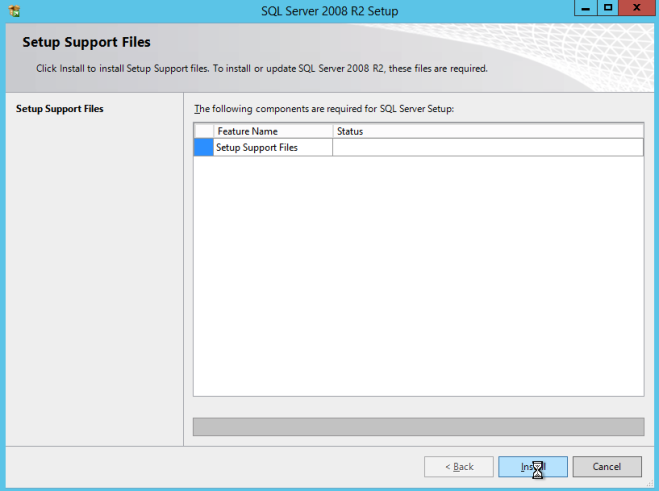
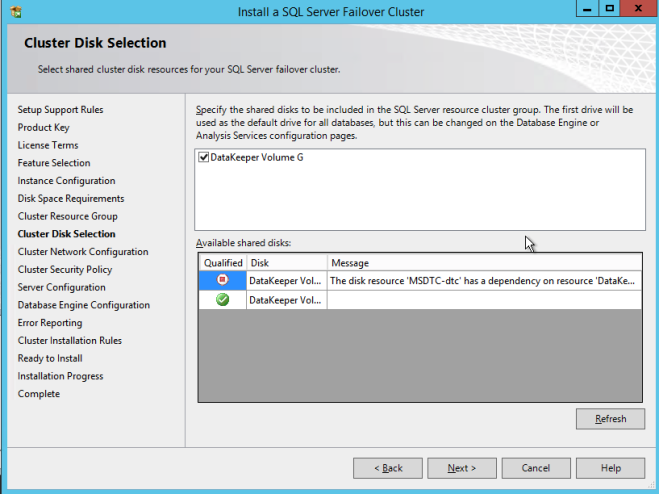
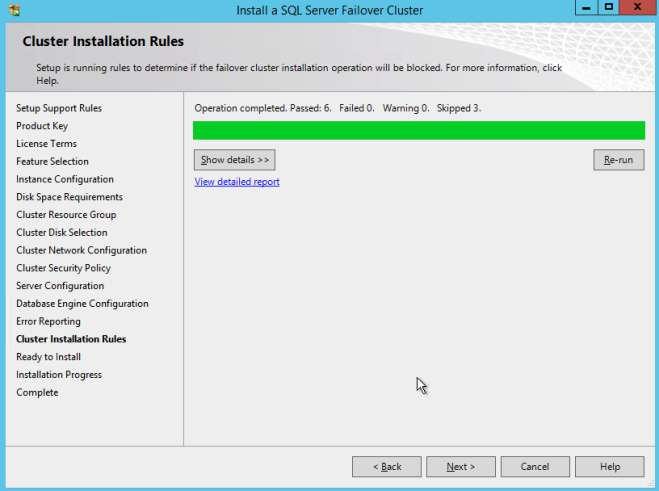
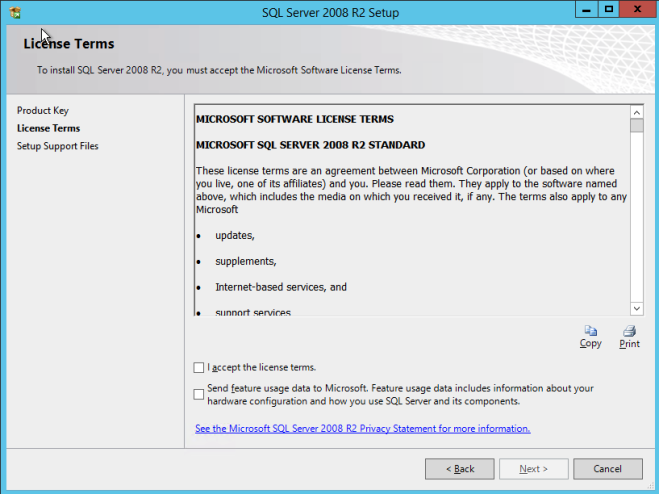
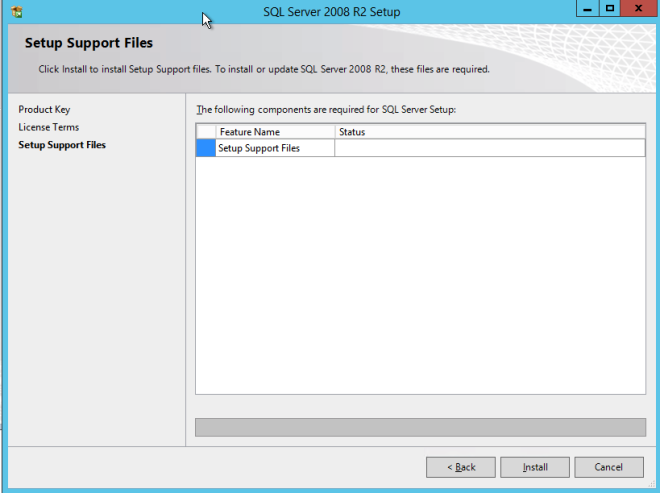
Using the SQL Server 2008 R2 media with SP3 slipstreamed, run setup and install the first node of the cluster as shown below.

If you use anything other than the Default instance of SQL Server, you will have some additional steps not covered in this guide. The biggest difference is you must lock down the port that SQL Server uses since by default a named instance of SQL Server does NOT use 1433. Once you lock down the port you also need to specify that port instead of 1433 whenever we reference port 1433 in this guide, including the firewall setting and the Load Balancer settings.
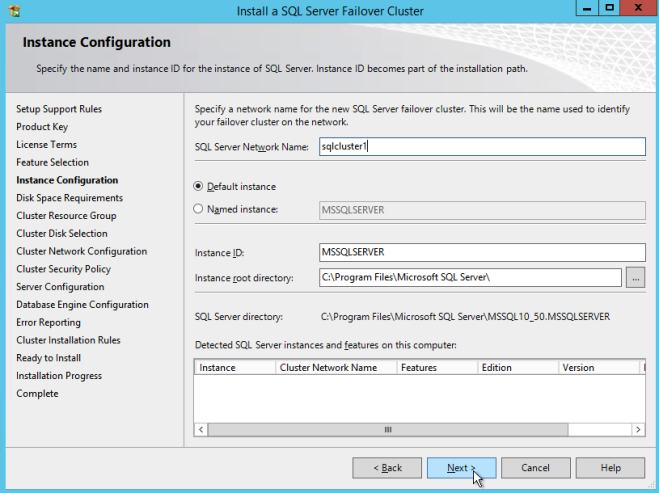
Here make sure to specify a new IP address that is not in use. This is the same IP address we will use later when we configure the Internal Load Balancer later.

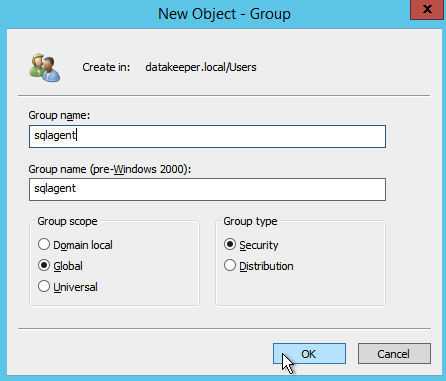
As I mentioned earlier, SQL Server 2008 R2 utilizes AD Security Groups. If you have not already created them, go ahead and create them now as show below before you continue to the next step in the SQL install

Specify the Security Groups you created earlier.
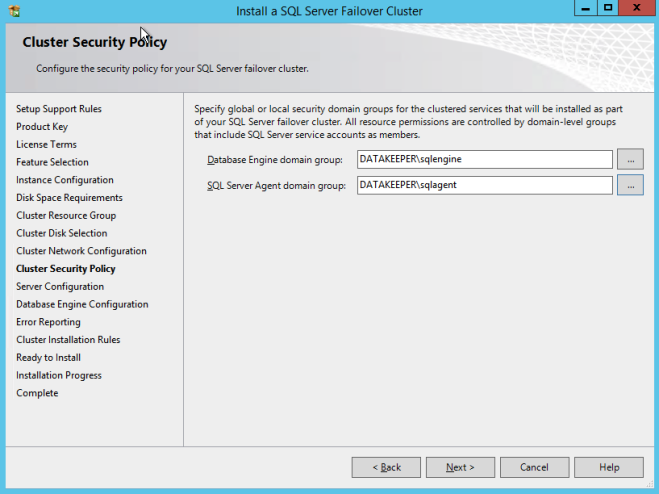
Make sure the service accounts you specify are a member of the associated Security Group.

Specify your SQL Server administrators here.
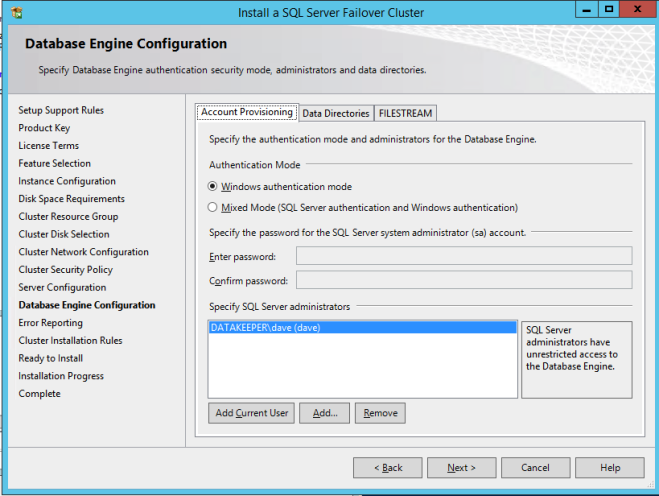
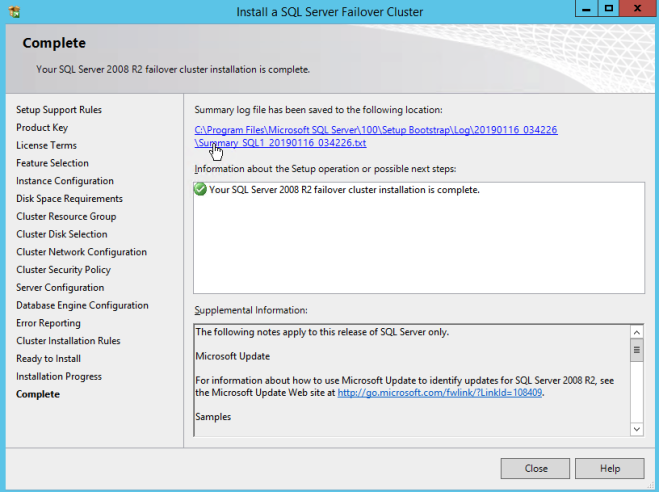
If everything goes well you are now ready to install SQL Server on the second node of the cluster.

INSTALL SQL SERVER ON THE SECOND NODE

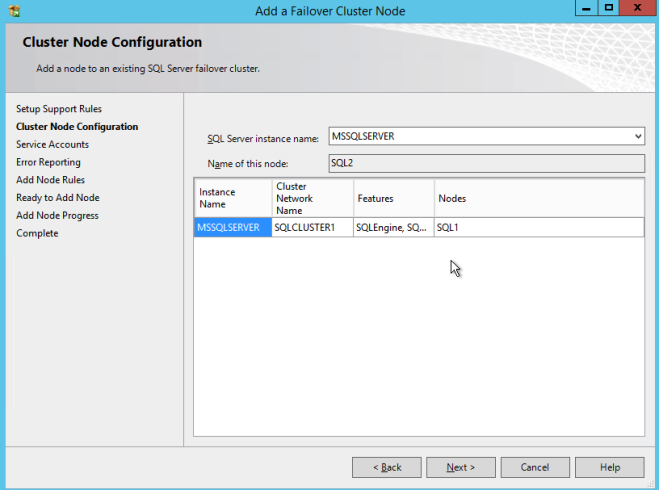
One the second node, run the SQL Server 2008 R2 with SP3 install and select Add Node to a SQL Server Failover Clustering Instance.

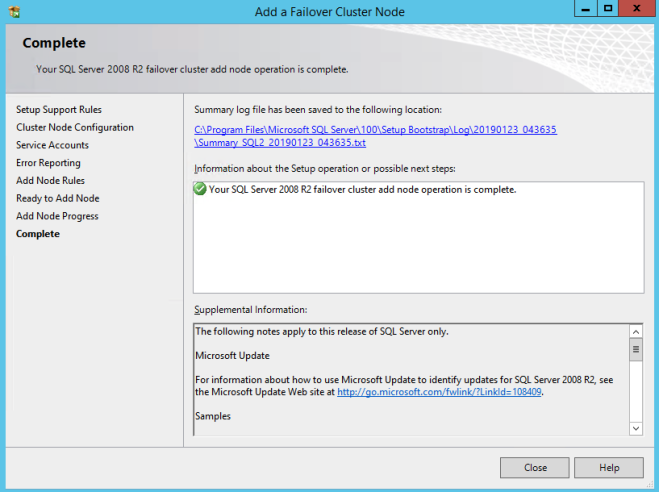
Proceed with the installation as shown in the following screenshots.

Assuming everything went well, you should now have a two node SQL Server 2008 R2 cluster configured that looks something like the following.

However, you probably will notice that you can only connect to the SQL Server instance from the active cluster node. The problem is that Azure does not support gratuitous ARP .Your clients probably cannot connect directly to the Cluster IP Address. Instead, the clients must connect to an Azure Load Balancer, which will redirect the connection to the active node. To make this work there are two steps: Create the Load Balancer and Fix the SQL Server Cluster IP to respond to the Load Balancer Probe and use a 255.255.255.255 Subnet mask. Those steps are described below.

CREATE THE AZURE LOAD BALANCER

I’m going to assume your clients can communicate directly to the internal IP address of the SQL cluster. Let’s go ahead to create an Internal Load Balancer (ILB) in this guide. If you need to expose your SQL Instance on the public internet, use a Public Load Balancer instead.

In the Azure portal, create a new Load Balancer following the screenshots as shown below. The Azure portal UI changes rapidly. Bbut these screenshots should give you enough information to do what you need to do. I will call out important settings as we go along.

Here we create the ILB. The important thing to note on this screen is you must select “Static IP address assignment”. Specify the same IP address that we used during the SQL Cluster installation too.

Since I used Availability Zones, I see Zone Redundant as an option. If you used Availability Sets your experience will be slightly different.

In the Backend pool be sure to select the two SQL Server instances. You DO NOT want to add your File Share Witness in the pool.
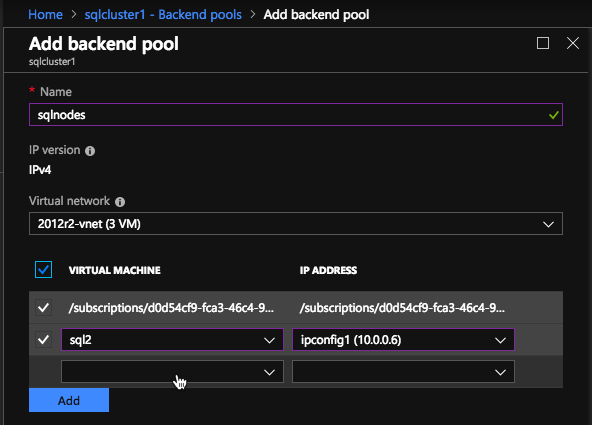
Here we configure the Health Probe. Most Azure documentation uses port 59999, so we will stick with that port for our configuration.

Then we will add a load balancing rule. In our case we want to redirect all SQL Server traffic to TCP port 1433 of the active node. It is also important that you select Floating IP (Direct Server Return) as Enabled.

RUN POWERSHELL SCRIPT TO UPDATE SQL CLIENT ACCESS POINT

Now we must run a Powershell script on one of the cluster nodes to allow the Load Balancer Probe to detect which node is active. The script also sets the Subnet Mask of the SQL Cluster IP Address to 255.255.255.255.255 so that it avoids IP address conflicts with the Load Balancer we just created.

# Define variables
$ClusterNetworkName = “” 
# the cluster network name (Use Get-ClusterNetwork on Windows Server 2012 of 
higher to find the name)
$IPResourceName = “” 
# the IP Address resource name 
$ILBIP = “” 
# the IP Address of the Internal Load Balancer (ILB) and SQL Cluster
Import-Module FailoverClusters
# If you are using Windows Server 2012 or higher:
Get-ClusterResource $IPResourceName | Set-ClusterParameter 
-Multiple @{Address=$ILBIP;ProbePort=59999;SubnetMask="255.255.255.255";
Network=$ClusterNetworkName;EnableDhcp=0}
# If you are using Windows Server 2008 R2 use this: 
#cluster res $IPResourceName /priv enabledhcp=0 address=$ILBIP probeport=59999  
subnetmask=255.255.255.255

This is what the output will look like if run correctly.

windows server failover cluster

You probably notice that the end of that script has a commented line of code to use if you are running on Windows Server 2008 R2. Running Windows Server 2008 R2? Ensure you run the code specific for Windows Server 2008 R2 at a Command prompt, it is not Powershell.

NEXT STEPS

You’re not the first if  you get to this point and you still cannot connect to the cluster remotely. There are a lot of things that can go wrong in terms of security, load balancer, SQL ports, etc. I wrote this guide to help troubleshoot connection issues.

In fact, I ran into some strange issues in terms of my SQL Server TCP/IP Properties in SQL Server Configuration Manager. When I looked at the properties I did not see the SQL Server Cluster IP address as one of the addresses it was listening on. As such I had to add it manually. I’m not sure if that was an anomaly. Although it certainly was an issue I had to resolve before I could connect to the cluster from a remote client.

As I mentioned earlier, one other improvement you can make to this installation is to use a DataKeeper Non-Mirrored Volume Resource for TempDB. If you set that up please be aware of the following two configuration issues people commonly run into.

The first issue is if you move tempdb to a folder on the 1st node, you must be sure to create the exact same folder structure on the second node. If you don’t do that, when you try to failover SQL Server will fail to come online since it can’t create TempDB.

The second issue occurs anytime you add another DataKeeper Volume Resource to a SQL Cluster after the cluster is created. You must go into the properties of the SQL Server cluster resource and make it dependent on the new DataKeeper Volume resource you added. This is true for the TempDB volume and any other volumes you may decide to add after the cluster is created.

If you have any questions about this configuration or any other cluster configurations please feel free to reach out to me on Twitter @DaveBerm

Reproduced with permission from Clusteringformeremortals.com

Filed Under: Clustering Simplified, Datakeeper Tagged With: failover cluster, SQL Server, SQL Server Failover Cluster, Windows Server Failover Clustering

The Availability Equation – High Availability Solutions

December 9, 2018 by Jason Aw Leave a Comment

The Availability Equation – High Availability Solutions.jpg

The Availability Equation

Are you familiar with the Availability Equation? In a nutshell, this equation shows how the total time needed to restore an application to usability is equal to the time required to detect that an application is experiencing a problem plus the time required to perform a recovery action:

TRESTORE = TDETECT + TRECOVER

Key Concepts Of High Availability Solutions

The equation introduces the key concepts of high availability (HA): clustering, problem detection, and subsequent recovery. HA solutions monitor the health of business application components; when problems are detected, these solutions act to restore them to service. The objective of deploying high availability solutions is to minimize downtime.

Reducing detection and recovery times are two important tasks of any HA solution that you choose to deploy. Today’s applications are combinations of technologies: servers, storage, network infrastructure, and so on. When reviewing your HA options, be certain that you understand the technologies that each solution uses to detect and recover from all outage types. Each technology has a direct impact on service restoration times.

Local Detection And Recovery

High availability solutions are straightforward. One technology that is crucial to providing the fastest possible restoration time is known as local detection and recovery (aka service-level problem detection and recovery). In a basic clustering solution, servers are connected. They are configured that one or more servers can take over the operations of another in the event of a server failure. The server nodes in the cluster continuously send small data packets, often called heartbeat signals, to each other to indicate that they are “alive”.

In simple clustered environments, when one server stops generating heartbeats, other cluster members assume that this server is down. It will then begin the process of taking over responsibility for that server’s domain of operation. This approach is adequate for detecting failure at the server level. But unless problems cause the interruption or cessation of heartbeat signals, server-level detection is inadequate. More than that, it can actually magnify the extent and impact of an outage.

For example, if Apache processes hang, the server may still send heartbeats. Even though the Web server subsystem has ceased to perform its primary function. Rather than restart the Apache subsystem on the same or a different server, a basic server-level clustering solution would restart the entire software stack of the failed server on a backup server, thereby causing interruption to users and extending recovery time.

How It Works

Using local detection and recovery, advanced clustering solutions deploy health-monitoring agents within individual cluster servers, to monitor individual system components such as a file system, a database, user-level application, IP address, and so on. These agents use heuristics that are specific to the monitored component. Therefore, the agents can predict and detect operational issues and then take the most appropriate recovery action. Often, the most efficient recovery method is to stop and restart the problem subsystem on the same server.

The time to restore an application to user availability can be greatly reduced by enabling recovery within the same physical server. Also, by detecting failures at a more granular level than simply by observing server-level heartbeats. Solutions such as the SteelEye Protection Suite for Linux from SIOS  provides this level of detection and recovery for your environment.  Make certain that whichever HA solution you deploy can also support local detection and recovery.

Would you like to enjoy high availability solutions for your projects? Check in with us. Need more references, here are our success stories.
Reproduced with permission from Linuxclustering

Filed Under: Clustering Simplified, Datakeeper Tagged With: Clustering, high availability solutions

Maximise replication performance for Linux Clustering with Fusion-io

November 27, 2018 by Jason Aw Leave a Comment

Maximise replication performance for Linux Clustering with Fusion-io

Tips To Maximise Replication Performance For Linux Clustering With Fusion-io

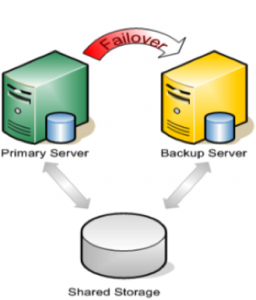
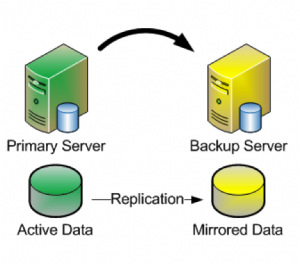
When most people think about setting up a cluster, it usually involves two or more servers, and a SAN – or some other type of shared storage. SAN’s are typically very costly and complex to setup and maintain. Also, they technically represent a potential Single Point of Failure (SPOF) in your cluster architecture. These days, more and more people are turning to companies like Fusion-io, with their lightning fast ioDrives, to accelerate critical applications.  These storage devices sit inside the server (i.e. aren’t “shared disks”). Therefore it can’t be used as cluster disks with many traditional clustering solutions. Fortunately, there are ways to Maximise replication performance for Linux Clustering with Fusion-io. Solutions that allow you to form a failover cluster when there is no shared storage involved – i.e. a “shared nothing” cluster.


Traditional Cluster

 “Shared Nothing” Cluster

When leveraging data replication as part of a cluster configuration, it’s critical that you have enough bandwidth so that data can be replicated across the network just as fast as it’s written to disk.  The following are tuning tips that will allow you to get the most out of your “shared nothing” cluster configuration, when high-speed storage is involved:

Network

  • Use a 10Gbps NIC: Flash-based storage devices from Fusion-io (or other similar products from OCZ, LSI, etc) are capable of writing data at speeds in the HUNDREDS (750 ) of MB/sec or more.  A 1Gbps NIC can only push a theoretical maximum of ~125 MB/sec, so anyone taking advantage of an ioDrive’s potential can easily write data much faster than could be pushed through a 1 Gbps network connection.  To ensure that you have sufficient bandwidth between servers to facilitate real-time data replication, a 10 Gbps NIC should always be used to carry replication traffic
  • Enable Jumbo Frames: Assuming that your Network Cards and Switches support it, enabling jumbo frames can greatly increase your network’s throughput while at the same time reducing CPU cycles.  To enable jumbo frames, perform the following configuration (example from a RedHat/CentOS/OEL linux server)
    • ifconfig <interface_name> mtu 9000
    • Edit /etc/sysconfig/network-scripts/ifcfg-<interface_name> file and add “MTU=9000” so that the change persists across reboots
    • To verify end-to-end jumbo frame operation, run this command: ping -s 8900 -M do <IP-of-other-server>
  • Change the NIC’s transmit queue length:
    • /sbin/ifconfig <interface_name> txqueuelen 10000
    • Add this to /etc/rc.local to preserve the setting across reboots

TCP/IP Tuning

  • Change the NIC’s netdev_max_backlog:
    • Set “net.core.netdev_max_backlog = 100000” in /etc/sysctl.conf
  • Other TCP/IP tuning that has shown to increase replication performance:
    • Note: these are example values and some might need to be adjusted based on your hardware configuration
    • Edit /etc/sysctl.conf and add the following parameters:
      • net.core.rmem_default = 16777216
      • net.core.wmem_default = 16777216
      • net.core.rmem_max = 16777216
      • net.core.wmem_max = 16777216
      • net.ipv4.tcp_rmem = 4096 87380 16777216
      • net.ipv4.tcp_wmem = 4096 65536 16777216
      • net.ipv4.tcp_timestamps = 0
      • net.ipv4.tcp_sack = 0
      • net.core.optmem_max = 16777216
      • net.ipv4.tcp_congestion_control=htcp

Adjustments

Typically you will also need to make adjustments to your cluster configuration, which will vary based on the clustering and replication technology you decide to implement.  In this example, I’m using the SteelEye Protection Suite for Linux (aka SPS, aka LifeKeeper), from SIOS Technologies. It allows users to form failover clusters leveraging just about any back-end storage type: Fiber Channel SAN, iSCSI, NAS, or, most relevant to this article, local disks that need to be synchronized/replicated in real time between cluster nodes.  SPS for Linux includes integrated, block level data replication functionality that makes it very easy to setup a cluster when there is no shared storage involved.

Recommendations

In order to Maximise replication performance for Linux Clustering with Fusion-io, let’s try this. SteelEye Protection Suite (SPS) for Linux configuration recommendations:

  • Allocate a small (~100 MB) disk partition, located on the Fusion-io drive to place the bitmap file.  Create a filesystem on this partition and mount it, for example, at /bitmap:
    • # mount | grep /bitmap
    • /dev/fioa1 on /bitmap type ext3 (rw)
  • Prior to creating your mirror, adjust the following parameters in /etc/default/LifeKeeper
    • Insert: LKDR_CHUNK_SIZE=4096
      • Default value is 64
    • Edit: LKDR_SPEED_LIMIT=1500000
      • (Default value is 50000)
      • LKDR_SPEED_LIMIT specifies the maximum bandwidth that a resync will ever take — this should be set high enough to allow resyncs to go at the maximum speed possible
    • Edit: LKDR_SPEED_LIMIT_MIN=200000
      • (Default value is 20000)
      • LKDR_SPEED_LIMIT_MIN specifies how fast the resync should be allowed to go when there is other I/O going on at the same time — as a rule of thumb, this should be set to half or less of the drive’s maximum write throughput in order to avoid starving out normal I/O activity when a resync occurs

From here, go ahead and create your mirrors and configure the cluster as you normally would.

Interested to Maximise Replication Performance For Linux Clustering With Fusion-io, see what else SIOS can offer.
Reproduced with permission from LinuxClustering

Filed Under: Clustering Simplified, Datakeeper Tagged With: Clustering, Fusion-io, Linux, maximise replication performance for linux clustering with fusion io, replication

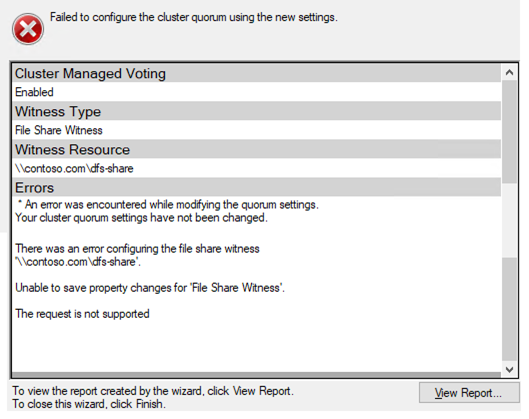
Can I Put My File Share Witness On A DFS Share?

October 22, 2018 by Jason Aw Leave a Comment

Can I Put My File Share Witness On A DFS Share?

Can I Put My File Share Witness On A DFS Share?

I get asked this question all the time – Just where can put my File Share Witness On A DFS Share. People are concerned about losing their file share witness. Hence like many of their other shares, they want to leverage DFS for some additional availability. This is a very bad idea and is not supported.

Microsoft recently publish a great blog article that describes exactly why File Share Witness On A DFS Share is not supported.

https://blogs.msdn.microsoft.com/clustering/2018/04/13/failover-cluster-file-share-witness-and-dfs/

Much of this article would also apply to people who ask if they can use a DataKeeper replicated volume resource as a Disk Share. It makes sense. You can use a DataKeeper volume resource in place of a Physical Disk resource for any other workload, so why not a Disk Witness?

This issue is the same as the DFS issue. In the event of a loss of communication between the two servers, there is nothing to guarantee that the volume wouldn’t come online on both servers. It would result in a potential split-brain condition. The Physical Disk resource overcomes this issue by using SCSI reservations. This would ensure the disk is only accessible by one cluster node at a time.

The good news is that Microsoft already blocks you from trying to use a replicated DataKeeper Volume resource. And coming in Windows Server 2019, it looks like they will also block you from using a DFS share as a File Share Witness.

Can I Put My File Share Witness On A DFS Share?
Taken from the Failover Clustering and Network Load Balancing Team Blog Post “Failover Cluster File Share Witness and DFS

Have questions like this about putting File Share Witness On A DFS Share? Read through our blog or contact us!
Reproduced with permission from ClusteringForMereMortals.com

Filed Under: Clustering Simplified, Datakeeper Tagged With: DFS Share, File Share Witness, file share witness on a dfs share

S2D For SQL Server Failover Cluster Instances 

September 8, 2018 by Jason Aw Leave a Comment

Storage Space Direct (S2D) For SQL Server Failover Cluster Instances

Storage Spaces Direct For SQL Server Failover Cluster Instances

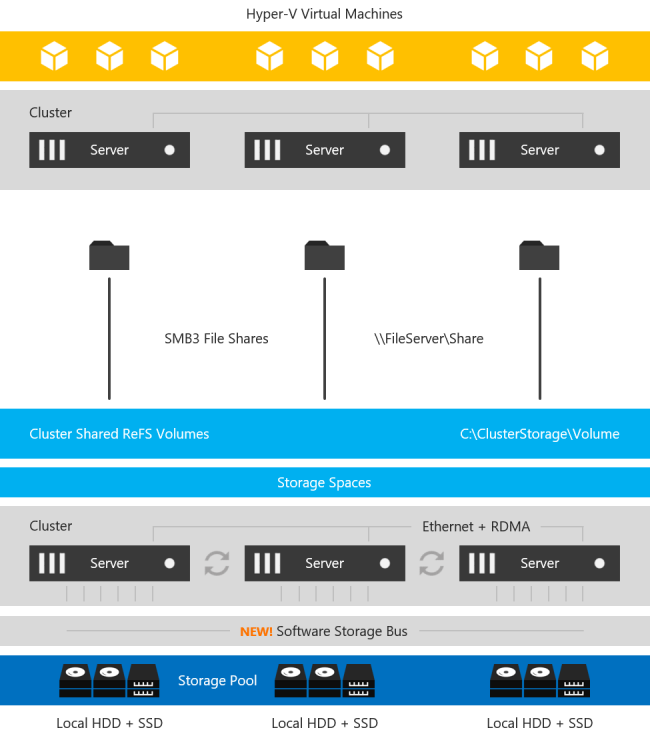
With the introduction of Windows Server 2016 Datacenter Edition a new feature called Storage Spaces Direct (S2D) was introduced. At a very high level, S2D For SQL Server Failover Cluster Instances allows you to pool together locally attached storage and present it to the cluster as a CSV for use in a Scale Out File Server. Then it can be accessed over SMB 3 and used to hold cluster data such as Hyper-V VMDK files. This can also be configured in a hyper-converged (HCI) fashion such that the application and data can all run on the same set of servers.  This is a grossly over-simplified description, but for details, you will want to look here.

Storage Spaces Direct Stack

Image taken from https://docs.microsoft.com/en-us/windows-server/storage/storage-spaces/storage-spaces-direct-overview

The main use case targeted is hyper-converged infrastructure for Hyper-V deployments. However, there are other use cases, including leveraging this SMB storage to store SQL Server Data to be used in a SQL Server Failover Cluster Instance

Why would anyone want to do that?

Well, for starters you can now build a highly available 2-node SQL Server Failover Cluster Instance (FCI) with SQL Server Standard Edition, without the need for shared storage. Previously, if you wanted HA without a SAN you pretty much were driven to buy SQL Server Enterprise Edition and make use of Always On Availability Groups or purchase SIOS DataKeeper and leverage the 3rd party solution which lets you build SANless clusters with any version of Windows or SQL Server. SQL Server Enterprise Edition can really drive up the cost of your project, especially if you were only buying it for the Availability Groups feature.

In addition to the cost associated with Availability Groups, there are a number of other technical reasons why you might prefer a Failover Cluster over an AG. Application compatibility, instance vs. database level protection, large number of databases, DTC support, trained staff, etc., are just some of the technical reasons why you may want to stick with a Failover Cluster Instance.

SIOS DataKeeper Solution Vs S2D For SQL Server Failover Cluster Instances 

Microsoft lists both the SIOS DataKeeper solution and the S2D solution as two of the supported solutions for SQL Server FCI in their documentation here.

S2D For SQL Server Failover Cluster Instances 

https://docs.microsoft.com/en-us/azure/virtual-machines/windows/sql/virtual-machines-windows-sql-high-availability-dr

When comparing the two solutions, you have to take into account that SIOS has been allowing you to build SANless Clusters since 1999. But the S2D For SQL Server Failover Cluster Instances is still in its infancy.  Having said that, there are bound to be some areas where S2D has some catching up to do. Or, simply features that they will never support simply due to the limitations with the technology.

Before Choosing Your SANless Cluster Solution

Have a look at the following table for an overview of some of the things you should consider before you choose your SANless cluster solution.

S2D For SQL Server Failover Cluster Instances 

If we go through this chart, we see that SIOS DataKeeper clearly has some significant advantages. For one, DataKeeper supports a much wider range of platforms, going all the way back to Windows Server 2008 R2 and SQL Server 2008 R2. The S2D solution only supports the latest releases of Windows and SQL Server 2016/2017. S2D also requires the Datacenter Edition of Windows, which can add significantly to the cost of your deployment. In addition, SIOS delivers the ONLY HA/DR solution for SQL Server on Linux that works both on-prem and in the cloud.

Analysis Of The Differences

But beyond the cost and platform limitations, I think the most glaring gap comes when we start to consider disaster recovery options for your SANless cluster. Allan Hirt, SQL Server Cluster guru and fellow Microsoft Cloud and Datacenter Management MVP, recently posted about this S2D limitation. In his article Revisiting Storage Spaces Direct and SQL Server FCIs  Allan points out that due to the lack of support for stretching S2D clusters across sites or including an S2D based cluster as a leg in an Always On Availability Group, the best option for DR in the S2D scenario is log shipping!

Don’t get me wrong. Log shipping has been around forever and will probably be around long after I’m gone. But that is taking a HUGE step backwards when we think about all the disaster recovery solutions we have become accustomed to, like multi-site clusters, Availability Groups, etc.

In contrast, the SIOS DataKeeper solution fully supports Always On Availability Groups. Better yet – it can allow you to stretch your FCI across sites to give you the best HA/DR solution you could hope to achieve in terms of RTO/RPO. In an Azure environment, DataKeeper also support Azure Site Recovery (ASR), giving you even more options for disaster recovery.

The rest of this chart is pretty self explanatory. It basically consist of a list hardware, storage and networking requirements that must be met before you can deploy an S2D cluster. An exhaustive list of S2D requirements is maintained here.  https://docs.microsoft.com/en-us/windows-server/storage/storage-spaces/storage-spaces-direct-hardware-requirements

SIOS Datakeeper. What’s Good

The SIOS DataKeeper solution is much more lenient. It supports any locally attached storage and as long as the hardware passes cluster validation, it is a supported cluster configuration. The block level replication solution has been working great ever since 1 Gbps was considered a fast LAN and a T1 WAN connection was considered a luxury.

SANless clustering is particularly interesting for cloud deployments. The cloud does not offer traditional shared storage options for clusters. So for users in the middle of a “lift and shift” to the cloud that want to take their clusters with them they must look at alternate storage solutions. For cloud deployments, SIOS is certified for Azure, AWS and Google and available in the relevant cloud marketplace. While there doesn’t appear to be anything blocking deployment of S2D based clusters in Azure or Google, there is a conspicuous lack of documentation or supportability statements from Microsoft for those platforms.

Make A Safe Choice

SIOS DataKeeper has been doing this since 1999. SIOS has heard all the feature requests, uncovered all the bugs, and has a rock solid solution for SANless clusters that is time tested and proven. While Microsoft S2D is a promising technology, as a 1st generation product I would wait until the dust settles and some of the feature gap closes before I would consider it for my business critical applications.

To know more about S2D For SQL Server Failover Cluster Instances, find out here SIOS DataKeeper

Reproduced with permission from Clusteringformeremortals.com

Filed Under: Clustering Simplified, Datakeeper Tagged With: DataKeeper, s2d for sql server failover cluster instances, SIOS, SQL Server Failover Cluster Instance

  • « Previous Page
  • 1
  • 2
  • 3
  • 4
  • …
  • 8
  • Next Page »

Recent Posts

  • SIOS Partnerships
  • Common Customer Misconceptions
  • DataKeeper
  • ARKs and Their Use Cases
  • Linux and LifeKeeper

Most Popular Posts

Maximise replication performance for Linux Clustering with Fusion-io
Failover Clustering with VMware High Availability
create A 2-Node MySQL Cluster Without Shared Storage
SAP for High Availability Solutions For Linux
Bandwidth To Support Real-Time Replication
The Availability Equation – High Availability Solutions.jpg
Choosing Platforms To Replicate Data - Host-Based Or Storage-Based?
Guide To Connect To An iSCSI Target Using Open-iSCSI Initiator Software
Best Practices to Eliminate SPoF In Cluster Architecture
Step-By-Step How To Configure A Linux Failover Cluster In Microsoft Azure IaaS Without Shared Storage azure sanless
Take Action Before SQL Server 20082008 R2 Support Expires
How To Cluster MaxDB On Windows In The Cloud

Join Our Mailing List

Copyright © 2026 · Enterprise Pro Theme on Genesis Framework · WordPress · Log in