| February 12, 2018 |
It Is Now Cheaper To Get Provisioned IOPS On AMAZON EC2 EBSIn the old days if you wanted a guaranteed 4000 IOPS on Amazon EC2 EBS, you had to provision a minimum of a 400 GB volume. Considering you pay per the GB, and provisioned IOPS are not cheap, if you only needed 100 GB of fast storage you were stuck paying for 300 GB of unused storage. New announcement from Amazon EC2 EBSUsers will be glad to know that Amazon EC2 EBS has made it easier to get fast storage in smaller increments. Now if you want 4000 IOPS, you can get that in EBS volumes as small as 133 GB up to 1 TB in size. Read the following press release here for more information. Reproduced with permission from https://clusteringformeremortals.com/2013/11/08/it-is-now-cheaper-to-get-provisioned-iops-on-amazon-ec2-ebs/ |
||||||||||||||||||||
Setting up GUI access For Amazon EC2 RHEL 7When using AWS, you may need to be able to remotely access the desktop of the Linux VM instances. You can achieve this using XRDP VNC connection. Following the steps below you can install XDRP and Gnome GUI. There are three sections involved in the whole setup. Follow all the three sections explained below to successfully configure the GUI. Installing GUI Components1. Update the server using the following command.
2. Install the gnome GUI components using the following command.
3. Issue the following commands to start the GUI during boot.
Now we have all the essential GUI components installed on the server. In the next section, we will install the xrdp components to enable remote desktop connections. Recommended: Learn Linux in 5 Days and Level Up Your Career Udemy Course Setting Up XRDP1. Add the xrdp repository to your instance using the following command.
2. Install xrdp and tiger VNC server.
3. Setup SELINUX security using the following commands.
4. Start and enable the xrdp service.
5. Enable RDP port on the instance using the following firewall commands. READ How to Migrate WordPress Site to Digital Ocean Cloud Server
6. Set a password for ec2-user . This password will be used to connect to the RDP session.
7. Set password for root as you will be prompted for cloud user password for network proxy and color. Login as root and set the password.
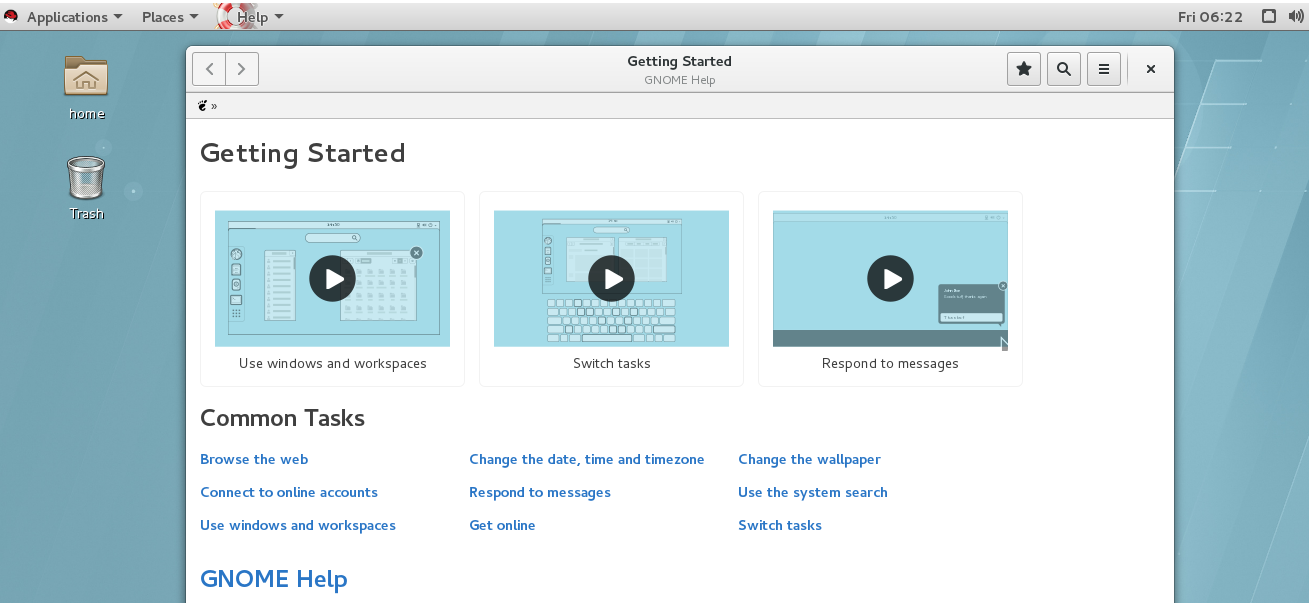
Now we have the xdrp components and all instance level settings in the right place. Now let’s test out the RDP connection from an RDP client. In this tutorial, i am using windows RDP client. Connecting The Instance Using RDPNote: Make sure you have opened RDP port in your instance security group. 1. Open RDP client and type in the public IP of your instance and click connect. 2. If you get a warning message about remote identity, just click yes. 3. Now you will get a xrdp authentication window, enter the credentials and click ok. Note: The username is “ec2-user” and the password is the password you set for ec2-user in step 6. 4. You will be prompted to enter the password again. Provide the password and proceed to the steps to configure the initial desktop. 5. If it prompts for “cloud user password” provide the root user password you set in step 7. 6. That it, you will get a GUI session as shown below. If you face any errors do let me know in the comment session.
If you have problems connecting via RDP, the connection is lost after 1-2 seconds, the solution is to install the epel repo. Follow these steps to install – https://www.cyberciti.biz/faq/installing-rhel-epel-repo-on-centos-redhat-7-x/ and run # yum update after that. |
|||||||||||||||||||||
| February 11, 2018 |
SQL Server – Massive Speed And High AvailabilityCheck out this great article by SQL Server guru @MrDennyTitle: Massive Speed and HA Subtitle: Two Things That Usually Don’t Go Together First Paragraph: Question: William asks “I have a SQL Server which needs both high availability and high-speed storage. Even SAN storage with SSD based hard drives isn’t providing the performance levels that we are looking for, while still getting the failover cluster HA solution that we need for our SQL Server 2008 R2 database?” Read More… Article Link: http://sqlmag.com/blog/massive-speed-and-ha
Denny Cherry is the owner and principal consultant for Denny Cherry & Associates Consulting and has over a decade of experience working with platforms such as Microsoft SQL Server, Hyper-V, vSphere and Enterprise Storage solutions. Denny’s areas of technical expertise include system architecture, performance tuning, security, replication and troubleshooting. Denny currently holds several of the Microsoft Certifications related to SQL Server for versions 2000 through 2008 including the Microsoft Certified Master as well as being a Microsoft MVP for several years. Denny has written several books and dozens of technical articles on SQL Server management and how SQL Server integrates with various other technologies. Reproduced with permission from https://clusteringformeremortals.com/2013/08/08/sql-server-massive-speed-and-high-availability/ |
||||||||||||||||||||
Deploy SQL Server Alwayson Failover Clusters In Amazon EC2 With AWS CloudWebinar Invite!DEPLOYING YOUR BUSINESS CRITICAL SQL SERVER APPS ON AMAZON EC2Amazon Web Services (AWS) and SIOS Technology Corp, an AWS Partner Network (APN) Technology Partner, invite you to attend this live webinar to learn how to optimize mission critical SQL Server deployments on Amazon EC2. Learn how to take advantage of the cost benefits and flexibility of Amazon EC2 while maintaining protection with native Microsoft Windows Server Failover Clustering – all without shared storage. WHO SHOULD ATTEND:Solution Architects, Developer, Development Leads and other SQL Professionals PRESENTERS:Miles Ward, Solutions Architect, Amazon Web Services Tony Tomarchio, Director of Field Engineering, SIOS Technology Corp DATE / TIME:Wednesday, June 5, 2013 – 10AM PT / 1PM ET CLICK HERE TO REGISTERReproduced with permission from https://clusteringformeremortals.com/2013/05/23/webinar-invite-how-to-deploy-sql-server-alwayson-failover-clusters-in-amazon-ec2-with-awscloud-amazonaws/ |
|||||||||||||||||||||
Installing SQL Server 2008 R2 In A Windows Server 2012 ClusterA Good Read Before You Install SQL Server 2008 R2 In A Windows Server 2012 ClusterIf you want to install ANY version of SQL Server in a Windows Server 2012 environment, I highly recommend you read the following KB article. http://support.microsoft.com/kb/2681562 In particular, I ran into this error while trying to install SQL Server 2008 R2 on Windows Server 2012 and was running into the following error (among others). 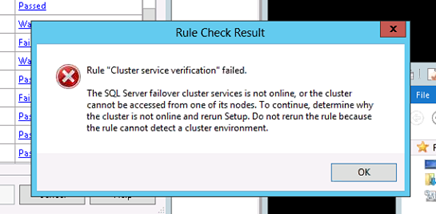 The SolutionThe fix is simple, as described in the KB article, simply enable the Failover Cluster Automation Server in the Add Roles and Features wizard or via the following Powershell command:
That fix will resolve the other Setup Support Rules errors including the cluster validation error and any errors about cluster storage. You should be able to re-run the SQL installation and it will pass all the Setup Support Rules and allow you to continue with the cluster install. Of course all this assumes you have slipstreamed at least SP1 onto your SQL install media. If you try to install without SP1 or later you will also run into lots of problems. Reproduced with permission from https://clusteringformeremortals.com/2013/04/12/installing-sql-server-2008-r2-in-a-windows-server-2012-cluster/ |