Step-By-Step: How To Trigger An Email Alert When A Specific Windows Service Starts Or Stops On Windows Server 2016
Different from my previous post where I showed you how to send an email alert based upon specific Windows EventIDs being logged in a Windows Event Log, this time around I’ll share how to Trigger Email Alert When Specific Windows Service Starts Or Stops. It works great for most events. Although do note it is not ideal if you want to be notified when a specific Windows Service starts or stops.
When a Windows Service starts or stops, an EventID 7036 from the Source “Service Control Manager” is logged in the Windows System Log. Now we could simply set up a trigger to send an email whenever that EventID is logged as I described in my previous post. However, you might not want to receive an email when EVERY Windows Service starts or stops.
To get a little more specific, we will have to edit the XML data associated with the Windows Event Filter when we set up the trigger. This is to look a little deeper at the Event Properties and filter on the EventData that is only shown when you view the XML View on the Details tab of a Windows Event.
This work was verified on Windows Server 2016, but I suspect it should work on Windows Server 2012 R2 and Windows Server 2019 as well. If you get it working on any other platforms please comment and let us know if you had to change anything.
Step 1 – Write A Powershell Script
The first thing that you need to do is write a Powershell script that when run can send an email. You need that email to trigger Email Alert When Specific Windows Service Starts Or Stops. There are many ways to accomplish this task. I’m about to show you is just one way, but feel free to experiment and use what is right for your environment.
In my lab I do not run my own SMTP server, so I had to write a script that could leverage my Gmail account. You will see in my Powershell script the password to the email account that authenticates to the SMTP server is in plain text. If you are concerned that someone may have access to your script and discover your password then you will want to encrypt your credentials. Gmail requires and SSL connection so your password should be safe on the wire, just like any other email client.
Here is an example of a Powershell script that when used in conjunction with Task Scheduler which will send an email alert automatically when any specified Event is logged in the Windows Event Log. In my environment I saved this script to C:\Alerts\ServiceAlert.ps1
$filter="*[System[EventID=7036] and EventData[Data='SIOS DataKeeper']]"
$A = Get-WinEvent -LogName System -MaxEvents 1 -FilterXPath $filter
$Message = $A.Message
$EventID = $A.Id
$MachineName = $A.MachineName
$Source = $A.ProviderName


$EmailFrom = "sios@medfordband.com"
$EmailTo = "sios@medfordband.com"
$Subject ="Alert From $MachineName"
$Body = "EventID: $EventID`nSource: $Source`nMachineName: $MachineName `n$Message"
$SMTPServer = "smtp.gmail.com"
$SMTPClient = New-Object Net.Mail.SmtpClient($SmtpServer, 587)
$SMTPClient.EnableSsl = $true
$SMTPClient.Credentials = New-Object System.Net.NetworkCredential("sios@medfordband.com",
 "MySMTPP@55w0rd");
$SMTPClient.Send($EmailFrom, $EmailTo, $Subject, $Body)
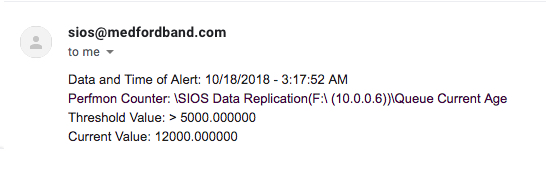
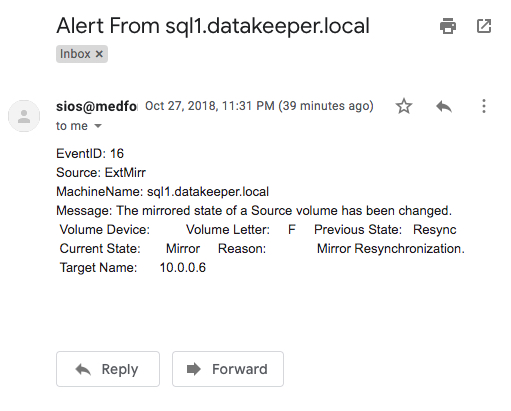
An example of an email generated from that Powershell script looks like this.

You probably noticed that this Powershell script uses the Get-WinEvent cmdlet to grab the most recent Event Log entry based upon the LogName, EventID and EventDataspecified. It then parses that event and assigns the EventID, Source, MachineName and Message to variables that will be used to compose the email. You will see that the LogName, EventID and EventData specified is the same as what you will specify when you set up the Scheduled Task in Step 2.
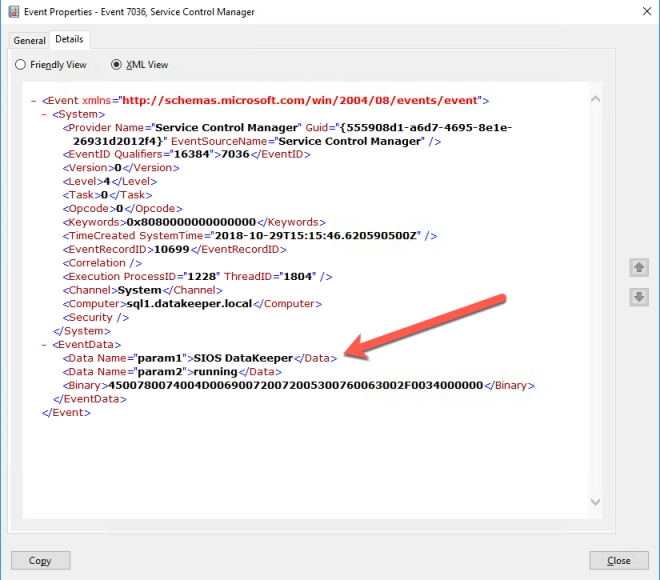
While EventID, LogName are probably familiar to you, EventData may not be as familiar. To see the EventData associated with a particular Event you will need to open the Event in Event Viewer, look at the Details tab and then select XML view. From the XML view you can see all the data included with an event. Near the bottom of the XML you will see an array of data called <EventData>. Within there you will find additional Event Data stored as parameters. As show below, in the “param1” we will find the name of the Service being that either stopped or started.
Step 2 – Set Up A Schedule Task
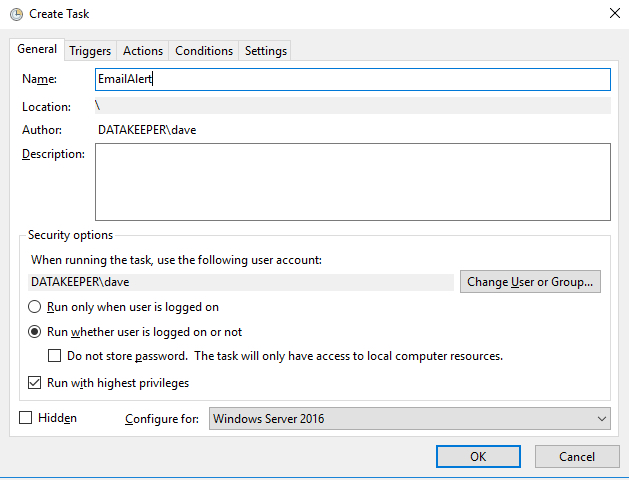
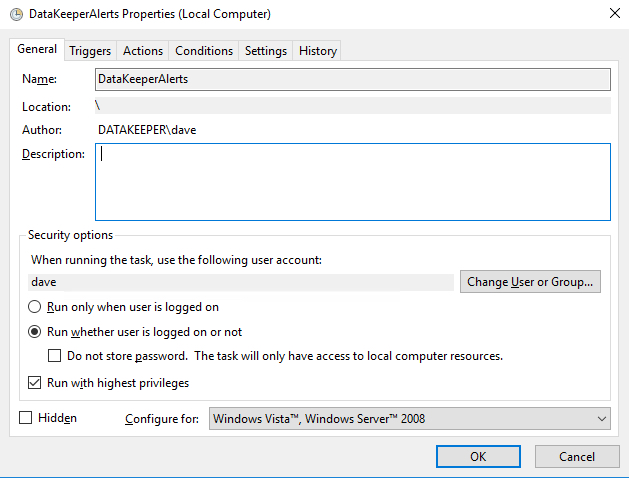
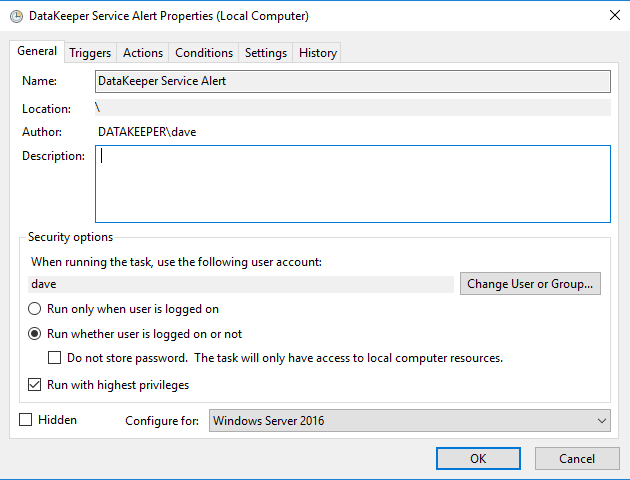
In Task Scheduler Create a Task as show in the following screen shots.
- Create Task

Make sure the task is set to Run whether the user is logged on or not.
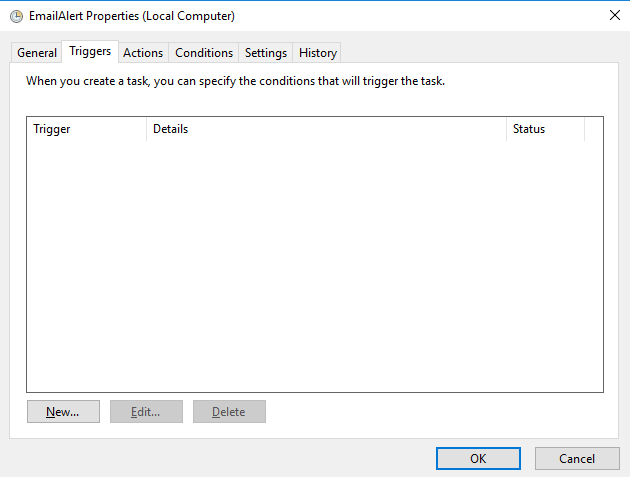
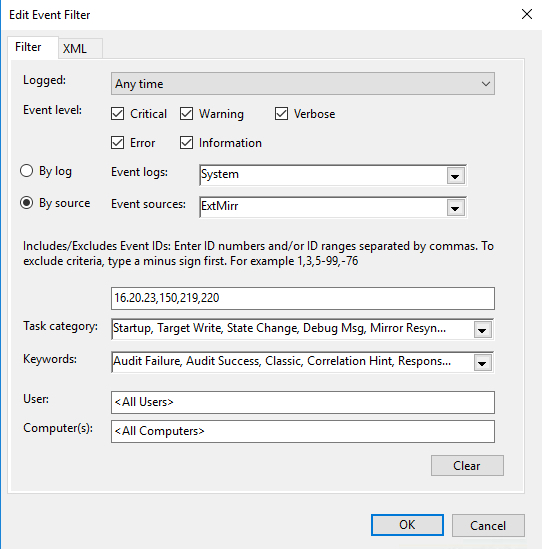
- On the Triggers tab choose New to create a Trigger that will begin the task “On an Event”. In my example I will be creating an event that triggers any time DataKeeper (extmirr) logs an important event to the System log.

Create a custom event and New Event Filter as shown below…
For my trigger you can start my setting up a trigger that monitors 7036 as I describe in my previous article. However, the Filter GUI interface does not allow us to specify the Service Name stored in Param1 of EventData as I described earlier. In order to monitor for just the specific service we are interested in we will need to edit the XML directly as shown below.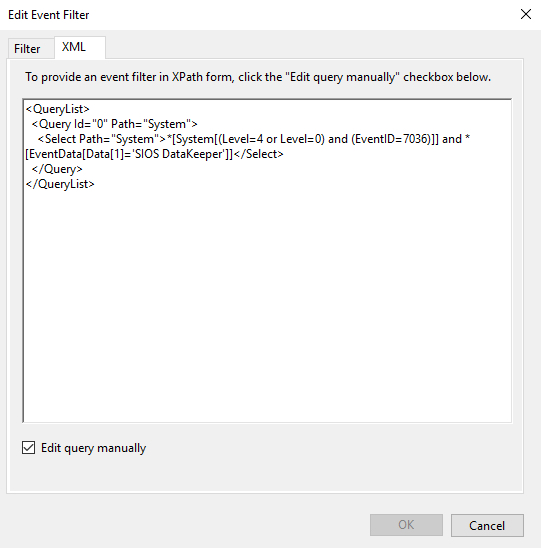
If you rather just skip straight to the chase feel free to copy my XML below and replace ‘SIOS DataKeeper’ with the event data stored in param1 of the Event you want to monitor.<QueryList> <Query Id="0" Path="System"> <Select Path="System">*[System[(Level=4 or Level=0) and (EventID=7036)]] and *[EventData[Data[1]='SIOS DataKeeper']]</Select> </Query> </QueryList>
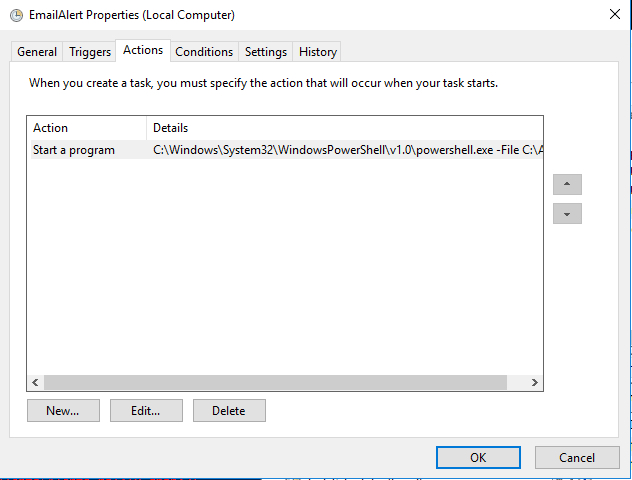
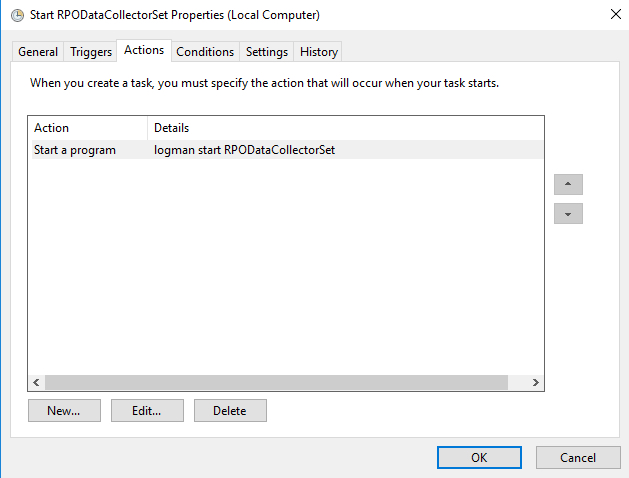
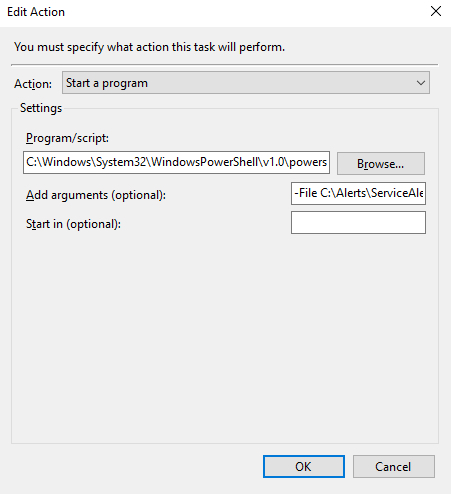
- Once the Event Trigger is configured, you will need to configure the Action that occurs when the event is run. In our case we are going to run the Powershell script that we created in Step 1.

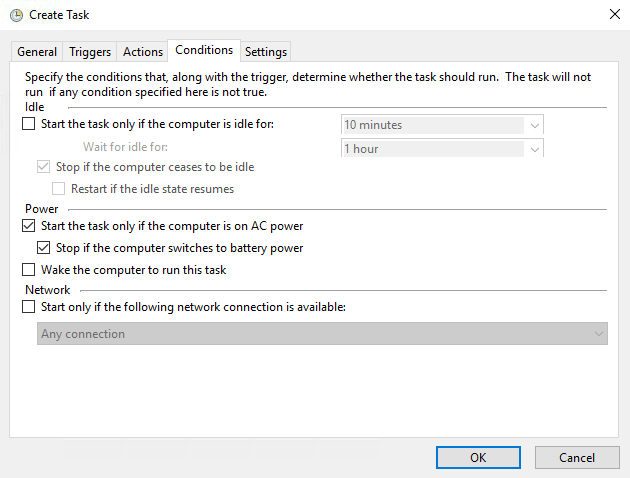
- The default Condition parameters should be sufficient.
- And finally, on the Settings tab make sure you allow the task to be run on demand and to “Queue a new instance” if a task is already running.

Step 3 (If Necessary) -Fix the Microsoft -Windows – Distributedcom Event ID: 10016 Error
In theory, if you did everything correctly you should now start receiving emails any time one of the events you are monitoring gets logged in the event log. However, I ran into a weird permission issue on one of my servers that I had to address before everything worked. I’m not sure if you will run into this issue, but just in case here is the fix.
In my case when I manually triggered the event, or if I ran the Powershell script directly, everything worked as expected and I received an email. However, if one of the EventIDs being monitored was logged into the event log it would not result in an email being sent. The only clue I had was the Event ID: 10016 that was logged in my Systems event log each time I expected the Task Trigger to detect a logged event.
Log Name: System
Source: Microsoft-Windows-DistributedCOM
Date: 10/27/2018 5:59:47 PM
Event ID: 10016
Task Category: None
Level: Error
Keywords: Classic
User: DATAKEEPER\dave
Computer: sql1.datakeeper.local
Description:
The application-specific permission settings do not grant Local Activation permission
for the COM Server application with CLSID
{D63B10C5-BB46-4990-A94F-E40B9D520160}
and APPID
{9CA88EE3-ACB7-47C8-AFC4-AB702511C276}
to the user DATAKEEPER\dave SID (S-1-5-21-25339xxxxx-208xxx580-6xxx06984-500) from
address LocalHost (Using LRPC)
running in the application container Unavailable SID (Unavailable).
This security permission can be modified using the Component Services administrative tool.
Many of the Google search results for that error indicate that the error is benign and include instructions on how to suppress the error instead of fixing it. However, I was pretty sure this error was the cause of my current failure to be able to send an email alert from a Scheduled Event that was triggered from a monitored Event Log entry. I needed to fix it.
After much searching, I stumbled upon this newsgroup discussion. The response from Marc Whittlesey pointed me in the right direction. This is what he wrote…
There are 2 registry keys you have to set permissions before you go to the DCOM Configuration in Component services: CLSID key and APPID key.
I suggest you to follow some steps to fix issue:
1. Press Windows + R keys and type regedit and press Enter.
2. Go to HKEY_Classes_Root\CLSID\*CLSID*.
3. Right click on it then select permission.
4. Click Advance and change the owner to administrator. Also click the box that will appear below the owner line.
5. Apply full control.
6. Close the tab then go to HKEY_LocalMachine\Software\Classes\AppID\*APPID*.
7. Right click on it then select permission.
8. Click Advance and change the owner to administrators.
9. Click the box that will appear below the owner line.
10. Click Apply and grant full control to Administrators.
11. Close all tabs and go to Administrative tool.
12. Open component services.
13. Click Computer, click my computer, and then click DCOM.
14. Look for the corresponding service that appears on the error viewer.
15. Right click on it then click properties.
16. Click security tab then click Add User, Add System then apply.
17. Tick the Activate local box.So use the relevant keys here and the DCOM Config should give you access to the greyed out areas:
CLSID {D63B10C5-BB46-4990-A94F-E40B9D520160}APPID {9CA88EE3-ACB7-47C8-AFC4-AB702511C276}
I was able to follow Steps 1-15 pretty much verbatim. However, when I got to Step 16 I really couldn’t tell exactly what he wanted me to do. At first I granted the DATAKEEPER\dave user account Full Control to the RuntimeBroker. But that didn’t fix things. Eventually I just selected “Use Default” on all three permissions and that fixed the issue.
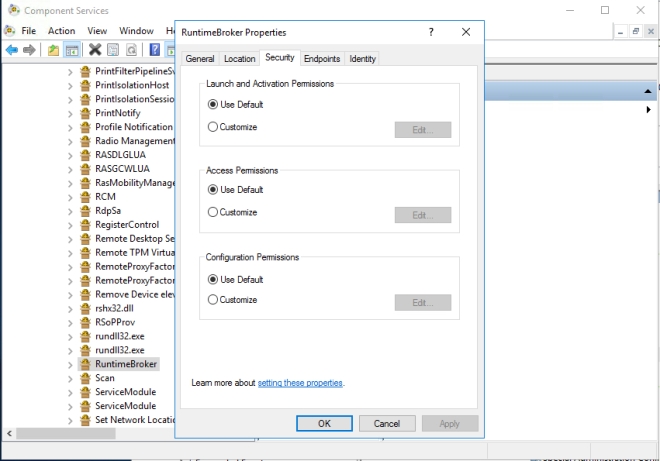
I’m not sure how or why this happened, but I figured I better write it all down in case it happens again because it took me a while to figure it out.
Step 4- Automating The Deployment
If you need to enable the same alerts on multiple systems you can simply export your Task to an XML file and Import it on your other systems.


Or even better yet, automate the Import as part of your build process through a Powershell script after making your XML file available on a file share as shown in the following example.
PS C:\> Register-ScheduledTask -Xml (get-content '\\myfileshare\tasks\DataKeeperAlerts.xml'
| out-string) -TaskName "DataKeeper Service Alerts" -User datakeeper\dave
-Password MyDomainP@55W0rd –Force
Finally, An Email Alert When Specific Windows Service Starts Or Stops
Hopefully what I have provided will give you everything you need to start receiving alert notification emails on whichever Windows Services keep you up at night.
This concludes my series on configuring email alerts. In this series I covered covered configuring alerts based on Perfmon counters, Event Log Entries and in this article Windows Service Start and Stop events. Of course you can extend these Powershell scripts described in these articles to do more than just send emails. Many alerts or unexpected service stoppages generally require some remediation. Why not just script out the recovery steps and let the triggered task take care of the issue for you?
Personally I recommend that you invest in SCOM , SolarWinds or some other Enterprise Management System, but if that is not in the cards where you work then these articles can help in a pinch.
To learn more tips about Email Alert When Specific Windows Service Starts Or Stops, contact us
Reproduced with permission from Clusteringformeremortals.com