SIOS SANless clusters

SIOS SANless clusters High-availability Machine Learning monitoring

  • Home
  • Products
    • SIOS DataKeeper for Windows
    • SIOS Protection Suite for Linux
  • News and Events
  • Clustering Simplified
  • Success Stories
  • Contact Us
  • English
  • 中文 (中国)
  • 中文 (台灣)
  • 한국어
  • Bahasa Indonesia
  • ไทย

How To Avoid Split Brain On Availability Groups With SQL Server On Linux

October 30, 2018 by Jason Aw Leave a Comment

How-To-Avoid-Split-Brain-On-Availability-Groups-With-SQL-Server-On-Linux

SQL Server 2017 On Linus Availability Group Split Brain Problem

How-To-Avoid-Split-Brain-On-Availability-Groups-With-SQL-Server-On-Linux

SQL Server 2017 On Linus Availability Group Split Brain Problem

Avoid Split Brain On Availability Groups With SQL Server On Linux with this support article posted by Microsoft.

Running SQL Server on Linux can have some advantages, including cost savings on the OS if running in Azure. Make some calculations. The cost savings are substantials as the number of cores go up. Furthermore you are licensing at least two servers for every cluster pair.

However, why bother saving money if the technology is not rock solid? One of the biggest issues I see with running SQL Server on Linux is the lack of a cohesive HA/DR story. On Windows, Microsoft owns the whole HA stack and SQL Server relies heavily on Windows Server Failover Clustering to support both Availability Groups and Failover Cluster Instances. This has been running well for many years and has a long track record of success stories.

When moving to Linux, Microsoft no longer owns the HA stack at the OS level. Depending upon your distro of Linux, you are left trying to piece together open source solutions like Pacemaker. Not to mention trying to get things to cooperate with SQL Server Availability Groups.

To avoid Split Brain On Availability Groups With SQL Server On Linux, I would much rather look to a 3rd party high availability solution like the SIOS Protection Suite for Linux (SPS-L). It gives you a tried and true HA solution for your business critical applications running on Linux.

Split Brain On Availability Groups With SQL Server On Linux
SQL Server on Linux Cluster in Azure

Split Brain On Availability Groups With SQL Server On Linux With SIOS

SPS-L has been protecting business critical applications running on Linux since 1999. It is a full HA/DR solution that monitors. It recovers the entire application stack as well as the physical servers and network to ensure your business critical applications are highly available. All this while maintaining a 3rd copy for disaster recover in a remote datacenter or different geographic region of the cloud.

The other benefit of SPS-L is that it doesn’t require the Enterprise Edition of SQL Server, so there can be a significant cost savings advantage on SQL Server licenses as well. Consider SQL Server Standard Edition costs $1859 per core vs $7128 per core for SQL Server Enterprise Edition. The cost savings advantage can be significant, depending upon how many cores you need to license.

Below is a video demonstration of SPS-L protecting SQL Server running on Linux in the Azure Cloud. The demonstration shows a SQL Server Standard Edition Cluster being manually failed over between nodes in different Azure Fault Domains as well as SPS-L responding to an unexpected failure.

Want to learn other tips like avoiding Split Brain On Availability Groups With SQL Server On Linux, read about our blog
Reproduced with ClusteringForMereMortals.com

Filed Under: Clustering Simplified Tagged With: Linux, Microsoft, split brain on availability groups with sql server on linux, SQL Server

How To Configure File Share Witness On A USB Thumb Drive?

October 29, 2018 by Jason Aw Leave a Comment

How-To-Configure-File-Share-Witness-On-A-USB-Thumb-Drive

How-To-Configure-File-Share-Witness-On-A-USB-Thumb-Drive

Cluster Quorum File Share Witness On A USB Stick

There will be a few new features in regards to the File Share Witness for the Failover Cluster Quorum in Windows Server 2019. It’s a feature my customers had been asking for many years – file share witness on a USB thumb drive!

Many wanted to deploy a simple 2-node cluster in each store location, branch office, etc. They didn’t want the added expense of a SAN to leverage a Disk Witness and did not have the connectivity to rely on a Cloud Witness in Azure. As a result, they forgo clustering. Or they used an alternative clustering solution like SIOS Protection Suite.

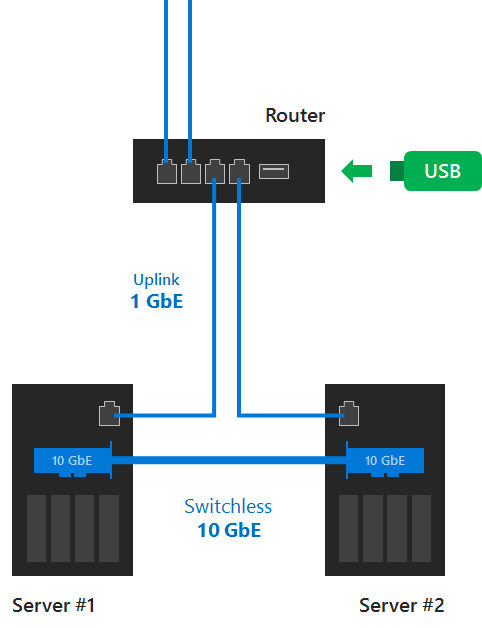
Now they have a viable alternative –  File Share Witness On A USB Thumb Drive, coming in Windows Server 2019. By leveraging a supported router, a USB disk inserted into the router can be configured with a file share that can be used as the witness. This eliminates the need for a 3rd server or internet connectivity.

file share witness on a USB thumb drive
https://blogs.msdn.microsoft.com/clustering/2018/04/16/new-file-share-witness-feature-in-windows-server-2019/

There are a few scenarios I can imagine. From HCI for Hyper-V, to a simple file server cluster using DataKeeper. Regardless of the scenario, keep in mind unless you plan on building a workgroup cluster, you probably will want to run a VM on each server to act as a redundant Domain Controllers. Or you have a reliable WAN connection back to a Domain Controller hosted in your main datacenter.

For more tips and tricks such as configuring file share witness on a USB thumb drive, read more here.
Reproduced with permission from ClusteringForMereMortals.com

Filed Under: Clustering Simplified Tagged With: File Share Witness, file share witness on a usb thumb drive, Windows Server 2019

Reasons To Love The New Gmail Interface

October 28, 2018 by Jason Aw Leave a Comment

First Impression Of The New Gmail Interface

First Impression Of The New Gmail Interface

As a Mac user I have been a little frustrated with using Gmail. Simply because there really is no Gmail user experience on the Mac as good as running Outlook 2016 on Windows 10 with G Suite Sync for Microsoft Outlook. I had high hopes for Outlook 2016 for Mac. I was an early adopter once they lit up the preview of Gmail integration that allowed you to sync both calendars and email, but it fell short in one major area.

outlook-logo

There were a few rough edges in the preview, but for the most part it was working as advertised. The one big stumbling block for me is there is no way to limit the amount of email that Outlook will download and store locally. This is a very basic feature that Outlook on Windows users get when they use G Suite Sync to sync the Gmail account to Outlook on Windows.

I’ll give it another try when they implement that feature. For now Outlook really isn’t an option for a email hoarder like me, especially given the relatively small size of the flash drives in the MacBook Pro.

For a while I was keeping a Windows VM around just to use Outlook. After a while I realized that this was just a little ridiculous and I decided to cut the cord and go cold turkey…no more Outlook.  I forced myself to embrace the Google web interface and just lived without the niceties of how well Outlook Contacts, Calendar and Emails integrated seemlessly.

Honestly I hated it. My inbox never seemed to get empty, and all my tools that integrated WebEx, Calendars and email just weren’t there, or maybe I just didn’t know how to use it properly, or know what Chrome extensions to use. But I suffered through and sucked it up.

Inbox-iOS-app-by-Google

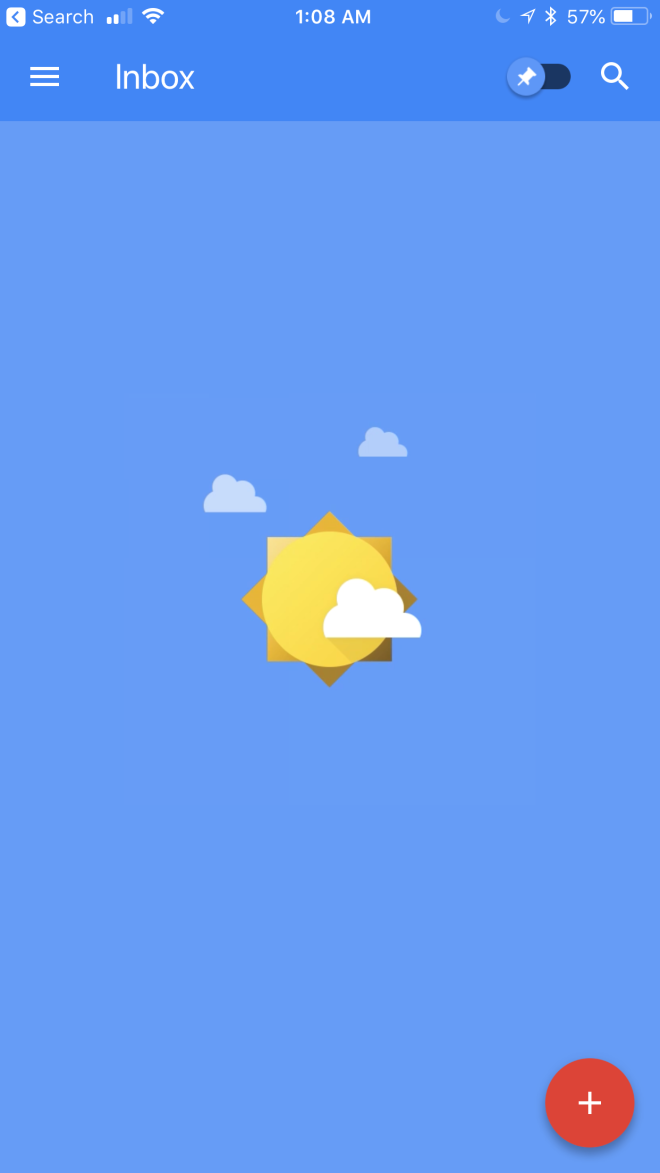
Then I stumbled upon Inbox by Google. I had typed in inbox.google.com rather than mail.google.com. My first impression was “wow, this looks really nice”. I didn’t know much about it so I did a little reading and quickly downloaded the iOS version. In fact, it had been publicly available since May of 2015.

Snooze My Mail

But since I have been torturing myself with the regular Gmail interface, I have come to find a brand new appreciation for Inbox. The initial setup was a little arduous as I had a long history of emails that I had to “Sweep” into the “Done” pile. Fortunately, I persevered and was awarded with the first clean inbox I have seen in years.

IMG_4833

Of course anyone can click Select All and then Delete, and get the same result in just about any email program. What was different about Inbox was for recent emails that I couldn’t simply sweep into the done pile, I could hit the snooze button!

IMG_4834

So the snooze button allows me to easily snooze an email till tomorrow morning or next Monday morning. Typically my emails fall into one of those categories. If I want that email to pop up at a specific time, I can pick a custom date and time as well.

“Put A Pin” In An Email

The other brilliant option that I absolutely love is the ability to “put a pin” in an email. Once you pin an email you can’t accidentally sweep it into the done pile until you unpin it. So basically my email work flow is:

  • quickly scan my Inbox
  • ignore the 95% junk email
  • put a pin in anything that looks important
  • sweep everything else into the done pile with a single click
  • look at my pinned emails, snooze the stuff that can wait
  • deal with only the most important emails first

I’ve only been using Inbox for a few weeks, but I am hooked and I am loving my clean inbox.

But of course this really only addresses my email problem. There isn’t any integration in with Google calendars so I still don’t have the seamless workflow between email and calendaring that I had with my Outlook on Windows.

Enter the new Gmail interface…

2018-07-27_01-44-46

Admittedly, I am a little late to the game here. Apparently it became available to regular gmail.com user accounts back on April 25th. I don’t use a regular Gmail account, so I was just generally unaware of the change until I just stumbled upon it a few hours ago.

The New Gmail

As any IT person will tell you, once people know you are tech savvy you tend to get roped into a lot of things. In my case it is the local marching band parent organization. Just recently I found myself being recruited to take over their social media accounts, WordPress website and Mailchimp email database. Although they owned their own domain for the website, they were not using it for email addresses.

Long story short, I got them signed up with a free G Suite for Nonprofits account since they had already embraced Google docs for some document sharing. It was pretty easy to get them up and running. Of course one of the first things I tried was to connect to my account with Google Inbox. The message I got back was pretty clear…the Administrator needs to enable Google Inbox first.

Seeing as I’m the Google Admin, I put my Google search skills to work and quickly found the page in the Google Admin site where I could allow Google Inbox.

2018-07-27_02-00-26

As I enabled Inbox my eyes wondered down to the next setting…New Gmail.

“What on earth is New Gmail?”

I decided to throw caution to the wind and selected “Allow my users access to the new Gmail UI”.

Apparently this feature was just GA’d for G Suite users, so my timing was fortunate.

As I opened mail.google.com and logged in with my marching band account I was glad to see at the top of the Settings menu I was able to “Try the new Band Parents Email”. Without hesitating I click it and made the switch.

2018-07-27_02-08-50

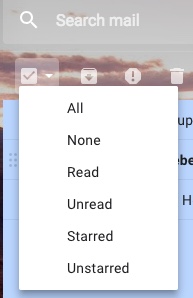
Now I’ve only been using the new Gmail for a few hours but I absolutely loved it. I was super happy to see that there is a SNOOZE button I can use. They don’t appear to have the pin and sweep option. However, you can simulate that functionality by putting a star next to important emails. Then, select Unstarred and simply delete the rest. It’s still easier in Inbox, and this isn’t really new functionality for Gmail. Hopefully Google will adopt the pin and sweep method of clearing emails in the new Gmail interface soon.

2018-07-27_02-23-00

Create An Event

But the key feature I really like is the tighter calendar integration. The one thing I love about Outlook is that from an email message you can schedule a meeting and everyone addressed in the email will automatically be part of the meeting invite, which opens up in the calendaring section of Outlook.

At first glance I thought this feature was still missing. However, after a little Google searching I discovered that it is in there.

2018-07-27_02-30-29

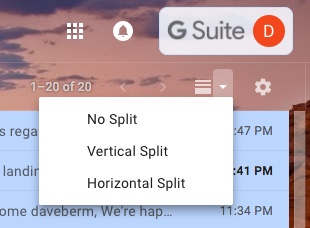
In fact, it had been there in the old interface as well. I wasn’t seeing it because I enable a Vertical Split so I could view my email like I was accustomed to in Outlook. In the new Gmail, this is a standard feature you can enable. In the old email, it was in Google Labs.

2018-07-27_02-34-01

If you enable a Vertical or Horizontal Split, you lose the ability to create an event directly from an email. That is really disappointing because in my mind those are two really key features. Hopefully someone will figure out how to get those features working together.

Nudging

One feature that looks really interesting is Nudging. I will have to use it for a few days to experience it first hand. Gmail is supposed to send a remind about emails that may have fallen through the cracks. They would also send emails that you haven’t received response from yet.

I’m really most curious about that second use case as I’m sure many of you are. How is Google going to know what emails I expect to receive responses from? I’m assuming there is a bit of AI going on behind the scenes. I’ll learn more in the next week or two and will come back with some updates.

In the meantime, get your Google admin to enable the new Gmail Interface and read about the rest of the new features here: https://support.google.com/mail/answer/7677724

Reproduced with ClusteringForMereMortals.com

Filed Under: Clustering Simplified Tagged With: Gmail, new gmail interface, Outlook 2016

Four Free Training And Cloud Computing Resources

October 26, 2018 by Jason Aw Leave a Comment

Four-Free-Training-And-Cloud-Computing-Resources

Free Training And Cloud Computing Resources

Students with any interest in Information Technology or Computer Science are going to be joining a world dominated by Cloud Computing. Major cloud service providers (CSP) would love to see young people embrace their cloud platform to host the next big thing like Facebook, Instagram or SnapChat. The top three CSP offer Free Training And Cloud Computing Resources for students, hoping to win their minds and hearts.

But before you jump right in to cloud computing, the novice student might want to start with some basic fundamentals of computer programming at one of the many free Free Training And Cloud Computing Resources

Free Training And Cloud Computing Resources

Khan Academy is offering free Azure services for students. There are two different offerings. The first is targeted at high school students ages 13+ and the second is geared towards college students 18+.

Free Training And Cloud Computing Resources

Microsoft Azure for Students Starter Offer is for those high school students who are interested in building applications in the cloud. There are not many Free Training And Cloud Computing Resources being offered at the college level. But for the the self starter looking at dipping their toes in cutting edge technology, it’s a good place to start.

Azure for Students is targeted at the college level student and has many more features available for free. Any student in computer science or information technology should definitely try this. Perfect way to do it with no additional out of pocket expense.

A good way to get introduced to the Azure Cloud is to start with some free online training courses Microsoft delivers in partnership with Pluralsight.

Free Training And Cloud Computing Resources

Not to be outdone, AWS’ AWS Educate also offers some free cloud services to students and educators. It uses free cloud credits, which could go a long way if managed properly. AWS also delivers an educational program that can be combined with an AP class in Computer Science for interested educational institutions.


Free Training And Cloud Computing Resources

Google Cloud Platform (GCP) also has education grants available for computer science majors at accredited universities. These seem to be the most restrictive of the three as they are available for Computer Science Majors only at accredited universities.

Unfortunately, I do not seem to able to find the free training offered by GCP. If you want some hands on training you could register for some classes. The upside of this is that these classes all seem to be instructor led, either online or in an actual classroom. The downside is not many 13 year olds are going to shell out any money to start developing on the CGP when there are other free training opportunities available on AWS or Azure.

For more reading on Free Training And Cloud Computing Resources, visit here
Reproduced with permission from ClusteringForMereMortals.com

Filed Under: Clustering Simplified Tagged With: free training and cloud computing resources

Fix Your SQL Server Multi-Subnet Failover Cluster

October 24, 2018 by Jason Aw Leave a Comment

Fix-Your-SQL-Server-Multi-Subnet-Failover-Cluster

Help! I Can’t Connect To My SQL Server Multi-Subnet Failover Cluster

Many of my customers have encountered this problem. To solve it, I usually tell them the following

The link would have everything you need to know.

https://docs.microsoft.com/en-us/sql/sql-server/failover-clusters/windows/sql-server-multi-subnet-clustering-sql-server?view=sql-server-2017
They don’t go into great detail about what to do if your connection does not support multisubnetfailover=true. If your connection does NOT support that parameter, then set registerallprovidersip to false and cleanup DNS. That procedure is described best here.
https://blogs.msdn.microsoft.com/sambetts/2014/02/04/multi-subnet-clustered-sql-registerallprovidersip-sharepoint-2013/

How Does SQL Server Multi-Subnet Failover Cluster Actually Work?

In general people aren’t aware of how SQL Server Multi-Subnet Failover Cluster work. Multi-subnet failover clustering support was added in Windows Server 2012 with the addition of the “OR” technology when defining cluster resource dependencies. This allowed people to allow a Cluster Name resource to be dependent upon IP Address x.x.x.x OR IP Address y.y.y.y.
x.x.x.x would be an a cluster IP resource valid in Subnet A. y.y.y.y would be a cluster IP address valid in Subnet B. Only one address will be online at any given time, whichever address was valid for the subnet the resource was currently running on.
Microsoft SQL Server started supporting this concept starting with SQL Server 2012 with both failover cluster instances (FCI) using 3-party SANless clustering solutions like SIOS DataKeeper and SQL Server Always On Availability Groups.
By default if you create a SQL Server Multi-Subnet Failover Cluster, the cluster should be automatically configured optimally. This includes setting up the two IP addresses, adding two A records to DNS and setting the registerallprovidersIP to true. However, on the client end you need to tell it that you are connecting to a multi-subnet failover cluster, otherwise the connection won’t be made.

Configuring The Client

Configuring the client is done by adding multisubnetfailover=true to the connection string. This Microsoft documentation is a great resource. But if you just search for multisubnetfailover=true you will find a lot of information about that setting.
Do not that not every application will support adding that to the connection string. If you find yourself in that situation you should ask your application vendor to add support for that or show you how to do it.
Fret not. All is not lost if you find yourself in that situation. You will want to change the behavior of the cluster so that upon failover DNS is update so that the single A record associated with the cluster client access point is updated with the new IP address. This is in lieu of having two A records in DNS, one with each cluster IP address, which is the default behavior in an multi-subnet cluster.

Help Is On The Way

This article reference SharePoint, you can ignore that, the rest of the article is pretty well written to describe the process you should follow.
https://blogs.msdn.microsoft.com/sambetts/2014/02/04/multi-subnet-clustered-sql-registerallprovidersip-sharepoint-2013/
The highlights of that article are as follows…
Get-ClusterResource “[Network Name]” | Set-ClusterParameter RegisterAllProvidersIP 0
After restarting the cluster-name-object (basically restarting the role) & cleaning up all “A” records manually (clean-up isn’t done automatically) we can see our old A-records are still in DNS so we’ll need to delete those manually.
In addition to those steps I’d advise you to reduce the TTL on the HostRecordTTL as described in this article.
https://docs.microsoft.com/en-us/powershell/module/failoverclusters/set-clusterparameter?view=win10-ps
The highlight of that article is as follows.
PS C:\> Get-ClusterResource -Name cluster1FS | Set-ClusterParameter -Name HostRecordTTL -Value 300
With a Value of 300 you could potentially be waiting up to 5 minutes for your clients to reconnect after a failover, or even longer if if have a large Active Directory infrastructure and AD replication takes some time to update all the DNS servers across your infrastructure.
You are going to want to figure out what the optimal TTL is to facilitate quick client reconnections without over burdening your DNS servers with a bunch of DNS Lookup requests.
This type of configuration is common in disaster recovery configurations where your DR site is in a different subnet. It is also very common in HA deployments in AWS because different Availability Zones are in different subnets.
Let me know if you have any questions about SQL Server Multi-Subnet Failover Cluster. You can always reach me on Twitter @daveberm
To know more about clustering, read about our success stories
Reproduced with permission from ClusteringForMereMortals.com

Filed Under: Clustering Simplified Tagged With: SQL Server Multi-Subnet Failover Cluster

  • « Previous Page
  • 1
  • …
  • 94
  • 95
  • 96
  • 97
  • 98
  • …
  • 119
  • Next Page »

Recent Posts

  • What Is High Availability (HA)?
  • Surviving the Friday Night Crash: From Scrappy Bare Metal to Seamless Data Replication
  • Grounded: What Missing Percona Live Amsterdam Taught Me About HA
  • SIOS LifeKeeper vs. Red Hat High Availability Add-On:
  • The State of Application Resilience: 2026 SIOS High Availability Survey

Most Popular Posts

Maximise replication performance for Linux Clustering with Fusion-io
Failover Clustering with VMware High Availability
create A 2-Node MySQL Cluster Without Shared Storage
SAP for High Availability Solutions For Linux
Bandwidth To Support Real-Time Replication
The Availability Equation – High Availability Solutions.jpg
Choosing Platforms To Replicate Data - Host-Based Or Storage-Based?
Guide To Connect To An iSCSI Target Using Open-iSCSI Initiator Software
Best Practices to Eliminate SPoF In Cluster Architecture
Step-By-Step How To Configure A Linux Failover Cluster In Microsoft Azure IaaS Without Shared Storage azure sanless
Take Action Before SQL Server 20082008 R2 Support Expires
How To Cluster MaxDB On Windows In The Cloud

Join Our Mailing List

Copyright © 2026 · Enterprise Pro Theme on Genesis Framework · WordPress · Log in