SIOS SANless clusters

SIOS SANless clusters High-availability Machine Learning monitoring

  • Home
  • Products
    • SIOS DataKeeper for Windows
    • SIOS Protection Suite for Linux
  • News and Events
  • Clustering Simplified
  • Success Stories
  • Contact Us
  • English
  • 中文 (中国)
  • 中文 (台灣)
  • 한국어
  • Bahasa Indonesia
  • ไทย

Clustering a Non-Cluster-Aware Application with SIOS LifeKeeper

December 4, 2025 by Jason Aw Leave a Comment

Clustering a Non-Cluster-Aware Application with SIOS LifeKeeper

Clustering a Non-Cluster-Aware Application with SIOS LifeKeeper

Not every application was built with clustering in mind. In fact, most were not. But that does not mean they cannot benefit from the high availability protection provided by SIOS LifeKeeper. If your application can be stopped, started, and run on another server, there is a good chance you can cluster it.

Before jumping in, there are a few key considerations that will make the difference between a successful clustering implementation and a frustrating trial-and-error experience.


1. Move Dynamic Data to Shared or Replicated Storage

Applications typically store dynamic data such as logs, databases, cache, and other application data on local storage. When clustering, that will not work. During failover, the standby node must have access to the same data so the application can pick up exactly where it left off.

The solution is to relocate all dynamic data to a shared disk in a SAN environment or to a replicated volume when using SIOS DataKeeper. Static files such as executables can remain local, but anything that changes at runtime should reside on storage that is accessible from all cluster nodes.


2. Update Application Host References for Clustered Environments

Many applications refer to the local system by name, FQDN, or IP address. That is fine in a standalone configuration, but in a cluster the application needs to bind to or communicate through the cluster’s Virtual IP (VIP).

If the application or its configuration files reference:

  • localhost
  • the node’s hostname or FQDN
  • the node’s static IP address

You will likely need to change those references to the VIP or a hostname that resolves to the VIP. Typical locations to check include registry keys, configuration files, and any connection strings the application uses to reach itself or other services.


3. Write Custom Start, Stop, and Monitor Scripts

Cluster-aware applications include logic that tells the cluster how to start, stop, and monitor the service. Non-cluster-aware applications do not. That is where SIOS LifeKeeper Application Recovery Kits (ARKs) come in.

If one does not exist for your application, you can create custom scripts that:

  • Start the service or process
  • Stop it cleanly before switchover
  • Monitor its health, for example by checking a port, log file, or process

In some cases, protecting an application is as simple as starting and stopping a service. For those situations, LifeKeeper provides the Quick Service Protection (QSP) Recovery Kit. With QSP, you can simply select the service you want to protect, eliminating the need to write any code. LifeKeeper will automatically handle start, stop, and monitoring operations for that service.

These options make it easy to protect a wide range of applications, from simple Windows or Linux services to complex multi-component systems, all within the same clustering framework.


4. Handle Encryption Keys Properly Across All Cluster Nodes

If your application encrypts data at rest, each cluster node must be able to decrypt it. This means the encryption key must be accessible and consistent across all nodes. Depending on your setup, that might involve synchronizing a local key store or using a centralized key management solution.

The key takeaway is that every node must be able to access the encryption key securely and consistently when it becomes active. Otherwise, the application may start but fail to access its data after failover.


5. Consider How Clients Reconnect After a Failover

When an application fails over from one node to another, there is a brief interruption while the new active node takes over the IP address and starts the application. For clients connected to that service, behavior depends entirely on how they handle connection loss.

If client retry logic is built in, users might never notice an interruption. The client will automatically reconnect once the VIP and service are available again.

If the client does not include retry logic, users may need to manually refresh or restart the connection after a failover.

It is important to understand how your client behaves and test how it responds during failover. Sometimes adding a simple connection retry loop or adjusting a connection timeout setting is all that is needed for a seamless user experience.


6. Verify Application Licensing Requirements for Cluster Deployments

One often overlooked step is licensing. When you cluster an application, it is installed on every node in the cluster, but only one instance, the active one, runs at a time. Some vendors provide special active/passive cluster licenses, while others require a license for every installed instance.

Always check with your application vendor before deployment. A quick conversation up front can save hours of licensing issues later.


7. Test All Application and Cluster Components Thoroughly

Testing is one of the most important and most frequently overlooked parts of any clustering project.

Do not only test failover. Test every function of the application while it is protected. This includes:

  • Startup and shutdown sequences
  • All required services and background tasks
  • Any component that reads, writes, or caches data
  • Any process that relies on service dependencies
  • Client behavior before, during, and after failover

If the application uses a custom script or QSP, make sure each step works correctly under load. This not only catches issues early but also gives confidence that the solution will behave correctly during real incidents.

Achieving HA for Non-Cluster-Aware Applications

Clustering a non-cluster-aware application with SIOS LifeKeeper is not difficult, but it does require some planning. Move your data to shared or replicated storage, point everything to the cluster’s VIP, script the start, stop, and monitor logic (or use QSP when appropriate), make sure encryption keys are available on all nodes, and confirm licensing requirements.

Do not forget to test how your clients respond to failovers, because true high availability means both your servers and your users stay connected.

Follow these steps and you will find that even the most “standalone” application can achieve enterprise-grade high availability. Request a demo today to see how SIOS LifeKeeper brings reliable HA to non-cluster-aware applications.

Author: David Bermingham Senior Technical Evangelist at SIOS

Reproduced with permission from SIOS

Filed Under: News and Events Tagged With: Clustering, SIOS LifeKeeper

A Step-by-Step Guide to Setting Up an NFS File Witness with SIOS LifeKeeper on Linux

April 6, 2024 by Jason Aw Leave a Comment

A Step-by-Step Guide to Setting Up an NFS File Witness with SIOS LifeKeeper on Linux

A Step-by-Step Guide to Setting Up an NFS File Witness with SIOS LifeKeeper on Linux

Getting Started with SIOS Lifekeeper and NFS-Based File Witness

In high availability clustering, a witness plays a crucial role in ensuring the integrity and reliability of the cluster. Without a 3rd node, it can be hard to achieve quorum as there is no data to help break a tie where both nodes think they should go live (This is known as a split-brain). You can solve this problem in many ways, for example, by providing a dedicated witness server, a shared storage path seen by the whole cluster, or simply by having more nodes in the cluster itself (minimum 3!). Thankfully, SIOS LifeKeeper offers robust solutions for setting up high-availability clusters on Linux environments, and configuring a witness to improve quorum is an essential feature.

In this guide, we’ll walk you through the steps to set up an NFS-based file witness with SIOS LifeKeeper on Linux, helping you enhance the availability and resilience of your clustered applications.

Goal:

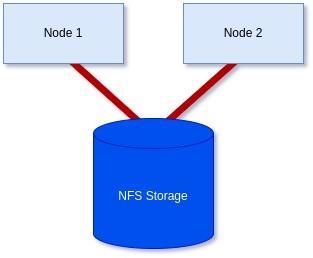
To achieve a 2-node cluster using an NFS-based storage witness as shown in the diagram below:

Prerequisites: Before getting started, ensure you have the following:

  • Linux servers are configured and connected with administrative privileges (i.e., root access).
  • SIOS LifeKeeper is either installed or downloaded and ready to install on each server.
  • An NFS share is accessible to all servers in the cluster.

Step 1: Install/Modify SIOS LifeKeeper:

We will need to either install LifeKeeper at this stage or re-run the setup to add Witness functionality unless you already included it earlier.

In my case, I’m using RHEL8.8, so I will mount the ISO before running the setup with the supplementary package needed for RHEL8.8.

[root@server1-LK ~]# mount /root/sps.img /mnt/loop  -t iso9660 -o loop

[root@server1-LK ~]# cd /mnt/loop/

[root@server1-LK loop]# ./setup –addHADR /root/HADR-RHAS-4.18.0-477.10.1.el8_8.x86_64.rpm

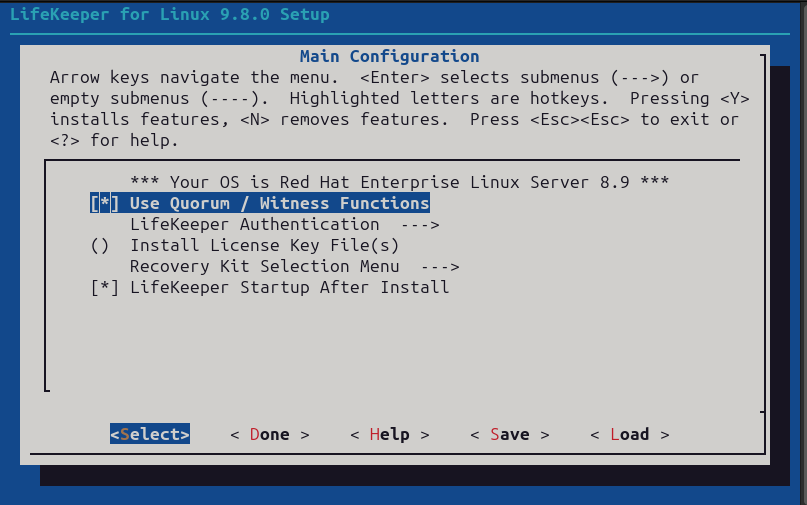
Here the important part for our purposes is enabling the witness function like in the screenshot below. However, you will also need an additional license file, which you can either add here or add via the command line later at your discretion:

Otherwise, configure LifeKeeper for your purposes, or if it was already configured simply proceed through the setup once you’ve included the “Use Quorum / Witness Function” option.

If you decided to add the license via the command line also run the following command on each node in the cluster with the correct path to your license file:

[root@server1-LK ~]# /opt/LifeKeeper/bin/lkkeyins /<path-to-license-file>l/quorum-disk.lic

Step 2: Set up and mount shared storage:

Ensure that you have shared storage accessible to all servers in the cluster. You can check each server using either the ‘mount’ command or with ‘findmnt’ to verify that you have it locally mounted:

[root@server1-LK loop]# mount | grep nfs

sunrpc on /var/lib/nfs/rpc_pipefs type rpc_pipefs (rw,relatime)

172.16.200.254:/var/nfs/general on /nfs/general type nfs4 (rw,relatime,vers=4.2,rsize=1048576,wsize=1048576,namlen=255,hard,
proto=tcp,timeo=600,retrans=2,sec=sys,
clientaddr=172.16.205.151,local_lock=none,addr=172.16.200.254)

or

[root@server1-LK ~]# findmnt -l /nfs/general

TARGET       SOURCE                          FSTYPE OPTIONS

/nfs/general 172.16.200.254:/var/nfs/general nfs4   rw,relatime,vers=4.2,rsize=1048576,wsize=1048576,namlen=255,hard,
proto=tcp,timeo=600,retrans=2,sec=sys,clientaddr=172.16.205.151,
local_lock=none,addr=172.16.200.254

Should you still need to mount the share yourself, please follow these steps:

First, confirm you can see the NFS share on the host server.

[root@server1-LK ~]# showmount -e 172.16.200.254

Export list for 172.16.200.254:

/home            172.16.205.244,172.16.205.151

/var/nfs/general 172.16.205.244,172.16.205.151

In my case, I want to mount the ‘/var/nfs/general’ share.

To mount this share, first, make sure your directory you plan to mount it to exists. If not, create it:

[root@server1-LK ~]# mkdir -p /nfs/general

Now you can manually mount the share using the following command to confirm you can connect, and it works:

[root@server1-LK ~]# mount 172.16.200.254:/var/nfs/general /nfs/general

Finally, once happy, add the mount point to you’re /etc/fstab file so it will mount on boot:

[root@server1-LK ~]# cat /etc/fstab

#

# /etc/fstab

# Created by anaconda on Thu Jan 25 12:07:15 2024

#

# Accessible filesystems, by reference, are maintained under ‘/dev/disk/’.

# See man pages fstab(5), findfs(8), mount(8) and/or blkid(8) for more info.

#

# After editing this file, run ‘systemctl daemon-reload’ to update systemd

# units generated from this file.

#

/dev/mapper/rhel-root   /                       xfs     defaults        0 0

UUID=6b22cebf-8f1c-405b-8fa8-8f12e1b6b56c /boot                   xfs     defaults        0 0

/dev/mapper/rhel-swap   none                    swap    defaults        0 0

#added for NFS share

172.16.200.254:/var/nfs/general   /nfs/general  nfs4    defaults        0 0

Now, you can confirm it is mounted using the mount command:

[root@server1-LK ~]# mount -l | grep nfs

sunrpc on /var/lib/nfs/rpc_pipefs type rpc_pipefs (rw,relatime)

172.16.200.254:/var/nfs/general on /nfs/general type nfs4 (rw,relatime,vers=4.2,rsize=1048576,wsize=1048576,
namlen=255,hard,proto=tcp,timeo=600,retrans=2,sec=sys,
clientaddr=172.16.205.151,local_lock=none,addr=172.16.200.254)

As you can see from the highlighted text above, it has now been mounted successfully. Repeat on all servers until you are sure all servers have the share mounted before proceeding.

Step 4: Check your hostnames and configure /etc/default/LifeKeeper settings:

You can see the hostname LifeKeeper knows for each of your servers by running the following command on each node:

/opt/LifeKeeper/bin/lcduname

Example of settings you’ll need to add to the /etc/default/LifeKeeper file:

WITNESS_MODE=storage

QWK_STORAGE_TYPE=file

QWK_STORAGE_HBEATTIME=6

QWK_STORAGE_NUMHBEATS=9

QWK_STORAGE_OBJECT_server1_LK_localdomain=/nfs/general/nodeA

QWK_STORAGE_OBJECT_server2_LK_localdomain=/nfs/general/nodeB

For ‘QWK_STORAGE_OBJECT_<server-name>’, you need to declare this for each node, and it is formed using your hostname as well as the path, and the desired location of the witness file itself.

It should be noted that if the hostname contains a “-” or “.”, replace them with an underscore “_”
(e.g., lksios-1 → lksios_1 or lksios-1.localdomain → lksios_1_localdomain ).

In my example, I had the following hostnames:

server1-LK.localdomain

server2-LK.localdomain

Which meant adding the following ‘QWK_STORAGE_OBJECT_’ definitions:

QWK_STORAGE_OBJECT_server1_LK_localdomain=/nfs/general/nodeA

QWK_STORAGE_OBJECT_server2_LK_localdomain=/nfs/general/nodeB

In addition, we will need to adjust one of the existing settings in /etc/default/LifeKeeper:

QUORUM_MODE=storage

To help understand why we have set both our WITNESS_MODE and QUORUM_MODE to storage take a look at the following table:

Supported Combinations of a Quorum Mode and Witness Mode

LifeKeeper supports the following combinations.

QUORUM_MODE
majority tcp_remote storage none/off
WITNESS_MODE remote_verify Supported3 or more nodes Supported3 or more nodes Not supported Supported3 or more nodes
storage Not Supported Not Supported SupportedBetween 2 and 4 nodes Not supported
none/off Supported3 or more nodes Supported2 or more nodes Not supported Supported

We have a two-node cluster that wants to use external storage for a quorum, so the only supported combination would be ‘storage’ for both values. However, you can see from the table how flexible this can be when you require more nodes, offering many ways to achieve communication and provide a quorum.

Step 4: Initialize the Witness file:

To initialize the witness file and enable its use, you must run the following command on each node:

[root@server1-LK ~]# /opt/LifeKeeper/bin/qwk_storage_init

It will pause when run until each node has completed so execute the command on the first node in the cluster, then the second, and so on before coming back to check the command is completed with no errors.

Example:

[root@server1-LK ~]# /opt/LifeKeeper/bin/qwk_storage_init

ok: LifeKeeper is running.

ok: The LifeKeeper license key is successfully installed.

ok: QWK parameter is valid.

QWK object of /nfs/general/nodeA is not yet avail.

/nfs/general/nodeA already exsits as not QWK_STORAGE_OBJECT: overwrite? (y/N): y

ok: The path of QWK object is valid.

ok: down: /opt/LifeKeeper/etc/service/qwk-storage: 1377s

ok: Initialization of QWK object of own node is completed.

QWK object of /nfs/general/nodeB is not yet avail.

QWK object of /nfs/general/nodeB is not yet avail.

QWK object of /nfs/general/nodeB is not yet avail.

QWK object of /nfs/general/nodeB is not yet avail.

QWK object of /nfs/general/nodeB is not yet avail.

QWK object of /nfs/general/nodeB is not yet avail.

QWK object of /nfs/general/nodeB is not yet avail.

ok: quorum system is ready.

ok: run: /opt/LifeKeeper/etc/service/qwk-storage: (pid 14705) 1s, normally down

Successful.

Step 5: Validate Configuration:

The configuration can be validated by running the following command:

/opt/LifeKeeper/bin/lktest

Should it find any errors, they will be printed to the terminal for you. In the example below, I hadn’t replaced the special characters in my hostname so it highlighted it was unable to find the storage.

[root@server1-LK ~]# /opt/LifeKeeper/bin/lktest

/opt/LifeKeeper/bin/lktest: /etc/default/LifeKeeper[308]: QWK_STORAGE_OBJECT_server1_LK.localdomain=/nfs/general/nodeA: not found

/opt/LifeKeeper/bin/lktest: /etc/default/LifeKeeper[309]: QWK_STORAGE_OBJECT_server2_LK.localdomain=/nfs/general/nodeB: not found

F   S UID      PID   PPID  C  CLS PRI  NI SZ    STIME    TIME   CMD

4 S root     2348  873   0   TS   39 -20 7656  15:49  00:00:00 lcm

4 S root     2388  882   0   TS   39 -20 59959         15:49 00:00:00 ttymonlcm

4 S root     2392  872   0   TS   29 -10 10330         15:49 00:00:00 lcd

4 S root     8591  8476  0   TS   19  0 7670   15:58  00:00:00 lcdremexec -d server2-LK.localdomain -e — cat /proc/mdstat

You can also confirm that the witness file is being updated via the command line like so:

[root@server1-LK ~]# cat /nfs/general/nodeA

signature=lifekeeper_qwk_object

local_node=server1-LK.localdomain

time=Thu Feb 15 14:10:56 2024

sequence=157

node=server2-LK.localdomain

commstat=UP

checksum=13903688106811808601

A Successful File Share Witness Using NFS

Setting up a file share witness using NFS is easy! It can be powerful if you are restricted to two nodes but need better resilience to split-brain events, especially in the cloud where you can leverage something like AWS’s EFS… Another essential part can be utilizing more communications paths, but that’s a different blog. However, by following the steps outlined in this guide, you can enhance the resilience of your clustered applications and minimize the risk of downtime. Always refer to the SIOS documentation and best practices for further guidance and optimization of your high-availability setup. It’s publicly available and extremely comprehensive!

SIOS High Availability and Disaster Recovery

SIOS Technology Corporation provides high availability and Disaster Recovery products that protect & optimize IT infrastructures with cluster management for your most important applications. Contact us today for more information about our services and professional support.

Reproduced with permission from SIOS
Filed Under: Clustering Simplified Tagged With: Clustering

The Challenges of Using Amazon EBS Multi-Attach for Microsoft Failover Clusters

February 13, 2024 by Jason Aw Leave a Comment

The Challenges of Using Amazon EBS Multi-Attach for Microsoft Failover Clusters

The Challenges of Using Amazon EBS Multi-Attach for Microsoft Failover Clusters

Overview of Amazon EBS and Microsoft Failover Clusters 

Amazon EBS Multi-Attach volumes and Microsoft Failover Clusters are powerful tools in the world of cloud computing and data management. However, integrating these two technologies can be fraught with challenges. This blog post delves into why using Amazon EBS Multi-Attach for Microsoft Failover Clusters is often not the best choice.

The Single AZ Constraint for Robust Failover Clusters

A key limitation of Amazon EBS volumes is their confinement to a single Availability Zone (AZ). For robust failover clusters, deploying instances across multiple AZs is a recommended best practice, something EBS volumes cannot directly support.

High Availability SLA Concerns

While EBS volumes offer a 99.9% availability SLA, this falls short of the 99.99% commonly expected for high availability solutions. AWS does guarantee this higher SLA when deploying instances across multiple AZs, a benefit not extended to single-AZ deployments.

Cost Implications of IO2 Volumes

Windows Failover Clusters with multi-attach EBS volumes necessitate the use of IO2 volumes, which are approximately nine times more expensive than GP3 volumes of similar size and performance. This cost difference is significant, especially for large-scale deployments.

Complexity in AWS Cluster Configuration

Building a cluster in AWS with nodes in the same AZ requires the division of the AZ into multiple subnets to support different virtual IP addresses (VIPs) in the Windows cluster. This complexity, along with the inability to share a single VIP across cluster nodes, adds to the configuration challenges.

SIOS DataKeeper: A Superior Alternative

SIOS DataKeeper emerges as a superior solution, allowing clusters that span subnets while providing the desired 99.99% availability SLA. Not only does it offer more flexible storage options, including the use of GPT3 disks, but it is also far more cost-effective. Clusters using SIOS DataKeeper with GPT3 disks can be around 20% of the cost of similar IO2-based clusters, with enhanced availability.

Superior High Availability with SIOS 

The use of Amazon EBS Multi-Attach volumes in Microsoft Failover Clusters presents several significant challenges, from limited AZ deployment options and lower availability SLAs to higher costs and increased configuration complexity. SIOS DataKeeper offers a compelling alternative, balancing cost, flexibility, and reliability more effectively. For organizations seeking high availability and cost efficiency, exploring options beyond EBS Multi-Attach is a prudent strategy. Contact SIOS for more information.

Reproduced with permission from SIOS
Filed Under: Clustering Simplified Tagged With: Amazon EBS Multi-Attach, Clustering

How to Protect Applications in Windows Operating System

September 7, 2023 by Jason Aw Leave a Comment

How to Protect Applications in Windows Operating System

How to Protect Applications in Windows Operating System

To mitigate system downtime and ensure high availability for Windows, IT best practice recommends that you connect two or more servers (or nodes) and use clustering software. High availability clustering software monitors the health of the primary node and initiates recovery actions if it detects an issue. In the event of a failure, the secondary node needs to access the most current versions of data in storage. In traditional clusters, this is achieved by connecting all nodes of the clusters to the same shared storage or by using efficient, cluster-aware replication software to synchronize local storage on all cluster nodes.

The cluster nodes should be separated geographically to protect applications from sitewide and regional disasters.

You have several Windows clustering software options, including Microsoft Windows Server Failover Clustering, SIOS LifeKeeper for Windows, and others.

What is Window Clustering?

In a Windows environment, two or more nodes and shares the same storage. A third node is often configured as a “witness” server that designates the primary server if the connection between nodes is lost. In addition to monitoring the health of the cluster, the nodes work together to collectively provide:[1]

  • Resource management – Individual nodes provide physical resources such as SAN and network interfaces. The hosted applications are registered as a cluster resource and can configure startup and health dependencies upon other resources.
  • Failover coordination – Each resource is hosted on a primary node and can be automatically or manually transferred to one or more secondary nodes. Nodes and hosted applications are notified when failover occurs so that they can appropriately react. WSFC works with Microsoft Always On Availability Groups and Always On Failover Clustering to coordinate failover In Microsoft SQL Server environments.

How SIOS DataKeeper Complements WSFC

WSFC requires shared storage to ensure all cluster nodes are accessing the most up-to-date data in the event of a failover. Often, companies use expensive SAN hardware to assure data redundancy. SANs represent a single point of failure risk. And, if you want to run your application in the cloud with the same Windows Server Failover clustering protection, there is no SAN available.

SIOS DataKeeper Cluster Edition seamlessly integrates with and extends WSFC and SQL Server Always On Failover clustering by eliminating the need for shared storage. It provides performance-optimized, host-based replication to synchronize local storage in all cluster nodes, creating a SANless cluster. While WSFC manages the cluster, SIOS DataKeeper performs synchronous or asynchronous replication of the storage giving the standby nodes immediate access to the most current data in the event of a failover. SIOS DataKeeper not only eliminates the cost, complexity, and single-point-of-failure risk of a SAN, but also allows you to use the latest in fast PCIe Flash and SSD in your local storage for performance and protection in a single cost-efficient solution.

With SIOS DataKeeper, you can also balance network bandwidth and CPU utilization for each application.

  • If fast replication is critical, SIOS DataKeeper can achieve more than 90 percent bandwidth utilization to accelerate data synchronization.
  • If minimizing network impact is your top priority, SIOS DataKeeper offers integrated compression and bandwidth throttling.

In addition, SIOS DataKeeper’s Target Snapshots feature lets you run point-in-time reports from a secondary node to offload workloads that can impact performance on the primary node. This lets you query and run reports faster and make faster decisions.

Working with WSFC, SIOS DataKeeper Cluster Edition protects business-critical Windows environments, including Microsoft SQL Server, SAP, SharePoint, Lync, Dynamics, and Hyper-V using your choice of industry-standard hardware and local attached storage in a “shared-nothing” or SANless configuration.[2] SIOS DataKeeper also provides high availability and disaster recovery protection for your business-critical applications in cloud environments, such as Amazon Web Services (AWS), Microsoft Azure, and Google Cloud Services without sacrificing performance.

SIOS LifeKeeper for Windows – Protecting Windows Applications Without WSFC

SIOS LifeKeeper for Windows is a tightly integrated clustering solution that combines high availability failover clustering, continuous application monitoring, data replication, and configurable recovery policies to protect your business-critical applications and data from downtime and disasters.

Distributed metadata and notifications

The WSFC service and node’s metadata/status are hosted on each node in the cluster. When changes occur on any node, updated information is automatically replicated to all other nodes.

SIOS LifeKeeper for Windows monitors the health of the application environment, including servers, operating systems, and databases. It can stop and restart an application both locally and on another cluster server at the same site or in another location. When a problem is detected, SIOS LifeKeeper automatically performs the recovery actions and automatically manages cascading and prioritized failovers.

With SIOS LifeKeeper, you can use your choice of SAN or SANless clusters using a wide array of storage devices, including direct-attached storage, iSCSI, Fibre Channel, and more.

Popular SIOS Windows Clustering Solutions

Some of the most popular SIOS Windows clustering solutions – for SQL Server, SAP, and cloud-based environments – are discussed in more detail below.

Windows Clustering for SQL Server, SAP, and Oracle

SIOS provides comprehensive protection for both applications and data, including high availability, data replication, and disaster recovery. To protect SAP in a Windows environment, SIOS LifeKeeper monitors the entire application stack. SIOS protects your Oracle Database whether you are using it with SAP or running standalone Oracle applications – you simply select the Application Recovery Kit that matches your configuration.

Windows Clustering in the Cloud

Whether you need SIOS DataKeeper to enable Windows Server Failover Clustering in the cloud or SIOS LifeKeeper for Windows for application monitoring and failover orchestration, as well as efficient, block-level data replication, SIOS delivers complete configuration flexibility. SIOS allows you to create a cluster in any combination of physical, virtual, cloud, or hybrid cloud infrastructures. For example, working with WSFC, SIOS DataKeeper can:

  • Protect critical on-premise or hybrid business applications to a high availability Windows environment in AWS, Azure, or Google Cloud.
  • Protect cloud applications, such as SQL Server and SAP, by creating a Windows cluster in AWS, Azure, or Google Cloud.
  • Provide site-wide, local, or regional high availability and disaster recovery protection by failing over application instances across cloud availability zones or regions.

SIOS DataKeeper Cluster Edition can provide high availability cluster protection across cloud

Protecting the Widest Range of Applications in the Industry

SIOS provides offerings that support a breadth of applications, operating systems, and infrastructure environments, providing a single solution that can handle all your high availability needs. Here are just a few examples that demonstrate the power of SIOS.

  • Perth Stadium in Western Australia implemented SIOS DataKeeper with WSFC to provide high availability for their Hyper-V virtual machines.
  • PayGo (paygoutilities.com), based in the U.S., implemented SIOS DataKeeper with WSFC to provide high availability for SQL Server on AWS.
  • Toyo Gosei, based in Japan, implemented SIOS DataKeeper with WSFC to provide high availability and disaster recovery for their SAP application on Azure.

For more information on high availability/disaster recovery solutions to support your Windows environment click here [TM(1] .

References

https://www.techopedia.com/definition/24358/windows-clustering
https://searchwindowsserver.techtarget.com/definition/Windows-Server-failover-clustering
https://docs.microsoft.com/en-us/sql/sql-server/failover-clusters/windows/windows-server-failover-clustering-wsfc-with-sql-server?view=sql-server-ver15

[1] https://docs.microsoft.com/en-us/sql/sql-server/failover-clusters/windows/windows-server-failover-clustering-wsfc-with-sql-server?view=sql-server-ver15[2] A shared-nothing architecture (SN) is a distributed-computing architecture in which each update request is satisfied by a single node (processor/memory/storage unit). https://en.wikipedia.org/wiki/Shared-nothing_architecture

Reproduced with permission from SIOS
Filed Under: Clustering Simplified Tagged With: Clustering, Windows Operating System

Clusters for Microsoft Azure High Availability

August 15, 2023 by Jason Aw Leave a Comment

Clusters for Microsoft Azure High Availability

Clusters for Microsoft Azure High Availability

High Availability Clustering Solutions for Microsoft Azure

What is Microsoft Azure Clustering?

Microsoft Azure clustering ensures high availability protection for critical applications running in Azure environments by eliminating single points of failure. In an Azure cluster environment, two or more nodes in Azure are configured in a failover cluster using clustering software. The critical application is run on a primary node in the cluster. If clustering software detects an application operation failure, it orchestrates a failover of the application operation to secondary node(s) in the cluster.

Microsoft Azure High Availability with SIOS DataKeeper

For customers running critical Windows applications in Windows Server Failover Clustering (WSFC) environments, SIOS DataKeeper Cluster Edition is the first Azure certified high availability and disaster recovery solution in the Azure Marketplace. It provides efficient data replication and seamless integration into Windows Server Failover Clustering environments for high availability clusters without the need for costly shared storage. Simply add SIOS DataKeeper to a WSFC environment and it synchronizes local storage using highly efficient block-level replication, making it appear to WSFC as traditional shared storage. IT teams use SIOS DataKeeper to continue to use familiar WSFC in the cloud without the cost and complexity of a SAN or other shared storage.

SIOS LifeKeeper

While cloud providers offer high availability service levels for their hardware, they do not cover software-related downtime. Critical critical applications, databases, and ERPS, such as SQL Server, Oracle Database, SAP, HANA companies need 99.99% uptime at the application and data level using SIOS LifeKeeper. SIOS LifeKeeper for Linux and SIOS LifeKeeper for Windows provide application-aware HA/DR for complex, critical applications in Azure for reliable easy-to-manage clustering environment.

SIOS LifeKeeper for Linux is the only solution that provides a comprehensive range of Linux clustering, protecting applications in SUSE Linux, Red Hat Linux, Oracle Linux, and Rocky Linux clustering environments. SIOS LifeKeeper for Windows provides reliable failover clustering for applications in Windows environments. SIOS LifeKeeper comes with unique SIOS application recovery kits that provide application-specific intelligence to automate configuration and management steps and ensure failovers happen in compliance with application-vendor best practices for maximum efficiency and reliability.

SIOS LifeKeeper is sold as part of the SIOS Protection Suite (for Windows and for Linux), a tightly integrated combination of high availability failover clustering, continuous application monitoring, data replication, and configurable recovery policies. SIOS Protection Suite includes SIOS LifeKeeper clustering software, SIOS DataKeeper replications software, and multiple Application Recovery Kits (ARKs) to protect your business-critical applications and data from downtime and disasters.

Azure Site Recovery Compatibility for High Availability and Disaster Protection

SIOS DataKeeper Cluster Edition is the only high availability solution certified for use with Microsoft Azure Site Recovery for cost-efficient high availability and disaster recovery protection for business-critical applications in Azure.

SIOS DataKeeper provides broad compatibility, enabling customers to protect important applications, including SAP, SQL Server, and Oracle, on Azure. SIOS DataKeeper Cluster Edition provides a simple way to use Windows Server Failover Clustering – including SQL Server Always On Failover Clustering – in a cloud environment. Customers can replicate the cluster to a geographically separated location using Azure Site Recovery for cost-efficient, robust disaster protection. Learn more about SQL Server High Availability in Azure.

Together SIOS DataKeeper and Microsoft Azure Site Recovery enable the only option for local high availability protection along with disaster recovery in a highly flexible and on-demand solution.

Protect Linux Applications in Azure

SIOS Protection Suite for Linux lets you run your business-critical applications in Azure or Azure Stack without sacrificing performance, high availability or disaster protection.

Learn more about SIOS SANless Software for Cloud High Availability.

SIOS is SAP Certified

SIOS Protection Suite is fully SAP-certified for your SAP NetWeaver and SAP HANA, including high availability, data replication, and disaster recovery in an easy, cost-efficient solution that can operate in the cloud, on-premises or in hybrid cloud configurations.

Learn more about SIOS High Availability for SAP on Azure

  • Read the White Paper:  High Performance and High Availability for SAP on Azure
  • Read the Microsoft White Paper: Microsoft High Availability for SAP HANA database on Azure using SIOS Protection Suite
  • Learn how Zespri International Protects SAP and SQL Server on Azure using SIOS DataKeeper Cluster Edition
Reproduced with permission from SIOS
Filed Under: Clustering Simplified Tagged With: Clustering, High Availability

  • 1
  • 2
  • 3
  • …
  • 7
  • Next Page »

Recent Posts

  • Designing for High Availability and Disaster Recovery
  • The Importance of Proper Memory Allocation in HA Environments
  • Top Reasons Businesses Are Adopting Disaster Recovery as a Service (DRaaS) Solutions
  • Clustering a Non-Cluster-Aware Application with SIOS LifeKeeper
  • 99.99% Uptime: Balancing High Availability and Maintenance

Most Popular Posts

Maximise replication performance for Linux Clustering with Fusion-io
Failover Clustering with VMware High Availability
create A 2-Node MySQL Cluster Without Shared Storage
SAP for High Availability Solutions For Linux
Bandwidth To Support Real-Time Replication
The Availability Equation – High Availability Solutions.jpg
Choosing Platforms To Replicate Data - Host-Based Or Storage-Based?
Guide To Connect To An iSCSI Target Using Open-iSCSI Initiator Software
Best Practices to Eliminate SPoF In Cluster Architecture
Step-By-Step How To Configure A Linux Failover Cluster In Microsoft Azure IaaS Without Shared Storage azure sanless
Take Action Before SQL Server 20082008 R2 Support Expires
How To Cluster MaxDB On Windows In The Cloud

Join Our Mailing List

Copyright © 2025 · Enterprise Pro Theme on Genesis Framework · WordPress · Log in