SIOS SANless clusters

SIOS SANless clusters High-availability Machine Learning monitoring

  • Home
  • Products
    • SIOS DataKeeper for Windows
    • SIOS Protection Suite for Linux
  • News and Events
  • Clustering Simplified
  • Success Stories
  • Contact Us
  • English
  • 中文 (中国)
  • 中文 (台灣)
  • 한국어
  • Bahasa Indonesia
  • ไทย

SIOS Product Management team is pleased to announce the general availability of SIOS LifeKeeper for Linux v 9.8.1.

March 30, 2024 by Jason Aw Leave a Comment

SIOS Product Management team is pleased to announce the general availability of SIOS LifeKeeper for Linux v 9.8.1.

SIOS Product Management team is pleased to announce the general availability of SIOS LifeKeeper for Linux v 9.8.1.

New in LifeKeeper Linux v 9.8.1

  • New LifeKeeper Web Management Console Designed for Ease-of-use for system administrators in the establishment and operation phases, particularly in cloud environments. NOTE in v 9.8.1 customers can choose to run the new LWMC or the existing Java-based GUI. New features in LWMC include:
    • New set up progress tracking
    • New “information cues” provide self-help for all functionality
    • Self-Contained – No need for additional installations or add-ons
    • Language localization – Initially available in both Japanese and English language
    • Simplified firewall management – access on only 2 TCP ports
    • Responsive design enables use with tablets and smart phones
    • Broader Support – Platforms, OS and Enhanced SAP support
  • Enhanced security options
    • Support for IMDS2 (Instance Metadata Service) in AWS which provides enhanced protection for programs accessing sensitive instance metadata including cloud instance ID, IP address, and the security group to which it belongs.
    • Support for Security-Enhanced Linux (SELinux) in all three modes: enforcing, security, and disabled. SELinux provides access control to the Linux kernel as required by the U.S. National Security Agency (NSA).
  • Support for additional platforms
    • Fujitsu Enterprise PostGres 15
    • Maria DB v10.5 – 10.11
    • Maria DB v11.0 – 11.1
  • Support for latest operating system releases
    • Red Hat, Miracle, Oracle, Rocky Linux 8.8
    • Rocky, Oracle Linux 9.2
    • Rocky Linux 9.1
    • Red Hat Linux 8.9
    • Red Hat Linux 9.3
    • SLES 15 SP5
  • Support operating system versions built for enhanced SAP support SAP ARK
    • Red Hat Linux 8.7
    • Red Hat Linux 8.8
    • SLES 15 SP5
  • New SIOS LifeKeeper SAP HANA Application Recovery Kit
    • Red Hat Linux 8.8

Reproduced with permission from SIOS
Filed Under: Clustering Simplified Tagged With: SIOS LifeKeeper for Linux

First 30 days: Key things to know for a newbie to SIOS LifeKeeper or SIOS DataKeeper

March 25, 2024 by Jason Aw Leave a Comment

First 30 days Key things to know for a newbie to SIOS LifeKeeper or SIOS DataKeeper

First 30 days: Key things to know for a newbie to SIOS LifeKeeper or SIOS DataKeeper

As a relatively new employee, my boss asked me to write down my impressions of SIOS products and things that newbie’s to SIOS might like to know. Here are my thoughts.

Key Product Concepts: Clustering and Data Mirroring

LifeKeeper (Windows or Linux) is clustering software that monitors the whole application stack (network, storage, O/S, database, application software and server hardware). It allows you to specify backup physical or virtual resources (called nodes), and a communication path to connect them. Associations on each node can be created to represent resource hierarchy, for example an association can be made between a database application and the database data. This association keeps the app and the data together when systems are migrated. Lifekeeper also offers the ability to view system logs of the nodes.

DataKeeper is a software tool that is bundled with LifeKeeper. It provides capability to real-time mirror local source drives to destination drives which reside elsewhere on the customer’s network or in the cloud. This provides resilience to a drive outage or failure. Drive data mirroring is handled by SIOS software which does automatic synchronization of data from the source to the destination when changes occur on the source drive. A bitmap is utilized to map the writes to specific blocks and block-level writing is used to perform the copies.

Key Datakeeper and Lifekeeper Product Features and Details

Linux and Windows operating systems are supported for both products.

Lifekeeper offers high IT resilience to problems, keeping systems up and running. If a problem is detected, the system will attempt to restart the application. If this is unsuccessful, it will perform a failover to the standby node. If a communication path goes down, intervention occurs and makes a determination on which node becomes the source node based on data available to each node and provisioned quorum settings.

DataKeeper allows you to configure source and destination connections for Synchronous or Asynchronous drive writing. Synchronous file writing, means that the system completes the write to the destination before it reports that the write is complete; it is slower response, but safer. With asynchronous file writing, the write operations are performed in the background providing faster response. Datakeeper uses WAN throttling and data compression for efficiency.

The combination of products can be used to migrate applications to new VMs or perform maintenance on secondary systems while keeping the primaries live.

Datakeeper and Lifekeeper Product Value

A main benefit of using SIOS Datakeeper is that you can use locally attached drives that already exist on your system. There is no need to plan for and purchase storage hardware. There isn’t the concern of having a RAID controller failing, preventing access to all of the storage, or the whole storage unit being targeted to attacks such as ransomware.

Lifekeeper is available as a Cluster solution using multiple nodes with resource failure detection and failover capability, or is available in a single node variant (Single Server Protection) providing resource failure detection and reboot capability for a single server system. Both are available for Linux and Windows offering protection for a variety of types of customer’s system. LifeKeeper does not require any customized, fault-tolerant hardware.

Linux Lifekeeper supports RHEL9-7, SLES15-12, Oracle Linux 9-6, CentOS 8-6 Rocky 8-6, Miracle 9-8, and can be hosted using VMware vSphere, VMware Cloud on AWS, KVM, Oracle VM Server and Nutanix Acropolis Hypervisor. Linux LifeKeeper installation setup script utilizes package manager tools to install the product.

Key Points to Know

A newbie to SIOS LifeKeeper or DataKeeper can run into a few common points of confusion.  Here are some to be aware of:

Datakeeper:

  • Setting up a mirror – the destination drive has to be at least as large as the source.
  • If the mirror is paused, and changes are made to target, when the mirror is restarted, those changes will be examined and overwritten with the original data from the source.

Lifekeeper:

  • You must bring up your associated child resources before bringing up the parent resource.

SIOS Technical Documentation

Read the official SIOS technical documentation to learn more about the product details and how to troubleshoot issues. From the support page, you can go to the Support Portal.

The Support Portal has the following tabs:

– Solutions tab takes you to a page showing Problem / Solution combinations.

– Cases tab takes you to a page showing various cases in detail

Both pages have search panels allowing the customer to hone in on relevant records.

Key Disaster Recovery Terms and Terminology

Automatic failover – detection of failure and switching of primary and standby drives is handled by the SIOS software, allowing the customer’s system to still function properly should an outage occur.

Application Recovery Kits (ARKs) – are available to protect your business-critical applications and data from downtime and disasters. ARKs provide the capability for performing setup, automation of manual tasks and failover.

Cluster – group of physical or virtual machines that behave as a single system, providing redundancy to create a high-availability resource.

Mirroring – intentionally synchronizing primary drive content changes to a standby drive in real-time.

Switchover – User initiated switching of source and standby drives. Used when system maintenance needs to be performed on a drive.

Lessons and Tips for the Next Newbie:

What has proved most useful for me for retaining what I have learned so far is to take lots of notes, and record screen video on training sessions with peers. This gives you something concrete to refer to at a later date.

Practice setting up mirrors, getting them connected and working, and then performing switch-overs has been very helpful to my understanding of the product. Practice practice practice. The official documentation is an excellent resource to read up on how to perform an operation.

SIOS High Availability and Disaster Recovery

SIOS Technology Corporation provides high availability and Disaster Recovery products that protect & optimize IT infrastructures with cluster management for your most important applications. Contact us today for more information about our services and professional support.

Reproduced with permission from SIOS
Filed Under: Clustering Simplified Tagged With: DataKeeper, SIOS LifeKeeper for Linux

Mitsubishi Motors Moves Critical Systems to the Cloud with LifeKeeper for High Availability Protection

February 2, 2024 by Jason Aw Leave a Comment

Mitsubishi Motors Moves Critical Systems to the Cloud with LifeKeeper for High Availability Protection

Mitsubishi Motors Moves Critical Systems to the Cloud with LifeKeeper for High Availability Protection

When Mitsubishi Motors Corporation revamped its warehouse management system in three locations with new cloud-based systems they needed a new way to provide high availability without adding complexity or slowing performance.

“Even if a problem occurs, LifeKeeper automatically fails over from the primary server node to a secondary system in an instant, and operation continues without any noticeable delays for the users, saving IT time and eliminating service interruption for customers,”

said Hiromasa Tsuboshima, Manager, Business IT Department, Global IT Division, Mitsubishi Motors

The Environment

Each Mitsubishi Motors warehouse relies on a management system that handles orders and inventory for automobile parts and accessories sold by dealers, such as floor mats and roof racks. It manages the receipt of parts and supplies, shipment management for domestic and international orders from dealers, and inventory management and allocation within the warehouse location itself.

The legacy systems were run on aging, on-premises server hardware that were increasingly prone to problems that wasted IT time on troubleshooting and caused frequent interruption of operations. The existing systems used the hardware manufacturer’s proprietary redundancy to reduce downtime. If a problem arose with a legacy system, IT personnel would have to manually stop the system and switch operation to redundant hardware until the problem was fixed – a process requiring two to four hours of an IT person’s time.

Mitsubishi Motors must ensure that any parts or accessories ordered within a defined acceptance period are delivered to the dealerships the next day. Therefore, even short periods of downtime for these mission-critical systems could have a significant impact on the business.

The warehouse management system plays a critical role in ensuring that all orders are processed in time to meet delivery schedules. For example, to ensure next day delivery of an order entered at 4:29 PM, the warehouse management system has to process and display it by 4:40 PM so that it can be put on the last truck or flight of the day. “We need to recover in less than 10 minutes,” said Iwasaki.

The Challenge

Hiromasa Tsuboshima, Manager of the Business IT Department, Global IT Division, Mitsubishi Motors Corporation, said, “Our existing systems at three of our six warehouses were on hardware from 2012. We needed to replace them with new systems that would eliminate the drain on IT resources and reduce negative impact on operations.” Finding a high availability solution for their new cloud-based warehouse systems was critical to the success of the project. Satoshi Iwasaki, member of the Business IT Department in the Global IT Division at Mitsubishi Motors Corporation, said, “According to company-wide policy, we need to migrate from legacy on-premises systems to the public cloud whenever we build a new system.”

High Availability Software

When migrating the warehouse management systems to a public cloud, Mitsubishi Motor’s consulted an outside IT consultant who recommended SIOS LifeKeeper for Linux for high availability. “In our past experience, we always used hardware solutions for high availability,” said Mr. Iwasaki. “I had a lot of in-depth questions for the SIOS representative about using software for HA, and SIOS provided accurate, complete answers, which built my trust in SIOS LifeKeeper.”

Another key factor in deciding to select LifeKeeper was the optional LifeKeeper Professional Service, which provides an application-aware recovery kit (ARK) tailored to Mitsubishi’s specific warehouse system requirements.

The SIOS ARKs enable LifeKeeper to monitor the entire application stack for potential downtime issues. They also orchestrate the application failover in accordance with best practices for smooth operation on the secondary node. “We were able to customize and develop LifeKeeper to meet our requirements, and SIOS was able to respond to all of our requests,” said Mr. Iwasaki.

Fast, Automatic Failover

“Even if a problem occurs, LifeKeeper automatically fails over from the primary server node to a secondary node in an instant, and operation continues without any noticeable delays for the users. It saves IT time and eliminates service interruption for customers,” said Mr. Tsuboshima. Mr. Tsuboshima is in charge of overseeing some of the systems in Global IT Division. Before the upgrade project, he used to receive failure alerts at all hours of the night that required his immediate attention. Today, in the event of a failure, he simply receives a notification of the failover and the systems continue to operate without intervention. The SIOS solution has saved Mr. Tsuboshima and the rest of the IT team many hours of valuable time and eliminated disruptions to service.

The Results

The benefits of moving the warehouse management system to the cloud while ensuring high availability with LifeKeeper were evident in response to the 2020 pandemic. ‘Having our systems in the cloud, enabled us to manage the systems remotely. “If we had stayed on the old, on-premises system, we would have faced significant added risk of coming into the office during the COVID-19 emergency to fix issues or manage the systems,” said Mr. Iwasaki.

Although Mitsubishi Motors continues to shift to the public cloud, many of its systems still use mainframes. “As we consider moving our mission-critical systems, away from these host systems and into the cloud, we will look to LifeKeeper for high availability protection,” said Mr. Iwasaki. We will be recommending it to the company in the future.”

Learn more about SIOS LifeKeeper for Linux

Learn more about SIOS Protection Suite including SIOS LifeKeeper, SIOS DataKeeper, and SIOS application recovery kits.

Reproduced with permission from SIOS
Filed Under: Clustering Simplified Tagged With: cloud migration, High Availability and DR, SIOS LifeKeeper for Linux

Build High Availability with a HANA 3-Node HSR Cluster in AWS Using SIOS LifeKeeper

January 14, 2024 by Jason Aw Leave a Comment

Build High Availability with a HANA 3-Node HSR Cluster in AWS Using SIOS LifeKeeper

Build High Availability with a HANA 3-Node HSR Cluster in AWS Using SIOS LifeKeeper

Introduction: How to Ensure HA and DR in Your Database

Creating a highly available SAP HANA environment in AWS is a critical task for many businesses. This guide provides a detailed walkthrough for setting up a 3-node HANA System Replication (HSR) cluster using SIOS LifeKeeper in AWS, ensuring database resilience and high availability.

Prerequisites

  • AWS account with the ability to deploy EC2 instances.
  • SIOS LifeKeeper software
  • SIOS LifeKeeper evaluation or permanent license
  • SAP HANA software
  • Familiarity with AWS services and SAP HANA.

Step 1: Preparing Your AWS Environment

EC2 Instance Deployment

Deploy three EC2 instances in AWS. These instances will act as your HANA cluster’s primary, secondary, and tertiary nodes. Ensure they meet the hardware and software requirements for SAP HANA and SIOS LifeKeeper.  Make sure you follow the SAP HANA sizing guidelines when building your instance.

Network Configuration

Configure your VPC, subnets, and security groups to allow communication between the nodes and to enable access to necessary services.

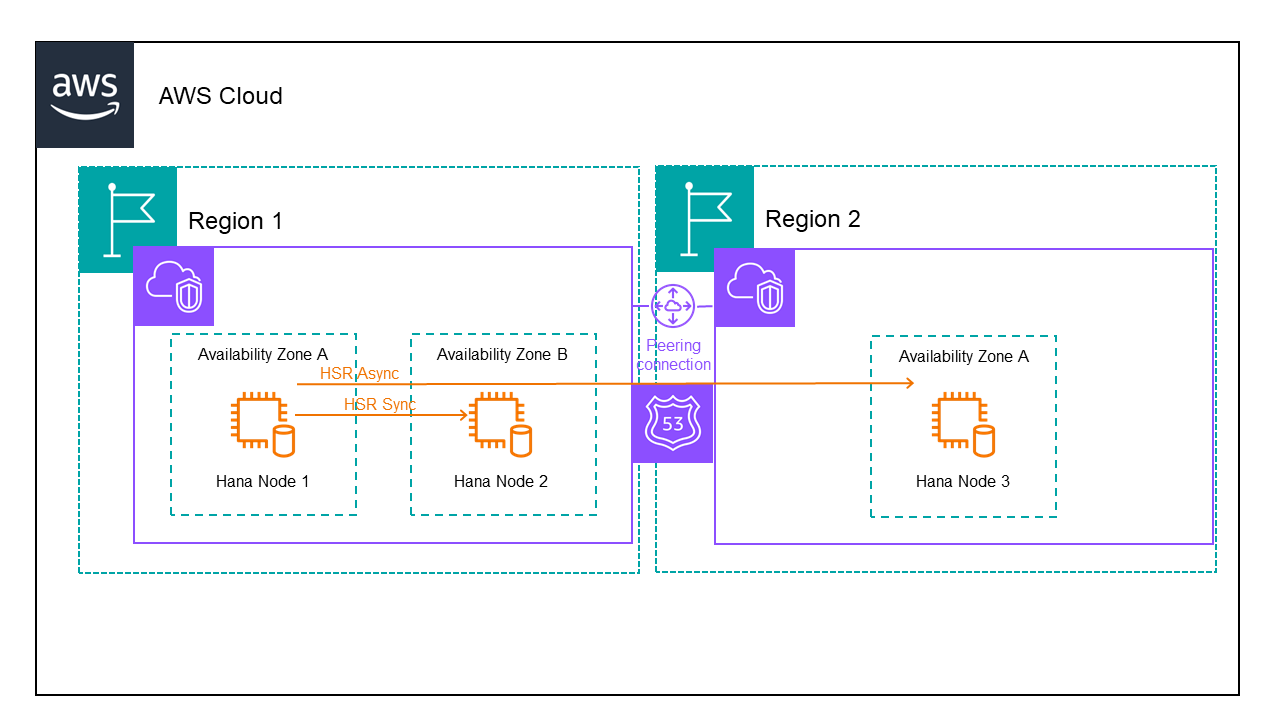
When configuring HANA nodes in different regions, you can protect the DNS name using the SIOS LifeKeeper for Linux Route53 Application Recovery Kit or ARK.  Following is the architecture for a 3 node HANA database in AWS:

When setting up the storage use separate EBS volumes for /usr/sap, /hana/data, /hana/log and /hana/shared.

We have 2 VPCs one for each region.  We need to setup peering between the VPCs and add routes to the routing table to ensure the servers can talk to each other.  We also need to modify the security group to allow traffic between the servers.

Finally we need to create a hosted zone containing both VPCs and add records for the domain and hostname we will use to communicate with the active HANA node.

Step 2: Installing and Configuring SAP HANA

Installation on Each Node

Install SAP HANA on each EC2 instance. Ensure that the versions are consistent across all nodes to avoid compatibility issues.  This is by far the most challenging process.

Start by determining your installation settings.  For mine, I am using the following:

SID: D11

  • HANA Instance number: 11
  • HANA db fqdn in Route53: saphana.sapdemo
  • Node1 hostname: sapdemohana1
  • Node2 hostname:sapdemohana2
  • Node3 hostname:sapdemohana3
  • Instance type: r5.4xlarge

Local Instance Storage:

  • 30GB / (root volume)
  • 15GB /usr/sap
  • 60GB /hana/shared*
  • 200GB /hana/data
  • 200GB /hana/log

*For this installation, this is storage that is not shared between these HANA database servers.  If you try to use shared storage, you will not be able to create an identical server because hdblcm will prevent the installation with an error about the SID and instance already existing.

Install the HANA server software on each node independently as if it were a standalone system.  Make sure all required libraries are installed, for RHEL 8 they are in SAP note 2772999.  You will need to make sure you create the symbolic link after installing compact-sap-c++-9-9.1.1-2.3.el7_6.x86_64.rpm by running: ln -s /opt/rh/SAP/lib64/compat-sap-++-10.so /usr/sap/lib/libstdc++.so.6

  • yum install  xorg-x11-server-Xorg xorg-x11-xauth -y #for the LifeKeeper GUI
  • yum install nfs-utils

Create partitions, format storage and attach it.  Create your swap file.

I create RSA keys on all my hosts and then allow the root ssh login between the hana nodes by adding the public key to the .ssh/authorized_keys file.  This will make installation much easier.

Mount your HANA installation media volume.

  • yum localinstall compat-sap-c++-10-10.2.1-11.el7_9.x86_64.rpm
  • yum localinstall compat-sap-c++-9-9.1.1-2.3.el7_6.x86_64.rpm
  • mkdir /usr/sap/lib
  • ln -s /opt/rh/SAP/lib64/compat-sap-++-10.so /usr/sap/lib/libstdc++.so.6
  • yum install compat-sap-c++-10 libatomic -y

Run hdblcm from the correct hana installation media directory.  Once you have successfully installed HANA on all nodes you are ready for the next step.

System Replication Setup

You will need to take a backup prior to enabling HSR:

  • su – <SID>adm  [ie. su -d11adm]
  • hdbsql -i <instance number>adm -u system -p <password> [ie. hdbsql -i 11 -u system -p “password123”]
  • BACKUP DATA USING FILE(‘/usr/sap/<SID>/HDB<instance number>’) [ie. BACKUP DATA USING FILE(‘/usr/sap/D11/HDB11’)

Repeat the backup process above on all nodes.

Configure HANA System Replication on each node:

Start the HDB instance on primary HANA System if it isn’t already running: sapcontrol -nr <instance number> -function StartSystem HDB [ie: sapcontrol -nr 11 -function StartSystem HDB]

Start the HSR at primary site: hdbnsutil -sr_enable –name=<primary site name> [ie. hdbnsutil -sr_enable –name=sapdemohana1

Stop the HDB instance on secondary HANA System: sapcontrol -nr <instance number> -function StopSystem HDB [ie. sapcontrol -nr 11 -function StopSystem HDB]

In the additional HANA systems, backup the KEY and DAT files and copy the primary KEY and DAT files to the required locations:

  • mv /usr/sap/<SID>/SYS/global/security/rsecssfs/data/SSFS_<SID>.DAT /usr/sap/<SID>/SYS/global/security/rsecssfs/data/SSFS_<SID>.DAT.BAK [ie.   mv /usr/sap/D11/SYS/global/security/rsecssfs/data/SSFS_D11.DAT /usr/sap/D11/SYS/global/security/rsecssfs/data/SSFS_D11.DAT.BAK]
  • mv /usr/sap/<SID>/SYS/global/security/rsecssfs/key/SSFS_<SID>.KEY /usr/sap/<SID>/SYS/global/security/rsecssfs/key/SSFS_<SID>.KEY.BAK [ie.   mv /usr/sap/D11/SYS/global/security/rsecssfs/key/SSFS_D11.KEY /usr/sap/D11/SYS/global/security/rsecssfs/key/SSFS_D11.KEY.BAK]
  • scp root@<primary node>:/usr/sap/<SID>/SYS/global/security/rsecssfs/data/SSFS_<SID>.DAT /usr/sap/<SID>/SYS/global/security/rsecssfs/data/SSFS_<SID>.DAT [ie. scp root@sapdemohana1:/usr/sap/D11/SYS/global/security/rsecssfs/data/SSFS_D11.DAT /usr/sap/D11/SYS/global/security/rsecssfs/data/SSFS_D11.DAT]
  • scp root@<primary node>:/usr/sap/<SID>/SYS/global/security/rsecssfs/key/SSFS_<SID>.KEY /usr/sap/<SID>/SYS/global/security/rsecssfs/key/SSFS_<SID>.KEY [ie. scp root@sapdemohana1:/usr/sap/D11/SYS/global/security/rsecssfs/key/SSFS_D11.KEY /usr/sap/D11/SYS/global/security/rsecssfs/key/SSFS_D11.KEY]

Make sure the owner of the key and dat files are <SID>adm sapsys:

  • [root@sapdemohana2 ~]# ls -l /usr/sap/D11/SYS/global/security/rsecssfs/data/
  • total 12
  • -rw-r–r– 1 d11adm sapsys 2960 Jan  3 22:19 SSFS_D11.DAT
  • -rw-r–r– 1 d11adm sapsys 2960 Jan  3 22:15 SSFS_D11.DAT.BAK

Register the additional HANA systems with primary HANA system – must be done as the admin user:

  • hdbnsutil -sr_register –name=<name of secondary HSR> –remoteHost=<primary host name of SAP HANA system> –remoteInstance=<remote instance number> –operationMode=<delta_datashipping | logreplay | logreplay_readaccess> –replicationMode=<sync | syncmem | async>

[ie. hdbnsutil -sr_register –name=sapdemohana2 –remoteHost=sapdemohana1 –remoteInstance=11 –operationMode=logreplay –replicationMode=sync]

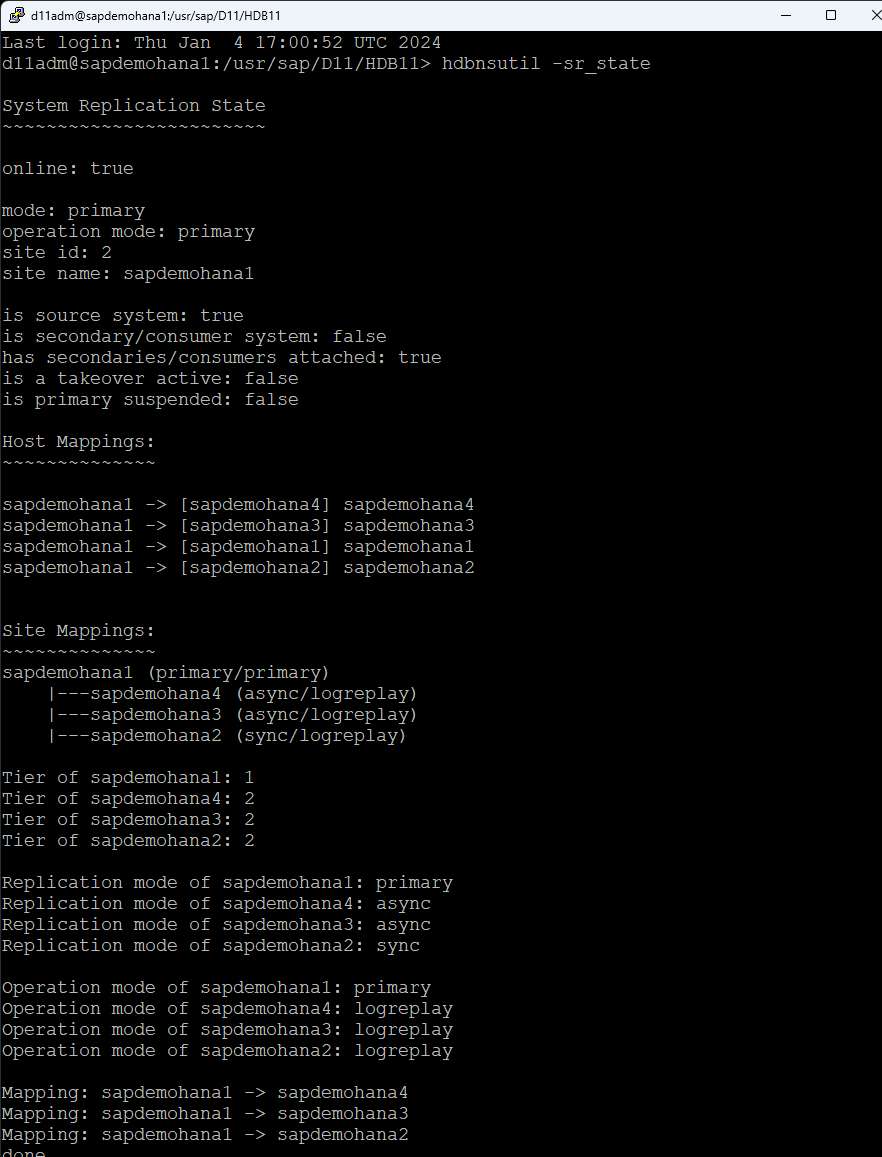
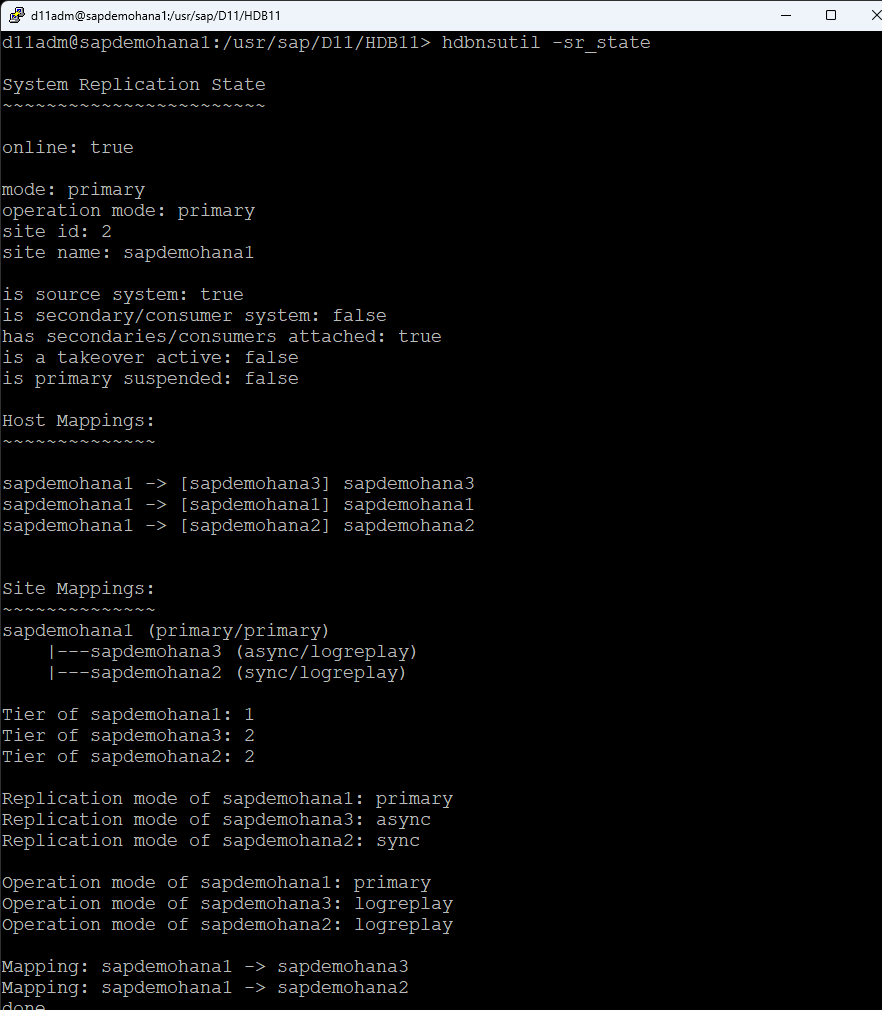
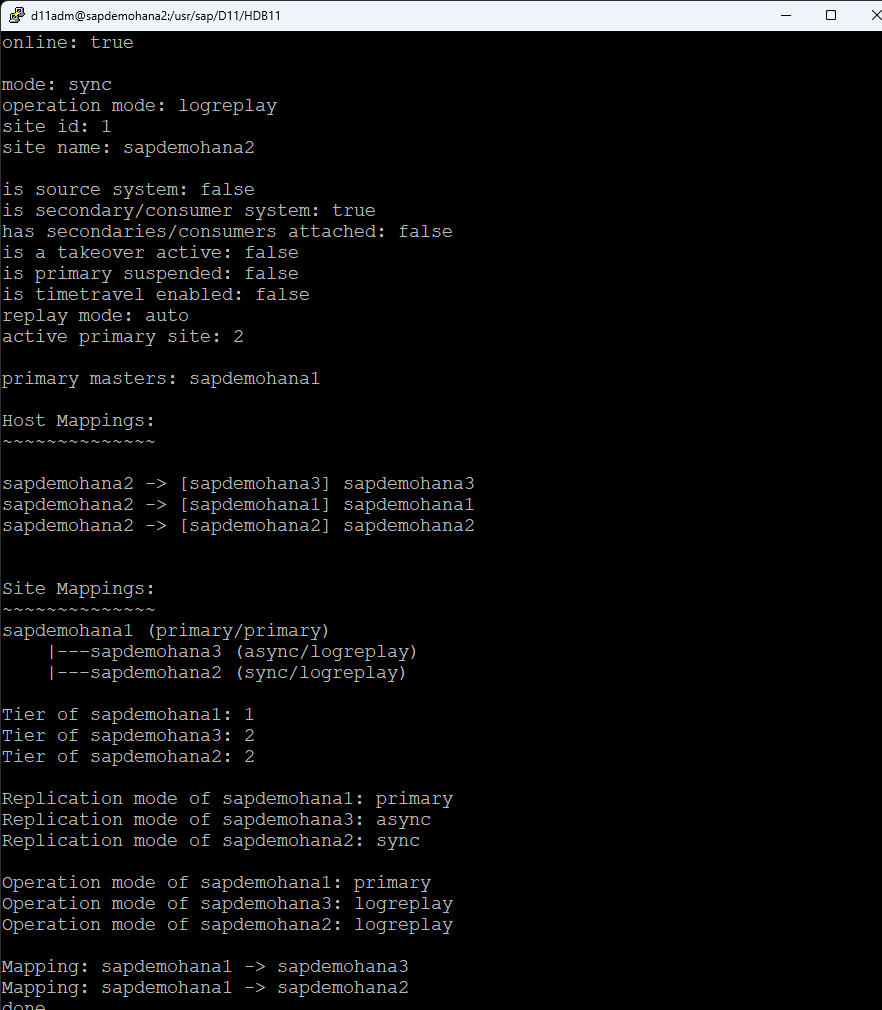
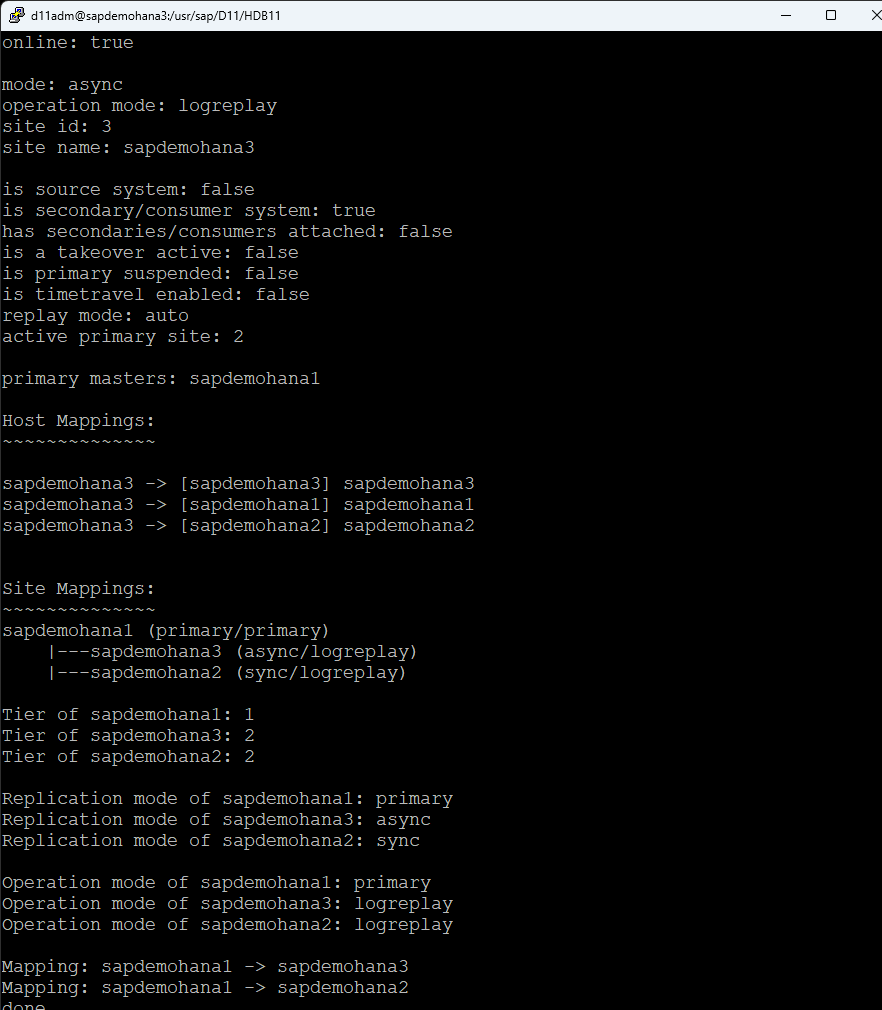
Check HSR status on all systems, run the following command as the admin user: d11adm@sapdemohana4:/usr/sap/D11/HDB11>hdbnsutil -sr_state

Once all systems are online you can move onto the next step.

Step 3: Installing SIOS LifeKeeper

AWS CLI Installation

Install AWS CLI and configure it with a key with the following permissions:

Route Table (backend) configuration:

  • ec2:DescribeRouteTables
  • ec2:ReplaceRoute
  • ec2:DescribeNetworkInterfaceAttribute
  • ec2:ModifyNetworkInterfaceAttribute
  • Elastic IP (frontend) configuration:
  • ec2:DescribeAddresses
  • ec2:AssociateAddress
  • ec2:DisassociateAddress

LifeKeeper Installation

Install SIOS LifeKeeper on each node. This involves running the installation script and following the setup wizard, which guides you through the necessary steps.  For this installation, I am using the networking, Route53 ARK and the database, SAP HANA ARK along with the witness functions.

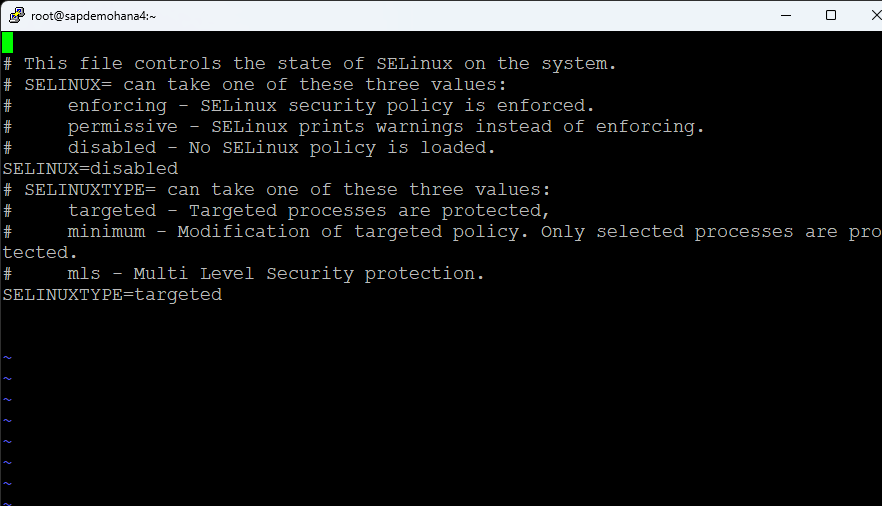
Edit the /etc/selinux/config file and disable selinux:

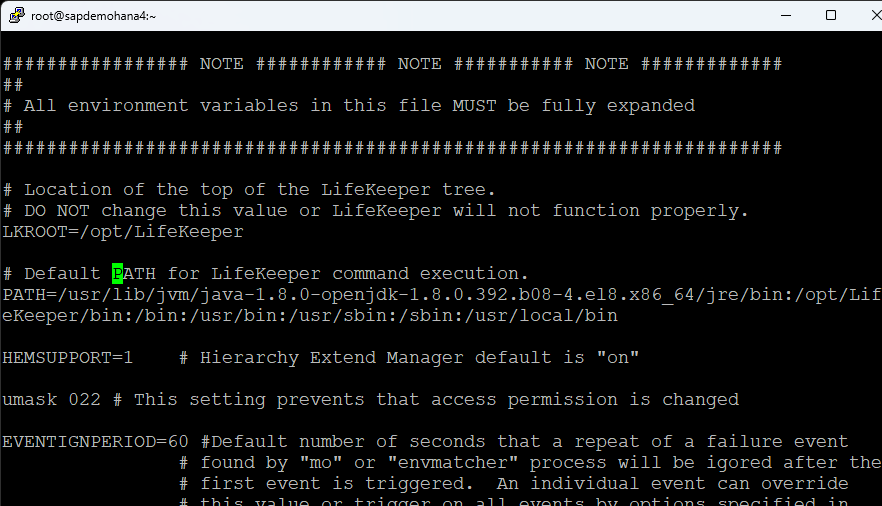
I also changed my hostname and edited the /etc/hosts file.  Finally edit the /etc/default/LifeKeeper file and add /usr/local/bin to the PATH:

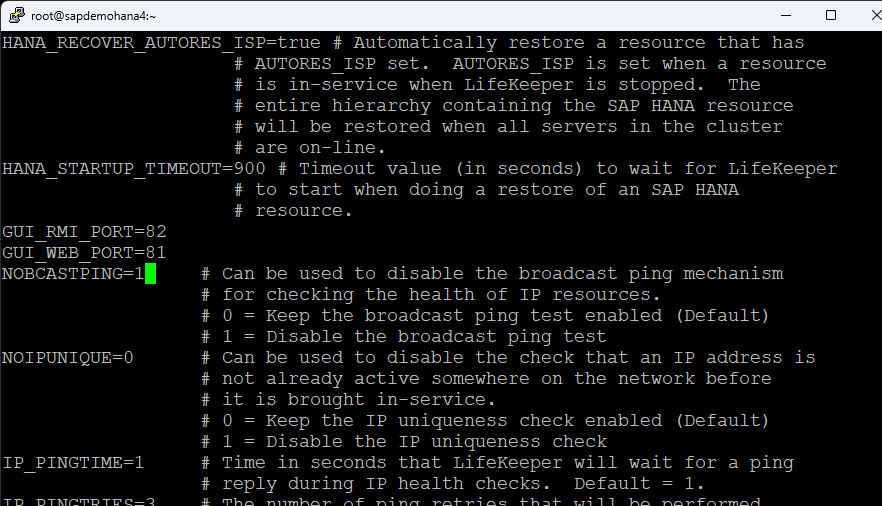
Change NOBCASTPING=1:

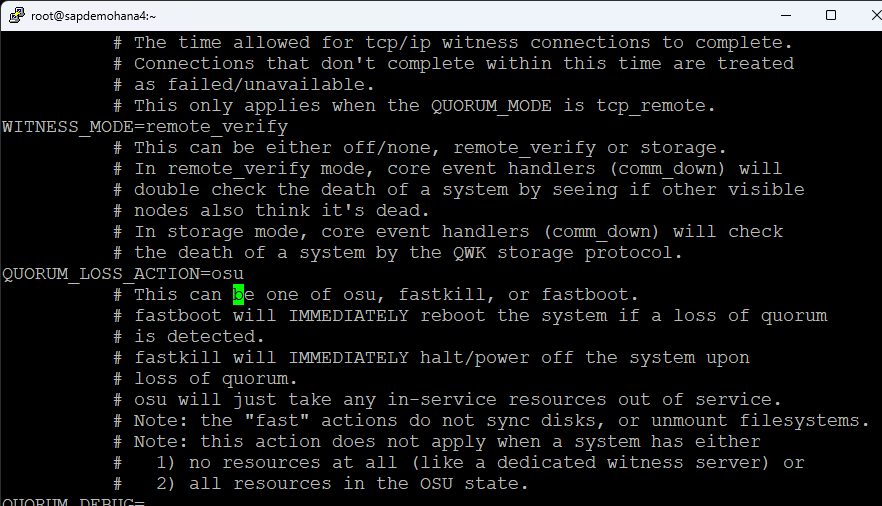
I also changed the QUORUM_LOSS_ACTION to osu:

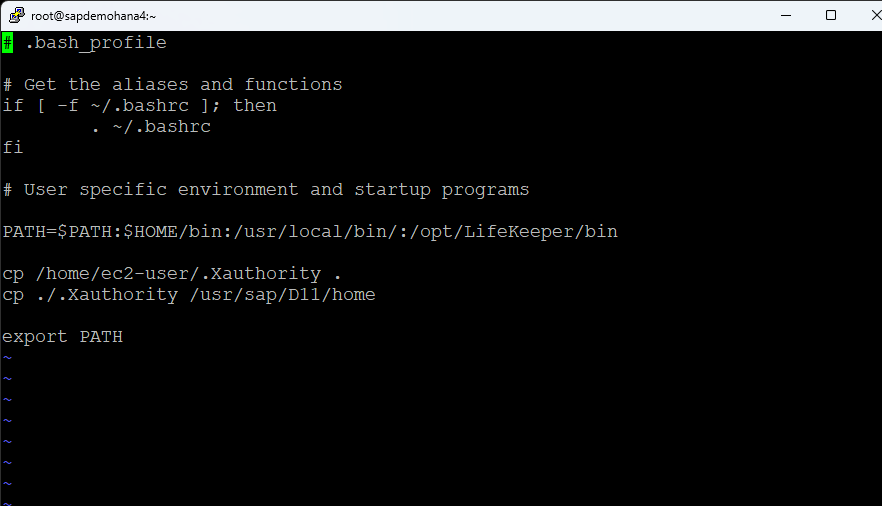
Make sure you have Xwindows working.  I remove the cp alias from .bashrc and add /opt/LifeKeeper/bin and /usr/local/bin to my .bash_profile along with copy the ec2-users .Xauthority file to root and the <SID>adm home directory so that Xwindows will work:

I change the root password and reboot.  Prior to launching the LifeKeeper GUI. make sure that HSR is online on all nodes and all nodes are registered:

Configuration

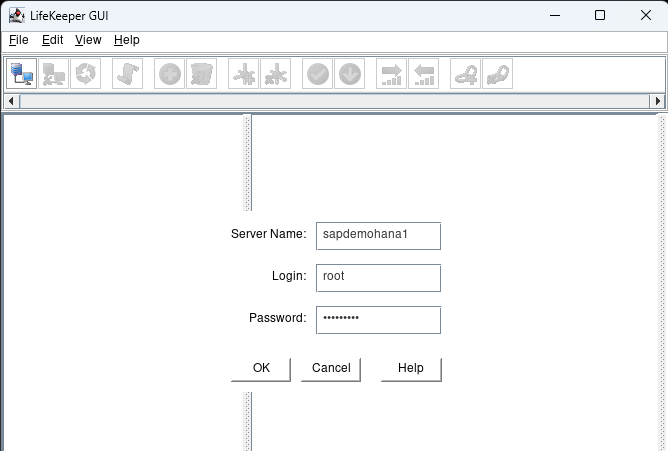
Launch the LifeKeeper GUI: lkGUIapp and login with the root user and password:

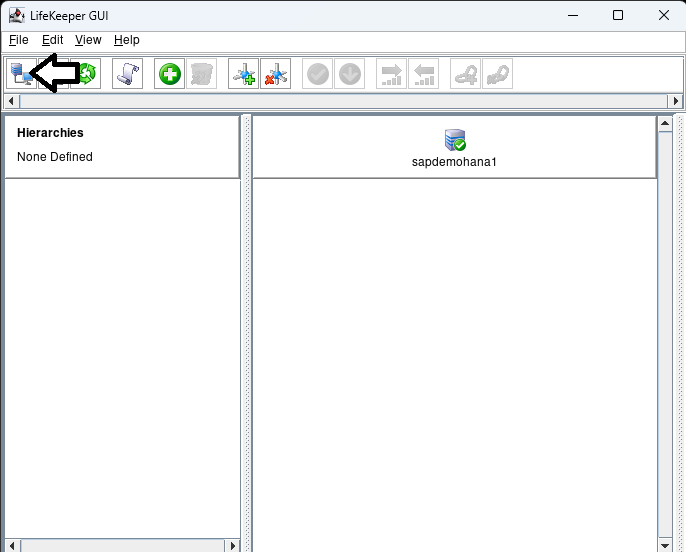
Click on the connect button to login to the additional nodes in the cluster:

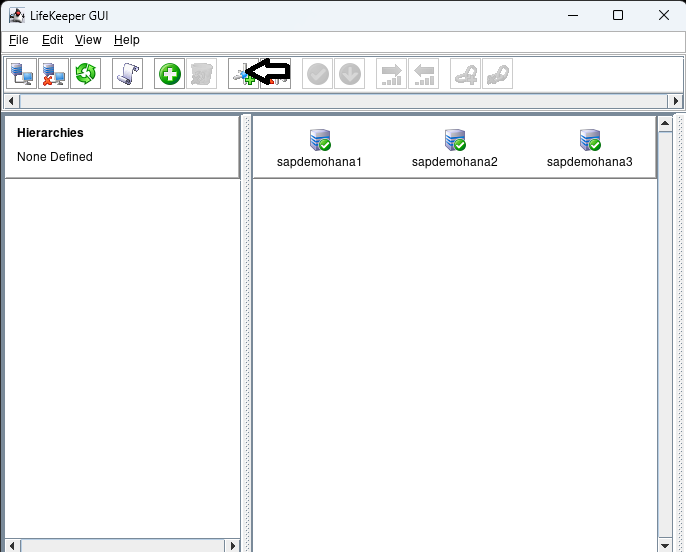
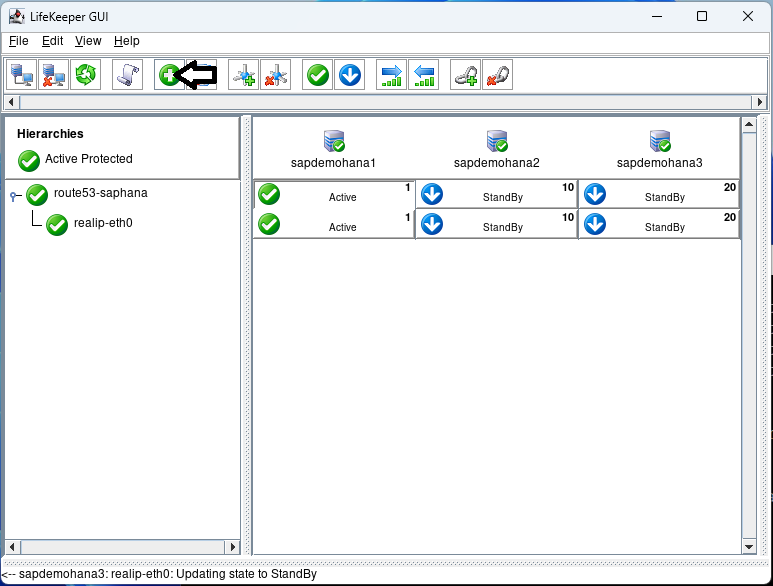
Once logged into all the nodes click on the Create Comm Path button:

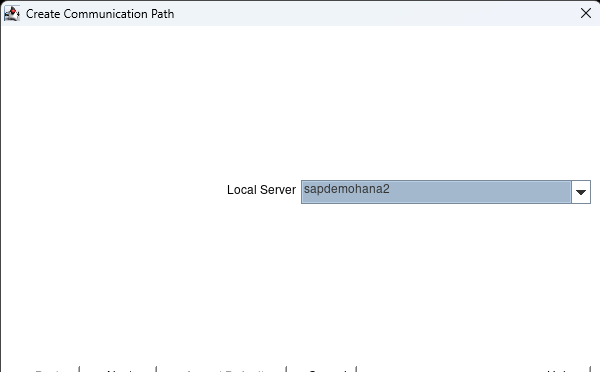
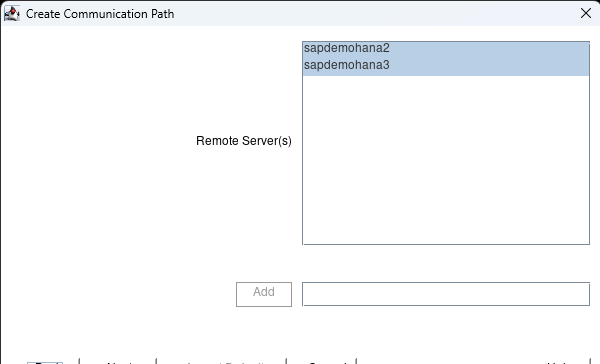
Hit next when it asks for the Local Server and then hold shift and select all the nodes:

hit Accept Defaults and hit done when it is complete.  Click on the Create Comm path button again and this time change to the second node:

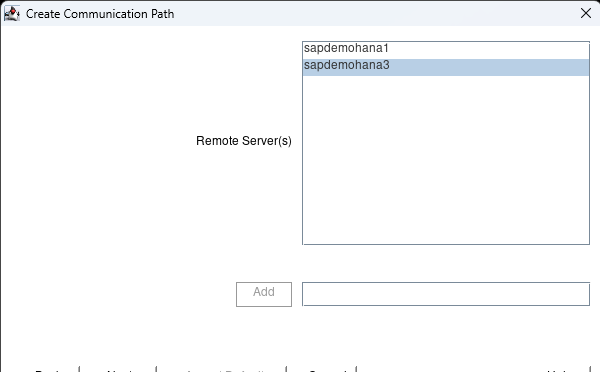
hit next and select the 3rd node:

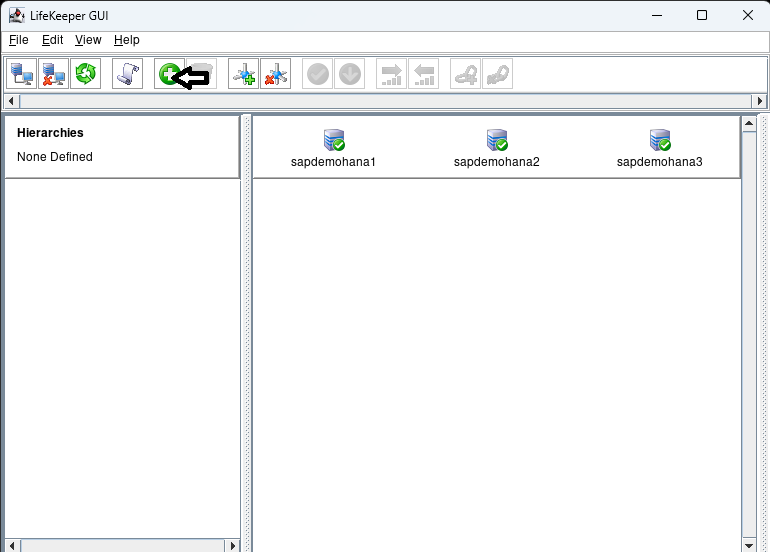
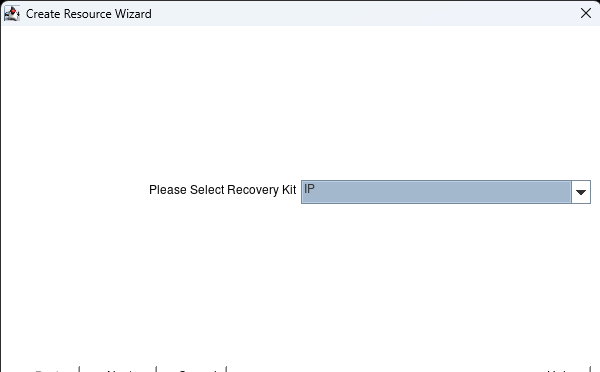
hit the next button until you can hit the Accept Defaults button.  When complete hit done.  Now click on the Create Resource Hierarchy button:

Select the IP kit and hit next:

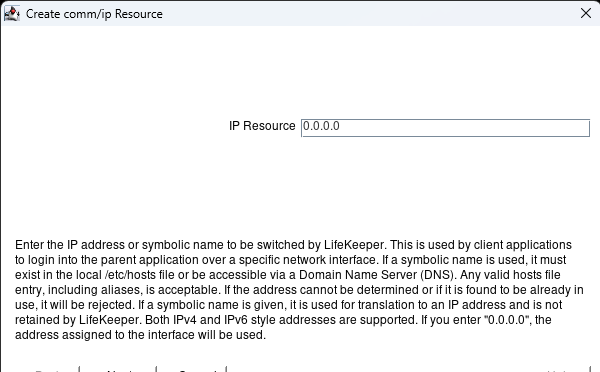
Hit next until you get to the IP resource page.  Here enter 0.0.0.0 and hit next:

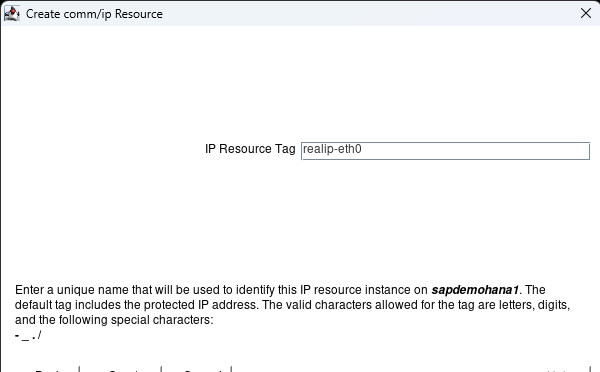
Hit next until you get to the Create button.  Hit the Create button:

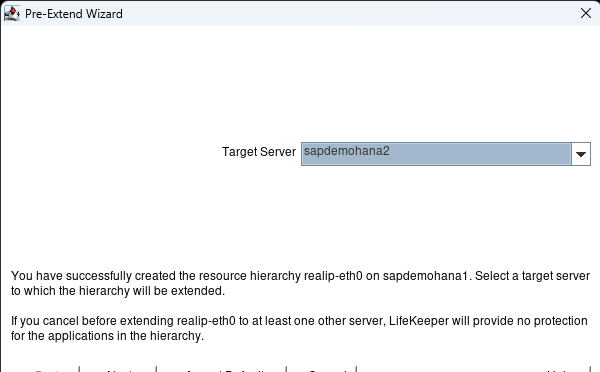
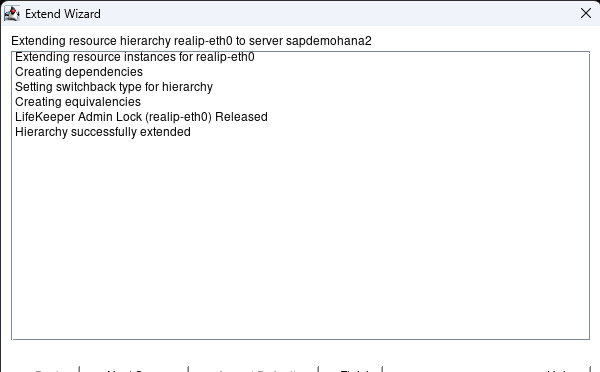
When it is complete hit next:  Hit Accept Defaults with the Target Server showing the second node:

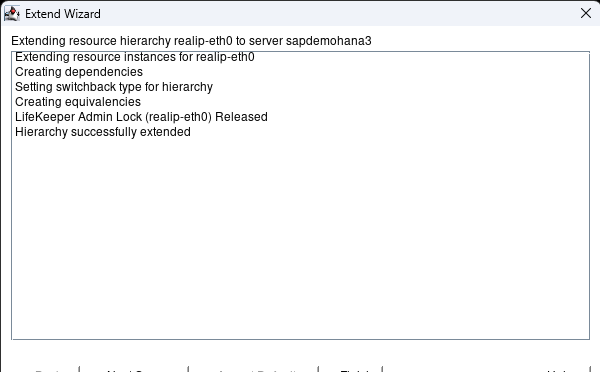
When complete hit Next Server:

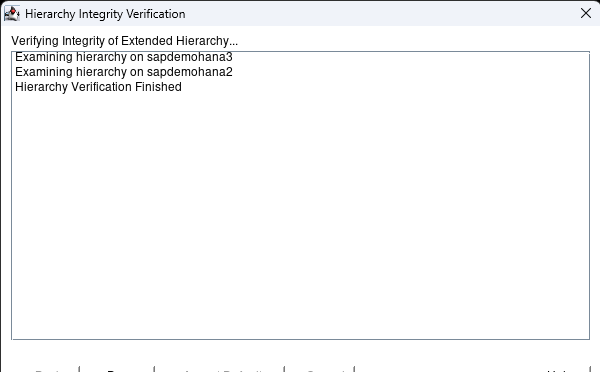
Hit Accept Defaults with the 3rd node showing and when complete hit Finish:

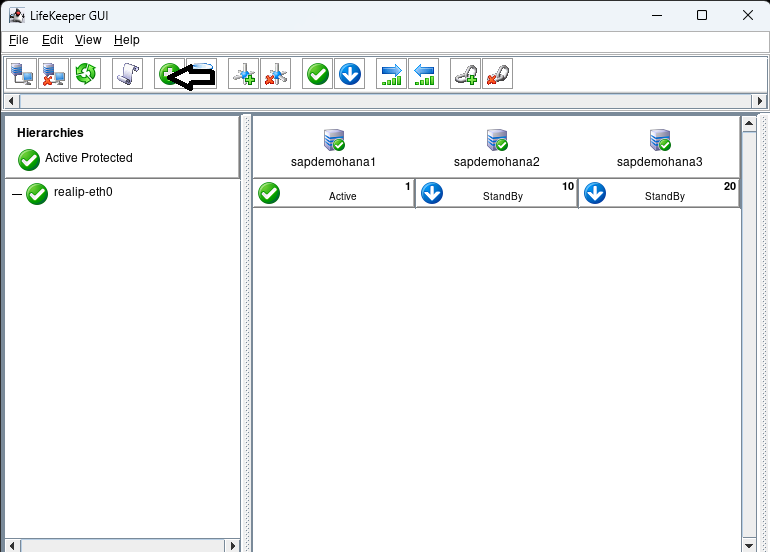
Hit done:

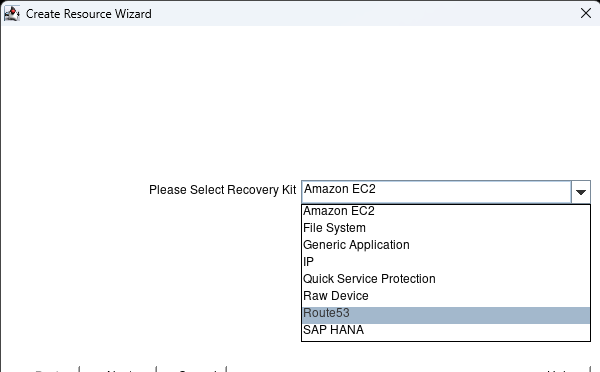
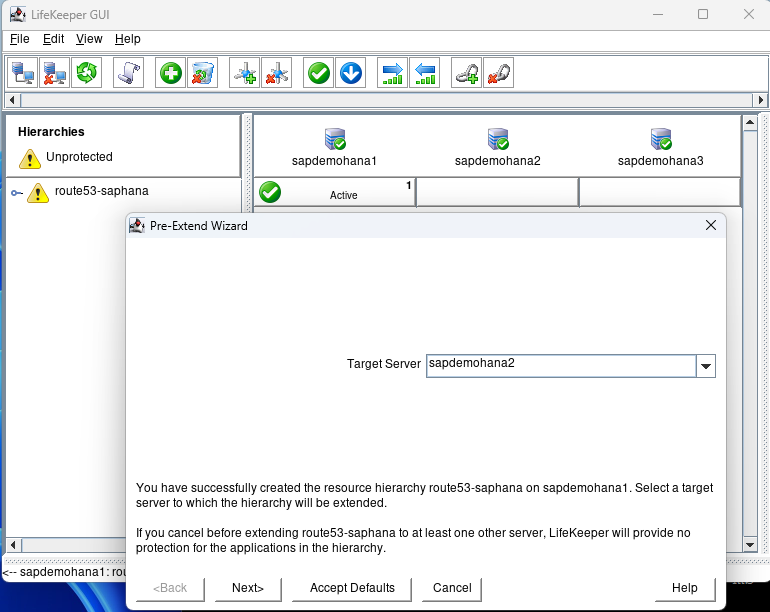
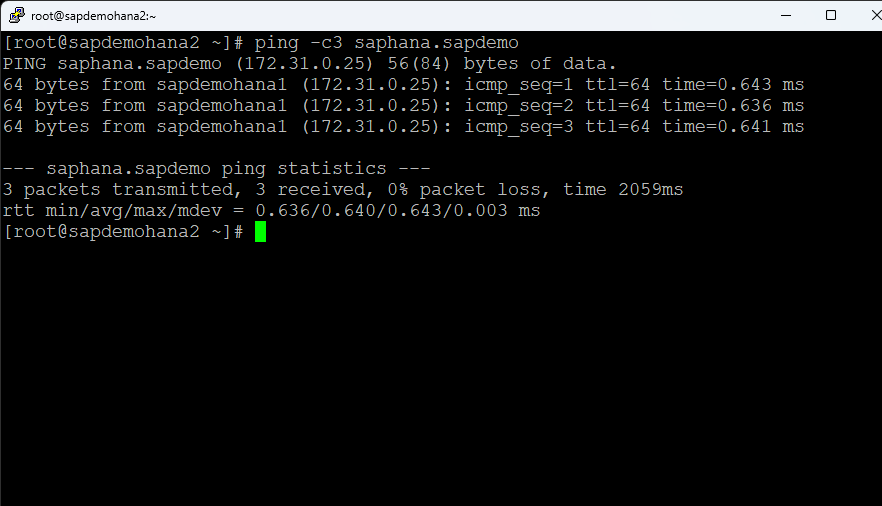
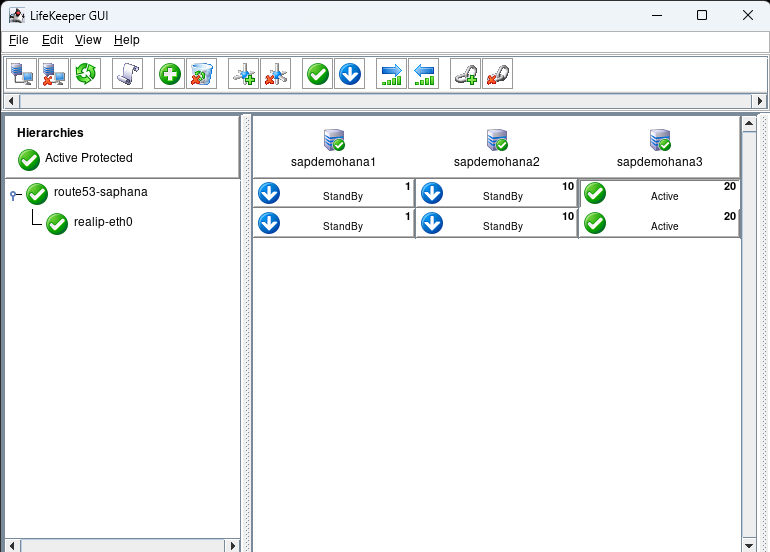
Now we have an IP resource we can add our Route53 resource which will change the dns entry to resolve the fqdn to the active nodes IP address.  In this case saphana.sapdemo will resolve to the ip address of sapdemohana1 (172.31.0.25).  Hit the Create Resource Hierarchy button to start the process:

Select Route53 and hit next:

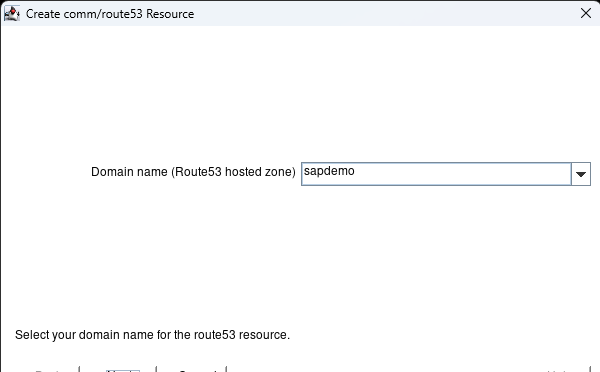
Keep hitting next until you get to the Domain Name. It should prepopulate with the active hosted zone name.  Hit Next.

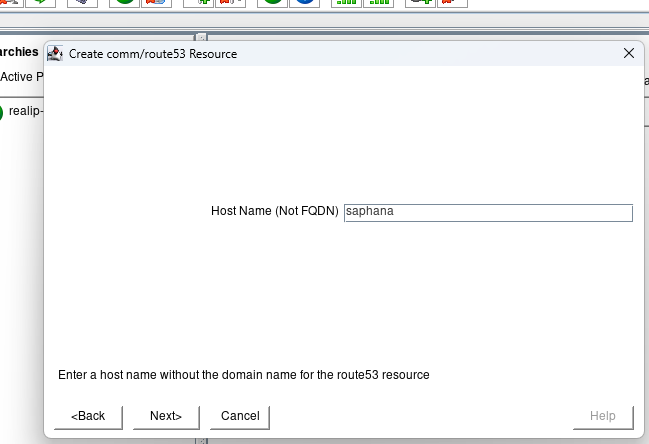
Enter the Host Name that everything will use to connect to the HANA database and hit next:

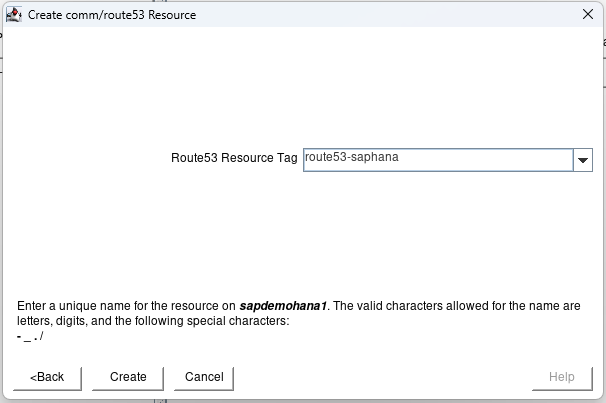
hit next until you get to the create button and click the create button.  When done hit Next:

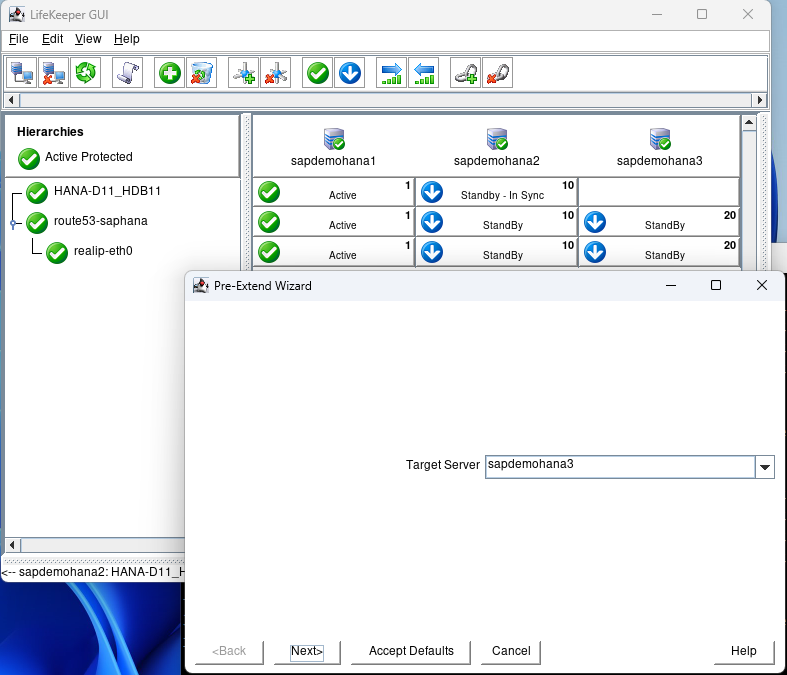
At the Pre-Extend Wizard hit Accept Defaults:

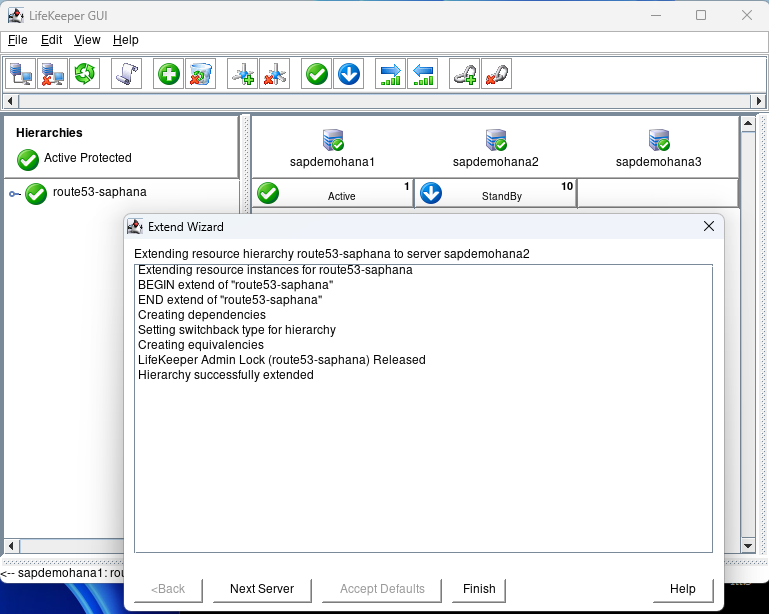
When done hit Next Server:

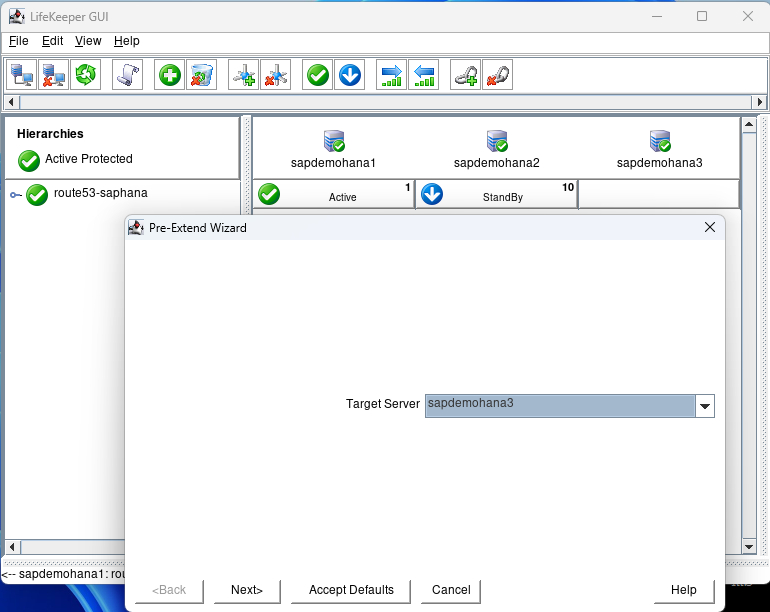
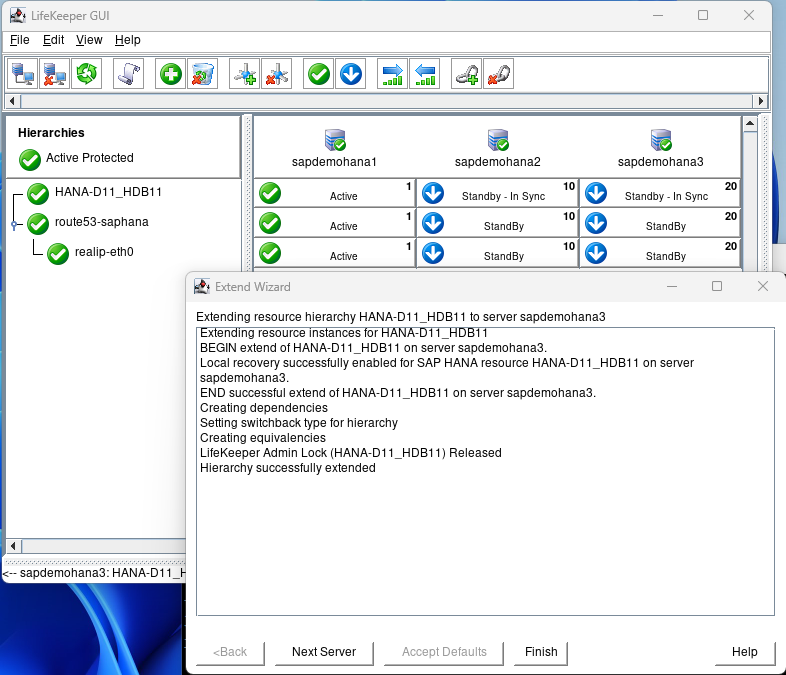
The Target Server will show the 3rd node.  Hit Accept Defaults:

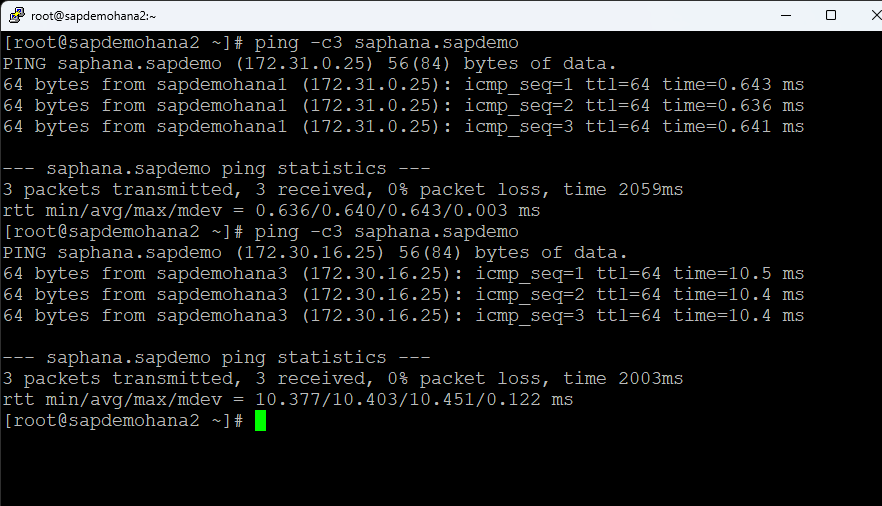
Hit Finish when done. Then hit Done. You can then expand the tree. Open a terminal session to the 2nd node and ping the fqdn for the HANA database [ie. ping -c3 saphana.sapdemo]

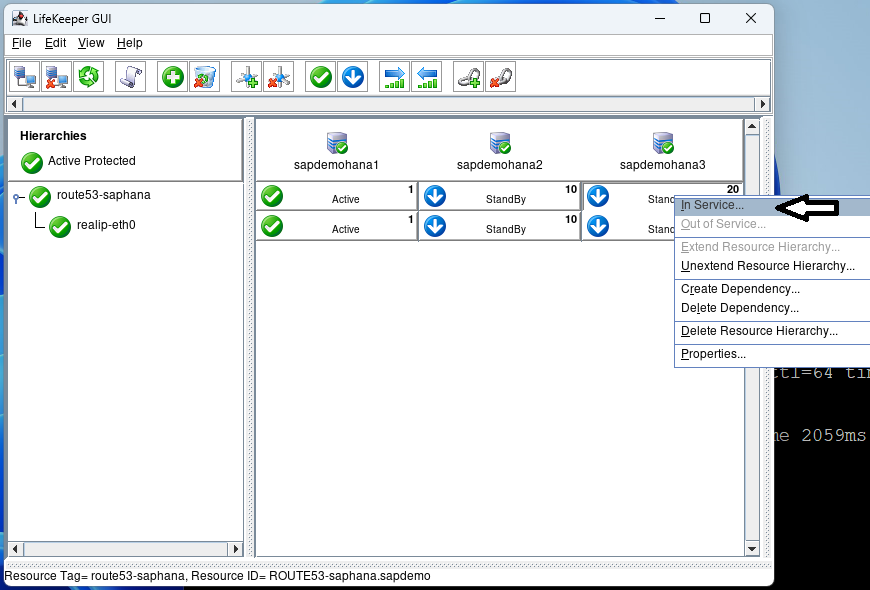
Right click on the top standby under sapdemohana3 and select In Service:

Hit In Service on the next screen and then hit Done when it is complete:

Go to the terminal window and repeat the ping test:

You can see that the hostname now resolves to sapdemohana3.  Put sapdemohana1 back into service before moving onto the next step.

Step 4: Integrating SAP HANA with SIOS LifeKeeper

Resource Hierarchy Creation

Using the LifeKeeper GUI, create a resource hierarchy for SAP HANA on each node. This setup is crucial for managing failover and recovery processes. Make sure that HSR is active on node1 and the additional nodes are registered:

Click on the Create Resource button:

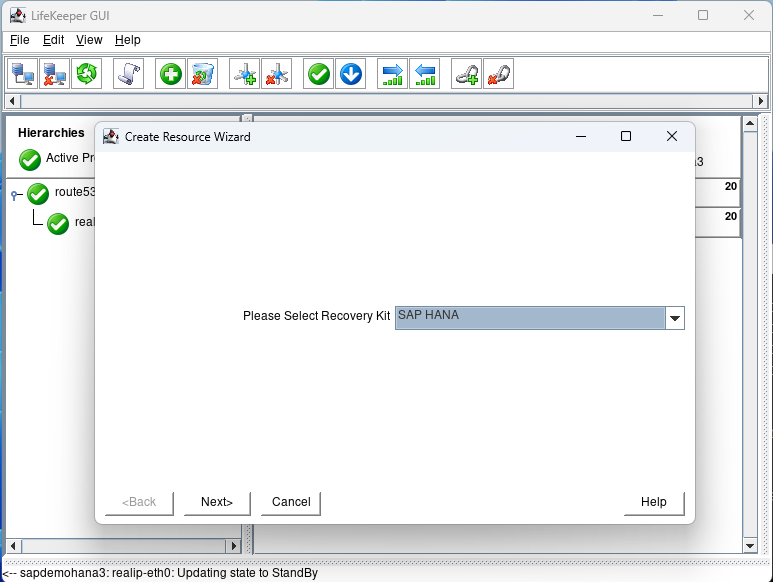
Select the SAP HANA recovery kit and hit next until you get to the IP Address screen:

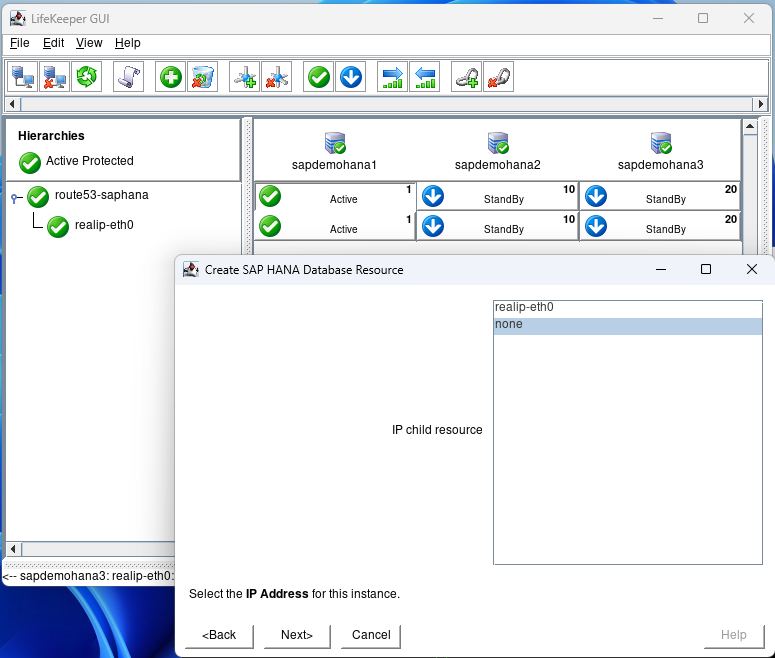
Select none and hit next:

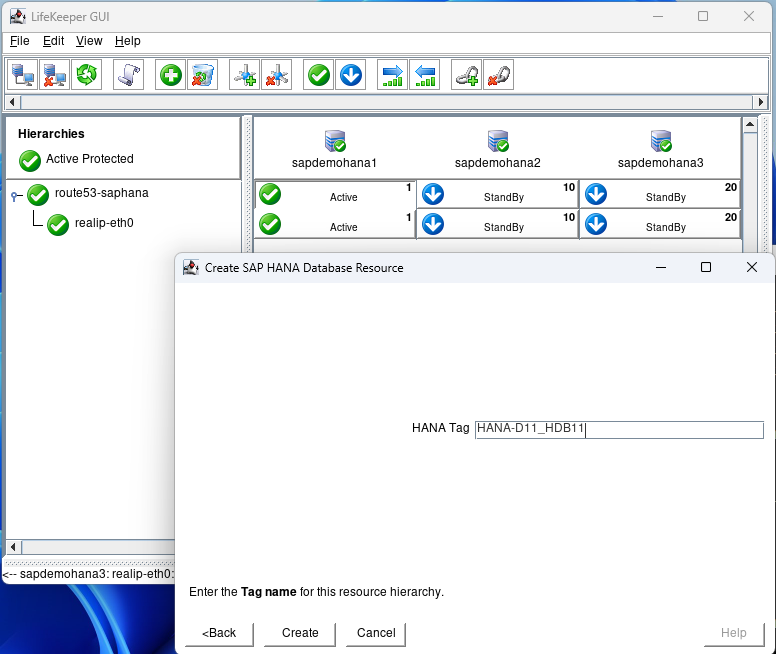
Hit next until you get to the Create screen and hit Create:

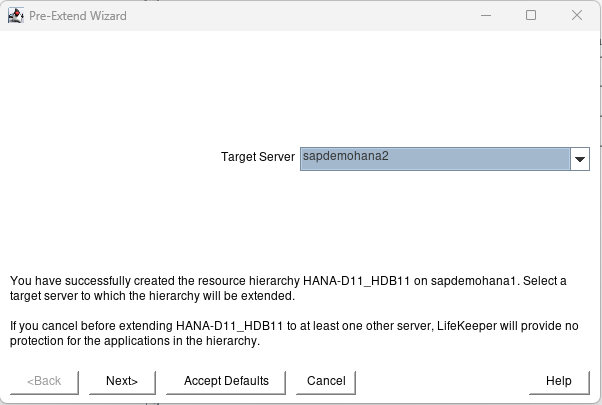
After creation hit next and then Accept Defaults for node2:

Again when node2 is complete hit Next Server and Accept Defaults:

When complete hit Finish, then hit Done:

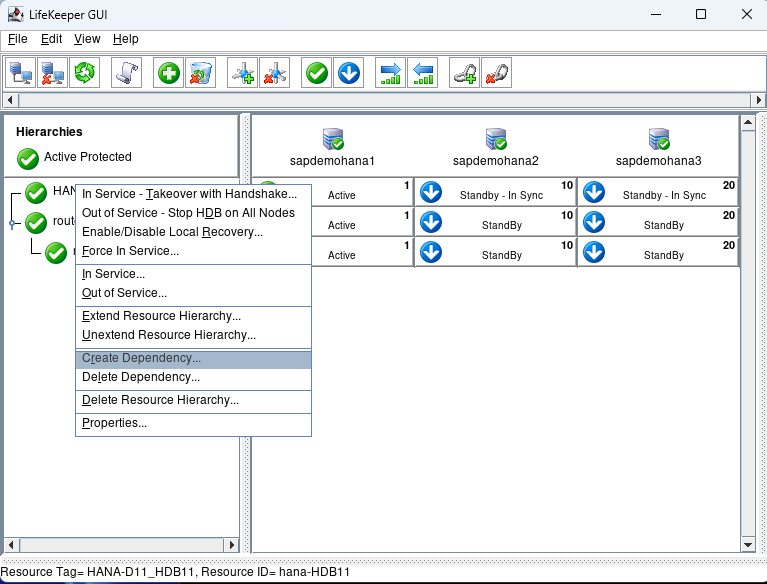
Right click on the Hana Hierarchy and select Create Dependency:

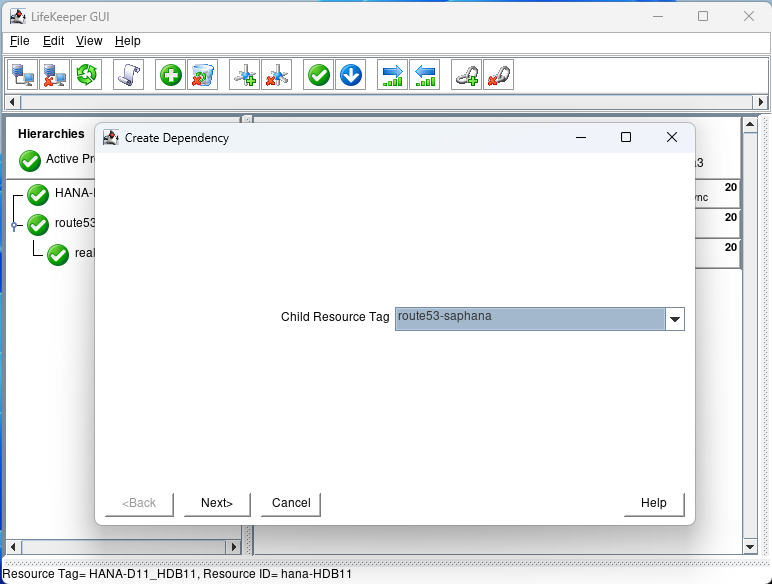
For the child Resource Tag select the route53 resource from the pulldown and hit next:

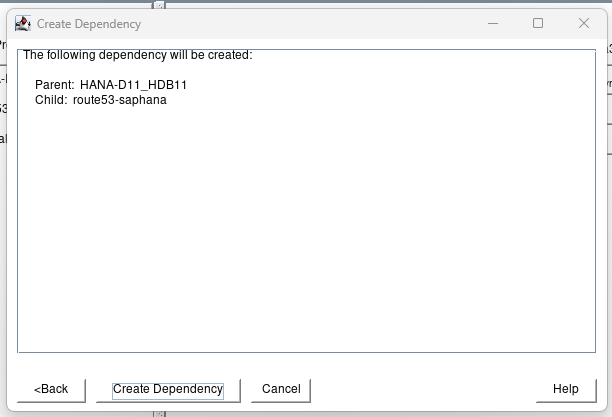
Click on Create Dependency:

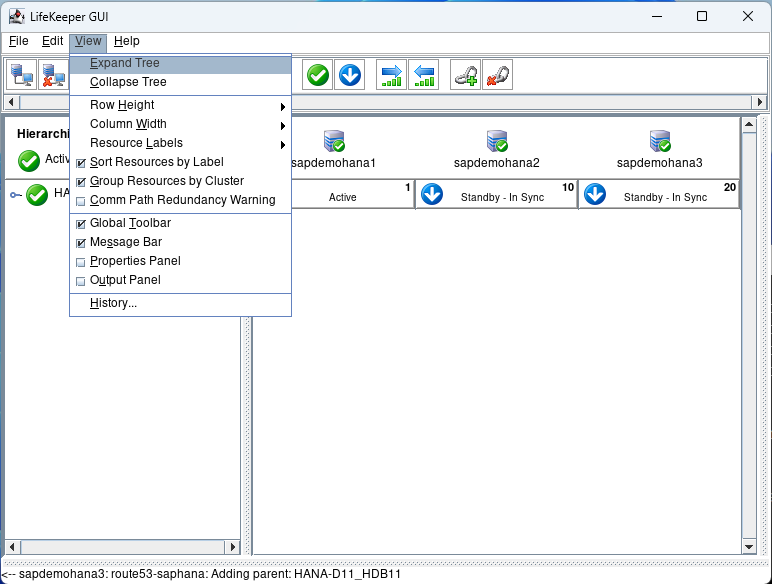
Click on Done.  Then select view Expand Tree:

If everything is Green we are ready to test.

Step 5: Testing and Validation

Failover/Switchover Testing

Conduct thorough failover tests to ensure that the system correctly switches over to the secondary or tertiary node in case of a primary node failure. This testing should include scenarios like network failures, hardware issues, and software crashes.

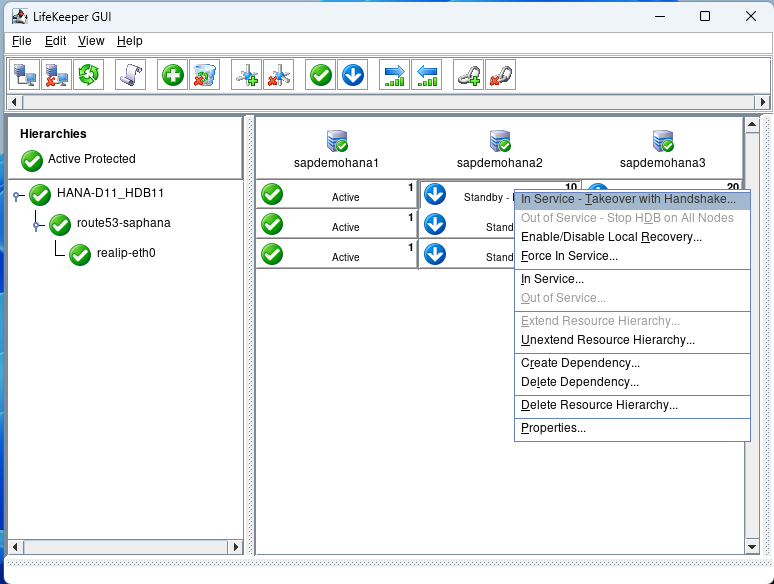
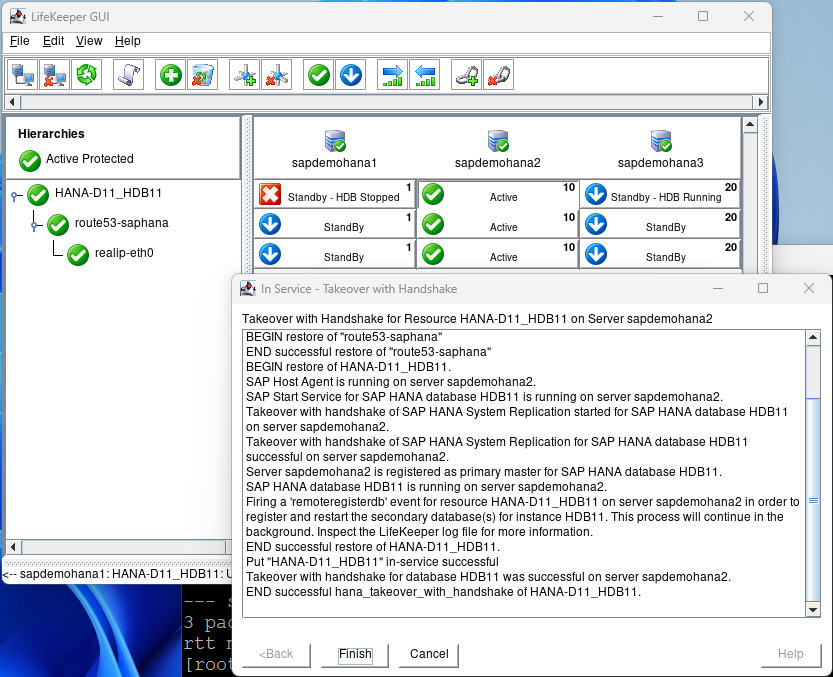
The first test we will perform is a switchover which would be used to perform maintenance activities or if you had a scheduled outage.  Right click on the 2nd node and select In Service – Takeover with Handshake…

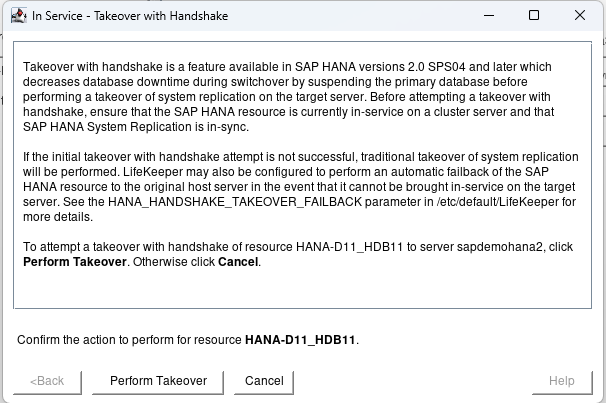
Hit Perform Takeover:

This test will switch to the 2nd node with the minimal downtime to users. When the 2nd node is up and running hit finish:

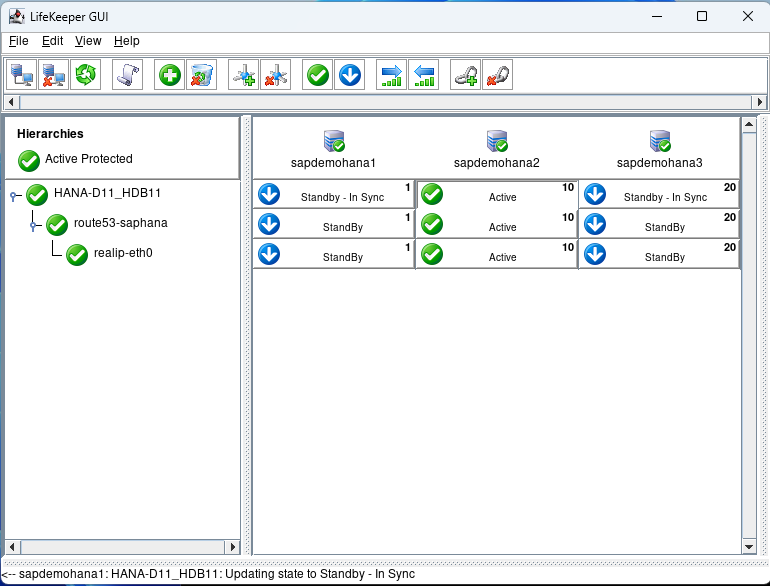
After some time node1 will come back into standby – In Sync.

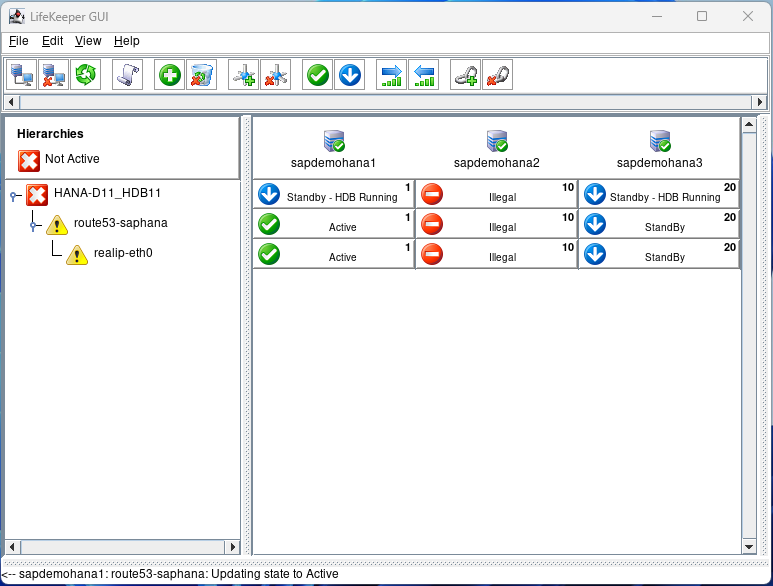
Now we can perform a failover test.  Open a terminal to node 2 and type echo c > /proc/sysrq-trigger to simulate a system crash.  You will see node 1 take over because it has the highest priority of 1:

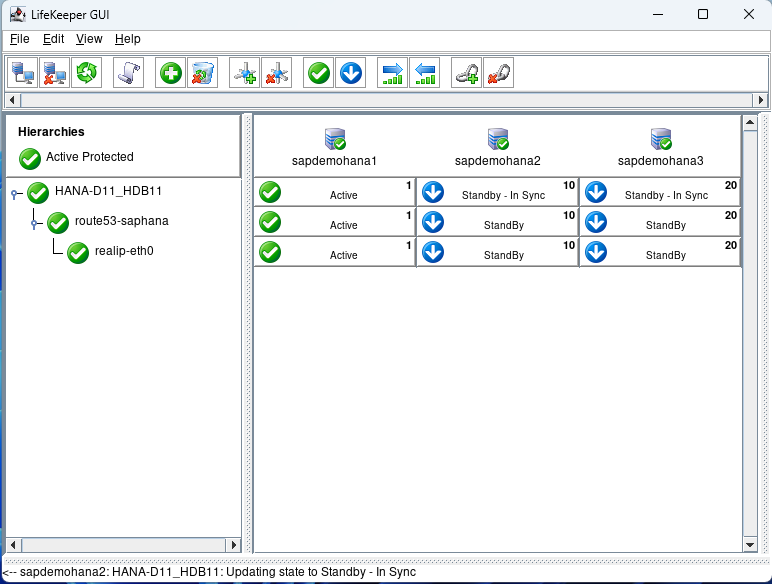
Eventually, everything will go back to normal:

There are a number of additional types of failure scenarios you may wish to test.  Just ensure that your standby nodes are in sync prior to starting your testing.

Data Synchronization Verification

Verify that data is correctly replicating across all nodes. Consistent data across nodes is crucial for the integrity of the HSR setup.

Performance Monitoring

Regularly monitor the performance of the SAP HANA instances and the LifeKeeper setup. Check for any anomalies or issues that could indicate potential problems.  Check the /var/log/lifekeeper.log file to ensure that everything is performing as expected.  You may need to adjust the Heartbeat timer and number of heartbeats missed based on the network performance.  These can be configured in the /etc/default/LifeKeeper file.  The tunables are LCMHBEATTIME and LCMNUMHBEATS.  You can also check the status of Lifekeeper from the command line with the command lcdstatus -q.

Conclusion

Setting up a 3-node HANA HSR cluster in AWS with SIOS LifeKeeper involves detailed planning and execution. By carefully following these steps, you can establish a robust, resilient, and highly available SAP HANA environment in the cloud, ensuring your critical data remains accessible and secure.  SIOS LifeKeeper for Linux makes the administration, monitoring, and maintenance of SAP HANA quick and easy.

SIOS provides resources and training for all our products.

Reproduced with permission from SIOS
Filed Under: Clustering Simplified Tagged With: Amazon AWS, High Availability, SIOS LifeKeeper for Linux

Demo: SIOS LifeKeeper For SAP HANA

October 9, 2023 by Jason Aw Leave a Comment

Demo SIOS LifeKeeper For SAP HANA

Video Demo: SIOS LifeKeeper For SAP HANA

SIOS LifeKeeper provides out-of-the-box high availability protection for SAP HANA environments (on-premises or in the cloud) and ensures that cluster failover automatically adheres to SAP best practices for fast, reliable continued operations.

In this video, Todd Doane, Solutions Architect at SIOS Technology, demonstrates how SIOS LifeKeeper helps maintain high availability by performing automatic failover quickly and easily.

On SAP HANA:

  • SAP HANA environments are incredibly complex, especially when you want to do high availability (HA) and disaster recovery (DR).
  • There are different layers of the application stack: presentation layer, application layer where the ABAP SAP Central Services (ASCS) and the Enqueue Replication Server (ERS) reside, and the database layer.
  • You have to interpret and account for all of the SAP best practices.
  • There is a ton going on at any point in time that when there is a failure, automating the failover and meeting your recovery time and recovery point objectives are difficult.

High availability options for the SAP infrastructure:

  • Red Hat Enterprise Linux (Pacemaker integration)
  • SUSE High Availability Extension (Pacemaker integration)
  • SIOS LifeKeeper protection suite

Advantages of SIOS LIfeKeeper:

  • It is its own custom clustering software.
  • It is simple and easy to use. It has wizards to configure the chat environment.
  • It is SAP certified.
  • It handles data replication at the application level for ASCS and ERS volumes.
  • It handles database reregistration and can do manual or automatic switchback when a source comes back online.

Advice for companies looking to ensure business continuity:

  • Identify all the places that you could possibly have a failover, which could be environmental, human error, hardware failure, software failure, power failure, etc.
  • Plan for each single point of failure.
  • Train all the people responsible for supporting and keeping that SAP HANA environment up and running and available.
  • Test the failover scenarios. Ensure that when something fails and takes your data center out, you’re ready for it, i.e., your HA and DR systems will actually work the way you expect them to.

Let’s see SIOS Lifekeeper in action:

  • Doane shows two servers in AWS: one is running ASCS, the other is running ERS. He injects a kernel failure into the ASCS server. It goes down. The secondary server automatically takes over and starts running the ASCS process. When the server that failed comes back up, ERS is going to automatically move from the currently active server to the other one in order to maintain SAP best practices.

Reproduced with permission from SIOS
Filed Under: Clustering Simplified Tagged With: AWS, disaster recovery, High Availability and DR, SAP S/4HANA, SIOS LifeKeeper for Linux
  • « Previous Page
  • 1
  • 2
  • 3
  • Next Page »

Recent Posts

  • Keeping Buildings Safe: High Availability in Maintenance and Security Systems
  • Designing High Availability Through Modularity and Abstraction
  • The Critical Role of QA and Production Environments in High Availability
  • The Danger of Turn It Off, Turn It Back On Again Thinking in High Availability
  • SIOS Partnerships
Most Popular Posts

Maximise replication performance for Linux Clustering with Fusion-io
Failover Clustering with VMware High Availability
create A 2-Node MySQL Cluster Without Shared Storage
SAP for High Availability Solutions For Linux
Bandwidth To Support Real-Time Replication
The Availability Equation – High Availability Solutions.jpg
Choosing Platforms To Replicate Data - Host-Based Or Storage-Based?
Guide To Connect To An iSCSI Target Using Open-iSCSI Initiator Software
Best Practices to Eliminate SPoF In Cluster Architecture
Step-By-Step How To Configure A Linux Failover Cluster In Microsoft Azure IaaS Without Shared Storage azure sanless
Take Action Before SQL Server 20082008 R2 Support Expires
How To Cluster MaxDB On Windows In The Cloud

Join Our Mailing List

Copyright © 2026 · Enterprise Pro Theme on Genesis Framework · WordPress · Log in