SIOS SANless clusters

SIOS SANless clusters High-availability Machine Learning monitoring

  • Home
  • Products
    • SIOS DataKeeper for Windows
    • SIOS Protection Suite for Linux
  • News and Events
  • Clustering Simplified
  • Success Stories
  • Contact Us
  • English
  • 中文 (中国)
  • 中文 (台灣)
  • 한국어
  • Bahasa Indonesia
  • ไทย

New Azure “SQL Server Settings” Blade In The Azure Portal

May 30, 2019 by Jason Aw Leave a Comment

New Azure SQL Server Settings Blade In The Azure Portal

New Azure “SQL Server Settings” Blade In The Azure Portal

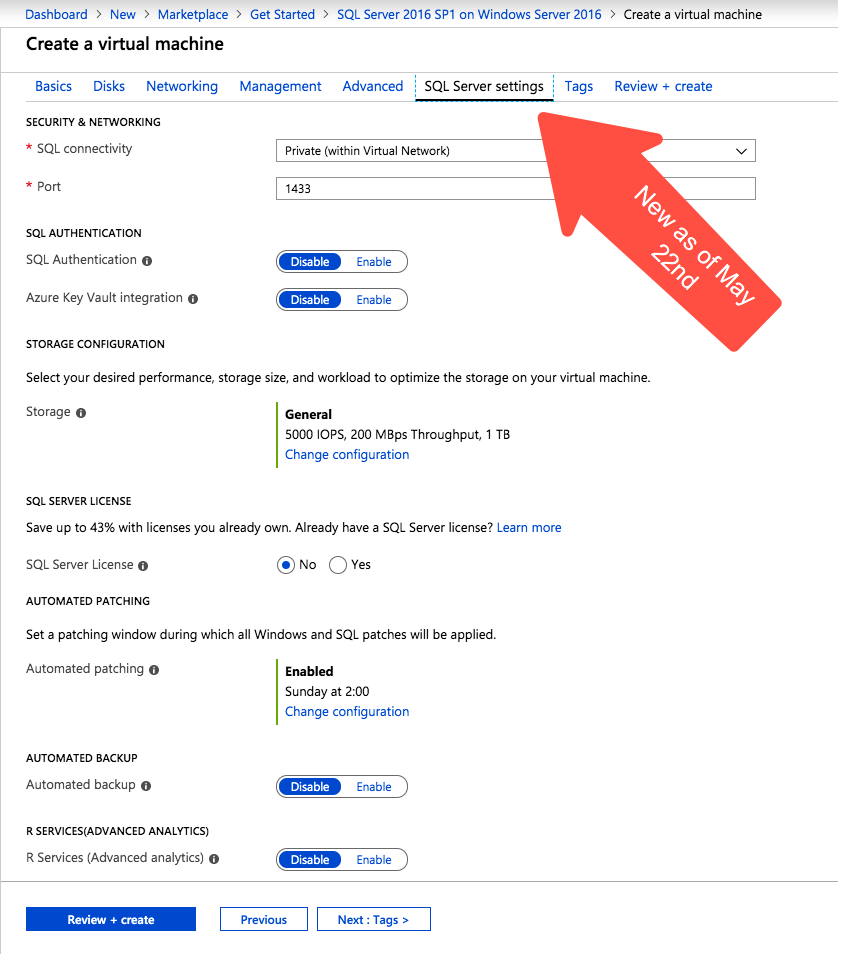
There is a new blade in the Azure portal when creating a new SQL Server virtual machine. I’ve been looking for an announcement regarding this new Azure portal experience but to no avail. This feature wasn’t available when I took the screen shots for my last post on creating a SQL Server 2008 R2 FCI in Azure on April 19th. I presume it must be relatively new.
New Azure "SQL Server Settings" Blade In The Azure Portal
New Azure “SQL Server Settings” blade on the Azure portal

Most of the settings are pretty self explanatory. Under Security and Networking, you can specify the port you want SQL to listen on. It also appears as if the Azure Security Group will be updated to allow different levels of access to the SQL instance: Local, Private or Public. Authentication options are also exposed in this new SQL Server settings blade.
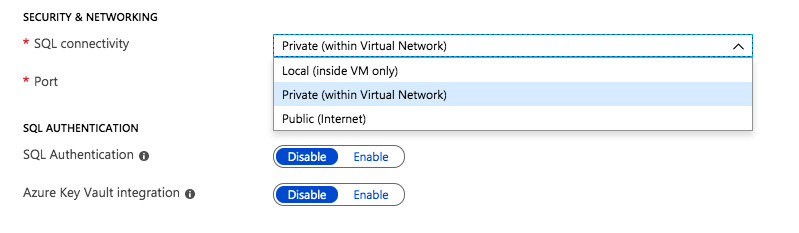
Security, Networking and Authentication options are part of your SQL Server deployment

The rest of the features include licensing, patching and backup options. In addition, if you are deploying the Enterprise Edition of SQL Server 2016 or later, you also have the option to enable SQL Server R Services for advanced analytics.
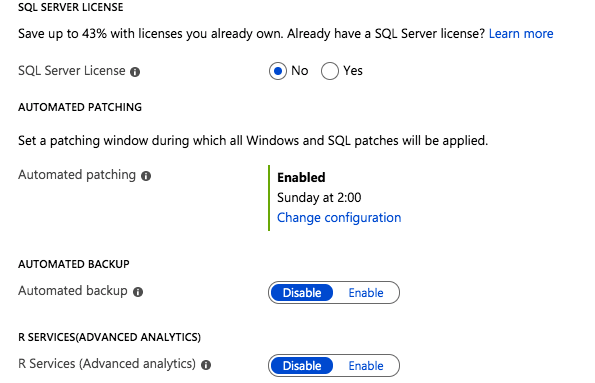
Licensing, Patching, Backup and R Services options can be automatically configured

All of those options are welcome additions to the Azure portal experience when provisioning a new SQL Server instance. I’m sure the seasoned DBA probably has a list of a few dozen other options they would like to tweak before a SQL Server deployment, but this is certainly a step in the right direction.

Storage Configuration Options

The most interesting new feature I have found on this blade is the Storage Configuration option.
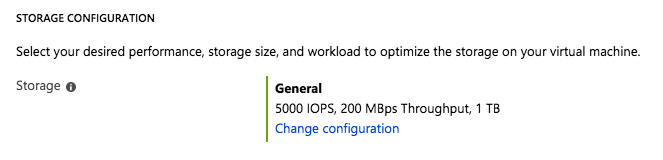
When you click on Change Configuration, you get the following blade.
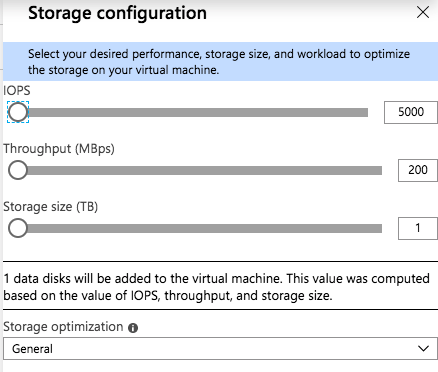
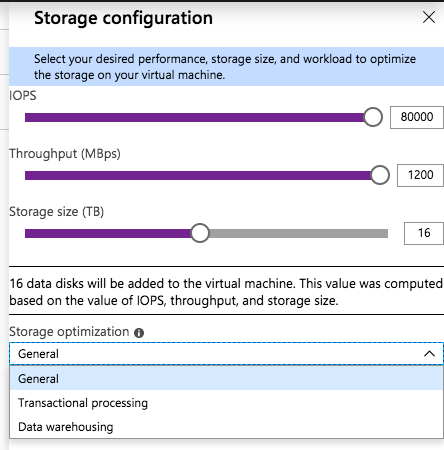
As you slide the IOPS slider to the right you will see the number of data disks increase, the Storage Size increase, and the Throughput increase. You will be limited to the max number of IOPS and disks supported by that instance size. You see in the screenshot below I am able to go as high as 80,000 IOPS when provisioning storage for a Standard E64-16s_v3 instance.
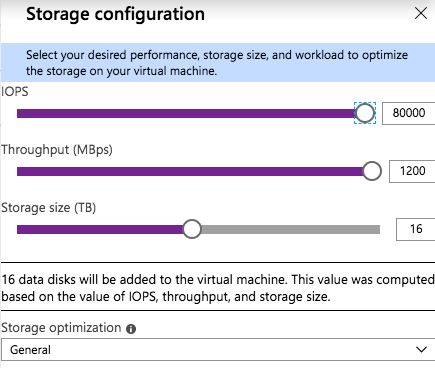
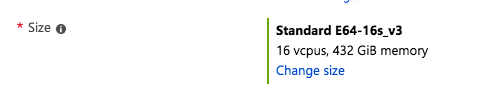
The Standard E64-16s_v3 instance size supports up to 80,000 IOPS

There is also a “Storage optimization” option. I haven’t tried all the different combinations to know exactly what the Storage optimization setting does. If you know how the different options change the storage configuration, leave me a comment, or we will just wait for the official documentation to be released.
For my test, I provisioned a Standard DS13 v2 instance and maxed out the IOPS at 25600, the max IOPS for that instance size. I also optimized the storage for Transactional processing.
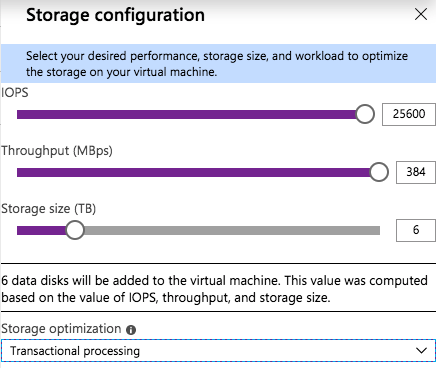
I found that when this instance was provisioned, six P30 premium disk were attached to the instance. This makes sense, since each P30 delivers 5000 IOPS, so it would take at least six of them to deliver the 25,600 IOPS requested. This also increased the Storage Size to 6 TB, since each P30 gives you one 1 TB of storage space. The Read-only host caching was also enabled on these disks.
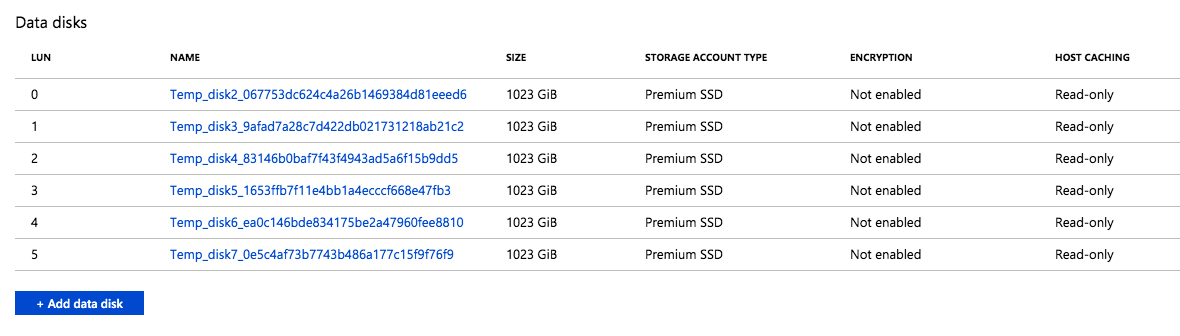
The six disks were automatically provisioned and attached to the instance

I logged in to the instance to see what Azure had done with those disk. Fortunately, they had done exactly what I would have done; they created a single Storage Pool with the six P30 disks and created a Simple (aka, RAID 0) Storage Space and provisioned a single 6 TB F:\ drive.

This storage configuration wizard validates some of the cloud storage assumptions I made in my previous blog post, Storage Considerations for Running SQL Server in Azure. It seems like a single, large disk should suffice in most circumstances.
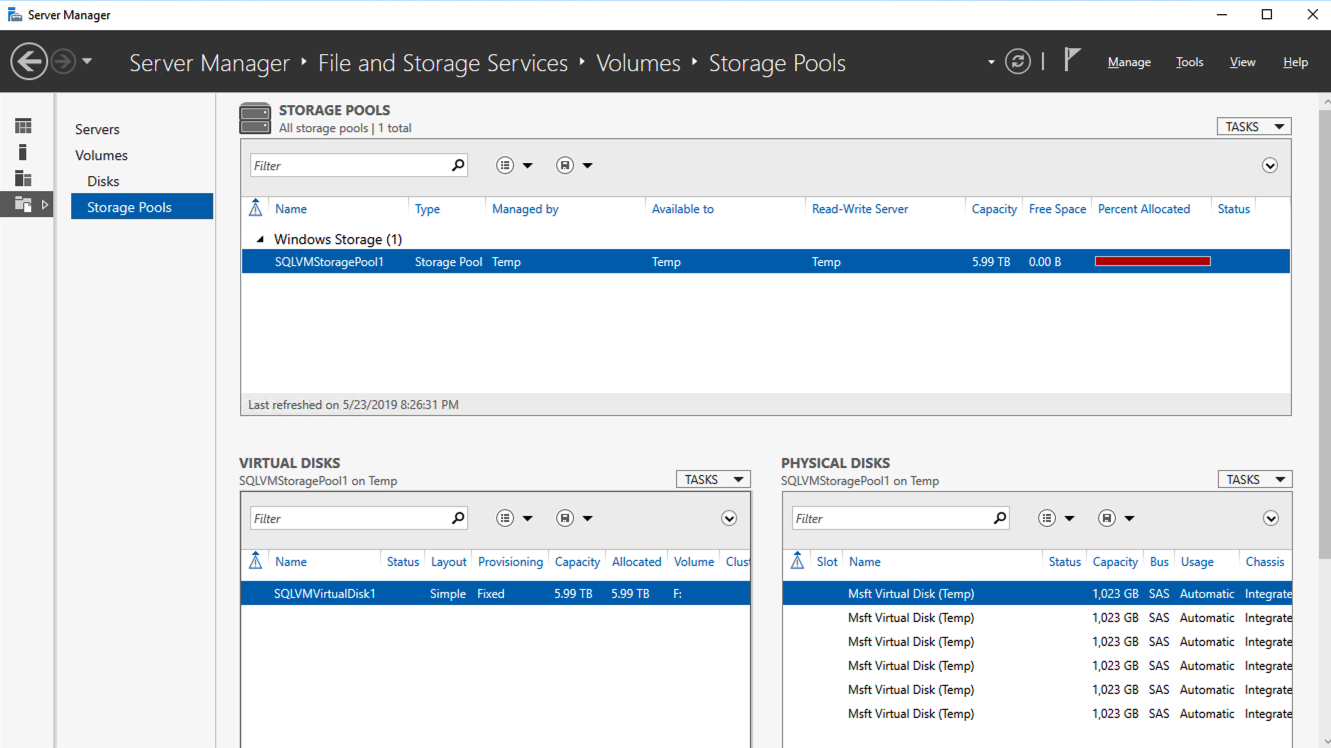
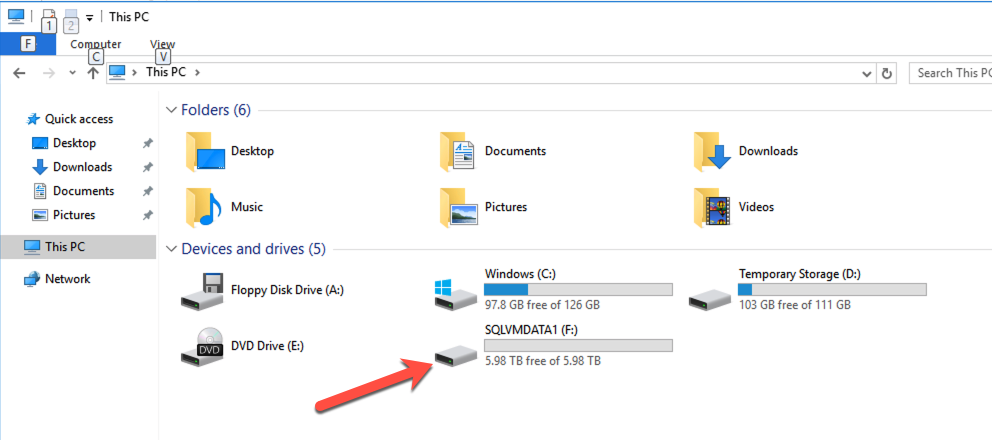
A Simple Storage Space consisting of the six P30s are presented as a single F:\ drive

This storage optimization is not available in every Azure Marketplace offering. For example, if you are moving SQL Server 2008 R2 to Azure for the extended security updates, you will find that this storage optimization in not available in the SQL2008R2/Windows Server 2008 R2 Azure Marketplace image. Of course, Storage Spaces was not introduced until Windows Server 2012, so that makes sense. I did verify that this option is available with the SQL Server 2012 SP4 on Windows Server 2012 R2Azure Marketplace offering.

There is a minor inconvenience however. In addition to adding this new Storage configuration option on SQL Server settings blade, they also removed the option to add Data Disks on the Disks blade. Let’s say I wanted to provision additional storage without creating a Storage Space. To do that, I would have to create the instance first and then come back and add Data disks after it the virtual machine is provisioned.

Final Thoughts

All of the SQL Server configuration options in this new Azure blade are welcome additions. I would love to see the list tunable settings grow. Information text should include guidance on current best practices for each tunable.

What SQL Server or Windows OS tunables would you like to see exposed as part of the provisioning process to make your life as a DBA easier? These tunables make your life easier. They would also make the junior DBA look like a season pro by guiding them through all the current SQL Server configuration best practices.

I think the new Storage configuration option is probably the most compelling new addition. Prior to the Storage configuration wizard, users had to be aware of the limits of their instance size, the limits of the storage they were adding. On top of that, have the wherewithal to stripe together multiple disks in a Simple Storage Space to get the maximum IOPS. A few years ago, I put together a simple Azure Storage Calculator to help people make these decisions. My calculator is currently outdated. That said, this new Storage configuration option may make it obsolete anyway.

I would love to see this Storage configuration wizard included as a standard offering in the Disks blade of every Windows instance type. Instead in just the SQL Server instances. I would let the user choose to use the new Storage configuration  “Wizard” experience. Or even the “Classic” experience where you manually add and manage storage.

Reproduced with permission from Clusteringformeremortals.com

Filed Under: Clustering Simplified Tagged With: Azure, SQL Server

Microsoft Build 2019 Announcements And Sessions On Demand

May 28, 2019 by Jason Aw Leave a Comment

Microsoft Build 2019 Announcements And Sessions On Demand

Microsoft Build 2019 Announcements And Sessions On Demand

Missed the Microsoft Build 2019 because you were unable to get away from the office to attend? You will be glad to know that Microsoft has published all the sessions and are available online at no charge.

Microsoft Build 2019 Announcements And Sessions On Demand

Being a developer focused conference most of the announcements were geared towards developers. You can see a complete list of searchable announcements here. https://azure.microsoft.com/en-us/updates/?updatetype=microsoft-build&Page=1

What’s Infrastructure as Code?

I’m more of an infrastructure guy. Some of the more interesting announcements to me were the following.

Azure VMware Solutions is now generally available

If I was heavily invested in VMware and was looking to expand into Azure, the availability of Azure VMware Solutions would certainly open up some interesting possibilities. It looks like if I use a bare-metal instance or dedicated instance, I can basically have an ESX host running in Azure. This makes sense for those planning a hybrid-cloud deployment and want to easily move workloads back and forth between on-prem and Azure. Leave me a comment to tell me why this excites you.

Azure Quickstart Center enables new customers to build cloud projects with confidence

I haven’t looked into this yet. However, this looks VERY interesting to me if it is what I think it is. As cloud adoption continues to grow so does the required skill set of the IT professional. A wise IT professional will want to become comfortable with Infrastructure as Code (IaC). Just two years ago, this skill set was non-existent. Larger IT consultants or cloud providers may have little or no experience as well. Over the past year I have seen this skill set become more common with the customers I work with. This is often the preferred deployment method. At the same time, IaS technology has also matured.

I predict that if you don’t already manage your cloud deployment with IaC, you will be in the near future. I’m hopeful that this new offering from Microsoft could be a great intro to those IT professionals looking to gain some IaC experience and knowledge. I’ll post a follow-up article after I have had a look at it.

Reproduced with permission from Clusteringformeremortals.com

Filed Under: Clustering Simplified Tagged With: Azure Quickstart Center, Azure VMware Solutions, Infrastructure as Code, Microsoft Build 2019

Storage Considerations For Running SQL Server In Azure

May 8, 2019 by Jason Aw Leave a Comment

Storage Considerations For Running SQL Server In Azure

Deploying SQL Server in Azure, or any Cloud platform? Instead of just provisioning storage like you did for your on-premises deployments for many years, considering storage in the Azure isn’t exactly like the storage you may have had access to on-premises. Some traditional “best practices” may wind up costing you additional money and give you less than optimal performance. Yet, all while not providing you any of the intended benefits. Much of what I am about to discuss is also described in Performance Guidelines for Azure in SQL Server Virtual Machines.

Disk Types

I’m not here to tell you that you must use UltraSSD, Premium Storage, or any other disk type. You just need to be aware that you have options, and what each disk type brings to the table. Of course, like anything else in the cloud, the more money you spend, the more power, speed, throughput, etc., you will achieve. The trick is finding the optimal configuration that suits your storage considerations so you spend just enough to achieve the desired results.

Size Does Matter

Like many things in the cloud, certain specs are tied together. For servers if you want more RAM you often get more CPU, even if you didn’t NEED more CPU. For storage, IOPS, throughput and size are all tied together. If you want more IOPS, you need a bigger disk. If you need more space, you also get more IOPS. Of course you can jump between storage classes to circumvent that to some extent, but it still holds true that if you need more IOPS, you also get more space on any of the different storage types.

The size of your virtual machine instance also matters. Regardless of what storage configuration you eventually go with, the overall throughput will be capped at whatever the instance size allows. So once again, you may need to pay for more RAM and CPU than you need, just to achieve your desired storage performance. Make sure you understand what your instance size can support in terms of max IOPS and MBps throughput. Many times the instance size will turn out to be the bottleneck in a perceived storage performance problem in Azure.

Use Raid 0

RAID 0 is traditionally the 3rd rail of storage configuration options. Although it provides the best combination of performance and storage utilization of any RAID option, it does so at the risk of a catastrophic failure. The entire stripe set fails when just a single disk in a RAID 0 stripe set fail. As such, traditionally RAID 0 is only used in scenarios where data loss is acceptable and high performance is desirable.

However, in Azure software RAID 0 is desirable and even recommended in many situations. How can we get away with RAID 0 in Azure? The answer is easy. Each disk you present to an Azure virtual machine instance already has triple redundancy on the backend. Meaning you would need to have multiple failures before you would lose your stripe set. By using RAID 0, you can combine multiple disks. The overall performance of the combined stripe set will increase by 100% for each additional disk you add to the stripe set.

So for example, you had a requirement of 10,000 IOPS, you might think that you need UltraSSD since Premium Storage maxes out at 7,500 IOPS with a P50. However, by putting two P50s in a RAID 0, you now have the potential to achieve up to 15,000 IOPS. That’s assuming you are running a Standard_F16s_v2 or similarly large instance size that supports that many IOPS.

In Windows 2012 and later, RAID 0 is achieved by creating a Simple Storage Space. In Windows Server 2008 R2, you can use Dynamic Disks to create a RAID 0 Striped Volume. Just a word of caution. If you are going to use a local Storage Space and also configure Availability Groups or a SANless Failover Cluster Instance with DataKeeper, it is best to configure your storage BEFORE you create a cluster.

Just a reminder. You only have about two more months to move your SQL Server 2008 R2 instances to Azure. Check out my post on how to deploy a SQL Server 2008 R2 FCI on Azure to ensure high availability.

Don’t Bother Separating Log And Data Files

Traditionally log and data files would reside on different physical disks. Log files tend to have a lot of write activity and data files tend to have more read activity. Therefore sometimes storage would be optimized based on those characteristics. It was also desirable to keep log and data files on different disks for recovery purposes. If you should lose one or the other, with a proper backup strategy in place, you could recover your database with no data loss.

With cloud based storage, the likelihood of losing just a single volume is EXTREMELY low. Now that you’re thinking about storage considerations. If by chance you lose storage, it is likely your entire storage cluster, along with the triple redundancy, went to lunch. So while it may feel right to put logs in E:\ logs and data in F:\data, you really are doing yourself a disservice. For example, you provision a P20 for logs and a P20 for data. Each volume will be 512 GiB in size and capped at 2,300 IOPS. Just think, you may not need all that size for log files. But it might not give you much room to grow for your data files. It will eventually require moving to a more expensive P30 just for the extra space.

Wouldn’t it be much nicer to simply stripe those two volumes together into a nice large 1 TB volume that supports 4,600 IOPS? By doing that both the log and data files can take advantage of the increased IOPS. And, you have also just optimized your storage utilization and decreased your cloud storage cost by putting off the move to a P30 disk for your data file.

The same holds true files and filegroups. Really think hard about what you are doing. Whether it still makes sense once you move to the cloud.  What makes sense might be counter intuitive to what you have done in the past. When in doubt, follow the KISS rule, Keep It Simple Stupid! The beauty of the cloud is you can always add more storage, increase instance size, or do whatever it takes to optimize performance vs. cost.

What To Do About TempDB

Use the local SSD, aka, the D: drive. The D drive is going to be the best location for your tempdb. Because it is a local drive, the data is considered “temporary”. Meaning it can be lost if a server is moved, rebooted, etc. That’s okay. Tempdb is recreated each time SQL starts anyway. The local SSD is going to be fast and have low latency. But because it is local the reads and writes to it do not contribute to the overall storage IOPS limit of the instance size. So effectively it is FREE IOPS! Why not take advantage? If you are building a SANless SQL Server FCI with SIOS DataKeeper, be sure to create a non-mirrored volume resource of the D drive. This way you don’t needlessly replicate TempDB.

Mount Points Become Obsolete

Mount Points are commonly used in SQL Server FCI configurations when multiple instances of SQL Server are installed on the same Windows Cluster. This reduces the overall cost of SQL Server licenses. It can help save cost by driving higher server utilization. As we discussed in the past, typically there might be five or more drives associated with each SQL Server instance. If each of those drives had to consume a drive letter, you would run out of letters in just about three to four instances. So instead of giving each drive a letter, mount points were used so that each instance could just be serviced by a single drive letter, the root drive. The root drive has mount points that map to separate physical disks that don’t have drive letters.

However, as we discussed above, the concept of using a bunch of individual disks really doesn’t make a lot of sense in the cloud. Hence mount points become obsolete in the cloud. Instead, create a RAID 0 stripe we as described. Each clustered instance SQL Server will simply have its own individual volume that is optimised for space, performance and cost. This solves the problem of running out of drive letters. Also, gives you much better storage utilization and performance, while also reducing the cost of your cloud storage.

Conclusions

This post is meant as a jumping off point, not a definitive guide. The main point of the post is to get you thinking differently about cloud and storage considerations as it pertains to running SQL Server in Azure. Don’t simply take what you did on-premise and recreate it in the cloud. That will almost always result in less than optimal performance and a much larger storage bill than necessary.

Reproduced with permission from Clusteringformeremortals.com
Filed Under: Clustering Simplified Tagged With: SQL Server, SQL Server in Azure, storage considerations

Don’t lose your SQL Server 2008 Security Updates!

May 7, 2019 by Jason Aw Leave a Comment

Don’t lose your SQL Server 2008 Security Updates! Let SIOS Experts Help You Move to Azure

Reduce possibility of downtime and qualify for Azure’s 99.95% or 99.99% SLA by leveraging on SIOS DataKeeper. DataKeeper overcomes Azure’s lack of shared storage and enables you to build a SQL Server FCI in Azure that leverages the locally attached storage on each instance.

SIOS DataKeeper supports SQL Server 2008 R2 and Windows Server 2008 R2. At the same time, it supports any version of Windows Server – from 2008 R2 through Windows Server 2019 and any version of SQL Server from from SQL Server 2008 through SQL Server 2019.

Filed Under: Clustering Simplified Tagged With: SQL Server 2008 Security Updates

Configure SQL Server 2008 R2 Failover Cluster Instance On Windows Server 2008 R2 In Azure

April 24, 2019 by Jason Aw Leave a Comment

Step-By-Step: How To Configure A SQL Server 2008 R2 Failover Cluster Instance On Windows Server 2008 R2 In Azure

Intro

On July 9, 2019, support for SQL Server 2008 and 2008 R2 will end. That means the end of regular security updates. However, if you move those SQL Server instances to Azure, Microsoft will give you three years of Extended Security Updates at no additional charge. If you are currently running SQL Server 2008/2008 R2 and you are unable to update to a later version of SQL Server before the July 9th deadline, you will want to take advantage of this offer rather than running the risk of facing a future security vulnerability. An unpatched instance of SQL Server could lead to data loss, downtime or a devastating data breach.

One of the challenges you will face when running SQL Server 2008/2008 R2 in Azure is ensuring high availability. On premises you may be running a SQL Server Failover Cluster (FCI) instance for high availability, or possibly you are running SQL Server in a virtual machine and are relying on VMware HA or a Hyper-V cluster for availability. When moving to Azure, none of those options are available. Downtime in Azure is a very real possibility that you must take steps to mitigate.

In order to mitigate the possibility of downtime and qualify for Azure’s 99.95% or 99.99% SLA, you have to leverage SIOS DataKeeper. DataKeeper overcomes Azure’s lack of shared storage and allows you to build a SQL Server FCI in Azure that leverages the locally attached storage on each instance. SIOS DataKeeper not only supports SQL Server 2008 R2 and Windows Server 2008 R2 as documented in this guide, it supports any version of Windows Server, from 2008 R2 through Windows Server 2019 and any version of SQL Server from from SQL Server 2008 through SQL Server 2019.

This guide will walk through the process of creating a two-node SQL Server 2008 R2 Failover Cluster Instance (FCI) in Azure, running on Windows Server 2008 R2. Although SIOS DataKeeper also supports clusters that span Availability Zones or Regions, this guide assumes each node resides in the same Azure Region, but different Fault Domains. SIOS DataKeeper will be used in place of the shared storage normally required to create a SQL Server 2008 R2 FCI.

Create The First SQL Server Instance In Azure

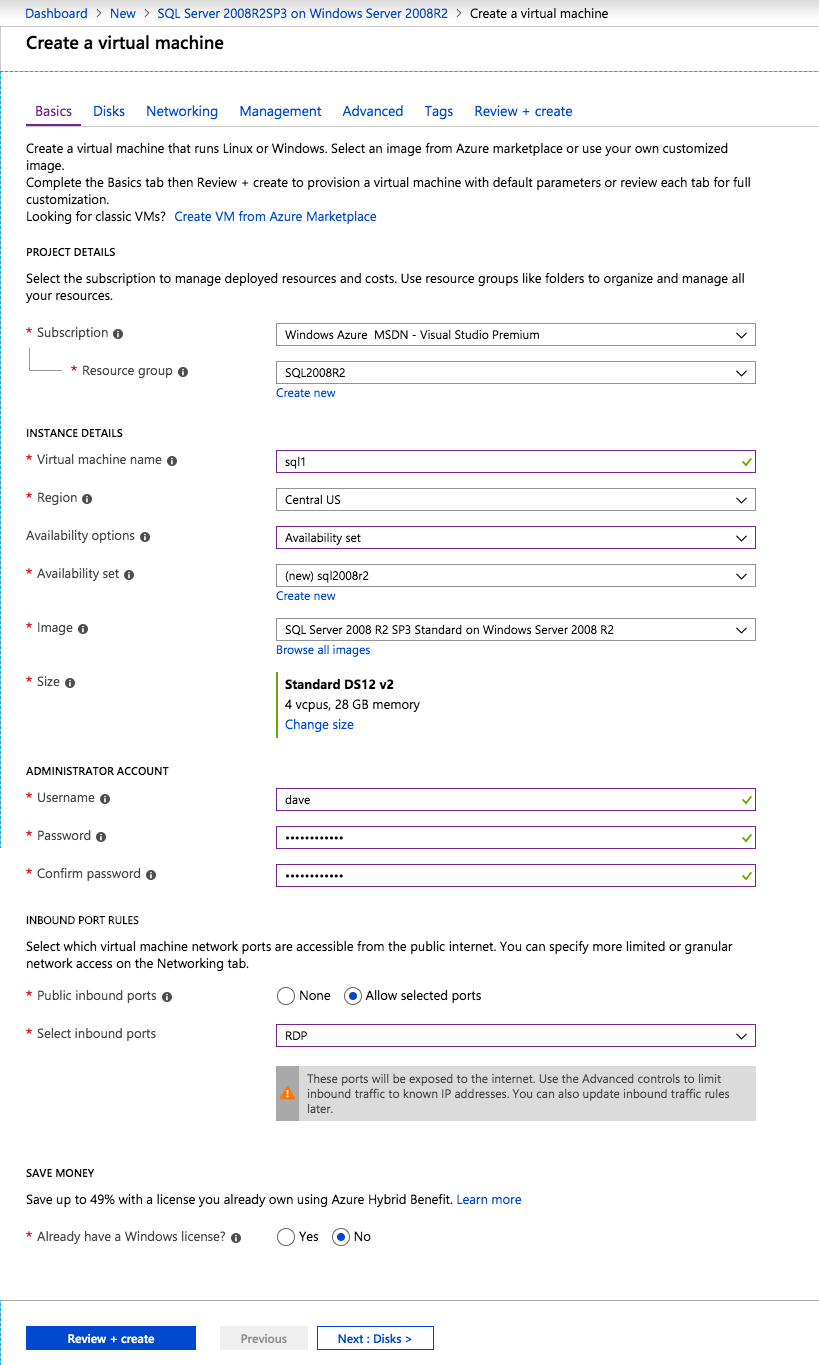
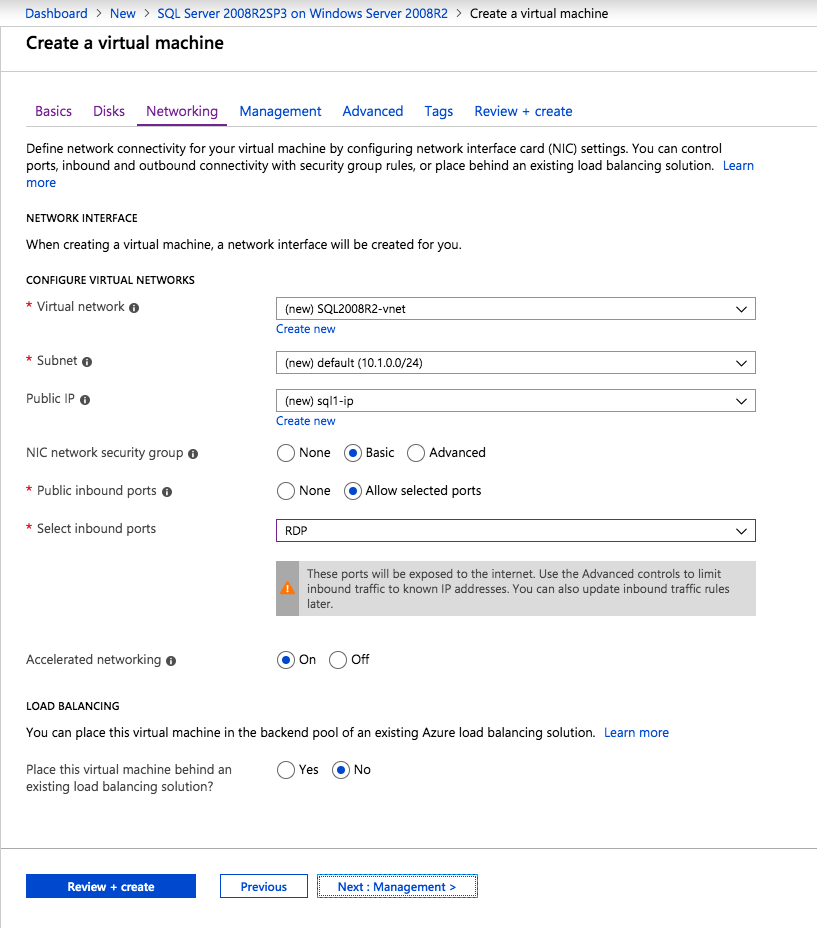
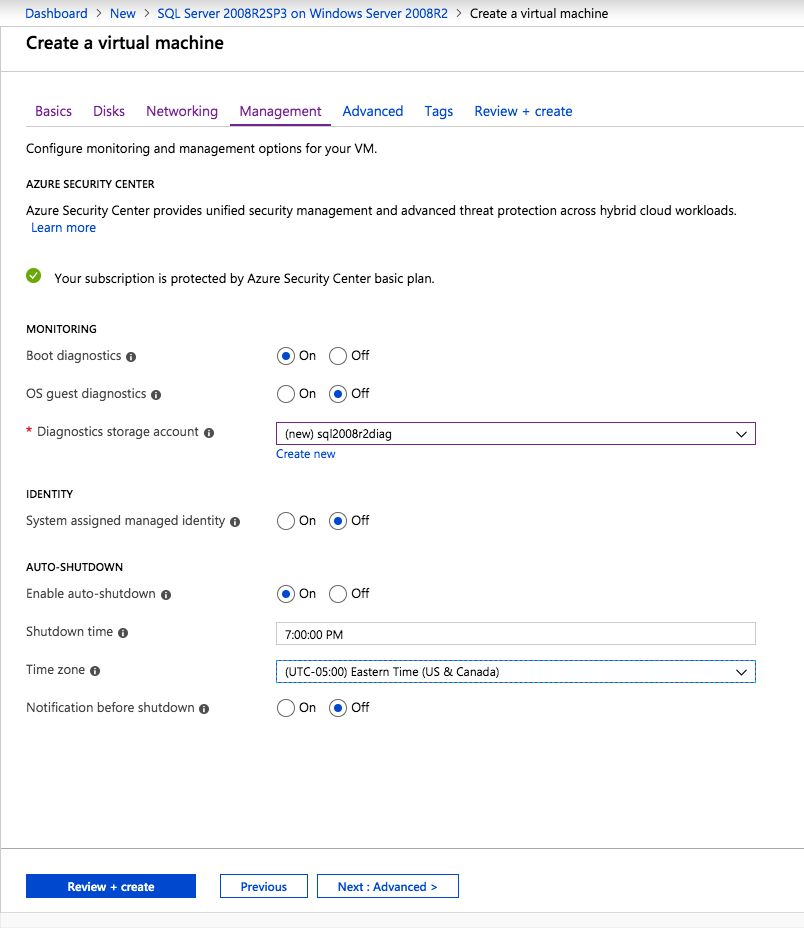
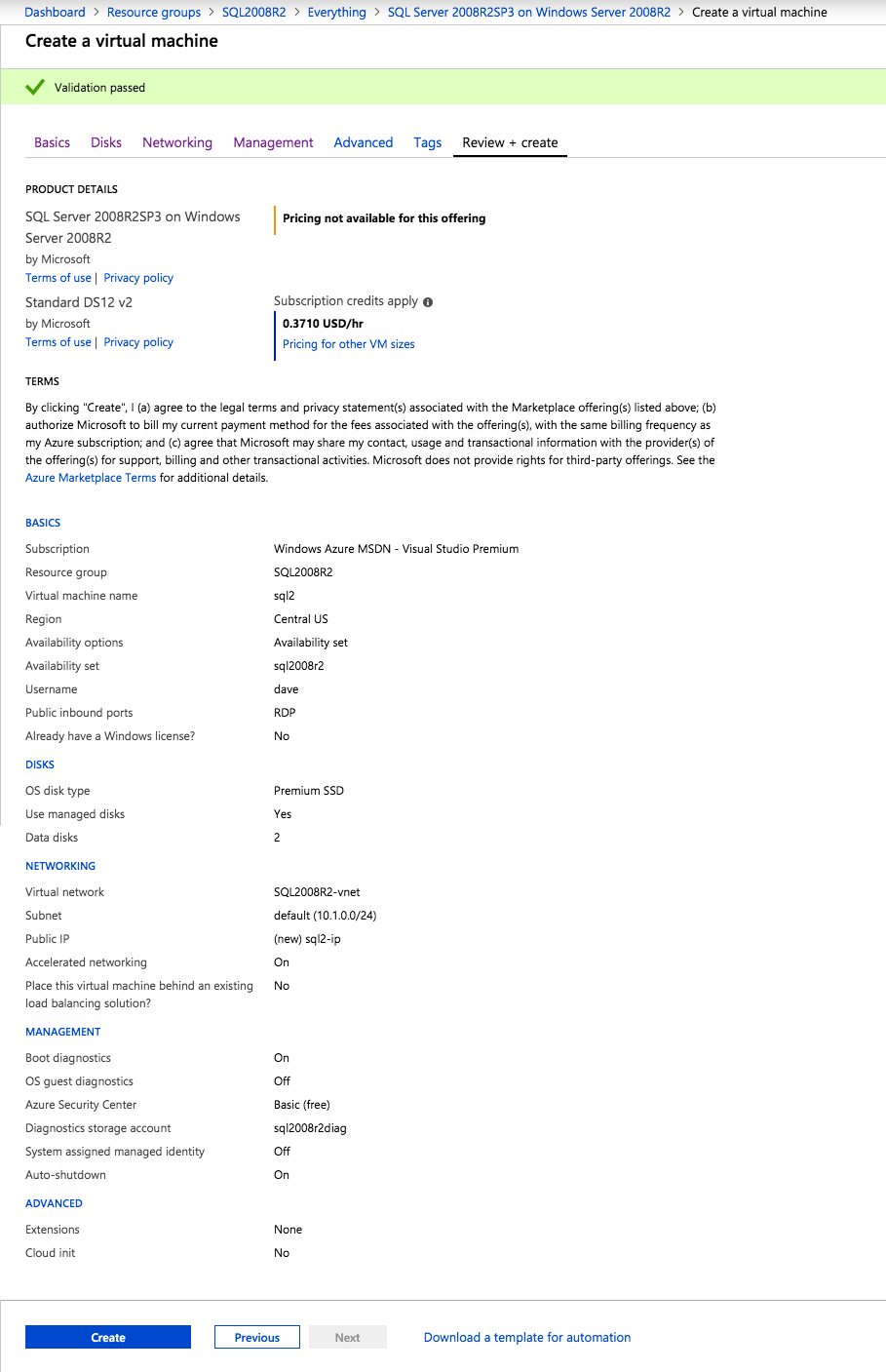
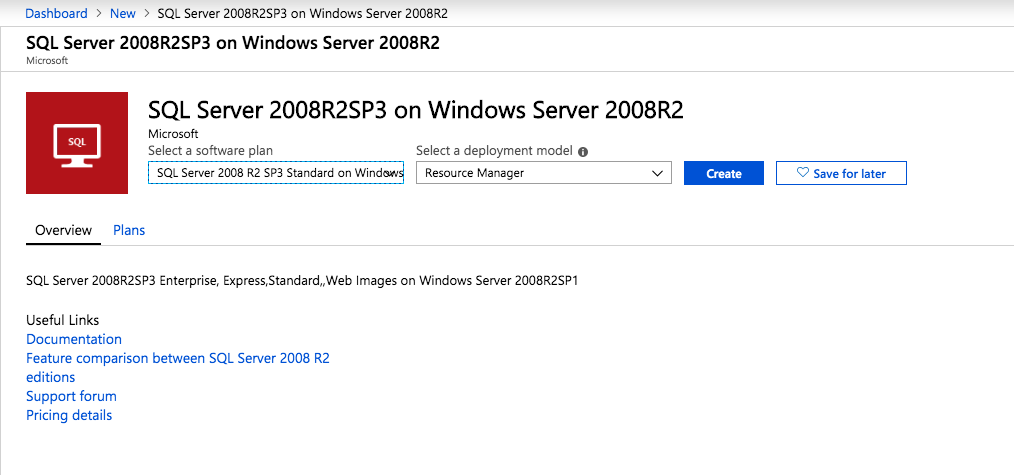
This guide will leverage the SQL Server 2008R2SP3 on Windows Server 2008R2 image that is published in the Azure Marketplace.

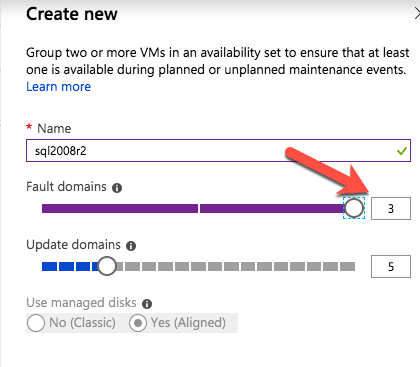
When you provision the first instance you will have to create a new Availability Set. During this process be sure to increase the number of Fault Domains to 3. This allows the two cluster nodes and the file share witness each to reside in their own Fault Domain.

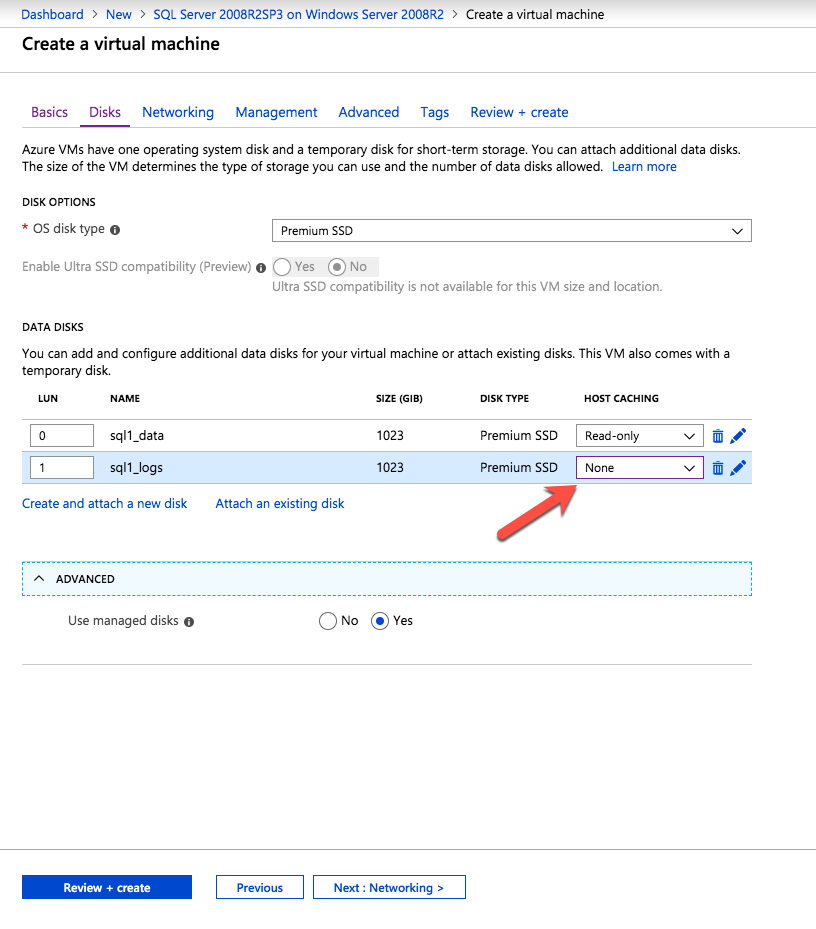
Add additional disks to each instance. Premium or Ultra SSD are recommended. Disable caching on the disks used for the SQL log files. Enable read-only caching on the disk used for the SQL data files. Refer to Performance guidelines for SQL Server in Azure Virtual Machines for additional information on storage best practices.

If you don’t already have a virtual network configured, allow the creation wizard to create a new one for you.

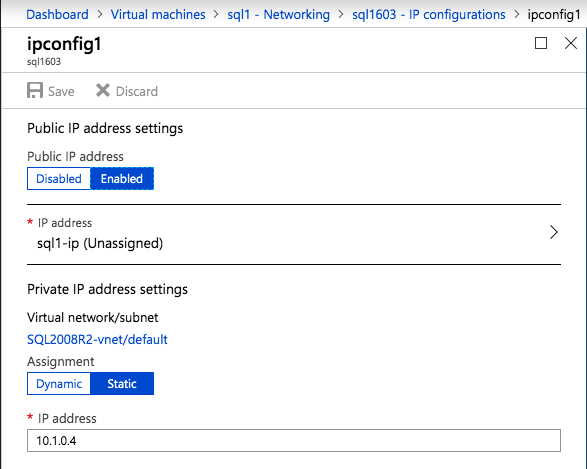
Once the instance is created, go in to the IP configurations and make the Private IP address static. This is required for SIOS DataKeeper and is best practice for clustered instances.

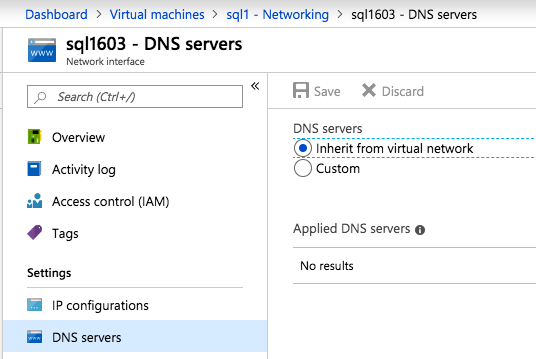
Make sure that your virtual network is configured to set the DNS server to be a local Windows AD controller. This is to ensure you will be able to join the domain in a later step.

Create The End SQL Server Instance In Azure

Follow the same steps as above. Except be sure to place this instance in the same virtual network and Availability Set that you created with the 1st instance.

Create A File Share Witness (FSW) Instance

In order for the Windows Server Failover Cluster (WSFC) to work optimally you are required to create another Windows Server instance and place it in the same Availability Set as the SQL Server instances. By placing it in the same Availability Set, you ensure that each cluster node and the FSW reside in different Fault Domains. Thereby ensuring your cluster stays on line should an entire Fault Domain go off line. This instances does not require SQL Server. It can be a simple Windows Server as all it needs to do is host a simple file share.

This instance will host the file share witness required by WSFC. This instance does not need to be the same size, nor does it require any additional disks to be attached. It’s only purpose is to host a simple file share. It can in fact be used for other purposes. In my lab environment my FSW is also my domain controller.

Uninstall SQL Server 2008 R2

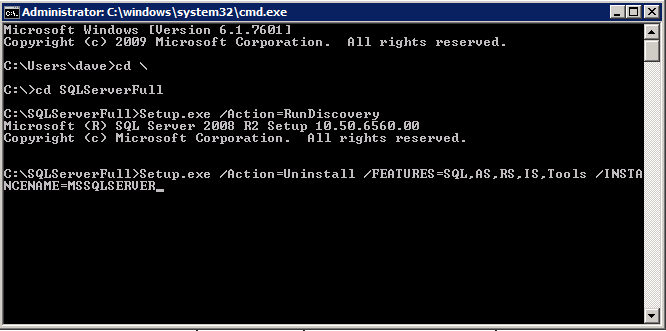
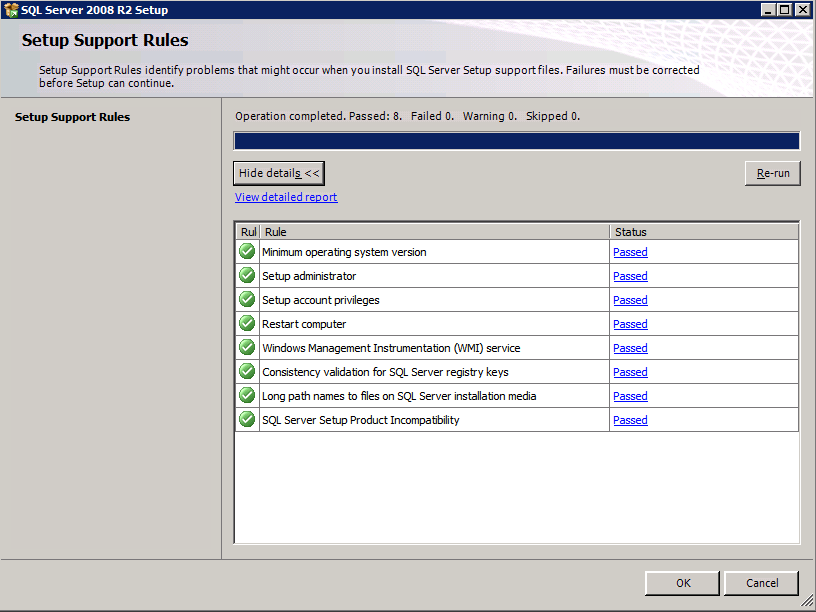
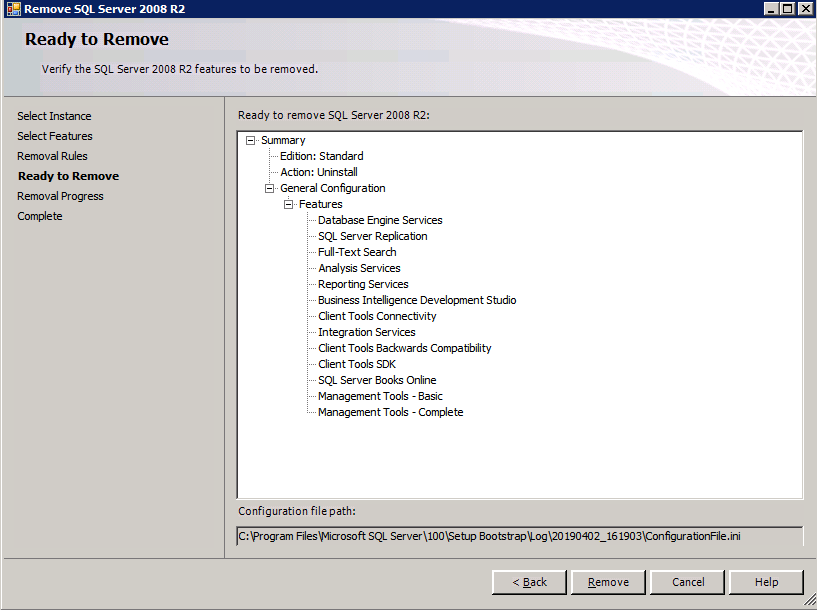
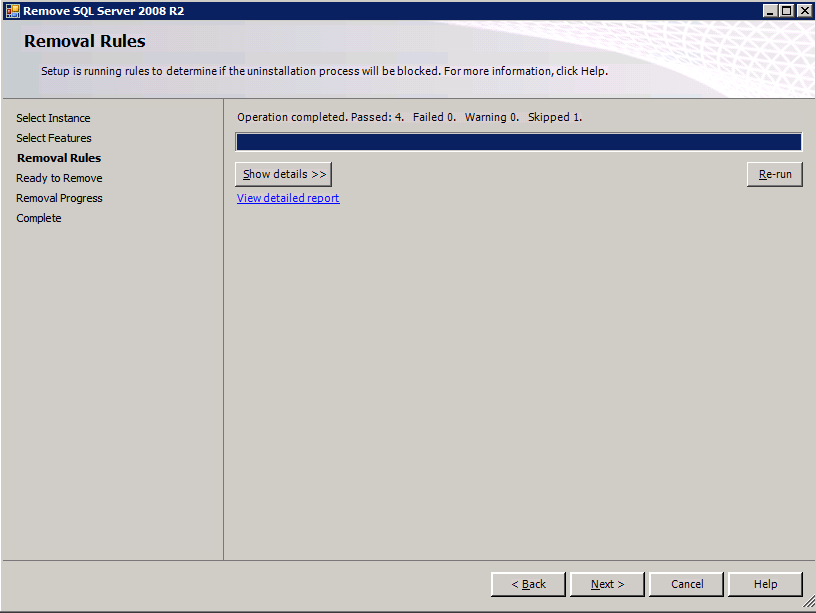
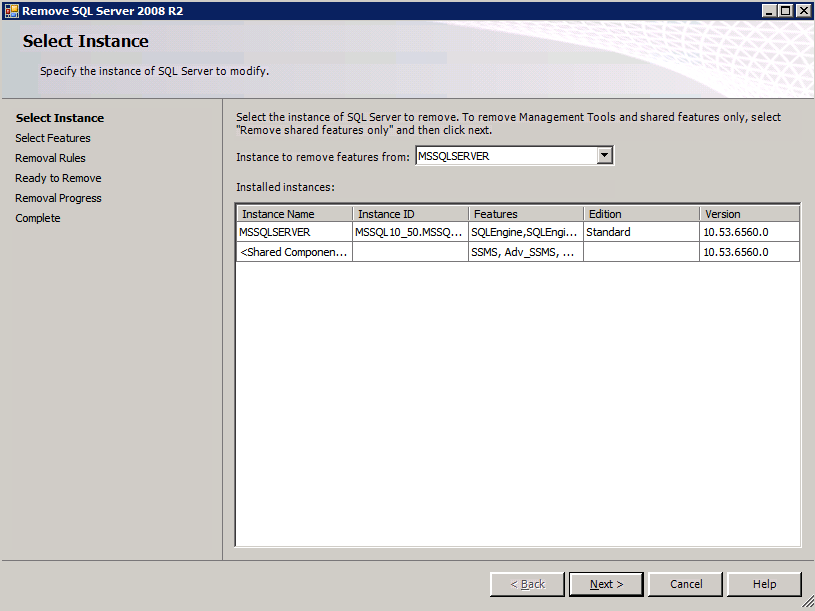
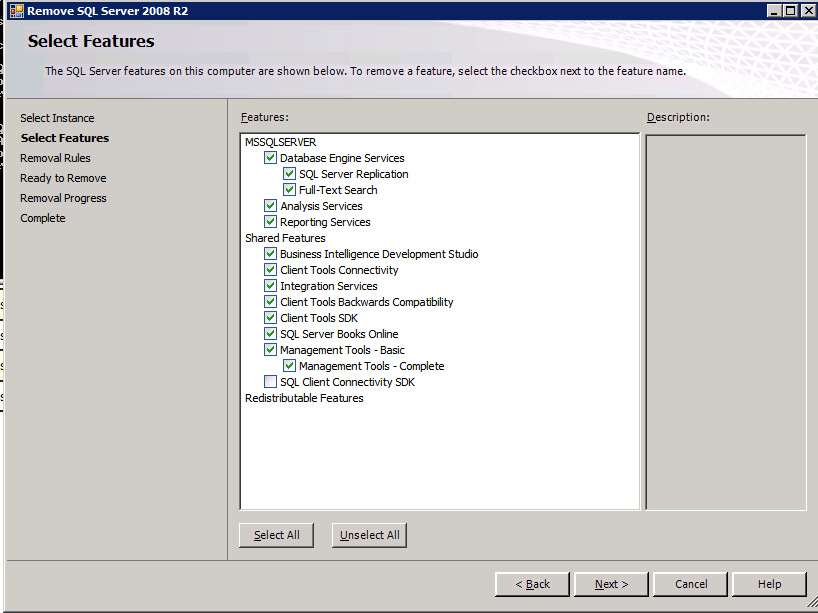
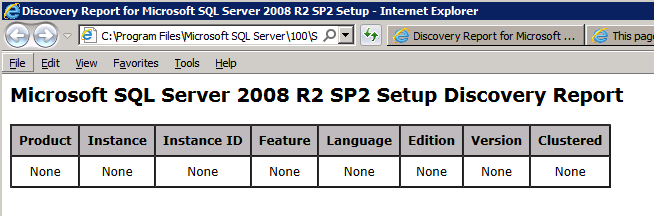
Each of the two SQL Server instances provisioned already have SQL Server 2008 R2 installed on them. However, they are installed as standalone SQL Server instances, not clustered instances. SQL Server must be uninstalled from each of these instances before we can install the cluster instance. The easiest way to do that is to run the SQL Setup as shown below.

When you run setup.exe /Action-RunDiscovery you will see everything that is preinstalled 

setup.exe /Action-RunDiscovery

Running setup.exe /Action=Uninstall /FEATURES=SQL,AS,RS,IS,Tools /INSTANCENAME=MSSQLSERVER kicks off the uninstall process

setup.exe /Action=Uninstall /FEATURES=SQL,AS,RS,IS,Tools /INSTANCENAME=MSSQLSERVER

Running setup.exe /Action-RunDiscovery confirms the uninstallation completed

setup.exe /Action-RunDiscovery

Run this uninstallation process again on the 2nd instance.

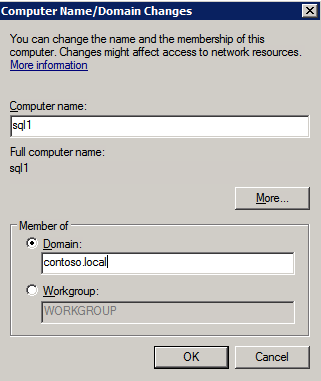
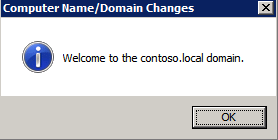
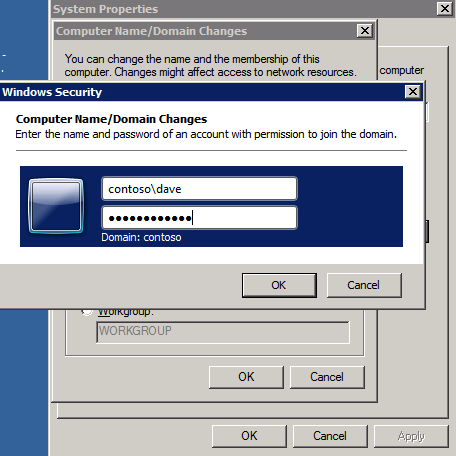
Add Instances To The Domain

All three of these instances will need to be added to a Windows Domain.

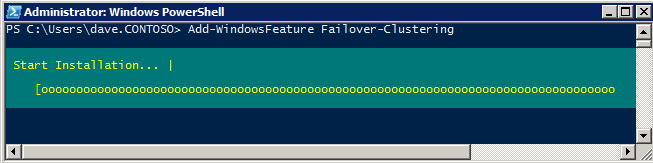
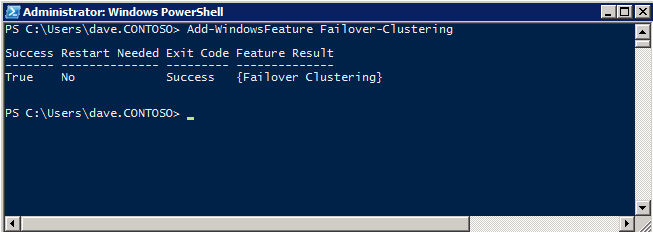
Add Windows Failover Clustering Feature

The Failover Clustering Feature needs to be added to the two SQL Server instances

Add-WindowsFeature Failover-Clustering

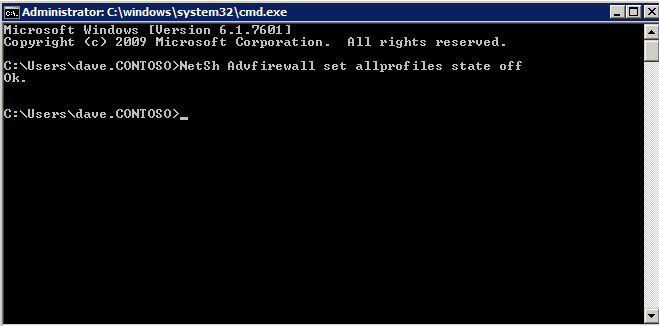
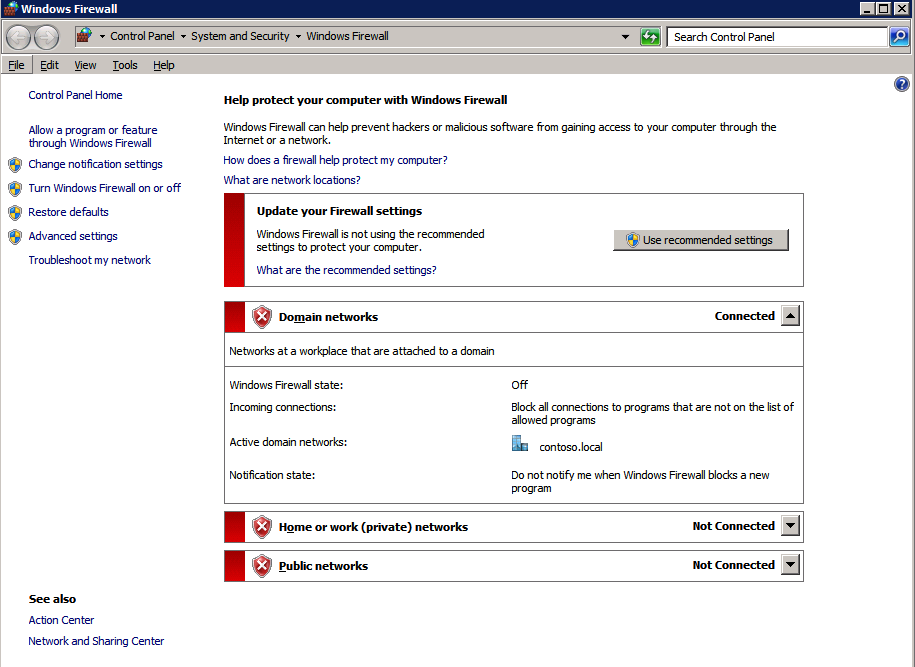
Turn Off Windows Firewall

For simplicity sake, turn off the Windows Firewall during the installation and configuration of the SQL Server FCI. Consult Azure Network Security Best Practices for advice on securing your Azure resources. Details on required Windows ports can be found here , SQL Server ports here and SIOS DataKeeper ports here, The Internal Load Balancer that we will configure later also requires port 59999 access. So be sure to account for that in your security configuration.

NetSh Advfirewall set allprofiles state off

Install Convenience Rollup Update For Windows Server 2008 R2 SP1

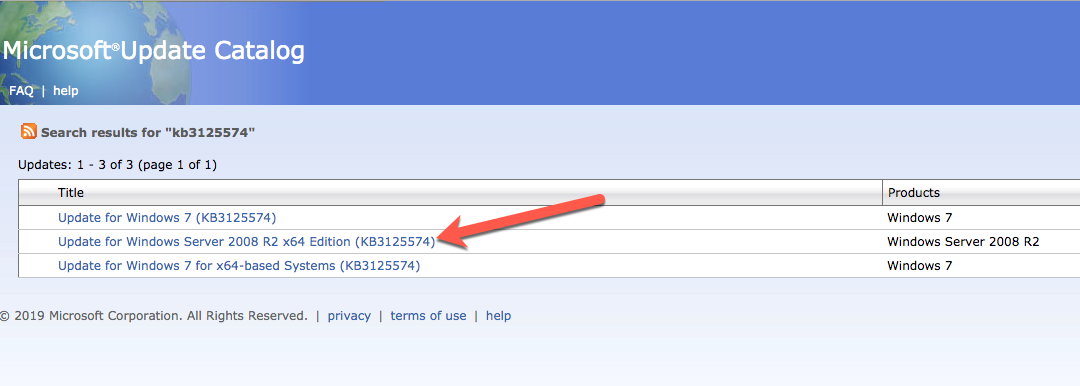
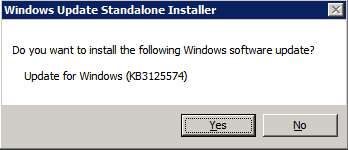
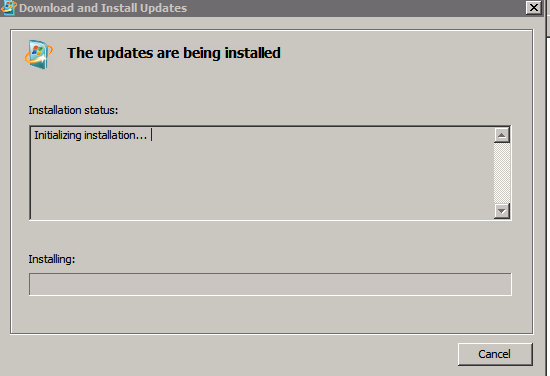
There is a critical update ( kb2854082) that is required in order to configure a Windows Server 2008 R2 instance in Azure. That update and many more are included in the Convenience Rollup Update for Windows Server 2008 R2 SP1. Install this update on each of the two SQL Server instances.

Format The Storage

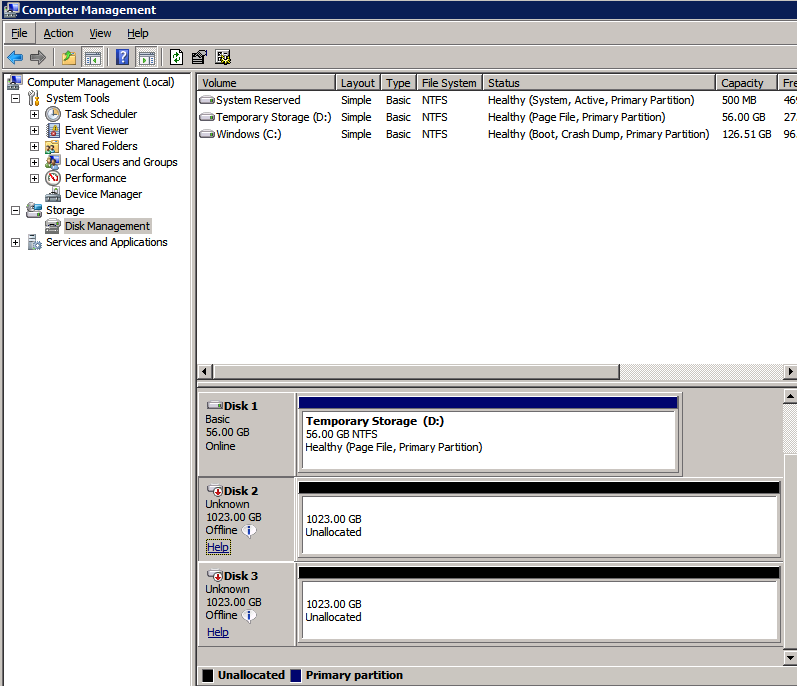
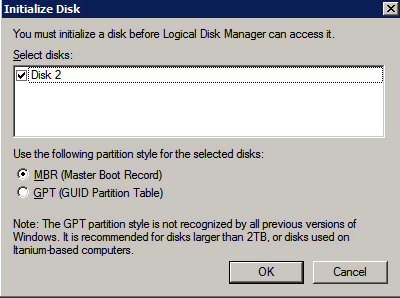
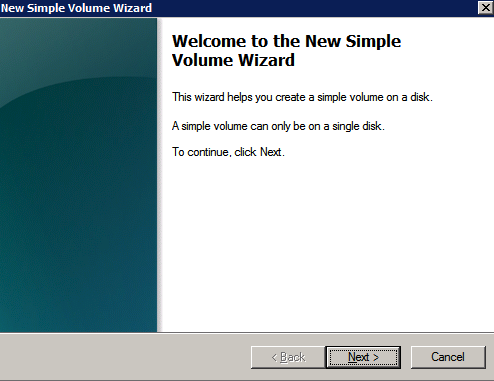
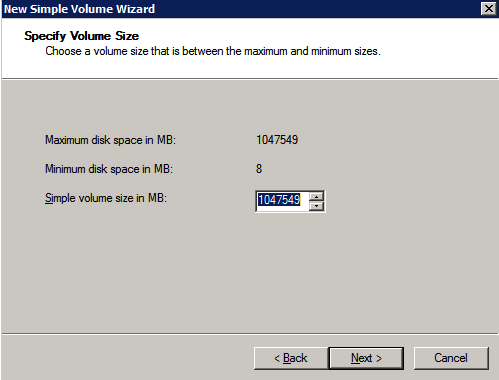
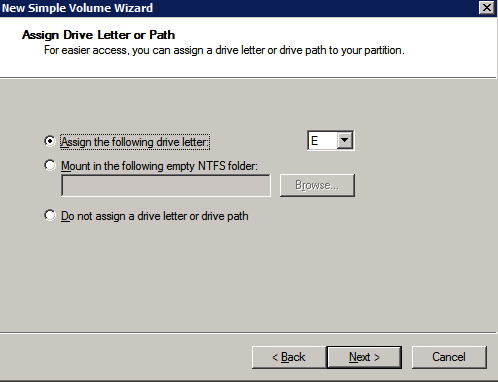
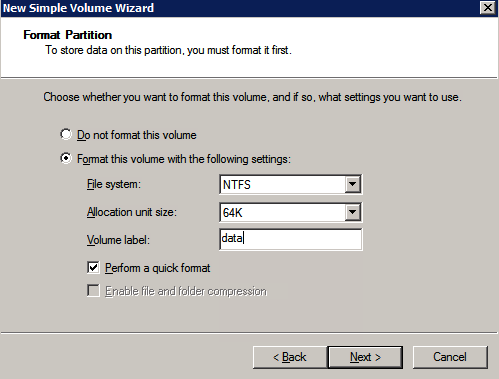
The additional disks that were attached when the two SQL Server instances were provisioned need to be formatted. Do the following for each volume on each instance.

Microsoft best practices says the following…

“NTFS allocation unit size: When formatting the data disk, it is recommended that you use a 64-KB allocation unit size for data and log files as well as TempDB.”

Run Cluster Validation

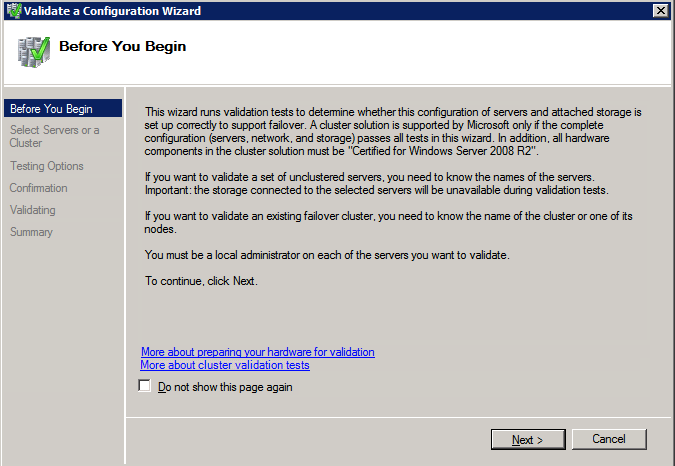
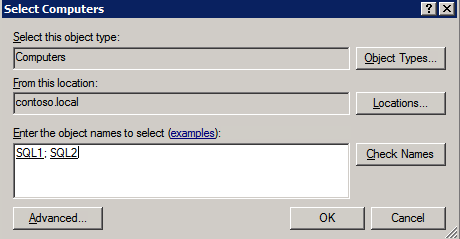
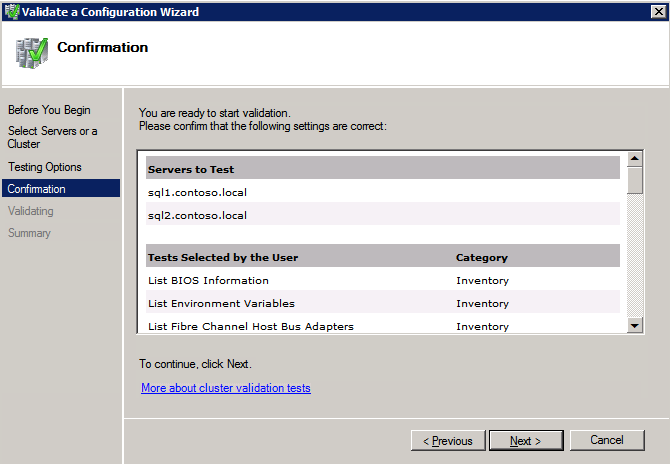
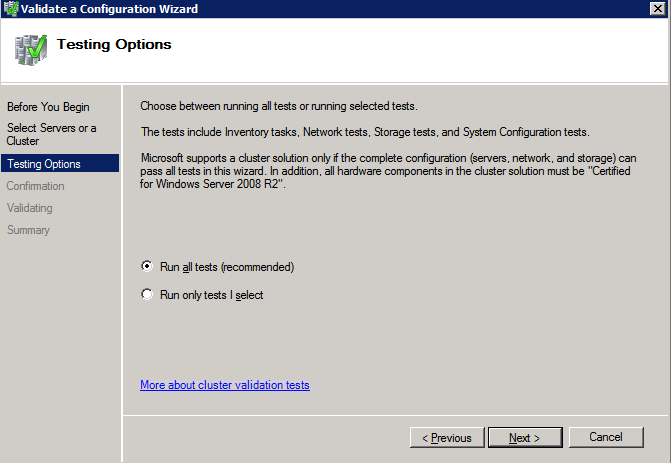
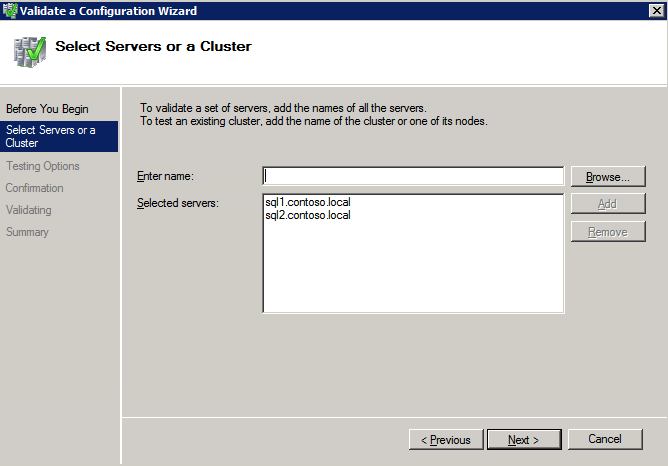
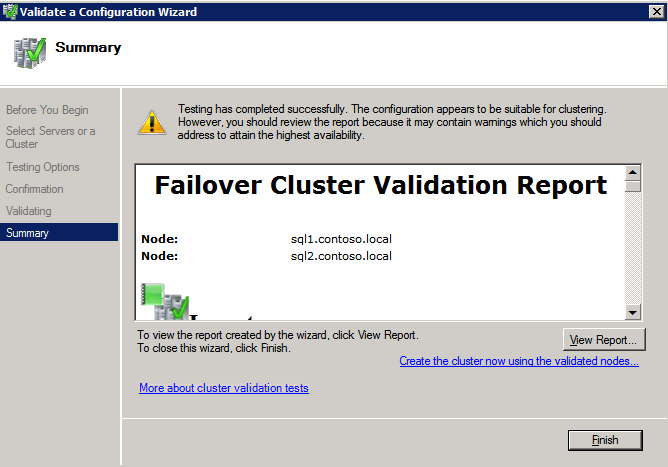
Run cluster validation to ensure everything is ready to be clustered.

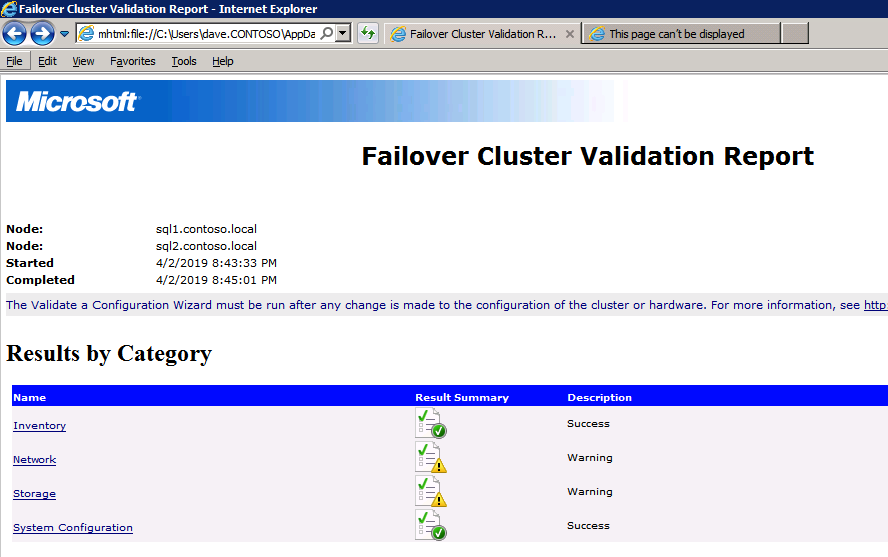
Your report will contain WARNINGS about Storage and Networking. You can ignore those warnings as we know there are no shared disks and only a single network connection exists between the servers. You may also receive a warning about network binding order which can also be ignored. If you encounter any ERRORS you must address those before you continue.

Create The Cluster

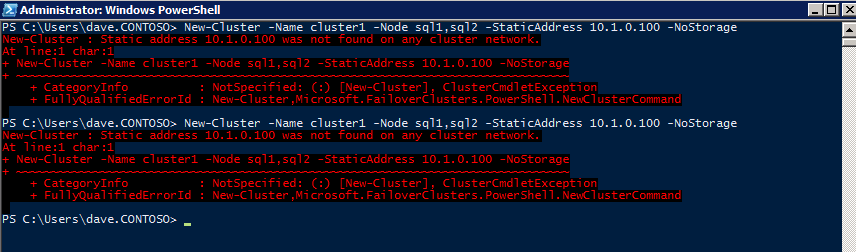
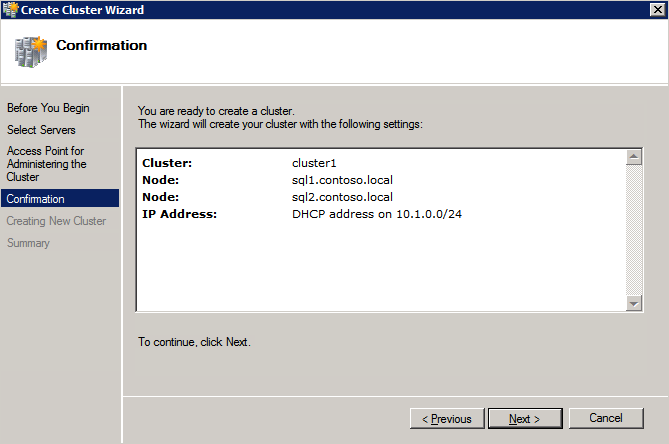
Best practices for creating a cluster in Azure would be to use Powershell as shown below. Powershell allows us to specify a Static IP Address, whereas the GUI method does not. Unfortunately, Azure’s implementation of DHCP does not work well with Windows Server Failover Clustering. If you use the GUI method you will wind up with a duplicate IP address as the Cluster IP Address. It’s not the end of the world, but you will need to fix that as I show.

As I said, the Powershell method generally works best. However, for some reason, it seems to be failing on Windows Server 2008 R2 as shown below.

New-Cluster -Name cluster1 -Node sql1,sql2 -StaticAddress 10.1.0.100 -NoStorage

You can try that method and if it works for you – great! I need to go back and investigate this a bit more to see if it was a fluke. Another option I need to explore if Powershell is not working is Cluster.exe. Running cluster /create /? gives the proper syntax to use for creating clusters with the deprecated cluster.exe command.

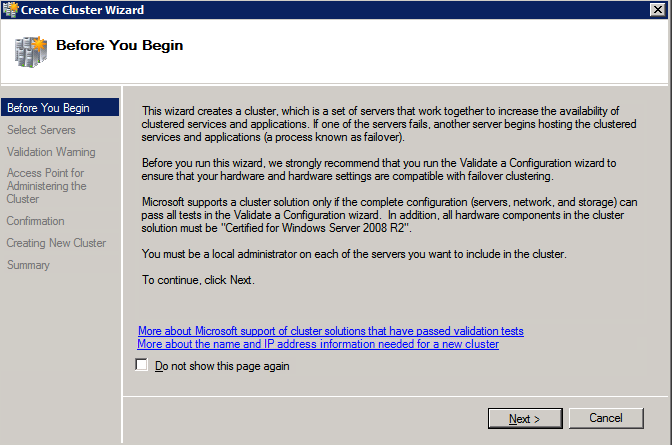
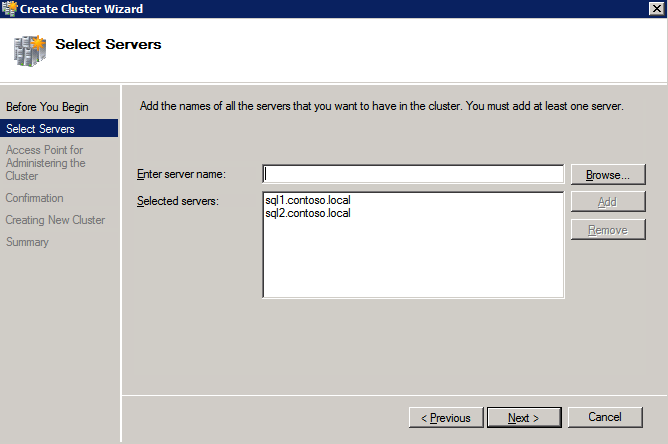
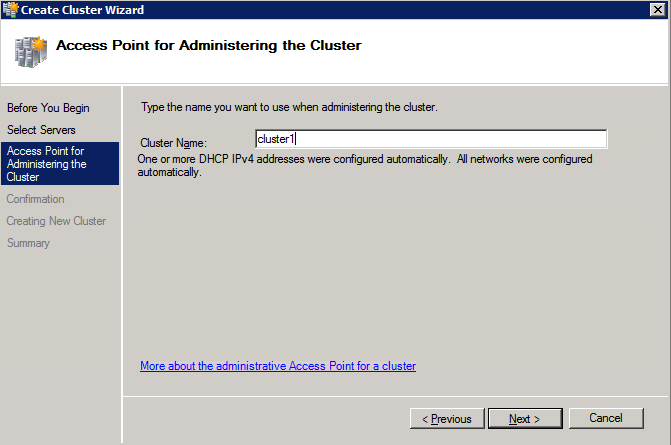
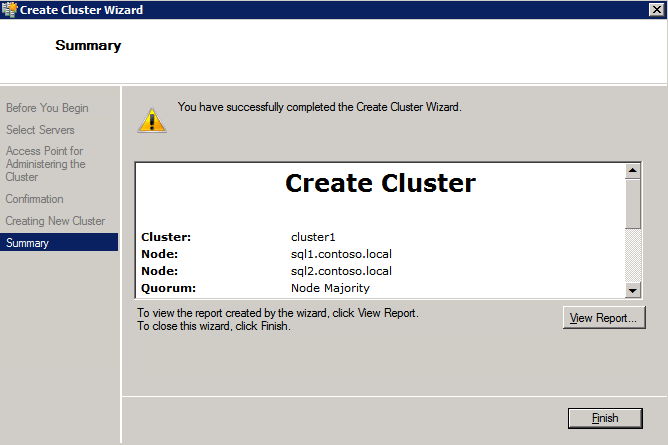
However, if Powershell or Cluster.exe fails you, the steps below illustrate how to create a cluster via the Windows Server Failover Clustering UI, including fixing the duplicate IP address that will be assigned to the cluster.

Remember, the name you specify here is just the Cluster Name Object (CNO). This is not the name that your SQL clients will use to connect to the cluster; we will define that during the SQL Server cluster setup in a later step. 

At this point, the cluster is created, but you may not be able to connect to it with the Windows Server Failover Clustering UI due to the duplicate IP address problem.

Fix The Duplicate IP Address

As I mentioned earlier, if you create the cluster using the GUI, you are not given the opportunity to choose an IP address for the cluster. Because your instances are configured to use DHCP (required in Azure), the GUI wants to automatically assign you an IP address using DHCP. Unfortunately, Azure’s implementation of DHCP does not work as expected and the cluster will be assign the same address that is already being used by one of the nodes. Although the cluster will create properly, you will have a hard time connecting to the cluster until you fix this problem.

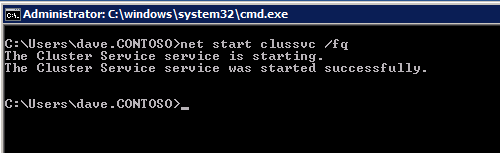
To fix this problem, from one of the nodes run the following command to ensure the Cluster service is started on that node.

Net start clussvc /fq

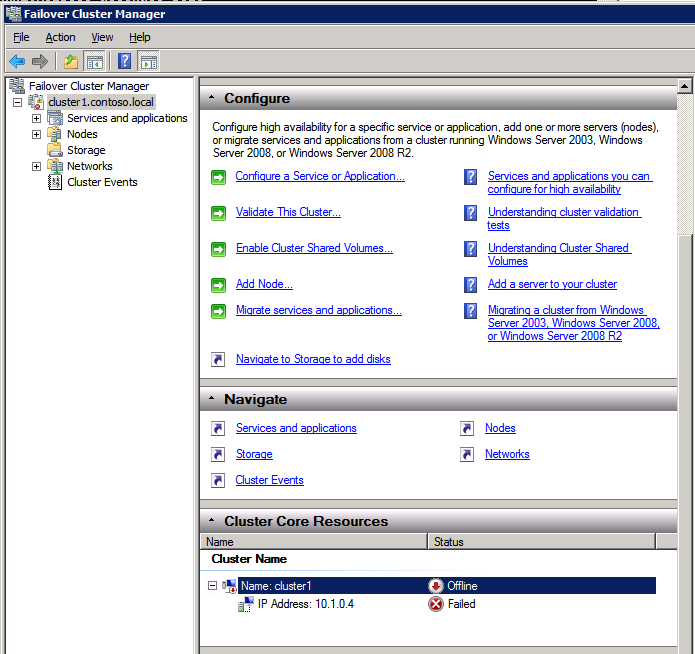
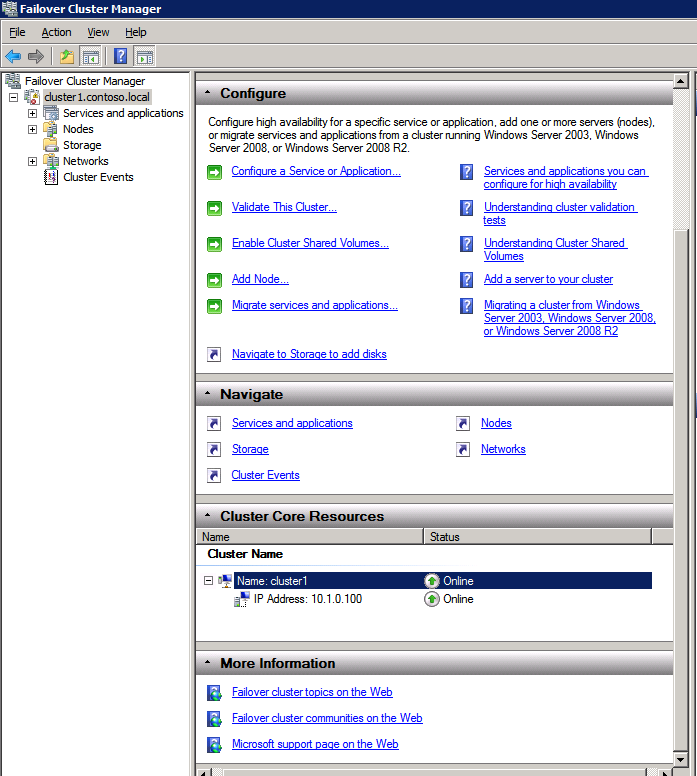
On that same node you should now be able to connect to the Windows Server Failover Clustering UI, where you will see the IP Address has failed to come online.

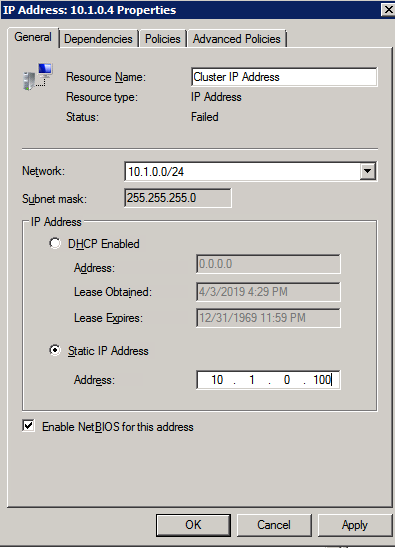
Open the properties of the Cluster IP address and change it from DHCP to Static, and assign it an unused IP address.

Bring the Name resource online

Add The File Share Witness

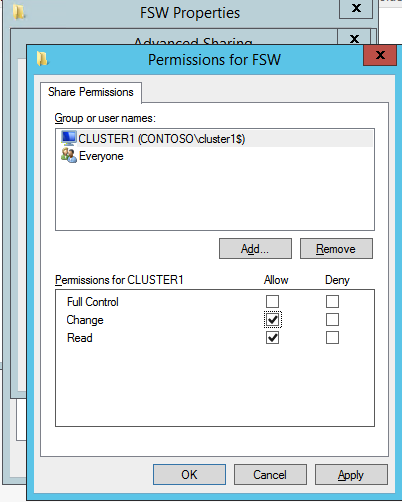
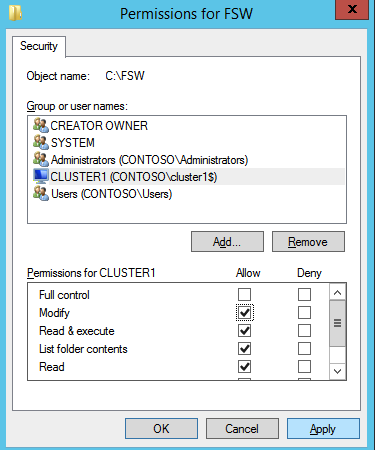
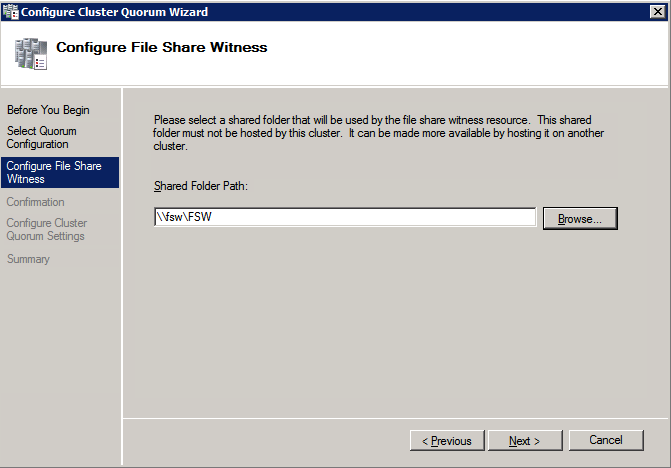
Next we need to add the File Share Witness. On the 3rd server we provisioned as the FSW, create a folder and share it as shown below. You will need to grant the Cluster Name Object (CNO) read/write permissions at both the Share and Security levels as shown below.

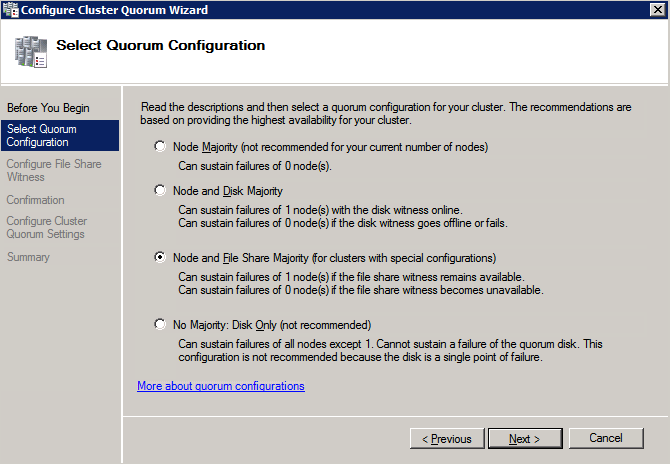
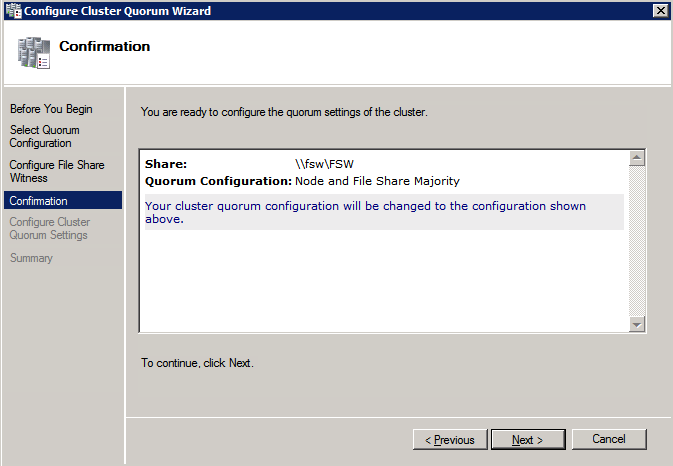
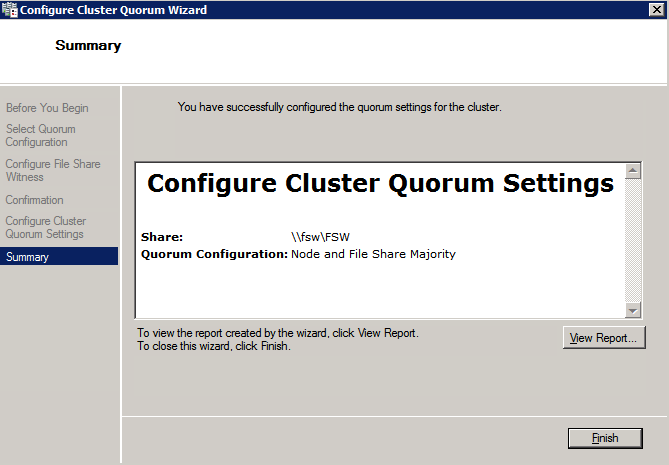
Once the share is created, run the Configure Cluster Quorum wizard on one of the cluster nodes and follow the steps illustrated below.

Create Service Account For DataKeeper

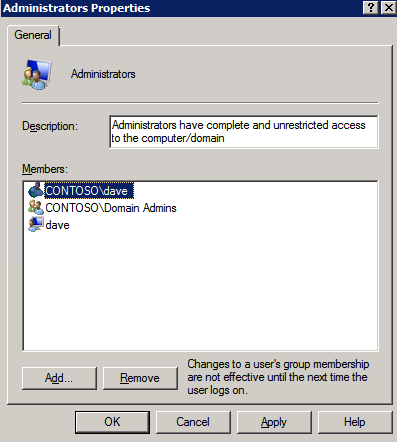
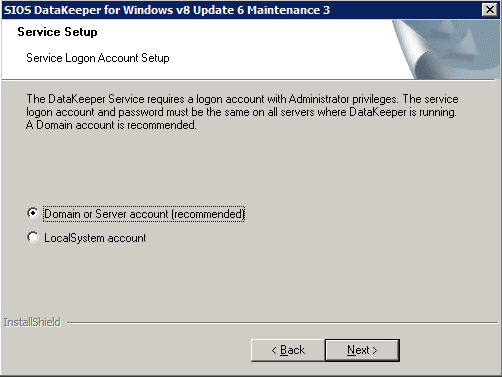
We are almost ready to install DataKeeper. However, before we do that you need to create a Domain account and add it to the Local Administrators group on each of the SQL Server cluster instances. We will specify this account when we install DataKeeper.

Install DataKeeper

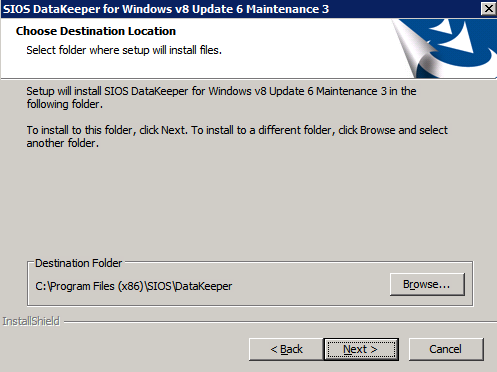
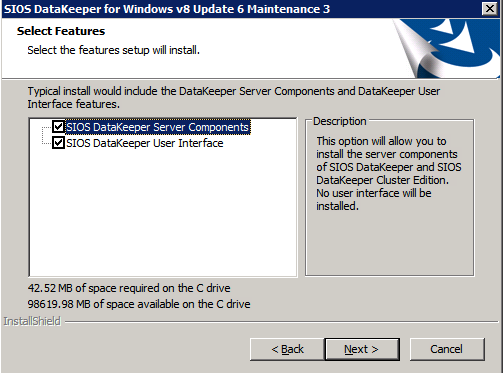
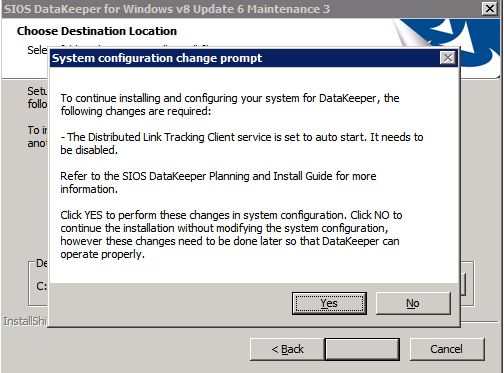
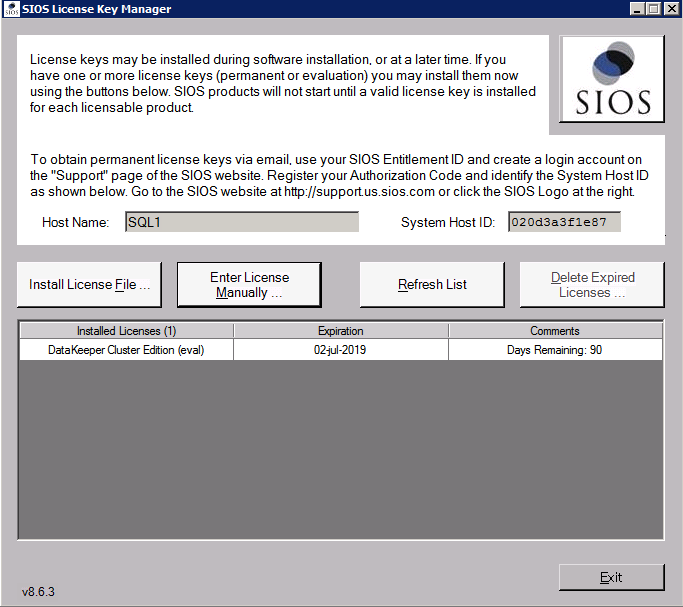
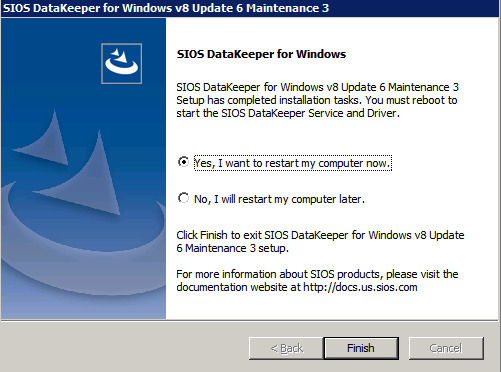
Install DataKeeper on each of the two SQL Server cluster nodes as shown below.

This is where we will specify the Domain account we added to each of the local Domain Administrators group.

Configure DataKeeper

Once DataKeeper is installed on each of the two cluster nodes, you are ready to configure DataKeeper.

NOTE – The most common error encountered in the following steps is security related, most often by pre-existing Azure Security groups blocking required ports. Please refer to the SIOS documentation to ensure the servers can communicate over the required ports.

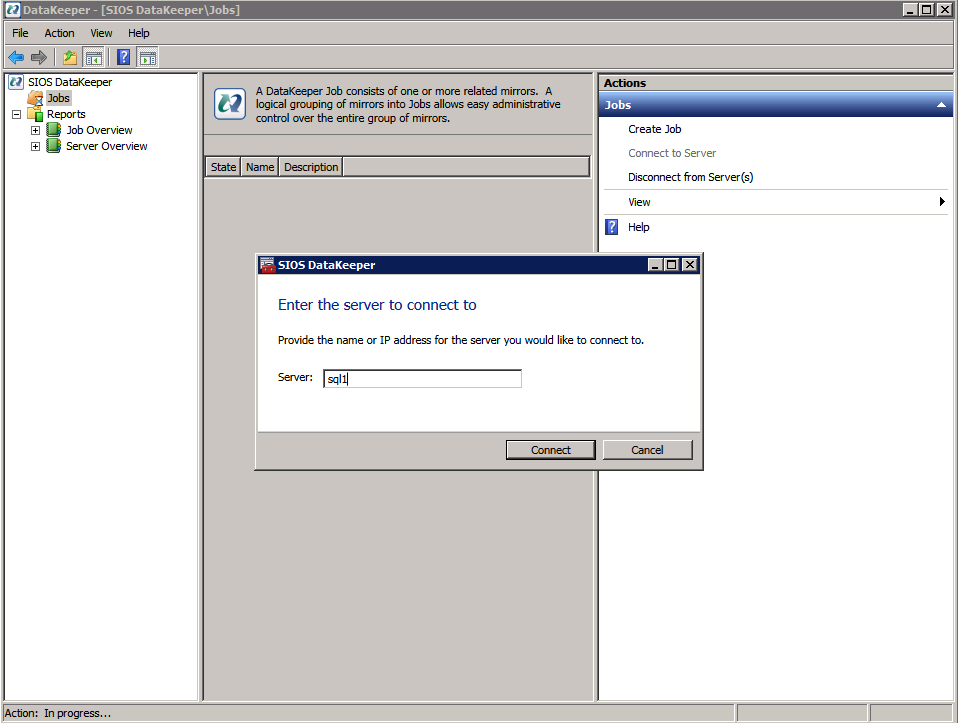
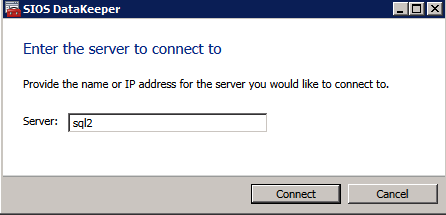
First, you must connect to each of the two nodes.

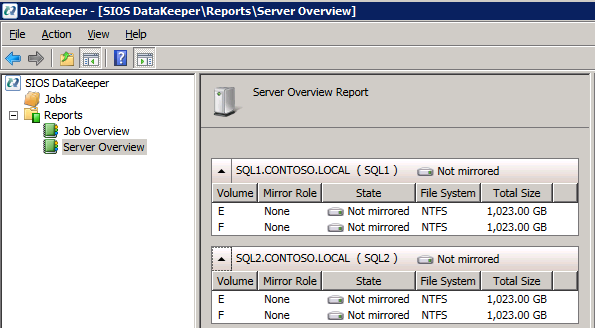
If everything is configured properly, you should then see the following in the Server Overview report.

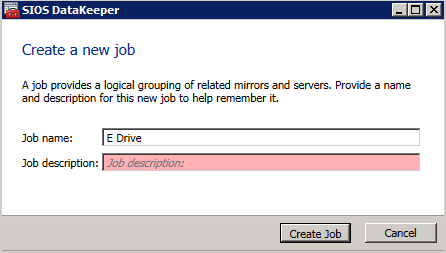
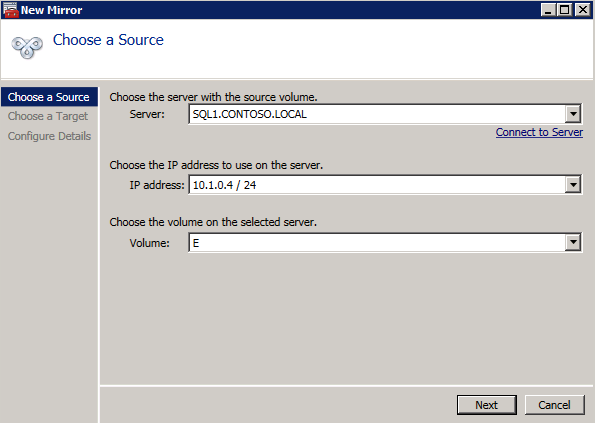
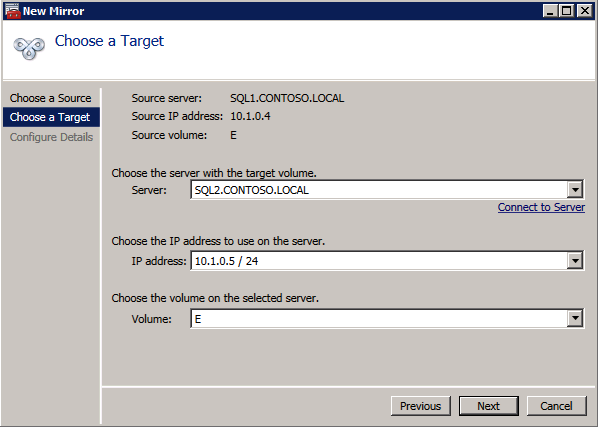
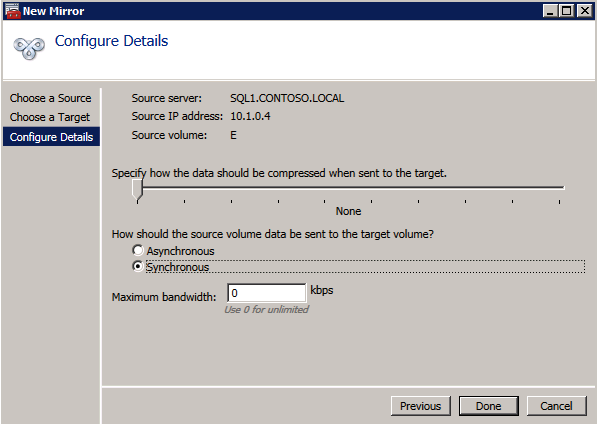
Next, create a New Job and follow the steps illustrated below

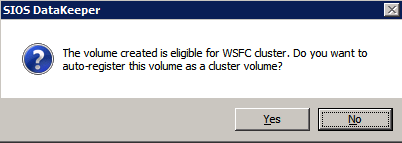
Choose Yes here to register the DataKeeper Volume resource in Available Storage

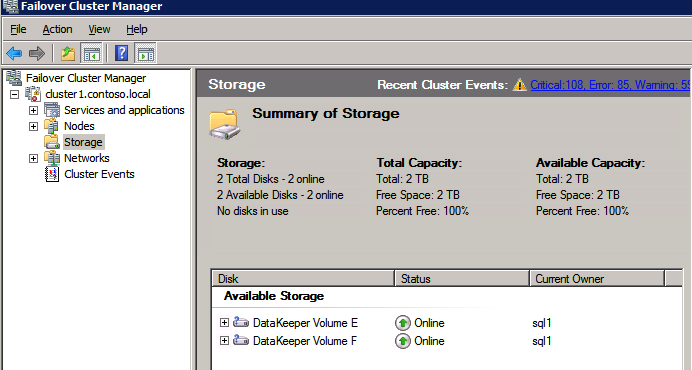
Complete the above steps for each of the volumes. Once you are finished, you should see the following in the Windows Server Failover Clustering UI.

You are now ready to install SQL Server into the cluster.

NOTE – At this point the replicated volume is only accessible on the node that is currently hosting Available Storage. That is expected, so don’t worry!

Install SQL Server On The First Node

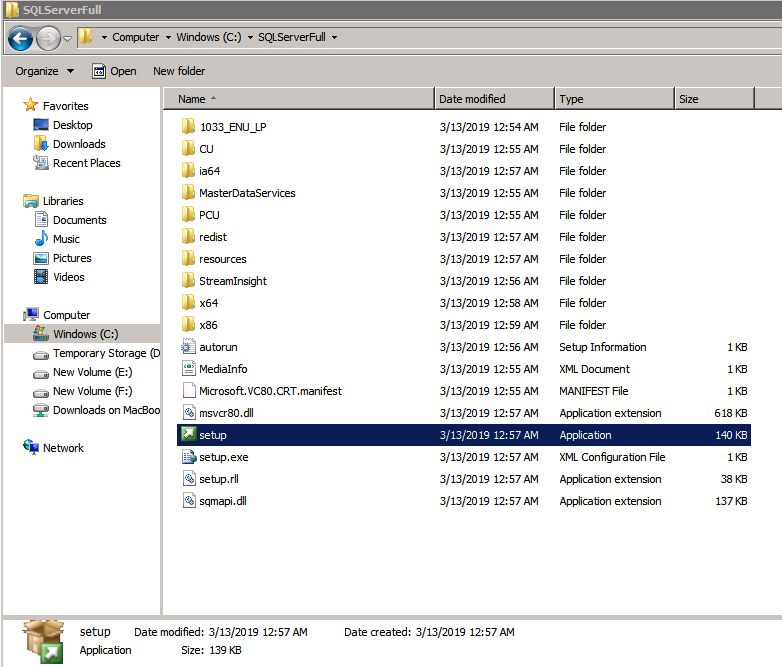
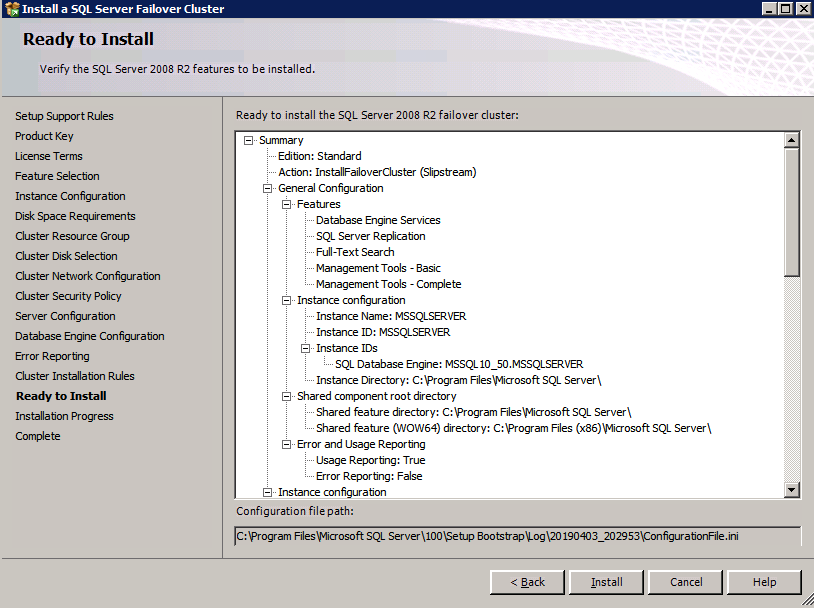
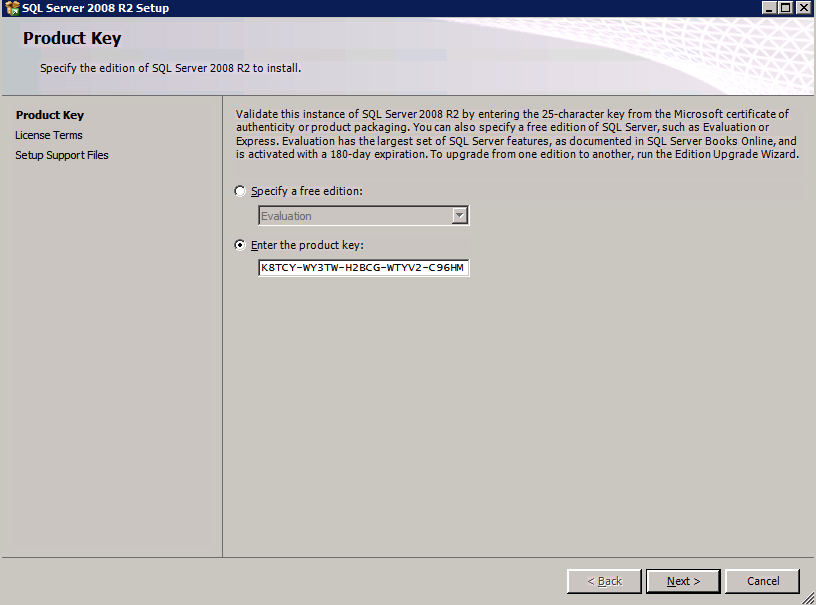
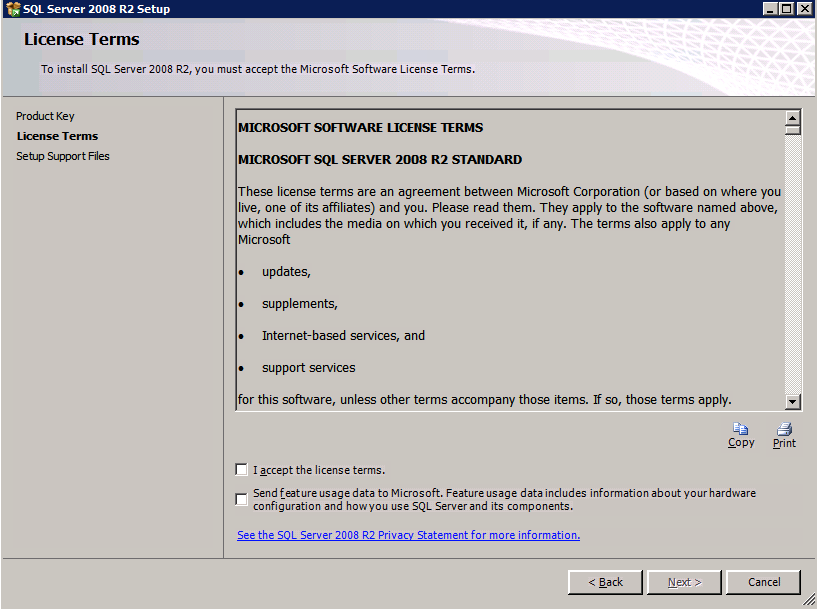
On the first node, run the SQL Server setup.

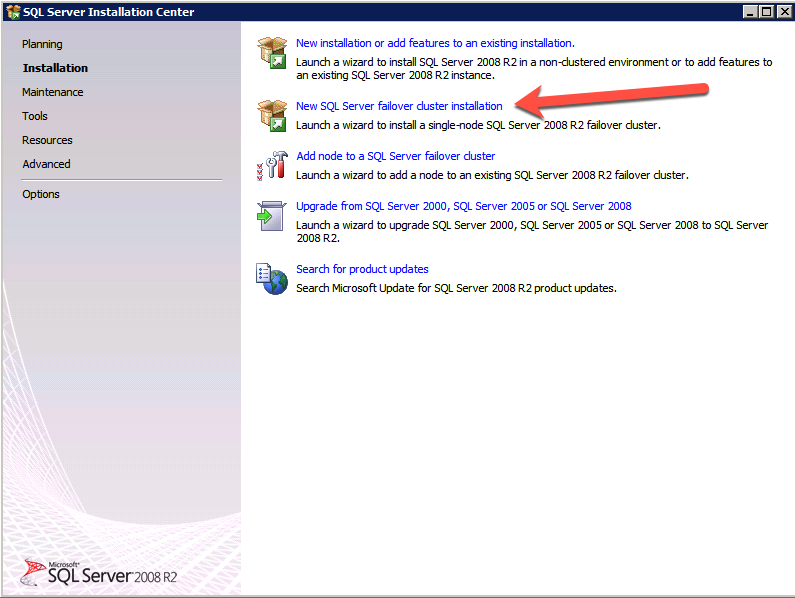
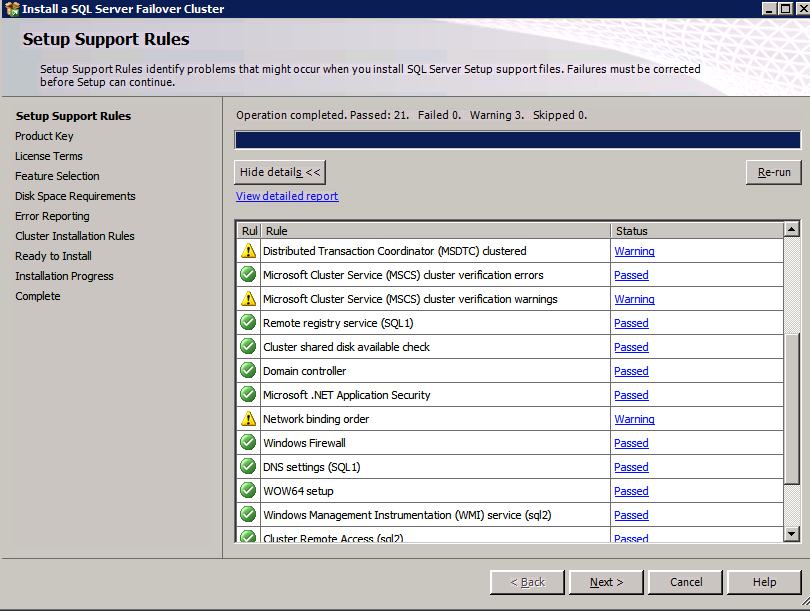
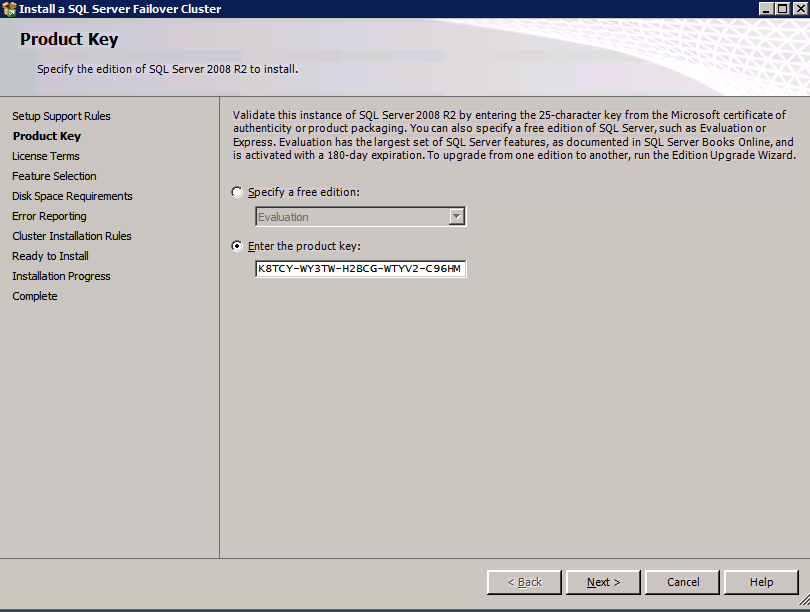
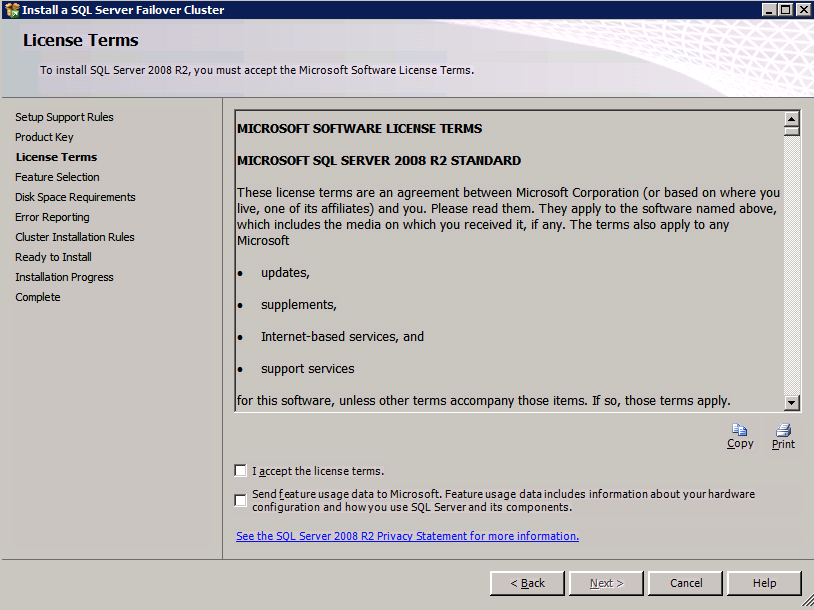
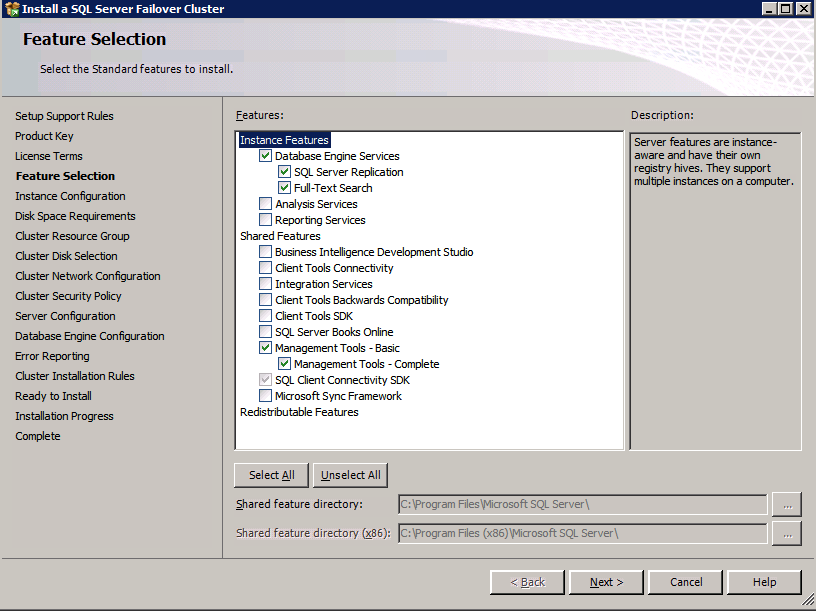
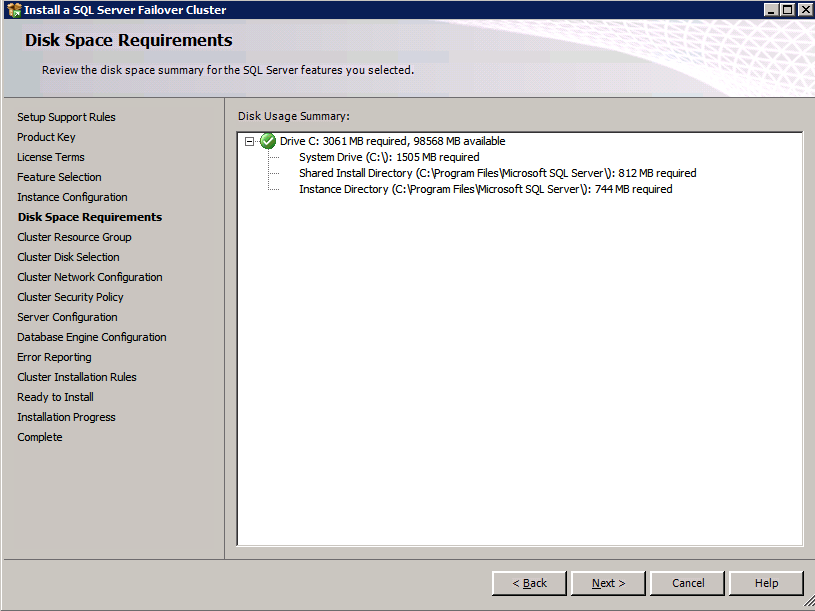
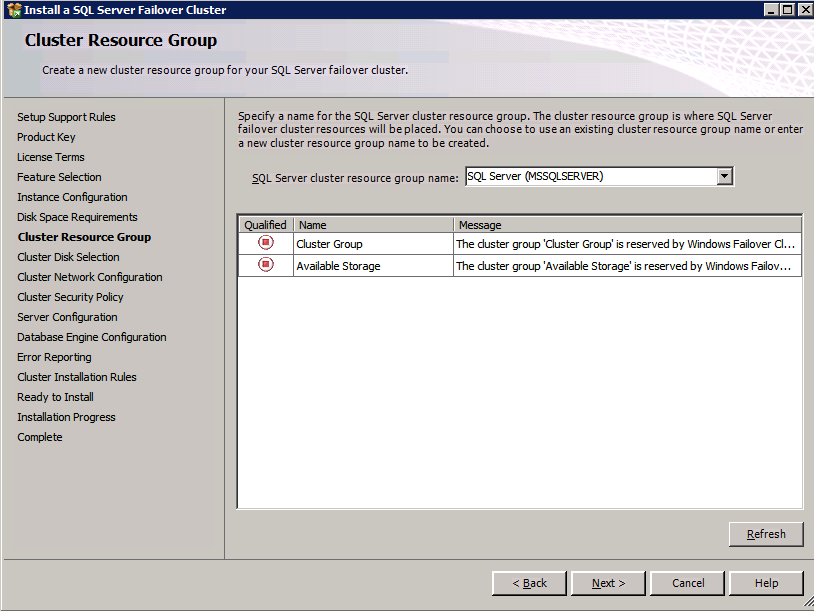
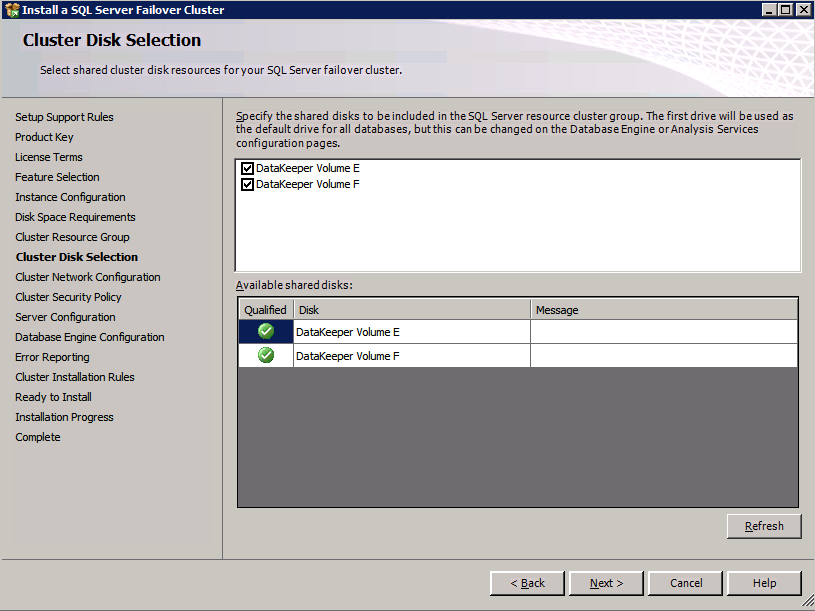
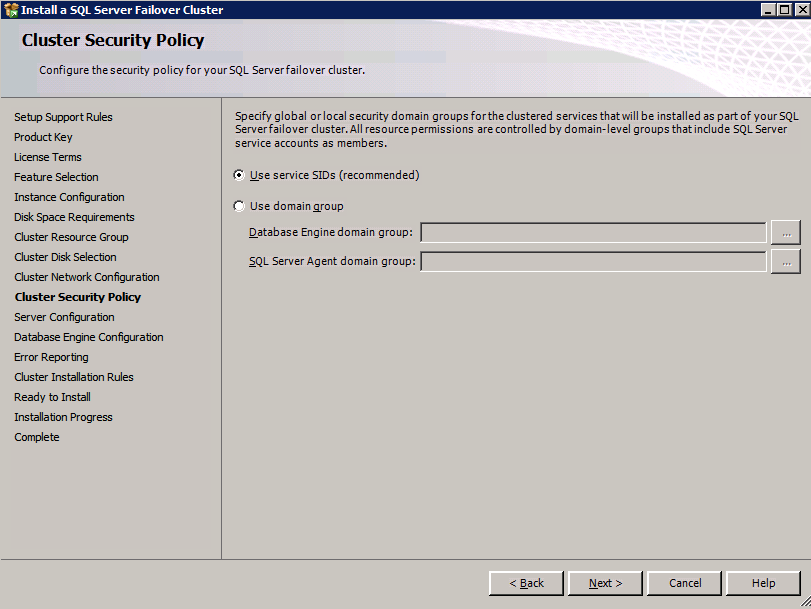
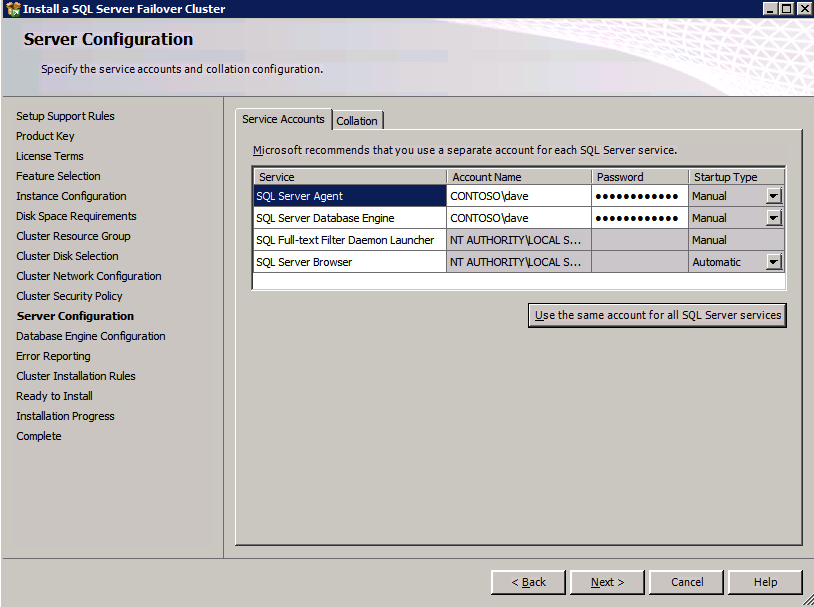
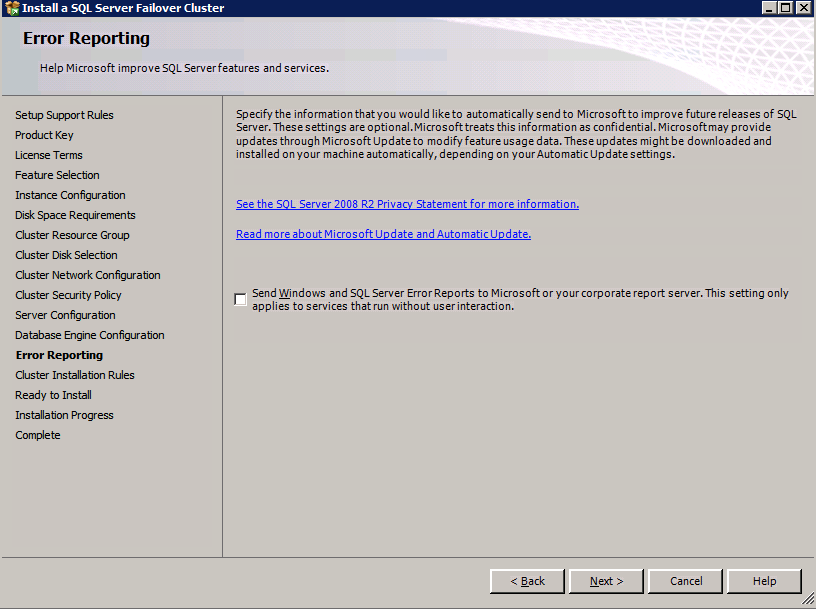
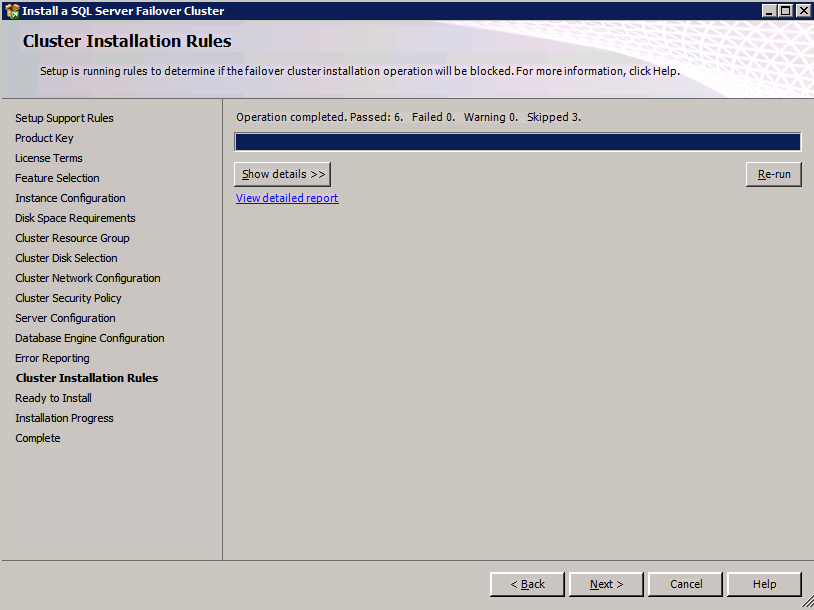
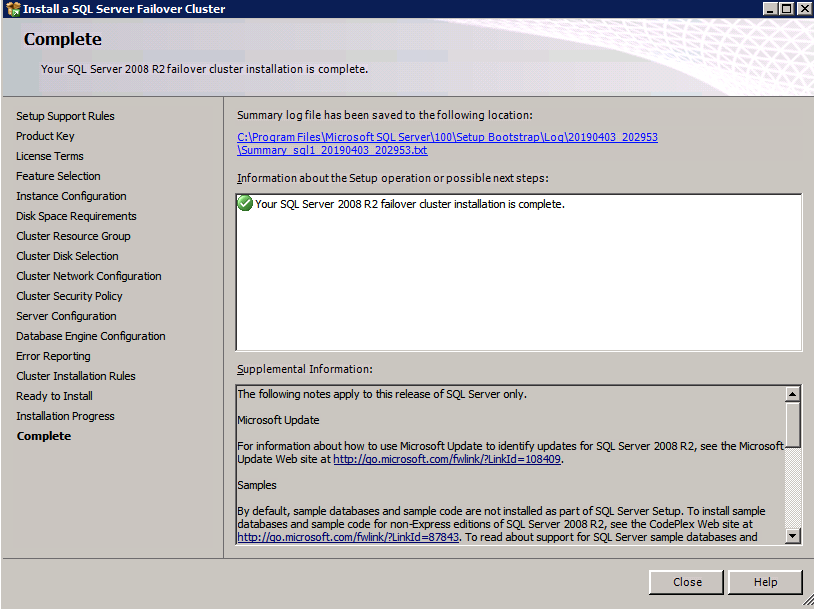
Choose New SQL Server Failover Cluster Installation and follow the steps as illustrated.

Choose only the options you need. 

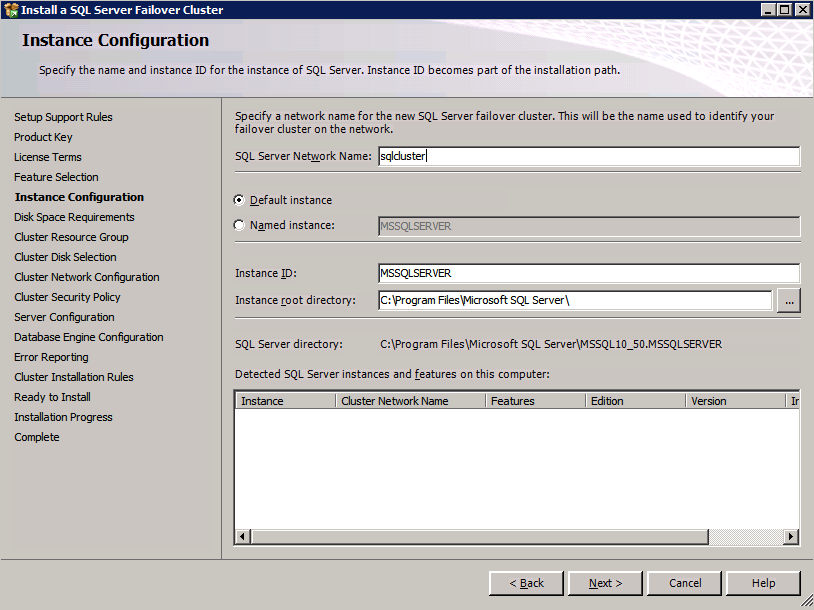
Please note, this document assumes you are using the Default instance of SQL Server. If you use a Named Instance, you need to make sure you lock down the port that it listens on, and use that port later on when you configure the load balancer. You also will need to create a load balancer rule for the SQL Server Browser Service (UDP 1434) in order to connect to a Named Instance. Neither of those two requirements are covered in this guide. But if you require a Named Instance, it will work if you do those two additional steps.

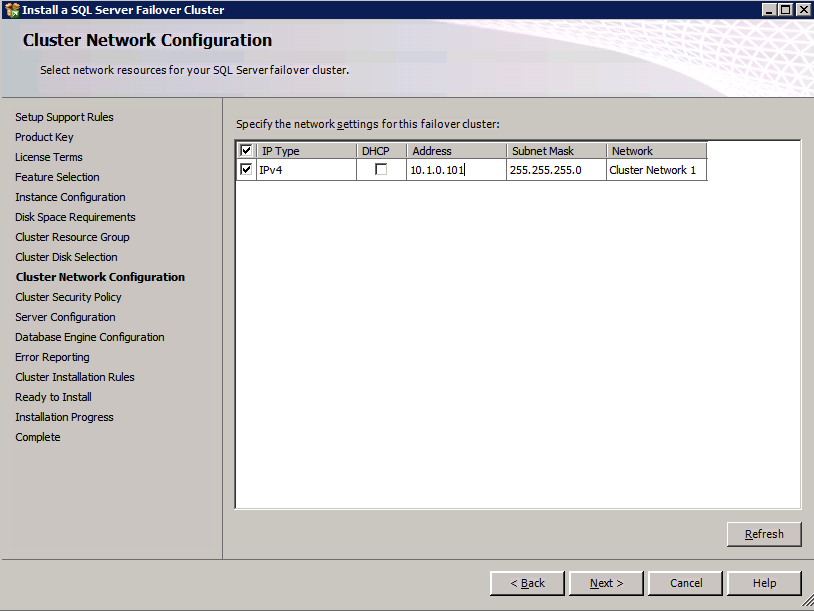
Here you will need to specify an unused IP address

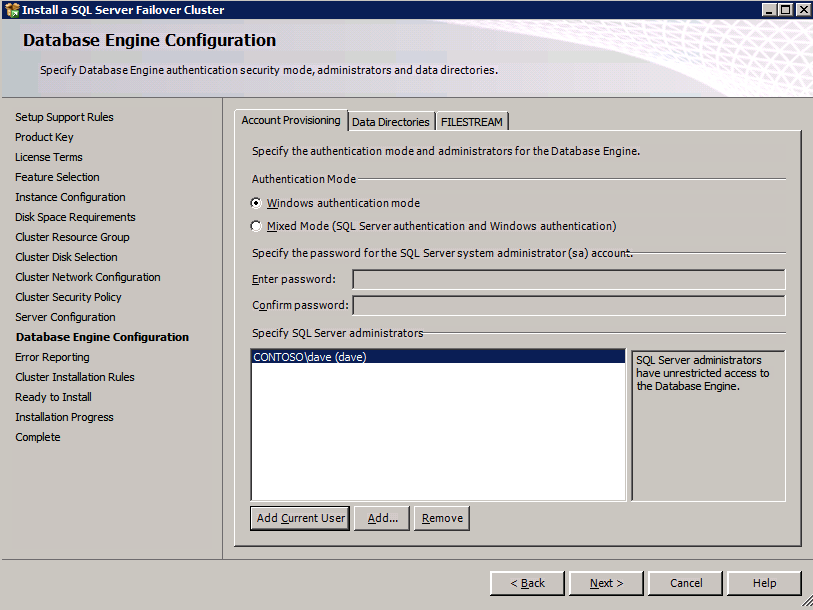
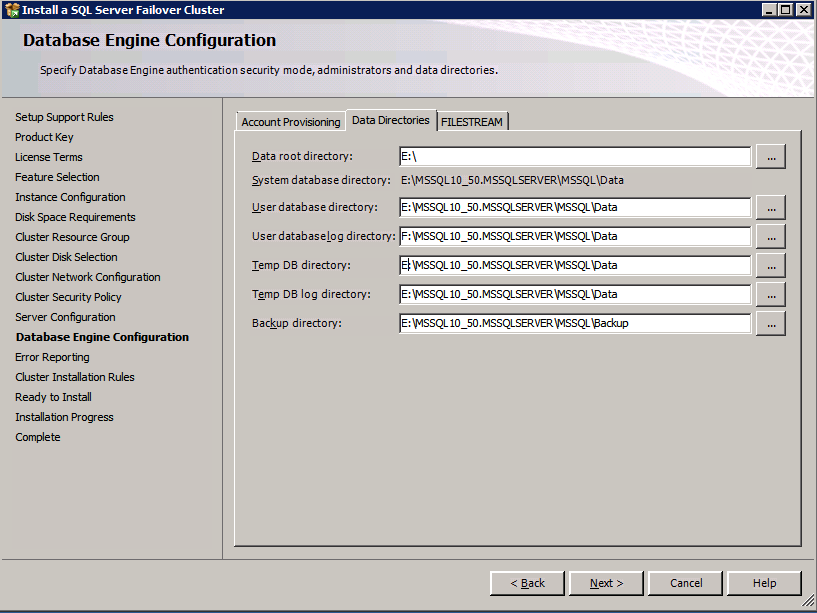
Go to the Data Directories tab and relocate data and log files. At the end of this guide we talk about relocating tempdb to a non-mirrored DataKeeper Volume for optimal performance. For now, just keep it on one of the clustered disks.

Install SQL On Second Node

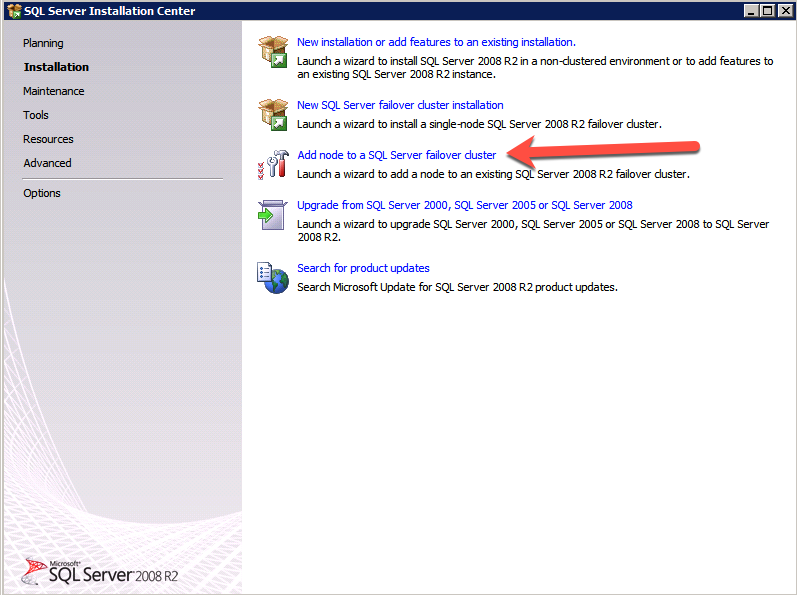
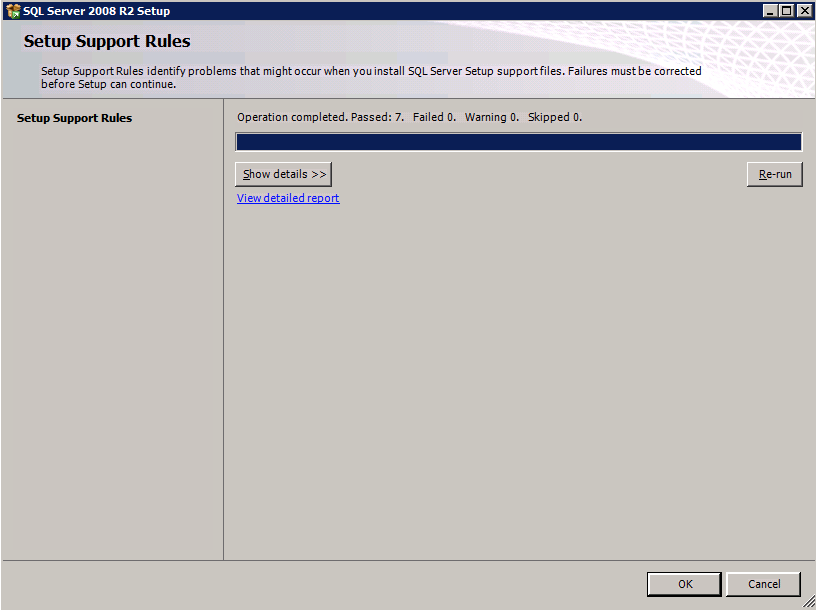
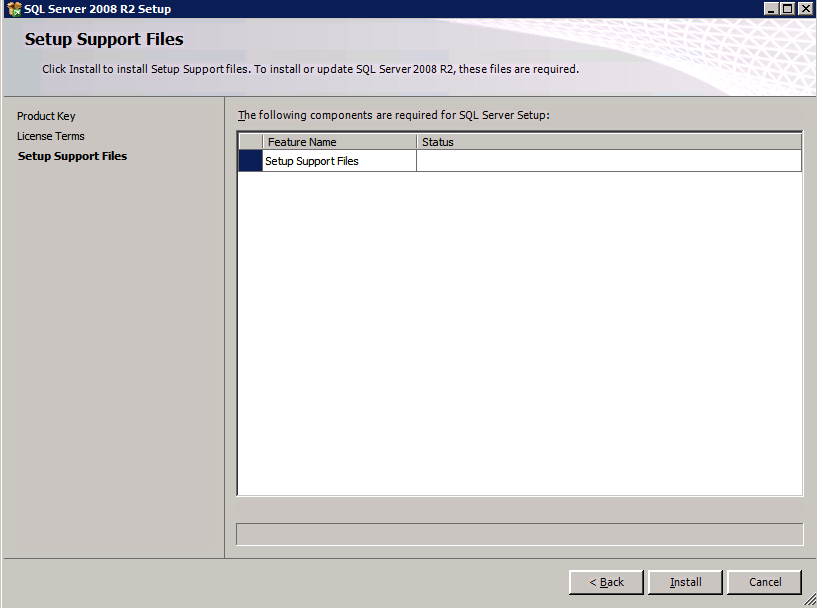
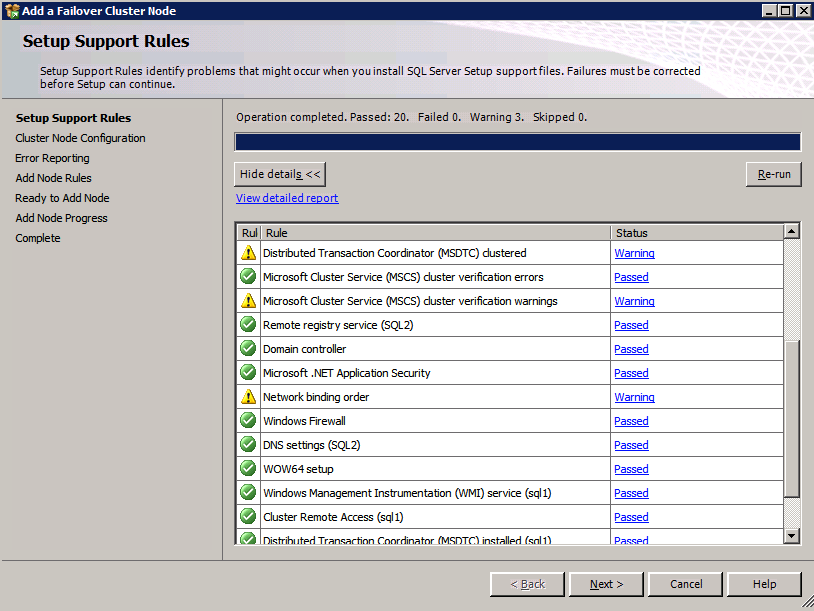
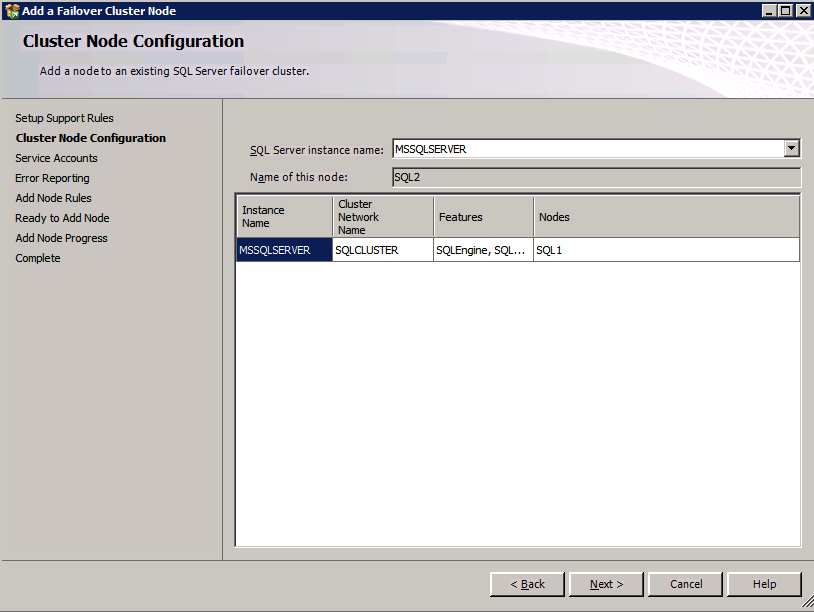
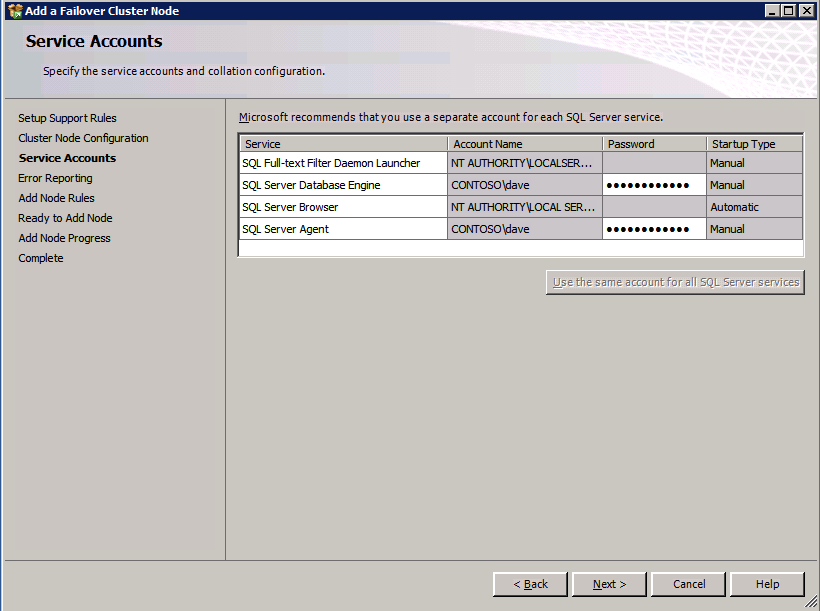
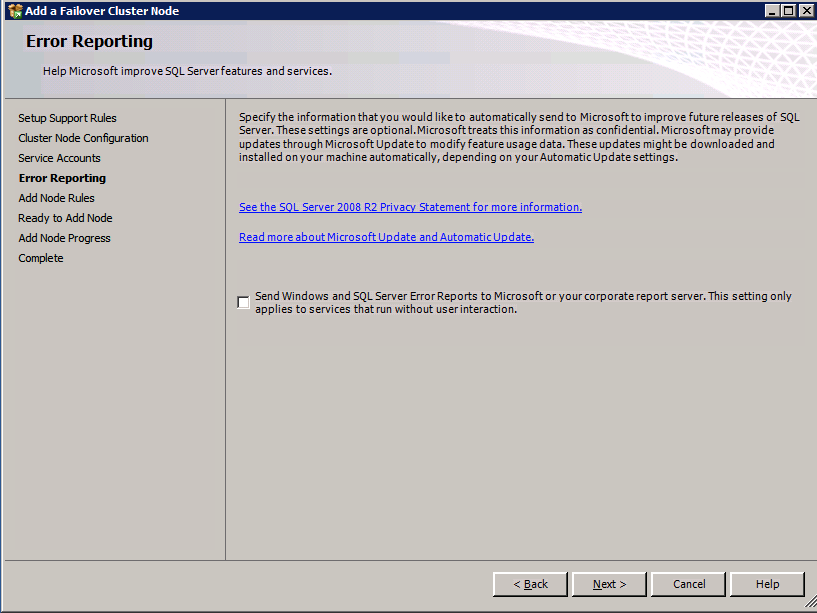
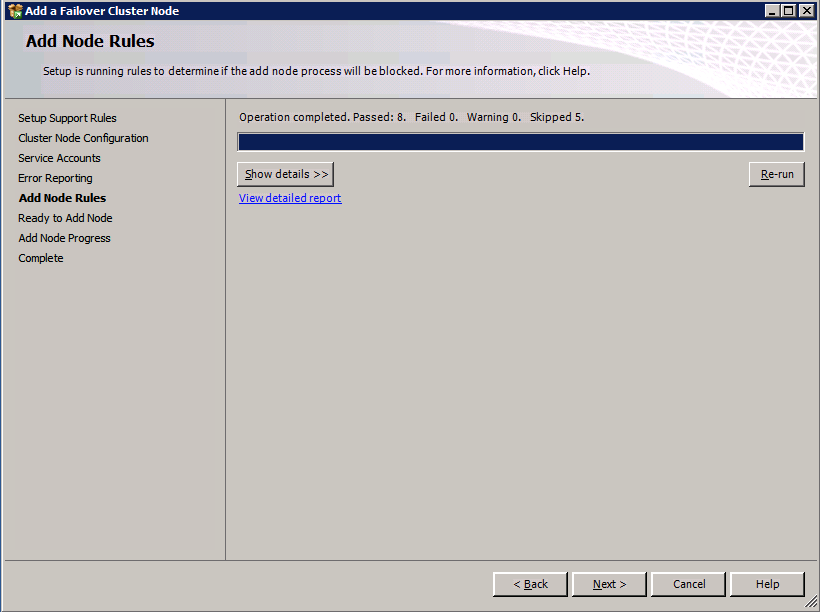
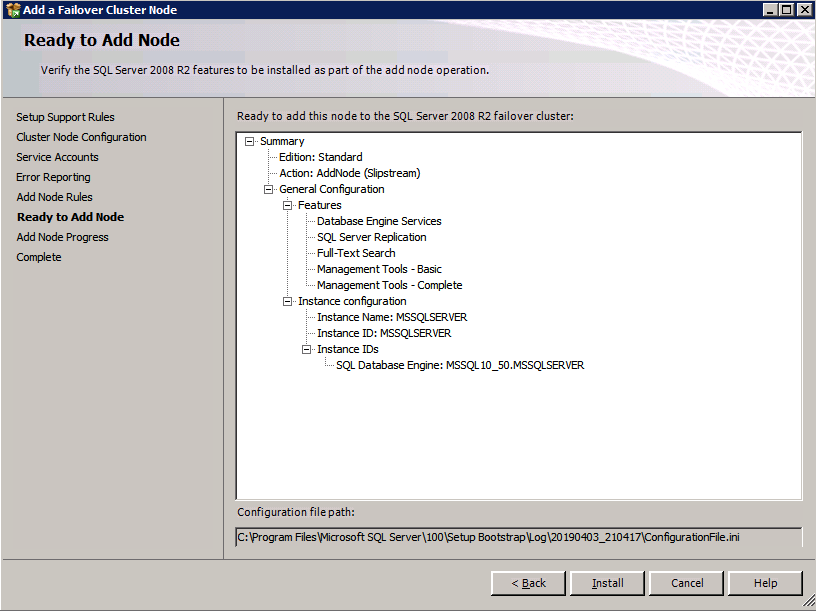
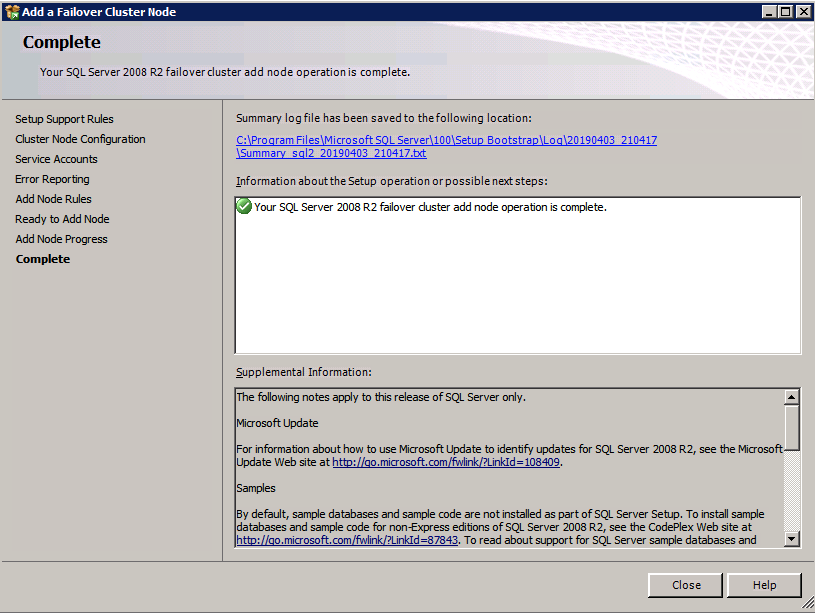
Run the SQL Server setup again on the second node. Then, choose Add node to a SQL Server Failover Cluster.

Congratulations, you are almost done! However, due to Azure’s lack of support for gratuitous ARP, we will need to configure an Internal Load Balancer (ILB) to assist with client redirection as shown in the following steps.

Update The SQL Cluster IP Address

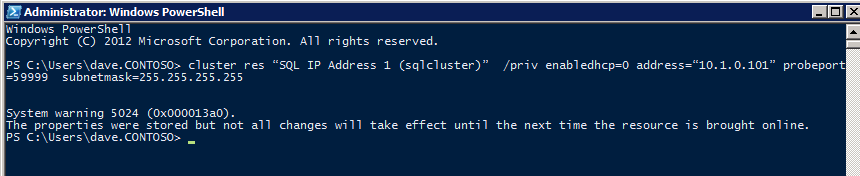
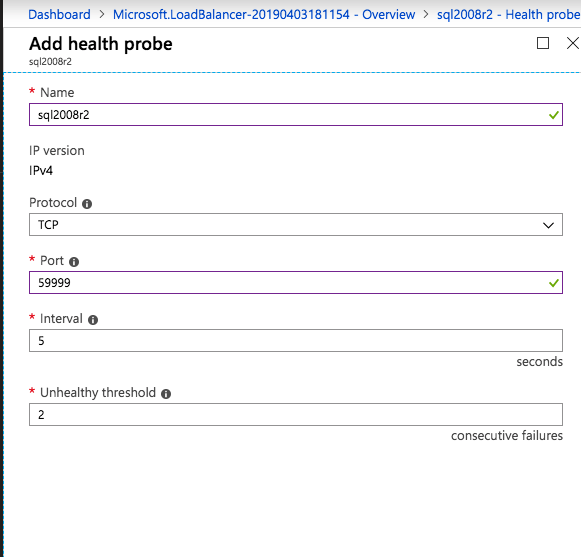
In order for the ILB to function properly, you must run run the following command from one of the cluster nodes. It SQL Cluster IP enables the SQL Cluster IP address to respond to the ILB health probe while also setting the subnet mask to 255.255.255.255 in order to avoid IP address conflicts with the health probe.

cluster res <IPResourceName> /priv enabledhcp=0 address=<ILBIP> probeport=59999  subnetmask=255.255.255.255

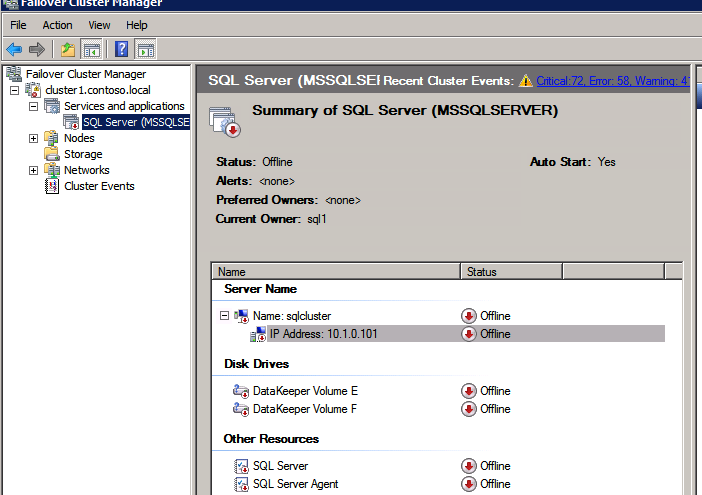
NOTE – I don’t know if it is a fluke. On occasion I have run this command and it looks like it works, but it doesn’t complete the job and I have to start again. The way I can tell if it worked is by looking at the Subnet Mask of the SQL Server IP Resource. If it is not 255.255.255.255 then you know it didn’t run successfully.  It may simply be a GUI refresh issue. Do try restarting the cluster GUI to verify the subnet mask was updated.

After it runs successfully, take the resource offline and bring it back online for the changes to take effect.

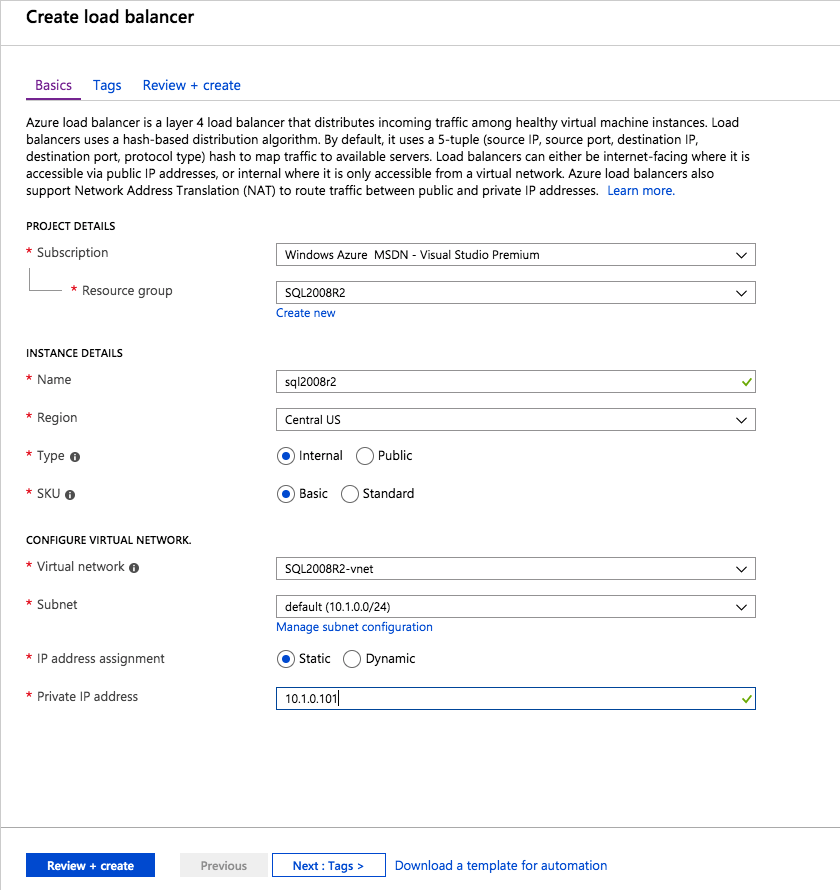
Create The Load Balancer

The final step is to create the load balancer. In this case we are assuming you are running the Default Instance of SQL Server, listening on port 1433.

The Private IP Address you define when you Create the load balancer will be the exact same address your SQL Server FCI uses.

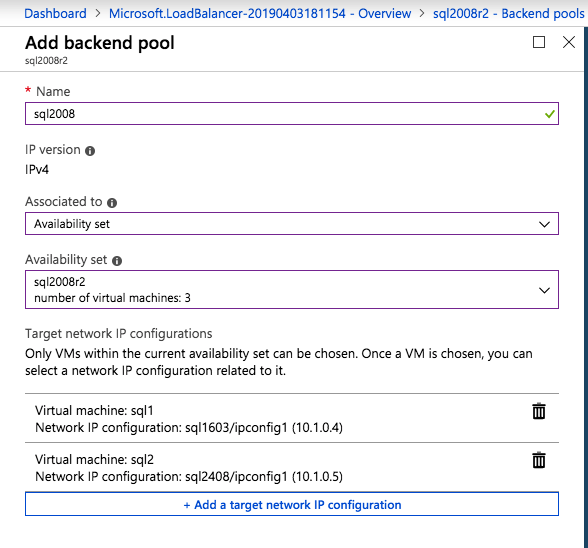
Add just the two SQL Server instances to the backend pool. Do NOT add the FSW to the backend pool.

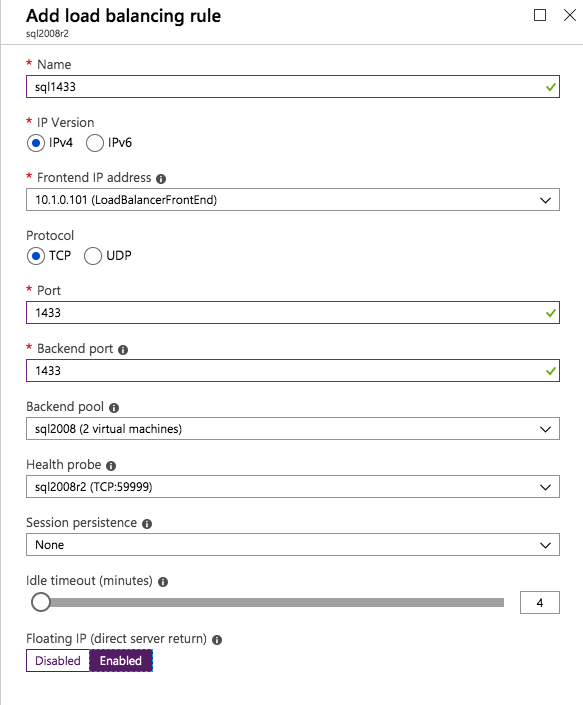
In this load balancing rule, you must enable Floating IP.

Test The Cluster

The most simple test is to open SQL Server Management Studio on the passive node and connect to the cluster. Congratulations! You did everything correctly as it connects! If you can’t connect, don’t fear. I wrote a blog article to help troubleshoot the issue. Managing the cluster is exactly the same as managing a traditional shared storage cluster. Everything is controlled through Failover Cluster Manager.

Optional – Relocate TempDB

For optimal performance it would be advisable to move tempdb to the local, non replicated, SSD. But, SQL Server 2008 R2 requires tempdb to be on a clustered disk. SIOS has a solution called a Non-Mirrored Volume Resource which addresses this issue. It would be advisable to create a non-mirrored volume resource of the local SSD drive and move tempdb there. Do note, the local SSD drive is non-persistent. You must take care to ensure the folder holding tempdb and the permissions on that folder are recreated each time the server reboots.

After you create the Non-Mirrored Volume Resource of the local SSD, follow the steps in this article to relocate tempdb. The startup script described in that article must be added to each cluster node.

Reproduced with permission from Clusteringformeremortals.com
Filed Under: Clustering Simplified, Datakeeper Tagged With: cluster, failover cluster, High Availability, Windows Server Failover Cluster

  • « Previous Page
  • 1
  • …
  • 86
  • 87
  • 88
  • 89
  • 90
  • …
  • 120
  • Next Page »

Recent Posts

  • Setting Up Nginx Load Balancer on AWS
  • With Great Power: Cluster Maintenance Best Practices
  • AI Is Moving Fast. Critical Applications Still Need to Stay Up.
  • What Is High Availability (HA)?
  • Surviving the Friday Night Crash: From Scrappy Bare Metal to Seamless Data Replication
Most Popular Posts

Maximise replication performance for Linux Clustering with Fusion-io
Failover Clustering with VMware High Availability
create A 2-Node MySQL Cluster Without Shared Storage
SAP for High Availability Solutions For Linux
Bandwidth To Support Real-Time Replication
The Availability Equation – High Availability Solutions.jpg
Choosing Platforms To Replicate Data - Host-Based Or Storage-Based?
Guide To Connect To An iSCSI Target Using Open-iSCSI Initiator Software
Best Practices to Eliminate SPoF In Cluster Architecture
Step-By-Step How To Configure A Linux Failover Cluster In Microsoft Azure IaaS Without Shared Storage azure sanless
Take Action Before SQL Server 20082008 R2 Support Expires
How To Cluster MaxDB On Windows In The Cloud

Join Our Mailing List

Copyright © 2026 · Enterprise Pro Theme on Genesis Framework · WordPress · Log in