SIOS SANless clusters

SIOS SANless clusters High-availability Machine Learning monitoring

  • Home
  • Products
    • SIOS DataKeeper for Windows
    • SIOS Protection Suite for Linux
  • News and Events
  • Clustering Simplified
  • Success Stories
  • Contact Us
  • English
  • 中文 (中国)
  • 中文 (台灣)
  • 한국어
  • Bahasa Indonesia
  • ไทย

How To Cluster MaxDB On Windows In The Cloud

January 12, 2019 by Jason Aw Leave a Comment

How To Cluster MaxDB On Windows In The Cloud

How To Cluster MaxDB On Windows In The Cloud

How To Cluster MaxDB On Windows In The Cloud #AZURE #AWS #GCP #SAP

Recently I have had a number of customers looking for a high availability solution to cluster MaxDB on Windows in the cloud. Some customers have been in Azure and some in AWS. But regardless of the cloud platform, they all eventually find the post in the SAP Community WIKI that describes the process.

https://wiki.scn.sap.com/wiki/display/MaxDB/HowTo+-+Embed+SAP+MaxDB+in+MSCS

The Challenge

The challenge with this post in a cloud environment is that there is no shared storage (SAN) available in the Azure, AWS or GCP that allows you to build a traditional shared storage cluster. The beauty of HA in the cloud is that cluster nodes typically reside miles away from each other in another data center, AKA, availability zone (AZ). So even if shared storage was available, it wouldn’t make a lot of sense since it would have to reside in a single AZ. It defeats the purpose of HA all together.

The Solution

However, there is an answer to cluster MaxDB on Windows in the cloud. SIOS DataKeeper is a SANless clustering solution from SIOS technology. It allows locally attached storage to be used in a Windows Server Failover Cluster. This eliminates the need for a SAN. Instead, SIOS keeps locally attached disk in sync using synchronous block level replication technology and presents this storage to WSFC as a clustered disk resource called a DataKeeper volume.

cluster MaxDB on Windows in the cloud
Typical 2-node WSFC across Availability Zones with a 3rd node in a different Region

As far as the cluster is concerned, a DataKeeper Volume cluster resource looks like a shared disk. But instead of controlling disk locking (SCSI reservations), it controls the mirror direction. So in every sense of the word it is still a true WSFC, except it uses locally attached storage instead of shared storage. The locally attached storage can be anything from EBS block device to Azure premium disk, or even a local Storage Space with multiple disks stripped together. As long as Windows sees an NTFS formatted volume with a drive letter and the volume size is the same on each instance it can be used in the cluster.

DataKeeper Volume Cluster Resource

This type of cluster is commonly known as a SANless cluster. It has been around for many years enabling geo-clusters and clusters where shared storage was not available. Database admins also love it as it enables them to use local high speed storage devices like PCIe flash or SSD drives. And at the same time, still use WSFC for high availability.

SIOS also supports asynchronous replication. So if you want to add a node in a different geographic location for disaster recovery, you can build a 3-node cluster with 2 nodes in the same region but different fault domains and a 3rd node in an entirely different region, or maybe even back on-prem for disaster recovery options. Or, if you are in Azure you can leverage Azure Site Recovery (ASR) for disaster recovery as SIOS DataKeeper is compatible for ASR.

Both WSFC and SIOS DataKeeper are very dependent upon IP addresses staying the same. So for ASR configurations you will want to make sure you retain your IP address upon failover as described here.

https://docs.microsoft.com/en-us/azure/site-recovery/site-recovery-retain-ip-azure-vm-failover

SAP

SIOS is no stranger to high availability and disaster recovery for SAP. The SIOS Protection Suite for Linux is a SAP Certified HA solution for SAP and SAP HANA. SIOS DataKeeper is the preferred HA/DR solution for SAP ASCS on Windows in cloud environments. Providing an HA/DR solution for MaxDB on Azure further solidifies SIOS as the SAP high availability experts.

If you have questions about high availability for SAP, or more details about how to Cluster MaxDB On Windows In The Cloud, do go through our other posts

Reproduced with permission from Clusteringformeremortals.com

Filed Under: Clustering Simplified Tagged With: Azure, cluster, cluster maxdb on windows in the cloud, DataKeeper

Step by Step Guide to SQL Server for Linux

January 9, 2019 by Jason Aw Leave a Comment

SQL Server for Linux – Public Preview Now Available

Step-By-Step: SQL Server v.Next Linux High Availability – Public Preview #azure #sql #sanless

Earlier this year, Microsoft announced that they would be releasing a version of SQL Server for Linux.  Today, I was excited to learn that Microsoft finally announced the public preview of what they are currently calling SQL Server v.Next, and that it is available for both Linux and Windows operating systems.  More information, along with download links and documentation can be found here:

https://www.microsoft.com/en-us/sql-server/sql-server-vnext-including-Linux

SQL Server for Linux

In this article, I will not only show you how to deploy a Linux VM in Azure running SQL Server, but also how to configure a 2-node failover cluster to make it highly available!  And WITHOUT using shared storage (aka “sanless” or “shared nothing” cluster).

The end result will be a 2-node SQL Server for Linux cluster (plus witness server) in Microsoft Azure IaaS (Infrastructure as a Service).  The guide includes both screenshots, shell commands and code snippets as appropriate.  I assume that you are somewhat familiar with Microsoft Azure and already have an Azure account with an associated subscription.  If not, you can sign up for a free account today.  I’m also going to assume that you have basic linux system administration skills as well as understand basic failover clustering concepts like Virtual IPs, etc.

Disclaimer: Azure is a rapidly moving target.  And here I’m working with a public preview version of SQL Server for Linux.  As such, features/screens/buttons are bound to change before SQL v.Next is officially released so your experience may vary slightly from what you’ll see below.  While this guide will show you how to make a SQL Server for Linux database highly available, you could certainly adapt this information and process to protect other applications or databases, like I have written about before here (MySQL example).

These are the high level steps to create a highly available MySQL database within Microsoft Azure IaaS:

  1. Create a Resource Group
  2. Create a Virtual Network
  3. Create a Storage Account
  4. Create Virtual Machines in an Availability Set
  5. Set VM Static IP Addresses
  6. Add a Data Disk to cluster nodes
  7. Create Inbound Security Rule to allow VNC access
  8. Linux OS Configuration
  9. Install and Configure SQL Server
  10. Install and Configure Cluster
  11. Create an Internal Load Balancer
  12. Test Cluster Connectivity

Overview

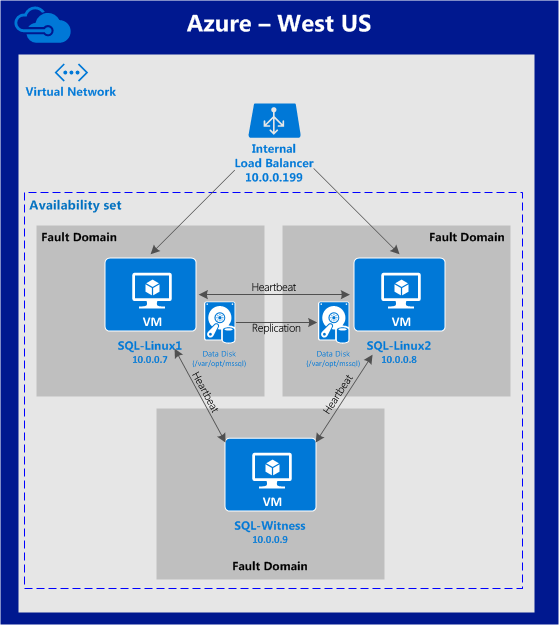
This article will describe how to create a cluster within a single Azure region.  The cluster nodes (sql-linux1, sql-linux2 and the witness server) will reside in an Availability Set (3 different Fault Domains and Update Domains), thanks to the new Azure Resource Manager (ARM). We will be creating all resources using the new Azure Resource Manager.

The configuration will look like this:

azure-linux-sqlserver

The following IP addresses will be used:

  • sql-linux1: 10.0.0.7
  • sql-linux2: 10.0.0.8
  • sql-witness: 10.0.0.9
  • virtual/”floating” IP: 10.0.0.199
  • SQL Server port: 1433

Create a Resource Group

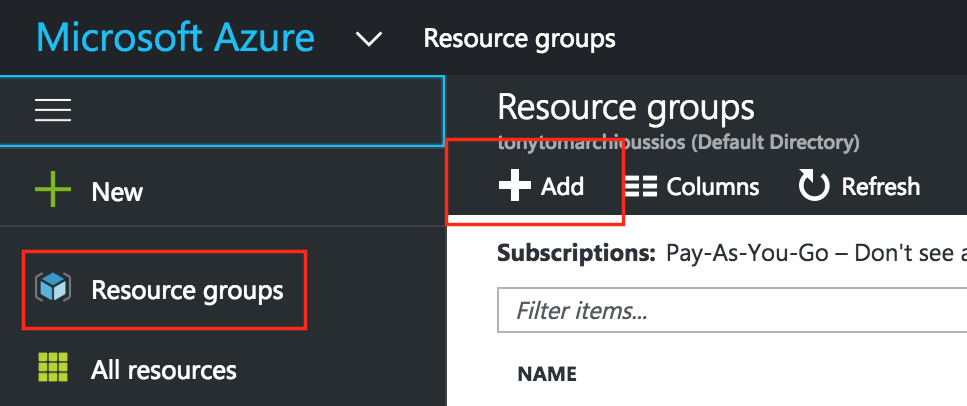
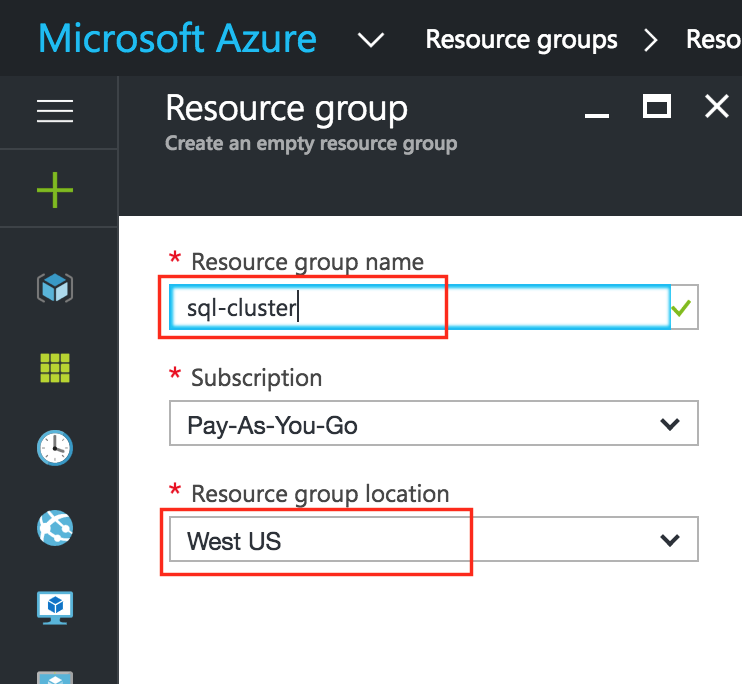
First, create a Resource Group.  Your resource group will end up containing all of the various objects related to our cluster deployment: virtual machines, storage account, etc.  Here we will call our newly created Resource Group “sql-cluster”.

sql-resource-group1

Be mindful when selecting your region.  All of your resources will need to reside within the same region.  Here, we’ll be deploying everything into the “West US” region:

sql-resource-group2

Create a Virtual Network (VNet)

Next, if you don’t already have one, create a Virtual Network.  A Virtual Network is an isolated network within the Azure cloud that is dedicated to you.  You have full control over things like IP address blocks and subnets, routing, security policies (i.e. firewalls), DNS settings, and more.  You will be launching your Azure Iaas virtual machines (VMs) into your Virtual Network.

My Azure account already has an existing VNet (10.0.0.0/16) called “cluster-network” that I’m going to use in this guide.  Creating a VNet is pretty straightforward, and I’ve covered creating one here if you need a refresher.

Create a Storage Account

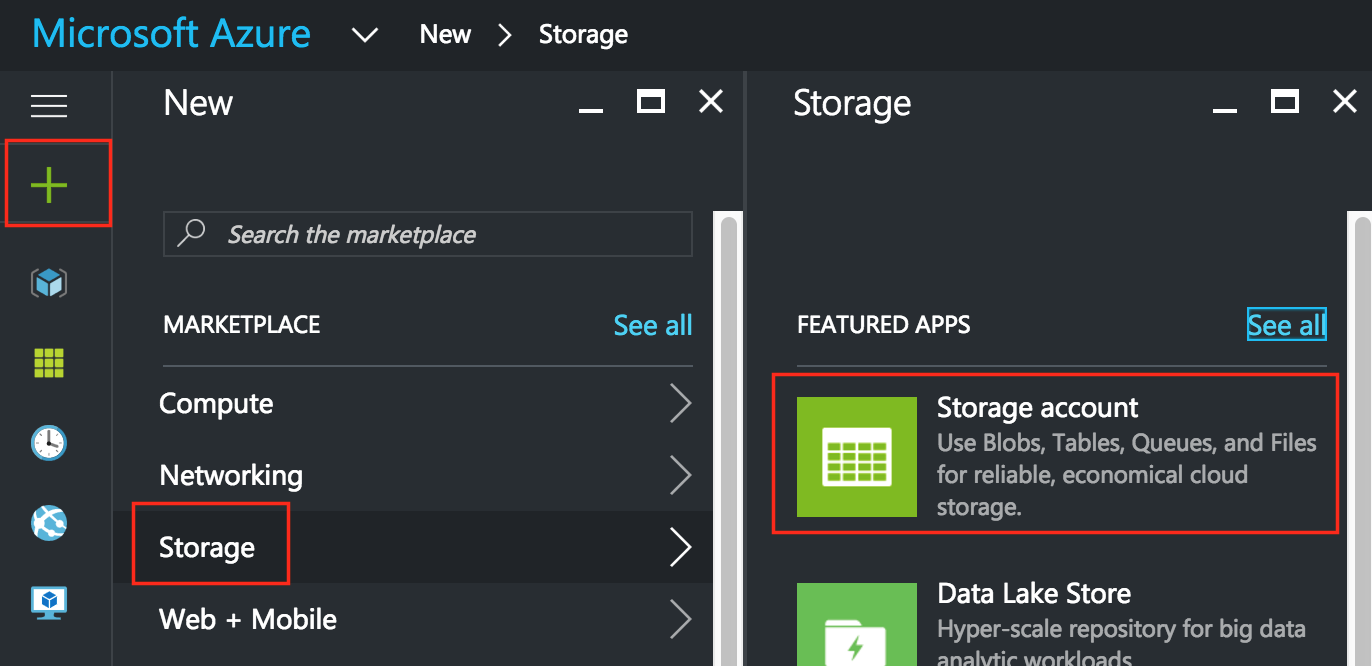
Before you provision any Virtual Machines, you’ll need a Storage Account to store them.

sql-storage-account1

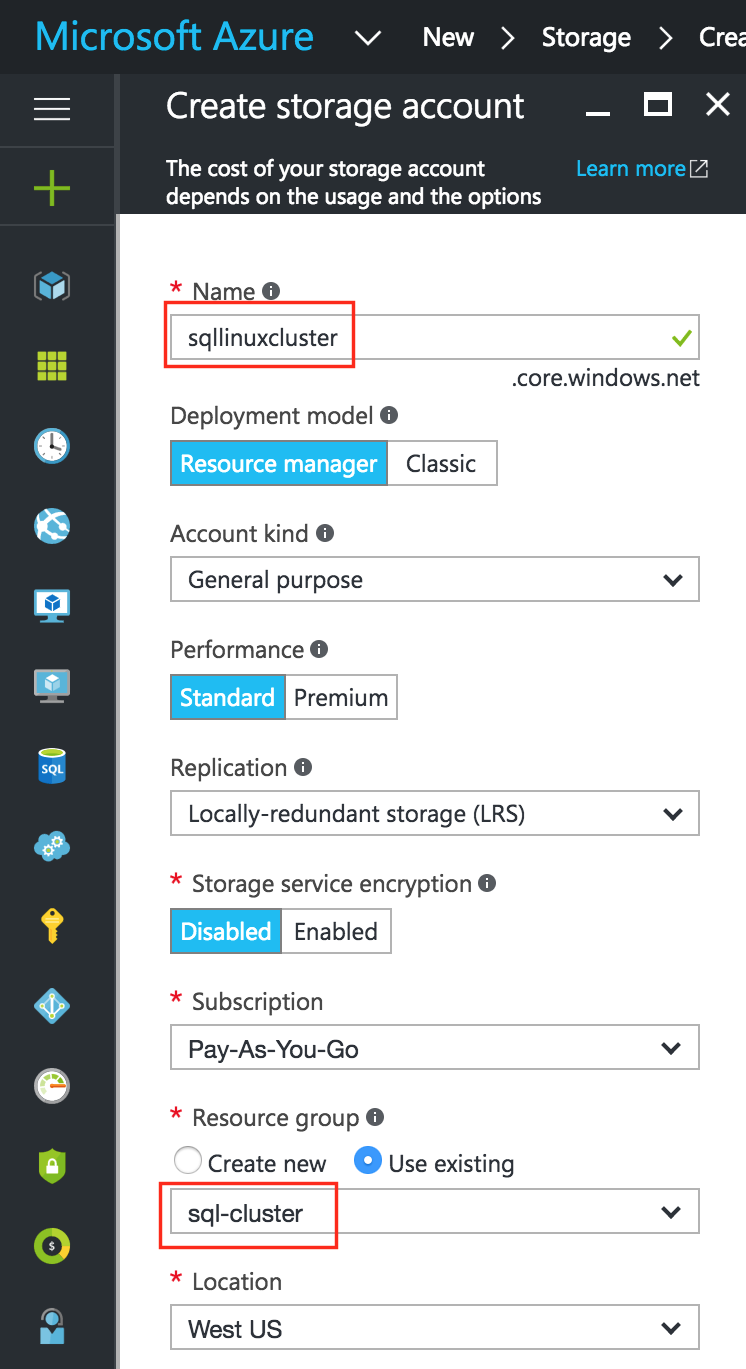
Next, give your new storage account a name.  The storage account name must be unique across *ALL* of Azure.  (Every object that you store in Azure Storage has a unique URL address. The storage account name forms the subdomain of that address.)  In this example I call my storage account “sqllinuxcluster” but you’ll need to select something different as you setup your own.

Select a storage Type based on your requirements and budget.  For the purposes of this guide, I selected “Standard-LRS” (i.e. Locally Redundant) to minimize cost.

Make sure your new Storage Account is added to the Resource Group you created in Step 1 (“sql-cluster”)  in the same Location (“West US” in this example):

sql-storage-account2

Create Virtual Machines in an Availability Set

We will be provisioning 3 Virtual Machines in this guide.  The first two VMs (I’ll call them “sql-linux1” and “sql-linux2”) will function as cluster nodes with the ability to bring the SQL Server database and it’s associated resources online.  The 3rd VM will act as the cluster’s witness server for added protection against split-brain.

To ensure maximum availability, all 3 VMs will be added to the same Availability Set, ensuring that they will end up in different Fault Domains and Update Domains.

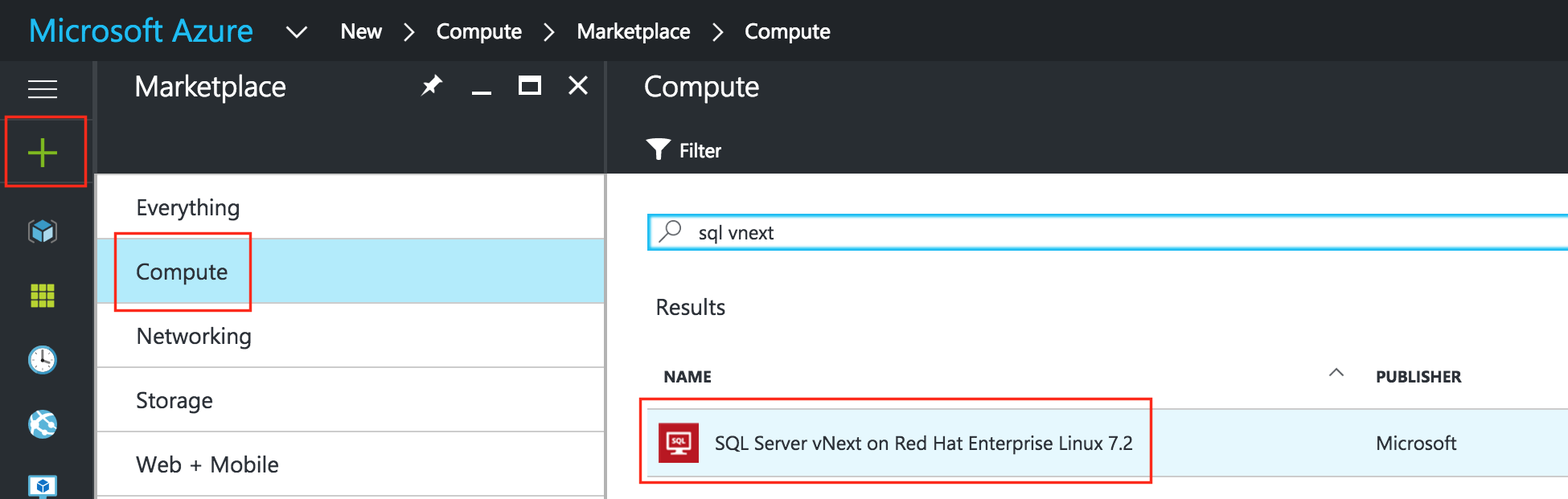
The Azure Marketplace has a VM template called “SQL Server vNext on Red Hat Enterprise Linux 7.2” that has a public preview evaluation version SQL Server v.Next for Linux pre-installed, which will save you a few steps.  If you’d rather start with an empty VM and install SQL yourself, the installation instructions can be found here.

Create “sql-linux1” VM

Create your first VM (“sql-linux1”) and select the marketplace image mentioned above.

sql-create-vm1

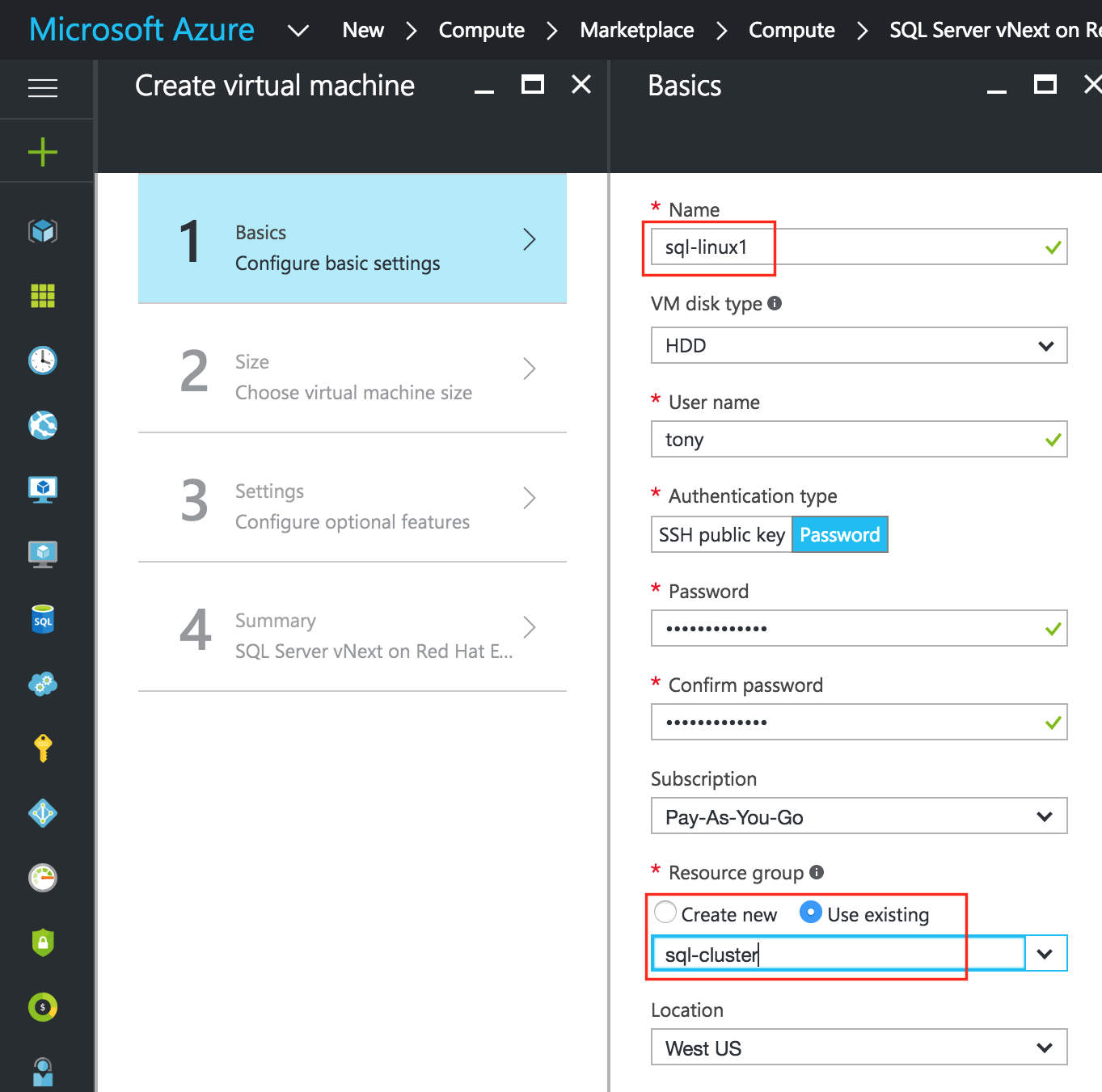
Give the VM a hostname (“sql-linux1”) and username/password that will later be used to SSH into the system.  Make sure you add this VM to your Resource Group (“sql-cluster”) and that it resides in the same region as all of your other resources:

sql-create-vm2

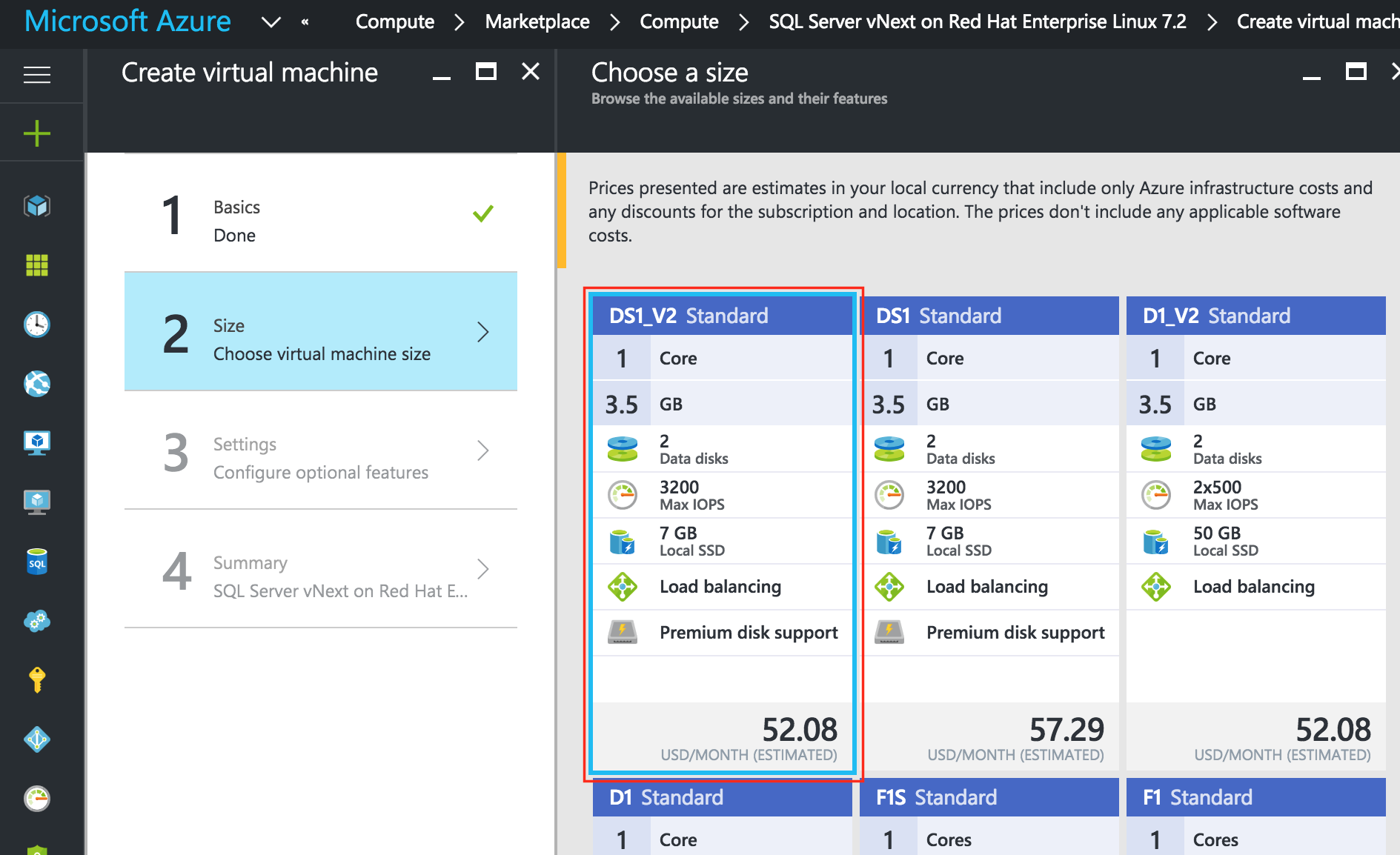
Next, choose your instance size.  For more information on the various instance sizes available, click here.

For the purposes of this guide, I selected the smallest/cheapest size I could, in this case “DS1_V2 Standard”, to minimize cost since this won’t be running a production workload.  Select the instance size that makes most sense based on what you are looking to test:

sql-create-vm3

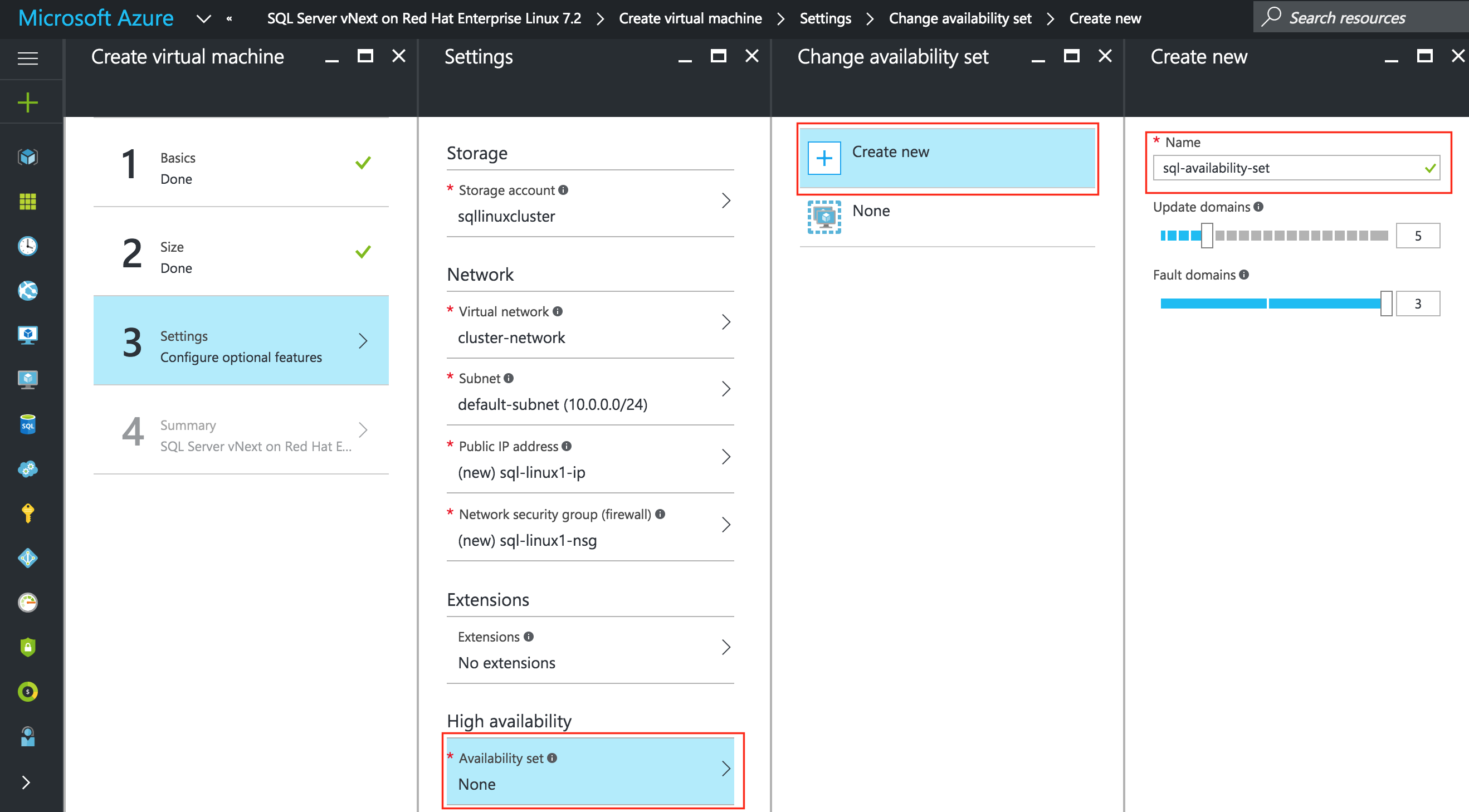
IMPORTANT: By default, your VM won’t be added to an Availability Set.  On the Settings screen during make sure you create a new Availability Set, we’ll call “sql-availability-set”.  Azure Resource Manager (ARM) allows your to create Availability Sets with 3 Fault Domains.  The default values here are fine:

sql-create-vm4

On the next screen, review your VM properties and click OK to create your first VM.

Create “sql-linux2” and “sql-witness” VMs

Repeat the steps above twice to create two more VMs.

The only difference here is that you’ll be ADDING these VMs to the Availability Set (“sql-availability-set”) we just created.

It may take a little while for your 3 VMs to provision.  Once complete, you’ll see your VMs (sql-linux1, sql-linux2 and sql-witness) listed on the Virtual Machines screen within your Azure Portal.

Set VM Static IP Addresses

The VMs will be set with the following IP addresses:

  • sql-linux1: 10.0.0.7
  • sql-linux2: 10.0.0.8
  • sql-witness: 10.0.0.9

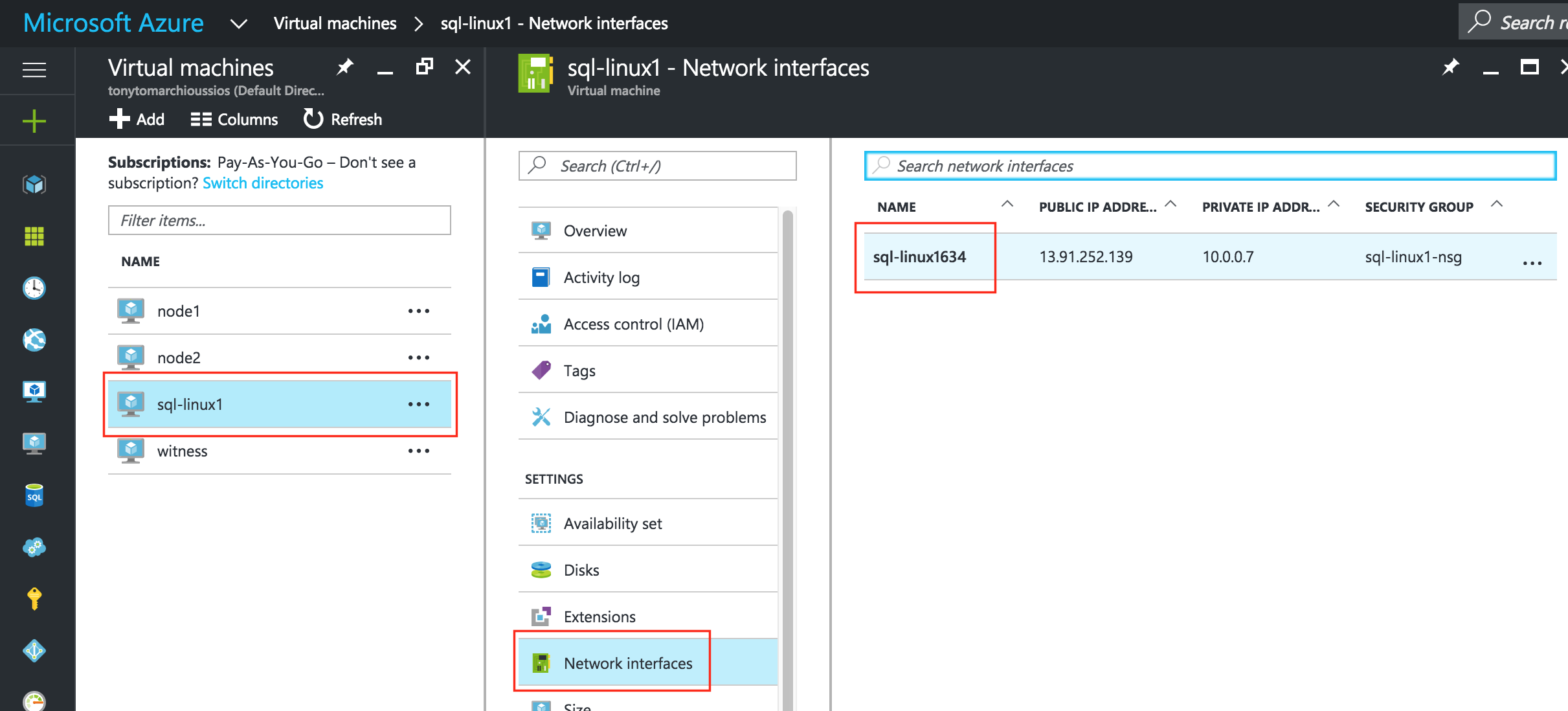
Repeat this step for each VM.  Select your VM and edit the Network Interfaces

sql-static-ip1

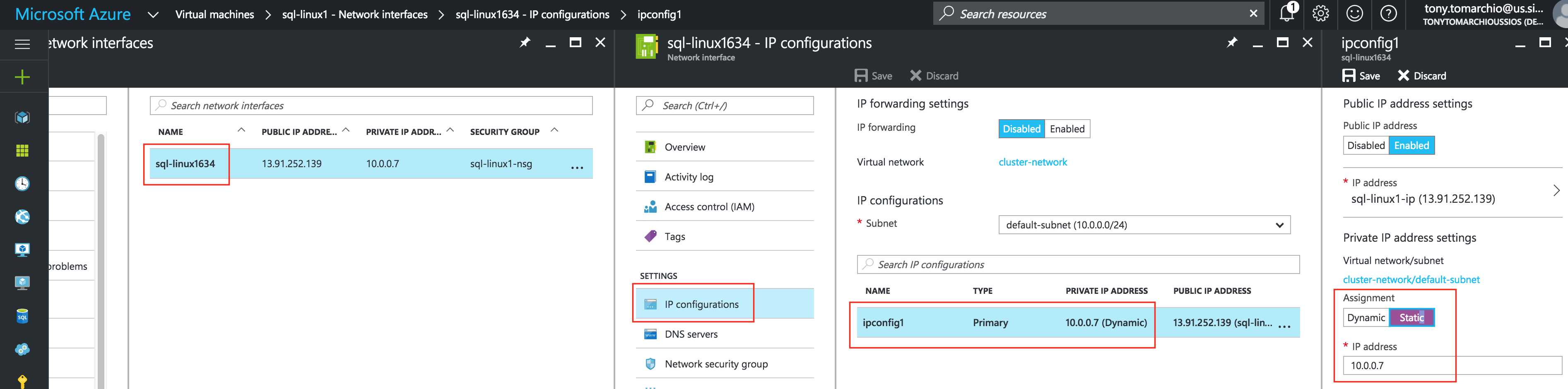
Select the network interface associated with the VM, and edit IP configurations.  Select “Static” and specify the desired IP address:

sql-static-ip2

Add a Data Disk to cluster nodes

Next, we will need to add a extra disk to of our cluster nodes (“sql-linux1” and “sql-linux2”).  This disk will store our SQL databases and the later be replicated between nodes.

Note: You do NOT need to add an extra disk to the “sql-witness” node.  Only “sql-linux1” and “sql-linux2”.

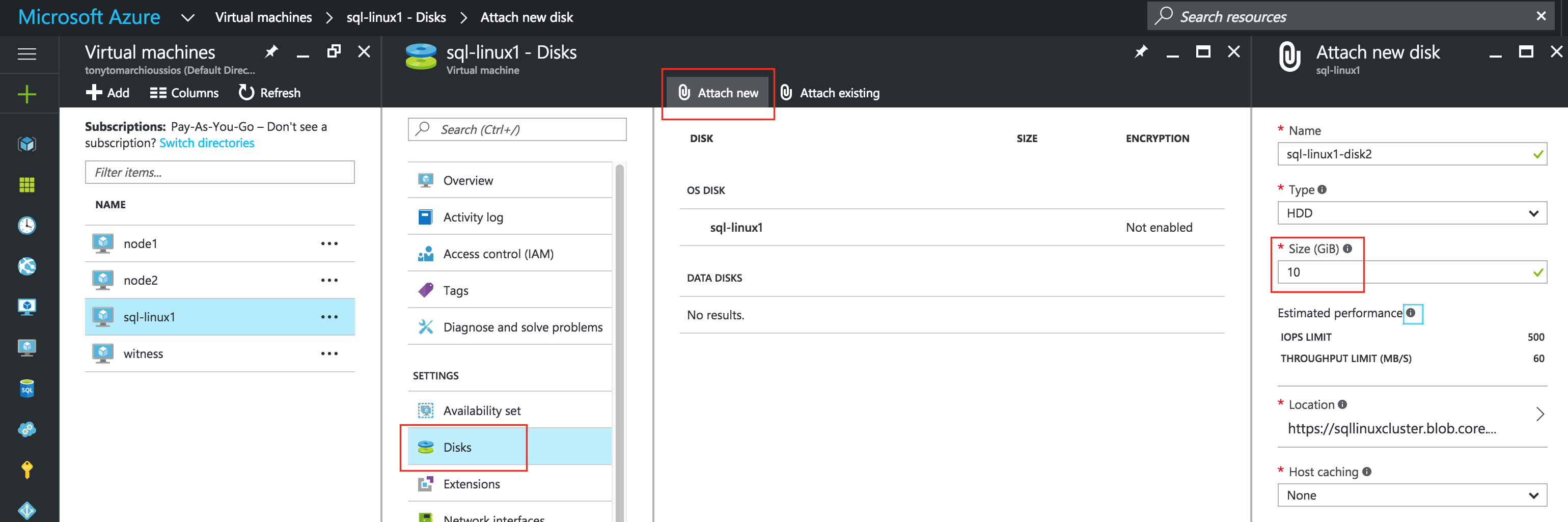
Edit your VM, select Disks and then attach a new disk.  Select a disk type (Standard or Premium SSD)  and size based on your workload.  Here I create a 10GB Standard disk on both of my cluster nodes.  As far as Host caching goes, “None” or “Read only” caching is fine.  I do not recommend using “Read/Write” as there is potential for data loss:

sql-add-disk1

Create Inbound Security Rule to allow VNC access

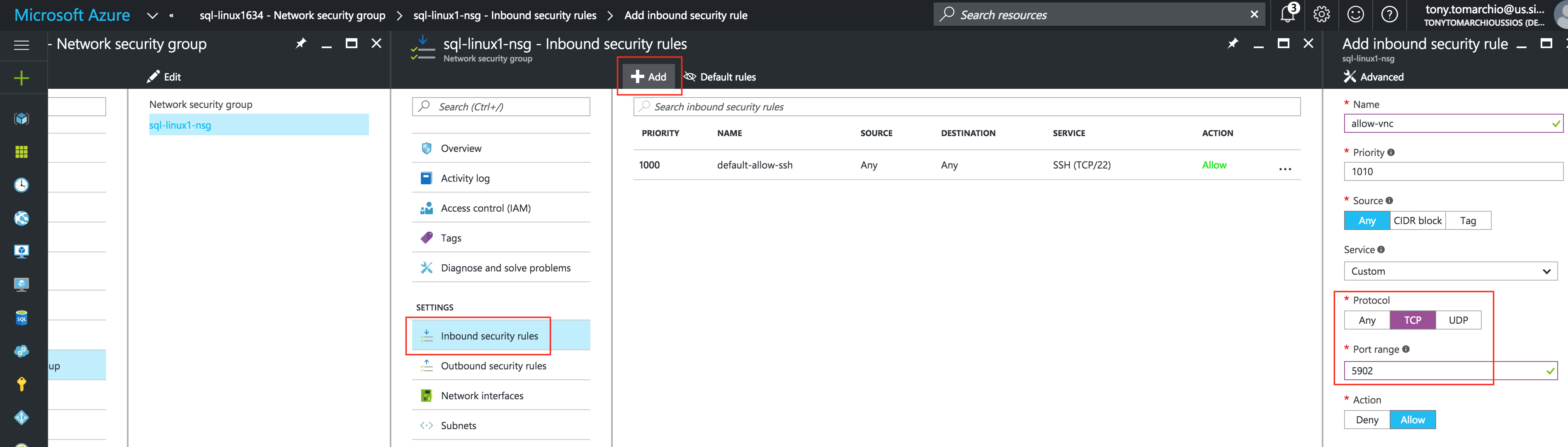
If your VM is part of a Network Security Group (NSG), which by default it likely is unless you disabled it during VM creation, the only port open in the “Azure firewall” is SSH (port 22).  Later in the guide, I’ll be using VNC to access the desktop of “sql-linux1” and configure the cluster using a GUI.  Create an Inbound Security Rule to open up VNC access.  In this guide port 5902 is used.  Adjust this according based on your VNC configuration.

Virtual Machines -> (select sql-linux1) -> Network interfaces -> (select NIC) -> Network security group -> (select the NSG) -> Inbound security rules -> Add

sql-security-group1

Linux OS Configuration

Here is where we will leave the Azure Portal for a little while and get our hands dirty on the command line, which as a Linux administrator you should be used to by now.  You aren’t given the root password to your Linux VMs in Azure, so once you login as the user specified during VM creation, use the “sudo” command to gain root privileges:

$sudo su -

Edit /etc/hosts
Unless you have already have a DNS server setup, you’ll want to create host file entries on all 3 servers so that they can properly resolve each other by name

Add the following lines to the end of your /etc/hosts file:
10.0.0.7    sql-linux1
10.0.0.8    sql-linux2
10.0.0.9    sql-witness
10.0.0.199   sql-vip

Disable SELinux

Edit /etc/sysconfig/linux and set “SELINUX=disabled”:

# vi /etc/sysconfig/selinux

# This file controls the state of SELinux on the system.
# SELINUX= can take one of these three values:
#     enforcing - SELinux security policy is enforced.
#     permissive - SELinux prints warnings instead of enforcing.
#     disabled - No SELinux policy is loaded.
SELINUX=disabled
# SELINUXTYPE= can take one of these two values:
#     targeted - Targeted processes are protected,
#     mls - Multi Level Security protection.
SELINUXTYPE=targeted

Configure iptables so that cluster the Virtual IP will work

In order to get connectivity to the cluster Virtual IP to work, and also monitoring of the IP resource, a few iptables rules need to be setup.  Note: 10.0.0.199 is the Virtual IP we’ll be using in our cluster, and 1433 is the default port used my SQL Server.

Note: RHEL7 changed the default firewall to FirewallD, instead of iptables.  Haven’t spent much time with firewalld yet, so for now this guide will disable firewalld and use iptables instead. You’ll also need to install the “iptables-services” package so that the service and chkconfig commands below work.

# systemctl stop firewalld
# systemctl disable firewalld

On sql-linux1 (10.0.0.7), run the following commands:

# yum install iptables-services
# iptables --flush
# iptables -t nat -A PREROUTING -p tcp --dport 1433 -j DNAT --to-destination 10.0.0.199:1433
# iptables -t nat -A PREROUTING -p tcp --dport 1434 -j DNAT --to-destination 10.0.0.199:1434
# iptables -t nat -A POSTROUTING -p icmp -s 10.0.0.199 -j SNAT --to-source 10.0.0.7 
# service iptables save 
# chkconfig iptables on 

On sql-linux2 (10.0.0.8), run the following commands:

# yum install iptables-services
# iptables --flush 
# iptables -t nat -A PREROUTING -p tcp --dport 1433 -j DNAT --to-destination 10.0.0.199:1433
# iptables -t nat -A PREROUTING -p tcp --dport 1434 -j DNAT --to-destination 10.0.0.199:1434
# iptables -t nat -A POSTROUTING -p icmp -s 10.0.0.199 -j SNAT --to-source 10.0.0.8 
# service iptables save 
# chkconfig iptables on

Install and Configure VNC (and related packages)

In order to access the GUI of our linux servers, and to later install and configure our cluster, install VNC server, as well as a handful of other required packages (cluster software needs the redhat-lsb and patch rpms).

# yum install tigervnc-server xterm wget unzip patch redhat-lsb
# vncpasswd

The following URL is a great guide to getting VNC Server running on RHEL 7 / CentOS 7:

https://www.digitalocean.com/community/tutorials/how-to-install-and-configure-vnc-remote-access-for-the-gnome-desktop-on-centos-7

Note:  This example configuration runs VNC on display 2 (:2, aka port 5902) and as root (not secure).  Adjust accordingly!

# cp /lib/systemd/system/vncserver@.service /etc/systemd/system/vncserver@:2.service
# vi /etc/systemd/system/vncserver@:2.service


[Service]
Type=forking
# Clean any existing files in /tmp/.X11-unix environment
ExecStartPre=/bin/sh -c '/usr/bin/vncserver -kill %i > /dev/null 2>&1 || :'
ExecStart=/sbin/runuser -l root -c "/usr/bin/vncserver %i -geometry 1024x768"
PIDFile=/root/.vnc/%H%i.pid
ExecStop=/bin/sh -c '/usr/bin/vncserver -kill %i > /dev/null 2>&1 || :'


# systemctl daemon-reload
# systemctl enable vncserver@:2.service
# vncserver :2 -geometry 1024x768

Reboot Cluster Nodes

Reboot your cluster nodes so that SELinux is disabled, and the 2nd disk you previously added is detected.

Partition and Format the “data” disk

In Step 6 of this guide (“Add a Data Disk to cluster nodes”) we did just that….added an extra disk to each cluster node to store the application data we will be protecting.  In this case it happens to be MySQL databases.

In Azure IaaS, Linux Virtual Machines use the following arrangement for disks:

  • /dev/sda – OS disk
  • /dev/sdb – temporary disk
  • /dev/sdc – 1st data disk
  • /dev/sdd – 2nd data disk
  • …
  • /dev/sdj – 8th data disk

The disk we added in Step 6 of this guide should appear as /dev/sdc.  You can run the “fdisk -l” command to verify.  You’ll see that /dev/sda (OS) and /dev/sdb (temporary) already have disk partitions and are being used.

# fdisk -l

Disk /dev/sda: 31.5 GB, 31457280000 bytes, 61440000 sectors
Units = sectors of 1 * 512 = 512 bytes
Sector size (logical/physical): 512 bytes / 4096 bytes
I/O size (minimum/optimal): 4096 bytes / 4096 bytes
Disk label type: dos
Disk identifier: 0x000c46d3

Device Boot Start End Blocks Id System
/dev/sda1 * 2048 1026047 512000 83 Linux
/dev/sda2 1026048 61439999 30206976 83 Linux

Disk /dev/sdb: 7516 MB, 7516192768 bytes, 14680064 sectors
Units = sectors of 1 * 512 = 512 bytes
Sector size (logical/physical): 512 bytes / 4096 bytes
I/O size (minimum/optimal): 4096 bytes / 4096 bytes
Disk label type: dos
Disk identifier: 0x7cd70e11

Device Boot Start End Blocks Id System
/dev/sdb1 128 14678015 7338944 83 Linux

Disk /dev/sdc: 10.7 GB, 10737418240 bytes, 20971520 sectors
Units = sectors of 1 * 512 = 512 bytes
Sector size (logical/physical): 512 bytes / 4096 bytes
I/O size (minimum/optimal): 4096 bytes / 4096 bytes

Here I will create a partition (/dev/sdc1), format it, and mount it at the default location for SQL, which is /var/opt/mssql.  Perform the following steps on BOTH “sql-linux1” and “sql-linux2”:

# fdisk /dev/sdc
Command (m for help): n
Command action
e   extended
p   primary partition (1-4)
p
Partition number (1-4): 1
First cylinder (1-1305, default 1): <enter>
Using default value 1
Last cylinder,  cylinders or  size{K,M,G} (1-1305, default 1305): <enter>
Using default value 1305
 
Command (m for help): w
The partition table has been altered!
Calling ioctl() to re-read partition table.
Syncing disks.
[root@sql-linux1 ~]#
# mkfs.ext4 /dev/sdc1
# mkdir /var/opt/mssql
# chmod 770 /var/opt/mssql

Mount the filesystem:

# mount /dev/sdc1 /var/opt/mssql

Install and Configure SQL Server

If you started with a fresh linux system, the full installation instructions can be found here.

If you created your VMs using the “SQL Server vNext on Red Hat Enterprise Linux 7.2” Azure template, as I have done in this guide, then SQL Server is already installed.  All you need to do now is run the setup script:

# /opt/mssql/bin/sqlservr-setup
Microsoft(R) SQL Server(R) Setup

You can abort setup at anytime by pressing Ctrl-C. Start this program
with the --help option for information about running it in unattended
mode.

The license terms for this product can be downloaded from
http://go.microsoft.com/fwlink/?LinkId=746388 and found
in /usr/share/doc/mssql-server/LICENSE.TXT.

Do you accept the license terms? If so, please type "YES": YES

Please enter a password for the system administrator (SA) account: <enter desired password>
Please confirm the password for the system administrator (SA) account: <enter desired password>

Setting system administrator (SA) account password...

Do you wish to start the SQL Server service now? [y/n]: y
Do you wish to enable SQL Server to start on boot? [y/n]: n

You can use sqlservr-setup --enable-service to enable SQL Server to start
at boot.

Setup completed successfully.

Verify that the service is running:

# systemctl status mssql-server

Stop SQL Server on both nodes.  The cluster software will later be responsible for starting it up:

# systemctl stop mssql-server
# systemctl stop mssql-server-telemetry

Install and Configure the Cluster

At this point, we are ready to install and configure our cluster.  SIOS Protection Suite for Linux (aka SPS-Linux) will be used in this guide as the clustering technology.  It provides both high availability failover clustering features (LifeKeeper) as well as real-time, block level data replication (DataKeeper) in a single, integrated solution.  SPS-Linux enables you to deploy a “SANLess” cluster, aka a “shared nothing” cluster meaning that cluster nodes don’t have any shared storage, as is the case with Azure VMs.

Install SIOS Protection Suite for Linux

Perform the following steps on ALL 3 VMs (sql-linux1, sql-linux2, sql-witness):

Download the SPS-Linux installation image file (sps.img) and and obtain either a trial license or purchase permanent licenses.  Contact SIOS for more information.

You will loopback mount it and run the “setup” script inside, as root (or first “sudo su -” to obtain a root shell if you haven’t already)

For example:

# mkdir /tmp/install
# mount -o loop sps.img /tmp/install
# cd /tmp/install
# ./setup

During the installation script, you’ll be prompted to answer a number of questions.  You will hit Enter on almost every screen to accept the default values.  Note the following exceptions:

  • On the screen titled “High Availability NFS” you may select “n” as we will not be creating a highly available NFS server
  • Towards the end of the setup script, you can choose to install a trial license key now, or later. We will install the license key later, so you can safely select “n” at this point
  • In the final screen of the “setup” select the ARKs (Application Recovery Kits, i.e. “cluster agents”) you wish to install from the list displayed on the screen.
    • The ARKs are ONLY required on “sql-linux1” and “sql-linux2”.  You do not need to install on “sql-witness”
    • Navigate the list with the up/down arrows, and press SPACEBAR to select the following:
      • lkDR – DataKeeper for Linux
    • This will result in the following additional RPMs installed on “sql-linux1” and “sql-linux2”:
      • steeleye-lkDR-9.0.2-6513.noarch.rpm

Install Witness/Quorum package

The Quorum/Witness Server Support Package for LifeKeeper (steeleye-lkQWK) combined with the existing failover process of the LifeKeeper core allows system failover to occur with a greater degree of confidence in situations where total network failure could be common. This effectively means that failovers can be done while greatly reducing the risk of “split-brain” situations.

Install the Witness/Quorum rpm on all 3 nodes (sql-linux1, sql-linux2, sql-witness):

# cd /tmp/install/quorum
# rpm -Uvh steeleye-lkQWK-9.0.2-6513.noarch.rpm

On ALL 3 nodes (sql-linux1, sql-linux2, sql-witness), edit /etc/default/LifeKeeper, set

NOBCASTPING=1

On ONLY the Witness server (“sql-witness”), edit /etc/default/LifeKeeper, set

WITNESS_MODE=off/none

Install a License key

On all 3 nodes, use the “lkkeyins” command to install the license file that you obtained from SIOS:

# /opt/LifeKeeper/bin/lkkeyins <path_to_file>/<filename>.lic

Start LifeKeeper

On all 3 nodes, use the “lkstart” command to start the cluster software:

# /opt/LifeKeeper/bin/lkstart

Set User Permissions for LifeKeeper GUI

On all 3 nodes, edit /etc/group and add the “tony” user (or whatever username you specified during VM creation) to the “lkadmin” group to grant access to the LifeKeeper GUI.  By default only “root” is a member of the group, and we don’t have the root password in :

# vi /etc/group

lkadmin:x:1001:root,tony

Open the LifeKeeper GUI

Make a VNC connection to the Public IP address of sql-linux1.  Based on the VNC and Inbound Security Rule configuration from above, you would connect to <Public_IP>:2 using the VNC password you specified earlier.  Once logged in, open a terminal window and run the LifeKeeper GUI using the following command:

# /opt/LifeKeeper/bin/lkGUIapp &

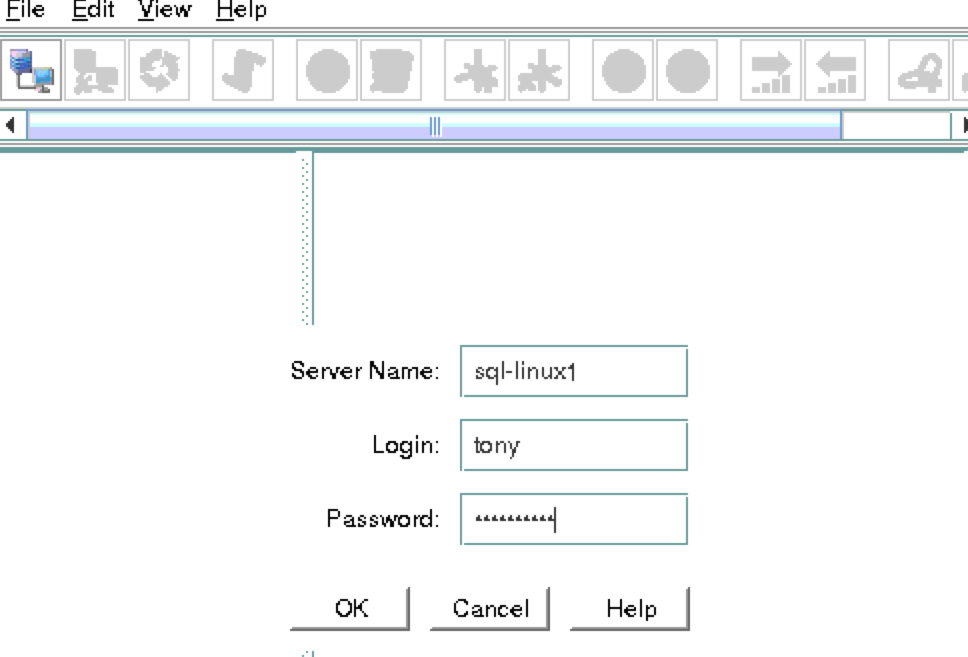
You will be prompted to connect to your first cluster node (“sql-linux1”).  Enter the linux userid and password specified during VM creation:

sql-gui-login1

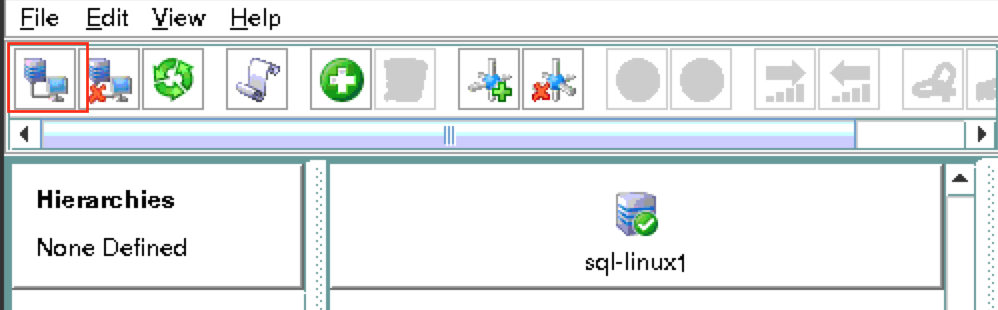
Next, connect to both “sql-linux2” and “sql-witness” by clicking the “Connect to Server” button highlighted in the following screenshot:

sql-gui-connect1

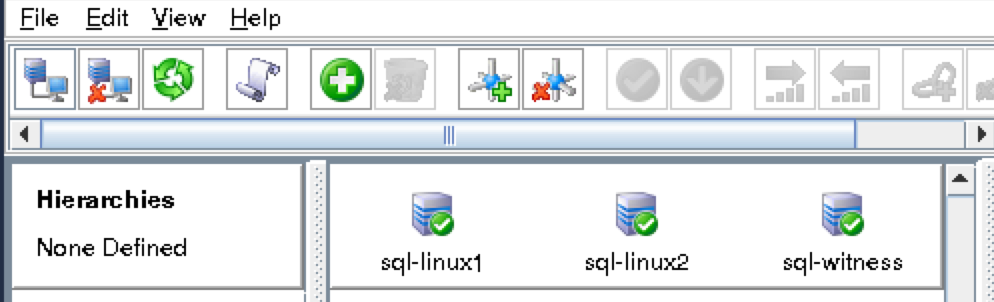
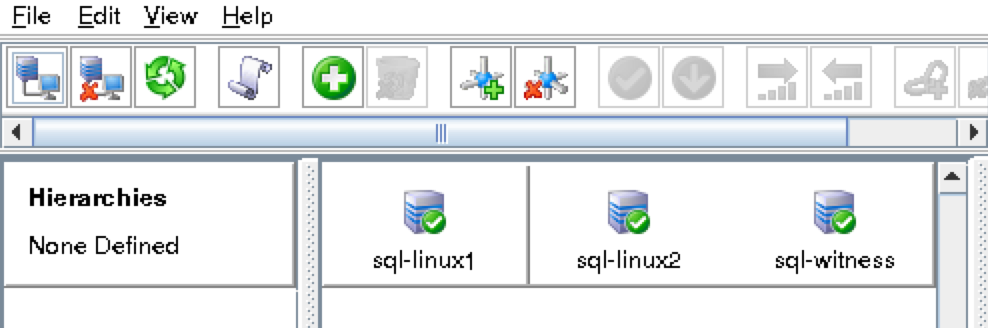
You should now see all 3 servers in the GUI, with a green checkmark icon indicating they are online and healthy:

sql-gui-connect2

Create Communication Paths

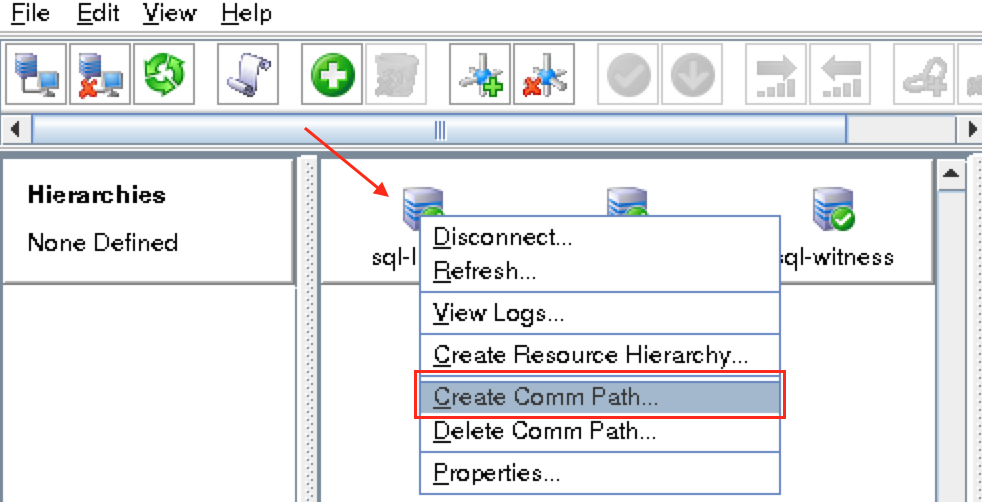
Right-click on “sql-linux1” and select Create Comm Path

sql-gui-comm1

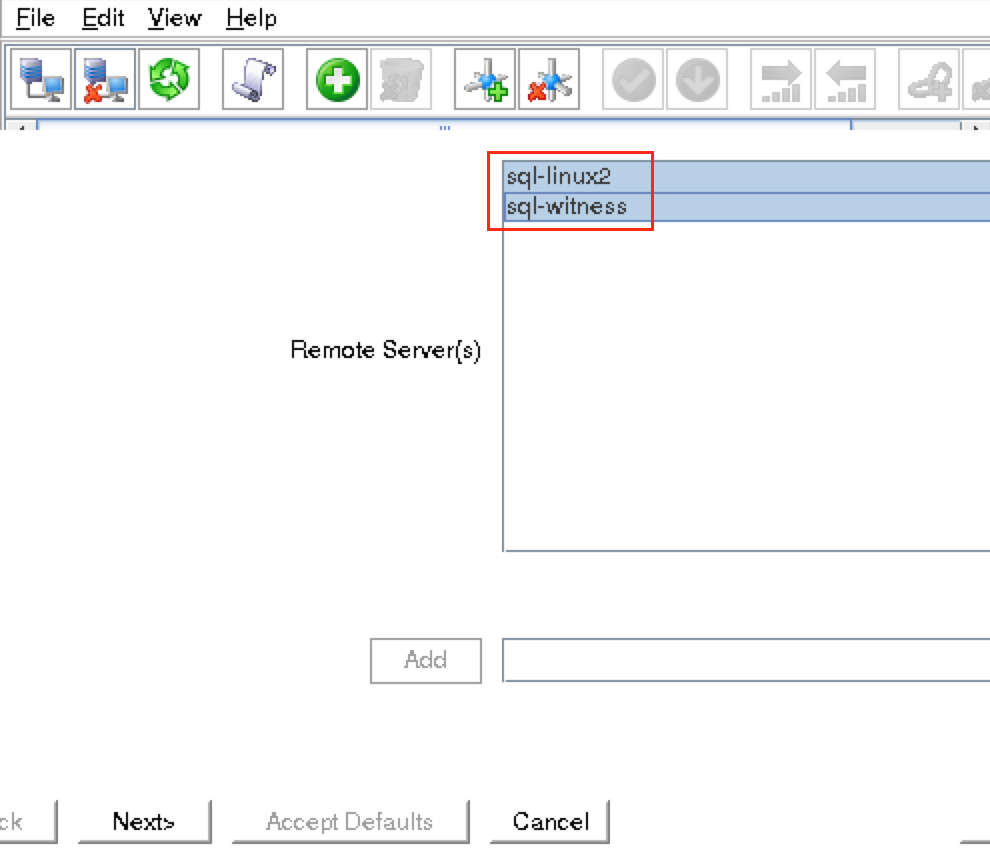
Select BOTH “sql-linux2” and “sql-witness” and then follow the wizard.  This will create comm paths between:

  • sql-linux1 & sql-linux2
  • sql-linux1 & sql-witness

sql-gui-comm2

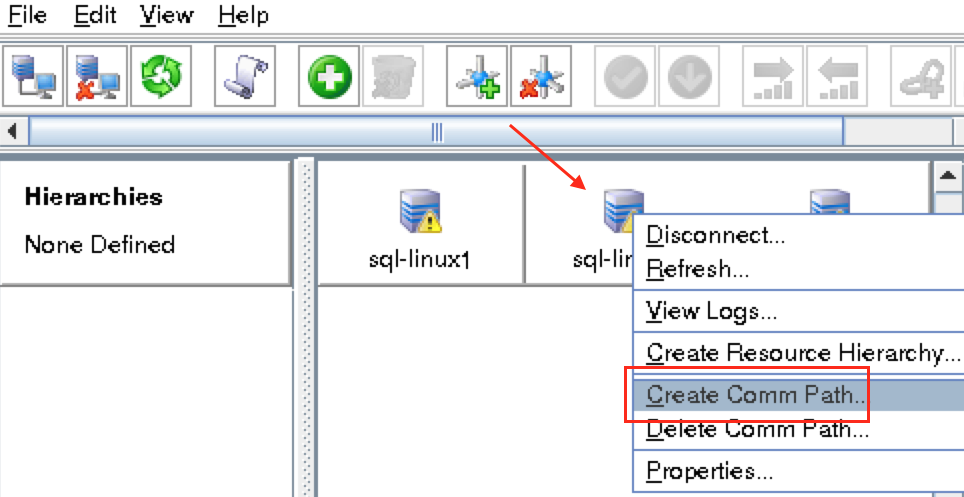
A comm path still needs to be created between sql-linux2 & sql-witness.   Right click on “sql-linux2” and select Create Comm Path.  Follow the wizard and select “sql-witness” as the remote server:

sql-gui-comm3

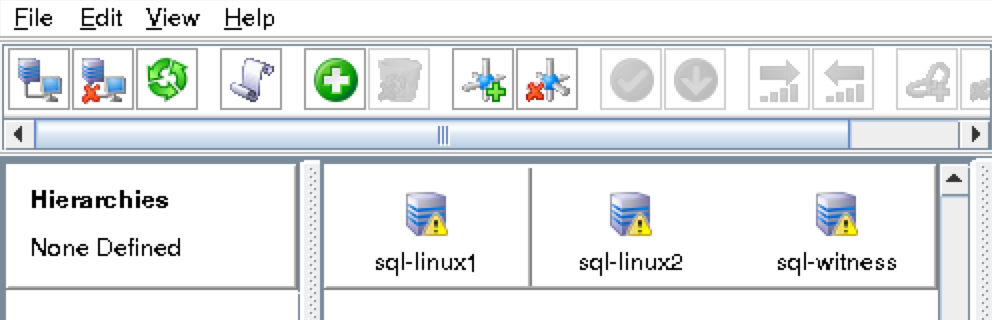
At this point the following comm paths have been created:

  • sql-linux1 <—> sql-linux2
  • sql-linux1 <—> sql-witness
  • sql-linux2 <—> sql-witness

The icons in front of the servers have changed from a green “checkmark” to a yellow “hazard sign”.  This is because we only have a single communication path between nodes.

If the VMs had multiple NICs (information on creating Azure VMs with multiple NICs can be found here, but won’t be covered in this article), you would create redundant comm paths between each server.

sql-gui-comm4

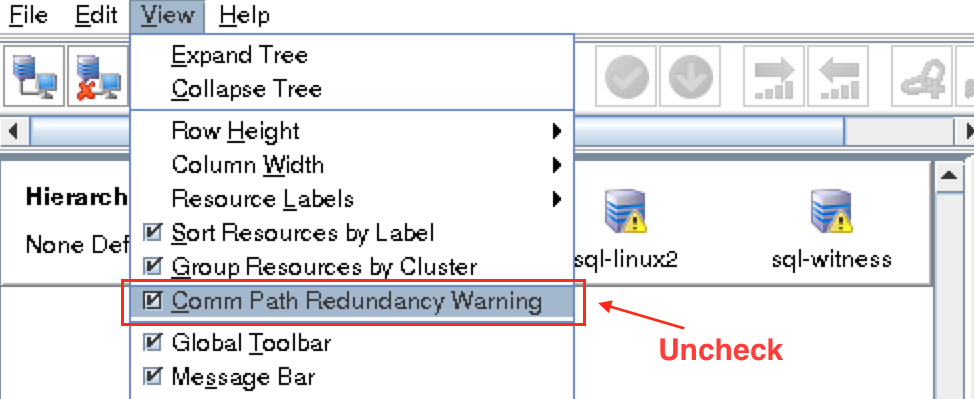
To remove the warning icons, go to the View menu and de-select “Comm Path Redundancy Warning”:

sql-gui-comm5

Result:

sql-gui-nodes-green

Verify Communication Paths

Use the “lcdstatus” command to view the state of cluster resources.  Run the following commands to verify that you have correctly created comm paths on each node to the other two servers involved:

# /opt/LifeKeeper/bin/lcdstatus -q -d sql-linux1

MACHINE  NETWORK ADDRESSES/DEVICE   STATE     PRIO

sql-linux2    TCP     10.0.0.7/10.0.0.8  ALIVE        1

sql-witness  TCP     10.0.0.7/10.0.0.9  ALIVE        1

# /opt/LifeKeeper/bin/lcdstatus -q -d sql-linux2

MACHINE  NETWORK ADDRESSES/DEVICE   STATE     PRIO

sql-linux1    TCP     10.0.0.8/10.0.0.7  ALIVE        1

sql-witness  TCP     10.0.0.8/10.0.0.9  ALIVE        1

# /opt/LifeKeeper/bin/lcdstatus -q -d sql-witness

MACHINE  NETWORK ADDRESSES/DEVICE   STATE     PRIO

sql-linux1    TCP     10.0.0.9/10.0.0.7  ALIVE        1

sql-linux2    TCP     10.0.0.9/10.0.0.8  ALIVE        1

Create a Data Replication cluster resource (i.e. Mirror)

Before you proceed with this step, make sure that /var/opt/mssql is MOUNTED on sql-linux1, but NOT MOUNTED on sql-linux2.  Run “umount /var/opt/mssql” on sql-linux2 if needed.

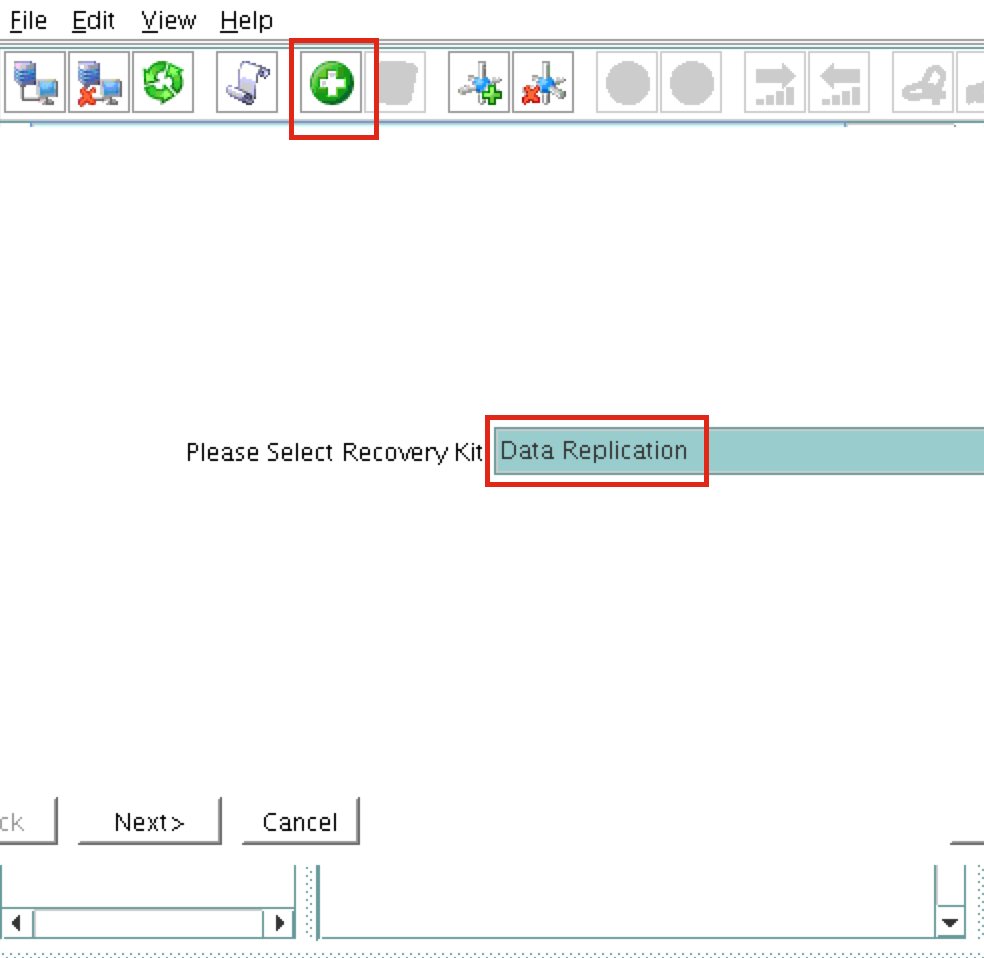
Next, create a Data Replication resource to replicate the /var/opt/mssql partition from sql-linux1 (source) to sql-linux2 (target).  Click the “green plus” icon to create a new resource:

data replication1

Follow the wizard with these selections:

Please Select Recovery Kit:  Data Replication
Switchback Type: intelligent
Server: sql-linux1
Hierarchy Type: Replicate Exiting Filesystem
Existing Mount Point: /var/opt/mssql
Data Replication Resource Tag: datarep-mssql
File System Resource Tab: /var/opt/mssql
Bitmap File: (default value)
Enable Asynchronous Replication:  No

After the resource has been created, the “Extend” (i.e. define backup server) wizard will appear.  Use the following selections:

Target Server: sql-linux2
Switchback Type: Intelligent
Template Priority: 1
Target Priority: 10
Mount Point: /var/opt/mssql
Root Tag: /var/opt/mssql
Target Disk: /dev/sdc1
Data Replication Resource Tag: datarep-mssql
Bitmap File: (default value)
Replication Path: 10.0.0.7/10.0.0.8

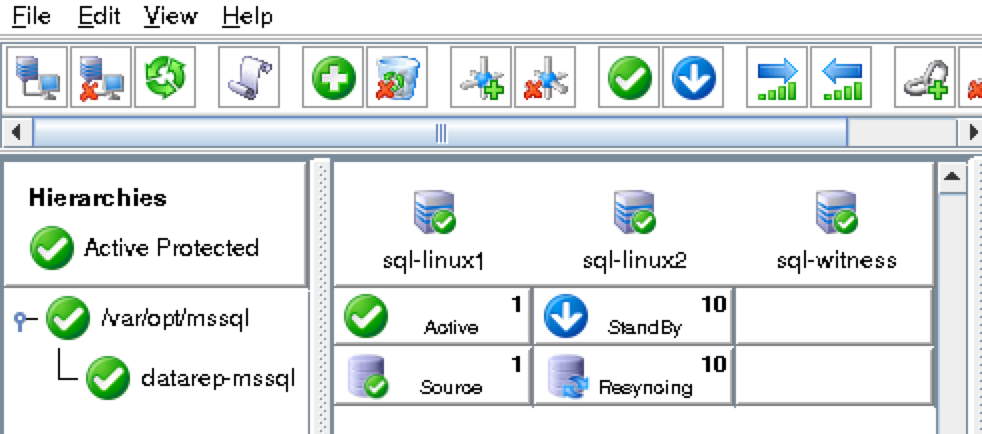
The cluster will look like this:

sql-mirror-created

Create Virtual IP

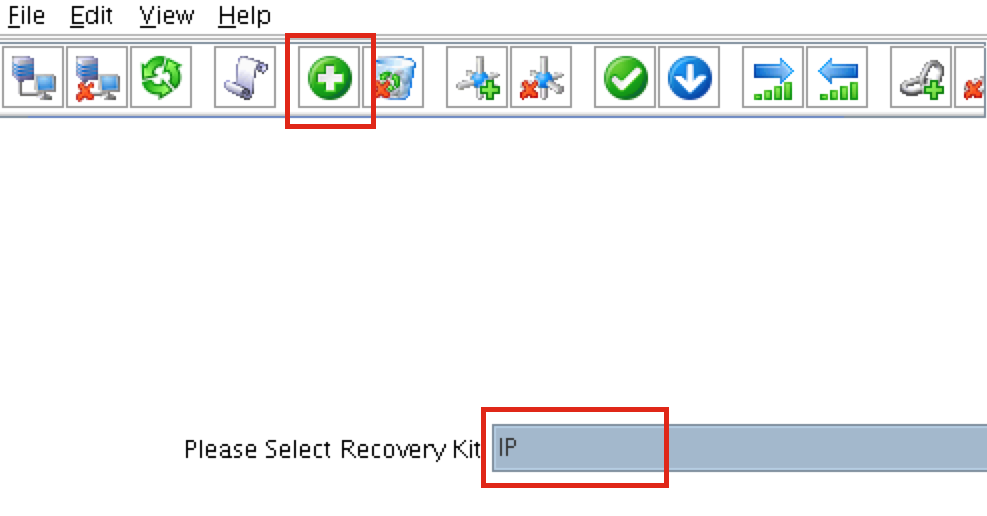
Next, create a Virtual IP cluster resource.  Click the “green plus” icon to create a new resource:

virtual ip1

Follow the wizard with to create the IP resource with these selections:

Select Recovery Kit: IP
Switchback Type: Intelligent
Server: sql-linux1
IP Resource: 10.0.0.199
Netmask: 255.255.255.0
Network Interface: eth0
IP Resource Tag: ip-10.0.0.199

Extend the IP resource with these selections:

Target Server: sql-linux2
Switchback Type: Intelligent
Template Priority: 1
Target Priority: 10
IP Resource: 10.0.0.199
Netmask: 255.255.255.0
Network Interface: eth0
IP Resource Tag: ip-10.0.0.199

Configure a Ping List for the IP resource

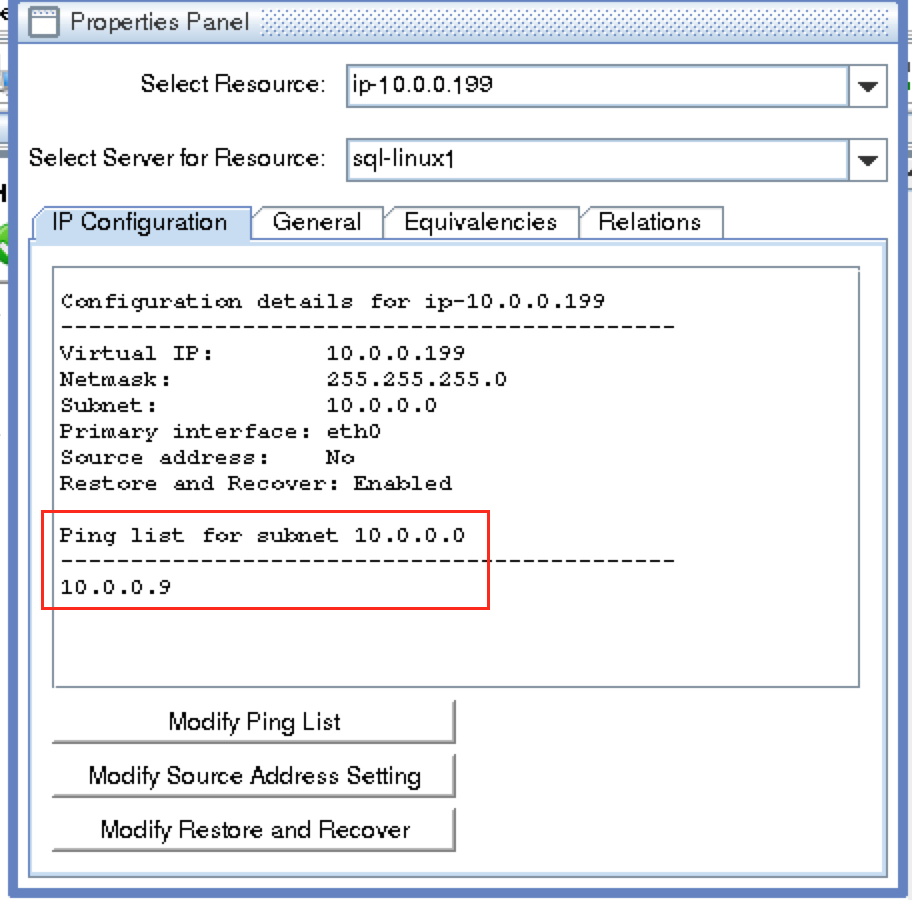
By default, SPS-Linux monitors the health of IP resources by performing a broadcast ping.  In many virtual and cloud environments, broadcast pings don’t work.  In a previous step, we set “NOBCASTPING=1” in /etc/default/LifeKeeper to turn off broadcast ping checks. Instead, we will define a ping list.  This is a list of IP addresses to be pinged during IP health checks for this IP resource.   In this guide, we will add the witness server (10.0.0.9) to our ping list.

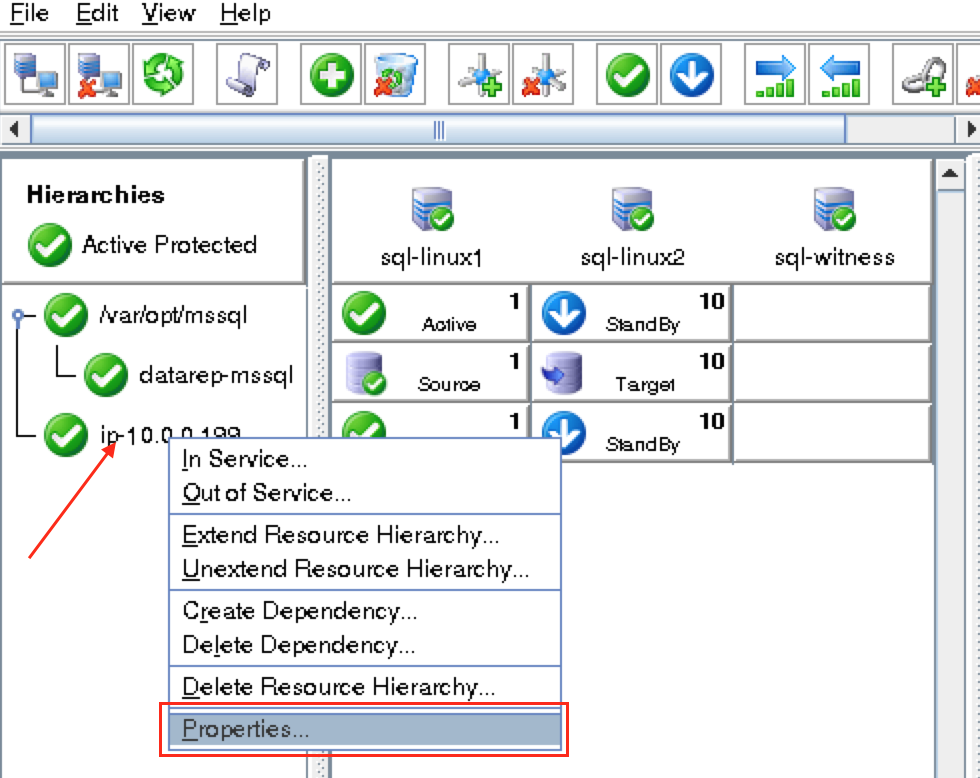
Right click on the IP resource (ip-10.0.0.199) and select Properties:

sql-pinglist1

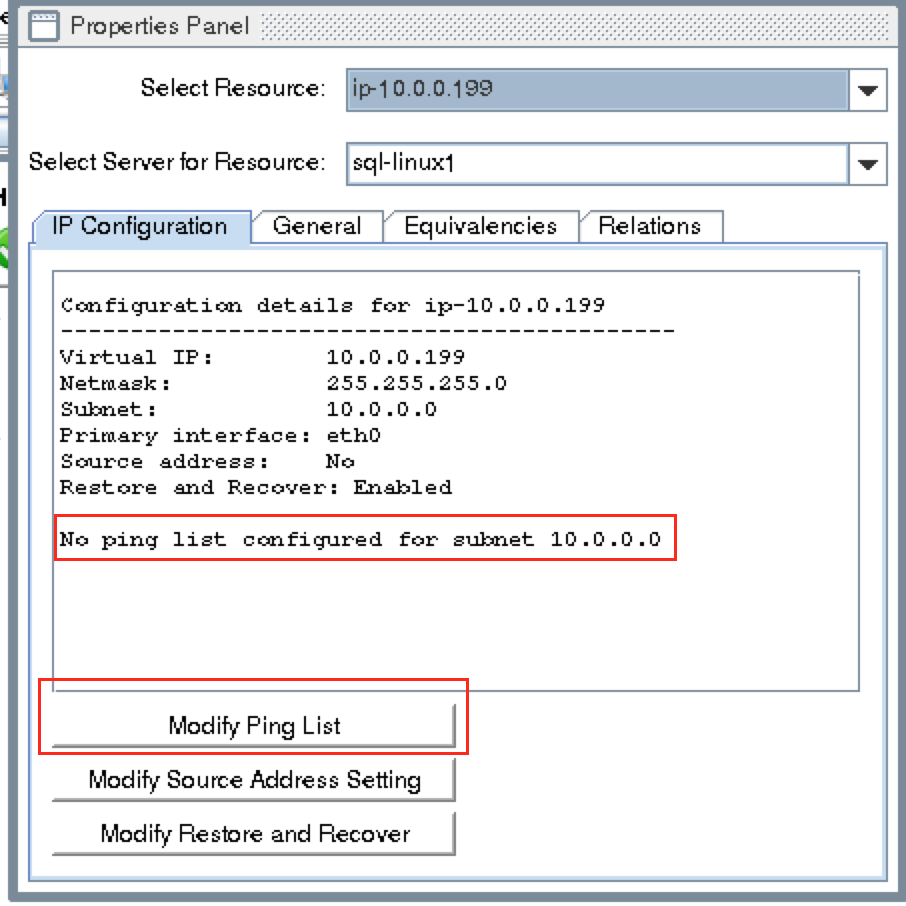
You will see that initially, no ping list is configured for our 10.0.0.0 subnet.   Click “Modify Ping List”:

sql-pinglist2

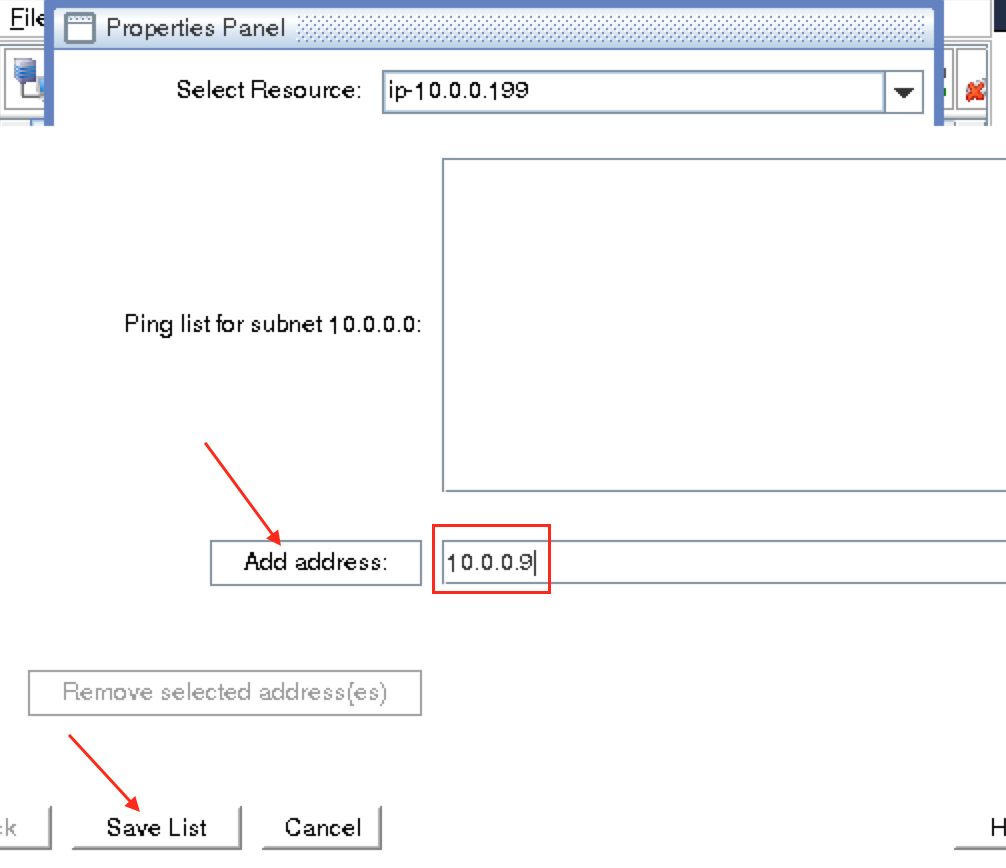
Enter “10.0.0.9” (the IP address of our witness server), click “Add address” and finally click “Save List”:

sql-pinglist3

You will be returned to the IP properties panel, and can verify that 10.0.0.9 has been added to the ping list.  Click OK to close the window:

sql-pinglist4

Write scripts to stop/start/monitor/restart SQL Server

Next, create some simple shell scripts that will be loaded into the cluster to create a “Generic Application” resource, allowing the cluster to start/stop/monitor/restart SQL Server.  These are very basic examples that make calls to “systemctl” to control the SQL Server services.  We will create 4 scripts:

  • Restore Script – aka “start”: sql-start.sh
  • Remove Script – aka “stop”: sql-stop.sh
  • QuickCheck Script – aka “status”: sql-status.sh
  • Recover Script – aka “restart”: sql-restart.sh
# sudo su -

# cd /root

# vi sql-start.sh

#!/bin/bash
systemctl start mssql-server
systemctl start mssql-server-telemetry

# vi sql-stop.sh

#!/bin/bash
systemctl stop mssql-server
systemctl stop mssql-server-telemetry

# vi sql-status.sh

#!/bin/bash
systemctl status mssql-server
exit $?

# vi sql-restart.sh

#!/bin/bash
systemctl restart mssql-server
systemctl restart mssql-server-telemetry

Before loading these scripts into the cluster, make sure they are executable:

# chmod 755 sql-*.sh

Create the SQL Server resource hierarchy (Generic Application)

Next, create a Generic Application cluster resource.  We will load in the scripts created in the previous step.  To create, click the “green plus” icon to create a new resource:

Follow the wizard with to create the Generic Application resource with these selections:

Select Recovery Kit: Generic Application
Switchback Type: Intelligent
Server: sql-linux1
Restore Script: /root/sql-start.sh
Remove Script: /root/sql-stop.sh
QuickCheck Script: /root/sql-status.sh
Local Recovery Script: /root/sql-restart.sh
Application Info: <empty>
Bring Resource In Service: Yes
Resource Tag: app-SQLServer

Extend the Generic Application resource with the following selections:

Target Server: sql-linux2
Switchback Type: intelligent
Template Priority: 1
Target Priority: 10
Resource Tag: app-SQLServer
Application Info: <empty>

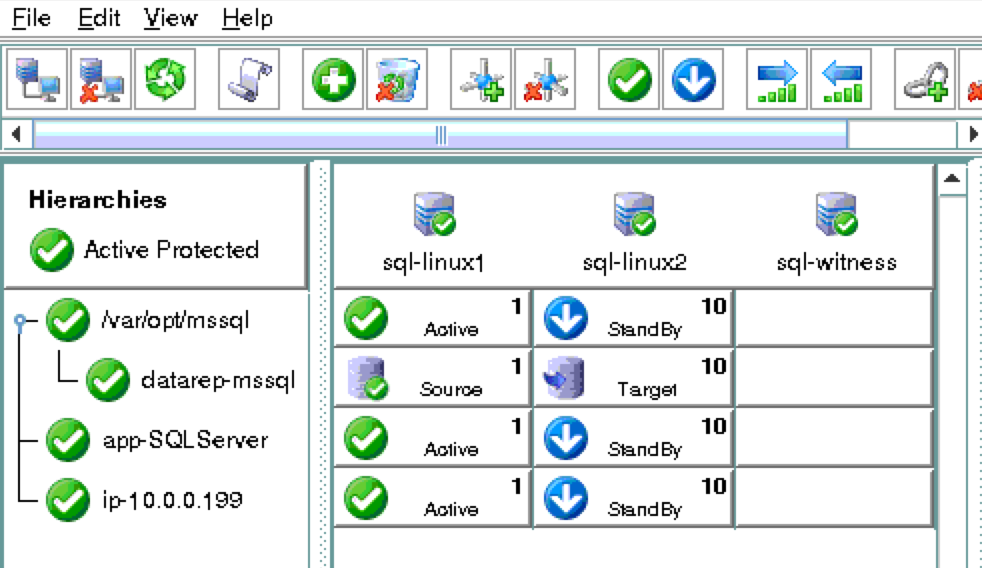
As a result, your cluster will look as follows:

sql-resources-no-deps

Create Dependencies between cluster resources

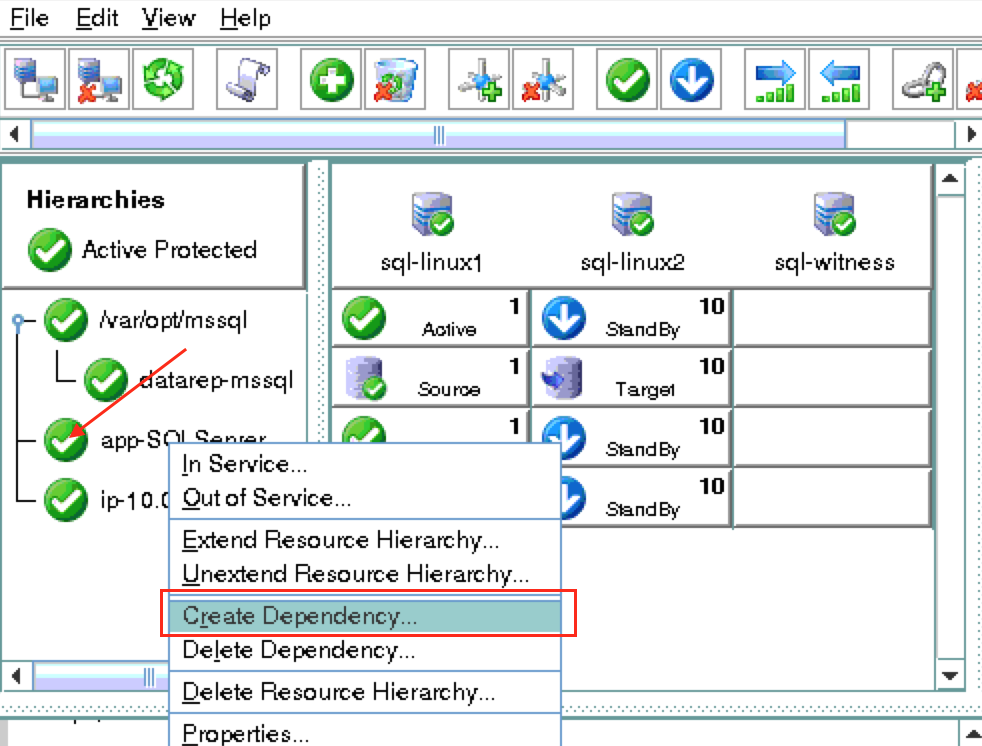
Create a dependency between the IP resource, SQL Server resource, and replicated filesystem resource so that they failover together as a group.  Right click on the “app-SQLServer” resource and select “Create Dependency”.

sql-create-dependency

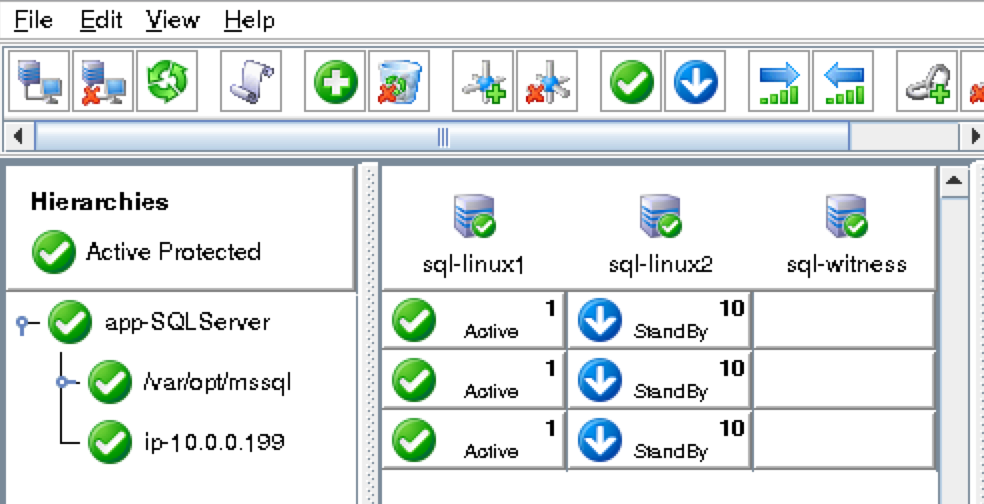
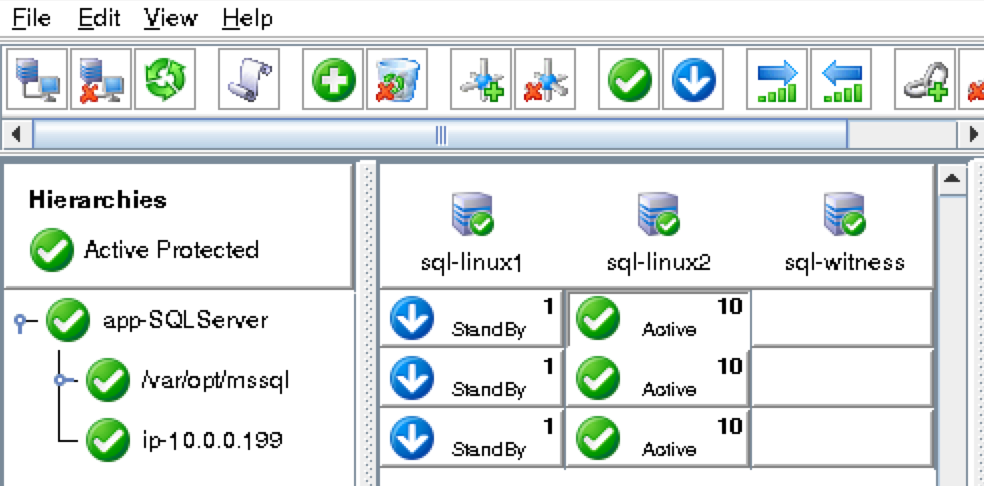
You will do this two times.  First selecting “ip-10.0.0.199” as the child resource, and and second time selecting “/var/opt/mssql” as the child resource.  After dependency creation your resource hierarchy should look like this:

sql-dependencies-created

Create an Internal Load Balancer

If this was a typical on-premises cluster using either physical or virtual servers, you’d be done at this point.  Clients and Applications would connect into the Virtual IP of the cluster (10.0.0.199) to reach the active node.  In Azure, this doesn’t work without some additional configuration.

You will notice that you can’t connect to the Virtual IP from any server other than the node that is currently active.  Most cloud providers, including Azure, do not allow or support gratuitous ARPs which is the reason you can’t connect to the Virtual IP directly.

To workaround this, Azure provides a feature were you can setup an Internal Load Balancer (ILB).  Essentially, when you connect to the IP address of the ILB (which we will actually set to be the same as the cluster’s Virtual IP – 10.0.0.199) you are routed to the currently active cluster node.

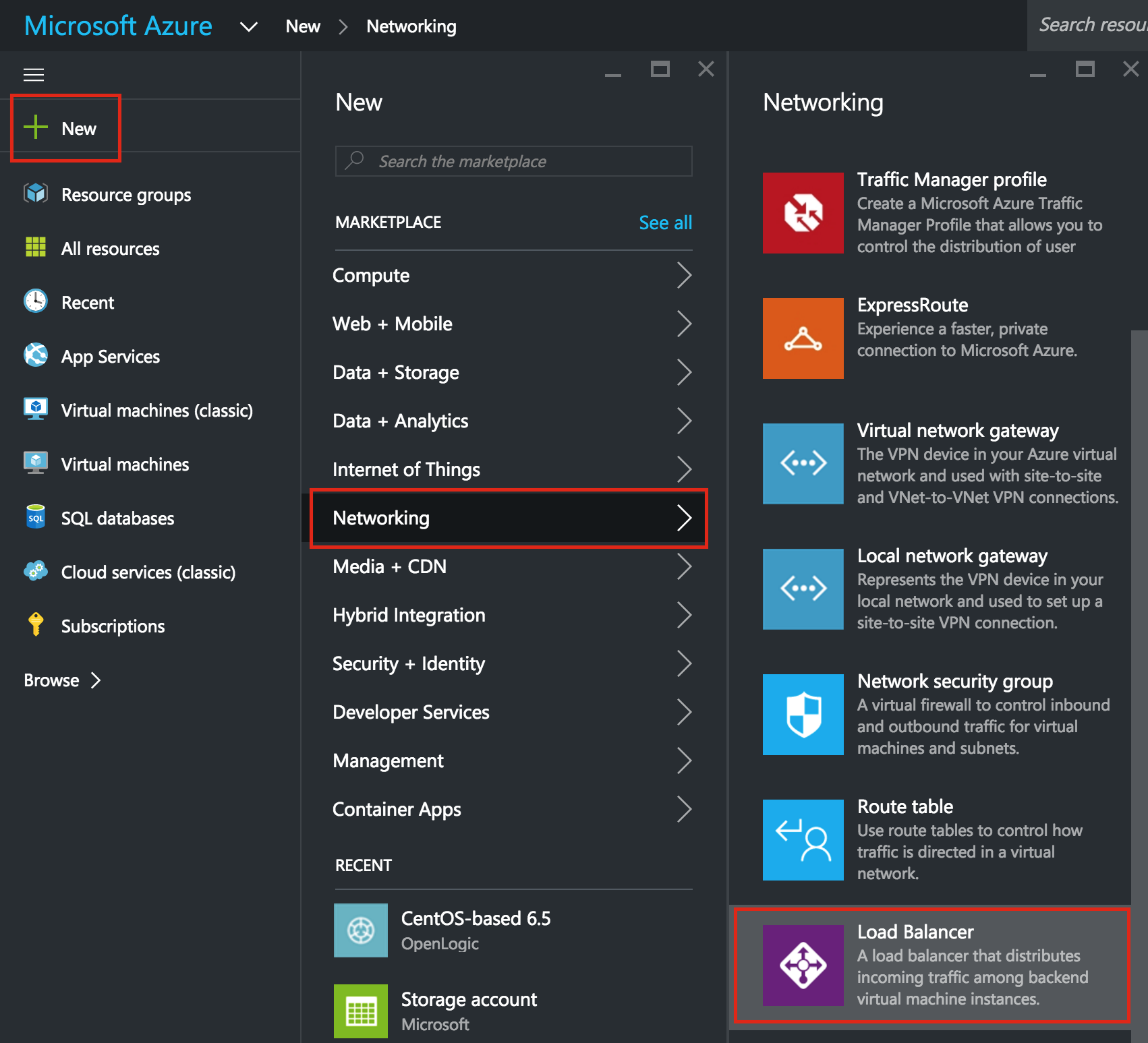
Create a Load Balancer:

internal load balancer1

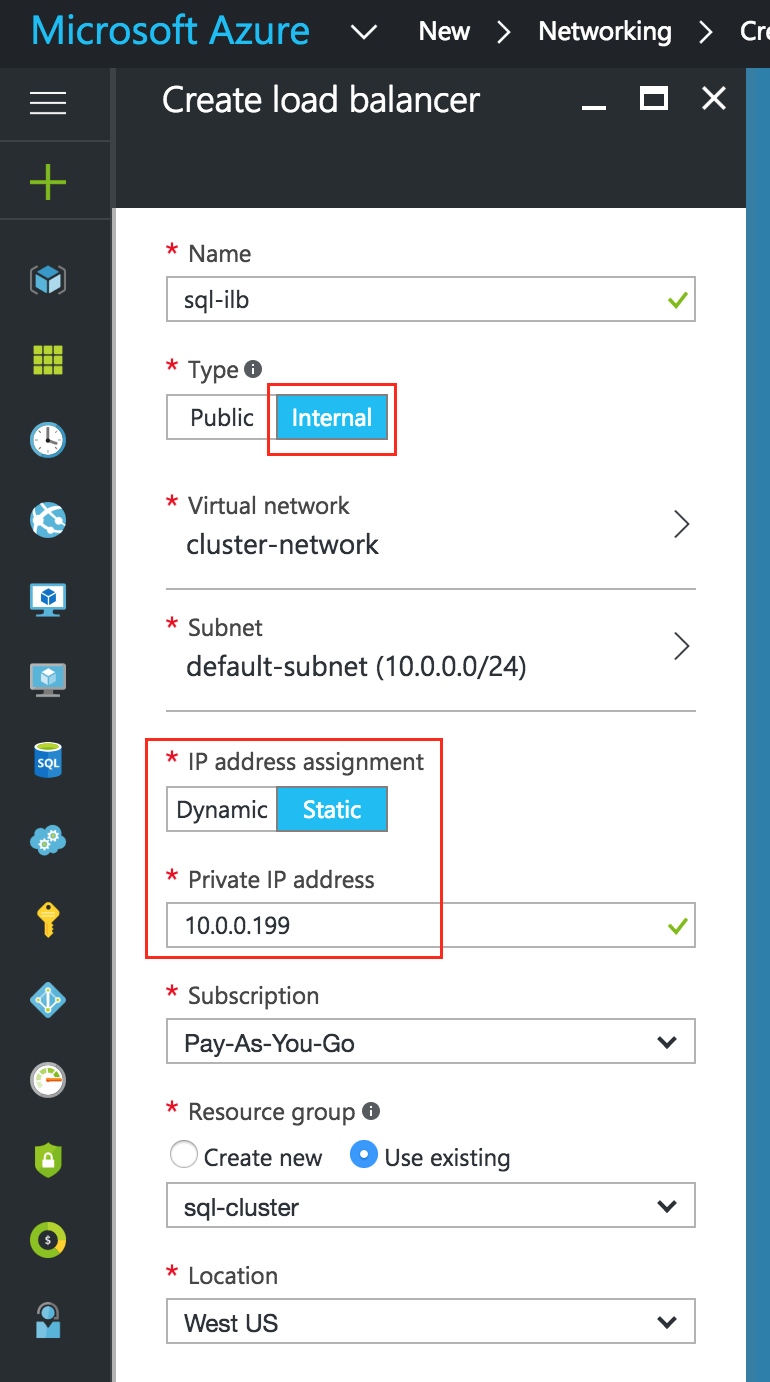
Give it a name, select “Internal” as the scheme, make sure your virtual network and subnet are properly selected, and assign a static IP that is the same as the cluster’s Virtual IP address.  In this example it’s 10.0.0.199:

sql-create-ilb

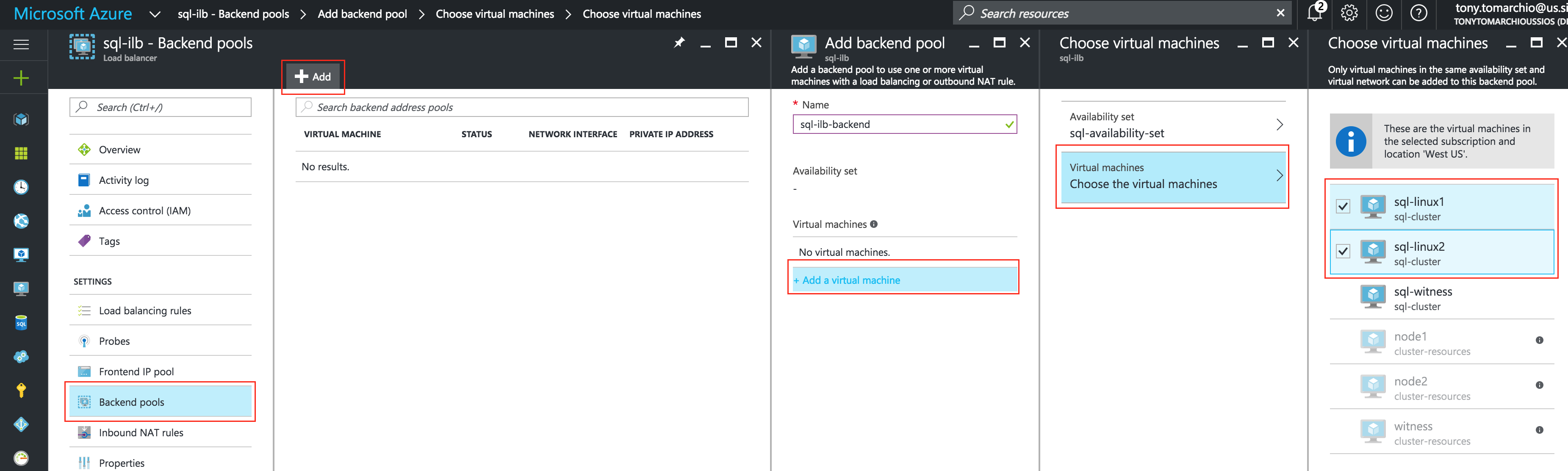
Next, add a backend pool behind the load balancer.  This how you place the two cluster VMs behind this load balancer

sql-ilb-backendpool

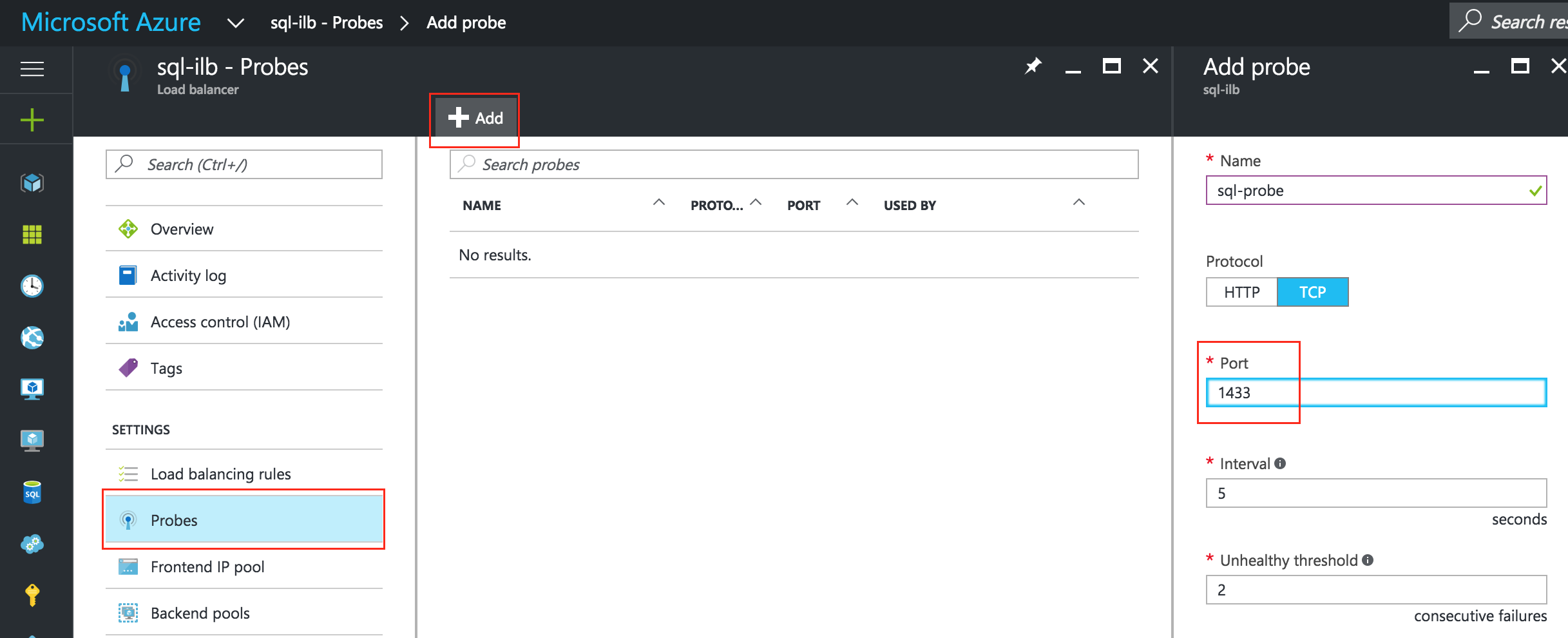
Next, configure a probe for your ILB.  The probe checks the health of a service behind the ILB to determine which node to route traffic to.  Here we will specify port 1433, which is the default for SQL Server:

sql-ilb-probe

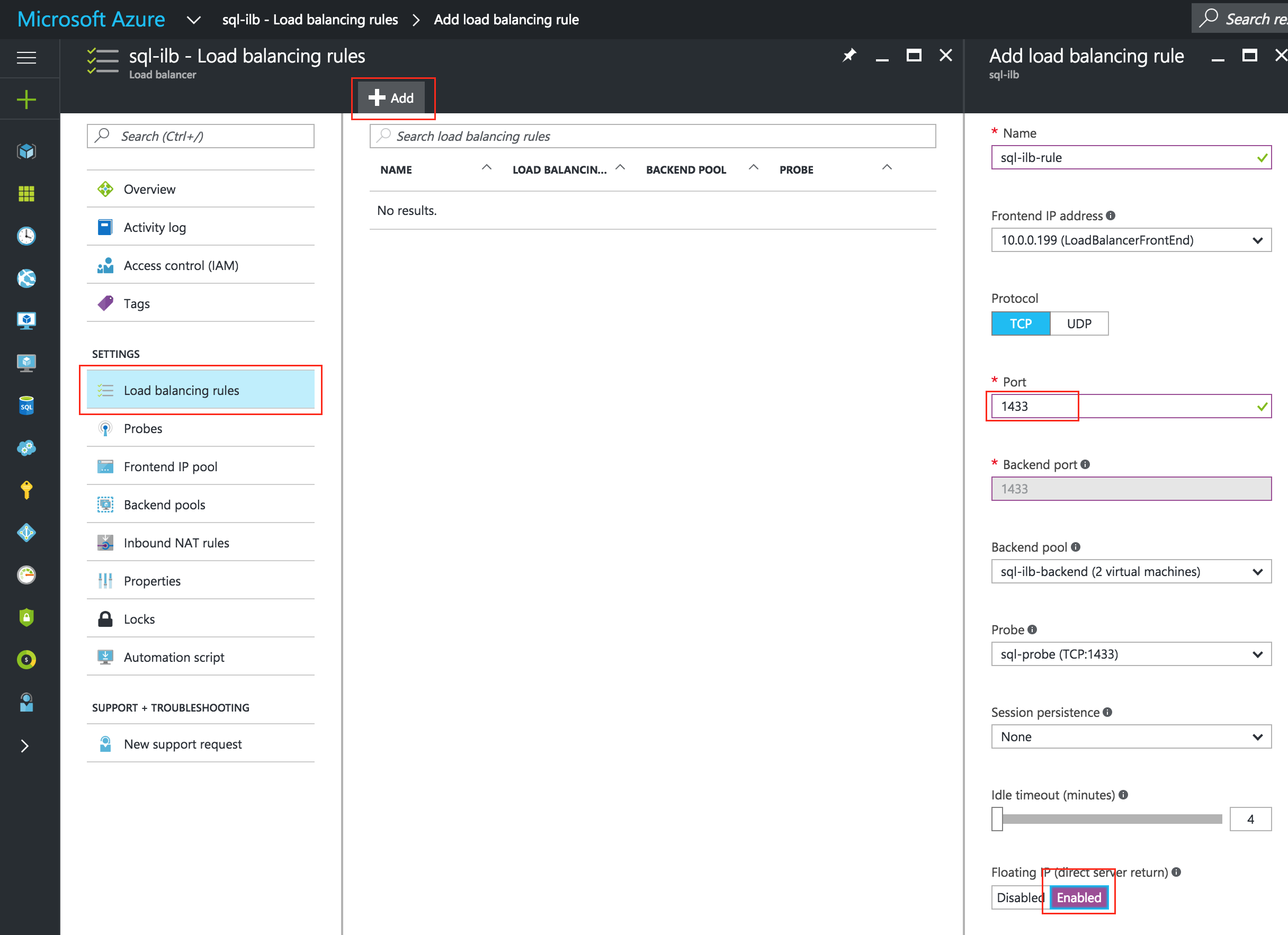
Finally, complete the ILB configuration by creating a Load Balancing Rule.   TCP, Port 1433, and make sure you select “Enabled” for “Floating IP (direct server return)”:

sql-ilb-rule

Test Cluster Connectivity

At this point, all of our Azure and Cluster configurations are complete!

Cluster resources are currently active on sql-linux1:

sql-dependencies-created

SSH into the witness server (sql-witness), “sudo su -” to gain root access.   Install sqlcmd if needed:

https://docs.microsoft.com/en-us/sql/linux/sql-server-linux-connect-and-query-sqlcmd

Test SQL connectivity to the cluster:

[root@sql-witness ~]# sqlcmd -S 10.0.0.199 -U SA -p

Execute the following SQL query to display the hostname of the active cluster node:

1> select @@servername;
2> go

-------------
sql-linux1

(1 rows affected)

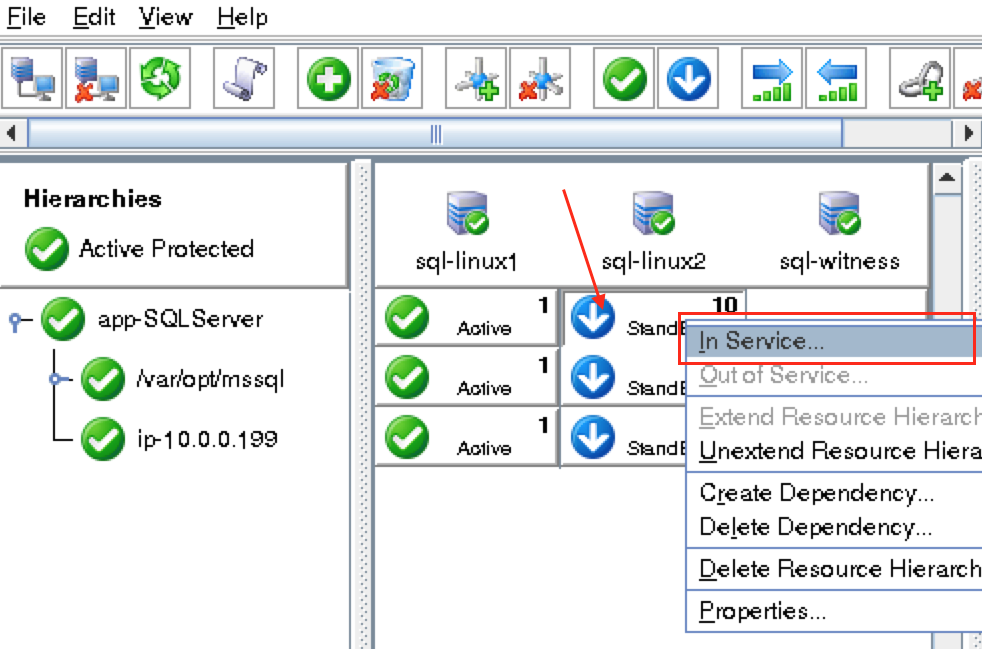
Using LifeKeeper GUI, failover from sql-linux1 -> sql-linux2″.  Right click on the “app-SQLServer” resource underneath sql-linux2, and select “In Service…”:

sql-failover-node2

After failover:

sql-after-failover

After failover has completed, re-run the SQL query, verifying that now “sql-linux2” is active:

[root@sql-witness ~]# sqlcmd -S 10.0.0.199 -U SA -p

Execute the following SQL query to display the hostname of the active cluster node:

1> select @@servername;
2> go

-------------
sql-linux2

(1 rows affected)

SQL Server for Linux – Public Preview Now Available

Reproduced with permission from Linuxclustering

Filed Under: Clustering Simplified Tagged With: Linux, SQL Server, SQL Server for Linux

Step-By-Step: How to configure a Linux failover cluster on Google Cloud Platform (Google Compute Engine) without shared storage #google #gce #sanless #cluster

January 6, 2019 by Jason Aw Leave a Comment

Step-By-Step: How to configure a Linux failover cluster on Google Cloud Platform (Google Compute Engine) without shared storage #google #gce #sanless #cluster

In this step by step guide I will take you through all steps required to configure a highly available, 2-node MySQL cluster (plus witness server) in Google Cloud Platform (Google Compute Engine, aka GCE).  The guide includes both screenshots, shell commands and code snippets as appropriate.  I assume that you are somewhat familiar with Google Cloud Platform and already have an account.  If not, you can sign up for a free trial today.  I’m also going to assume that you have basic linux system administration skills as well as understand basic failover clustering concepts like Virtual IPs, quorum, etc.

Disclaimer: The cloud is a rapidly moving target.  As such, features/screens/buttons are bound to change over time so your experience may vary slightly from what you’ll see below.  While this guide will show you how to make a MySQL database highly available, you could certainly adapt this information and process to protect other applications or databases, like SAP,PostgreSQL, Oracle, WebSphere MQ, NFS file servers, and more.

These are the high level steps to create a highly available MySQL database within Google Compute Engine:

  1. Create a Project
  2. Create Instances (Virtual Machines)
  3. Create Instance Groups
  4. Create Firewall Rule to allow VNC access
  5. Linux OS Configuration
  6. Install and Configure MySQL
  7. Install and Configure Cluster
  8. Create an Internal Load Balancer
  9. Create Firewall Rules for Internal Load Balancer
  10. Test Cluster Connectivity

Overview

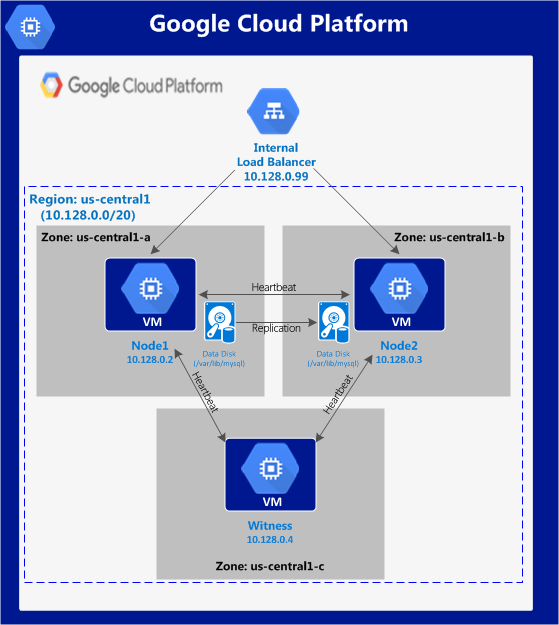
This article will describe how to create a cluster within a single Google Cloud region.  The cluster nodes (node1, node2 and the witness server) will all reside in the region “us-central1” (10.128.0.0/20 network) but you can select your region accordingly.

The configuration will look like this:

The following IP addresses will be used:

  • node1: 10.128.0.2
  • node2: 10.128.0.3
  • witness: 10.128.0.4
  • Internal Load Balancer IP: 10.128.0.99
  • MySQL port: 3306

Create a Project

Upon first login, you’ll see an empty Home Dashboard and will be asked to create a Project.  All Google Compute Engine resources we will be creating will belong to this Google Cloud Platform project.

Here we will call our newly created Project “LinuxCluster”:


Create Instances (Virtual Machines)

We will be provisioning 3 Virtual Machines in this guide.  The first two VMs (I’ll call them “node1” and “node2”) will function as cluster nodes with the ability to bring the MySQL database and it’s associated resources online.  The 3rd VM will act as the cluster’s witness server for added protection against split-brain.

To ensure maximum availability, all 3 VMs will reside in different zones within the region (in this example: us-central1-a, us-central1-b, us-central1-c).

Create “node1” Instance

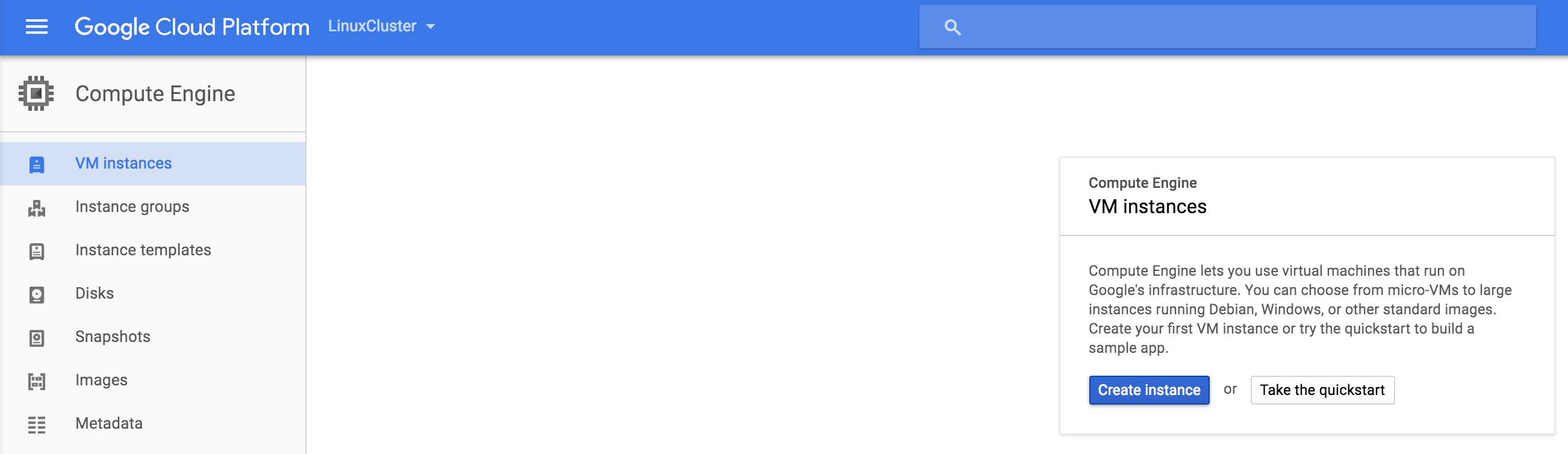
Create your first VM instance (“node1”).  If this is the first time you’ve created an instance, your screen will look something like the image below. Click “Create Instance” button in the center of your screen:

If you have other instances already running in GCE, your screen will look a bit different.  Still, click “create instance” to continue:

By default, Debian linux is usually selected by default.  We *DON’T* want this as we’ll be using CentOS 6.X in this guide.

Give the instance a name (“node1”), select the first zone (a) within our region (us-central1) and make sure to click “Change” to select the proper boot image.  You can size the instance based on your workload requirements, but for the purposes of this guide we’ll be using the default size to minimize cost, which is a fairly small VM (1 vCPU and only 3.75GB RAM)


In the Boot disk pop up screen, select CentOS 6 and at the bottom we will go with an SSD boot disk.  10GB is more than sufficient for the purposes of this guide.  You can size your systems accordingly:


After clicking “Select”, you’ll be brought back to the Create An Instance screen.  Towards the bottom, click “Management, disk, networking, SSH keys” because we will be adding a 2nd disk to our VM.  This 2nd disk will be used to store our databases, and it’s what will later be replicated/synchronized by the clustering software.

Select the “Disks” tab, and click “ Add item” to add a 2nd disk to this instance:


Click “Create disk”:


Give the new disk a name, select desired type, and start with a blank disk.  10 GB should be more than sufficient for our needs here in this example configuration.  NOTE: Remember the value you set here.  Both cluster nodes (node1 and node2) needs to be the SAME SIZE:


Finally, click the “Networking” tab, and give node1 a customer Internal IP.


Click “Create” to launch your new instance:

Create “node2”

Repeat the steps above twice to create your second cluster node (“node2”).  Create this instance just like you did node1, including the addition of the 2nd disk.

IMPORTANT: make sure it’s in a different zone (us-central1-b) and give it a unique IP (10.128.0.3)

Create the “witness” VM

Create your third VM (“witness”) and make sure it’s in a different zone (us-central1-c) from the first two instances.

NOTE: This instance DOESN’T need the extra disk added.


It may take a little while for your 3 VM instances to provision.  Once complete, you’ll see your VMs listed on the VM Instances screen within your Google Cloud Console.  Verify that you properly launched each VM into a different zone:

Create Instance Groups

Later in this guide we will be creating an Internal Load Balancer to route traffic to the active cluster node.  All of the possible load balancer configurations available on Google Cloud Platform require instance groups to serve the traffic sent from the load balancer.

Two instance groups will be created, and each one will contain one cluster node.


Create Instance Group 1

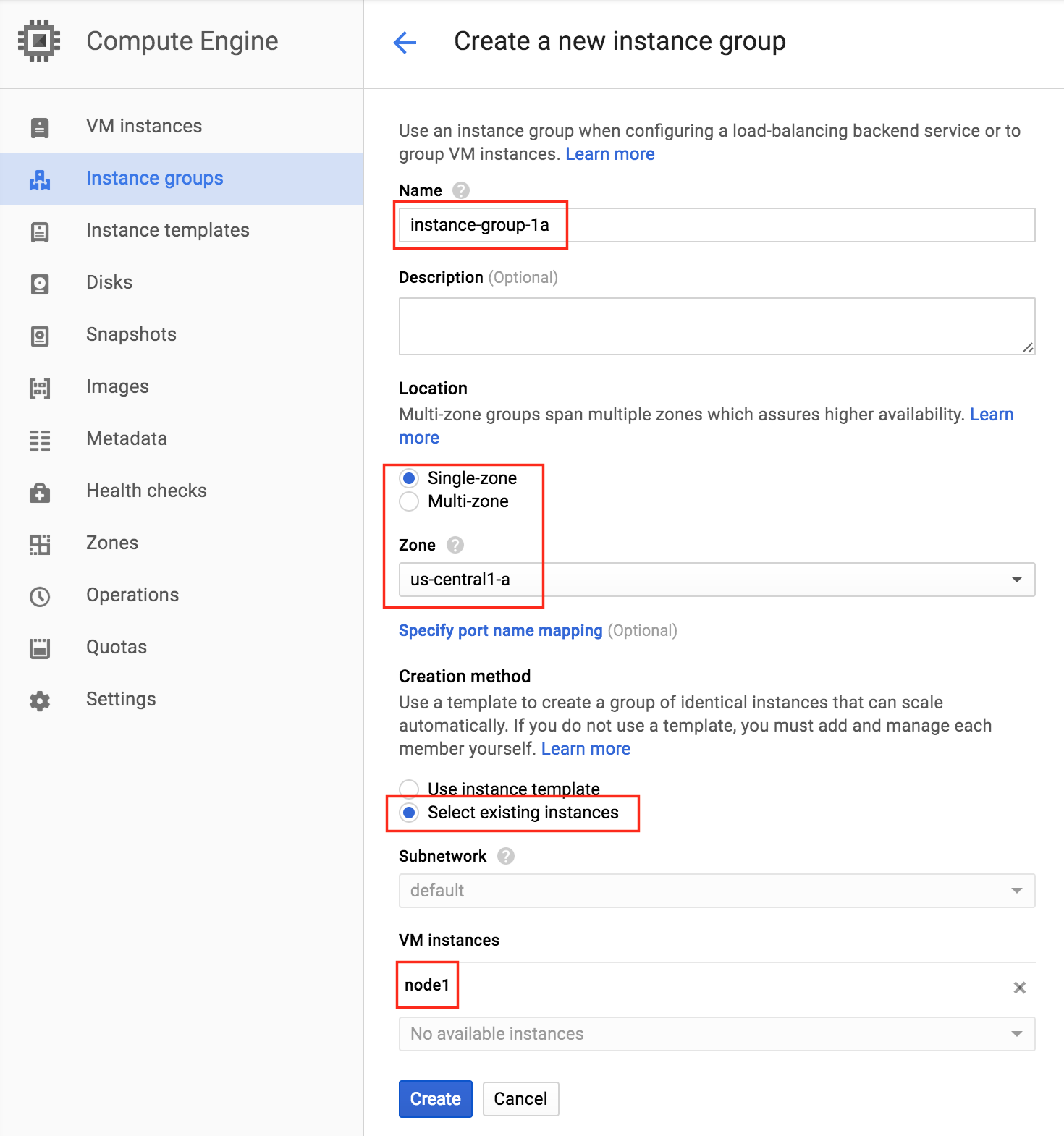
Give your first instance group a name (“instance-group-1a”), select “Single-zone” and make sure to properly select the Zone where your first VM instance resides.  Here, we select us-central-1a, because that is where “node1” was deployed.  Below, choose “Select existing instances” and pick “node1” from the VM instances drop down:

Create Instance Group 2

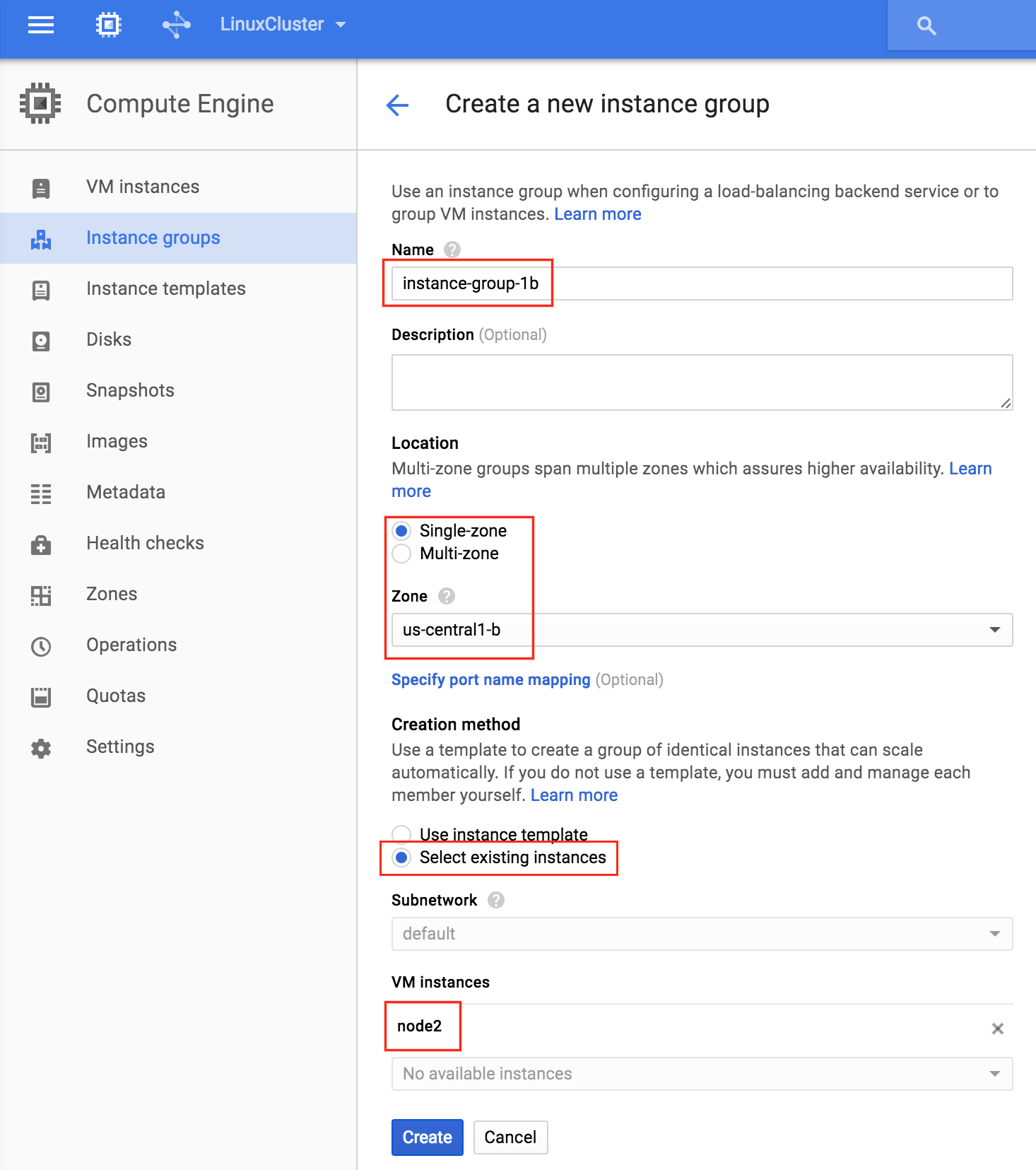
Repeat the previous step once more, this time selecting the zone your second node resides in.  us-central-1b and node2:

Create Firewall Rule to allow VNC access

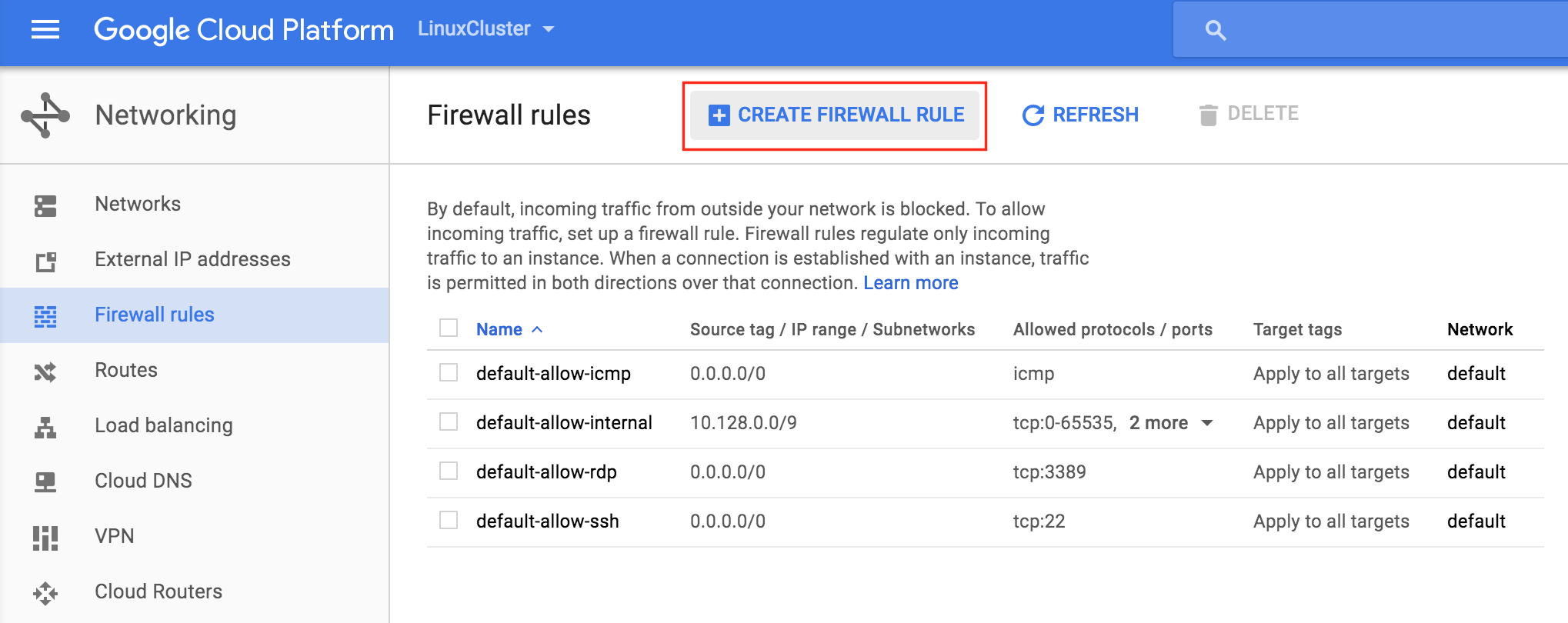
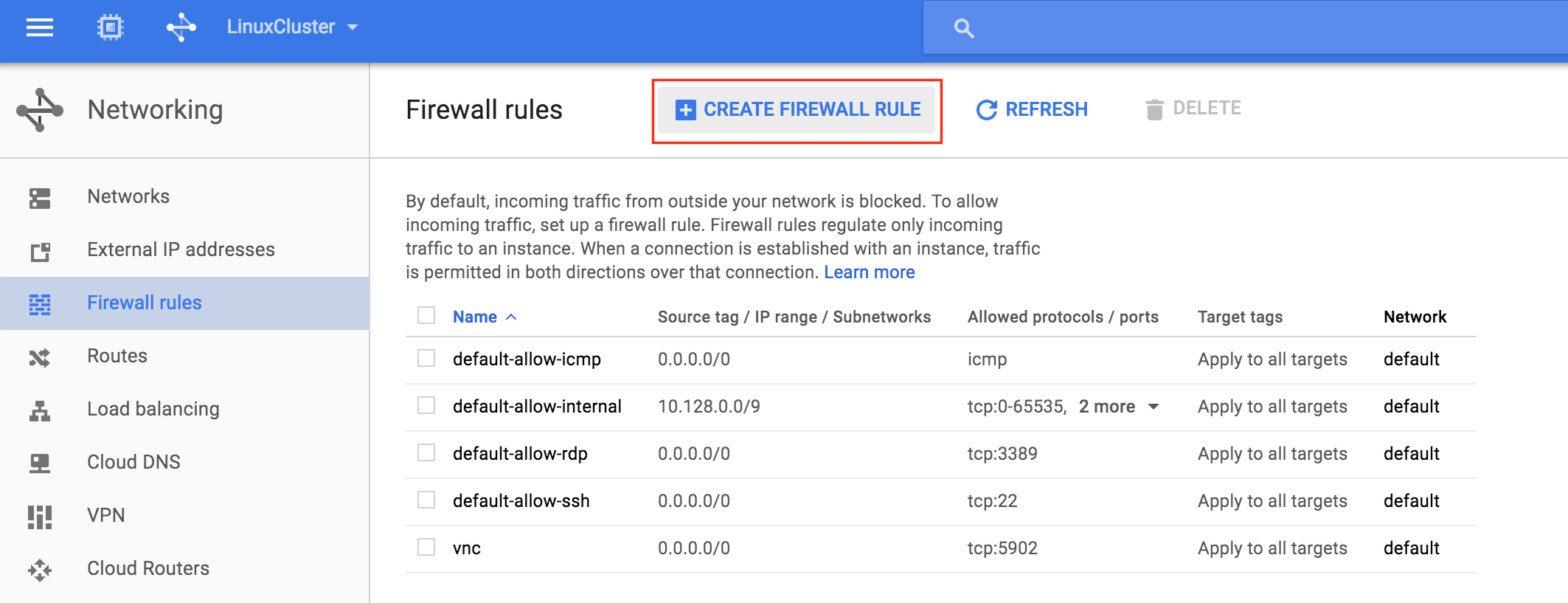
You can see all of your existing firewall rules by navigating to:

Networking -> Firewall Rules

By default, the only ports open in the “Google firewall” from the outside world into your VMs are are ping, SSH (port 22) and RDP (port 3389).

Later in the guide, we’ll be using VNC to access the desktop of “node1” and configure the cluster using a GUI.  Create an Firewall Rule to allow VNC access.  In this guide port 5902 is used.  Adjust this according based on your VNC configuration.

Linux OS Configuration

Next, we will need to configure the Linux OS of our instances and get our hands dirty on the command line, which as a Linux administrator you should be used to by now.

There are a number of ways to connect to the console of your linux VMs.  You can initiate an SSH connection directly from the GCE web interface, or you can install the Google Cloud SDK locally on your laptop/workstation.

To SSH using your browser, simple go to Compute -> VM Instances and to the right of the VM you wish to connect to, under “Connect” select “Open in browser window”.


If you would prefer to have the Google Cloud command line tools installed natively on your laptop/workstation, please see the documentation here:

https://cloud.google.com/sdk/docs/quickstarts

Once connected use the “sudo” command to gain root privileges:

$sudo su -

Edit /etc/hosts

Unless you have already have a DNS server setup, you’ll want to create host file entries on all 3 servers so that they can properly resolve each other by name

Add the following lines to the end of your /etc/hosts file:

10.128.0.2    node1
10.128.0.3    node2
10.128.0.4    witness
10.128.0.99   mysql-vip

Disable SELinux

Edit /etc/sysconfig/linux and set “SELINUX=disabled”:

# vi /etc/sysconfig/selinux

# This file controls the state of SELinux on the system.
# SELINUX= can take one of these three values:
#     enforcing - SELinux security policy is enforced.
#     permissive - SELinux prints warnings instead of enforcing.
#     disabled - No SELinux policy is loaded.
SELINUX=disabled
# SELINUXTYPE= can take one of these two values:
#     targeted - Targeted processes are protected,
#     mls - Multi Level Security protection.
SELINUXTYPE=targeted

Install various RPM packages

Next, install a handful of rpm packages that will be needed later as pre-requisites for our clustering software:

# yum install redhat-lsb patch

Install and Configure VNC (and related packages)

In order to access the GUI of our linux servers, to later configure our cluster, install VNC server on your cluster node.  In my setup I only did this on “node1”

# yum install tigervnc-server xterm
# vncpasswd
# vi /etc/sysconfig/vncservers

      VNCSERVERS="2:root"
      VNCSERVERARGS[2]="-geometry 1024x768"

# service vncserver start
# chkconfig vncserver on

Test connectivity by opening a VNC client on your laptop/desktop, and connecting to the Public IP of your cluster node

Reboot Cluster Nodes

Reboot so that SELinux is disabled. All 3 systems (node1, node2, witness) need to be rebooted.

Partition and Format the “data” disk

During VM instance creation, an extra disk was added to each cluster node to store the application data we will be protecting.  In this case it happens to be MySQL databases.

The disk configuration of our VMs is as follows:

  • /dev/sda – OS disk
  • /dev/sdb – data disk

The 2nd disk added during instance creation  /dev/sdb.  You can run the “fdisk -l” command to verify.  You’ll see that /dev/sda (OS) already has a disk partition and is being used.

# fdisk -l

Disk /dev/sda: 10.7 GB, 10737418240 bytes
255 heads, 63 sectors/track, 1305 cylinders
Units = cylinders of 16065 * 512 = 8225280 bytes
Sector size (logical/physical): 512 bytes / 4096 bytes
I/O size (minimum/optimal): 4096 bytes / 4096 bytes
Disk identifier: 0x00035e98

 Device Boot Start End Blocks Id System
/dev/sda1 * 1 1306 10484736 83 Linux

Disk /dev/sdb: 10.7 GB, 10737418240 bytes
64 heads, 32 sectors/track, 10240 cylinders
Units = cylinders of 2048 * 512 = 1048576 bytes
Sector size (logical/physical): 512 bytes / 4096 bytes
I/O size (minimum/optimal): 4096 bytes / 4096 bytes
Disk identifier: 0x762b810b


Here we will create a partition (/dev/sdb1), format it, and mount it at the default location for MySQL, which is /var/lib/mysql.  Perform the following steps on BOTH “node1” and “node2”:

# fdisk /dev/sdb
Command (m for help): n
Command action
e   extended
p   primary partition (1-4)
p
Partition number (1-4): 1
First cylinder (1-1305, default 1): <enter>
Using default value 1
Last cylinder,  cylinders or  size{K,M,G} (1-1305, default 1305): <enter>
Using default value 1305
 
Command (m for help): w
The partition table has been altered!
Calling ioctl() to re-read partition table.
Syncing disks.
[root@node1 ~]#

# mkfs.ext4 /dev/sdb1
# mkdir /var/lib/mysql

On node1, mount the filesystem:

# mount /dev/sdb1 /var/lib/mysql

Install and Configure MySQL

Next, install install the MySQL packages, initialize a sample database, and set “root” password for MySQL.

On “node1”:

# yum -y install mysql mysql-server
# /usr/bin/mysql_install_db --datadir="/var/lib/mysql/" --user=mysql
# mysqld_safe --user=root --socket=/var/lib/mysql/mysql.sock --port=3306 --datadir=/var/lib/mysql --log &
#
# # NOTE: This next command allows remote connections from ANY host.  NOT a good idea for production!
# echo "update user set Host='%' where Host='node1'; flush privileges" | mysql mysql
#
# #Set MySQL's root password to 'SIOS'
# echo "update user set Password=PASSWORD('SIOS') where User='root'; flush privileges" | mysql mysql

Create a MySQL configuration file. We will place this on the data disk  (that will later be replicated – /var/lib/mysql/my.cnf).  Example:

# vi /var/lib/mysql/my.cnf

[mysqld]
datadir=/var/lib/mysql
socket=/var/lib/mysql/mysql.sock
pid-file=/var/lib/mysql/mysqld.pid
user=root
port=3306
# Disabling symbolic-links is recommended to prevent assorted security risks
symbolic-links=0
 
[mysqld_safe]
log-error=/var/log/mysqld.log
pid-file=/var/run/mysqld/mysqld.pid
 
[client]
user=root
password=SIOS

Delete the original MySQL configuration file, located in /etc, if it exists:

# rm /etc/my.cnf

On “node2”:

On “node2”, you ONLY need to install the MySQL packages.  The other steps aren’t required:

[root@node2 ~]# yum -y install mysql mysql-server

Install and Configure the Cluster

At this point, we are ready to install and configure our cluster.  SIOS Protection Suite for Linux (aka SPS-Linux) will be used in this guide as the clustering technology.  It provides both high availability failover clustering features (LifeKeeper) as well as real-time, block level data replication (DataKeeper) in a single, integrated solution.  SPS-Linux enables you to deploy a “SANLess” cluster, aka a “shared nothing” cluster meaning that cluster nodes don’t have any shared storage, as is the case with Azure VMs.

Install SIOS Protection Suite for Linux

Perform the following steps on ALL 3 VMs (node1, node2, witness):

Download the SPS-Linux installation image file (sps.img) and and obtain either a trial license or purchase permanent licenses.  Contact SIOS for more information.

You will loopback mount it and run the “setup” script inside, as root (or first “sudo su -” to obtain a root shell)

For example:

# mkdir /tmp/install
# mount -o loop sps.img /tmp/install
# cd /tmp/install
# ./setup

During the installation script, you’ll be prompted to answer a number of questions.  You will hit Enter on almost every screen to accept the default values.  Note the following exceptions:

  • On the screen titled “High Availability NFS” you may select “n” as we will not be creating a highly available NFS server
  • Towards the end of the setup script, you can choose to install a trial license key now, or later. We will install the license key later, so you can safely select “n” at this point
  • In the final screen of the “setup” select the ARKs (Application Recovery Kits, i.e. “cluster agents”) you wish to install from the list displayed on the screen.
    • The ARKs are ONLY required on “node1” and “node2”.  You do not need to install on “witness”
    • Navigate the list with the up/down arrows, and press SPACEBAR to select the following:
      • lkDR – DataKeeper for Linux
      • lkSQL – LifeKeeper MySQL RDBMS Recovery Kit
    • This will result in the following additional RPMs installed on “node1” and “node2”:
      • steeleye-lkDR-9.0.2-6513.noarch.rpm
      • steeleye-lkSQL-9.0.2-6513.noarch.rpm

Install Witness/Quorum package

The Quorum/Witness Server Support Package for LifeKeeper (steeleye-lkQWK) combined with the existing failover process of the LifeKeeper core allows system failover to occur with a greater degree of confidence in situations where total network failure could be common. This effectively means that failovers can be done while greatly reducing the risk of “split-brain” situations.

Install the Witness/Quorum rpm on all 3 nodes (node1, node2, witness):

# cd /tmp/install/quorum
# rpm -Uvh steeleye-lkQWK-9.0.2-6513.noarch.rpm

On ALL 3 nodes (node1, node2, witness), edit /etc/default/LifeKeeper, set

NOBCASTPING=1

On ONLY the Witness server (“witness”), edit /etc/default/LifeKeeper, set

WITNESS_MODE=off/none

Install a License key

On all 3 nodes, use the “lkkeyins” command to install the license file that you obtained from SIOS:

# /opt/LifeKeeper/bin/lkkeyins <path_to_file>/<filename>.lic

Start LifeKeeper

On all 3 nodes, use the “lkstart” command to start the cluster software:

# /opt/LifeKeeper/bin/lkstart

Set User Permissions for LifeKeeper GUI

On all 3 nodes, edit /etc/group and add the “tony” user (or whatever username you are logged in as) to the “lkadmin” group to grant access to the LifeKeeper GUI.  By default only “root” is a member of the group, and we don’t have the root password in :

# vi /etc/group

lkadmin:x:502:root,tony

Open the LifeKeeper GUI

Make a VNC connection to the Public IP address of node1.  Based on the VNC and Firewall Rule configuration from above, you would connect to <Public_IP>:2 using the VNC password you specified earlier.  Once logged in, open a terminal window and run the LifeKeeper GUI using the following command:

# /opt/LifeKeeper/bin/lkGUIapp &

You will be prompted to connect to your first cluster node (“node1”).  Enter the linux userid and password specified during VM creation:


Next, connect to both “node2” and “witness” by clicking the “Connect to Server” button highlighted in the following screenshot:


You should now see all 3 servers in the GUI, with a green checkmark icon indicating they are online and healthy:


Create Communication Paths

Right-click on “node1” and select Create Comm Path


Select BOTH “node2” and “witness” and then follow the wizard.  This will create comm paths between:

  • node1 & node2
  • node1 & witness


A comm path still needs to be created between node2 & witness.   Right click on “node2” and select Create Comm Path.  Follow the wizard and select “witness” as the remote server:


At this point the following comm paths have been created:

  • node1 <—> node2
  • node1 <—> witness
  • node2 <—> witness

The icons in front of the servers have changed from a green “checkmark” to a yellow “hazard sign”.  This is because we only have a single communication path between nodes.

If the VMs had multiple NICs (information on creating Azure VMs with multiple NICs can be found here, but won’t be covered in this article), you would create redundant comm paths between each server.


To remove the warning icons, go to the View menu and de-select “Comm Path Redundancy Warning”:


Result:


Verify Communication Paths

Use the “lcdstatus” command to view the state of cluster resources.  Run the following commands to verify that you have correctly created comm paths on each node to the other two servers involved:

# /opt/LifeKeeper/bin/lcdstatus -q -d node1

MACHINE  NETWORK ADDRESSES/DEVICE   STATE     PRIO

node2    TCP     10.128.0.2/10.128.0.3  ALIVE        1

witness  TCP     10.128.0.2/10.128.0.4  ALIVE        1

#/opt/LifeKeeper/bin/lcdstatus -q -d node2

MACHINE  NETWORK ADDRESSES/DEVICE   STATE     PRIO

node1    TCP     10.128.0.3/10.128.0.2  ALIVE        1

witness  TCP     10.128.0.3/10.128.0.4  ALIVE        1

#/opt/LifeKeeper/bin/lcdstatus -q -d witness

MACHINE  NETWORK ADDRESSES/DEVICE   STATE     PRIO

node1    TCP     10.128.0.4/10.128.0.2  ALIVE        1

node2    TCP     10.128.0.4/10.128.0.3  ALIVE        1

Create a Data Replication cluster resource (i.e. Mirror)

Next, create a Data Replication resource to replicate the /var/lib/mysql partition from node1 (source) to node2 (target).  Click the “green plus” icon to create a new resource:


Follow the wizard with these selections:

Please Select Recovery Kit:  Data Replication
Switchback Type: intelligent
Server: node1
Hierarchy Type: Replicate Exiting Filesystem
Existing Mount Point: /var/lib/mysql
Data Replication Resource Tag: datarep-mysql
File System Resource Tab: /var/lib/mysql
Bitmap File: (default value)
Enable Asynchronous Replication:  No

After the resource has been created, the “Extend” (i.e. define backup server) wizard will appear.  Use the following selections:

Target Server: node2
Switchback Type: Intelligent
Template Priority: 1
Target Priority: 10
Target Disk: /dev/sdb1
Data Replication Resource Tag: datarep-mysql
Bitmap File: (default value)
Replication Path: 10.128.0.2/10.128.0.3
Mount Point: /var/lib/mysql
Root Tag: /var/lib/mysql

Create the MySQL resource hierarchy

Next, create a MySQL cluster resource.  The MySQL resource is responsible for stopping/starting/monitoring of your MySQL database.  To create, click the “green plus” icon to create a new resource:

Follow the wizard with to create the IP resource with these selections:

Select Recovery Kit: MySQL Database
Switchback Type: Intelligent
Server: node1
Location of my.cnf: /var/lib/mysql
Location of MySQL executables: /usr/bin
Database Tag: mysql

Extend the IP resource with the following selections:

Target Server: node2
Switchback Type: intelligent
Template Priority: 1
Target Priority: 10

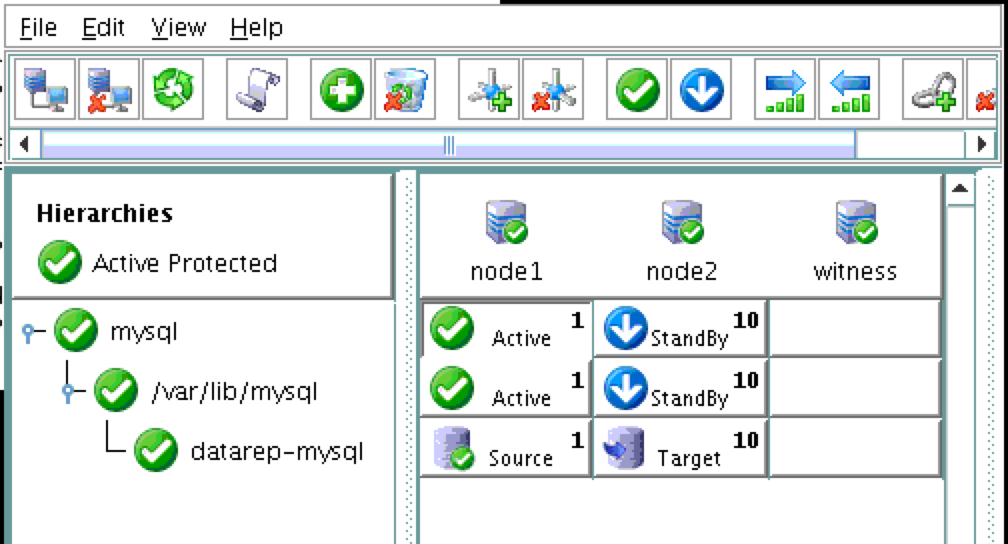
As a result, your cluster will look as follows.  Notice that the Data Replication resource was automatically moved underneath the database (dependency automatically created) to ensure it’s always brought online before the database:

Create an Internal Load Balancer

If this was a typical on-premises cluster using either physical or virtual servers, you’d be done at this point.  Clients and Applications would connect into the Virtual IP of the cluster (10.128.0.99) to reach the active node.  In Google Cloud, this doesn’t work without some additional configuration.

To connect into the cluster, Google provides a feature were you can setup an Internal Load Balancer (ILB).  Essentially, when you connect to the IP address of the ILB (which we will set to 10.128.0.99) you are routed to the currently active cluster node.

Create a TCP Load Balancer:


This will be an internal load balancer, so select “Only between my VMs”:

Next, give the load balancer a name (“internal-lb”) and then click Backend configuration:

Make sure you select the proper region (“us-central1”) and configure the Backend.  Click “ Add backend” and add both instance groups (instance-group-1a AND instance-group-1b):

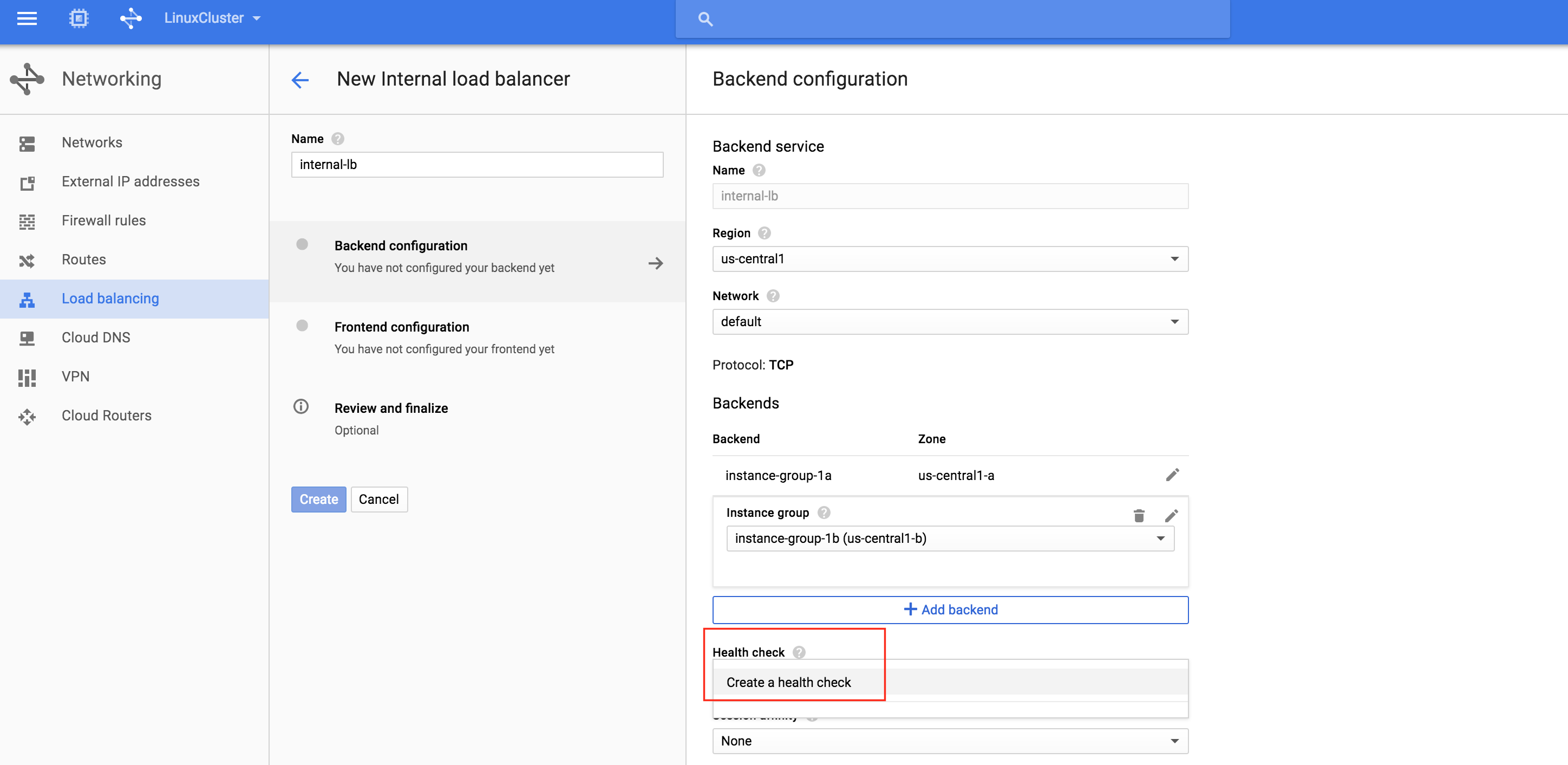
The load balancer decides which node to route traffic to based on a health check.  In this example, a health check to see if MySQL is running (checking for default port 3306) will be configured.  Select “Create a health check”:

Give the new health check a name (“mysql-health-check”) and configured it for TCP port 3306:

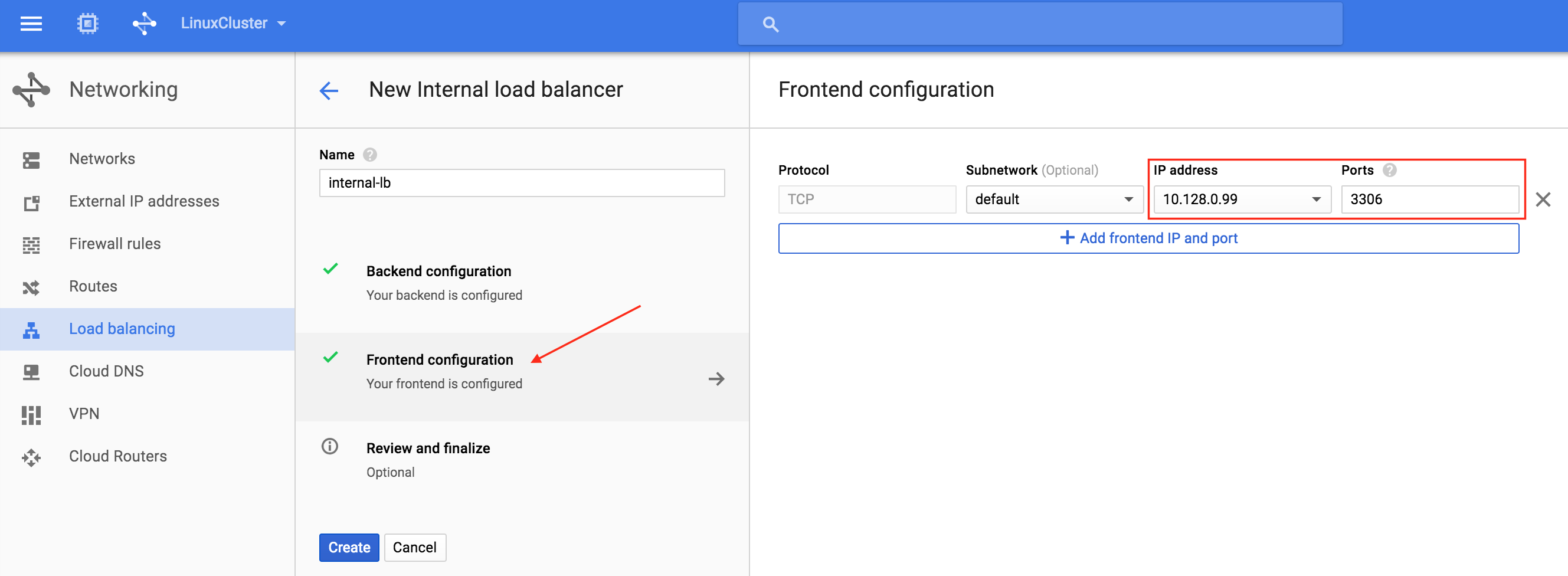
Next, configure the Frontend of the load balancer.  Select “Frontend configuration” and under IP address, define a custom static internal IP of 10.128.0.99.  The port should be 3306, which is the default port for MySQL:

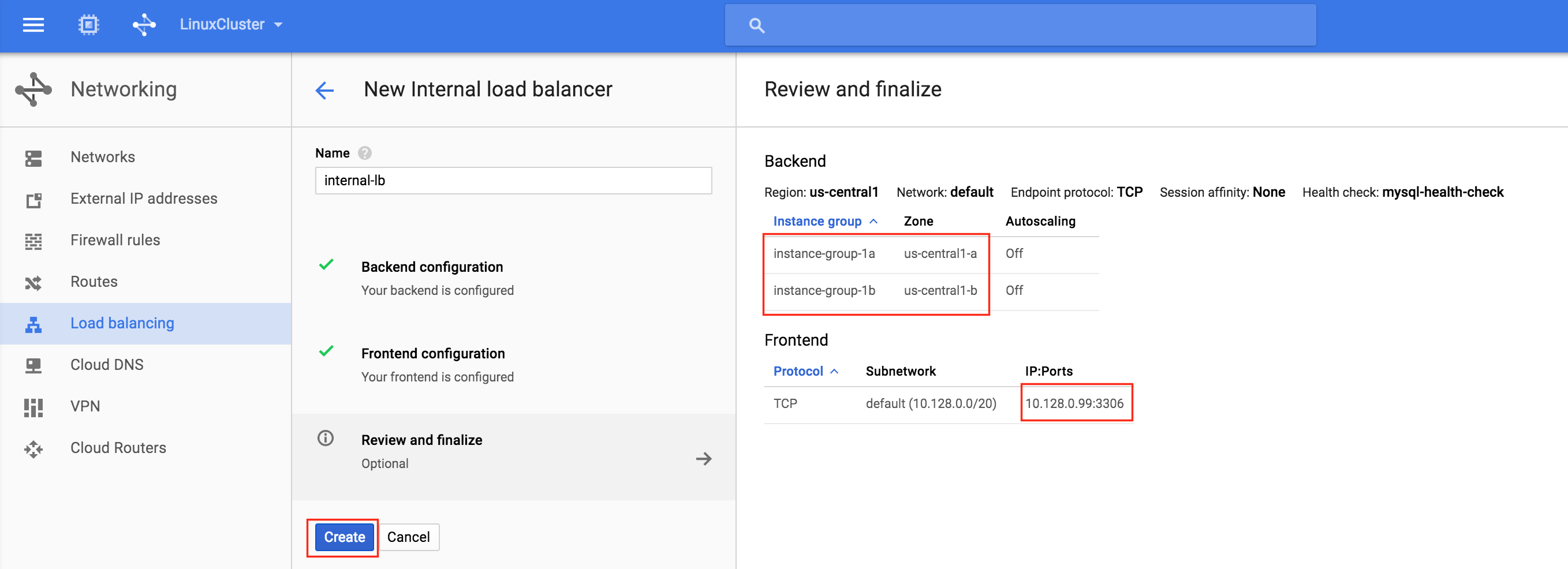
Finally, review and finalize load balancer creation.  Click “Create”:

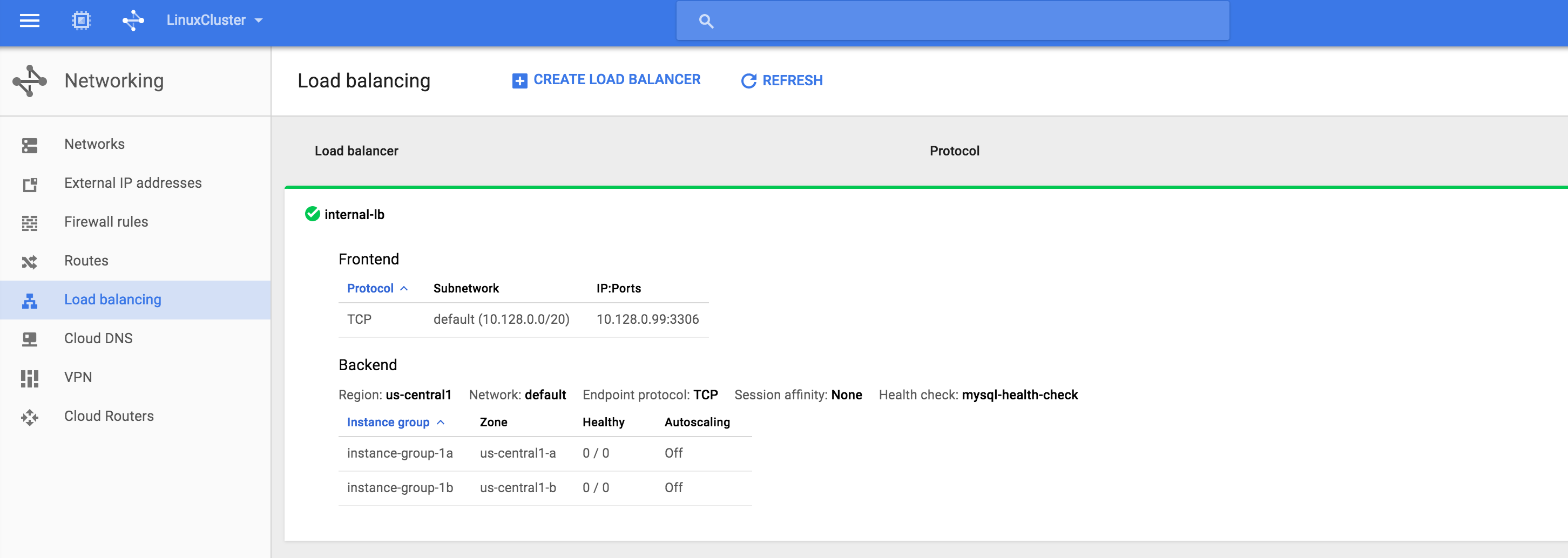
Result.  You will see that the load balancer is online, however, it’s not showing either instance group as healthy! (as indicated by the 0/0).  We will fix that in the next section:

Create Firewall Rules for Internal Load Balancer

Per Google documentation (see “Configure a firewall rule to allow internal load balancing” section), two firewall rules need to be created.  The first allows traffic to the load balancer and from the load balancer to the instances. The second allows health check probes from the health checker.

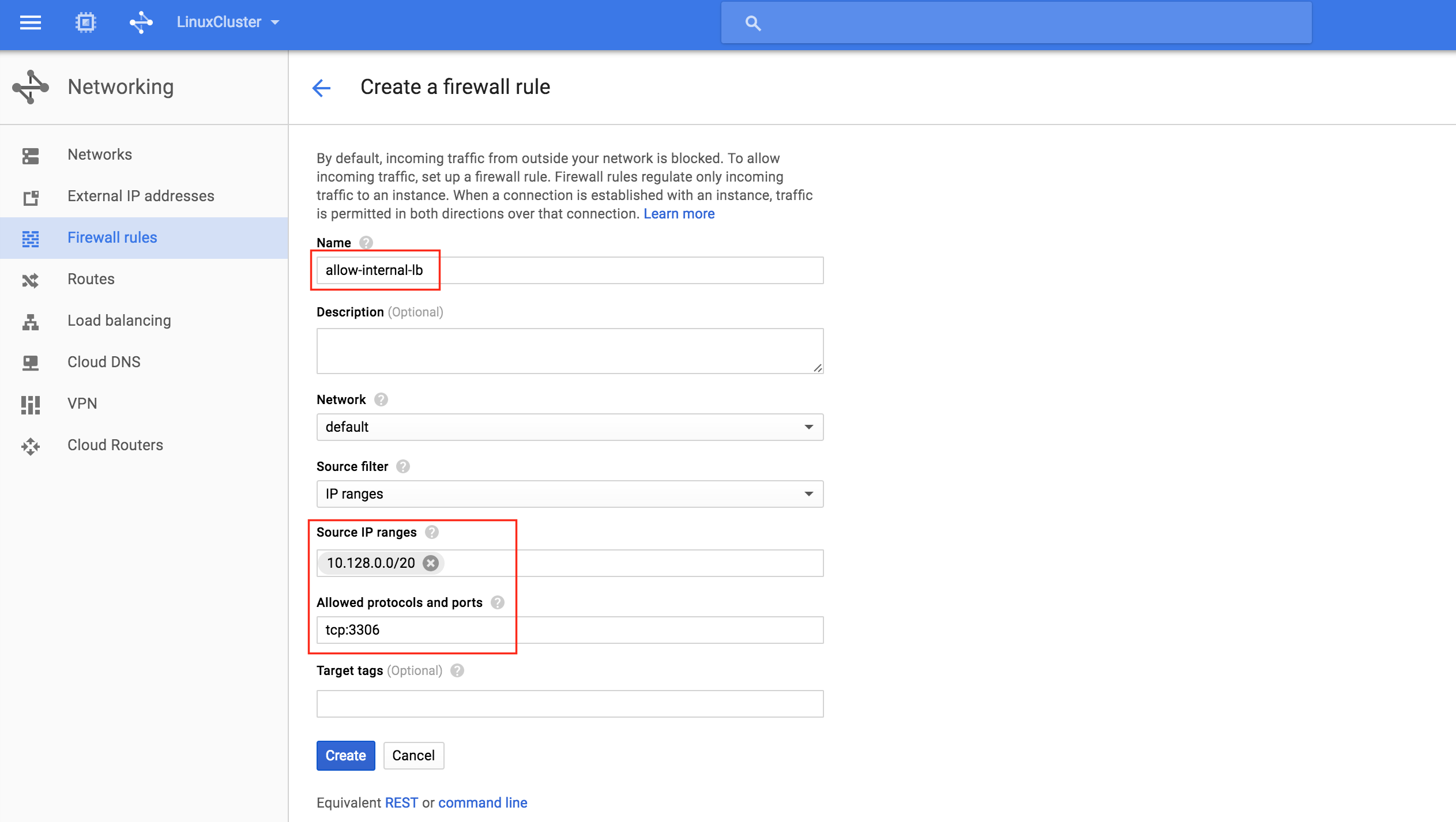
Create a new firewall rule:

Give the new rule a name (allow-internal-lb) and specify “10.128.0.0/20” as the source IP range.  The allowed protocols and ports should be “tcp:3306“:

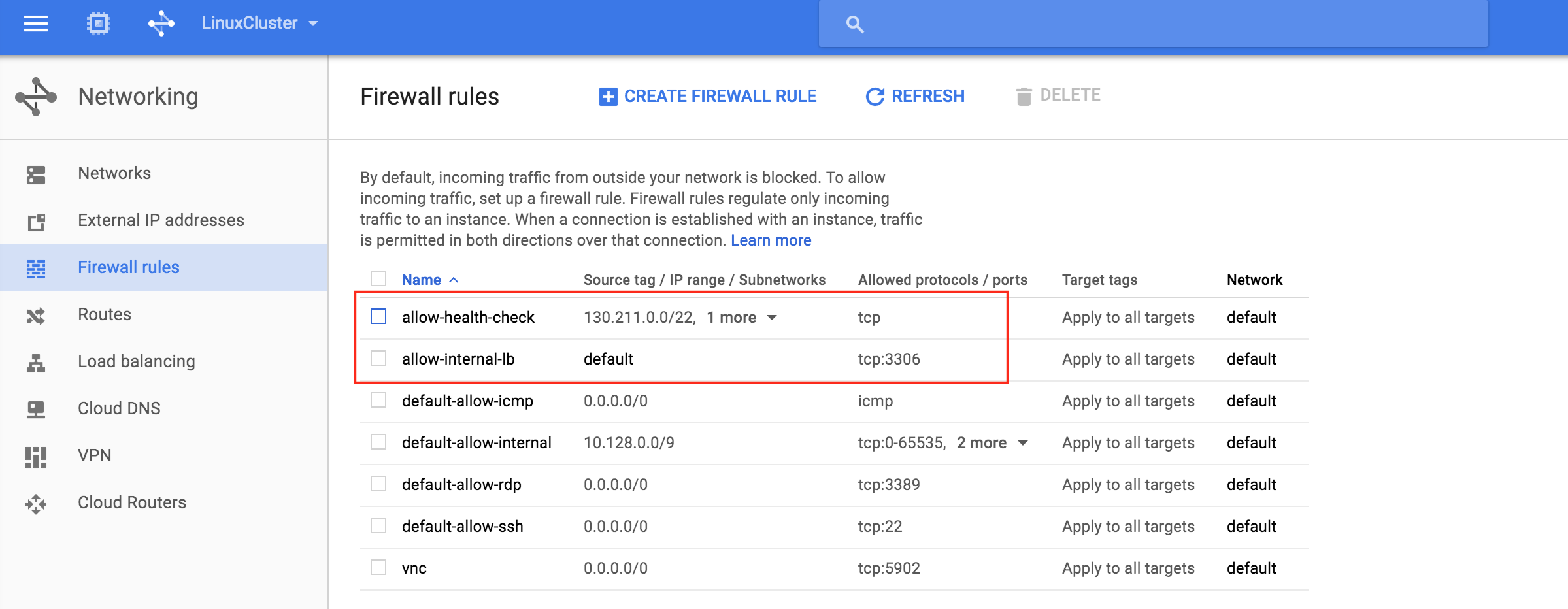
After clicking “Create”, you’ll be returned to the Firewall rules page and can see the newly created rule in the list.  Click “Create Firewall Rule” again so we can create the 2nd required rule:

Give the 2nd rule a name (“allow-health-check”).  TWO different source IP ranges will need to be defined:

  • 130.211.0.0/22
  • 35.191.0.0/16

Note: Always a good idea to double check with the google cloud documentation to make sure that these IP ranges are still valid.

You should now see both newly created firewall rules in the list:

Test Cluster Connectivity

At this point, all of our Google Cloud and Cluster configurations are complete!

Cluster resources are currently active on node1:

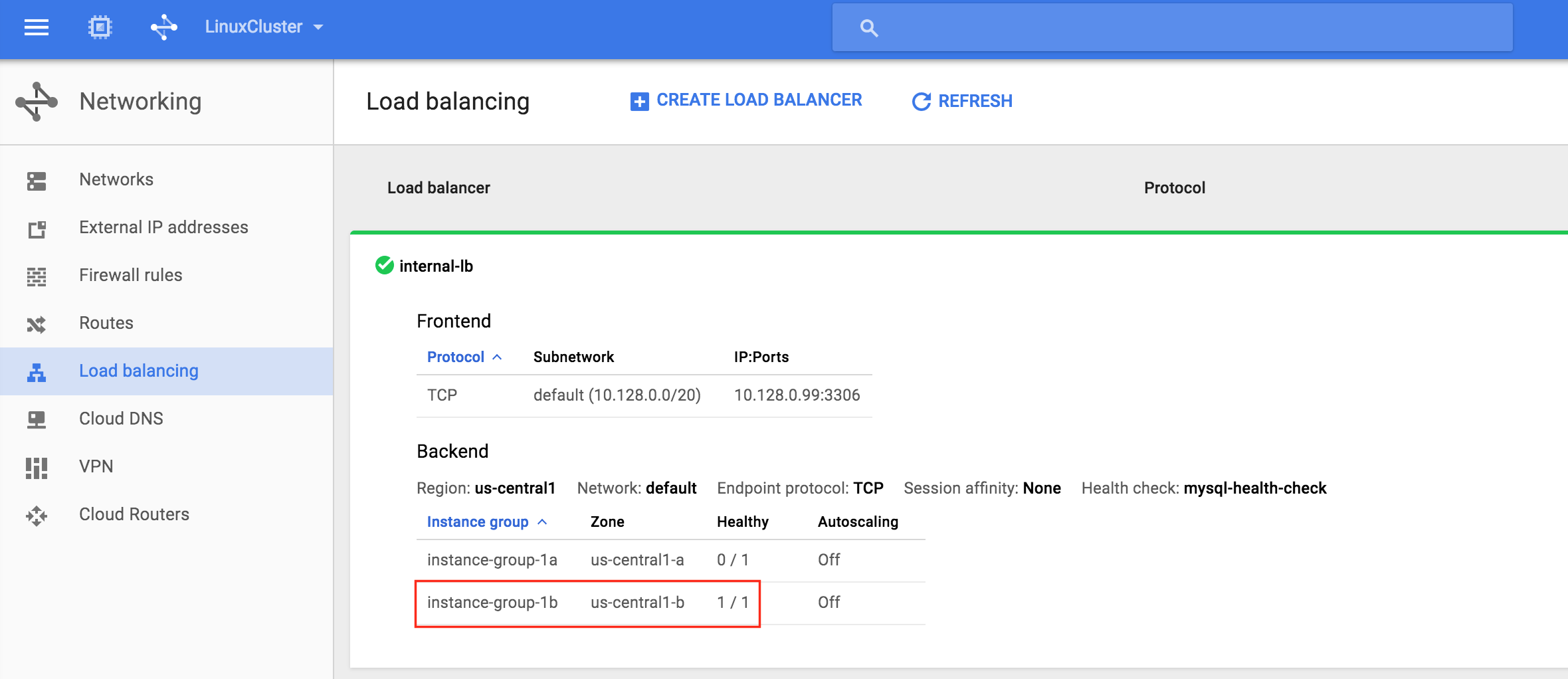
You will also notice that the Internal Load Balancer is showing node1, which is a member of instance-group-1a as “healthy” and as such, routing traffic coming into the virtual IP (10.128.0.99) to node1:

SSH into the witness server, “sudo su -” to gain root access.   Install the mysql client if needed:

[root@witness ~]# yum -y install mysql

Test MySQL connectivity to the cluster:

[root@witness ~]# mysql --host=10.128.0.99 mysql -u root -p

Execute the following MySQL query to display the hostname of the active cluster node:

mysql> select @@hostname;
 ------------ 
| @@hostname |
 ------------ 
| node1      |
 ------------ 
1 row in set (0.00 sec)
mysql>

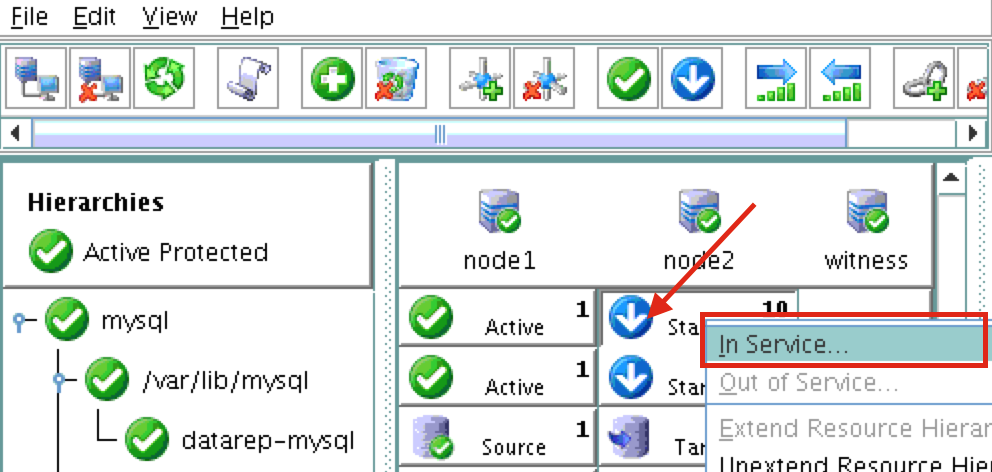
Using LifeKeeper GUI, failover from Node1 -> Node2″.  Right click on the mysql resource underneath node2, and select “In Service…”:

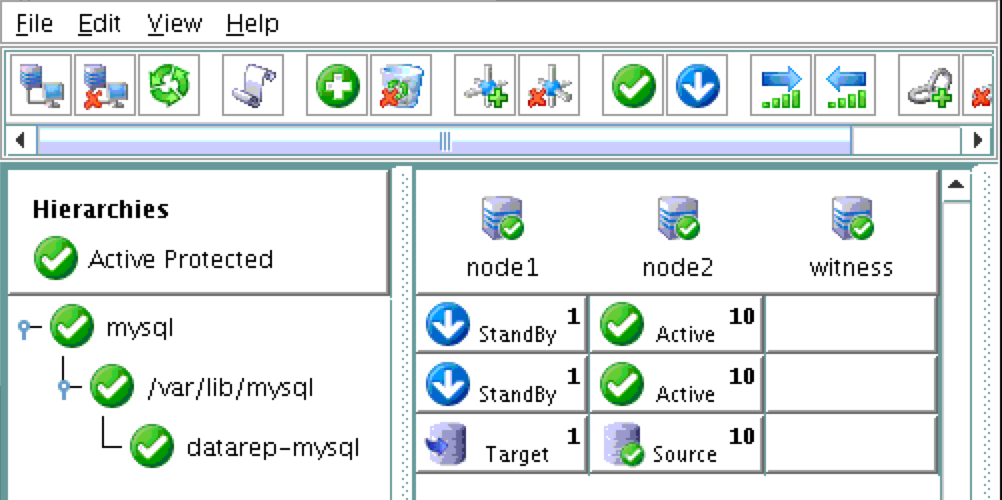
After failover, resources are brought online on node2:

You will now see that the Internal Load Balancer is showing instance-group-1b, which contains node2, as healthy.  Traffic is now routed to node2:

After failover has completed, re-run the MySQL query.  You’ll notice that the MySQL client has detected that the session was lost (during failover) and automatically reconnects:

Execute the following MySQL query to display the hostname of the active cluster node, verifying that now “node2” is active:

mysql> select @@hostname;
ERROR 2006 (HY000): MySQL server has gone away
No connection. Trying to reconnect...
Connection id:    48
Current database: mysql
 ------------ 
| @@hostname |
 ------------ 
| node2      |
 ------------ 
1 row in set (0.56 sec)
mysql>


Filed Under: Clustering Simplified

Connect to an iSCSI target using Open-iSCSI initiator software

January 6, 2019 by Jason Aw Leave a Comment

Guide To Connect To An iSCSI Target Using Open-iSCSI Initiator Software

Step By Step: Connect to an iSCSI target using Open-iSCSI initiator software

This article will show you how to configure Open-iSCSI initiator (client) to connect to an existing iSCSI target (server).  I will not actually review how to  setup the  iSCSI Target in this article.   If you don’t already have an iSCSI Target available in your environent, you might take a look at OpenFiler.

In this guide, I am using a CentOS 6.5 system as the iSCSI initiator (client) and will connect to an existing iSCSI target.

Install the Open-iSCSI software

On my CentOS 6.5 system, the Open-iSCSI package is not installed by default.  You can check to see if your system has the package installed by running the following command:

[root@linux ~]# rpm -qa | grep iscsi-initiator-utils

If the iscsi-initiator-utils package is not already installed, use the “yum” command to install it:

[root@linux ~]# yum install iscsi-initiator-utils

Start the iSCSI service

After installing the iscsi-initiator-utils packs, start the iscsid service and configure both the iscsid and iscsi services to automatically start each time the system boots:

[root@linux ~]# /etc/init.d/iscsid start
[root@linux ~]# chkconfig iscsid on
[root@linux ~]# chkconfig iscsi on

Discover iSCSI Targets

Use the iscsiadm command to discover all of the iSCSI targets on your iSCSI Target server (i.e. your iSCSI SAN.  In this case my server running OpenFiler):

[root@linux ~]# iscsiadm -m discovery -t sendtargets -p 192.168.197.201
192.168.197.201:3260,1 iqn.2006-01.com.openfiler:tsn.target1

Note: In my example, the hostname of my iSCSI Target (SAN) is “openfiler.mydomain.com” and has an IP address of 192.168.197.201

Login to the iSCSI Target and configure automatic login at boot time

[root@linux ~]# iscsiadm -m node -T iqn.2006-01.com.openfiler:tsn.target1 -p 192.168.197.201 --login
[root@linux ~]# iscsiadm -m node -T iqn.2006-01.com.openfiler:tsn.target1 -p 192.168.197.201 --op update -n node.startup -v automatic

Verify iSCSI session is active

[root@linux ~]# iscsiadm -m session
tcp: [1] 192.168.197.201:3260,1 iqn.2006-01.com.openfiler:tsn.target1

Identify which device the iSCSI target maps to

[root@linux ~]# (cd /dev/disk/by-path; ls -l *iscsi* | awk '{FS=" "; print $9 " " $10 " " $11}')
ip-192.168.197.201:3260-iscsi-iqn.2006-01.com.openfiler:tsn.target1-lun-0 -> ../../sdc

This tells us that the iSCSI target has been mapped to /dev/sdc on the system.  From here, use standard partitioning/formatting commands (fdisk, mkfs, etc) to setup the disk as desired!


Reproduced with permission from Linuxclustering

Filed Under: Clustering Simplified

SQL Server for Linux – Public Preview Now Available

December 21, 2018 by Jason Aw Leave a Comment

SQL Server for Linux – Public Preview Now Available

The public preview for SQL Server v.Next is now available. Microsoft has finally added support for Linux.  Check out the link below for more information.   I’ll be downloading and looking at the high availability features shortly.  Stay tuned!

SQL Server v.Next Public Preview:

https://www.microsoft.com/en-us/sql-server/sql-server-vnext-including-Linux

Original SQL Server Linux announcement:

https://blogs.microsoft.com/blog/2016/03/07/announcing-sql-server-on-linux/

Reproduced with permission from Linuxclustering

Filed Under: Clustering Simplified Tagged With: SQL Server for Linux

  • « Previous Page
  • 1
  • …
  • 88
  • 89
  • 90
  • 91
  • 92
  • …
  • 120
  • Next Page »

Recent Posts

  • Setting Up Nginx Load Balancer on AWS
  • With Great Power: Cluster Maintenance Best Practices
  • AI Is Moving Fast. Critical Applications Still Need to Stay Up.
  • What Is High Availability (HA)?
  • Surviving the Friday Night Crash: From Scrappy Bare Metal to Seamless Data Replication

Most Popular Posts

Maximise replication performance for Linux Clustering with Fusion-io
Failover Clustering with VMware High Availability
create A 2-Node MySQL Cluster Without Shared Storage
SAP for High Availability Solutions For Linux
Bandwidth To Support Real-Time Replication
The Availability Equation – High Availability Solutions.jpg
Choosing Platforms To Replicate Data - Host-Based Or Storage-Based?
Guide To Connect To An iSCSI Target Using Open-iSCSI Initiator Software
Best Practices to Eliminate SPoF In Cluster Architecture
Step-By-Step How To Configure A Linux Failover Cluster In Microsoft Azure IaaS Without Shared Storage azure sanless
Take Action Before SQL Server 20082008 R2 Support Expires
How To Cluster MaxDB On Windows In The Cloud

Join Our Mailing List

Copyright © 2026 · Enterprise Pro Theme on Genesis Framework · WordPress · Log in