SIOS SANless clusters

SIOS SANless clusters High-availability Machine Learning monitoring

  • Home
  • Products
    • SIOS DataKeeper for Windows
    • SIOS Protection Suite for Linux
  • News and Events
  • Clustering Simplified
  • Success Stories
  • Contact Us
  • English
  • 中文 (中国)
  • 中文 (台灣)
  • 한국어
  • Bahasa Indonesia
  • ไทย

How To Trigger Email Alerts From Windows Event Using Windows Server 2016

November 9, 2018 by Jason Aw Leave a Comment

Trigger Email Alerts From Windows Event Using Windows Server 2016

Step-By-Step: How To Trigger An Email Alert From A Windows Event That Includes The Event Details Using Windows Server 2016

Introduction

Trigger Email Alerts From Windows Event Using Windows Server 2016 only requires a few steps. Specify the action that will occur when that Task is triggered. Since Microsoft has decided to deprecate the “Send an e-mail” option, the only choice we have is to Start a Program. In our case, that program will be a Powershell script to collect the Event Log information and parse it. This way, we can send an email that includes important Log Event details.

This work was verified on Windows Server 2016. But I suspect it should work on Windows Server 2012 R2 and Windows Server 2019 as well. If you get it working on any other platforms, please comment and let us know if you had to change anything.

Step 1- Write A Powershell Script

The first thing to do is write a Powershell script that when run can send an email. While researching this I discovered many ways to accomplish this task, so what I’m about to show you is just one way, but feel free to experiment and use what is right for your environment.

In my lab I do not run my own SMTP server, so I had to write a script that could leverage my Gmail account. You will see in my Powershell script that the password to the email account which authenticates to the SMTP server is in plain text. If you are concerned that someone may have access to your script and discover your password, do encrypt your credentials. Gmail requires and SSL connection. Your password should be safe on the wire, just like any other email client.

I have an example of a Powershell script. When used in conjunction with Task Scheduler, it will send an email alert automatically when any specified Event is logged in the Windows Event Log. In my environment, I saved this script to C:\Alerts\DataKeeper.ps1

$EventId = 16,20,23,150,219,220

$A = Get-WinEvent -MaxEvents 1  -FilterHashTable @{Logname = "System" ; ID = $EventId}
$Message = $A.Message
$EventID = $A.Id
$MachineName = $A.MachineName
$Source = $A.ProviderName


$EmailFrom = "sios@medfordband.com"
$EmailTo = "sios@medfordband.com"
$Subject ="Alert From $MachineName"
$Body = "EventID: $EventID`nSource: $Source`nMachineName: $MachineName `nMessage: $Message"
$SMTPServer = "smtp.gmail.com"
$SMTPClient = New-Object Net.Mail.SmtpClient($SmtpServer, 587)
$SMTPClient.EnableSsl = $true
$SMTPClient.Credentials = New-Object System.Net.NetworkCredential
("sios@medfordband.com", "mySMTPP@55w0rd");
$SMTPClient.Send($EmailFrom, $EmailTo, $Subject, $Body)

An example of an email generated from that Powershell script looks like this.

Trigger Email Alerts From Windows Event Using Windows Server 2016

You probably noticed that this Powershell script uses the Get-WinEvent cmdlet to grab the most recent Event Log entry based upon the LogName, Source and eventIDs specified. It then parses the event and assigns EventID, Source, MachineName and Message to variables that will be used to compose the email. You will see that the LogName, Source and eventIDs specified are the same as the ones you will specify when you set up the Scheduled Task in Step 2.

Step 2 – Set Up A Scheduled Task

In Task Scheduler Create a Task as show in the following screen shots.

  1. Create Task
    Trigger Email Alerts From Windows Event Using Windows Server 2016Make sure the task is set to Run whether the user is logged on or not.
    Trigger Email Alerts From Windows Event Using Windows Server 2016
  2.  On the Triggers tab choose New to create a Trigger that will begin the task “On an Event”. In my example, I will be creating an event that triggers any time DataKeeper (extmirr) logs an important event to the System log.
    Trigger Email Alerts From Windows Event Using Windows Server 2016
    Create a custom event and New Event Filter as shown below…Trigger Email Alerts From Windows Event Using Windows Server 2016For my trigger I am triggering on commonly monitored SIOS DataKeeper (ExtMirr) EventIDs 16, 20, 23,150,219,220 . You will need to set up your event to trigger on the specific Events that you want to monitor. You can put multiple Triggers in the same Task if you want to be notified about events that come from different logs or sources.

    Trigger Email Alerts From Windows Event Using Windows Server 2016
    Create a New Event Filter


  3. Once the Event Trigger is configured, you will need to configure the Action that occurs when the event is run. In our case we are going to run the Powershell script that we created in Step 1.Trigger Email Alerts From Windows Event Using Windows Server 2016Trigger Email Alerts From Windows Event Using Windows Server 2016
  4. The default Condition parameters should be sufficient.
    Trigger Email Alerts From Windows Event Using Windows Server 2016
  5. And finally, on the Settings tab make sure you allow the task to be run on demand and to “Queue a new instance” if a task is already running.

    Trigger Email Alerts From Windows Event Using Windows Server 2016

Step 3 (If Necessary) – Fix The Microsoft Windows DistributedCOM Event ID: 10016 Error

In theory, if you did everything correctly, you should be able to Trigger Email Alerts From Windows Event Using Windows Server 2016. However, I ran into a weird permission issue on one of my servers. Here’s my fix to my problem. Hope it will help you too.

In my case when I manually triggered the event, or if I ran the Powershell script directly, everything worked as expected and I would receive an email. However, if one of the EventIDs being monitored was logged into the event log it would not result in an email being sent. The only clue I had was the Event ID: 10016. It was logged in my Systems event log every time I expected the Task Trigger to detect a logged event.

Log Name: System
Source: Microsoft-Windows-DistributedCOM
Date: 10/27/2018 5:59:47 PM
Event ID: 10016
Task Category: None
Level: Error
Keywords: Classic
User: DATAKEEPER\dave
Computer: sql1.datakeeper.local
Description:
The application-specific permission settings do not grant Local Activation permission 
for the COM Server application with CLSID 
{D63B10C5-BB46-4990-A94F-E40B9D520160}
and APPID 
{9CA88EE3-ACB7-47C8-AFC4-AB702511C276}
to the user DATAKEEPER\dave SID (S-1-5-21-25339xxxxx-208xxx580-6xxx06984-500) 
from address LocalHost 
(Using LRPC) running in the application container Unavailable SID (Unavailable). 
This security permission can be modified using the Component Services administrative tool.

Many of the Google search results for that error indicate that the error is benign. It included instructions on how to suppress the error instead of fixing it. However, I was pretty sure this error was the cause of my current failure. If I don’t fix it right, it would be difficult to Trigger Email Alerts From Windows Event Using Windows Server 2016.

After much searching, I stumbled upon this newsgroup discussion.  The response from Marc Whittlesey pointed me in the right direction. This is what he wrote…

There are 2 registry keys you have to set permissions before you go to the DCOM Configuration in Component services: CLSID key and APPID key.

I suggest you to follow some steps to fix issue:

1. Press Windows + R keys and type regedit and press Enter.
2. Go to HKEY_Classes_Root\CLSID\*CLSID*.
3. Right click on it then select permission.
4. Click Advance and change the owner to administrator. Also click the box that will appear below the owner line.
5. Apply full control.
6. Close the tab then go to HKEY_LocalMachine\Software\Classes\AppID\*APPID*.
7. Right click on it then select permission.
8. Click Advance and change the owner to administrators.
9. Click the box that will appear below the owner line.
10. Click Apply and grant full control to Administrators.
11. Close all tabs and go to Administrative tool.
12. Open component services.
13. Click Computer, click my computer, and then click DCOM.
14. Look for the corresponding service that appears on the error viewer.
15. Right click on it then click properties.
16. Click security tab then click Add User, Add System then apply.
17. Tick the Activate local box.

So use the relevant keys here and the DCOM Config should give you access to the greyed out areas:
CLSID {D63B10C5-BB46-4990-A94F-E40B9D520160}

APPID {9CA88EE3-ACB7-47C8-AFC4-AB702511C276}

I was able to follow Steps 1-15 pretty much verbatim. However, when I got to Step 16, I really couldn’t tell exactly what he wanted me to do. At first I granted the DATAKEEPER\dave user account Full Control to the RuntimeBroker, but that didn’t fix things. Eventually I just selected “Use Default” on all three permissions and that fixed the issue.

Trigger Email Alerts From Windows Event Using Windows Server 2016
I’m not sure how or why this happened. I figured I better write it all down in case it happens again because it took me a while to figure it out.

Step 4 – Automating The Deployment

If you need to enable the same alerts on multiple systems, export your Task to an XML file and Import it on your other systems.

Trigger Email Alerts From Windows Event Using Windows Server 2016Trigger Email Alerts From Windows Event Using Windows Server 2016

Or even better yet. Automate the Import as part of your build process through a Powershell script after making your XML file available on a file share as shown in the following example.

PS C:\> Register-ScheduledTask -Xml (get-content 
'\\myfileshare\tasks\DataKeeperAlerts.xml' | out-string) 
-TaskName "DataKeeperAlerts" -User datakeeper\dave 
-Password MyDomainP@55W0rd –Force

Trigger Email Alerts From Windows Event Using Windows Server 2016

In my next post, I will show you how to be notified when a specified Service either starts or stops. Of course you could just monitor for EventID 7036 from Service Control Monitor. But that would notify you whenever any service starts or stops. We will need to dig a little deeper to make sure we get notified only when the services we care about start or stop.

If you’re interested in our how-to articles like Trigger Email Alerts From Windows Event Using Windows Server 2016, click here.

Reproduced from Clusteringformeremortals.com
Filed Under: Clustering Simplified Tagged With: trigger email alerts from windows event using windows server 2016, Windows Server 2016

Azure Outage Post Mortem Part 3

November 8, 2018 by Jason Aw Leave a Comment

azure outage post mortem

Concluding The Azure Outage Post-Mortem Part 3

My previous blog posts, Azure Outage Post-Mortem – Part 1 and Azure Outage Post-Mortem Part 2, made some assumptions based upon limited information coming from blog posts and twitter. I just attended a session at Ignite which gave a little more clarity as to what actually happened. Sometime tomorrow you should be able to view the session for yourself.

BRK3075 – Preparing for the unexpected: Anatomy of an Azure outage

The official Root Cause Analysis will be published soon. In the meantime, here are some tidbits of information gleaned from the session.

The Cause

From the azure outage post mortem, the outage was NOT caused by a lightning strike as previously reported. Instead, due to the nature of the storm, there were electrical storm sags and swells. As a result, it locked out a chiller plant in the 1st datacenter. During this first outage they were able to recover the chiller quickly with no noticeable impact. Shortly thereafter, there was a second outage at a second datacenter which was not recovered properly. That began an unfortunate series of events.

2nd Outage

During this outage, Microsoft states that “Engineers didn’t triage alerts correctly – chiller plant recovery was not prioritized”. There were numerous alerts being triggered at this time. Unfortunately the chiller being offline did not receive the priority it should have. The RCA as to why that happened is still being investigated.

Microsoft states that of course redundant chiller systems are in place. However, the cooling systems were not set to automatically failover. Recently installed new equipment had not been fully tested. So it was set to manual mode until testing had been completed.

After 45 minutes, the ambient cooling failed, hardware shutdown, air handlers shut down because they thought there was a fire. Staff had been evacuated due to the false fire alarm. During this time temperature in the data center was increasing. Some hardware was not shut down properly, causing damage to some storage and networking.

After manually resetting the chillers and opening the air handlers, the temperature began to return to normal. It took about 3 hours and 29 minutes before they had a complete picture of the status of the datacenter.

The biggest issue was there was damage to storage. Microsoft’s primary concern is data protection. Microsoft will work to recover data to ensure no data loss. This of course took some time, which extend the overall length of the outage. The good news is that no customer data was lost. The bad news is that it seemed like it took 24-48 hours for things to return to normal. This was based upon what I read on Twitter from customers complaining about the prolonged outage.

Assumptions

Everyone expected that this outage would impact customers hosted in the South Central Region. But what they did not expect was that the outage would have an impact outside of that region. In the session, Microsoft discusses some of the extended reach of the outage.

Azure Service Manager (ASM)

This controls Azure “Classic” resources, AKA, pre-ARM resources. Anyone relying on ASM could have been impacted. It wasn’t clear to me why this happened. It appears that South Central Region hosts some important components of that service which became unavailable.

Visual Studio Team Service (VSTS)

Again, it appears that many resources that support this service are hosted in the South Central Region. This outage is described in great detail by Buck Hodges (@tfsbuck), Director of Engineering, Azure DevOps this blog post.

POSTMORTEM: VSTS 4 SEPTEMBER 2018

Azure Active Directory (AAD)

When the South Central region failed, AAD did what it was designed to due and started directing authentication requests to other regions. As the East Coast started to wake up and online, authentication traffic started picking up. Now normally AAD would handle this increase in traffic through autoscaling. But the autoscaling has a dependency on ASM, which of course was offline. Without the ability to autoscale, AAD was not able to handle the increase in authentication requests. Exasperating the situation was a bug in Office clients which made them have very aggressive retry logic, and no backoff logic. This additional authentication traffic eventually brought AAD to its knees.

They ran out of time to discuss this further during the Ignite session. One feature that they will be introducing will be giving users the ability to failover Storage Accounts manually in the future. So in the case where recovery time objective (RTO) is more important than (RPO), the user will have the ability to recover their asynchronously replicated geo-redundant storage in an alternate data center if Microsoft experience another extended outage in the future.

What You Can Do Now

Until that time, you will have to rely on other replication solutions such as SIOS DataKeeper Azure Site Recovery. Or application specific replication solutions which has the ability to replicate data across regions and put the ability to enact your disaster recovery plan in your control.

Read more about our azure outage post mortem
Reproduced with permission from Clusteringformeremortals.com
Filed Under: Clustering Simplified Tagged With: azure outage post mortem, Microsoft

Azure Outage Post Mortem Part 2

November 7, 2018 by Jason Aw Leave a Comment

 azure outage post mortem part 2

What happened? Here’s our Azure Outage Post Mortem Part 2

azure outage post mortem part 2

What happened? Here’s our Azure Outage Post Mortem Part 2

My previous blog post says that Cloud-to-Cloud or Hybrid-Cloud would give you the most isolation from just about any issue a CSP could encounter. However most of the downtime caused by this natural disaster could have been avoided if Availability Zones was available in the South Central region. Microsoft published a Preliminary RCA of the September 4th South Central Outage.

The most important part of that whole summary is as follows…

“DESPITE ONSITE REDUNDANCIES, THERE ARE SCENARIOS IN WHICH A DATACENTER COOLING FAILURE CAN IMPACT CUSTOMER WORKLOADS IN THE AFFECTED DATACENTER.”

What Does That Mean To You?

If your applications all run in the same datacenter, you are susceptible to the same type of outage in the future. In Microsoft’s defense, this really shouldn’t be news to you. This has always been true whether you run in Azure, AWS, Google or even your own datacenter. Failure to plan ahead with data replication to a different datacenter and a plan in place to quickly recover your applications is simply a lack of planning on your part.

Microsoft didn’t publish exact Availability Zone locations. If you believe this map published here, you could guess that they are probably anywhere from a 2-10 miles apart from each other.

Azure Datacenters.png

In all but the most extreme cases, replicating data across Availability Zones should be sufficient for data protection. Some applications such as SQL Server have built in replication technology. However for a broad range of applications, operating systems and data types, do investigate block level replication SANless cluster solutions. SANless cluster solutions have traditionally been used for multisite clusters. But the same technology can also be used in the cloud across Availability Zones, Regions, or Hybrid-Cloud for high availability and disaster recovery.

Implementing a SANless cluster that spans Availability Zones, be it Azure, AWS or Google, is a pretty simple process given the right tools. As part of the azure outage post mortem, here are a few resources to help get you started.

Step-by-Step: Configuring a File Server Cluster in Azure that Spans Availability Zones

How to Build a SANless SQL Server Failover Cluster Instance in Google Cloud Platform

MS SQL Server v.Next on Linux with Replication and High Availability #Azure #Cloud #Linux

Deploying Microsoft SQL Server 2014 Failover Clusters in #Azure Resource Manager (ARM)

SANless SQL Server Clusters in AWS

SANless Linux Cluster in AWS Quick Start

Lessons From Azure Outage Post Mortem

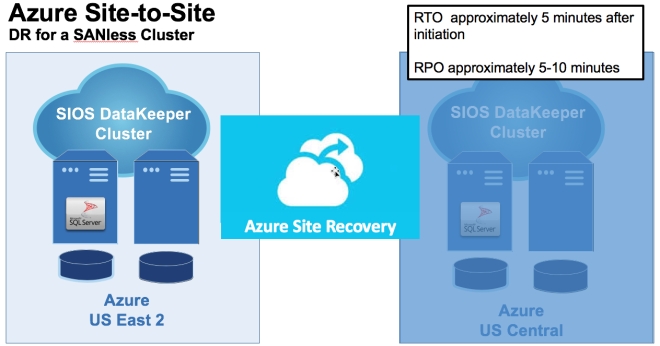
If you are in Azure, you may also want to consider Azure Site Recovery (ASR). ASR lets you replicate the entire VM from one Azure region to another region. ASR will replicate your VMs in real-time and allow you to do a non-disruptive DR test whenever you like. It supports most versions of Windows and Linux and is relatively easy to set up.

You can also create replication jobs that have “Multi-VM Consistency”. This means that servers must be recovered from the exact same point in time can be put together in this consistency group and they will have the exact same recovery point. Essentially, if you build a SANless cluster with DataKeeper in a single region for high availability, you have two options for DR. One is you could extend your SANless cluster to a node in a different region, or you could use ASR to replicate both nodes in a consistency group.

asr

What’s The Difference?

The trade off with ASR is that the RPO and RTO is not as good as you will get with a SANless multi-site cluster. Although it is easy to configure and works with just about any application. Just be careful. If your application exceeds 10 MBps in disk write activity on a regular basis, ASR will not be able to keep up. Also, clusters based on Storage Spaces Direct cannot be replicated with ASR and in general lack a good DR strategy when used in Azure.

For a while after Managed Disks were released, ASR did not fully support them until about a year later. Full support for Managed Disks was a big hurdle for many people looking to use ASR. Fortunately since about February of 2018, ASR fully supports Managed Disks. However, there is another problem that was just introduced.

With the introduction of Availability Zones, ASR is once again caught behind the times. They currently don’t support VMs that have been deployed in Availability Zones.

2018-09-25_00-10-24
Support matrix for replicating from one Azure region to another

I went ahead and tried it anyway. It seems possible to configure replication and I was able to do a test failover.

ASR-and-AZ
I used ASR to replicate SQL1 and SQL3 from Central to East US 2 and did a test failover. Other than not placing the VMs in AZs in East US 2 it seems to work.

I’m hoping to find out more about this limitation at the Ignite conference. Although this limitation is not as critical as Managed Disk’s. Because Availability Zones aren’t widely available yet. So hopefully ASR will pick up support for Availability Zones as other regions light up Availability Zones and they are more widely adopted.

Read more about my analysis of the Azure Outage Post Mortem
Reproduced with permission from Clusteringformeremortals.com

Filed Under: Clustering Simplified Tagged With: Azure, azure outage post mortem

Azure Outage Post-Mortem Part 1

November 6, 2018 by Jason Aw Leave a Comment

Azure-Outage-Post-Mortem-pt-1

Azure Outage Post-Mortem

The first official Post-Mortems are starting to come out of Microsoft in regards to the Azure Outage that happened last week. This first Azure Outage Post-Mortem addresses the Azure DevOps outage specifically (previously known as Visual Studio Team Service, or VSTS). It gives us some additional insight into the breadth and depth of the outage. It confirms the cause of the outage. It also gives us some insight into the challenges Microsoft faced in getting things back online quickly. Additionally, it hints at some some features/functionality Microsoft may consider pursuing to handle this situation better in the future.

As I mentioned in my previous article, features such as the new Availability Zones being rolled out in Azure, might have minimized the impact of this outage. In the post-mortem, Microsoft confirms what I previously said.

The primary solution we are pursuing to improve handling datacenter failures is Availability Zones, and we are exploring the feasibility of asynchronous replication.

Other Preventions To Take

Until Availability Zones are rolled out across more regions the only disaster recovery options, you have are cross-region, hybrid-cloud or even cross-cloud asynchronous replication. Software based #SANless clustering solutions available today will enable such configurations. Providing a very robust RTO and RPO, even when replicating great distances.

With SaaS/PaaS solutions, you depend on the Cloud Service Provider (CSPs) to have an iron clad HA/DR solution in place. In this case, it seems as if a pretty significant deficiency was exposed. We can only hope that it leads all CSPs to take a hard look at their SaaS/PaaS offerings. As well as to address any HA/DR gaps that might exist. Until then, it is incumbent upon the consumer to understand the risks. They need to do what they can to mitigate the risks of extended outages, or just choose not to use PaaS/SaaS until the risks are addressed.

RTO or RPO?

The post-mortem really gets to the root of the issue…what do you value more, RTO or RPO?

I fundamentally do not want to decide for customers whether or not to accept data loss. I’ve had customers tell me they would take data loss to get a large team productive again quickly, and other customers have told me they do not want any data loss and would wait on recovery for however long that took.

It will be impossible for a CSP to make that decision for a customer. CSP won’t want to lose customer data, unless the original data is just completely lost and unrecoverable. In that case, a near real-time async replica is as good as you are going to get in terms of RPO in an unexpected failure.

However, was this outage really unexpected and without warning? Modern satellite imagery and improvements in weather forecasting gave fair warning there was going to be significant weather related events in the area.

Hurricane Florence is heading down Southeast US as I write this post. Take proactive measures to move workloads out of impacted region if the data center is in the path. The benefit of a proactive disaster recovery vs a reactive disaster recovery are numerous. No data loss, ample time to address unexpected issues. It also includes managing human resources such that employees can worry about taking care of their families, rather than be at work.

Again, enacting a proactive disaster recovery would be a hard decision for a CSP to make on behalf of all their customers. Planned migrations across regions will incur some amount of downtime. This decision will have to be put in the hands of the customer. Take lessons from this Azure Outage Post-Mortem to educate your customers.

Slide 2.png
Hurricane Florence Satellite Image taken from the new GOES-16 Satellite, courtesy of Tropical Tidbits

Get Protected

So what can you do to protect your business critical applications and data? Let’s gleam some lessons from Azure Outage Post-Mortem. Cross-region, cross-cloud or hybrid-cloud models with software based #SANless cluster solutions are going a long way to address your HA/DR concerns. Furthermore, it’s got an excellent RTO and RPO for cloud based IaaS deployments. There are other options apart from application specific solutions. Software-based, block level volume replication solutions such SIOS DataKeeper and SIOS Protection Suite replicate all data and provide a data protection solution for both Linux and Windows platforms.

My oldest son just started his undergrad degree in Meteorology at Rutgers University. Imagine a day when artificial intelligence (AI) and machine learning (ML) processes weather related data from NOAA. They could trigger a planned disaster recovery migration two days before the storm strikes? I think I just found a perfect topic for his Master’s thesis. Or better yet, have him and his smart friends at the WeatherWatcher LLC get funding for a tech startup that applies AI and ML to weather related data to control proactive disaster recovery events.

I think we are just at the cusp of  IT analytics solutions. We can apply advanced machine-learning technology to cut the time and effort to ensure delivery of critical application services. SIOS iQ is one of the solutions leading the way in that field.

Batten down the hatches and get ready. Hurricane season is just starting and we are already in for a wild ride. If you would like to discuss your HA/DR strategy reach out to me on Twitter @daveberm.

Read other Azure Outage Post-Mortem here
Reproduced with permission from Clusteringformeremortals.com

Filed Under: Clustering Simplified Tagged With: Azure, azure outage post mortem

Configure File Server Failover Cluster in Azure Across Availability Zones

November 5, 2018 by Jason Aw Leave a Comment

Configure-File-Server-Failover-Cluster-in-Azure-Across-Availability-Zones

Step-By-Step: Configure A File Server Cluster In Azure Spanning Availability Zones

Configure-File-Server-Failover-Cluster-in-Azure-Across-Availability-Zones

Step-By-Step: Configure A File Server Cluster In Azure Spanning Availability Zones

In this post, we will detail the specific steps required to deploy a 2-node File Server Failover Cluster in Azure that spans the new Availability Zones. I will assume you are familiar with basic Azure concepts as well as basic Failover Cluster concepts. I will focus on what is unique about deploying a File Server Failover Cluster in Azure across Availability Zones. If your Azure region doesn’t support Availability Zones yet, you will have to use Fault Domains instead as described in an earlier post.

With DataKeeper Cluster Edition you are able to take the locally attached Managed Disks, whether it is Premium or Standard Disks, and replicate those disks either synchronously, asynchronously or a mix or both, between two or more cluster nodes. In addition, a DataKeeper Volume resource is registered in Windows Server Failover Clustering which takes the place of a Physical Disk resource. Instead of controlling SCSI-3 reservations like a Physical Disk Resource, the DataKeeper Volume controls the mirror direction. It ensures the active node is always the source of the mirror. As far as Failover Clustering is concerned, it looks, feels and smells like a Physical Disk and is used the same way Physical Disk Resource would be used.

Pre-Requisites

  • You have used the Azure Portal before and are comfortable deploying virtual machines in Azure IaaS.
  • Have obtained a license or eval license of SIOS DataKeeper

Deploying A File Server Failover Cluster In Azure

To build a 2-node File Server Failover Cluster Instance in Azure, we are going to assume you have a basic Virtual Network based on Azure Resource Manager. You have at least one virtual machine up and running and configured as a Domain Controller. Once you have a Virtual Network and a Domain configured, you are going to provision two new virtual machines which will act as the two nodes in our cluster.

Our environment will look like this:

DC1 – Our Domain Controller and File Share Witness
SQL1 and SQL2 – The two nodes of our File Server Cluster. Don’t let the names confuse you. We are building a File Server Cluster in this guide. In my next post I will demonstrate a SQL Server cluster configuration.

Provisioning The Two Cluster Nodes

Using the Azure Portal, we will provision both SQL1 and SQL2 exactly the same way.  There are numerous options to choose from including instance size, storage options, etc. This guide is not meant to be an exhaustive guide to deploying Servers in Azure. There are some really good resources out there and more published every day. However, there are a few key things to keep in mind when creating your instances, especially in a clustered environment.

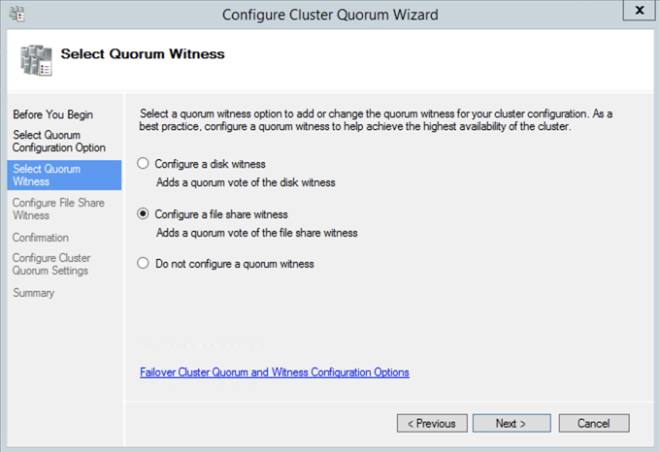
Availability Zones – It is important that both SQL1, SQL2 reside in different Availability Zones. For the sake of this guide we will assume you are using Windows 2016 and will use a Cloud Witness for the Cluster Quorum. If you use Windows 2012 R2 or Windows Server 2008 R2 instead of Windows 2016, you will need to configure a File Share Witness in the 3rd Availability Zone. Cloud Witness was not introduced until Windows Server 2016.

By putting the cluster nodes in different Availability Zones, we are ensuring that each cluster node resides in a different Azure datacenter in the same region. Leveraging Availability Zones rather than the older Fault Domains is beneficial. It isolates you from the types of outages occured just a few weeks ago that brought down the entire South Central region for multiple days.

Availability Zones
Be sure to add each cluster node to a different Availability Zone. If you leverage a File Share Witness it should reside in the 3rd Availability Zone.

Static IP Address

Once each VM is provisioned, you will want to go into the setting and change the settings so that the IP address is Static. We do not want the IP address of our cluster nodes to change.

Static IP
Make sure each cluster node uses a static IP

Storage

As far as Storage is concerned, you will want to consult Performance best practices for SQL Server in Azure Virtual Machines. In any case, you will minimally need to add at least one additional Managed Disk to each of your cluster nodes. DataKeeper can use Basic Disk, Premium Storage or even multiple disks striped together in a local Storage Space. If you do want to use a local Storage Space, be aware to create the Storage Space before any cluster configuration. This is due to a known issue with Failover Clustering and local Storage Spaces. All disks should be formatted NTFS.

Create The Cluster

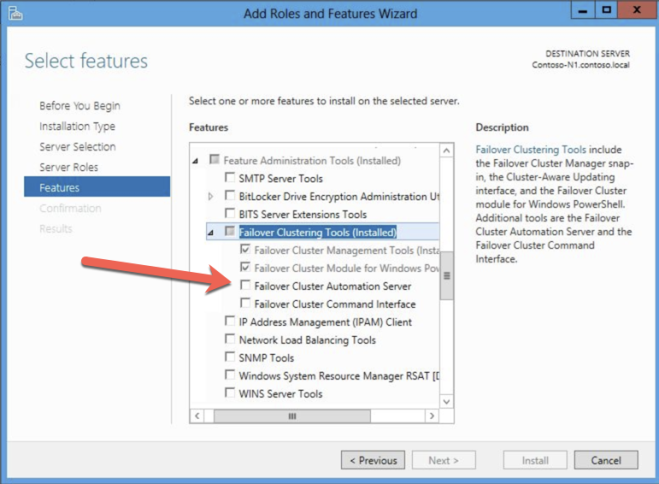
Assuming both cluster nodes (SQL1 and SQL2) have been provisioned as described above and added to your existing domain, we are ready to create the cluster. Before we create the cluster, there are a few Features that need to be enabled. These features are .Net Framework 3.5 and Failover Clustering. These features need to be enabled on both cluster nodes. You will also need to enable the FIle Server Role.

6
Enable both .Net Framework 3.5 and Failover Clustering features and the File Server on both cluster nodes.

Once that role and those features have been enabled, you are ready to build your cluster. Most of the steps I’m about to show you can be performed both via PowerShell and the GUI. However, I’m going to recommend that for this very first step you use PowerShell to create your cluster. If you choose to use the Failover Cluster Manager GUI to create the cluster you will find that you wind up with the cluster being issued a duplicate IP address.

Without going into great detail, what you will find is that Azure VMs have to use DHCP. By specifying a “Static IP” when we create the VM in the Azure portal all we did was create sort of a DHCP reservation. It is not exactly a DHCP reservation because a true DHCP reservation would remove that IP address from the DHCP pool. Instead, this specifying a Static IP in the Azure portal simply means that if that IP address is still available when the VM requests it, Azure will issue that IP to it. However, if your VM is offline and another host comes online in that same subnet it very well could be issued that same IP address.

Another Side Effect To How Azure Implemented DHCP

When creating a cluster with the Windows Server Failover Cluster GUI, there is not option to specify a cluster IP address. Instead it relies on DHCP to obtain an address. The strange thing is, DHCP will issue a duplicate IP address. Usually the same IP address as the host requesting a new IP address. The cluster install will complete, but you may have some strange errors. You may need to run the Windows Server Failover Cluster GUI from a different node in order to get it to run. Once you get it to run you will need to change the core cluster IP address to an address that is not currently in use on the network.

You can avoid that whole mess by simply creating the cluster via Powershell and specifying the cluster IP address as part of the PowerShell command to create the cluster.

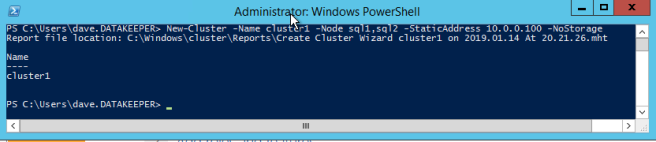
You can create the cluster using the New-Cluster command as follows:

New-Cluster -Name cluster1 -Node sql1,sql2 -StaticAddress 10.0.0.100 -NoStorage

After the cluster creation completes, you will also want to run the cluster validation by running the following command. You should expect to see some warnings about storage and network, but that is expected in Azure and you can ignore those warnings. If any errors are reported you will need to address those before you move on.

Test-Cluster

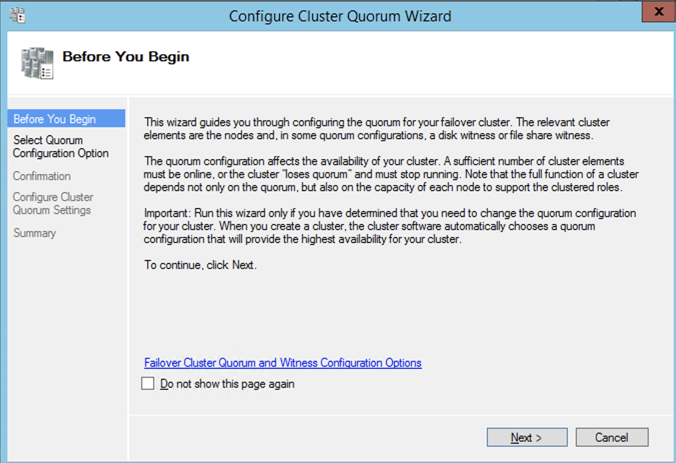
Create A Quorum Cluster

if you are running Windows 2016 or 2019 you will need to create a Cloud Witness for the cluster quorum. If you are running Windows Server 2012 R2 or 2008 R2 you will need to create a File Share Witness. The detailed instruction on witness creation can be found here.

Install DataKeeper

After the cluster is created, it is time to install DataKeeper. It is important to install DataKeeper after the initial cluster is created so the custom cluster resource type can be registered with the cluster. If you installed DataKeeper before the cluster is created, you will simply need to run the install again and do a repair installation.

8
Install DataKeeper after the cluster is created

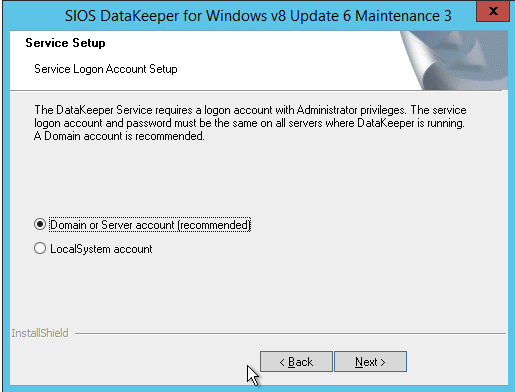
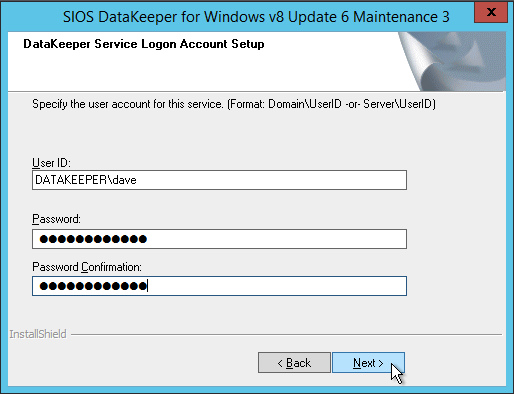
During the installation you can take all of the default options.  The service account you use must be a domain account and be in the local administrators group on each node in the cluster.

9
The service account must be a domain account that is in the Local Admins group on each node

Once DataKeeper is installed and licensed on each node you will need to reboot the servers.

Create the DataKeeper Volume Resource

10

To create the DataKeeper Volume Resource you will need to start the DataKeeper UI and connect to both of the servers.

11
Connect to SQL1
12
Connect to SQL2

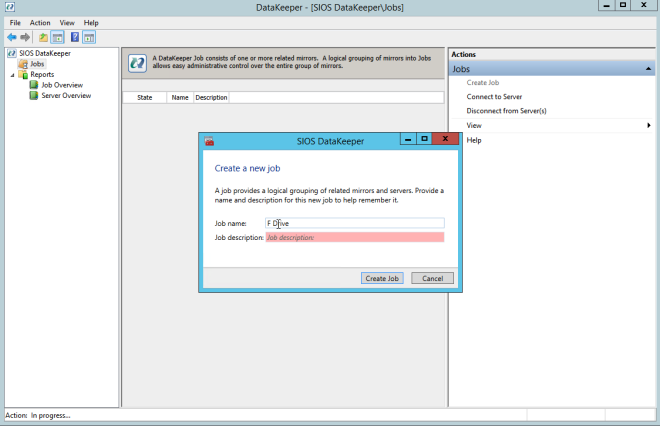
Once you are connected to each server, you are ready to create your DataKeeper Volume. Right click on Jobs and choose “Create Job”
13

Give the Job a name and description.
14

Choose your source server, IP and volume. The IP address is whether the replication traffic will travel.
15

Choose your target server.
16

Choose your options. For our purposes where the two VMs are in the same geographic region we will choose synchronous replication. For longer distance replication you will want to use asynchronous and enable some compression.
17

By clicking yes at the last pop-up you will register a new DataKeeper Volume Resource in Available Storage in Failover Clustering.
18

You will see the new DataKeeper Volume Resource in Available Storage.
19

Create The File Server Cluster Resource

To create the File Server Cluster Resource, we will use Powershell once again rather than the Failover Cluster interface. The reason being is that once again because the virtual machines are configured to use DHCP, the GUI based wizard will not prompt us to enter a cluster IP address and instead will issue a duplicate IP address. To avoid this we will use a simple powershell command to create the FIle Server Cluster Resource and specify the IP Address

Add-ClusterFileServerRole -Storage "DataKeeper Volume E" -Name FS2 -StaticAddress 10.0.0.101

Make note of the IP address you specify here. It must be a unique IP address on your network. We will use this same IP address later when we create our Internal Load Balancer.

Create The Internal Load Balancer

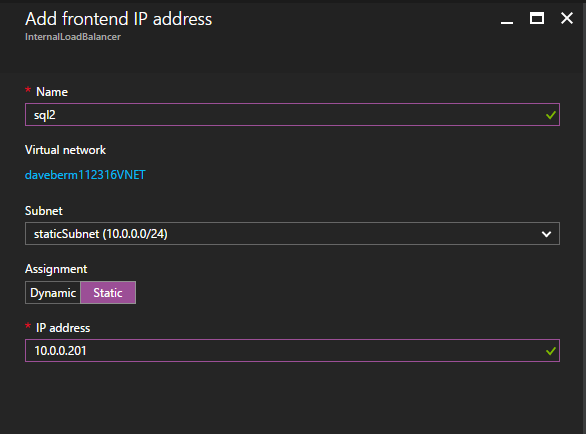
Here is where failover clustering in Azure is different than traditional infrastructures. The Azure network stack does not support gratuitous ARPS, so clients cannot connect directly to the cluster IP address. Instead, clients connect to an internal load balancer and are redirected to the active cluster node. What we need to do is create an internal load balancer. This can all be done through the Azure Portal as shown below.

You can use an Public Load Balancer if your client connects over the public internet. But assuming your clients reside in the same vNet, we will create an Internal Load Balancer. The important thing to take note of here is that the Virtual Network is the same as the network where your cluster nodes reside. Also, the Private IP address that you specify will be exactly the same as the address you used to create the File Server Cluster Resource. Also, because we are using Availability Zones, we will be creating a Zone Redundant Standard Load Balancer as shown in the picture below.

Load Balancer

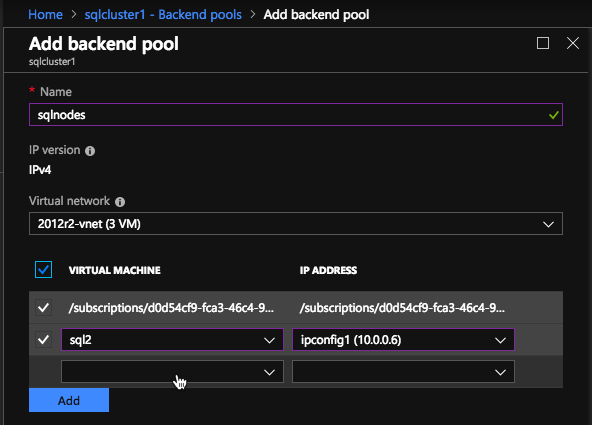
After the Internal Load Balancer (ILB) is created, you will need to edit it. The first thing we will do is to add a backend pool. Through this process you will choose the two cluster nodes.

Backend Pools

The next thing we will do is add a Probe. The probe we add will probe Port 59999. This probe determines which node is active in our cluster.
probe

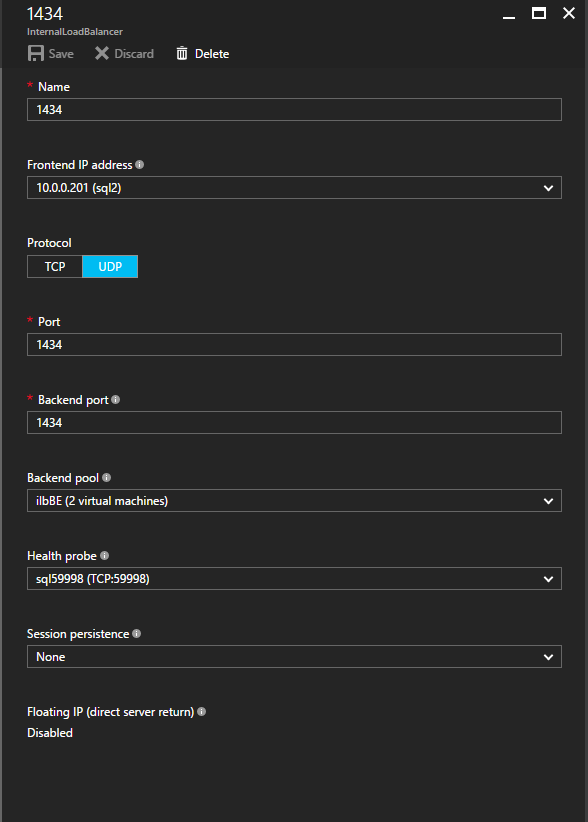
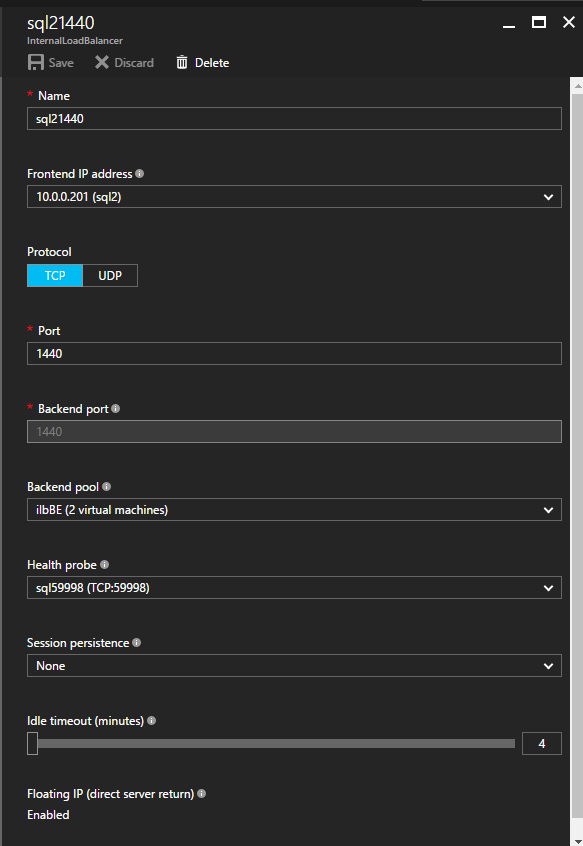
And then finally, we need a load balancing rule to redirect the SMB traffic, TCP port 445. The important thing to notice in the screenshot below is the Direct Server Return is Enabled. Make sure you make that change.

rules

Fix The File Server IP Resource

The final step in the configuration is to run the following PowerShell script on one of your cluster nodes. This will allow the Cluster IP Address to respond to the ILB probes. Also to ensure that there is no IP address conflict between the Cluster IP Address and the ILB. Please take note; you will need to edit this script to fit your environment. The subnet mask is set to 255.255.255.255. This is not a mistake, leave it as is. This creates a host specific route to avoid IP address conflicts with the ILB.

# Define variables
$ClusterNetworkName = “” 
# the cluster network name (Use Get-ClusterNetwork on Windows Server 2012 of higher to find the name)
$IPResourceName = “” 
# the IP Address resource name 
$ILBIP = “” 
# the IP Address of the Internal Load Balancer (ILB)
Import-Module FailoverClusters
# If you are using Windows Server 2012 or higher:
Get-ClusterResource $IPResourceName | Set-ClusterParameter -Multiple @{Address=$ILBIP;ProbePort=59999;SubnetMask="255.255.255.255";Network=$ClusterNetworkName;EnableDhcp=0}
# If you are using Windows Server 2008 R2 use this: 
#cluster res $IPResourceName /priv enabledhcp=0 address=$ILBIP probeport=59999  subnetmask=255.255.255.255

Creating File Shares

You will find that using the File Share Wizard in Failover Cluster Manager does not work. Instead, you will simply create the file shares in Windows Explorer on the active node. Failover clustering automatically picks up those shares and puts them in the cluster.

Note that the”Continuous Availability” option of a file share is not supported in this configuration.

Conclusion

You should now have a functioning File Server Failover Cluster in Azure that spans Availability Zones. If you need a DataKeeper evaluation key fill out the form at http://us.sios.com/clustersyourway/cta/14-day-trial and SIOS will send an evaluation key sent out to you.

To read more about clustering, click here
Reproduced with permission from Clusteringformeremortals.com

Filed Under: Clustering Simplified Tagged With: Azure, cluster, failover, File Server, file server failover cluster in azure

  • « Previous Page
  • 1
  • …
  • 87
  • 88
  • 89
  • 90
  • 91
  • …
  • 114
  • Next Page »

Recent Posts

  • High Availability for On-Premises Data Centers
  • How APM Tools and High Availability Clusters Improve Network Resilience
  • Selecting the Right Storage for SQL Server High Availability in the Cloud
  • Disaster Recovery Planning in an Unpredictable World
  • Active-Active vs. Active-Passive

Most Popular Posts

Maximise replication performance for Linux Clustering with Fusion-io
Failover Clustering with VMware High Availability
create A 2-Node MySQL Cluster Without Shared Storage
SAP for High Availability Solutions For Linux
Bandwidth To Support Real-Time Replication
The Availability Equation – High Availability Solutions.jpg
Choosing Platforms To Replicate Data - Host-Based Or Storage-Based?
Guide To Connect To An iSCSI Target Using Open-iSCSI Initiator Software
Best Practices to Eliminate SPoF In Cluster Architecture
Step-By-Step How To Configure A Linux Failover Cluster In Microsoft Azure IaaS Without Shared Storage azure sanless
Take Action Before SQL Server 20082008 R2 Support Expires
How To Cluster MaxDB On Windows In The Cloud

Join Our Mailing List

Copyright © 2026 · Enterprise Pro Theme on Genesis Framework · WordPress · Log in