SIOS SANless clusters

SIOS SANless clusters High-availability Machine Learning monitoring

  • Home
  • Products
    • SIOS DataKeeper for Windows
    • SIOS Protection Suite for Linux
  • News and Events
  • Clustering Simplified
  • Success Stories
  • Contact Us
  • English
  • 中文 (中国)
  • 中文 (台灣)
  • 한국어
  • Bahasa Indonesia
  • ไทย

How To Create A Site-To-Site VPN Tunnel To The Windows Azure Cloud

February 13, 2018 by Jason Aw Leave a Comment

 How To Create A Site-To-Site VPN Tunnel To The Windows Azure Cloud Using A Window Server 2012 R2 Routing And Remote Access (RRAS) Server

Not long ago I set out to build a multisite SQL Server cluster where one my nodes resides in my local data center and the other node resides in Microsoft’s Infrastructure as a Service (IaaS) offering, the Windows Azure Cloud. The Azure Cloud has an offering where you can deploy VMs and pay for just the resources you utilize, much like Amazon’s EC2. My goal was to create a proof of concept where I would use the Azure Cloud as an inexpensive disaster recovery site. My configuration is shown in Figure 1.

How To Create A Site-To-Site VPN Tunnel To The Windows Azure Cloud Using A Window Server 2012 R2 Routing And Remote Access (RRAS) Server

1. An example of the simple DR configuration I used in my POC

My on premise VMs are used as follows:

  • VM1-internal – Routing and Remote Access Server for NAT and VPN connectivity to the Azure Cloud
  • VM2-internal – The primary node in my cluster
  • VM3-internal – My domain controller

For this POC I only deployed on server in the Azure cloud, Azure-DR. Azure-DR is the secondary node in my cluster. If this were an actual production site, I certainly would also want to deploy another domain controller in the Azure cloud to ensure that my Active Directory was available in the DR site. Your actual DR configuration will vary greatly depending upon your needs. I will use the server name depicted in my illustration as I describe the configuration steps below.

The Scope Of This Post

For the purpose of this post, I am going to focus on what you need to do to get to the point where you have configured your virtual network in Azure and you create a site to site VPN connection to your primary data center. My next article will discuss the steps required to actually create a multisite cluster for disaster recovery. As with most cloud related services, the interfaces and options tend to change rapidly; the screen shots and directions you see below are relevant as of January 2nd, 2014. Your experience may vary, but these directions should get you pretty darn close. If you encounter difference, please send me a comment and what you did to make it work so other users can benefit from your experience.

Create Your Local Network

I’m not going to walk you through this step-by-step, but essentially you should have a Windows Server 2012 R2 DC configured (VM3-internal) and two additional Windows Server 2012 R2 servers in the domain (VM1-internal and VM2-internal). Each server should use the DC server as their primary DNS server and on VM2-internal and VM3-internal the gateway should be configured to point to VM1-internal, which will eventual be configure with Routing and Remote Access (RRAS). The RRAS (VM1-internal) should be dual homed, with one NIC connected to the internal network and one NIC connected directly to the Public network. Generally this will be the biggest obstacle in deploying this in your lab, as you must have a spare public IP address that you can use for your RRAS server. This configuration will not work if your RRAS server sits behind a NAT’s firewall. It must be directly connected to the internet. The RRAS Server should be configured with just the IP address, subnet mask and DNS server, no gateway should be defined. DO NOT enable Routing and Remote Access, this will be done automatically via a script at a later step.

Create A Virtual Network

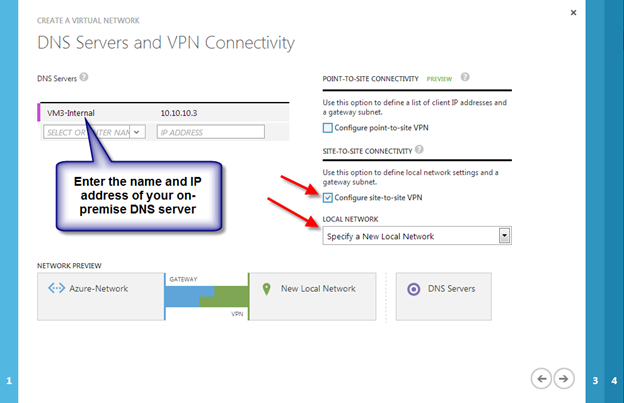
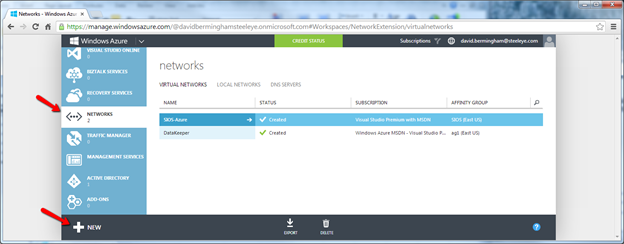
Log in to the Windows Azure Management Portal and create a new Virtual Network following the steps illustrated below.
How To Create A Site-To-Site VPN Tunnel To The Windows Azure Cloud Using A Window Server 2012 R2 Routing And Remote Access (RRAS) Server

How To Create A Site-To-Site VPN Tunnel To The Windows Azure Cloud Using A Window Server 2012 R2 Routing And Remote Access (RRAS) Server

How To Create A Site-To-Site VPN Tunnel To The Windows Azure Cloud Using A Window Server 2012 R2 Routing And Remote Access (RRAS) Server

How To Create A Site-To-Site VPN Tunnel To The Windows Azure Cloud Using A Window Server 2012 R2 Routing And Remote Access (RRAS) Server

How To Create A Site-To-Site VPN Tunnel To The Windows Azure Cloud Using A Window Server 2012 R2 Routing And Remote Access (RRAS) Server

How To Create A Site-To-Site VPN Tunnel To The Windows Azure Cloud Using A Window Server 2012 R2 Routing And Remote Access (RRAS) Server

How To Create A Site-To-Site VPN Tunnel To The Windows Azure Cloud Using A Window Server 2012 R2 Routing And Remote Access (RRAS) Server

When You Click The Check Box You Should Now See The New Virtual Network You Just Created.How To Create A Site-To-Site VPN Tunnel To The Windows Azure Cloud Using A Window Server 2012 R2 Routing And Remote Access (RRAS) Server

CREATE THE GATEWAY

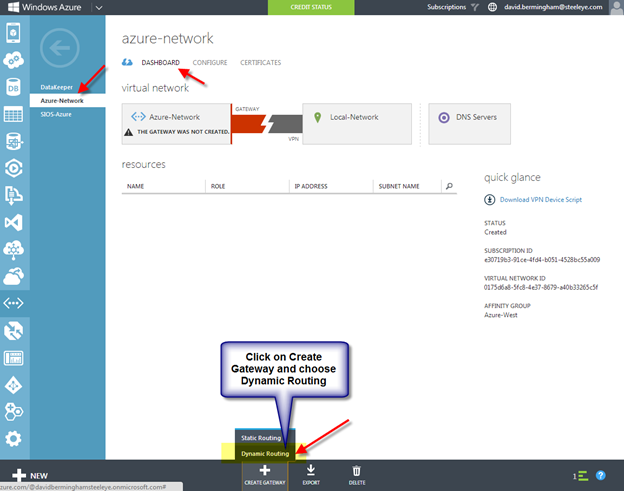
You will need to create the Gateway as soon as the virtual network is created. From the Dashboard of the newly created virtual network, you will be able to produce a Gateway as shown below. Be sure to choose Dynamic Routing because Static Routing with RRAS is not supported in the Azure VPN connection as of April 25th 2013.
How To Create A Site-To-Site VPN Tunnel To The Windows Azure Cloud Using A Window Server 2012 R2 Routing And Remote Access (RRAS) Server
It could take 30 minutes or longer before your gateway is finished being created, be patient…

How To Create A Site-To-Site VPN Tunnel To The Windows Azure Cloud Using A Window Server 2012 R2 Routing And Remote Access (RRAS) Server

Once the gateway is finished creating, you will see your Gateway IP Address and the amount of Data In and Data Out as shown below.

How To Create A Site-To-Site VPN Tunnel To The Windows Azure Cloud Using A Window Server 2012 R2 Routing And Remote Access (RRAS) Server

Configure Your Local RRAS Server

At this point you are ready to configure your on-premise RRAS Server (VM1-internal) to create a site-to-site VPN to the Gateway that you just created. Microsoft has made this very easy, so don’t worry if networking and configuring VPNs are not your specialty. You will just need click on “Download VPN Device Script” and run it on your RRAS server. Microsoft also supports a bunch of Juniper and Cisco VPN routers as well, so if you want to move to a hardware based VPN device in the future you can always come back and download the configuration script specific to your device.

How To Create A Site-To-Site VPN Tunnel To The Windows Azure Cloud Using A Window Server 2012 R2 Routing And Remote Access (RRAS) Server

Choose Microsoft Corporation as the Vendor, RRAS as the Platform and Windows Server 2012 as the Operating System and click the checkbox to download the Powershell script. In my case, this same script worked just fine when run on Windows Server 2012 R2.

How To Create A Site-To-Site VPN Tunnel To The Windows Azure Cloud Using A Window Server 2012 R2 Routing And Remote Access (RRAS) Server

As of the date of this writing, it seems as if Microsoft has made the script creation process even more intelligent than it was just last month. The script that was created for me was pre-populated with all the information.  I did not have to edit anything at all.

At this point, all you need to do is copy the script file on to your RRAS Server (VM1-internal) and save it as a .ps1 and run the PowerShell script. This script will install Routing and Remote Access and configure the Site-to-Site VPN to connect to the Windows Azure Virtual Network you just created. Once you have finished with the RRAS installation go back to the Azure Portal and click Connect to complete the VPN site-to-site connection.

How To Create A Site-To-Site VPN Tunnel To The Windows Azure Cloud Using A Window Server 2012 R2 Routing And Remote Access (RRAS) Server

When connected, the Azure Portal should look something like the following.

How To Create A Site-To-Site VPN Tunnel To The Windows Azure Cloud Using A Window Server 2012 R2 Routing And Remote Access (RRAS) Server

Enable NAT on the RRAS Server

The final step I had to take to have a usable network was to enable NAT on my RRAS Server. None of my servers could reach the internet without NAT. The basic steps for enabling NAT on RRAS are as follows:

  • Open the Routing and Remote Access MMC
  • Expand IPv4, right-click General, and then click New Routing Protocol.
  • In Routing protocols, click NAT, and then click OK.
  • Right-click NAT, and then click New Interface.
  • Select the interface that connects to your private intranet, and then click OK.
  • Select Private interface connected to private network, and then click OK.
  • Right-click NAT, and then click New Interface again.
  • Select the interface that connects to the public Internet, and then click OK.
  • Select both Public interface connected to the Internet and Enable NAT on this interface, and then click OK.

Now What?

The fun can now begin. In my next post I will walk you through the process of provisioning a Windows VM in Azure and joining it to your on-premise domain.

Reproduced with permission from https://clusteringformeremortals.com/2014/01/03/how-to-create-a-site-to-site-vpn-tunnel-to-the-windows-azure-cloud-using-a-window-server-2012-r2-routing-and-remote-access-rras-server/

Filed Under: Clustering Simplified Tagged With: Azure Cloud, Microsoft, Routing And Remote Access Server, RRAS, VM

No More Free Google Apps

February 7, 2018 by Jason Aw Leave a Comment

Free Google Apps – A Great Intro Before Purchase

http://googleenterprise.blogspot.com/2012/12/changes-to-google-apps-for-businesses.html

I’m glad I got Boy Scout Troop 20 registered under the deadline. Free Google Apps was a great intro to the product for me and I looked at it as a gateway “drug” that gave me enough of a look to consider the premium version for any “serious” cloud based business operation, i.e., not a Boy Scout Troop.

Is The Subscription Worth It?

While $50/year per user is not expensive, it certainly can be a show stopper for many small non-profit organizations who may have otherwise been potential customers. So the question is will Microsoft take advantage of this opening to gain market share? If so, I know where I will be deploying my next cloud based small business site.

Reproduced with permission from https://clusteringformeremortals.com/2012/12/10/no-more-free-google-apps-googleapps-azure/

Filed Under: Clustering Simplified Tagged With: Google, google apps, Microsoft

Achieving High Performance And High Availability For SQL Server

February 4, 2018 by Jason Aw Leave a Comment

Register here to learn how high performance and high availability for Microsoft SQL Server can be achieved with solutions from Fusion-io and SIOS. This powerful combination delivers high-speed storage and high availability for SQL Server without the limitations of single copy clusters or AlwaysOn Availability Groups.

Make the switch and enjoy:

  • Cost savings
  • Higher database performance
  • Smaller floor space requirements
  • Lower cooling and power demands

… all without sacrificing availability.

The end result: faster performance at a fraction of the cost of a typical SAN with 100% data availability.

Ready to learn about how Fusion-io and SIOS could achieve better results with Microsoft SQL Server. Hear from our featured Speakers:

Dave Bermingham is recognized within the technology community as a high availability expert and has been a Microsoft MVP in Clustering for the past three years. David’s work as Sr. Technical Evangelist at SIOS has him focused on delivering high availability and disaster recovery solutions. David holds numerous technical certifications and has over twenty years of technology experience focused on application availability.

Jamila Gunawardena is a Senior OEM Sales Engineer for Fusion-io. Jamila has over 15 years experience in Software Engineering and System Design with expertise in Internet, Bioinformatics, and Semiconductor DFM solutions. Currently, Jamila is focused on ISV and appliance partnerships at Fusion-io.

Geoff Hiten is a Microsoft SQL MVP and is currently an Infrastructure Architect for Intellinet. Geoff began working with SQL Server in 1992 with version 4.2 and has used every version since. He specializes in high-availability and high-performance SQL systems. Geoff is heavily involved in the Microsoft SQL Server Community and was initially awarded MVP status in 2004. Geoff was appointed in 2011 to fill an interim Director position at the National PASS organization.

Reproduced with permission from https://clusteringformeremortals.com/2012/09/12/achieving-high-performance-and-high-availability-for-sql-server/

Filed Under: Clustering Simplified Tagged With: AlwaysOn Availability Groups, Dave Bermingham, Fusion-io, Geoff Hiten, Jamila Gunawardena, Microsoft, SIOS, SIOS DataKeeper Cluster Edition, SQL Server

Need Alternatives to AlwaysOn Availability Groups, Try SIOS DataKeeper

February 4, 2018 by Jason Aw Leave a Comment

Looking For Alternatives to AlwaysOn Availability Groups?

Microsoft made announcements about its most widely anticipated availability options that is being introduced with SQL Server 2012. This changes include AlwaysOn Availability Groups which will only be available with the Enterprise Edition of SQL. The cost of SQL Server Enterprise is $27,496 for any server (that has up to 4 physical processors) vs. $7,172 for Standard Edition. To take advantage of “Read-Only” replica, the cost of the solution is doubled ($54,992) since you have to license both the source and the target server. With such a high price point, you begin to wonder if there are Alternatives to AlwaysOn Availability Groups. Keep reading. Because I’m going to introduce SteelEye DataKeeper Cluster Edition which probably gives you the best bang for your buck.

The good news is that Microsoft still allows you to build 2-node clusters using SQL Server Standard Edition. Since this is generally deployed in an active-passive configuration, you do not have to license the standby server. So for $7,172 you can build a pretty robust 2-node SQL cluster. That’s assuming you have an enterprise class SAN that you can use to store your cluster data.

What’s that you say, you don’t have a SAN? Or you’d rather build a solution that eliminates the SAN as a single point of failure. And instead allows you to use data replication to keep the data in sync between cluster nodes the way that AlwaysOn Availability Groups allows you to? Or perhaps you want to use take advantage of the speed offered by local attached SSD drives such as those offered by Fusion-IO, but yet don’t want to give up on availability?

The Greatness of SteelEye DataKeeper Cluster Edition

For the cost of a single copy of SQL Server 2012 Standard Edition and the very affordable addition of SteelEye DataKeeper Cluster Edition, you’ll be able to deploy 2-node SQL Server 2012 Standard Edition clusters with data replication. Best part? It’s about half the cost of a 2-node SQL Server Enterprise Edition AlwaysOn Availability Group. Furthermore, it’s about ¼ of the price of a AlwaysOn Availability Group with read-only targets.

If you find yourself answering yes to any of the following questions. Then perhaps, it’s a sign to seek Alternatives to AlwaysOn Availability Groups. Windows Server Failover Clustering and DataKeeper Cluster Edition may be a wiser choice.

  • Am I concerned about the cost of SQL Server Enterprise Edition?
  • Do I use replication or log shipping?
  • Do I need to support Lync Server or other applications that use distributed transactions?
  • Do I need to ensure that SQL Agent jobs such as database backups, optimizations, DTS and others continue to run regardless of the node in service?
  • Do I need to ensure that SQL login accounts are kept in sync between cluster nodes?
  • Do I want to minimize my administrative burden?

We’ve Done The Comparison

The following chart summarizes your SQL Server 2012 availability options. We’ve included the 3rd option which is to build a traditional SQL cluster using Windows Server Failover Clustering with DataKeeper Cluster Edition.

SQL Server 2012 availability options including Datakeeper

Failover Clustering with DataKeeper Cluster Edition is going to save you plenty of money. And, it also is going to help you overcome some of the inherent limitations of AlwaysOn Availability Groups.

About the only thing you can’t do with the DataKeeper solution is to have read-only targets. As I mentioned earlier, read-only targets requires a second SQL license, so to have that feature will cost you minimally $54,938. If you really must have read-only targets, you’ll be glad to know that you can mix AlwaysOn Failover Clusters with DataKeeper and AlwaysOn Availability Groups. Basically you would wind up with a 2-node SQL failover cluster with DataKeeper and a single standalone SQL Server acting as a read-only target for an AlwaysOn Availability Group. In that case, you would still need two copies of SQL Server Enterprise Edition – one for the cluster and one for the read-only target.

Essentially, do check out possible Alternatives to AlwaysOn Availability Groups to save costs and improve work processes. I demonstrated this solution at Tech-Ed 2011 in Atlanta last year and got a lot of really positive feedback. This particular demonstration shows a 2-node multisite cluster. However, fret not the same concept can be applied to single site clusters.

https://clusteringformeremortals.com/2011/05/15/sql-server-denali-hadron-multisite-cross-subnet-failover-video-demonstration/

Reproduced with permission from https://clusteringformeremortals.com/2012/04/05/sql-server-2012-standard-edition-availability-options/

Filed Under: Clustering Simplified, Datakeeper Tagged With: alternatives to alwayson availability groups, AlwaysOn Availability Groups, DataKeeper, Microsoft, SIOS DataKeeper Cluster Edition, SQL Server 2012

SQL Server Denali Demonstration

January 31, 2018 by Jason Aw Leave a Comment

SQL Server Denali Hadron Multi-site Cross Subnet Failover Video Demonstration

The crowd has spoken and the SQL Server Team has answered! Denali is the first version of SQL Server to support the cross subnet failover feature which first introduced in Windows Server 2008 Failover Clustering. It seems like we have been waiting forever for the SQL team to support this feature. Now, the wait is finally drawing to an end.

The following is a link to a 5 minute video. It demonstrates a 3-node cluster Denali cluster with two nodes in the primary datacenter, and one node in the Disaster Recovery site in a separate subnet.

http://screencast.com/t/ni1zqMOIv

I will be demonstrating this solution at Tech-Ed 2011 in Atlanta this week. Stop by the SIOS Technology booth and come have a look for yourself at the SQL Server Denali multi-site cluster demonstration using SteelEye DataKeeper. We would be happy to share our technology and further explain how it could benefit your projects.

Reproduced with permission from https://clusteringformeremortals.com/2011/05/15/sql-server-denali-hadron-multisite-cross-subnet-failover-video-demonstration/

Filed Under: Clustering Simplified Tagged With: cross subnet failover, Demonstration, Denali, disaster recovery, Microsoft, SIOS DataKeeper Cluster Edition, SQL Server, Tech-Ed 2011, Windows Server 2008 Failover Clustering

  • « Previous Page
  • 1
  • 2
  • 3
  • 4
  • 5
  • Next Page »

Recent Posts

  • Broadcom/VMware: Time To Decouple High Availability From Your Hypervisor
  • How To Improve Customer Satisfaction in Technical Support
  • Keeping Buildings Safe: High Availability in Maintenance and Security Systems
  • Designing High Availability Through Modularity and Abstraction
  • The Critical Role of QA and Production Environments in High Availability

Most Popular Posts

Maximise replication performance for Linux Clustering with Fusion-io
Failover Clustering with VMware High Availability
create A 2-Node MySQL Cluster Without Shared Storage
SAP for High Availability Solutions For Linux
Bandwidth To Support Real-Time Replication
The Availability Equation – High Availability Solutions.jpg
Choosing Platforms To Replicate Data - Host-Based Or Storage-Based?
Guide To Connect To An iSCSI Target Using Open-iSCSI Initiator Software
Best Practices to Eliminate SPoF In Cluster Architecture
Step-By-Step How To Configure A Linux Failover Cluster In Microsoft Azure IaaS Without Shared Storage azure sanless
Take Action Before SQL Server 20082008 R2 Support Expires
How To Cluster MaxDB On Windows In The Cloud

Join Our Mailing List

Copyright © 2026 · Enterprise Pro Theme on Genesis Framework · WordPress · Log in