SIOS SANless clusters

SIOS SANless clusters High-availability Machine Learning monitoring

  • Home
  • Products
    • SIOS DataKeeper for Windows
    • SIOS Protection Suite for Linux
  • News and Events
  • Clustering Simplified
  • Success Stories
  • Contact Us
  • English
  • 中文 (中国)
  • 中文 (台灣)
  • 한국어
  • Bahasa Indonesia
  • ไทย

How To Create A DataKeeper Replicated Volume That Has Multiple Targets Via CLI

July 31, 2021 by Jason Aw Leave a Comment

How To Create A DataKeeper Replicated Volume That Has Multiple Targets Via CLI

How To Create A DataKeeper Replicated Volume That Has Multiple Targets Via CLI

I often help people automate the configuration of their infrastructure so they can build 3-node clusters that span Availability Zones and Regions. The CLI for creating a DataKeeper Job and associated mirrors that contain more than one target can be a little confusing, so I’m documenting it here in case you find yourself looking for this information. The DataKeeper documentation describes this as a Mirror with Multiple Targets.

The environment in this example looks like this:

PRIMARY (10.0.2.100) – in AZ1
SECONDARY (10.0.3.100) – in AZ2
DR (10.0.1.10) – in a different Region

I want to create a synchronous mirror from PRIMARY to SECONDARY and an asynchronous mirror from PRIMARY to DR. I also have to make sure the DataKeeper Job knows how to create a mirror from SECONDARY to DR in case the SECONDARY or DR server ever become the source of the mirror. EMCMD will be used to create this multiple target mirror.

We need to first create the Job that contains all this possible endpoints and define whether the mirror will be Sync (S) or Async (A) between those endpoints.

emcmd . createjob ddrive sqldata primary.datakeeper.
local D 10.0.2.100 secondary.datakeeper.
local D 10.0.3.100 S primary.datakeeper.local D 10.0.2.100 dr.
datakeeper.local D 10.0.1.10 
A secondary.datakeeper.local D 10.0.3.100 dr.datakeeper.
local D 10.0.1.10 A

That single “createjob” command creates the Job. It might be a little easier to look at that command like this:

emcmd . createjob ddrive sqldata 
primary.datakeeper.local D 10.0.2.100 secondary.datakeeper.local 
D 10.0.3.100 S primary.datakeeper.local D 10.0.2.100 dr.datakeeper.
local D 10.0.1.10 A secondary.datakeeper.local D 10.0.3.100 
dr.datakeeper.local D 10.0.1.10 A

Next we need to create the mirrors.

emcmd 10.0.2.100 createmirror D 10.0.1.10 A
emcmd 10.0.2.100 createmirror D 10.0.3.100 S

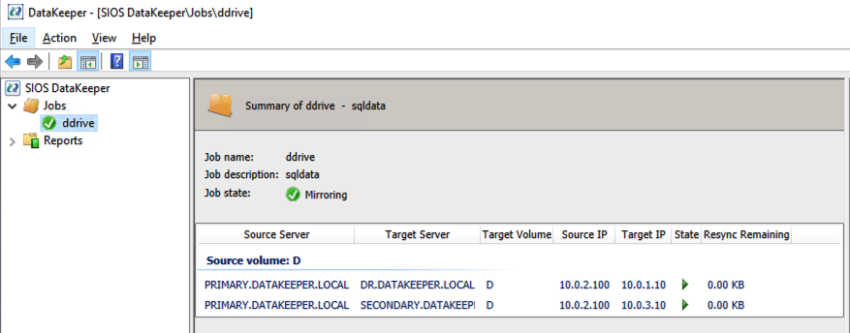
Our DataKeeper Job should now look like this in the DataKeeper UI

One-to-many DataKeeper Replicated Volume

One-to-many DataKeeper Replicated VolumeAnd then finally we can register the DataKeeper Volume Resource in the cluster Available Storage with this command.

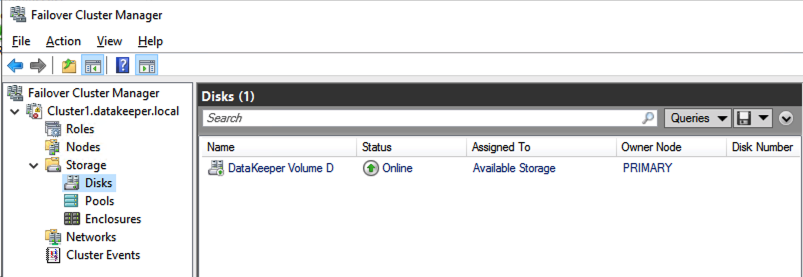
emcmd . registerclustervolume D

DataKeeper Volume in Available Storage

The DataKeeper Volume Resource will now appear in Available Storage as shown below.

DataKeeper Volume in Available StorageYou are now ready to install SQL Server, SAP, File Server or any other clustered resource you normally protect with Windows Server Failover Clustering.

Reproduced with permission from Clusteringformeremortals

Filed Under: Clustering Simplified Tagged With: DataKeeper

How To Cluster MaxDB On Windows In The Cloud

January 12, 2019 by Jason Aw Leave a Comment

How To Cluster MaxDB On Windows In The Cloud

How To Cluster MaxDB On Windows In The Cloud

How To Cluster MaxDB On Windows In The Cloud #AZURE #AWS #GCP #SAP

Recently I have had a number of customers looking for a high availability solution to cluster MaxDB on Windows in the cloud. Some customers have been in Azure and some in AWS. But regardless of the cloud platform, they all eventually find the post in the SAP Community WIKI that describes the process.

https://wiki.scn.sap.com/wiki/display/MaxDB/HowTo+-+Embed+SAP+MaxDB+in+MSCS

The Challenge

The challenge with this post in a cloud environment is that there is no shared storage (SAN) available in the Azure, AWS or GCP that allows you to build a traditional shared storage cluster. The beauty of HA in the cloud is that cluster nodes typically reside miles away from each other in another data center, AKA, availability zone (AZ). So even if shared storage was available, it wouldn’t make a lot of sense since it would have to reside in a single AZ. It defeats the purpose of HA all together.

The Solution

However, there is an answer to cluster MaxDB on Windows in the cloud. SIOS DataKeeper is a SANless clustering solution from SIOS technology. It allows locally attached storage to be used in a Windows Server Failover Cluster. This eliminates the need for a SAN. Instead, SIOS keeps locally attached disk in sync using synchronous block level replication technology and presents this storage to WSFC as a clustered disk resource called a DataKeeper volume.

cluster MaxDB on Windows in the cloud
Typical 2-node WSFC across Availability Zones with a 3rd node in a different Region

As far as the cluster is concerned, a DataKeeper Volume cluster resource looks like a shared disk. But instead of controlling disk locking (SCSI reservations), it controls the mirror direction. So in every sense of the word it is still a true WSFC, except it uses locally attached storage instead of shared storage. The locally attached storage can be anything from EBS block device to Azure premium disk, or even a local Storage Space with multiple disks stripped together. As long as Windows sees an NTFS formatted volume with a drive letter and the volume size is the same on each instance it can be used in the cluster.

DataKeeper Volume Cluster Resource

This type of cluster is commonly known as a SANless cluster. It has been around for many years enabling geo-clusters and clusters where shared storage was not available. Database admins also love it as it enables them to use local high speed storage devices like PCIe flash or SSD drives. And at the same time, still use WSFC for high availability.

SIOS also supports asynchronous replication. So if you want to add a node in a different geographic location for disaster recovery, you can build a 3-node cluster with 2 nodes in the same region but different fault domains and a 3rd node in an entirely different region, or maybe even back on-prem for disaster recovery options. Or, if you are in Azure you can leverage Azure Site Recovery (ASR) for disaster recovery as SIOS DataKeeper is compatible for ASR.

Both WSFC and SIOS DataKeeper are very dependent upon IP addresses staying the same. So for ASR configurations you will want to make sure you retain your IP address upon failover as described here.

https://docs.microsoft.com/en-us/azure/site-recovery/site-recovery-retain-ip-azure-vm-failover

SAP

SIOS is no stranger to high availability and disaster recovery for SAP. The SIOS Protection Suite for Linux is a SAP Certified HA solution for SAP and SAP HANA. SIOS DataKeeper is the preferred HA/DR solution for SAP ASCS on Windows in cloud environments. Providing an HA/DR solution for MaxDB on Azure further solidifies SIOS as the SAP high availability experts.

If you have questions about high availability for SAP, or more details about how to Cluster MaxDB On Windows In The Cloud, do go through our other posts

Reproduced with permission from Clusteringformeremortals.com

Filed Under: Clustering Simplified Tagged With: Azure, cluster, cluster maxdb on windows in the cloud, DataKeeper

S2D For SQL Server Failover Cluster Instances 

September 8, 2018 by Jason Aw Leave a Comment

Storage Space Direct (S2D) For SQL Server Failover Cluster Instances

Storage Spaces Direct For SQL Server Failover Cluster Instances

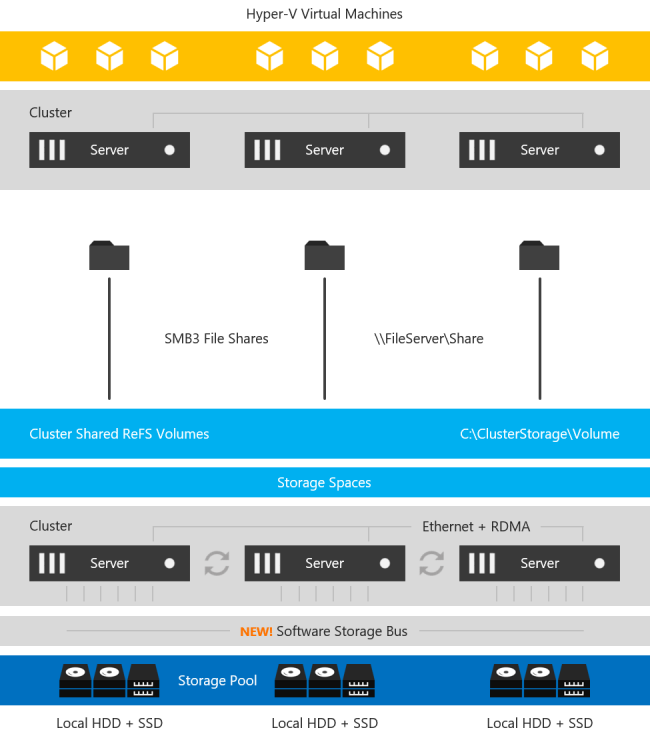
With the introduction of Windows Server 2016 Datacenter Edition a new feature called Storage Spaces Direct (S2D) was introduced. At a very high level, S2D For SQL Server Failover Cluster Instances allows you to pool together locally attached storage and present it to the cluster as a CSV for use in a Scale Out File Server. Then it can be accessed over SMB 3 and used to hold cluster data such as Hyper-V VMDK files. This can also be configured in a hyper-converged (HCI) fashion such that the application and data can all run on the same set of servers.  This is a grossly over-simplified description, but for details, you will want to look here.

Storage Spaces Direct Stack

Image taken from https://docs.microsoft.com/en-us/windows-server/storage/storage-spaces/storage-spaces-direct-overview

The main use case targeted is hyper-converged infrastructure for Hyper-V deployments. However, there are other use cases, including leveraging this SMB storage to store SQL Server Data to be used in a SQL Server Failover Cluster Instance

Why would anyone want to do that?

Well, for starters you can now build a highly available 2-node SQL Server Failover Cluster Instance (FCI) with SQL Server Standard Edition, without the need for shared storage. Previously, if you wanted HA without a SAN you pretty much were driven to buy SQL Server Enterprise Edition and make use of Always On Availability Groups or purchase SIOS DataKeeper and leverage the 3rd party solution which lets you build SANless clusters with any version of Windows or SQL Server. SQL Server Enterprise Edition can really drive up the cost of your project, especially if you were only buying it for the Availability Groups feature.

In addition to the cost associated with Availability Groups, there are a number of other technical reasons why you might prefer a Failover Cluster over an AG. Application compatibility, instance vs. database level protection, large number of databases, DTC support, trained staff, etc., are just some of the technical reasons why you may want to stick with a Failover Cluster Instance.

SIOS DataKeeper Solution Vs S2D For SQL Server Failover Cluster Instances 

Microsoft lists both the SIOS DataKeeper solution and the S2D solution as two of the supported solutions for SQL Server FCI in their documentation here.

S2D For SQL Server Failover Cluster Instances 

https://docs.microsoft.com/en-us/azure/virtual-machines/windows/sql/virtual-machines-windows-sql-high-availability-dr

When comparing the two solutions, you have to take into account that SIOS has been allowing you to build SANless Clusters since 1999. But the S2D For SQL Server Failover Cluster Instances is still in its infancy.  Having said that, there are bound to be some areas where S2D has some catching up to do. Or, simply features that they will never support simply due to the limitations with the technology.

Before Choosing Your SANless Cluster Solution

Have a look at the following table for an overview of some of the things you should consider before you choose your SANless cluster solution.

S2D For SQL Server Failover Cluster Instances 

If we go through this chart, we see that SIOS DataKeeper clearly has some significant advantages. For one, DataKeeper supports a much wider range of platforms, going all the way back to Windows Server 2008 R2 and SQL Server 2008 R2. The S2D solution only supports the latest releases of Windows and SQL Server 2016/2017. S2D also requires the Datacenter Edition of Windows, which can add significantly to the cost of your deployment. In addition, SIOS delivers the ONLY HA/DR solution for SQL Server on Linux that works both on-prem and in the cloud.

Analysis Of The Differences

But beyond the cost and platform limitations, I think the most glaring gap comes when we start to consider disaster recovery options for your SANless cluster. Allan Hirt, SQL Server Cluster guru and fellow Microsoft Cloud and Datacenter Management MVP, recently posted about this S2D limitation. In his article Revisiting Storage Spaces Direct and SQL Server FCIs  Allan points out that due to the lack of support for stretching S2D clusters across sites or including an S2D based cluster as a leg in an Always On Availability Group, the best option for DR in the S2D scenario is log shipping!

Don’t get me wrong. Log shipping has been around forever and will probably be around long after I’m gone. But that is taking a HUGE step backwards when we think about all the disaster recovery solutions we have become accustomed to, like multi-site clusters, Availability Groups, etc.

In contrast, the SIOS DataKeeper solution fully supports Always On Availability Groups. Better yet – it can allow you to stretch your FCI across sites to give you the best HA/DR solution you could hope to achieve in terms of RTO/RPO. In an Azure environment, DataKeeper also support Azure Site Recovery (ASR), giving you even more options for disaster recovery.

The rest of this chart is pretty self explanatory. It basically consist of a list hardware, storage and networking requirements that must be met before you can deploy an S2D cluster. An exhaustive list of S2D requirements is maintained here.  https://docs.microsoft.com/en-us/windows-server/storage/storage-spaces/storage-spaces-direct-hardware-requirements

SIOS Datakeeper. What’s Good

The SIOS DataKeeper solution is much more lenient. It supports any locally attached storage and as long as the hardware passes cluster validation, it is a supported cluster configuration. The block level replication solution has been working great ever since 1 Gbps was considered a fast LAN and a T1 WAN connection was considered a luxury.

SANless clustering is particularly interesting for cloud deployments. The cloud does not offer traditional shared storage options for clusters. So for users in the middle of a “lift and shift” to the cloud that want to take their clusters with them they must look at alternate storage solutions. For cloud deployments, SIOS is certified for Azure, AWS and Google and available in the relevant cloud marketplace. While there doesn’t appear to be anything blocking deployment of S2D based clusters in Azure or Google, there is a conspicuous lack of documentation or supportability statements from Microsoft for those platforms.

Make A Safe Choice

SIOS DataKeeper has been doing this since 1999. SIOS has heard all the feature requests, uncovered all the bugs, and has a rock solid solution for SANless clusters that is time tested and proven. While Microsoft S2D is a promising technology, as a 1st generation product I would wait until the dust settles and some of the feature gap closes before I would consider it for my business critical applications.

To know more about S2D For SQL Server Failover Cluster Instances, find out here SIOS DataKeeper

Reproduced with permission from Clusteringformeremortals.com

Filed Under: Clustering Simplified, Datakeeper Tagged With: DataKeeper, s2d for sql server failover cluster instances, SIOS, SQL Server Failover Cluster Instance

Different Highly Available SQL Server Storage Configurations in Azure

March 27, 2018 by Jason Aw Leave a Comment

An Overview Of Performance Differences of Highly Available SQL Server Storage Configurations In #Azure: SMB 3.0 File Service Or Premium Storage

There are a few options when it comes to SQL server storage configurations in Azure. If you want to know, you can get some good idea from this article Windows Server Failover Cluster on Azure IAAS VM – Part 1 (Storage). It talks about the newly released Azure File Service that can be used to host SQL Server cluster data over SMB 3.0. Remember, till date Azure File Service cannot support Premium Storage. You are bound to about 1,000 IOPS or 60 MB/s per file share. With these limits in mind, Azure File Service is probably going to to be an option for databases with minimal IO demands.

Check Out My Test Results

Different Highly Available SQL Server Storage Configurations in Azure

So the plan was to test a few different SQL Server Storage Configurations. I provisioned a DS4 VM and attached some premium storage. Next, I attached a SMB 3.0 File share using Azure File Service. Here’s how I configured my SQL Server Storage Configurations.

  • F:\ – Three 1 TB P30 Premium Storage Disks added to a single 3TB pool
  • G:\ – One 1 TB P30 Premium Storage Disk (no Storage Pool)
  • Z:\ – SMB 3.0 File share on Azure File Services

The Process

Be really careful when you’re configuring the Storage Pool for use in a cluster. Either you create the Storage Pool before the cluster is up, or use the Powershell script in Sql Alwayson with Windows 2012 R2 Storage Spaces if the cluster had already been created. I’ve created a Simple mirror (RAID o) Please note that I’m not worried about redundancy since Azure storage has triple redundancy on the backend.

To configure the Storage Pool for use in a cluster, you have to be careful on how you proceed. You either have to create the Storage Pool before you create the cluster or if the cluster is already created,  use the Powershell script described in Sql Alwayson with Windows 2012 R2 Storage Spaces. For increased performance, the pool I created was a Simple mirror (RAID 0). I’m not concerned about redundancy since the Azure storage on the backend has triple redundancy.

I should get up to three times the performance of a single disk, since I’ve three disk in the Storage Pool in a RAID 0. Now, if I choose to add even more disk to the pool, I’ll enjoy even higher performance. A single P30 disk gives me 5000 IOPS and 200 MB/S. Based on this, I should expect up to 15000 IOPS and 600 MB/S throughput for my pool.

Now that I have the storage out of the way, I configured Dskspd to run the same test on each of the different volumes. Here is what I did with the parameters using Dskspd.

Diskspd.exe -b8K -d60 -h -L -o8 -t16 -r -w30 -c50M F:\io.dat

Diskspd.exe -b8K -d60 -h -L -o8 -t16 -r -w30 -c50M G:\io.dat Diskspd.exe -b8K -d60 -h -L -o8 -t16 -r -w30 -c50M Z:\io.dat

And The Results Are Out

The results on different SQL Server Storage Configurations were rather predictable and summarized below.

Different Highly Available SQL Server Storage Configurations in Azure

Looking at the result, this particular job did not push the upper limits of the theoretical maximum of any of these storage solutions. However, the latency had a significant impact on the overall performance of this particular test. The test used 8k blocks in a mix of 30% writes and 70% reads to simulate a typical SQL Server OLTP workload.

Of course, the more money you want to spend, the more performance you can expect to achieve. It’s relative.

Price Comparison Of SQL Server Storage Configuration in Azure

As of November 24, 2015, the price for the best solution shown here (F:\) would cost $1,216/month. It promises full access to 3 TB of storage with unlimited reads/writes.

The second best solution (G:\) would give you 1 TB of storage at 1/3 the price, $405/month. Azure File Share is priced at $0.10/GB plus additional charges for read/write operations. You are only charged for the actual usage. So estimating the actual cost will be very dependent on your usage. You are at about 25% of the cost of Premium Storage before the additional charges for read/write operations.

Prices, like everything else in the Cloud, tend to change rapidly to address the market demands. Have a look at the latest price information at https://azure.microsoft.com/en-us/pricing/details/storage/ for the latest price information.

Summary

From this compilation and price overview of SQL Server Storage Configurations, Azure File Services does look enticing from a price perspective. The latency at this point does not make it a viable option for any serious SQL Server workload. Instead, have a look at utilizing premium storage and leveraging either host based replication solutions such as SIOS DataKeeper to build SQL Server Failover Cluster Instances (SQL Standard or Enterprise) or look at SQL Server Enterprise Edition and AlwaysOn AG.

Reproduced with permission from https://clusteringformeremortals.com/2015/11/24/highly-available-sql-server-storage-options-in-azure-smb-3-0-file-service-or-premium-storage-a-look-at-performance-differences/

Filed Under: Clustering Simplified Tagged With: Azure, DataKeeper, sql server storage configurations

Windows Azure Disaster Recovery Options Just Got Better With ExpressRoute

February 19, 2018 by Jason Aw Leave a Comment

Just today I received notice that ExpressRoute, a new Windows Azure Network option, was release in Preview. Essentially ExpressRoute will now allow you to lease a private connection to the Windows Azure Cloud through a limited number of network service providers and exchange providers. Speeds ranging from 10 Mbps through 10 Gbps are available through either an Exchange Provider or Network Service Provider.

What’s Good About ExpressRoute?

Previously the only way to connect your on-premise site was to configure a site-to-site VPN to your virtual network. While this is a nice option, having a direct connection like ExpressRoute that bypasses the public network is going to allow for much less latency and a more reliable connection.

Adjust Capacity For Disaster Recovery Or For Additional Data Protection

If you are trying to use data replication solutions like DataKeeper to replicate data into the Azure cloud for disaster recovery, or out of Azure to your private network for additional data protection, you will appreciate the various different link speeds available which will allow you to adjust capacity should your bandwidth needs change over time.

Even if you are not ready to move your whole production network to the clouds at this time, I believe using something like Windows Azure in lieu of maintaining a separate disaster recovery facility makes a lot of sense, especially now that robust direct connectivity options are available.

Reproduced with permission from https://clusteringformeremortals.com/2014/02/21/windows-azure-disaster-recovery-options-just-got-better-with-expressroute/

Filed Under: Clustering Simplified, Datakeeper Tagged With: DataKeeper, disaster recovery, ExpressRoute, Windows Azure

  • « Previous Page
  • 1
  • 2
  • 3
  • 4
  • 5
  • Next Page »

Recent Posts

  • Guide: Deploying a Multi-Zone and Multi-Region SQL Server FCI in Azure
  • High Availability for On-Premises Data Centers
  • How APM Tools and High Availability Clusters Improve Network Resilience
  • Selecting the Right Storage for SQL Server High Availability in the Cloud
  • Disaster Recovery Planning in an Unpredictable World

Most Popular Posts

Maximise replication performance for Linux Clustering with Fusion-io
Failover Clustering with VMware High Availability
create A 2-Node MySQL Cluster Without Shared Storage
SAP for High Availability Solutions For Linux
Bandwidth To Support Real-Time Replication
The Availability Equation – High Availability Solutions.jpg
Choosing Platforms To Replicate Data - Host-Based Or Storage-Based?
Guide To Connect To An iSCSI Target Using Open-iSCSI Initiator Software
Best Practices to Eliminate SPoF In Cluster Architecture
Step-By-Step How To Configure A Linux Failover Cluster In Microsoft Azure IaaS Without Shared Storage azure sanless
Take Action Before SQL Server 20082008 R2 Support Expires
How To Cluster MaxDB On Windows In The Cloud

Join Our Mailing List

Copyright © 2026 · Enterprise Pro Theme on Genesis Framework · WordPress · Log in