SIOS SANless clusters

SIOS SANless clusters High-availability Machine Learning monitoring

  • Home
  • Products
    • SIOS DataKeeper for Windows
    • SIOS Protection Suite for Linux
  • News and Events
  • Clustering Simplified
  • Success Stories
  • Contact Us
  • English
  • 中文 (中国)
  • 中文 (台灣)
  • 한국어
  • Bahasa Indonesia
  • ไทย

Best Practices To Eliminate SPoF In Cluster Architecture

December 16, 2018 by Jason Aw Leave a Comment

Best Practices to Eliminate SPoF In Cluster Architecture

Best Practices To Eliminate SPoF In Cluster Architecture

Much as a chain is only as strong as its weakest link, the effectiveness of a high availability cluster is limited by any single point of failures (SPOF) which exist within its deployment.  To ensure the absolute highest levels of availability, SPOFs must be removed.  There is a straightforward method for ridding the cluster of these weak links.

Taking The First Step

Sensibly, identify any SPOFs which exist with particular attention paid to servers, network connections and storage devices when you need to Eliminate SPoF In Cluster Architecture.  Modern servers come with redundant and error correcting memory, data striping across hard disks and multiple CPUs which eliminates most hardware components as a SPOF.   Software and human error, however, can result in server or application downtime.  Deploying a high availability cluster solution which monitors the health of servers and critical applications and takes automatic recovery actions in the event of failure eliminates this SPOF.  All clustering solutions provide basic ping tests to validate server functionality. But only more advanced offerings also track application health and have the ability to automatically recover from detected failures.  This deeper level of detection and recovery minimizes downtime.

Architecting all components of the cluster for redundancy is paramount to maximizing uptime.  Connections to storage often represent a SPOF and it is critical that multi-pathing is architected into any shared storage configuration.  Linux DM Multipath (DM-MPIO) provides the rerouting of block I/O to an alternate path in the event of a path failure. This eliminates all components in the path from server to storage as a potential SPOF and provides automatic recovery should a failure occur.

What More Can Be Done

But even configured with multi-pathing, shared storage/SANs still represent single points of failure as does the physical data center where it is located.  To provide further protection, off-site replication of critical data combined with cross-site clustering must be deployed.  Combined with network redundancy between sites, this optimal solution would Eliminate SPoF In Cluster Architecture. Real-time replication ensures that an up-to-date copy of business critical data is always available. Doing this off-site to a backup data center or into a cloud service also protects against primary data center outages that can result from fire, power outages, etc.

The use of application-level monitoring and auto-recovery, multi-pathing for shared storage, and data replication for off-site protection each eliminate potential Single Points of Failure within your cluster architecture.  Paying attention to these components during cluster architecture and deployment will ensure the greatest possible levels of uptime.

Seeking ways to best Eliminate SPoF In Cluster Architecture is not rocket science, chat with us
Reproduced with permission from Linuxclustering
Filed Under: Clustering Simplified Tagged With: cluster, eliminate spof in cluster architecture

Configure File Server Failover Cluster in Azure Across Availability Zones

November 5, 2018 by Jason Aw Leave a Comment

Configure-File-Server-Failover-Cluster-in-Azure-Across-Availability-Zones

Step-By-Step: Configure A File Server Cluster In Azure Spanning Availability Zones

Configure-File-Server-Failover-Cluster-in-Azure-Across-Availability-Zones

Step-By-Step: Configure A File Server Cluster In Azure Spanning Availability Zones

In this post, we will detail the specific steps required to deploy a 2-node File Server Failover Cluster in Azure that spans the new Availability Zones. I will assume you are familiar with basic Azure concepts as well as basic Failover Cluster concepts. I will focus on what is unique about deploying a File Server Failover Cluster in Azure across Availability Zones. If your Azure region doesn’t support Availability Zones yet, you will have to use Fault Domains instead as described in an earlier post.

With DataKeeper Cluster Edition you are able to take the locally attached Managed Disks, whether it is Premium or Standard Disks, and replicate those disks either synchronously, asynchronously or a mix or both, between two or more cluster nodes. In addition, a DataKeeper Volume resource is registered in Windows Server Failover Clustering which takes the place of a Physical Disk resource. Instead of controlling SCSI-3 reservations like a Physical Disk Resource, the DataKeeper Volume controls the mirror direction. It ensures the active node is always the source of the mirror. As far as Failover Clustering is concerned, it looks, feels and smells like a Physical Disk and is used the same way Physical Disk Resource would be used.

Pre-Requisites

  • You have used the Azure Portal before and are comfortable deploying virtual machines in Azure IaaS.
  • Have obtained a license or eval license of SIOS DataKeeper

Deploying A File Server Failover Cluster In Azure

To build a 2-node File Server Failover Cluster Instance in Azure, we are going to assume you have a basic Virtual Network based on Azure Resource Manager. You have at least one virtual machine up and running and configured as a Domain Controller. Once you have a Virtual Network and a Domain configured, you are going to provision two new virtual machines which will act as the two nodes in our cluster.

Our environment will look like this:

DC1 – Our Domain Controller and File Share Witness
SQL1 and SQL2 – The two nodes of our File Server Cluster. Don’t let the names confuse you. We are building a File Server Cluster in this guide. In my next post I will demonstrate a SQL Server cluster configuration.

Provisioning The Two Cluster Nodes

Using the Azure Portal, we will provision both SQL1 and SQL2 exactly the same way.  There are numerous options to choose from including instance size, storage options, etc. This guide is not meant to be an exhaustive guide to deploying Servers in Azure. There are some really good resources out there and more published every day. However, there are a few key things to keep in mind when creating your instances, especially in a clustered environment.

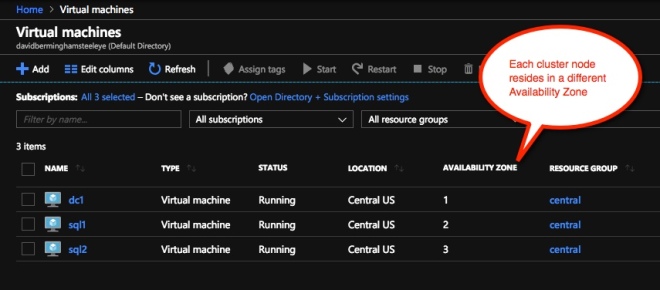
Availability Zones – It is important that both SQL1, SQL2 reside in different Availability Zones. For the sake of this guide we will assume you are using Windows 2016 and will use a Cloud Witness for the Cluster Quorum. If you use Windows 2012 R2 or Windows Server 2008 R2 instead of Windows 2016, you will need to configure a File Share Witness in the 3rd Availability Zone. Cloud Witness was not introduced until Windows Server 2016.

By putting the cluster nodes in different Availability Zones, we are ensuring that each cluster node resides in a different Azure datacenter in the same region. Leveraging Availability Zones rather than the older Fault Domains is beneficial. It isolates you from the types of outages occured just a few weeks ago that brought down the entire South Central region for multiple days.

Availability Zones
Be sure to add each cluster node to a different Availability Zone. If you leverage a File Share Witness it should reside in the 3rd Availability Zone.

Static IP Address

Once each VM is provisioned, you will want to go into the setting and change the settings so that the IP address is Static. We do not want the IP address of our cluster nodes to change.

Static IP
Make sure each cluster node uses a static IP

Storage

As far as Storage is concerned, you will want to consult Performance best practices for SQL Server in Azure Virtual Machines. In any case, you will minimally need to add at least one additional Managed Disk to each of your cluster nodes. DataKeeper can use Basic Disk, Premium Storage or even multiple disks striped together in a local Storage Space. If you do want to use a local Storage Space, be aware to create the Storage Space before any cluster configuration. This is due to a known issue with Failover Clustering and local Storage Spaces. All disks should be formatted NTFS.

Create The Cluster

Assuming both cluster nodes (SQL1 and SQL2) have been provisioned as described above and added to your existing domain, we are ready to create the cluster. Before we create the cluster, there are a few Features that need to be enabled. These features are .Net Framework 3.5 and Failover Clustering. These features need to be enabled on both cluster nodes. You will also need to enable the FIle Server Role.

6
Enable both .Net Framework 3.5 and Failover Clustering features and the File Server on both cluster nodes.

Once that role and those features have been enabled, you are ready to build your cluster. Most of the steps I’m about to show you can be performed both via PowerShell and the GUI. However, I’m going to recommend that for this very first step you use PowerShell to create your cluster. If you choose to use the Failover Cluster Manager GUI to create the cluster you will find that you wind up with the cluster being issued a duplicate IP address.

Without going into great detail, what you will find is that Azure VMs have to use DHCP. By specifying a “Static IP” when we create the VM in the Azure portal all we did was create sort of a DHCP reservation. It is not exactly a DHCP reservation because a true DHCP reservation would remove that IP address from the DHCP pool. Instead, this specifying a Static IP in the Azure portal simply means that if that IP address is still available when the VM requests it, Azure will issue that IP to it. However, if your VM is offline and another host comes online in that same subnet it very well could be issued that same IP address.

Another Side Effect To How Azure Implemented DHCP

When creating a cluster with the Windows Server Failover Cluster GUI, there is not option to specify a cluster IP address. Instead it relies on DHCP to obtain an address. The strange thing is, DHCP will issue a duplicate IP address. Usually the same IP address as the host requesting a new IP address. The cluster install will complete, but you may have some strange errors. You may need to run the Windows Server Failover Cluster GUI from a different node in order to get it to run. Once you get it to run you will need to change the core cluster IP address to an address that is not currently in use on the network.

You can avoid that whole mess by simply creating the cluster via Powershell and specifying the cluster IP address as part of the PowerShell command to create the cluster.

You can create the cluster using the New-Cluster command as follows:

New-Cluster -Name cluster1 -Node sql1,sql2 -StaticAddress 10.0.0.100 -NoStorage

After the cluster creation completes, you will also want to run the cluster validation by running the following command. You should expect to see some warnings about storage and network, but that is expected in Azure and you can ignore those warnings. If any errors are reported you will need to address those before you move on.

Test-Cluster

Create A Quorum Cluster

if you are running Windows 2016 or 2019 you will need to create a Cloud Witness for the cluster quorum. If you are running Windows Server 2012 R2 or 2008 R2 you will need to create a File Share Witness. The detailed instruction on witness creation can be found here.

Install DataKeeper

After the cluster is created, it is time to install DataKeeper. It is important to install DataKeeper after the initial cluster is created so the custom cluster resource type can be registered with the cluster. If you installed DataKeeper before the cluster is created, you will simply need to run the install again and do a repair installation.

8
Install DataKeeper after the cluster is created

During the installation you can take all of the default options.  The service account you use must be a domain account and be in the local administrators group on each node in the cluster.

9
The service account must be a domain account that is in the Local Admins group on each node

Once DataKeeper is installed and licensed on each node you will need to reboot the servers.

Create the DataKeeper Volume Resource

10

To create the DataKeeper Volume Resource you will need to start the DataKeeper UI and connect to both of the servers.

11
Connect to SQL1
12
Connect to SQL2

Once you are connected to each server, you are ready to create your DataKeeper Volume. Right click on Jobs and choose “Create Job”
13

Give the Job a name and description.
14

Choose your source server, IP and volume. The IP address is whether the replication traffic will travel.
15

Choose your target server.
16

Choose your options. For our purposes where the two VMs are in the same geographic region we will choose synchronous replication. For longer distance replication you will want to use asynchronous and enable some compression.
17

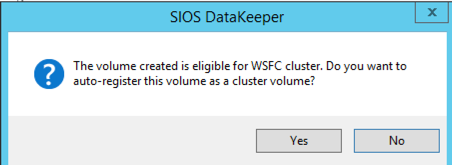
By clicking yes at the last pop-up you will register a new DataKeeper Volume Resource in Available Storage in Failover Clustering.
18

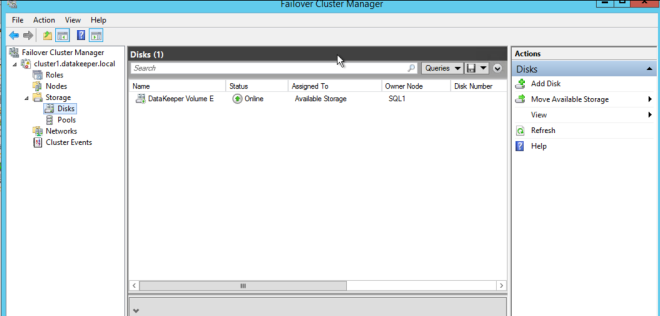
You will see the new DataKeeper Volume Resource in Available Storage.
19

Create The File Server Cluster Resource

To create the File Server Cluster Resource, we will use Powershell once again rather than the Failover Cluster interface. The reason being is that once again because the virtual machines are configured to use DHCP, the GUI based wizard will not prompt us to enter a cluster IP address and instead will issue a duplicate IP address. To avoid this we will use a simple powershell command to create the FIle Server Cluster Resource and specify the IP Address

Add-ClusterFileServerRole -Storage "DataKeeper Volume E" -Name FS2 -StaticAddress 10.0.0.101

Make note of the IP address you specify here. It must be a unique IP address on your network. We will use this same IP address later when we create our Internal Load Balancer.

Create The Internal Load Balancer

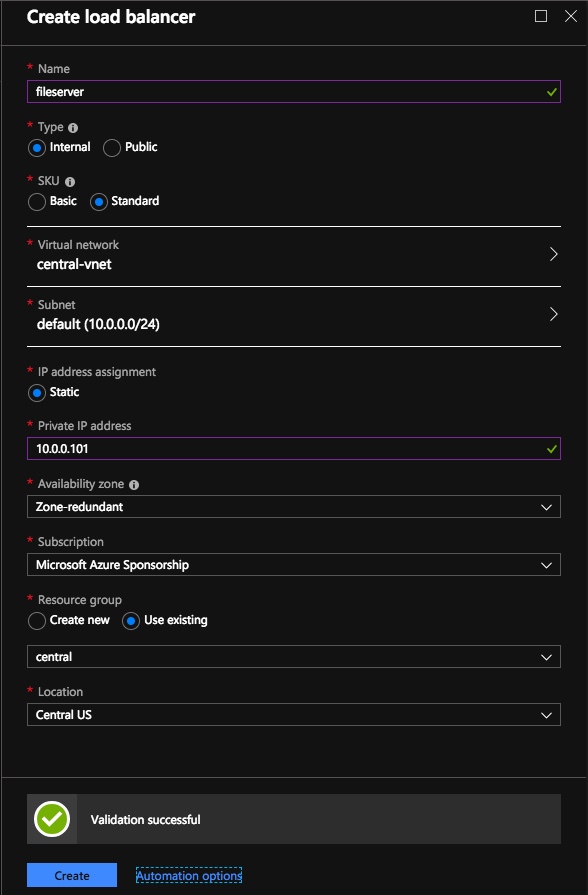
Here is where failover clustering in Azure is different than traditional infrastructures. The Azure network stack does not support gratuitous ARPS, so clients cannot connect directly to the cluster IP address. Instead, clients connect to an internal load balancer and are redirected to the active cluster node. What we need to do is create an internal load balancer. This can all be done through the Azure Portal as shown below.

You can use an Public Load Balancer if your client connects over the public internet. But assuming your clients reside in the same vNet, we will create an Internal Load Balancer. The important thing to take note of here is that the Virtual Network is the same as the network where your cluster nodes reside. Also, the Private IP address that you specify will be exactly the same as the address you used to create the File Server Cluster Resource. Also, because we are using Availability Zones, we will be creating a Zone Redundant Standard Load Balancer as shown in the picture below.

Load Balancer

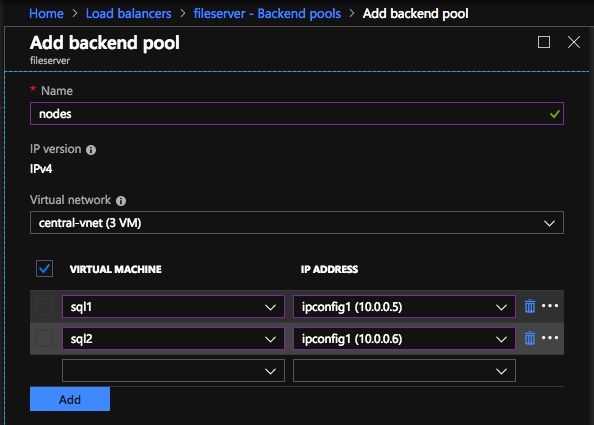
After the Internal Load Balancer (ILB) is created, you will need to edit it. The first thing we will do is to add a backend pool. Through this process you will choose the two cluster nodes.

Backend Pools

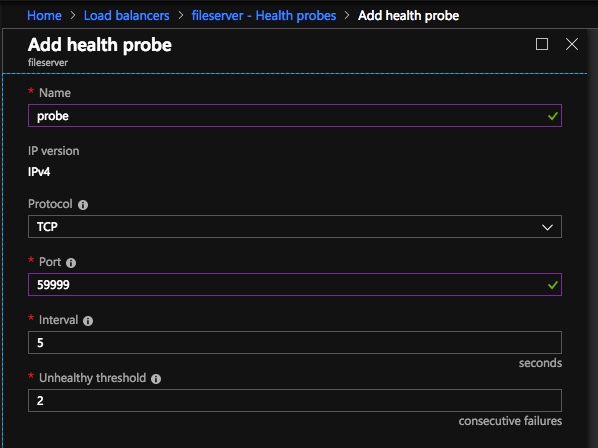
The next thing we will do is add a Probe. The probe we add will probe Port 59999. This probe determines which node is active in our cluster.
probe

And then finally, we need a load balancing rule to redirect the SMB traffic, TCP port 445. The important thing to notice in the screenshot below is the Direct Server Return is Enabled. Make sure you make that change.

rules

Fix The File Server IP Resource

The final step in the configuration is to run the following PowerShell script on one of your cluster nodes. This will allow the Cluster IP Address to respond to the ILB probes. Also to ensure that there is no IP address conflict between the Cluster IP Address and the ILB. Please take note; you will need to edit this script to fit your environment. The subnet mask is set to 255.255.255.255. This is not a mistake, leave it as is. This creates a host specific route to avoid IP address conflicts with the ILB.

# Define variables
$ClusterNetworkName = “” 
# the cluster network name (Use Get-ClusterNetwork on Windows Server 2012 of higher to find the name)
$IPResourceName = “” 
# the IP Address resource name 
$ILBIP = “” 
# the IP Address of the Internal Load Balancer (ILB)
Import-Module FailoverClusters
# If you are using Windows Server 2012 or higher:
Get-ClusterResource $IPResourceName | Set-ClusterParameter -Multiple @{Address=$ILBIP;ProbePort=59999;SubnetMask="255.255.255.255";Network=$ClusterNetworkName;EnableDhcp=0}
# If you are using Windows Server 2008 R2 use this: 
#cluster res $IPResourceName /priv enabledhcp=0 address=$ILBIP probeport=59999  subnetmask=255.255.255.255

Creating File Shares

You will find that using the File Share Wizard in Failover Cluster Manager does not work. Instead, you will simply create the file shares in Windows Explorer on the active node. Failover clustering automatically picks up those shares and puts them in the cluster.

Note that the”Continuous Availability” option of a file share is not supported in this configuration.

Conclusion

You should now have a functioning File Server Failover Cluster in Azure that spans Availability Zones. If you need a DataKeeper evaluation key fill out the form at http://us.sios.com/clustersyourway/cta/14-day-trial and SIOS will send an evaluation key sent out to you.

To read more about clustering, click here
Reproduced with permission from Clusteringformeremortals.com

Filed Under: Clustering Simplified Tagged With: Azure, cluster, failover, File Server, file server failover cluster in azure

Strip Together Multiple Disk In A Simple Storage Space

November 2, 2018 by Jason Aw Leave a Comment

Strip Together Multiple Disk In A Simple Storage Space

Strip Together Multiple Disk In A Simple Storage Space

Strip Together Multiple Disk In A Simple Storage Space

Strip Together Multiple Disk In A Simple Storage Space

You are building a SANless SQL Server cluster with SIOS DataKeeper. Or maybe you’re configuring Always On Availability Groups for SQL Server. How about trying to strip together multiple disk in a Simple Storage Space (RAID 0) for performance? This is very commonly done in the cloud where each instance typically is backed by hardware resiliency, so RAID 0 is not really all that risky.

For instance, I had a recent customer in AWS that wanted to max out his IOPS to 80,000 – the maximum IOPS currently available to a single instance. Now keep in mind, only the largest EBS optimized instance sizes supports 80,000 IOPS. So make sure you know what maximum IOPS your particular instance size supports.

https://docs.aws.amazon.com/AWSEC2/latest/UserGuide/EBSOptimized.html

In this case we had ac5.18xlarge instance which does support 80,000 IOPS. However, any individual EBS Provisioned IOPS volume only supports up to 32,000 IOPS. The only way to achieve 80,000 IOPS when writing to any single volume is to strip three of these volumes together in a Simple Storage Space.

Herein lies the rub. If you try to do Strip Together Multiple Disk In A Simple Storage Space in an existing cluster, things are going to go haywire pretty fast. Fellow MVP Joey D’Antoni recently blogged about the issue. It appears to still be an issue in the Windows Server 2019 preview.

Just as Joey suggests, I always advise my customers to build out the nodes and any Storage Spaces before they start the clustering process. This makes the process to Strip Together Multiple Disk In A Simple Storage Space go much smoother. It also allows the customer to have some time to benchmark the server’s performance before they add any replication. And also to ensure everything is working as expected.

Keen to know more quick tips like how to Strip Together Multiple Disk In A Simple Storage Space, check out our other posts about clustering
Reproduced with permission from Clusteringformeremortals.com

Filed Under: Clustering Simplified Tagged With: cluster, Strip Together Multiple Disk In A Simple Storage Space

Cloud Witness To Build Multi-Instance SQL Server Failover Cluster In Azure

September 10, 2018 by Jason Aw Leave a Comment

New Azure ILB Feature Allows You To Build A Multi-Instance SQL Server Failover Cluster In Azure

New Azure ILB Feature Allows You To Build A Multi-Instance SQL Server Failover Cluster In Azure

The new feature, Cloud Witness is my favourite at the moment. Before we look at the new quorum features in Windows Server 2016, I think it is important to know where we came from. In my previous post Understanding the Windows Server Failover Cluster Quorum in Windows Server 2012 R2 I went into some great detail regarding the history and evolution of the cluster quorum. I suggest you review that post to understand how the quorum works in Windows Server 2012 R2. Also, how the new features of Windows Server 2016 are going to make your cluster deployments even more resilient.

Cloud Witness

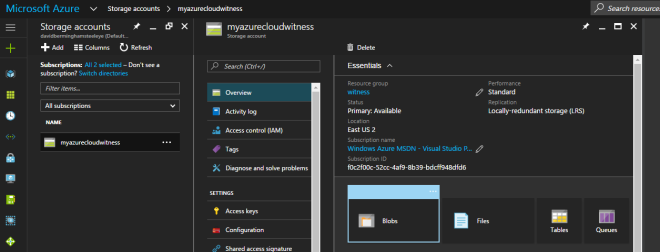
A Cloud Witness allows you to leverage Azure Blob Storage to act as a witness for your cluster. This witness would be in place of a Disk Witness or File Share Witness. The configuration of a Cloud Witness is extremely easy. From my experience costs next to nothing to host in Azure. The only downside is that the cluster nodes will need to be able to communicate over the internet to with your Azure Blob Storage. Very often cluster nodes are forbidden to communicate over to the public internet. So you will need to coordinate with your security team if you want to enable a Cloud Witness.

There are many compelling reasons for using a Cloud Witness to build the Multi-Instance SQL Server Failover Cluster In Azure. But for me it makes most sense in three very specific environments: Failover Cluster in Azure, Branch Office Clusters, and Multisite Clusters.

On A Closer Look

Let’s take a look at each of these scenarios to see how a Cloud Witness can help.

New ILB Feature For Multi-Instance SQL Server Failover Cluster In Azure
Figure 1 – When you’re trying to build Multi-Instance SQL Server Failover Cluster In Azure, the cloud witness storage account should always be configured Locally Redundant Storage (LRS)

Highly Available Deployments

If you are moving to Azure (or really any cloud provider), you will want to make sure your deployments are highly available. If you are taking about SQL Server, File Servers, SAP or other workloads traditionally clustered with Windows Server Failover Clustering, you will need to use either a File Share Witness or a Cloud Witness, since a Disk Witness is not possible in Azure. With Windows Server 2012 R2 or Windows Server 2008 R2, you will need to use a File Share Witness. Windows Server 2016 makes it possible to use a Cloud Witness. The advantage of a Cloud Witness is that you don’t have to maintain another Windows instance in Azure to host the File Share. Instead, Microsoft allows you to leverage Blob Storage.  This gives you a less expensive solution, one that is much easier to manage, and more resilient.

Location

When looking at cluster deployments in branch offices, cost and maintenance is always a consideration. For a retail chain with hundreds or thousands of locations, having a SAN in each location can be cost prohibitive. Each location might to run a two node Hyper-V cluster on a S2D Hyper-converged configuration or a 3rd party replication solution to host a number of virtual machines. Now what a Cloud Witness can do is to help the business avoid the cost of adding an additional physical server in each location to act as a File Share Witness or the cost of adding a SAN to each location.

Eliminates The Need For A 3rd Data Center

And finally, when deploying a multisite cluster, the Cloud Witness eliminates the need for a 3rd data center to host the File Share Witness. Before the introduction of the Cloud Witness, best practice would dictate that the File Share Witness reside in a 3rd location. Access to a 3rd datacenter just to host a file share witness was not always feasibly and certainly introduced another layer of complexity. By using a Cloud Witness you eliminate the need to maintain a 3rd location and access to the witness is done over the public internet, minimizing the network requirements as well.

Site Awareness

When building a multisite cluster, there has always been another common problem. Controlling the failover to always prefer the local site was not possible. While you could specify Preferred Owners, the Preferred Owners setting is commonly misunderstood. Administrators may not have realized this. But do you know even if they didn’t list a server as Preferred Owner, the server is automatically appended to the end of the Preferred Owners list maintained by the cluster. The result of this misunderstanding is that although you may have only listed the local servers as Preferred Owners, you could potentially have a cluster resource failover to the DR site. And this is even when there is a perfectly good node available in the local site. Obviously this is not what you expect and using Site Awareness will eliminate this problem moving forward.

Site Awareness fixes this problem by always preferring the local site when deciding which node to bring online. So in a normal circumstance a clustered workload will always failover to a local node unless you have a complete site outage. In which case one of the DR nodes will come online. The same holds true once you are running in the DR site. The cluster will recover the workload on a server in the DR site if it was previously running on a node in the DR site. Site Awareness will always prefer a local node.

Fault Domains

Building upon site awareness is Fault Domains. Fault Domains goes a step further and lets you define Node, Chasse, and Rack locations in addition to Site. Fault Domains have three benefits: Storage Affinity in a Stretch Cluster, increases Storage Spaces resiliency. It enhances the Health Services alerts by including meta data about the location of the associated resources raising the alarm. Storage Affinity will help ensure that your cluster workloads and storage are running in the same location. You certainly wouldn’t want your VM reading and writing data that is sitting on a CSV in a different city.

However, I think the biggest winner here is the Storage Spaces Direct (S2D) scenario. SD2 will leverage the information you provide about your cluster nodes location (Site, Rack, Chassis) to ensure that the multiple copies of data that is written for redundancy all live in different Fault Domains. This helps ensure that data placement is optimized so that the failure of a single Node, Chassis, Rack or Site does not bring down your entire S2D deployment.  Cosmos Darwin has an excellent video on Channel 9 that explains this concept in great detail.

Summary

Windows Server 2016 adds several new enhancements to the cluster quorum that will provide some immediate benefits to your cluster deployments. In addition, check out some of the other great new cluster enhancements like rolling system upgrade, Virtual Machine Resiliency, Workgroup and Multi-Domain Clusters and others.

To read about other tips such as building a new Multi-Instance SQL Server Failover Cluster In Azure with Cloud Witness, have a read at our posts.

Reproduced with permission from Clusteringformeremortals.com

Filed Under: Clustering Simplified Tagged With: Azure, Azure Resource Manager, Cloud Witness, cluster, Deployment, failover cluster, High Availability, Load Balance, multi instance sql server failover cluster in azure, PowerShell, replication, SQL Server, System Center Configuration Manager, Windows Server 2008, Windows Server 2012

Achieve High Availability Data Replication In Cluster Solution With SIOS

May 20, 2018 by Jason Aw Leave a Comment

Achieve high availability data replication in cluster solution with SIOS

High Availability, Data Replication, Cluster Solution Guards Institution’s Linux-based Resources From Downtime

Serving nearly 19,000 students and supporting nearly 170 academic programs, Boise State University is Idaho’s largest university. The university needed a cluster solution offering high availability data replication. The data protection requirements include maintaining continuous availability of their Linux-based network file system and replication of all data and applications located within its Linux Red Hat server environment. To ensure students, faculty and staff have continuous access to Blackboard resources, Boise State IT staff implemented a SIOS #SANLess cluster using SIOS Protection Suite for Linux solution. This cluster uses local attached storage for each server in the cluster. SIOS software keeps this storage synchronized using real time block-level replication. It eliminates the cost, complexity, and single point of failure risk of traditional shared storage clusters.

The Challenge

The school did not want anyone to lose their data, hence the importance of having high availability data replication. The systems must experience very little downtime, if any. In addition, the university wanted technology that was easy to implement and maintain. And at the same time, provide the highest level of protection and availability of data and applications contained inside the Red Hat servers.

Getting A High Availability Data Replication Cluster Solution

The Boise State University IT department implemented a cluster solution using SIOS software. This cluster maintains high availability for their Blackboard and other critical applications and data by monitoring system and application health, preserving client connectivity and providing uninterrupted data access. If SIOS Protection Suite detects a failure in the application, network, or server hardware, it attempts to restart the application. If the restart fails, it automatically moves operations to backup servers and redundant copies of the data in the Linux cluster through a system failover process. The solution also enables continuous operations during planned downtime for maintenance or upgrades. SIOS software creates a fault resilient environment that meets the University’s stringent high availability requirements. SIOS Protection Suite for Linux works on both physical servers and virtual machines.

Benefits

SIOS software not only provides failover and disaster recovery protection, but it also eliminates the risk associated with a single point of failure contained in shared storage SAN cluster configurations. The SIOS failover process enables automatic system and application recovery if a server goes down.

To find out more about SIOS products, go here
To read about how SIOS helped Boise State University achieve high availability data replication in their cluster solution, go here

Filed Under: Success Stories Tagged With: cluster, data replication, High Availability, high availability data replication

  • « Previous Page
  • 1
  • 2
  • 3
  • 4
  • 5
  • …
  • 9
  • Next Page »

Recent Posts

  • The Power of Approximation in Business Decisions and Communication
  • SAP Disaster Recovery: Techniques and Best Practices
  • Designing for High Availability and Disaster Recovery
  • The Importance of Proper Memory Allocation in HA Environments
  • Top Reasons Businesses Are Adopting Disaster Recovery as a Service (DRaaS) Solutions

Most Popular Posts

Maximise replication performance for Linux Clustering with Fusion-io
Failover Clustering with VMware High Availability
create A 2-Node MySQL Cluster Without Shared Storage
SAP for High Availability Solutions For Linux
Bandwidth To Support Real-Time Replication
The Availability Equation – High Availability Solutions.jpg
Choosing Platforms To Replicate Data - Host-Based Or Storage-Based?
Guide To Connect To An iSCSI Target Using Open-iSCSI Initiator Software
Best Practices to Eliminate SPoF In Cluster Architecture
Step-By-Step How To Configure A Linux Failover Cluster In Microsoft Azure IaaS Without Shared Storage azure sanless
Take Action Before SQL Server 20082008 R2 Support Expires
How To Cluster MaxDB On Windows In The Cloud

Join Our Mailing List

Copyright © 2026 · Enterprise Pro Theme on Genesis Framework · WordPress · Log in