SIOS SANless clusters

SIOS SANless clusters High-availability Machine Learning monitoring

  • Home
  • Products
    • SIOS DataKeeper for Windows
    • SIOS Protection Suite for Linux
  • News and Events
  • Clustering Simplified
  • Success Stories
  • Contact Us
  • English
  • 中文 (中国)
  • 中文 (台灣)
  • 한국어
  • Bahasa Indonesia
  • ไทย

Create Multi-Site Cluster In Windows Azure For DR With DataKeeper

February 15, 2018 by Jason Aw Leave a Comment

Create Multi-Site Cluster In Windows Azure For DR With DataKeeper

This is the 4th post in my series on High Availability and Disaster Recovery for Windows Azure with SIOS DataKeeper Cluster Edition. This is a step-by-step post on the processes to create multi-site cluster. It builds upon the Azure configuration that we built during my first three articles…

  1. How To Create A Site-To-Site VPN Tunnel To The Windows Azure Cloud
  2. Extending Your Data Centre To The Azure Cloud
  3. Create A SQL Server 2014 AlwaysOn Failover Cluster (FCI) Instance in Windows Azure Iaas With DataKeeper

We are now going to extend the existing cluster (SQL1 and SQL2) to your local data center, SQL3. This configuration will give you both high availability for your application within the Azure Cloud, as well as a disaster recovery solution should Azure suffer a major outage. You could configure this in reverse as well with your on premise datacenter as your primary site and use Windows Azure as your disaster recovery site. And of course this solution illustrates SQL Server as the application, but any cluster aware application can be protected in the same fashion.

At this point, if you have been following along your network should look like the illustration below.

Add SQL3 To The Cluster

To add SQL3 to the cluster, the first thing we need to do is make sure SQL3 is up and running, fully patched and added to the domain. We also need to make sure that it has an F:\ drive attached that is of the same size as the F:\ drives in use in Azure. And finally, if you relocated tempdb on the SQL cluster, make sure you have the directory structure where tempdb is located pre-configured on SQL1 as well.

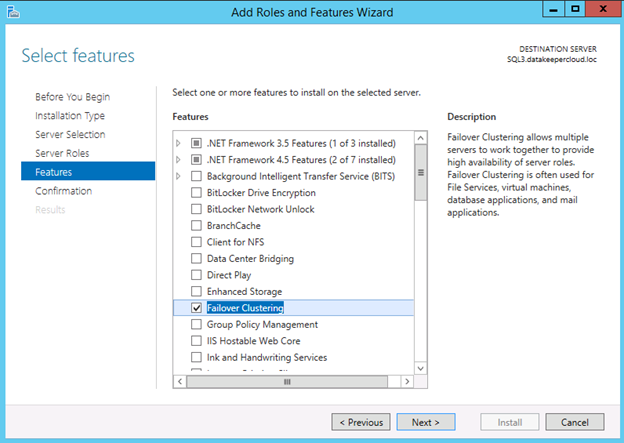
Next we will add the Failover Cluster feature to SQL3.

Create A Multi-Site Cluster In Windows Azure For DR With DataKeeper

Create A Multi-Site Cluster In Windows Azure For DR With DataKeeper

With failover clustering installed on SQL3, we will open Failover Cluster Manager on SQL1 and click Add Node

Create A Multi-Site Cluster In Windows Azure For DR With DataKeeper

Select SQL3 and click Next

Create A Multi-Site Cluster In Windows Azure For DR With DataKeeper

Run all the validation tests on SQL3

Create A Multi-Site Cluster In Windows Azure For DR With DataKeeper

Create A Multi-Site Cluster In Windows Azure For DR With DataKeeper

Create A Multi-Site Cluster In Windows Azure For DR With DataKeeper

Let’s take a look at some of the warnings in the validation report

The RegisterAllProvidersIP property is set to 1, which can be good when you intend to Create Multi-Site Cluster. You can read more about this setting here: http://technet.microsoft.com/en-us/library/ca35febe-9f0b-48a0-aa9b-a83725feb4ae

Create A Multi-Site Cluster In Windows Azure For DR With DataKeeper

This next warning talks about only having a single network between the cluster nodes. At this time Azure only supports a single network interface between VMs. Do note there is nothing you can do about this warning. However, this network interface is fully redundant behind the scenes. Safely ignore this message.

Create A Multi-Site Cluster In Windows Azure For DR With DataKeeper

Of course you are going to see a lot of warnings around storage. That’s because this cluster has no shared storage. Instead it relies on replicated storage by SIOS DataKeeper Cluster Edition. As stated below, this is perfectly fine as the database will be kept in sync with the replication software.

Create A Multi-Site Cluster In Windows Azure For DR With DataKeeper

We are now ready to add SQL3 to the cluster.

Create A Multi-Site Cluster In Windows Azure For DR With DataKeeper

Create A Multi-Site Cluster In Windows Azure For DR With DataKeeper

Once you click Finish, SQL3 will be added to the cluster as shown below.
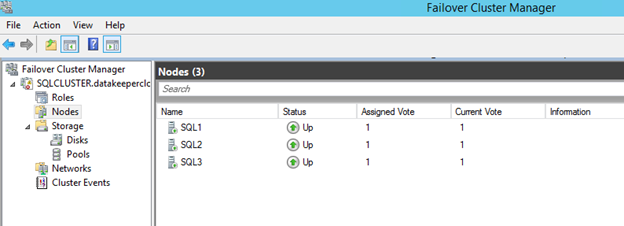
Create A Multi-Site Cluster In Windows Azure For DR With DataKeeper

However, there are a few things we need to do to complete this installation. Next we will work of the following steps:

  • Add an additional IP address to the Cluster Name Object
  • Tune the heartbeat settings
  • Extend the DataKeeper mirror to SQL3
  • Install SQL 2014 on SQL3

Add An Additional IP Address To The Cluster Name Object

To Create Multi-Site Cluster, we added SQL3 to the cluster. So from a single site cluster, it becomes a multi-subnet cluster. If the cluster was originally created as a single site cluster and you later add a node that resides in a different subnet, you have to manually add a second IP address to the Cluster Name Object and create an OR dependency. For more information on this topic, view the following article. http://blogs.msdn.com/b/clustering/archive/2011/08/31/10204142.aspx

To add a second IP address to the Cluster Name Object (CNO), we must use the PowerShell commands described in the article mentioned above.

Create A Multi-Site Cluster In Windows Azure For DR With DataKeeper

Now if you are following along with the MSDN article I referenced, you would expect to see these “NewIP” somewhere in the GUI. However, at least with Windows 2012 R2 I am not currently seeing this resource in the GUI.
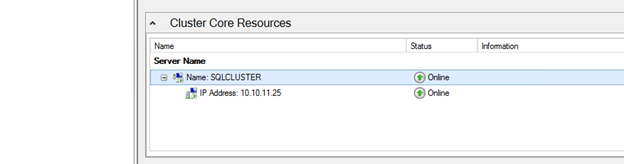
Create A Multi-Site Cluster In Windows Azure For DR With DataKeeper

However, if I right click on the SQLCLUSTER name and choose properties and try to add NewIP as a dependency, I see it is listed as a possible resource.
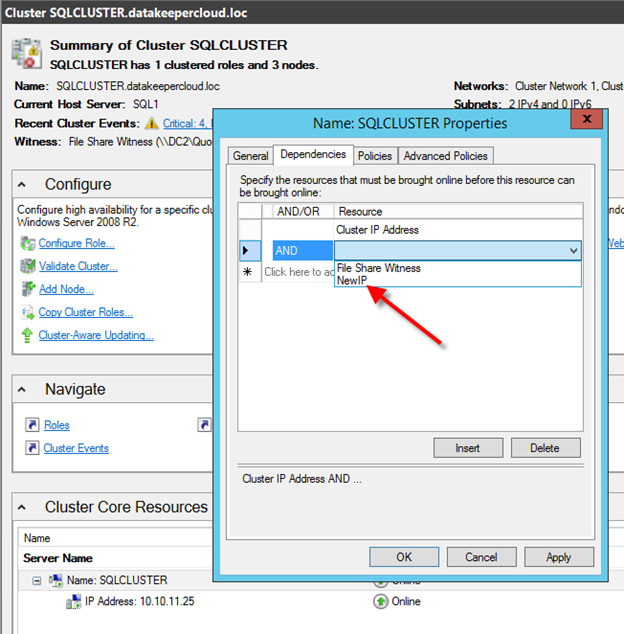
Create A Multi-Site Cluster In Windows Azure For DR With DataKeeper

Choose “NewIP” and also make the dependency type “OR” as shown below.
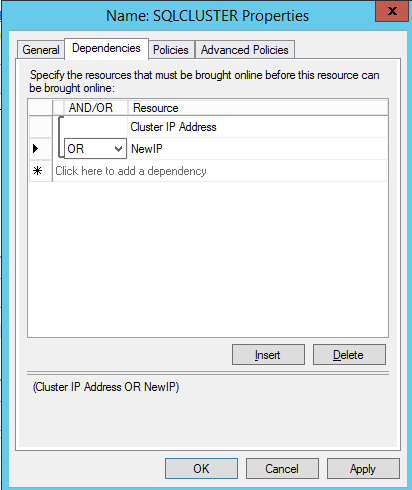
Create A Multi-Site Cluster In Windows Azure For DR With DataKeeper

Once you click OK, it now appears in the GUI as an IP Address that needs to be configured.

Create A Multi-Site Cluster In Windows Azure For DR With DataKeeper

We can now choose the properties of this IP Address and configure the address to use an IP address that is not currently in use in the 10.10.10.0/24 subnet, which is the same subnet where SQL3 resides.

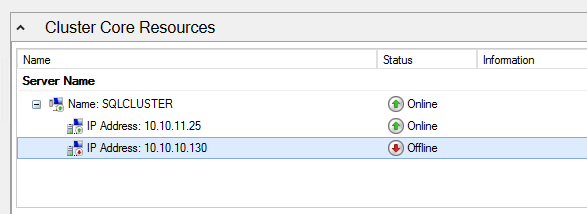
Create A Multi-Site Cluster In Windows Azure For DR With DataKeeper

Create A Multi-Site Cluster In Windows Azure For DR With DataKeeper

Tune The Heartbeat Settings

We now are ready to tune the heartbeat settings. Essentially, we are going to be a little more tolerant with network communication. Furthermore, since SQL3 is located across a VPN connection with some latency on the line and we only have the single network interface on the cluster nodes. I highly recommend you read this article by Elden Christensen to help you decide what the right settings for your requirements are:http://blogs.msdn.com/b/clustering/archive/2012/11/21/10370765.aspx

For our environment, we are going go to what he is calling the “Relaxed” setting by setting the SameSubnetThreshold to 10 heartbeats and the CrossSubnetThreshold to 20 heartbeats.

The commands are:

(get-cluster).SameSubnetThreshold = 10

(get-cluster).CrossSubnetThreshold = 20

Create A Multi-Site Cluster In Windows Azure For DR With DataKeeper

What this means is that heartbeats will continue to be sent every 1 second, but a SQL1 and SQL2 will only be considered dead after 10 missed heartbeats. SQL3 will be dead after 20 missed heartbeats. This will increase your Recovery Time Objective slightly (5-10 seconds), but it will also eliminate potential false failovers.

Extend The DataKeeper Mirror To SQL3

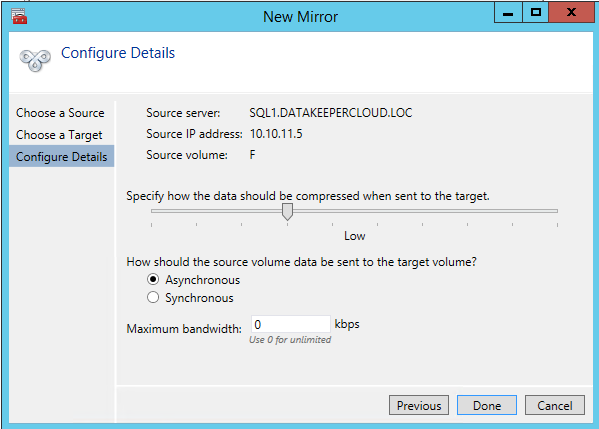
Before we can install SQL 2014 on SQL3 we must extend the DataKeeper mirror so that it includes SQL3 as a replication target. Of course you must install DataKeeper Cluster Edition on SQL3 first, and make sure that is has a F:\ drive at least as big as the source of the mirror. Once DataKeeper is installed

Create A Multi-Site Cluster In Windows Azure For DR With DataKeeper

Create A Multi-Site Cluster In Windows Azure For DR With DataKeeper

Create A Multi-Site Cluster In Windows Azure For DR With DataKeeper

Create A Multi-Site Cluster In Windows Azure For DR With DataKeeper

Create A Multi-Site Cluster In Windows Azure For DR With DataKeeper

Create A Multi-Site Cluster In Windows Azure For DR With DataKeeper

Create A Multi-Site Cluster In Windows Azure For DR With DataKeeper

Create A Multi-Site Cluster In Windows Azure For DR With DataKeeper

Install SQL 2014 On SQL3

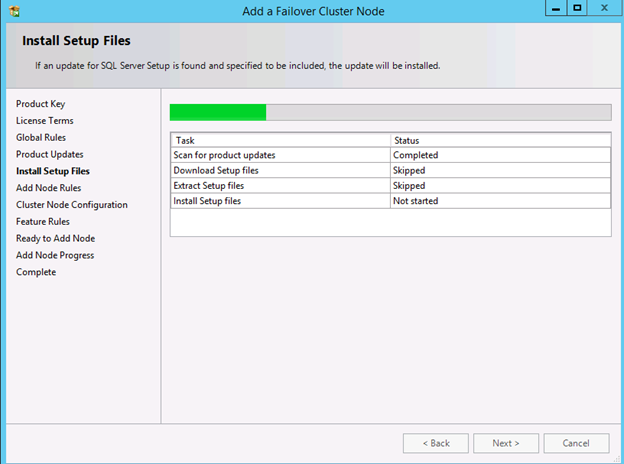
Now it is time to install SQL 2014 onto the 3rd node. The process is exactly the same as it was to install in on SQL2. Start by launching SQL Setup on SQL3.

Create A Multi-Site Cluster In Windows Azure For DR With DataKeeper

Run through all the steps…

Create A Multi-Site Cluster In Windows Azure For DR With DataKeeper

Create A Multi-Site Cluster In Windows Azure For DR With DataKeeper

Create A Multi-Site Cluster In Windows Azure For DR With DataKeeper

At this point in the installation you have to pick an IP address that is valid for SQL3’s subnet. The cluster will add this IP address with an “OR” dependency to the client access point.

Create A Multi-Site Cluster In Windows Azure For DR With DataKeeper

Enter the passwords for your service accounts

Create A Multi-Site Cluster In Windows Azure For DR With DataKeeper

Create A Multi-Site Cluster In Windows Azure For DR With DataKeeper

After you complete the installation let the fun begin. You now have a multisite SQL Server cluster that should look something like this.

Create A Multi-Site Cluster In Windows Azure For DR With DataKeeper

For information to Create Multi-Site Cluster or any clustering questions, read here to see how SIOS could help you achieve a better solution

Reproduced with permission from https://clusteringformeremortals.com/2014/01/14/creating-a-multi-site-cluster-in-windows-azure-for-disaster-recovery-azure-cloud/
Filed Under: Clustering Simplified Tagged With: cluster, create multi site cluster, DataKeeper, disaster recovery, High Availability, Windows Azure

Hurricane Sandy Disaster Recovery For Business

February 4, 2018 by Jason Aw Leave a Comment

The accident taught us the importance of Disaster Recovery. Have you prepared well for it?

My thoughts and prayers go out to those affect by this massive storm. Although I live in NJ, my neighborhood remained relatively unscathed other than some downed trees and power lines. The pictures coming in from the coastal communities up and down the eastern seaboard show that many people did not fare as well. I’m hopeful that most of the damage is property that can be rebuilt, but I am sorry to hear that some people lost their lives and I can only imagine the pain of their friends and family – I am truly sorry for their loss.

Need help with Disaster Recovery?

As an employee of a company that specializes in disaster recovery software, I am also privy to many stories of companies that lost data that cannot be replaced. Many of these companies never recover from such catastrophes, but those that do are usually the ones who immediately look to put into place a plan that includes some sort of real-time data protection that includes replicating their critical data offsite or to some cloud repository so they are never caught in such a predicament again. If that is your story or even if you were lucky enough to avoid disaster this time but want to prepare ahead, please contact me immediately so I can help you assess your risks and recommend some data protection and DR solutions to help mitigate the risks.

Reproduced with permission from https://clusteringformeremortals.com/2012/10/30/hurricane-sandy-disaster-recovery-for-business/

Filed Under: Clustering Simplified Tagged With: disaster recovery, SIOS, SIOS DataKeeper Cluster Edition

SQL Server 2012 Multi-site Failover Cluster For Disaster Recovery

February 1, 2018 by Jason Aw Leave a Comment

SQL Server 2012 Multi-site Failover Cluster for Disaster Recovery using SteelEye DataKeeper Cluster Edition

Microsoft just released a great white paper on new support for SQL Server 2012 Multi-site Failover Cluster for Disaster Recovery. If you’re interested, you can download a copy here.

In fact, don’t forget that I blogged about this feature back in an earlier post. I included a video demonstration. It shows a SQL Server 2012 multisite failover cluster for disaster recovery using SteelEye DataKeeper Cluster Edition. SQL Server 2012 and cross subnet failover capabilities will open up a whole new world of possibilities for people looking for disaster recovery options.

Reproduced with permission from https://clusteringformeremortals.com/2012/01/03/sql-server-2012-disaster-recovery-multisite-clusters/

Filed Under: Clustering Simplified, Datakeeper Tagged With: clusters, DataKeeper Cluster Edition, disaster recovery, multi-site, SQL Server 2012, sql server 2012 multi site failover cluster

SQL Server Denali Demonstration

January 31, 2018 by Jason Aw Leave a Comment

SQL Server Denali Hadron Multi-site Cross Subnet Failover Video Demonstration

The crowd has spoken and the SQL Server Team has answered! Denali is the first version of SQL Server to support the cross subnet failover feature which first introduced in Windows Server 2008 Failover Clustering. It seems like we have been waiting forever for the SQL team to support this feature. Now, the wait is finally drawing to an end.

The following is a link to a 5 minute video. It demonstrates a 3-node cluster Denali cluster with two nodes in the primary datacenter, and one node in the Disaster Recovery site in a separate subnet.

http://screencast.com/t/ni1zqMOIv

I will be demonstrating this solution at Tech-Ed 2011 in Atlanta this week. Stop by the SIOS Technology booth and come have a look for yourself at the SQL Server Denali multi-site cluster demonstration using SteelEye DataKeeper. We would be happy to share our technology and further explain how it could benefit your projects.

Reproduced with permission from https://clusteringformeremortals.com/2011/05/15/sql-server-denali-hadron-multisite-cross-subnet-failover-video-demonstration/

Filed Under: Clustering Simplified Tagged With: cross subnet failover, Demonstration, Denali, disaster recovery, Microsoft, SIOS DataKeeper Cluster Edition, SQL Server, Tech-Ed 2011, Windows Server 2008 Failover Clustering

Microsoft Multi-site Cluster Users Rejoice

January 25, 2018 by Jason Aw Leave a Comment

It Is Now Possible To Have Automatic Failover In A 3 Node Cluster!

Microsoft recently released a patch that allows you to specify whether or not a cluster node can vote in in a majority quorum model. This is particularly useful in a multisite cluster configuration that consists of an even number of nodes.

http://support.microsoft.com/kb/2494036

Consider the following…

I have a two node cluster in a local site high availability and I wish to extend it to a 3rdlocation and add a single node for disaster recovery. Sound like a great plan as a multisite cluster is just about the most robust DR plan you can implement. However, you will not be able to take advantage of one of the best features of a multisite cluster – automatic recovery in the event of a site loss. If you were to lose your primary site the DR site only contains one cluster node (see Figure 1). This is just one vote out of three in the cluster so a majority cannot be obtained and Node3 will not come online automatically. The only way to make Node3 come online is to force the quorum online, which kind of defeats the purpose of multisite cluster by requiring human intervention for a failover to happen.

Figure 1 – In a typical 3 node multisite cluster if you lose the primary site the DR site cannot obtain majority so failover never occurs.

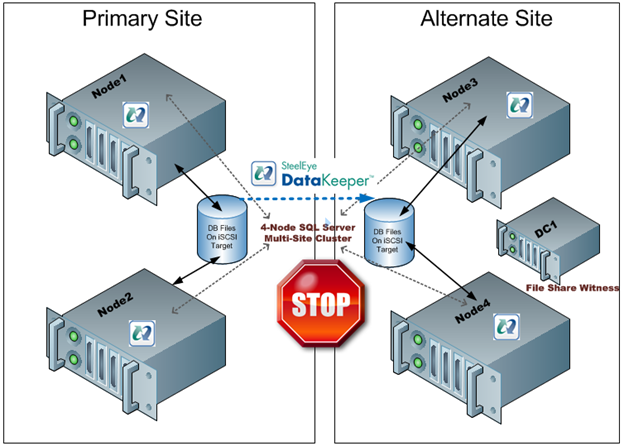
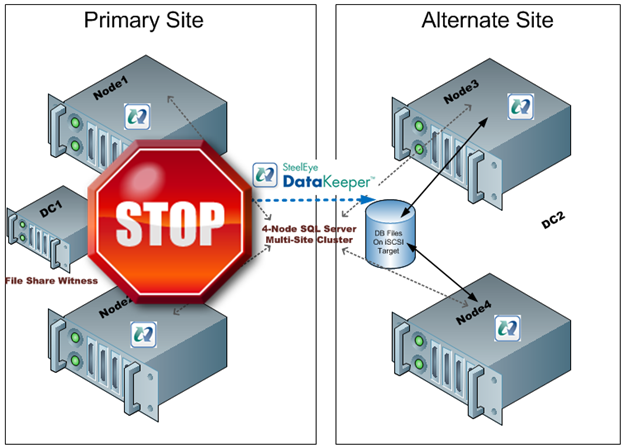
The only “safe” way to have automatic failover in a multisite cluster is to have an equal number of nodes in each site and to have a file share witness in a 3rd location with connectivity back to both the primary site and the DR site. This concept is a little difficult to grasp at first, so let me attempt to explain through illustrations.

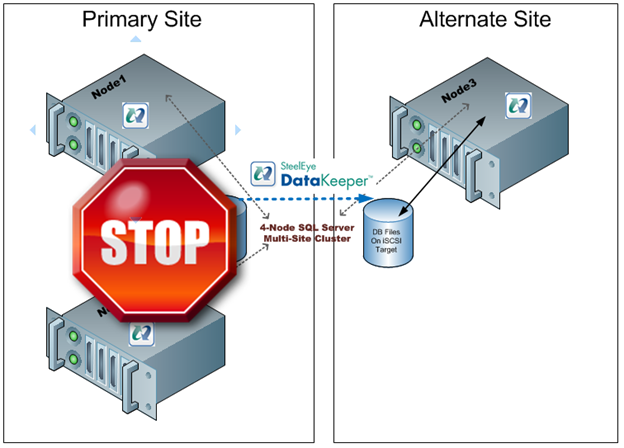
Figure 2- With an even number of nodes in both locations and the file share witness in the primary site a loss of the primary site would not result in a failover as the Alternate Site would only have 2 out of 5 votes, not a majority.
Figure 3 – If the file share witness was moved to the Alternate Site a failure of the WAN would cause a false failover as the Alternate Site would form a majority and come online.
Figure 4 – with the file share witness in a 3rd location failover will occur if the Primary Site is lost and false failovers are avoided in the case of connectivity failure between the Primary and Alternate Site.

As you can see, figure 4 represents the only reasonable configuration which supports automatic failover. However, this assumes that there are an equal number of nodes in each location. If you are stuck with the original 3-node configuration you are stuck as adding a file share witness does not help as you can never achieve a majority in the alternate site…until today! Microsoft release a patch that basically allows you to specify whether or not a node gets to vote or not. So what this means is you can build a 3-node cluster as illustrated in Figure 1, yet take advantage a file share witness in a 3rd location as illustrated in Figure 4. By simply telling one of the nodes in the Primary Site to note vote in the cluster you will allow the Alternate Site to form a majority with the file share witness and come online. Assuming connectivity to your 3rd location and Alternate Site is relatively reliable there really is no downside to the configuration shown in Figure 5.

Figure 5 – by disabling the vote on Node2 you can deploy a 3-node multisite cluster with a file share witness and safely support automatic failover to the DR site. The same concept can be applied to any cluster with an odd number of nodes.

While this is a great solution, you still need that 3rd location for the file share witness. If you don’t have that 3rd location you will just have to settle for a manual switchover and keep the file share witness in the primary site if you have an even number of nodes.

The PreventQuorum switch is also included as part of this hotfix which will also be of interest to people deploying multisite clusters. Well explore that option in a future article.

Get the hot fix here…

A hotfix is available to let you configure a cluster node that does not have quorum votes in Windows Server 2008 and in Windows Server 2008 R2

http://support.microsoft.com/kb/2494036

Reproduced with permission from https://clusteringformeremortals.com/2011/04/29/microsoft-multisite-cluster18-users-rejoice-it-is-now-possible-to-have-automatic-failover-in-a-3-node-cluster19/

Filed Under: Clustering Simplified, Datakeeper Tagged With: cluster, disaster recovery, Microsoft, multi-site

  • « Previous Page
  • 1
  • …
  • 21
  • 22
  • 23
  • 24
  • 25
  • 26
  • Next Page »

Recent Posts

  • Disaster Recovery Planning in an Unpredictable World
  • Active-Active vs. Active-Passive
  • Broadcom/VMware: Time To Decouple High Availability From Your Hypervisor
  • How To Improve Customer Satisfaction in Technical Support
  • Keeping Buildings Safe: High Availability in Maintenance and Security Systems

Most Popular Posts

Maximise replication performance for Linux Clustering with Fusion-io
Failover Clustering with VMware High Availability
create A 2-Node MySQL Cluster Without Shared Storage
SAP for High Availability Solutions For Linux
Bandwidth To Support Real-Time Replication
The Availability Equation – High Availability Solutions.jpg
Choosing Platforms To Replicate Data - Host-Based Or Storage-Based?
Guide To Connect To An iSCSI Target Using Open-iSCSI Initiator Software
Best Practices to Eliminate SPoF In Cluster Architecture
Step-By-Step How To Configure A Linux Failover Cluster In Microsoft Azure IaaS Without Shared Storage azure sanless
Take Action Before SQL Server 20082008 R2 Support Expires
How To Cluster MaxDB On Windows In The Cloud

Join Our Mailing List

Copyright © 2026 · Enterprise Pro Theme on Genesis Framework · WordPress · Log in