SIOS SANless clusters

SIOS SANless clusters High-availability Machine Learning monitoring

  • Home
  • Products
    • SIOS DataKeeper for Windows
    • SIOS Protection Suite for Linux
  • News and Events
  • Clustering Simplified
  • Success Stories
  • Contact Us
  • English
  • 中文 (中国)
  • 中文 (台灣)
  • 한국어
  • Bahasa Indonesia
  • ไทย

Azure Outage Post-Mortem Part 1

November 6, 2018 by Jason Aw Leave a Comment

Azure-Outage-Post-Mortem-pt-1

Azure Outage Post-Mortem

The first official Post-Mortems are starting to come out of Microsoft in regards to the Azure Outage that happened last week. This first Azure Outage Post-Mortem addresses the Azure DevOps outage specifically (previously known as Visual Studio Team Service, or VSTS). It gives us some additional insight into the breadth and depth of the outage. It confirms the cause of the outage. It also gives us some insight into the challenges Microsoft faced in getting things back online quickly. Additionally, it hints at some some features/functionality Microsoft may consider pursuing to handle this situation better in the future.

As I mentioned in my previous article, features such as the new Availability Zones being rolled out in Azure, might have minimized the impact of this outage. In the post-mortem, Microsoft confirms what I previously said.

The primary solution we are pursuing to improve handling datacenter failures is Availability Zones, and we are exploring the feasibility of asynchronous replication.

Other Preventions To Take

Until Availability Zones are rolled out across more regions the only disaster recovery options, you have are cross-region, hybrid-cloud or even cross-cloud asynchronous replication. Software based #SANless clustering solutions available today will enable such configurations. Providing a very robust RTO and RPO, even when replicating great distances.

With SaaS/PaaS solutions, you depend on the Cloud Service Provider (CSPs) to have an iron clad HA/DR solution in place. In this case, it seems as if a pretty significant deficiency was exposed. We can only hope that it leads all CSPs to take a hard look at their SaaS/PaaS offerings. As well as to address any HA/DR gaps that might exist. Until then, it is incumbent upon the consumer to understand the risks. They need to do what they can to mitigate the risks of extended outages, or just choose not to use PaaS/SaaS until the risks are addressed.

RTO or RPO?

The post-mortem really gets to the root of the issue…what do you value more, RTO or RPO?

I fundamentally do not want to decide for customers whether or not to accept data loss. I’ve had customers tell me they would take data loss to get a large team productive again quickly, and other customers have told me they do not want any data loss and would wait on recovery for however long that took.

It will be impossible for a CSP to make that decision for a customer. CSP won’t want to lose customer data, unless the original data is just completely lost and unrecoverable. In that case, a near real-time async replica is as good as you are going to get in terms of RPO in an unexpected failure.

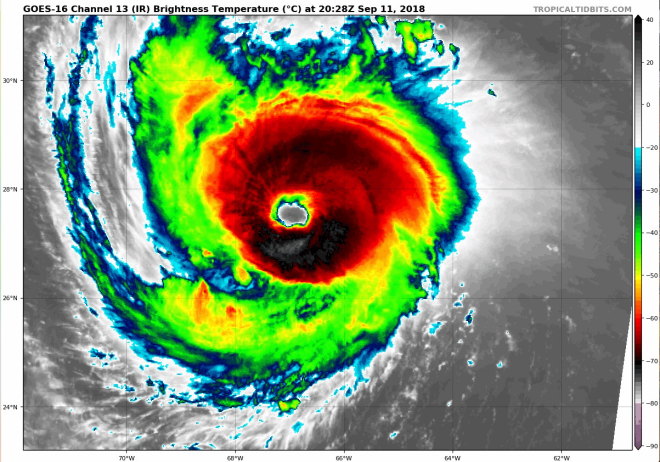
However, was this outage really unexpected and without warning? Modern satellite imagery and improvements in weather forecasting gave fair warning there was going to be significant weather related events in the area.

Hurricane Florence is heading down Southeast US as I write this post. Take proactive measures to move workloads out of impacted region if the data center is in the path. The benefit of a proactive disaster recovery vs a reactive disaster recovery are numerous. No data loss, ample time to address unexpected issues. It also includes managing human resources such that employees can worry about taking care of their families, rather than be at work.

Again, enacting a proactive disaster recovery would be a hard decision for a CSP to make on behalf of all their customers. Planned migrations across regions will incur some amount of downtime. This decision will have to be put in the hands of the customer. Take lessons from this Azure Outage Post-Mortem to educate your customers.
Slide 2.png
Hurricane Florence Satellite Image taken from the new GOES-16 Satellite, courtesy of Tropical Tidbits

Get Protected

So what can you do to protect your business critical applications and data? Let’s gleam some lessons from Azure Outage Post-Mortem. Cross-region, cross-cloud or hybrid-cloud models with software based #SANless cluster solutions are going a long way to address your HA/DR concerns. Furthermore, it’s got an excellent RTO and RPO for cloud based IaaS deployments. There are other options apart from application specific solutions. Software-based, block level volume replication solutions such SIOS DataKeeper and SIOS Protection Suite replicate all data and provide a data protection solution for both Linux and Windows platforms.

My oldest son just started his undergrad degree in Meteorology at Rutgers University. Imagine a day when artificial intelligence (AI) and machine learning (ML) processes weather related data from NOAA. They could trigger a planned disaster recovery migration two days before the storm strikes? I think I just found a perfect topic for his Master’s thesis. Or better yet, have him and his smart friends at the WeatherWatcher LLC get funding for a tech startup that applies AI and ML to weather related data to control proactive disaster recovery events.

I think we are just at the cusp of  IT analytics solutions. We can apply advanced machine-learning technology to cut the time and effort to ensure delivery of critical application services. SIOS iQ is one of the solutions leading the way in that field.

Batten down the hatches and get ready. Hurricane season is just starting and we are already in for a wild ride. If you would like to discuss your HA/DR strategy reach out to me on Twitter @daveberm.
Read other Azure Outage Post-Mortem here
Reproduced with permission from Clusteringformeremortals.com

Filed Under: Clustering Simplified Tagged With: Azure, azure outage post mortem

Configure File Server Failover Cluster in Azure Across Availability Zones

November 5, 2018 by Jason Aw Leave a Comment

Configure-File-Server-Failover-Cluster-in-Azure-Across-Availability-Zones

Step-By-Step: Configure A File Server Cluster In Azure Spanning Availability Zones

Configure-File-Server-Failover-Cluster-in-Azure-Across-Availability-Zones

Step-By-Step: Configure A File Server Cluster In Azure Spanning Availability Zones

In this post, we will detail the specific steps required to deploy a 2-node File Server Failover Cluster in Azure that spans the new Availability Zones. I will assume you are familiar with basic Azure concepts as well as basic Failover Cluster concepts. I will focus on what is unique about deploying a File Server Failover Cluster in Azure across Availability Zones. If your Azure region doesn’t support Availability Zones yet, you will have to use Fault Domains instead as described in an earlier post.

With DataKeeper Cluster Edition you are able to take the locally attached Managed Disks, whether it is Premium or Standard Disks, and replicate those disks either synchronously, asynchronously or a mix or both, between two or more cluster nodes. In addition, a DataKeeper Volume resource is registered in Windows Server Failover Clustering which takes the place of a Physical Disk resource. Instead of controlling SCSI-3 reservations like a Physical Disk Resource, the DataKeeper Volume controls the mirror direction. It ensures the active node is always the source of the mirror. As far as Failover Clustering is concerned, it looks, feels and smells like a Physical Disk and is used the same way Physical Disk Resource would be used.

Pre-Requisites

  • You have used the Azure Portal before and are comfortable deploying virtual machines in Azure IaaS.
  • Have obtained a license or eval license of SIOS DataKeeper

Deploying A File Server Failover Cluster In Azure

To build a 2-node File Server Failover Cluster Instance in Azure, we are going to assume you have a basic Virtual Network based on Azure Resource Manager. You have at least one virtual machine up and running and configured as a Domain Controller. Once you have a Virtual Network and a Domain configured, you are going to provision two new virtual machines which will act as the two nodes in our cluster.

Our environment will look like this:

DC1 – Our Domain Controller and File Share Witness
SQL1 and SQL2 – The two nodes of our File Server Cluster. Don’t let the names confuse you. We are building a File Server Cluster in this guide. In my next post I will demonstrate a SQL Server cluster configuration.

Provisioning The Two Cluster Nodes

Using the Azure Portal, we will provision both SQL1 and SQL2 exactly the same way.  There are numerous options to choose from including instance size, storage options, etc. This guide is not meant to be an exhaustive guide to deploying Servers in Azure. There are some really good resources out there and more published every day. However, there are a few key things to keep in mind when creating your instances, especially in a clustered environment.

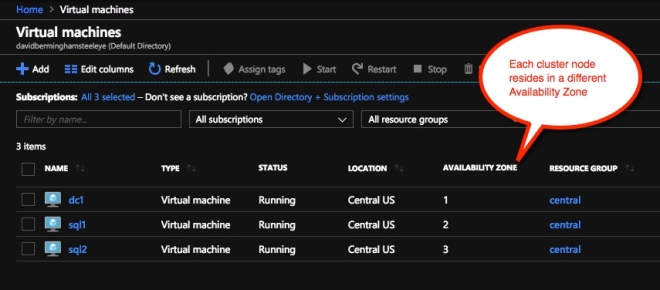
Availability Zones – It is important that both SQL1, SQL2 reside in different Availability Zones. For the sake of this guide we will assume you are using Windows 2016 and will use a Cloud Witness for the Cluster Quorum. If you use Windows 2012 R2 or Windows Server 2008 R2 instead of Windows 2016, you will need to configure a File Share Witness in the 3rd Availability Zone. Cloud Witness was not introduced until Windows Server 2016.

By putting the cluster nodes in different Availability Zones, we are ensuring that each cluster node resides in a different Azure datacenter in the same region. Leveraging Availability Zones rather than the older Fault Domains is beneficial. It isolates you from the types of outages occured just a few weeks ago that brought down the entire South Central region for multiple days.

Availability Zones
Be sure to add each cluster node to a different Availability Zone. If you leverage a File Share Witness it should reside in the 3rd Availability Zone.

Static IP Address

Once each VM is provisioned, you will want to go into the setting and change the settings so that the IP address is Static. We do not want the IP address of our cluster nodes to change.

Static IP
Make sure each cluster node uses a static IP

Storage

As far as Storage is concerned, you will want to consult Performance best practices for SQL Server in Azure Virtual Machines. In any case, you will minimally need to add at least one additional Managed Disk to each of your cluster nodes. DataKeeper can use Basic Disk, Premium Storage or even multiple disks striped together in a local Storage Space. If you do want to use a local Storage Space, be aware to create the Storage Space before any cluster configuration. This is due to a known issue with Failover Clustering and local Storage Spaces. All disks should be formatted NTFS.

Create The Cluster

Assuming both cluster nodes (SQL1 and SQL2) have been provisioned as described above and added to your existing domain, we are ready to create the cluster. Before we create the cluster, there are a few Features that need to be enabled. These features are .Net Framework 3.5 and Failover Clustering. These features need to be enabled on both cluster nodes. You will also need to enable the FIle Server Role.

6
Enable both .Net Framework 3.5 and Failover Clustering features and the File Server on both cluster nodes.

Once that role and those features have been enabled, you are ready to build your cluster. Most of the steps I’m about to show you can be performed both via PowerShell and the GUI. However, I’m going to recommend that for this very first step you use PowerShell to create your cluster. If you choose to use the Failover Cluster Manager GUI to create the cluster you will find that you wind up with the cluster being issued a duplicate IP address.

Without going into great detail, what you will find is that Azure VMs have to use DHCP. By specifying a “Static IP” when we create the VM in the Azure portal all we did was create sort of a DHCP reservation. It is not exactly a DHCP reservation because a true DHCP reservation would remove that IP address from the DHCP pool. Instead, this specifying a Static IP in the Azure portal simply means that if that IP address is still available when the VM requests it, Azure will issue that IP to it. However, if your VM is offline and another host comes online in that same subnet it very well could be issued that same IP address.

Another Side Effect To How Azure Implemented DHCP

When creating a cluster with the Windows Server Failover Cluster GUI, there is not option to specify a cluster IP address. Instead it relies on DHCP to obtain an address. The strange thing is, DHCP will issue a duplicate IP address. Usually the same IP address as the host requesting a new IP address. The cluster install will complete, but you may have some strange errors. You may need to run the Windows Server Failover Cluster GUI from a different node in order to get it to run. Once you get it to run you will need to change the core cluster IP address to an address that is not currently in use on the network.

You can avoid that whole mess by simply creating the cluster via Powershell and specifying the cluster IP address as part of the PowerShell command to create the cluster.

You can create the cluster using the New-Cluster command as follows:

New-Cluster -Name cluster1 -Node sql1,sql2 -StaticAddress 10.0.0.100 -NoStorage

After the cluster creation completes, you will also want to run the cluster validation by running the following command. You should expect to see some warnings about storage and network, but that is expected in Azure and you can ignore those warnings. If any errors are reported you will need to address those before you move on.

Test-Cluster

Create A Quorum Cluster

if you are running Windows 2016 or 2019 you will need to create a Cloud Witness for the cluster quorum. If you are running Windows Server 2012 R2 or 2008 R2 you will need to create a File Share Witness. The detailed instruction on witness creation can be found here.

Install DataKeeper

After the cluster is created, it is time to install DataKeeper. It is important to install DataKeeper after the initial cluster is created so the custom cluster resource type can be registered with the cluster. If you installed DataKeeper before the cluster is created, you will simply need to run the install again and do a repair installation.

8
Install DataKeeper after the cluster is created

During the installation you can take all of the default options.  The service account you use must be a domain account and be in the local administrators group on each node in the cluster.

9
The service account must be a domain account that is in the Local Admins group on each node

Once DataKeeper is installed and licensed on each node you will need to reboot the servers.

Create the DataKeeper Volume Resource

10

To create the DataKeeper Volume Resource you will need to start the DataKeeper UI and connect to both of the servers.

11
Connect to SQL1
12
Connect to SQL2

Once you are connected to each server, you are ready to create your DataKeeper Volume. Right click on Jobs and choose “Create Job”
13

Give the Job a name and description.
14

Choose your source server, IP and volume. The IP address is whether the replication traffic will travel.
15

Choose your target server.
16

Choose your options. For our purposes where the two VMs are in the same geographic region we will choose synchronous replication. For longer distance replication you will want to use asynchronous and enable some compression.
17

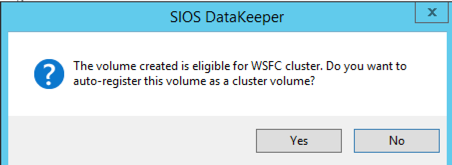
By clicking yes at the last pop-up you will register a new DataKeeper Volume Resource in Available Storage in Failover Clustering.
18

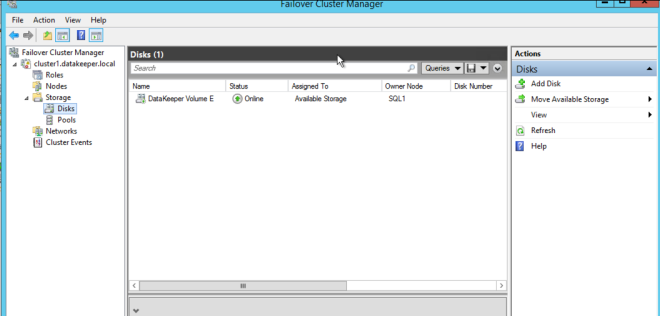
You will see the new DataKeeper Volume Resource in Available Storage.
19

Create The File Server Cluster Resource

To create the File Server Cluster Resource, we will use Powershell once again rather than the Failover Cluster interface. The reason being is that once again because the virtual machines are configured to use DHCP, the GUI based wizard will not prompt us to enter a cluster IP address and instead will issue a duplicate IP address. To avoid this we will use a simple powershell command to create the FIle Server Cluster Resource and specify the IP Address

Add-ClusterFileServerRole -Storage "DataKeeper Volume E" -Name FS2 -StaticAddress 10.0.0.101

Make note of the IP address you specify here. It must be a unique IP address on your network. We will use this same IP address later when we create our Internal Load Balancer.

Create The Internal Load Balancer

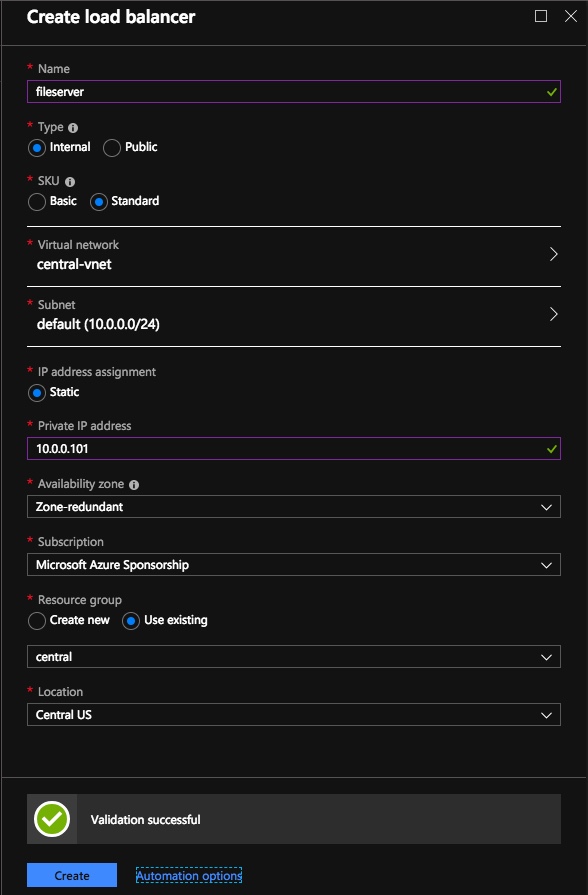
Here is where failover clustering in Azure is different than traditional infrastructures. The Azure network stack does not support gratuitous ARPS, so clients cannot connect directly to the cluster IP address. Instead, clients connect to an internal load balancer and are redirected to the active cluster node. What we need to do is create an internal load balancer. This can all be done through the Azure Portal as shown below.

You can use an Public Load Balancer if your client connects over the public internet. But assuming your clients reside in the same vNet, we will create an Internal Load Balancer. The important thing to take note of here is that the Virtual Network is the same as the network where your cluster nodes reside. Also, the Private IP address that you specify will be exactly the same as the address you used to create the File Server Cluster Resource. Also, because we are using Availability Zones, we will be creating a Zone Redundant Standard Load Balancer as shown in the picture below.

Load Balancer

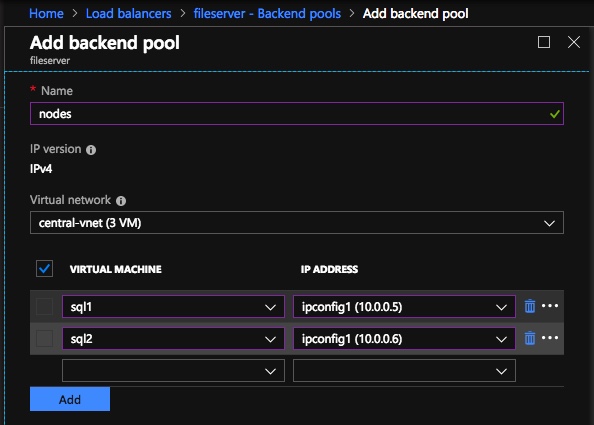
After the Internal Load Balancer (ILB) is created, you will need to edit it. The first thing we will do is to add a backend pool. Through this process you will choose the two cluster nodes.

Backend Pools

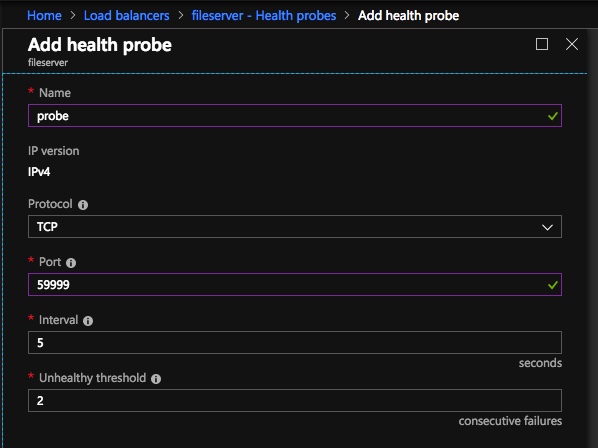
The next thing we will do is add a Probe. The probe we add will probe Port 59999. This probe determines which node is active in our cluster.
probe

And then finally, we need a load balancing rule to redirect the SMB traffic, TCP port 445. The important thing to notice in the screenshot below is the Direct Server Return is Enabled. Make sure you make that change.

rules

Fix The File Server IP Resource

The final step in the configuration is to run the following PowerShell script on one of your cluster nodes. This will allow the Cluster IP Address to respond to the ILB probes. Also to ensure that there is no IP address conflict between the Cluster IP Address and the ILB. Please take note; you will need to edit this script to fit your environment. The subnet mask is set to 255.255.255.255. This is not a mistake, leave it as is. This creates a host specific route to avoid IP address conflicts with the ILB.

# Define variables
$ClusterNetworkName = “” 
# the cluster network name (Use Get-ClusterNetwork on Windows Server 2012 of higher to find the name)
$IPResourceName = “” 
# the IP Address resource name 
$ILBIP = “” 
# the IP Address of the Internal Load Balancer (ILB)
Import-Module FailoverClusters
# If you are using Windows Server 2012 or higher:
Get-ClusterResource $IPResourceName | Set-ClusterParameter -Multiple @{Address=$ILBIP;ProbePort=59999;SubnetMask="255.255.255.255";Network=$ClusterNetworkName;EnableDhcp=0}
# If you are using Windows Server 2008 R2 use this: 
#cluster res $IPResourceName /priv enabledhcp=0 address=$ILBIP probeport=59999  subnetmask=255.255.255.255

Creating File Shares

You will find that using the File Share Wizard in Failover Cluster Manager does not work. Instead, you will simply create the file shares in Windows Explorer on the active node. Failover clustering automatically picks up those shares and puts them in the cluster.

Note that the”Continuous Availability” option of a file share is not supported in this configuration.

Conclusion

You should now have a functioning File Server Failover Cluster in Azure that spans Availability Zones. If you need a DataKeeper evaluation key fill out the form at http://us.sios.com/clustersyourway/cta/14-day-trial and SIOS will send an evaluation key sent out to you.

To read more about clustering, click here
Reproduced with permission from Clusteringformeremortals.com

Filed Under: Clustering Simplified Tagged With: Azure, cluster, failover, File Server, file server failover cluster in azure

How To Survive A Azure Cloud Outage

October 31, 2018 by Jason Aw Leave a Comment

How to survive a azure outage

Lightning Never Strikes Twice: Surviving A Azure Cloud Outage

Yesterday morning I opened my Twitter feed to find that many people were impacted by an Azure Cloud outage. Almost every resource page about the outage was unavailable. Fortunately, @AzureSupport continued to provide updates via Twitter.

The original update from @AzureSupport came in at 7:12 AM EDT

 How To Survive A Azure Cloud Outage

Looking back on the Twitter feed it seems as if the problem initially began an hour or two before that.

 How To Survive A Azure Cloud Outage

It quickly became apparent that the outages had a wider spread impact than just the South Central US region as originally reported. It seems as if services that relied on Azure Active Directory could have been impacted as well and customers trying to provision new subscriptions were having issues.

 How To Survive A Azure Cloud Outage

And 24 hours later the problem has not been completely resolved and it according to the last update this morning…

 How To Survive A Azure Cloud Outage

 How To Survive A Azure Cloud Outage

So what could you have done to minimize the impact of this azure cloud outage? No one can blame Microsoft for a natural disaster such as a lightning strike. But at the end of the day if your only disaster recovery plan is to call, tweet and email Microsoft until the issue is resolved, you just received a rude awakening. It is up to you to ensure that all bases are covered when it comes to your disaster recovery plan.

Time To Explore Some Alternatives?

While the dust is still settling on exactly what was impacted and what customers could have done to minimize the downtime, here are some of my initial thoughts.

Availability Sets (Fault Domains/Update Domains)

In this scenario, even if you built Failover Clusters, or leveraged Azure Load Balancers and Availability Sets, you still would have been out of luck since the entire region went offline. While it is still recommended to leverage Availability Sets, especially for planned downtime, in this case you still would have been offline.

Availability Zones

It’s not available in the South Central US region yet. Yet it seems that the concept of Availability Zones being rolled out in Azure could have minimized the impact of the outage. Assuming the lightning strike only impacted one datacenter, the other datacenter in the other Availability Zone should have remained operational. However, the outages of the other non-regional services such as Azure Active Directory (AAD) seems to have impacted multiple regions. I don’t think Availability Zones would have isolated you completely.

Global Load Balancers, Cross Region Failover Clusters, etc.

Whether you are building SANLess clusters that cross regions, or using global load balancers to spread the load across multiple regions, you may have minimized the impact of the outage in South Central US. But you may have still been susceptible to the AAD outage.

Hybrid-Cloud, Cross Cloud

Guaranteed resiliency in a cloud wide failure scenario is to have a DR plan that includes having realtime replication of data to a target outside of your primary cloud provider and a plan in place to bring applications online quickly in this other location. These two locations should be entirely independent. It should not rely on services from your primary location to be available, such as AAD. The DR location could be another cloud provider. In this case AWS or Google Cloud Platform seem like logical alternatives, or it could be your own datacenter. But that kind of defeats the purpose of running in the cloud in the first place.

Software as a Service

While Software as service such as Azure Active Directory (ADD), Azure SQL Database (Database-as-Service) or one of the many SaaS offerings from any of the cloud providers can seem enticing, you really need to plan for the worst case scenario. You may have very little control because you are trusting a business critical application to a single vendor. Remember it’s in terms of DR options that includes recovery outside of the current cloud service provider. I don’t have any words of wisdom here other than investigate your DR options before implementing any SaaS service. If recovery outside of the cloud is not an option, then think long and hard before you sign-up for that service. Inform business stake owners that if the cloud service is offline, there may be nothing you can do about it other than call and complain.

Future Trends

I think in the very near future, you will start to hear more and more about cross cloud availability. Also about how people leverage solutions like SIOS DataKeeper to build robust HA and DR strategies that cross cloud providers. Truly cross cloud or hybrid cloud models are the only way to truly insulate yourself from most conceivable cloud outages.

If you were impacted from this latest outage I’d love to hear from you. Tell me what went down, how long you were down, and what you did to recover. What are you planning to do so that in the future your experience is better?

Read more articles like How To Survive A Azure Cloud Outage? 
Reproduced with permission from Clusteringformeremortals.com

Filed Under: Clustering Simplified Tagged With: Azure, azure cloud outage, SIOS

Convert Azure Clusters To Managed Disks

September 11, 2018 by Jason Aw Leave a Comment

Why you should convert azure clusters to managed disks

Why You Should Convert Azure Clusters To Managed Disks

You may have heard about the recent storage outage that impacted some instances in the US East region back on March 16th. A root cause analysis of the outage is posted here. March 16th US East Storage Outage

Customer Impact

A subset of customers using Storage in the East US region may have experienced errors and timeouts while accessing their storage account in a single Storage scale unit.

You might be asking, “What is a single Storage scale unit”. Well, you can think of it as a single storage cluster, or single SAN, or however you want to think about it. I don’t think Azure publishes their exact infrastructure. Although you can probably assume that behind the scenes they are using Scale Out File Servers for backend storage.

Survive The Outage With Minimal Downtime

So the question is, how could I have survived this outage with minimal downtime? If you read further down that root cause analysis you come across this little nugget.

Virtual Machines using Managed Disks in an Availability Set would have maintained availability during this incident.

Hence, it is time to Convert Azure Clusters To Managed Disks

What’s Managed Disks?

On February 8th Corey Sanders announced the GA of Managed Disks.

Managed Disks would have helped in this outage. Because by leveraging an Availability Set combined with Managed Disks, each of the instances in your Availability Set are connected to a different “Storage scale unit”. So in this particular case, only one of the cluster nodes would have failed, leaving the remaining nodes to take over the workload.

Prior to Managed Disks being available (anything deployed before 2/8/2016), there was no way to ensure that the storage attached to your servers resided on different Storage scale units. Sure, you could use different storage accounts for each instances. But in reality that did not guarantee that those Storage Accounts provisioned storage on different Storage scale units. More reasons to Convert Azure Clusters To Managed Disks.

So while an Availability Set ensured that your instances reside in different Fault Domains and Update Domains to ensure the availability of the instance itself, the additional storage attached to each instance really represented a single point of failure. Although the storage itself is highly resilient, with three copies of your data and geo-redundant options available, in this case with a power failure the entire Storage scale unit went down along with all the servers attached to it.

So long story short… Convert Azure Clusters To Managed Disks as soon as possible in order to help minimize downtime

https://docs.microsoft.com/en-us/azure/virtual-machines/virtual-machines-windows-migrate-to-managed-disks

And if you really want to minimize downtime you should consider Hybrid Cloud Deployments that span cloud providers or on-prem to cloud!

Reproduced with permission from Clusteringformeremortals.com

Filed Under: Clustering Simplified Tagged With: Availability Sets, Azure, clusters, convert azure clusters to managed disks, Fault Doma, Managed Disks, Storage scale unit, Update domains

Cloud Witness To Build Multi-Instance SQL Server Failover Cluster In Azure

September 10, 2018 by Jason Aw Leave a Comment

New Azure ILB Feature Allows You To Build A Multi-Instance SQL Server Failover Cluster In Azure

New Azure ILB Feature Allows You To Build A Multi-Instance SQL Server Failover Cluster In Azure

The new feature, Cloud Witness is my favourite at the moment. Before we look at the new quorum features in Windows Server 2016, I think it is important to know where we came from. In my previous post Understanding the Windows Server Failover Cluster Quorum in Windows Server 2012 R2 I went into some great detail regarding the history and evolution of the cluster quorum. I suggest you review that post to understand how the quorum works in Windows Server 2012 R2. Also, how the new features of Windows Server 2016 are going to make your cluster deployments even more resilient.

Cloud Witness

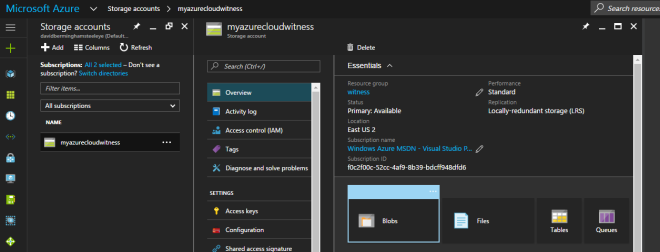
A Cloud Witness allows you to leverage Azure Blob Storage to act as a witness for your cluster. This witness would be in place of a Disk Witness or File Share Witness. The configuration of a Cloud Witness is extremely easy. From my experience costs next to nothing to host in Azure. The only downside is that the cluster nodes will need to be able to communicate over the internet to with your Azure Blob Storage. Very often cluster nodes are forbidden to communicate over to the public internet. So you will need to coordinate with your security team if you want to enable a Cloud Witness.

There are many compelling reasons for using a Cloud Witness to build the Multi-Instance SQL Server Failover Cluster In Azure. But for me it makes most sense in three very specific environments: Failover Cluster in Azure, Branch Office Clusters, and Multisite Clusters.

On A Closer Look

Let’s take a look at each of these scenarios to see how a Cloud Witness can help.

New ILB Feature For Multi-Instance SQL Server Failover Cluster In Azure
Figure 1 – When you’re trying to build Multi-Instance SQL Server Failover Cluster In Azure, the cloud witness storage account should always be configured Locally Redundant Storage (LRS)

Highly Available Deployments

If you are moving to Azure (or really any cloud provider), you will want to make sure your deployments are highly available. If you are taking about SQL Server, File Servers, SAP or other workloads traditionally clustered with Windows Server Failover Clustering, you will need to use either a File Share Witness or a Cloud Witness, since a Disk Witness is not possible in Azure. With Windows Server 2012 R2 or Windows Server 2008 R2, you will need to use a File Share Witness. Windows Server 2016 makes it possible to use a Cloud Witness. The advantage of a Cloud Witness is that you don’t have to maintain another Windows instance in Azure to host the File Share. Instead, Microsoft allows you to leverage Blob Storage.  This gives you a less expensive solution, one that is much easier to manage, and more resilient.

Location

When looking at cluster deployments in branch offices, cost and maintenance is always a consideration. For a retail chain with hundreds or thousands of locations, having a SAN in each location can be cost prohibitive. Each location might to run a two node Hyper-V cluster on a S2D Hyper-converged configuration or a 3rd party replication solution to host a number of virtual machines. Now what a Cloud Witness can do is to help the business avoid the cost of adding an additional physical server in each location to act as a File Share Witness or the cost of adding a SAN to each location.

Eliminates The Need For A 3rd Data Center

And finally, when deploying a multisite cluster, the Cloud Witness eliminates the need for a 3rd data center to host the File Share Witness. Before the introduction of the Cloud Witness, best practice would dictate that the File Share Witness reside in a 3rd location. Access to a 3rd datacenter just to host a file share witness was not always feasibly and certainly introduced another layer of complexity. By using a Cloud Witness you eliminate the need to maintain a 3rd location and access to the witness is done over the public internet, minimizing the network requirements as well.

Site Awareness

When building a multisite cluster, there has always been another common problem. Controlling the failover to always prefer the local site was not possible. While you could specify Preferred Owners, the Preferred Owners setting is commonly misunderstood. Administrators may not have realized this. But do you know even if they didn’t list a server as Preferred Owner, the server is automatically appended to the end of the Preferred Owners list maintained by the cluster. The result of this misunderstanding is that although you may have only listed the local servers as Preferred Owners, you could potentially have a cluster resource failover to the DR site. And this is even when there is a perfectly good node available in the local site. Obviously this is not what you expect and using Site Awareness will eliminate this problem moving forward.

Site Awareness fixes this problem by always preferring the local site when deciding which node to bring online. So in a normal circumstance a clustered workload will always failover to a local node unless you have a complete site outage. In which case one of the DR nodes will come online. The same holds true once you are running in the DR site. The cluster will recover the workload on a server in the DR site if it was previously running on a node in the DR site. Site Awareness will always prefer a local node.

Fault Domains

Building upon site awareness is Fault Domains. Fault Domains goes a step further and lets you define Node, Chasse, and Rack locations in addition to Site. Fault Domains have three benefits: Storage Affinity in a Stretch Cluster, increases Storage Spaces resiliency. It enhances the Health Services alerts by including meta data about the location of the associated resources raising the alarm. Storage Affinity will help ensure that your cluster workloads and storage are running in the same location. You certainly wouldn’t want your VM reading and writing data that is sitting on a CSV in a different city.

However, I think the biggest winner here is the Storage Spaces Direct (S2D) scenario. SD2 will leverage the information you provide about your cluster nodes location (Site, Rack, Chassis) to ensure that the multiple copies of data that is written for redundancy all live in different Fault Domains. This helps ensure that data placement is optimized so that the failure of a single Node, Chassis, Rack or Site does not bring down your entire S2D deployment.  Cosmos Darwin has an excellent video on Channel 9 that explains this concept in great detail.

Summary

Windows Server 2016 adds several new enhancements to the cluster quorum that will provide some immediate benefits to your cluster deployments. In addition, check out some of the other great new cluster enhancements like rolling system upgrade, Virtual Machine Resiliency, Workgroup and Multi-Domain Clusters and others.

To read about other tips such as building a new Multi-Instance SQL Server Failover Cluster In Azure with Cloud Witness, have a read at our posts.

Reproduced with permission from Clusteringformeremortals.com

Filed Under: Clustering Simplified Tagged With: Azure, Azure Resource Manager, Cloud Witness, cluster, Deployment, failover cluster, High Availability, Load Balance, multi instance sql server failover cluster in azure, PowerShell, replication, SQL Server, System Center Configuration Manager, Windows Server 2008, Windows Server 2012

  • « Previous Page
  • 1
  • …
  • 3
  • 4
  • 5
  • 6
  • 7
  • …
  • 18
  • Next Page »

Recent Posts

  • Fail Open vs. Fail Closed: Why It’s a False Dilemma (and How True HA Fixes It)
  • The 5-Step Checklist for Validating Your Failover Setup
  • Managing an Inherited DataKeeper Cluster: Challenges and Best Practices
  • Setting Up Nginx Load Balancer on AWS
  • With Great Power: Cluster Maintenance Best Practices

Most Popular Posts

Maximise replication performance for Linux Clustering with Fusion-io
Failover Clustering with VMware High Availability
create A 2-Node MySQL Cluster Without Shared Storage
SAP for High Availability Solutions For Linux
Bandwidth To Support Real-Time Replication
The Availability Equation – High Availability Solutions.jpg
Choosing Platforms To Replicate Data - Host-Based Or Storage-Based?
Guide To Connect To An iSCSI Target Using Open-iSCSI Initiator Software
Best Practices to Eliminate SPoF In Cluster Architecture
Step-By-Step How To Configure A Linux Failover Cluster In Microsoft Azure IaaS Without Shared Storage azure sanless
Take Action Before SQL Server 20082008 R2 Support Expires
How To Cluster MaxDB On Windows In The Cloud

Join Our Mailing List

Copyright © 2026 · Enterprise Pro Theme on Genesis Framework · WordPress · Log in