SIOS SANless clusters

SIOS SANless clusters High-availability Machine Learning monitoring

  • Home
  • Products
    • SIOS DataKeeper for Windows
    • SIOS Protection Suite for Linux
  • News and Events
  • Clustering Simplified
  • Success Stories
  • Contact Us
  • English
  • 中文 (中国)
  • 中文 (台灣)
  • 한국어
  • Bahasa Indonesia
  • ไทย

How To Create A 2-Node MySQL Cluster Without Shared Storage – Part 1

November 29, 2018 by Jason Aw Leave a Comment

create A 2-Node MySQL Cluster Without Shared Storage

Step-by-Step: How to Create a 2-Node MySQL Cluster Without Shared Storage, Part 1

The primary advantage of running a MySQL cluster is obviously high availability (HA). To get the most from this type of solution, you will want to eliminate as many potential single points of failure as possible. Conventional wisdom says that you can’t form a cluster without some type of shared storage, which technically represents a single point of failure in your clustering architecture. However, there are solutions. The SteelEye Protection Suite (SPS) for Linux allow you to eliminate storage as a single point of failure by providing real-time data replication between cluster nodes. Let’s look at a typical scenario: You form a cluster that leverages local, replicated storage to protect a MySQL database.

In order to create create a 2-Node MySQL Cluster Without Shared Storage, we’ll assume you’re working with an evaluation copy of SPS in a lab environment. We’re also presuming that you’ve confirmed that the primary and secondary servers and the network all meet the requirements for running this type of setup. (You can find details of these requirements in the SIOS SteelEye Protection Suite for Linux MySQL with Data Replication Evaluation Guide.)

First step to create A 2-Node MySQL Cluster Without Shared Storage

Before you begin setting up your cluster, you’ll need to configure the storage. The data that you want to replicate need to reside on a separate file system or logical volume. Keep in mind that the size of the target disk, whether you’re using a partition or logical volume, must be equal to or larger than the source.

In this example, we presume that you’re using a disk partition. (However, LVM is also fully supported.) First, partition the local storage for use with SteelEye DataKeeper. On the primary server, identify a free, unused disk partition to use as the MySQL repository or create a new partition. Use the fdisk utility to partition the disk, then format the partition and temporarily mount it at /mnt. Move any existing data from /var/lib/mysql/ into this new disk partition (assuming a default MySQL configuration). Unmount and then remount the partition at /var/lib/mysql. You don’t need to add this partition to /etc/fstab, as it will be mounted automatically by SPS.

On the secondary server, configure your disk as you did on the primary server.

Installing MSQL

Next you’ll deal with MySQL. On the primary server, install both the mysql and mysql-server RPM packages (if they don’t already exist on the system) and apply any required dependencies. Verify that your local disk partition is still mounted at /var/lib/mysql. If necessary, initialize a sample MySQL database. Ensure that all the files in your MySQL data directory (/var/lib/mysql) have the correct permissions and ownership, and then manually start the MySQL daemon from the command line. (Note: Do not start MySQL via the service command or the /etc/init.d/ script.)

Connect with the mysql client to verify that MySQL is running.

Update and verify the root password for your MySQL configuration. Then create a MySQL configuration file, such as the sample file shown here:

———-

# cat /var/lib/mysql/my.cnf

[mysqld]
datadir=/var/lib/mysql
socket=/var/lib/mysql/mysql.sock
pid-file=/var/lib/mysql/mysqld.pid
user=root
port=3306
# Default to using old password format for compatibility with mysql 3.x
# clients (those using the mysqlclient10 compatibility package).
old_passwords=1

# Disabling symbolic-links is recommended to prevent assorted security risks;
# to do so, uncomment this line:
# symbolic-links=0

[mysqld_safe]
log-error=/var/log/mysqld.log
pid-file=/var/run/mysqld/mysqld.pid

[client]

user=root

password=SteelEye

———-

In this example, we place this file in the same directory that we will later replicate (/var/lib/mysql/my.cnf). Delete the original MySQL configuration file (in /etc).

On the secondary server, install both the mysql and mysql-server RPM packages if necessary, apply any dependencies, and ensure that all the files in your MySQL data directory (/var/lib/mysql) have the correct permissions and ownership.

Installing SPS for Linux

Next, install SPS for Linux. For ease of installation, SIOS provides a unified installation script (called “setup”) for SPS for Linux. Instructions for how to obtain this software are in an email that comes with the SPS for Linux evaluation license keys.

Download the software and evaluation license keys on both the primary and secondary servers. On each server, run the installer script, which will install a handful of prerequisite RPMs, the core clustering software, and any optional ARKs that are needed. In this case, you will want to install the MySQL ARK (steeleye-lkSQL) and the DataKeeper (i.e., Data Replication) ARK (steeleye-lkDR). Apply the license key via the /opt/LifeKeeper/bin/lkkeyins command and start SPS for Linux via its start script, /opt/LifeKeeper/lkstart.

At this point you have SPS installed, licensed, and running on both of your nodes, and your disk and the MySQL database that you want to protect are configured.

In the next post, we’ll look at the remaining steps in the shared-nothing clustering process:

Create the following

  • Communication (Comm) paths, i.e. heartbeats, between the primary and target servers
  • An IP resource
  • The mirror and launching data replication
  • MySQL database resource
  • MySQL IP address dependency

Interested to know how to create a 2-Node MySQL Cluster Without Shared Storage for your project, chat with us or read our success stories.
Reproduced with permission from Linuxclustering

Filed Under: Clustering Simplified Tagged With: create a 2 node mysql cluster without shared storage, data replication, High Availability, MySQL

Failover Clustering With VMware High Availability A Perfect Match?

November 28, 2018 by Jason Aw Leave a Comment

Failover Clustering with VMware High Availability

Failover Clustering With VMware High Availability: Overkill Or A Perfect Match?

Implementing high availability (HA) at the VMware layer is a useful solution. It helps to protect against some types of failures. However, VMware HA alone simply doesn’t cover all the bases. Let’s explore the possibility of Failover Clustering with VMware High Availability.

According to Gartner Research, most unplanned outages are caused by application failure (40 percent of outages) or admin error (40 percent). Hardware, network, power, or environmental problems cause the rest (20 percent total). VMware HA focuses on protection against hardware failures, but a good application-clustering solution picks up the slack in other areas.

Having A Good Strategy Is Essential For Failover Clustering with VMware High Availability

Here are a few things to consider when architecting the proper HA strategy for your VMware environment.

Failover Clustering With VMware High Availability: Overkill Or A Perfect Match

Shorten Outages With Application-level Monitoring And Clustering

What about recovery speed? In a perfect world, there would be no failures, outages or downtime. But if an unplanned outage does occur, the next best thing is to get up and running again fast. This equation represents the total availability of your environment:

As you can see, detection time is a crucial piece of the equation. Here’s another place where VMware HA alone doesn’t quite cut it. VMware HA treats each virtual machine (VM) as a “black box” and has no real visibility into the health or status of the applications that are running inside. The VM and OS running inside might be just fine, but the application could be stopped, hung, or misconfigured, resulting in an outage for users.

Even when a host server failure is the issue, you must wait for VMware HA to restart the affected VMs on another host in the VMware cluster. That means that applications running on those VMs are down until 1) the outage is detected, 2) the OS boots fully on the new host system, 3) the applications restart, and 4) users reconnect to the apps.

By clustering at the application layer between multiple VMs, you are not only protected against application-level outages, you also shorten your outage-recovery time. The application can simply be restarted on a standby VM, which is already booted up and waiting to take over. To maximize availability, the VMs involved should live on different physical servers. Or even better, separate VMware HA clusters or even separate datacenters!

Eliminate Storage As A Potential Single Point Of Failure (SPOF)

Traditional clustering solutions, including VMware HA, require shared storage and typically protect applications or services only within a single data center. Technically, the shared-storage device represents an SPOF in your architecture. If you lose access to the back-end storage, your cluster and applications are down for the count. The goal of any HA solution is to increase overall availability by eliminating as many potential SPOFs as possible.

So how can you augment a native VMware HA cluster to provide greater levels of availability? To protect your entire stack, from hardware to applications, start with VMware HA. Next, you need a way to monitor and protect the applications. Clustering at the application level (i.e., within the VM) is the natural choice. Be sure to choose a clustering solution that supports host-based data replication (i.e., a shared-nothing configuration) so that you don’t need to go through the expense and complexity of setting up SAN-based replication. SAN replication solutions also typically lock you into a single storage vendor. On top of that, to cluster VMs by using shared storage, you generally need to enable Raw Device Mapping (RDM). This means that you lose access to many powerful VMware functions, such as vMotion.

Going with a shared-nothing cluster configuration eliminates the storage tier as an SPOF. At the same time allows you to use vMotion to migrate your VMs between physical hosts. It’s a win-win! A shared-nothing cluster is also an excellent solution for disaster recovery because the standby VM can reside at a different data center.

Cover All The Bases 

Application-failover clustering, layered over VMware HA, offers the best of both worlds. You can enjoy built-in hardware protection and application awareness, greater flexibility and scalability, and faster recovery times. Even better, the solution doesn’t need to break the bank.

Want to understand how Failover Clustering With VMware High Availability could work for your projects? Check in with SIOS.
Reproduced with permission from LinuxClustering

Filed Under: Clustering Simplified Tagged With: failover clustering with vmware high availability, High Availability, Virtualization, VMware

Cloud Witness To Build Multi-Instance SQL Server Failover Cluster In Azure

September 10, 2018 by Jason Aw Leave a Comment

New Azure ILB Feature Allows You To Build A Multi-Instance SQL Server Failover Cluster In Azure

New Azure ILB Feature Allows You To Build A Multi-Instance SQL Server Failover Cluster In Azure

The new feature, Cloud Witness is my favourite at the moment. Before we look at the new quorum features in Windows Server 2016, I think it is important to know where we came from. In my previous post Understanding the Windows Server Failover Cluster Quorum in Windows Server 2012 R2 I went into some great detail regarding the history and evolution of the cluster quorum. I suggest you review that post to understand how the quorum works in Windows Server 2012 R2. Also, how the new features of Windows Server 2016 are going to make your cluster deployments even more resilient.

Cloud Witness

A Cloud Witness allows you to leverage Azure Blob Storage to act as a witness for your cluster. This witness would be in place of a Disk Witness or File Share Witness. The configuration of a Cloud Witness is extremely easy. From my experience costs next to nothing to host in Azure. The only downside is that the cluster nodes will need to be able to communicate over the internet to with your Azure Blob Storage. Very often cluster nodes are forbidden to communicate over to the public internet. So you will need to coordinate with your security team if you want to enable a Cloud Witness.

There are many compelling reasons for using a Cloud Witness to build the Multi-Instance SQL Server Failover Cluster In Azure. But for me it makes most sense in three very specific environments: Failover Cluster in Azure, Branch Office Clusters, and Multisite Clusters.

On A Closer Look

Let’s take a look at each of these scenarios to see how a Cloud Witness can help.

New ILB Feature For Multi-Instance SQL Server Failover Cluster In Azure
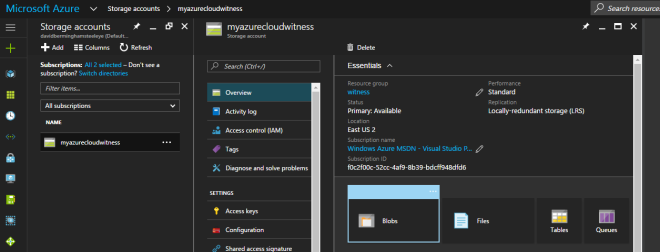
Figure 1 – When you’re trying to build Multi-Instance SQL Server Failover Cluster In Azure, the cloud witness storage account should always be configured Locally Redundant Storage (LRS)

Highly Available Deployments

If you are moving to Azure (or really any cloud provider), you will want to make sure your deployments are highly available. If you are taking about SQL Server, File Servers, SAP or other workloads traditionally clustered with Windows Server Failover Clustering, you will need to use either a File Share Witness or a Cloud Witness, since a Disk Witness is not possible in Azure. With Windows Server 2012 R2 or Windows Server 2008 R2, you will need to use a File Share Witness. Windows Server 2016 makes it possible to use a Cloud Witness. The advantage of a Cloud Witness is that you don’t have to maintain another Windows instance in Azure to host the File Share. Instead, Microsoft allows you to leverage Blob Storage.  This gives you a less expensive solution, one that is much easier to manage, and more resilient.

Location

When looking at cluster deployments in branch offices, cost and maintenance is always a consideration. For a retail chain with hundreds or thousands of locations, having a SAN in each location can be cost prohibitive. Each location might to run a two node Hyper-V cluster on a S2D Hyper-converged configuration or a 3rd party replication solution to host a number of virtual machines. Now what a Cloud Witness can do is to help the business avoid the cost of adding an additional physical server in each location to act as a File Share Witness or the cost of adding a SAN to each location.

Eliminates The Need For A 3rd Data Center

And finally, when deploying a multisite cluster, the Cloud Witness eliminates the need for a 3rd data center to host the File Share Witness. Before the introduction of the Cloud Witness, best practice would dictate that the File Share Witness reside in a 3rd location. Access to a 3rd datacenter just to host a file share witness was not always feasibly and certainly introduced another layer of complexity. By using a Cloud Witness you eliminate the need to maintain a 3rd location and access to the witness is done over the public internet, minimizing the network requirements as well.

Site Awareness

When building a multisite cluster, there has always been another common problem. Controlling the failover to always prefer the local site was not possible. While you could specify Preferred Owners, the Preferred Owners setting is commonly misunderstood. Administrators may not have realized this. But do you know even if they didn’t list a server as Preferred Owner, the server is automatically appended to the end of the Preferred Owners list maintained by the cluster. The result of this misunderstanding is that although you may have only listed the local servers as Preferred Owners, you could potentially have a cluster resource failover to the DR site. And this is even when there is a perfectly good node available in the local site. Obviously this is not what you expect and using Site Awareness will eliminate this problem moving forward.

Site Awareness fixes this problem by always preferring the local site when deciding which node to bring online. So in a normal circumstance a clustered workload will always failover to a local node unless you have a complete site outage. In which case one of the DR nodes will come online. The same holds true once you are running in the DR site. The cluster will recover the workload on a server in the DR site if it was previously running on a node in the DR site. Site Awareness will always prefer a local node.

Fault Domains

Building upon site awareness is Fault Domains. Fault Domains goes a step further and lets you define Node, Chasse, and Rack locations in addition to Site. Fault Domains have three benefits: Storage Affinity in a Stretch Cluster, increases Storage Spaces resiliency. It enhances the Health Services alerts by including meta data about the location of the associated resources raising the alarm. Storage Affinity will help ensure that your cluster workloads and storage are running in the same location. You certainly wouldn’t want your VM reading and writing data that is sitting on a CSV in a different city.

However, I think the biggest winner here is the Storage Spaces Direct (S2D) scenario. SD2 will leverage the information you provide about your cluster nodes location (Site, Rack, Chassis) to ensure that the multiple copies of data that is written for redundancy all live in different Fault Domains. This helps ensure that data placement is optimized so that the failure of a single Node, Chassis, Rack or Site does not bring down your entire S2D deployment.  Cosmos Darwin has an excellent video on Channel 9 that explains this concept in great detail.

Summary

Windows Server 2016 adds several new enhancements to the cluster quorum that will provide some immediate benefits to your cluster deployments. In addition, check out some of the other great new cluster enhancements like rolling system upgrade, Virtual Machine Resiliency, Workgroup and Multi-Domain Clusters and others.

To read about other tips such as building a new Multi-Instance SQL Server Failover Cluster In Azure with Cloud Witness, have a read at our posts.

Reproduced with permission from Clusteringformeremortals.com

Filed Under: Clustering Simplified Tagged With: Azure, Azure Resource Manager, Cloud Witness, cluster, Deployment, failover cluster, High Availability, Load Balance, multi instance sql server failover cluster in azure, PowerShell, replication, SQL Server, System Center Configuration Manager, Windows Server 2008, Windows Server 2012

High Availability Failover Clusters For MS SQL Server v.Next on Linux

August 24, 2018 by Jason Aw Leave a Comment

MS SQL Server V.Next On Linux With Replication And High Availability

Microsoft recently released the first public preview of MS SQL Server running on Linux. I wondered what they would do for high availability. Knowing how tightly coupled AlwaysOn Availability Groups and Failover Clustering is to the Windows operating system, I was pretty certain they would not be options. I was correct – High Availability Failover Clusters For MS SQL Server v.Next on Linux.

Well, the people over at LinuxClustering.Net answered my question on how to provide high availability failover clusters for MS SQL Server v.Next on Linux with this great Step by Step article.

http://www.linuxclustering.net/2016/11/18/step-by-step-sql-server-v-next-for-linux-public-preview-high-availability-azure/

Not only that, they did it all in Azure which we know can be tricky given some of the network limitations.

High Availability Failover Clusters For MS SQL Server v.Next on Linux

I’d be curious to know if you are excited about having High Availability Failover Clusters For MS SQL Server v.Next on Linux. Or if you think it is just a little science experiment. For the excited ones, what does SQL Server on Linux bring to the table that open source databases don’t? Since you like SQL Server that much, why not just run it on Windows?

I’m not being facetious here. I honestly want to know what excites you about SQL Server on Linux. I’m looking forward to your comments.

Reproduced with permission from Clusteringformeremortals.com

Filed Under: Clustering Simplified Tagged With: High Availability, high availability failover clusters for ms sql server v.next on linux, SQL Server

SQL Server on Linux High Availability Features and Considerations

August 17, 2018 by Jason Aw Leave a Comment

SIOS will be speaking at Microsoft SQLSaturday event

Speaker Jason Aw, Strategic Business Development, SIOS Technology Corp, will be sharing in this one hour session about SQL Server on Linux High Availability Features and Considerations.

With SQL Server on Linux, Microsoft brings SQL Server’s core relational database engine to the growing enterprise Linux ecosystem. High Availability and Disaster Recovery (HADR) are aspects of SQL Server that are critically important and in this session we discuss the features, limitations and options for High Availability and how SANless clustering can ensure proper functionality, availability and reliability for SQL Server on Linux, on-premise and in the Azure cloud.

Jason is a passionate IT leader with over 20 years of experience in technology, infrastructure, cloud environments particularly with high availability and disaster recovery solutions for different architectures including SQL database applications. For more information on SIOS, please contact here.

Track: Track 3

Level: Intermediate

You Are Invited To Join Us At SQLSaturday

SQLSaturday is a free training event for Microsoft Data Platform professionals and those wanting to learn about SQL Server, Business Intelligence and Analytics.

This event will be held on Aug 18 2018 at Microsoft Singapore Operations Pte Ltd, #22-01 One Marina Boulevard, Singapore, Singapore, 018989, Singapore

REGISTER NOW

About The Event

Welcome to SQLSaturday

We are proud to host SQLSaturday for the 3rd consecutive year in Singapore. SQLSaturday is a training event for SQL Server and data professionals who want to learn how to elevate their careers to the next level.

Admittance to this event is free, all costs are covered by donations and sponsorship. Please register soon as seating is limited, and let friends and colleagues know about the event.

It is a great opportunity to learn from Microsoft Product Team, Microsoft MVPs, SQL Server authors, and professionals who have been through and can relate to the obstacles you have day to day. This one day training event is unlike any other providing free food, training, networking, and also provide opportunity to win a few prizes!

Date & Time: Saturday, August 18th, 2018 – 8:30 AM to 5:30 PM

Cost: Free

Venue: #21-01 One Marina Boulevard, Singapore – 018989

Filed Under: News and Events Tagged With: High Availability, Microsoft, SQL Server, SQL Server High Availability, SQLSaturday

  • « Previous Page
  • 1
  • …
  • 46
  • 47
  • 48
  • 49
  • 50
  • …
  • 56
  • Next Page »

Recent Posts

  • What Is High Availability (HA)?
  • Surviving the Friday Night Crash: From Scrappy Bare Metal to Seamless Data Replication
  • Grounded: What Missing Percona Live Amsterdam Taught Me About HA
  • SIOS LifeKeeper vs. Red Hat High Availability Add-On:
  • The State of Application Resilience: 2026 SIOS High Availability Survey

Most Popular Posts

Maximise replication performance for Linux Clustering with Fusion-io
Failover Clustering with VMware High Availability
create A 2-Node MySQL Cluster Without Shared Storage
SAP for High Availability Solutions For Linux
Bandwidth To Support Real-Time Replication
The Availability Equation – High Availability Solutions.jpg
Choosing Platforms To Replicate Data - Host-Based Or Storage-Based?
Guide To Connect To An iSCSI Target Using Open-iSCSI Initiator Software
Best Practices to Eliminate SPoF In Cluster Architecture
Step-By-Step How To Configure A Linux Failover Cluster In Microsoft Azure IaaS Without Shared Storage azure sanless
Take Action Before SQL Server 20082008 R2 Support Expires
How To Cluster MaxDB On Windows In The Cloud

Join Our Mailing List

Copyright © 2026 · Enterprise Pro Theme on Genesis Framework · WordPress · Log in