SIOS SANless clusters

SIOS SANless clusters High-availability Machine Learning monitoring

  • Home
  • Products
    • SIOS DataKeeper for Windows
    • SIOS Protection Suite for Linux
  • News and Events
  • Clustering Simplified
  • Success Stories
  • Contact Us
  • English
  • 中文 (中国)
  • 中文 (台灣)
  • 한국어
  • Bahasa Indonesia
  • ไทย

Clustering Windows Server 2012 Step-By-Step

February 8, 2018 by Jason Aw Leave a Comment

Basic Steps Of Any Cluster

This article is the first in a series of articles on Clustering Windows Server 2012. This first article covers the basics first steps of any cluster, regardless of whether you are clustering Hyper-V, SQL Server Failover Clusters, File Servers, iSCSI Target Server or others. Future articles will cover more detailed instructions for each cluster resource type, but the following information is applicable to ALL clusters.

I’m assuming you know a little bit about clusters and why you would want to build one, so I won’t go into those details in this particular post. I also assume you are familiar with Windows Server 2012 and basic things like DNS, AD, etc. It is also worth noting that in Windows Server 2012 failover clustering comes with every edition, unlike Windows Server 2008 R2 and earlier where failover clustering was only included in Enterprise Edition and above.

Focus On Basic 2-Node Cluster

This particular series will focus on a basic 2-node cluster, where we have two servers (named PRIMARY and SECONDARY) running Windows Server 2012 in a Windows Server 2012 Domain (domain controller named DC). It also assumes that PRIMARY and SECONDARY can communicate with each other over two network connections I have labeled PUBLIC and PRIVATE. In production scenarios these network connections should run through entirely different network gear (switches, routers, etc) to eliminate any single point of failure.

Let’s Start! Clustering Windows Server 2012, here we go!

This series will be written in a very basic, step-by-step style that walks you through the process in an ordered list with basic instructions and plenty of screen shots to help illustrate the procedure where needed. So let’s begin at the beginning…

  1. Add the Failover Clustering Feature on all of the servers you want to add to the cluster
    1. Open the Server Manager Dashboard (this 1st step will need to be completed on both PRIMARY and SECONDARY)
    2. Click on Add roles and features
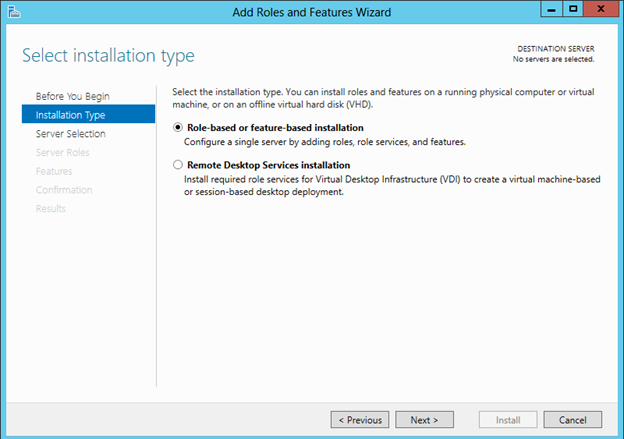
    3. Clustering Windows Server 2012 Step-By-StepChoose Role-based or feature-based installation
    4. Clustering Windows Server 2012 Step-By-StepChoose the server on which you wish to enable the failover cluster feature
      Clustering Windows Server 2012 Step-By-Step
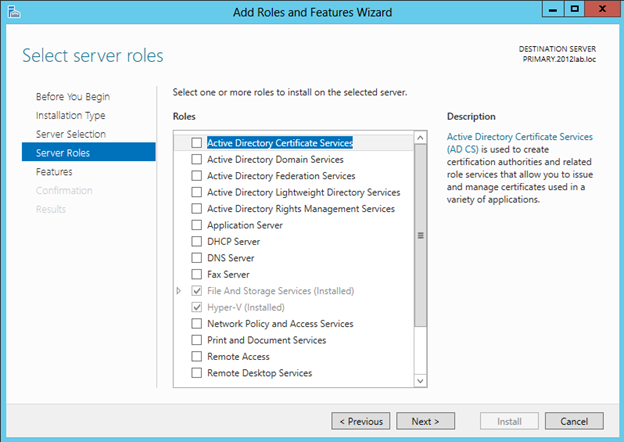
    5. Skip over the Server Roles page
      Clustering Windows Server 2012 Step-By-Step
    6. On the Features page select Failover Clustering and click Next and then confirm the installation
      Clustering Windows Server 2012 Step-By-Step
  2. Before we start configuring the cluster, we need to consider what kind of storage the cluster will use. Traditionally clusters will use some sort of SAN, but with Windows 2012 not all clusters will use a SAN. For instance, if you are building a cluster to support SQL Server AlwaysOn Availability Groups your storage will be replicated by SQL Server, eliminating the need for a SAN. Also, with SMB 3.0 being support as cluster storage for Hyper-V and SQL Server you may not have a traditional SAN for storage. And let’s not forget clustered Storage Spaces with shared SAS drives is also a possibility in Windows Server 2012. In addition to the options mentioned above, you also can use local disks and 3rd party host based replication solutions like DataKeeper Cluster Edition which is an excellent alternative which I blog about pretty frequently.For the purposes of this post to share about Clustering Windows Server 2012 , I am going to assume you have no shared storage. However, if you do have shared storage at this point you should configure you storage such that you have LUN(s) carved out and shared with each of the cluster nodes with one LUN being used as a disk witness and the remaining LUNs can be used for the application which you want to cluster. In lieu of a disk witness for our quorum, I am going to use a node and file share witness quorum type which I will explain later.
  3. Now that Failover Clustering is enabled on each server, you can open the Failover Cluster Manager on your PRIMARY server. The first thing we will want to do is to run “Validate Configuration” so we can identify any potential issues before we begin. Click on Validate ClusterClustering Windows Server 2012 Step-By-Step
  4. Step through the Validate a Configuration Wizard as shown in the following steps.
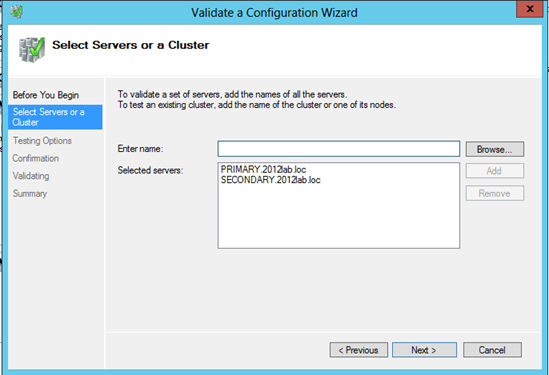
    1. Select the servers you want to cluster
      Clustering Windows Server 2012 Step-By-Step
    2. Run all tests (depending on what roles you have installed on the servers you may get more or less tests. For instance, if Hyper-V is enabled there are new Hyper-V specific tests for clusters)
      Clustering Windows Server 2012 Step-By-Step
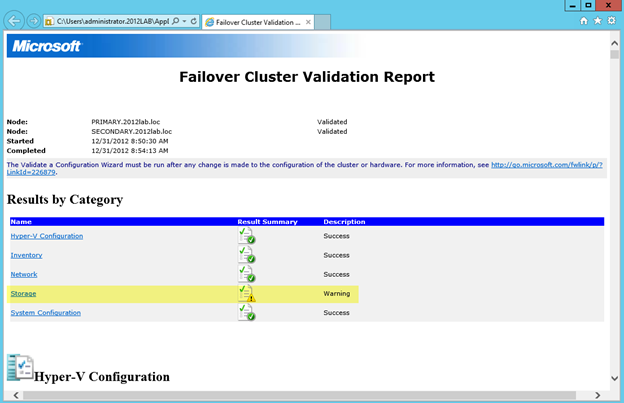
    3. Assuming your cluster “passed” validation you should have a report that looks similar to mine. You will notice that my report contains “warnings” but no errors. It is important for you to view the report and understand what warnings might be present, but you as long as you understand the warnings and they make sense for your particular environment you can move on. If you validation “failed”, you MUST fix the failures before moving on. Click View Report to view the report
      Clustering Windows Server 2012 Step-By-Step
    4. You will see all of my warnings are related to storage, so I am not concerned since I have not configured any shared storage, so I would expect some of these thests to produce warnings.
      Clustering Windows Server 2012 Step-By-Step


  1. Once Validation completes without any errors, you will automatically be thrown into the Create Cluster Wizard. Walk through this wizard as shown below to create your basic cluster.
    1. In this first screen you will choose a name for your cluster and pick an IP address that will be associated with this name in DNS. This name is just the name used to manage your cluster – this is NOT the name that your clients will use to connect to the clustered resource(s) you will eventually create. Once you create this access point a new computer object will be created in AD with this name and a DNS A record will be created with this name and IP address.
      Clustering Windows Server 2012 Step-By-Step
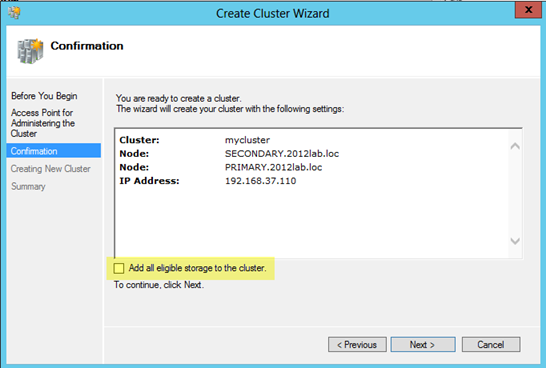
    2. On the confirmation screen you will see the name and IP address you selected. You will also see an option which is new with Windows Server 2012 failover clustering…”Add all eligible storage to the cluster”. Personally I’m not sure why this is selected by default, as this option can really confuse things. By default, this selection will add all shared storage (if you have it configured) to the cluster, but I have also seen it add just local, non-shared disks, to the cluster as well. I suppose they want to make it easy to support symmetric storage, but generally any host based or array based replication solutions are going to have some pretty specific instructions on how to add symmetric storage to the cluster and generally this option to add all disks to the cluster is more of a hindrance than a help when it comes to asymmetric storage. For our case, since I have no shared storage configured and I don’t want the cluster adding any local disks to the cluster for me automatically I have unchecked the Add all eligible storage to the cluster option.Clustering Windows Server 2012 Step-By-Step
    3. After you click next you will see that the cluster has finished the creation process, but there may be some warnings. In our case the warnings are probably related to the quorum configuration which we will take care of in the next step. Click View Report to check out any warnings.
      Clustering Windows Server 2012 Step-By-Step
      You see that the warning is telling use to change the quorum type.

      Clustering Windows Server 2012 Step-By-Step
  2. Because we have no shared storage, we will not be using a Node and Disk Majority quorum as suggested. Instead, we will use and Node and File Share Majority quorum. The following steps will help us configure the Node and File Majority Quorum
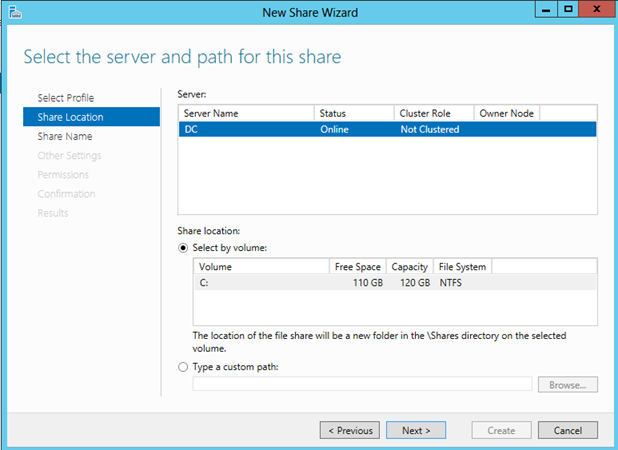
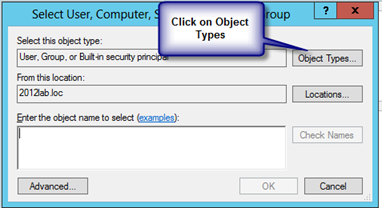
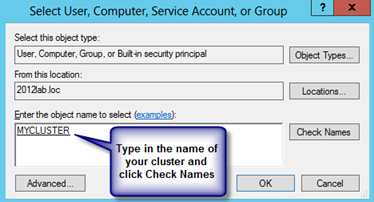
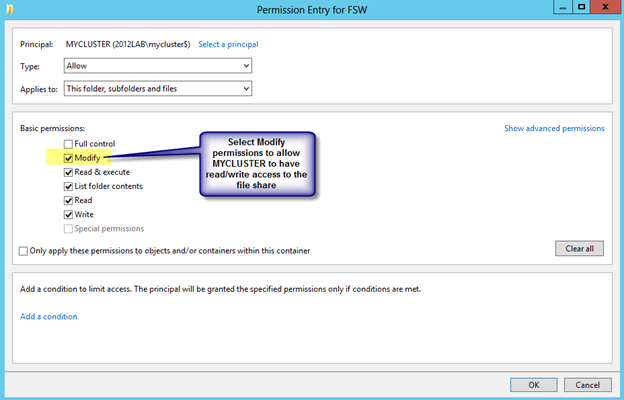
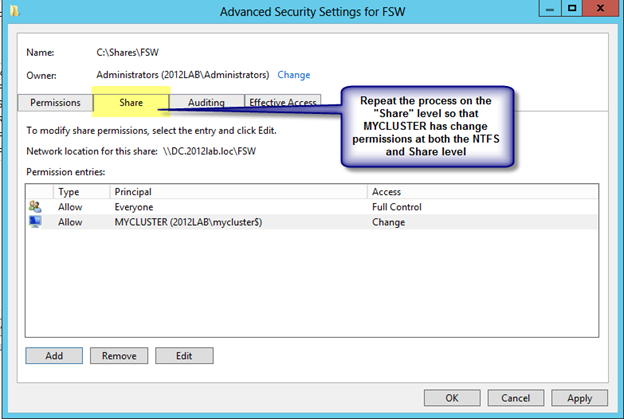
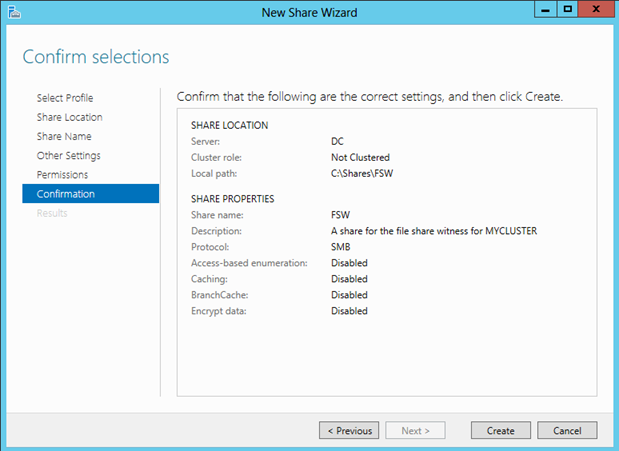
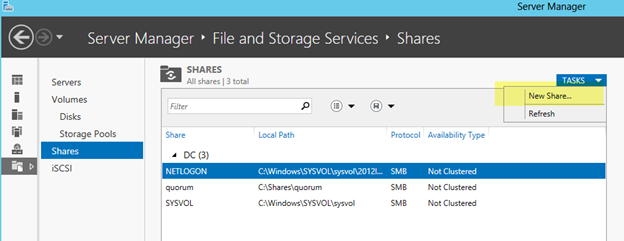
    1. A File Share Witness needs to be configured on a server that is not part of the cluster. A file share witness is a basic file share that the cluster computer name (MYCLUSTER in our case) has read/write access. The first step involves creating this file share. In our example, we are going to create a file share on our DC and give MYCLUSTER read/write access to it.
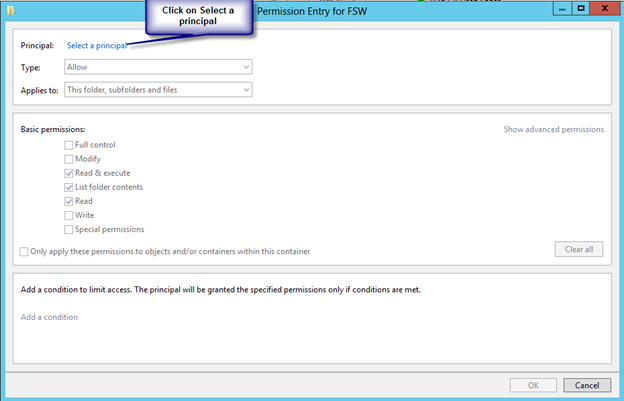
    2. The file share does not need to reside on a Windows 2012 server, but it does need to be on a Windows Server in the same domain as the cluster. The important thing to remember is that the cluster computer name that we created needs read/write access at both the share level and NTFS level. The following are some screen shots that walk you through this process on the DC server which is running Windows Server 2012 in my lab.
      Clustering Windows Server 2012 Step-By-Step

      Clustering Windows Server 2012 Step-By-Step

      Clustering Windows Server 2012 Step-By-Step

      Clustering Windows Server 2012 Step-By-Step

      Clustering Windows Server 2012 Step-By-Step
      Clustering Windows Server 2012 Step-By-Step

      Clustering Windows Server 2012 Step-By-Step
      Clustering Windows Server 2012 Step-By-Step

      Clustering Windows Server 2012 Step-By-Step

      Clustering Windows Server 2012 Step-By-Step

      Clustering Windows Server 2012 Step-By-Step

      Clustering Windows Server 2012 Step-By-Step
      Clustering Windows Server 2012 Step-By-Step

      Clustering Windows Server 2012 Step-By-Step

      Clustering Windows Server 2012 Step-By-Step

      Clustering Windows Server 2012 Step-By-Step

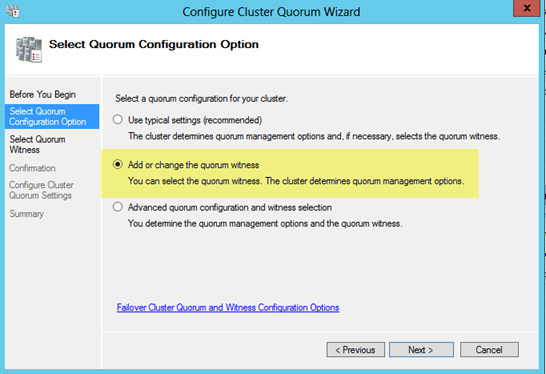
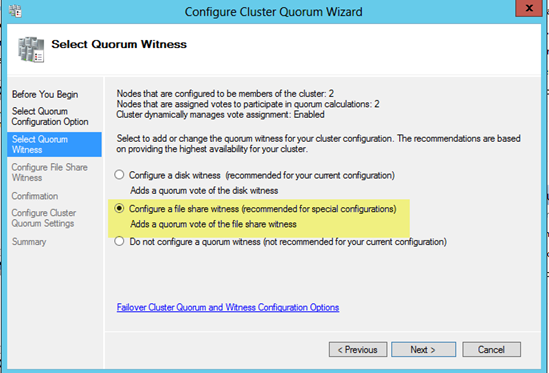
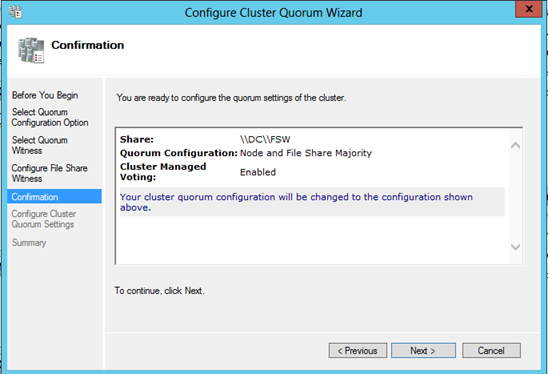
    3. Now that we have the file share created on DC, we will go back to PRIMARY and use the Failover Cluster Manager to change the quorum type as shown in the following steps.
      Clustering Windows Server 2012 Step-By-Step
      Clustering Windows Server 2012 Step-By-Step
      Clustering Windows Server 2012 Step-By-Step
      Clustering Windows Server 2012 Step-By-Step
      Clustering Windows Server 2012 Step-By-Step
      Clustering Windows Server 2012 Step-By-Step
      If by chance this wizard fails, it is most likely related to the permissions on the file share. Make sure you give the cluster computer name read/write permissions at BOTH the file share and security (NTFS) level and try again.
  3. You now have a basic 2-node cluster and are ready to move on to the next step of series Clustering Windows Server 2012 which is creating your cluster resources. I will be publishing a series of articles on how to cluster different resources, starting with SQL 2012 in my next post.

Reproduced with permission from https://clusteringformeremortals.com/2012/12/31/windows-server-2012-clustering-step-by-step/

Filed Under: Clustering Simplified, Datakeeper Tagged With: Clustering, clustering windows server, failover, Windows Server 2012

New Features of Windows Server Failover Clustering

February 3, 2018 by Jason Aw Leave a Comment

New Features of Windows Server Failover Clustering

Elden Christensen recently blogged about some of the new features of Windows Server Failover Clustering in Windows Server 8. You can read the entire post here

All of these features found in Windows Server Failover Clustering in Windows Server 8 are welcome additions. My personal favorite is the “Dynamic Clusters” or what I think is probably better described as “Dynamic Quorum”. It basically allows the quorum to reconfigure itself dynamically which I think is a fantastic feature! If configured properly, you could actually withstand the failure of all but one remain node (last man standing) and still have a functional cluster. Previously this was only possible if you used the “Disk Only” quorum model, which is not recommended as the disk quorum represented a single point of failure.

With the new dynamic quorum model as nodes are removed from the cluster, the remaining nodes reconfigure themselves in the most resilient manner. For example, previously you had a 5 node cluster using the “Node Majority” quorum model. If you lose three nodes, the remaining two nodes would shut down as they no longer had a majority vote (2 out of 5 is not a majority). With the new model, as nodes leave the cluster, the quorum reconfigures itself so that the remaining two nodes would remain online.

The description above is really an over simplification of what actually happens under the covers. I plan to write more about it in the future, but it is definitely a welcome feature to check out!

For More Information

There are a few other blog articles relevant to Windows Server Failover Clustering you should refer to

How to Enable Failover Clustering and Network Load Balancing PowerShell Help on Windows Server “8”:

http://blogs.msdn.com/b/clustering/archive/2012/03/21/10286213.aspx

How to Enable CSV Cache:

http://blogs.msdn.com/b/clustering/archive/2012/03/22/10286676.aspx

How to Create a Cluster in a Restrictive Active Directory Environment:

http://blogs.msdn.com/b/clustering/archive/2012/03/30/10289577.aspx

Reproduced with permission from Clusteringformeremortals


Filed Under: Clustering Simplified Tagged With: Clustering, failover, failover cluster, failover clustering, Windows Server 8, Windows Server Failover Clustering

Windows Server 8 Developer Preview Do Not Support Hyper-V Role While…

February 1, 2018 by Jason Aw Leave a Comment

… Running On VMware Workstation (At Least On My Laptop)

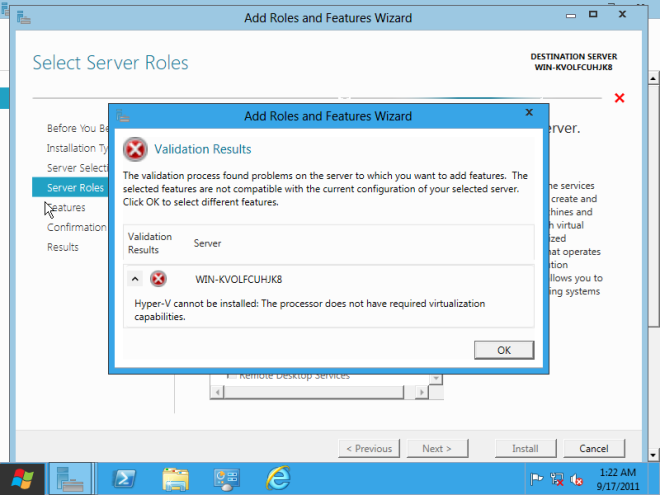
Unless someone knows a trick that I don’t, it doesn’t appear as if I will be able to test out some of the Hyper-V clustering features unless I identify actual hardware for Windows Server 8. I hoped VMware Workstation 8 would be able to fool Windows 8 into thinking it was actually a physical server, but so far no dice. This article appears to indicate it will work on an Intel Nehalem or Intel Core i7 processor, but my two year old Intel Core 2 Duo T9500 doesn’t seem to be able to do the trick.

I added the hypervisor.cpuid.v0 = “FALSE” to the config file and I changed the CPU settings to use Intel VT –x/EPT as shown below.

Windows Server 8 Developer Preview Will Not Support The Hyper-V Role While...

But when I try to enable the Hyper-V role on Windows Server 8…

Windows Server 8 Developer Preview Will Not Support The Hyper-V Role While...

Maybe it is time for a new laptop?

Reproduced with permission from https://clusteringformeremortals.com/2011/09/17/windows-server-8-developer-preview-will-not-support-the-hyper-v-role-while-running-on-vmware-workstation%E2%80%A6at-least-on-my-laptop/

Filed Under: Clustering Simplified Tagged With: Clustering, Hyper V, VMware, VMware Workstation 8, Windows Server 8

Failover Clustering & Hyper-V: Multi-Site Disaster Recovery

January 31, 2018 by Jason Aw Leave a Comment

Here is a great video from a friend of mine and former MVP Cluster Lead, Symon Perriman. It looks like he is enjoying his new job as Microsoft product evangelist.

Video: Failover Clustering & Hyper-V: Multi-Site Disaster Recovery

http://technet.microsoft.com/en-us/edge/Hh133452

Reproduced with permission from https://clusteringformeremortals.com/2011/05/11/failover-clustering-hyper-v-multi-site-disaster-recovery/

Filed Under: Clustering Simplified Tagged With: cluster, Clustering, failover clustering, Hyper V, Microsoft, Multi-Site Disaster Recovery

IT Business Edge: The Cloud and the Enterprise: Which Needs the Other More?

December 15, 2014 by <a href="http://www.itbusinessedge.com/authors/375710/arthur-cole">Arthur Cole</a> Leave a Comment

Ever since the cloud burst onto the IT consciousness, the primary focus of most organizations has been to prepare for this new data paradigm. The thinking has been that the enterprise needs to be ready for the cloud or risk being left behind.

Lately, however, we’ve seen a subtle shift in attitude on the part of both the enterprise and the nascent cloud industry: It’s not the enterprise that needs to adapt to the cloud, but the cloud that needs to adapt to the enterprise. Across the board, from the large players like Amazon and Google to smaller ones like CloudSigma and DigitalOcean, the goal has shifted from providing the commodity resources that appeal to consumers to more specialized offerings that the enterprise values.

To be sure, there is no shortage of enterprise interest in the cloud already. According to IDG, nearly 70 percent of organizations today utilize cloud-based infrastructure or applications in some way, and IT spending on the cloud is currently averaging about 20 percent growth per year. The thing is, the vast majority of that activity consists of low-level workloads and bulk storage applications that generally go to the lowest bidder, which is usually one of the hyperscale players that can shave margins to the bone and still turn out a decent profit.

The real money in the enterprise can be found in higher-level, mission-critical services, and this is where the cloud has fallen short so far. A key cloud requirement for the enterprise is the support of mobile applications, which tend to feature more collaborative and data-sharing capabilities than standard workplace apps. However, according to a recent report from Netskope, nearly 90 percent of mobile-facing cloud apps are deemed unfit for the enterprise, primarily because they lack proper security and data protection. Indeed, more than one-third of all data policy violations are now taking place on smartphones and tablets, which is a testament to the growing popularity of these devices in the enterprise but also to the fact that they pose a substantial risk to vital data.

To gain mission-critical business from the enterprise, cloud providers will have to answer three questions, says SIOS Technology Corp.’s Jerry Melnick. First, how can they provide high availability and disaster protection without shared storage clusters? Second, will HA and DR capabilities inhibit the flexibility that the cloud is supposed to provide? And third, can the cloud support critical apps and data without adding risk, complexity and performance overhead? One possible solution to all this is the SANless cluster, which provides the failover and synchronization that the enterprise requires but on a more efficient software footing suitable for cloud infrastructure.

Cloud Strategy

Of course, the question of mission-critical support is also the reason why so many organizations are bent on the deployment of hybrid cloud solutions. This is seen as a lifeline to leading platform providers like Hitachi Data Systems, which otherwise face a steadily diminishing market as cloud providers increasingly turn to commodity hardware solutions. With a hybrid cloud, the enterprise still maintains a fair amount of internal data infrastructure, some of which will require specialized hardware that provides the security and availability on which the enterprise has come to rely. In this way, the public cloud acts as a template for what the enterprise can do privately, with an entire class of systems and services designed to bridge the two sides to form a singular, integrated environment.

Still, as Robert Burns wrote: “The best laid schemes o’ mice an’ men / Gang aft a-gley.” (Oft go awry, for those whose Scots dialect is a little rusty.) Right now, the entire data center industry is in a state of flux, and cloud providers are keenly aware of the need to tap into the lucrative enterprise market. This is certainly an opportunity for traditional enterprise vendors, but it also serves the new generation of startups that are not quite so interested in preserving the status quo.

Arthur Cole writes about infrastructure for IT Business Edge. Cole has been covering the high-tech media and computing industries for more than 20 years, having served as editor of TV Technology, Video Technology News, Internet News and Multimedia Weekly. His contributions have appeared in Communications Today and Enterprise Networking Planet and as web content for numerous high-tech clients like TwinStrata, Carpathia and NetMagic.

Filed Under: News and Events, News posts Tagged With: #SANLess, Cloud, Clustering, Clusters Your Way, Hybrid Cloud, News, SANLess Clustering

  • « Previous Page
  • 1
  • …
  • 4
  • 5
  • 6
  • 7
  • Next Page »

Recent Posts

  • With Great Power: Cluster Maintenance Best Practices
  • AI Is Moving Fast. Critical Applications Still Need to Stay Up.
  • What Is High Availability (HA)?
  • Surviving the Friday Night Crash: From Scrappy Bare Metal to Seamless Data Replication
  • Grounded: What Missing Percona Live Amsterdam Taught Me About HA

Most Popular Posts

Maximise replication performance for Linux Clustering with Fusion-io
Failover Clustering with VMware High Availability
create A 2-Node MySQL Cluster Without Shared Storage
SAP for High Availability Solutions For Linux
Bandwidth To Support Real-Time Replication
The Availability Equation – High Availability Solutions.jpg
Choosing Platforms To Replicate Data - Host-Based Or Storage-Based?
Guide To Connect To An iSCSI Target Using Open-iSCSI Initiator Software
Best Practices to Eliminate SPoF In Cluster Architecture
Step-By-Step How To Configure A Linux Failover Cluster In Microsoft Azure IaaS Without Shared Storage azure sanless
Take Action Before SQL Server 20082008 R2 Support Expires
How To Cluster MaxDB On Windows In The Cloud

Join Our Mailing List

Copyright © 2026 · Enterprise Pro Theme on Genesis Framework · WordPress · Log in